Creating displays, publicity & certificates
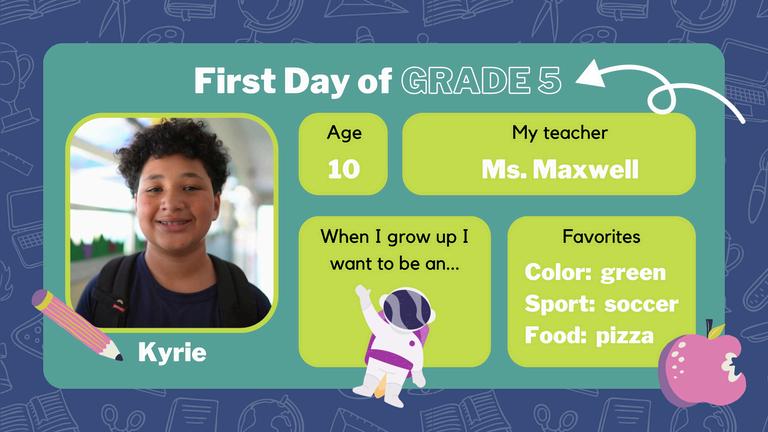
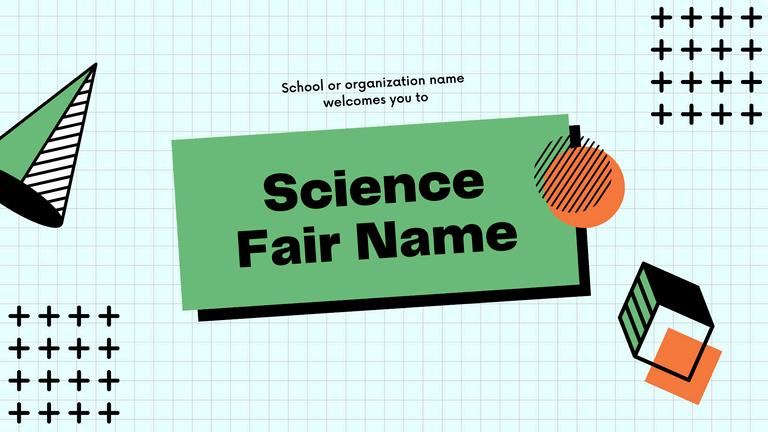
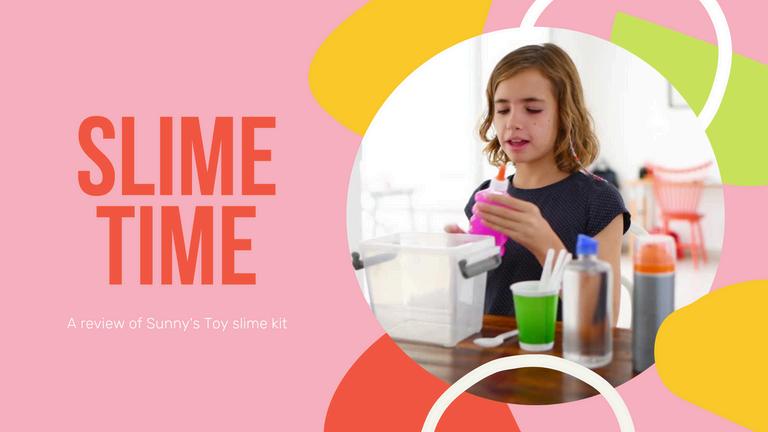
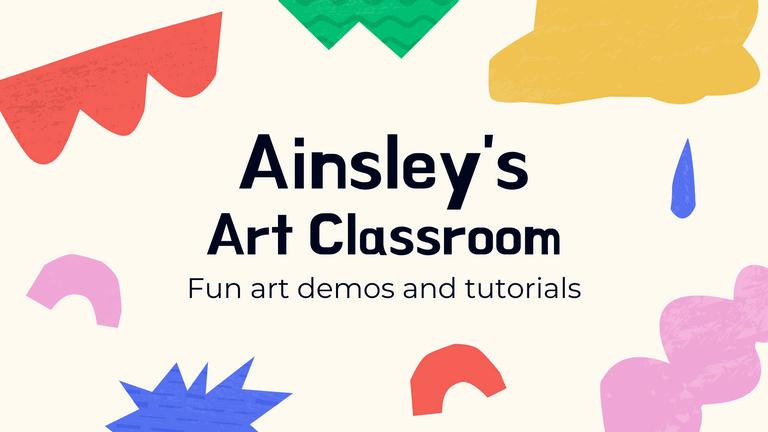


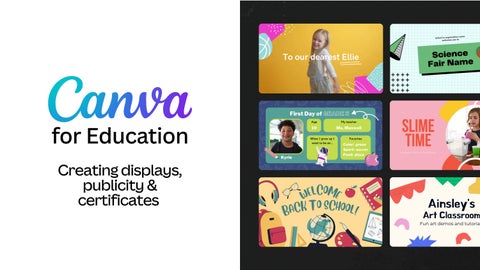
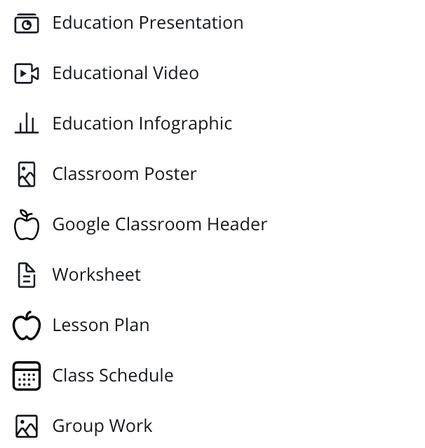
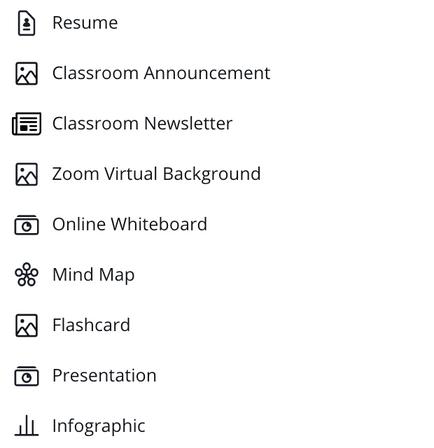
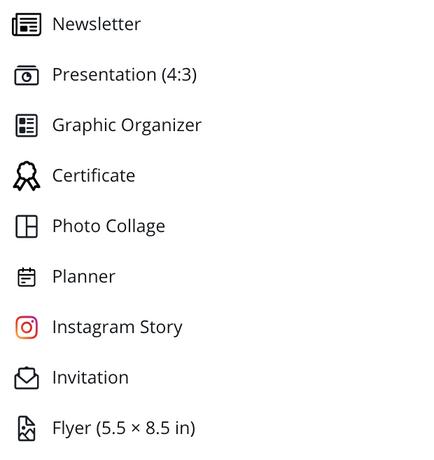
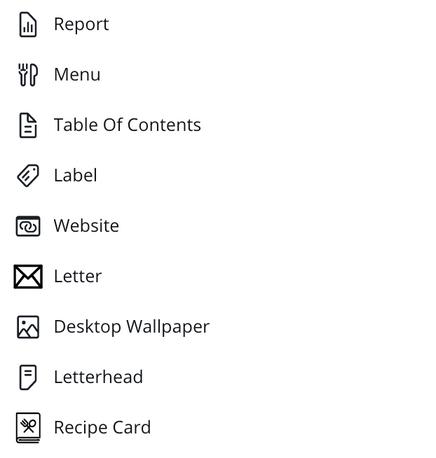
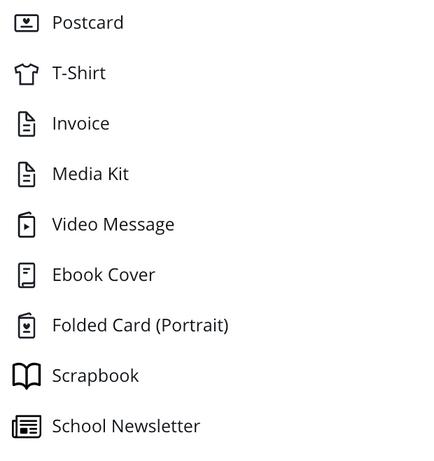
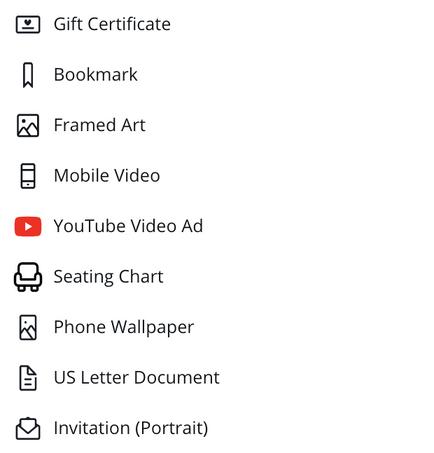
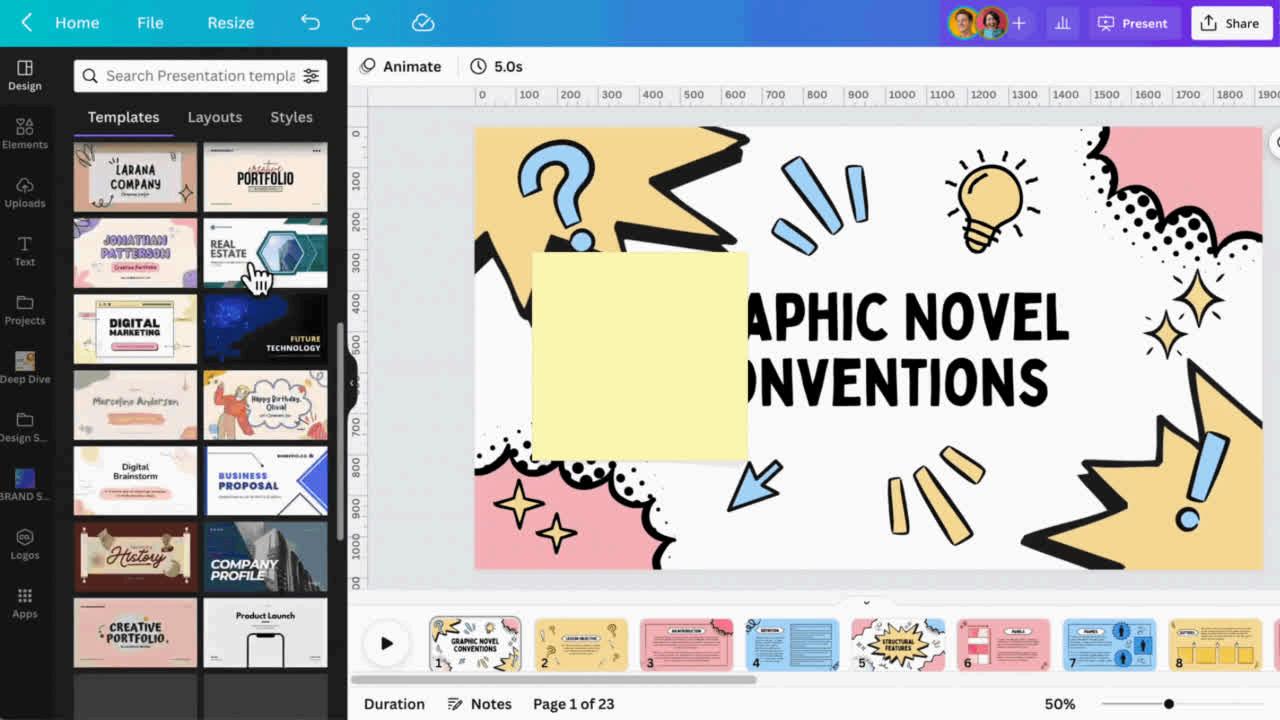
Pre- made, editable design templates
AI features
Creating a poster
Create certificates through bulk create
Exploring Canva education resources
Option 1: Start from scratch
Each down
Find t inside

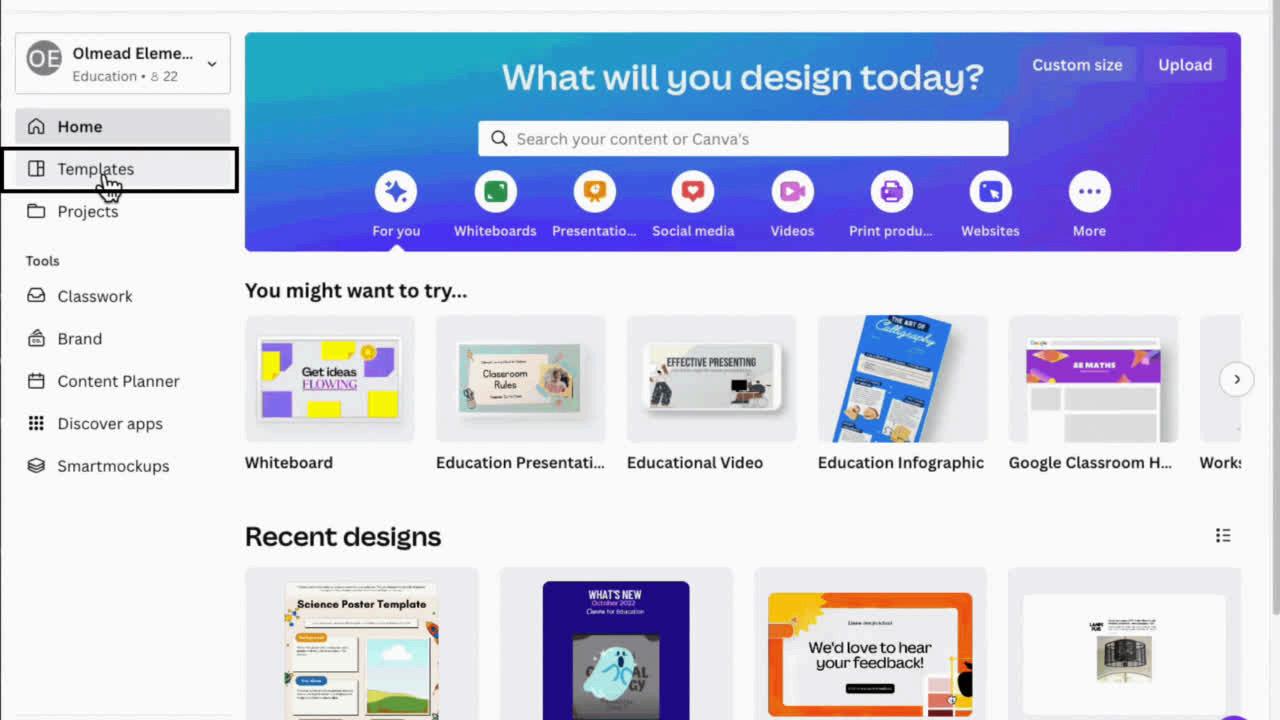
Search 'sports club poster’ in design tab under templates
Apply school style and logo
Edit details (time, location, etc.)
Let’s create Let’s create
Each school’s brand colours and fonts are preloaded Logos can be found in L Drive and uploaded in the side bar nav
Access the brand kit: https://www.canva.com /brand/kAGp4Cc-Hn8
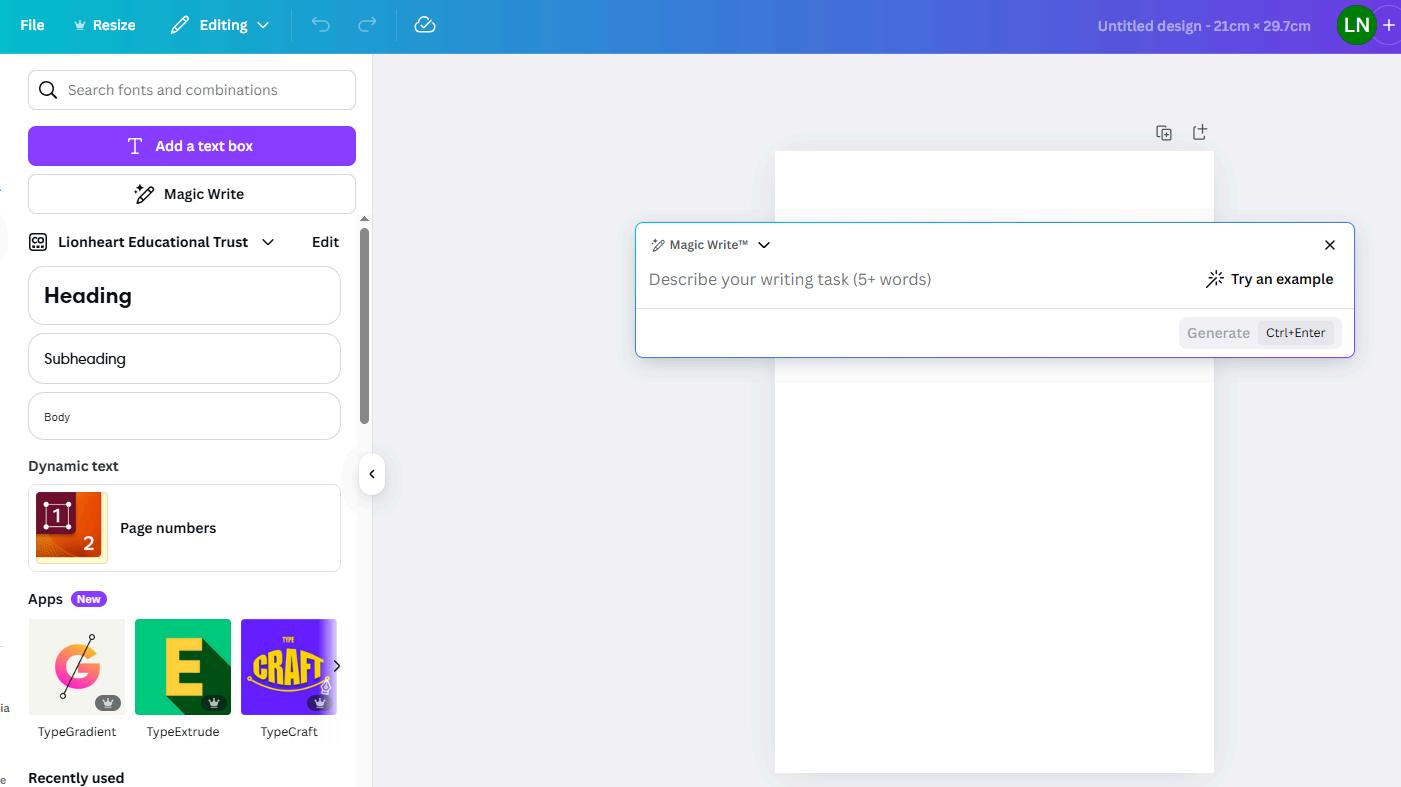
Create catchy headlines, event descriptions, award titles
Use directly in Designs or in other docs or social media posts
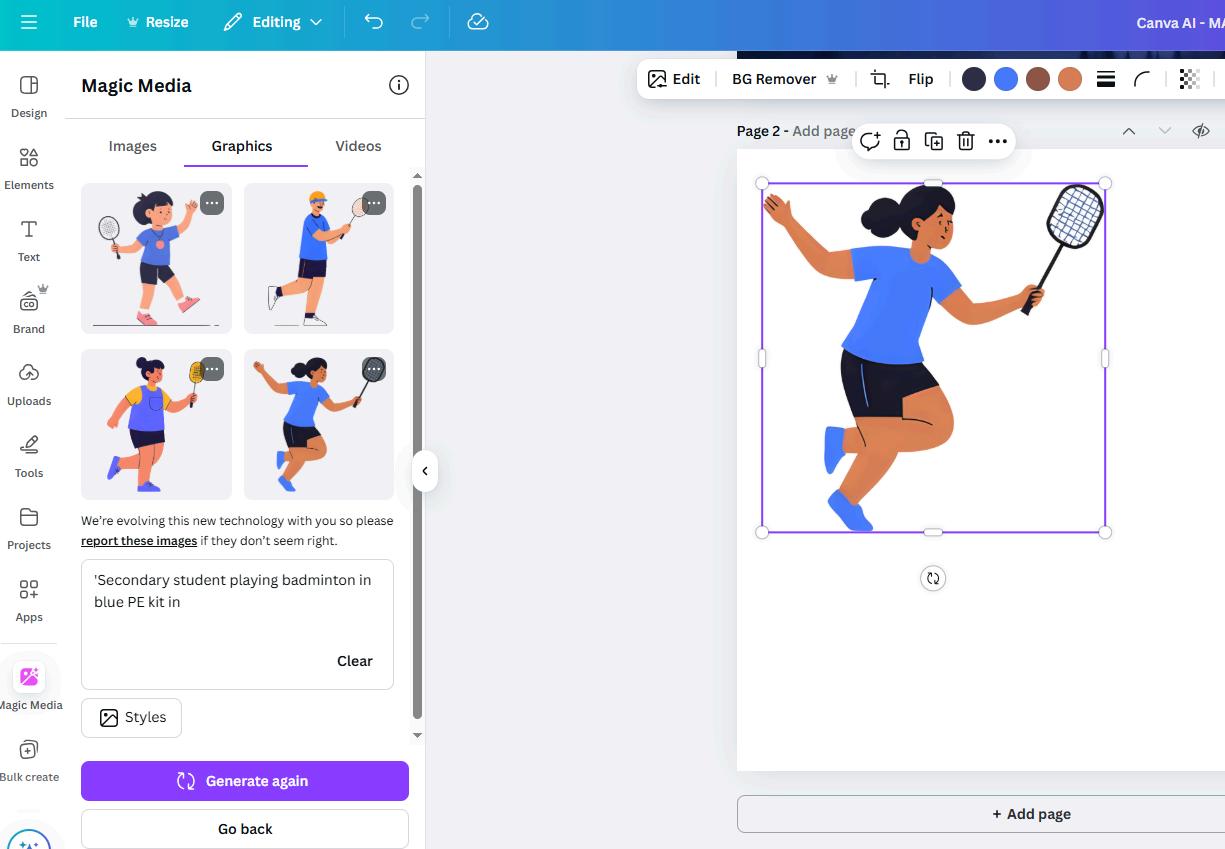
Generate images/graphics from text prompts
Example: 'Secondary student playing badminton in blue PE kit'
Choose from different styles: watercolor, 2D, long exposure etc.
Want to add a sign up link?
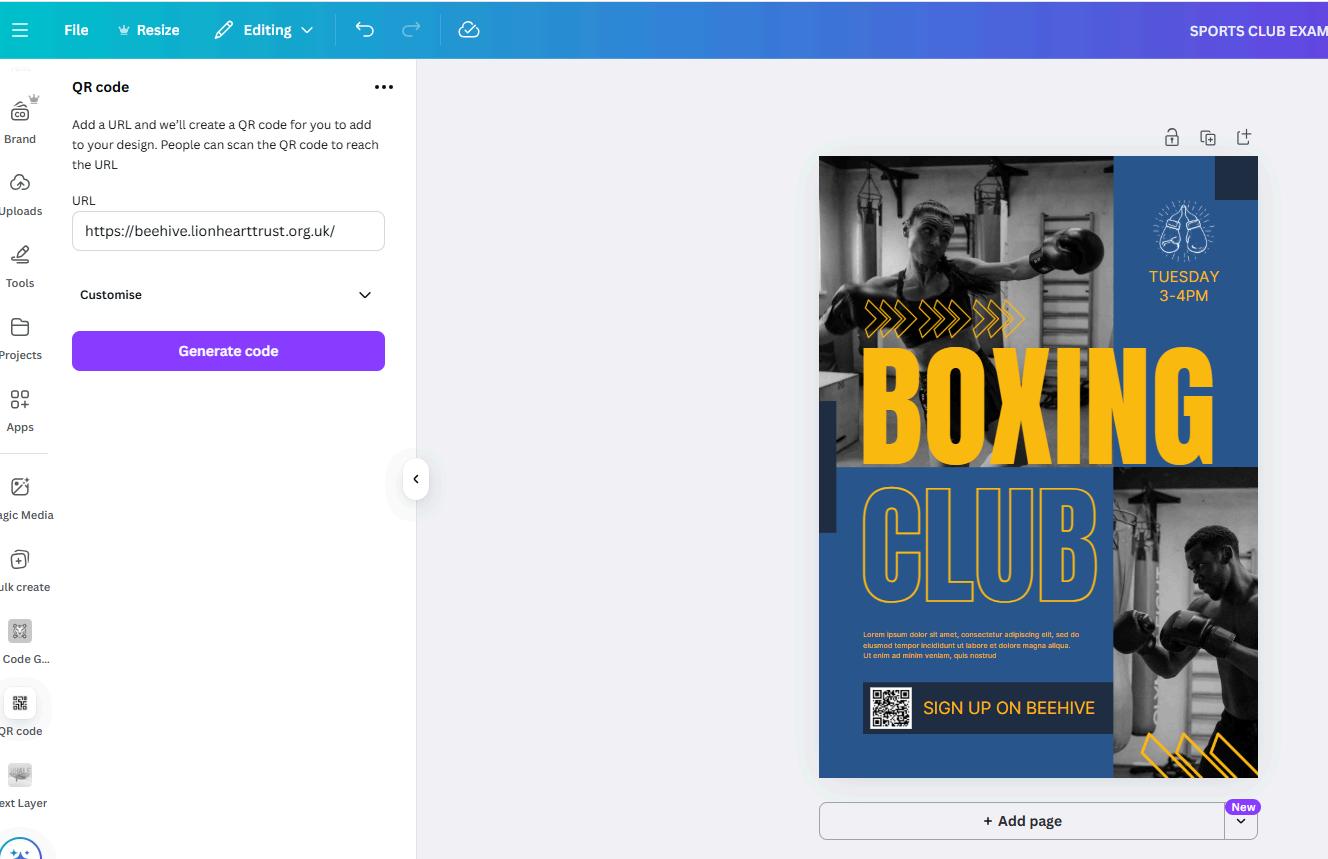
Go to Apps in side bar > open
QR Code
Paste link (e.g., Beehive sign-up)
Add to your poster - resize as needed
Great for staff events, parent sign up, ticket source etc.
Option 2: Canva AI in side bar
Prompt: 'Create a vibrant poster for a school science fair'
Choose a design and customise
Update with Styles to match school branding
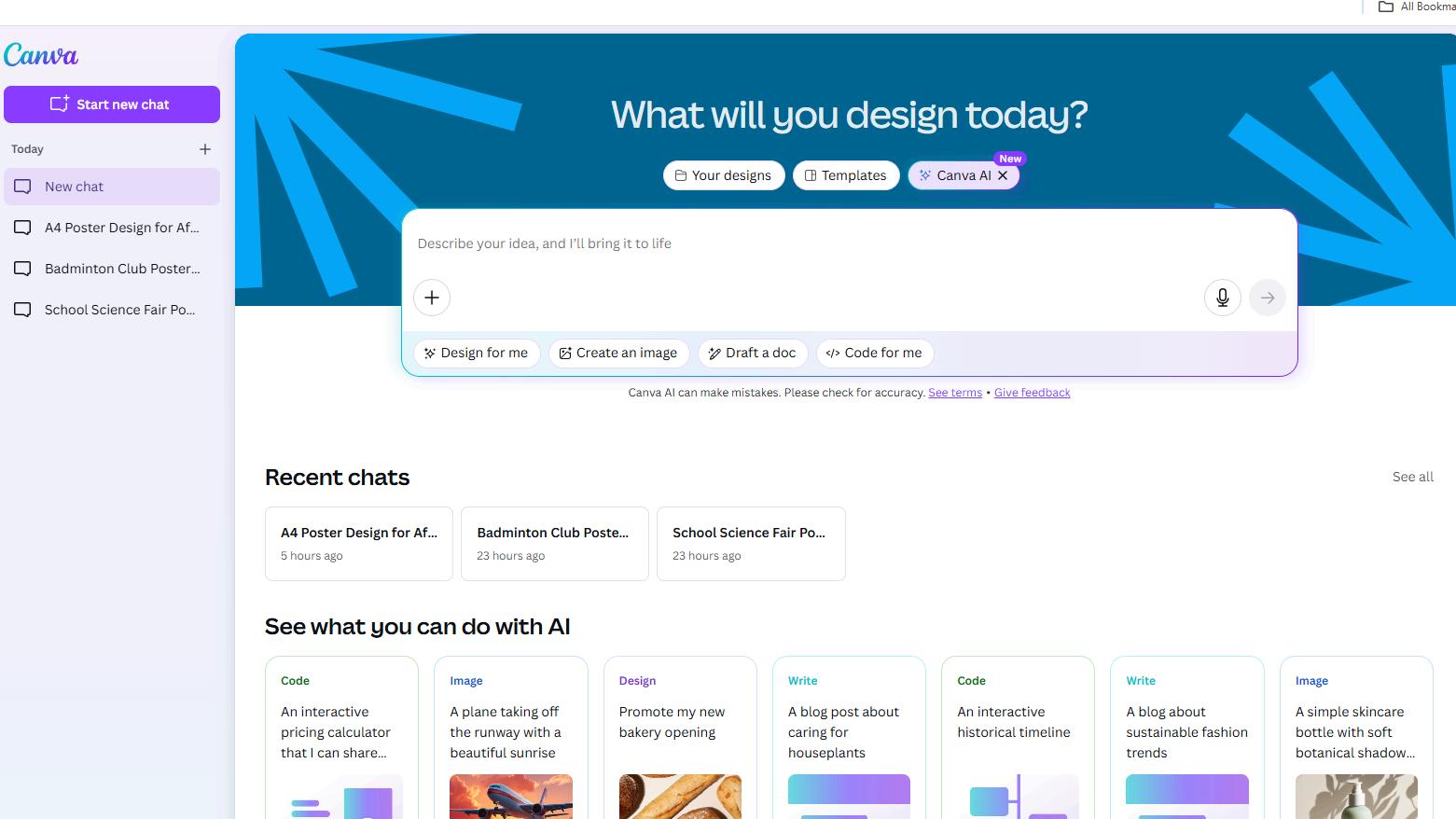
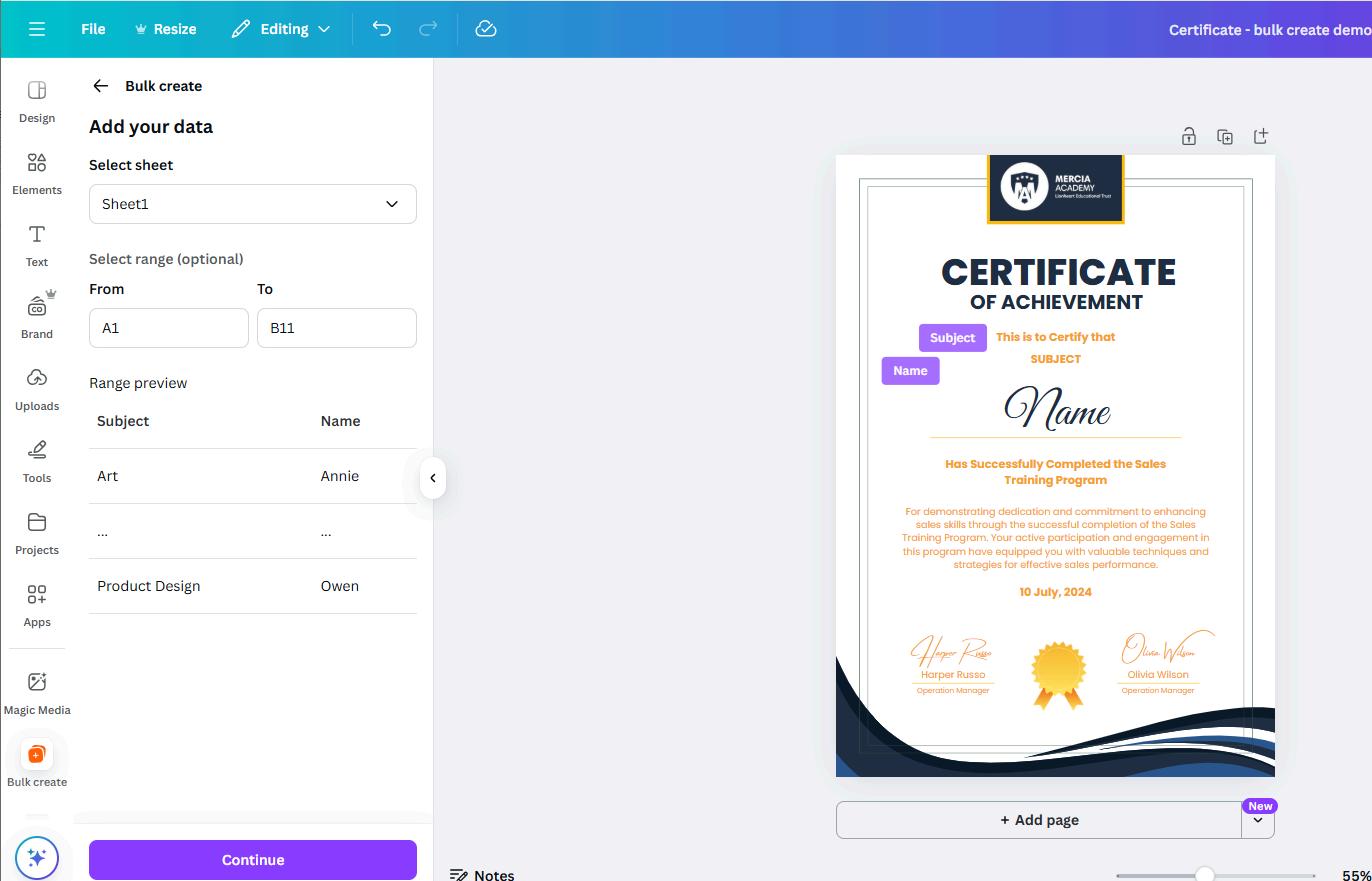
Bulk Create Mail merge for certificates, name tags, labels
Use a CSV with student names and awards
Link fields to text boxes in your design
Prepare your data (CSV or Google Sheets)
Open/create your Canva design
Access Bulk Create from Apps
Upload and link data to text box in your design
Generate and download designs
Let’s create Let’s create
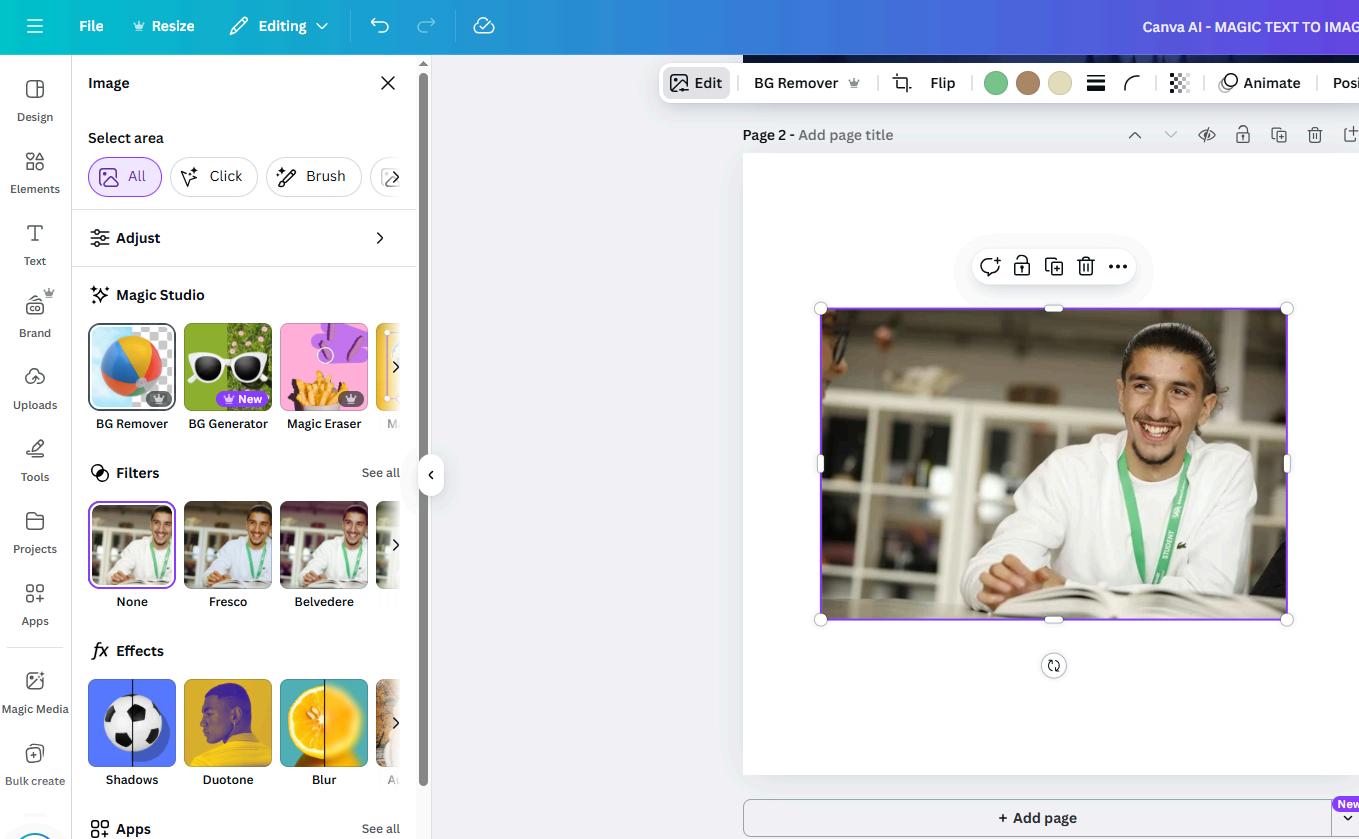
Explore Magic studio for simple edits such as:
Removing the background Adding a filter Adding a drop shadow or Magic expand!
Click the three dots to keep your uploads & elements organised with folders. Tip
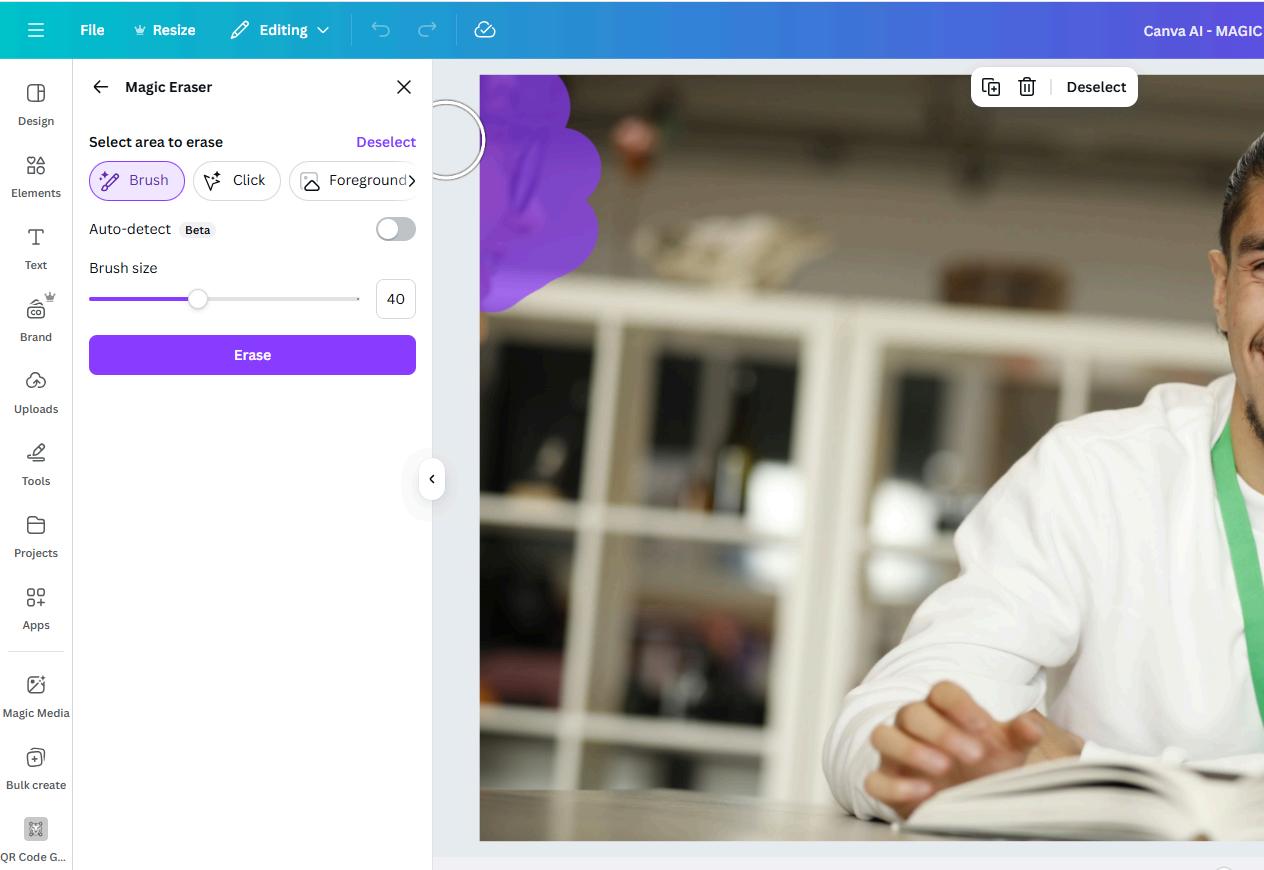
or erasing elements from a photo with Magic Eraser.
Same principal as Magic Media
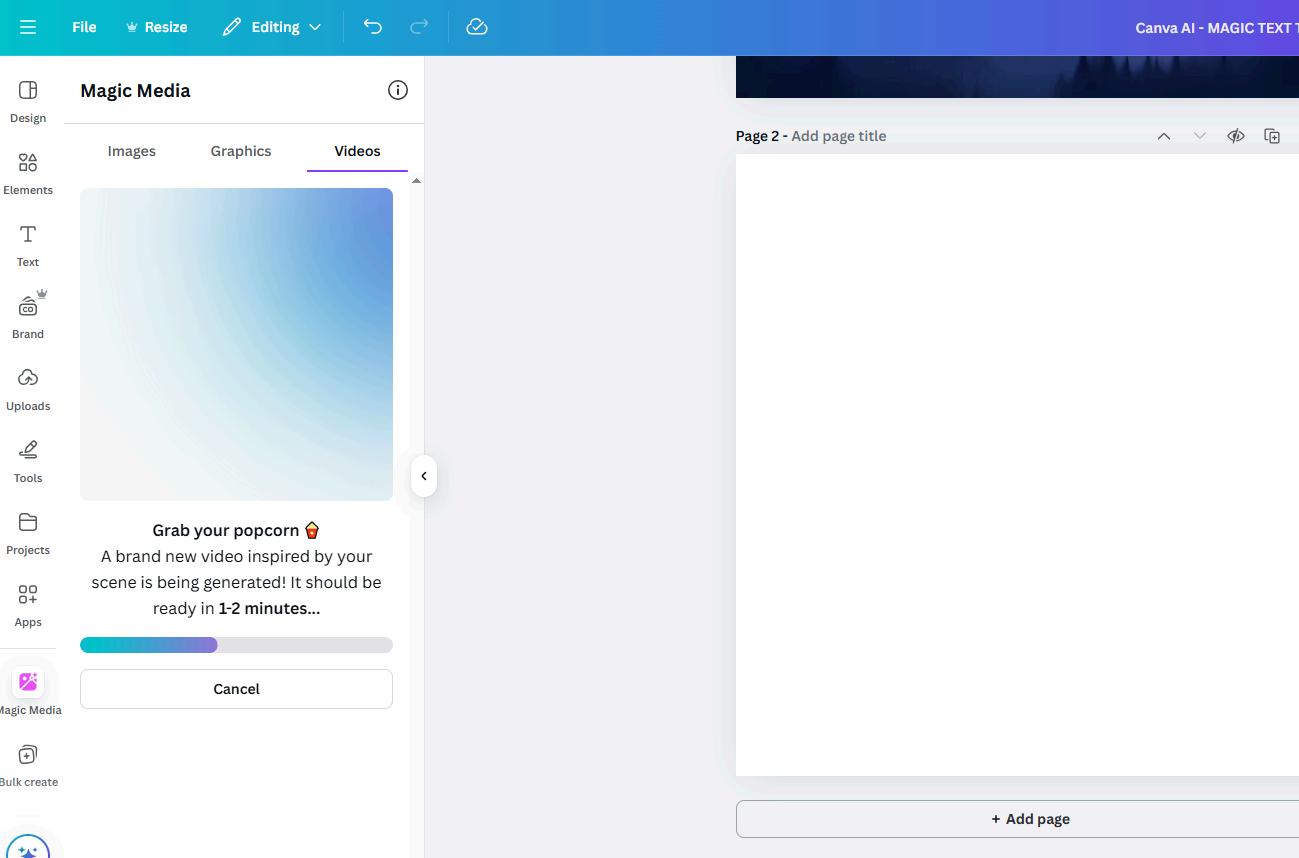
Create a short video from text prompts
Example: After school sports club playing football
Upload files from your computer with a simple click or Connect an account to upload media. You can add images, videos or audio.
Don't forget that you can also record yourself via the uploads tab.
Click the three dots to keep your uploads & elements organised with folders. Tip
Keep it simple – Don't overload with too much text or too many images.
Use easy-to-read fonts – Stick to one or two fonts that are clear and readable. Give your design space – Don’t put things too close to the edges; let them "breathe."
Choose colours that work well together – Too many colours can look messy.
Check readability – Light text on a dark background or dark text on a light background works best.
Keep things lined up – Straight lines and balanced spacing make designs look polished.
Then you’ll read this. And you’ll read this one last.
Then if you have any time left at the end you might think about reading this last section - but you will probab y just skim over the text.
Make important things stand out – Use bigger text or bold colours for key details.