isanall-in-onevisual communication platform.



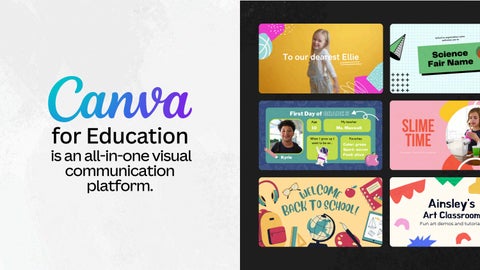
isanall-in-onevisual communication platform.






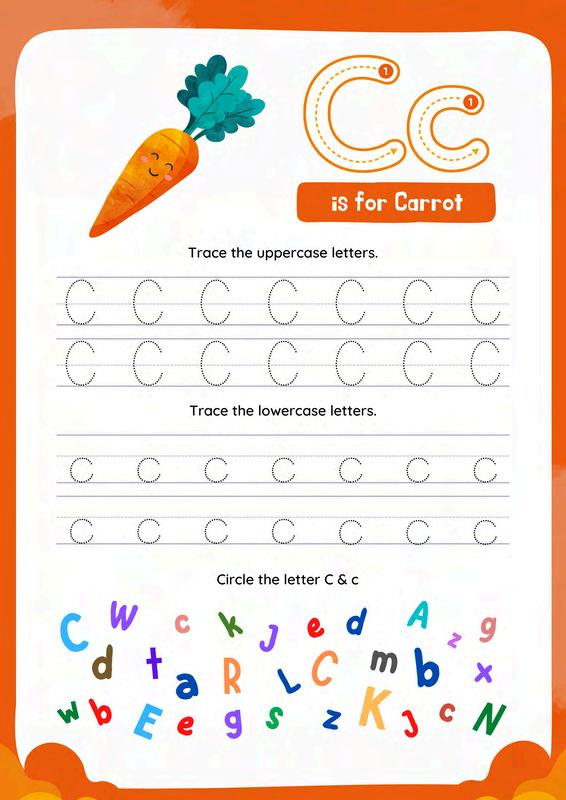


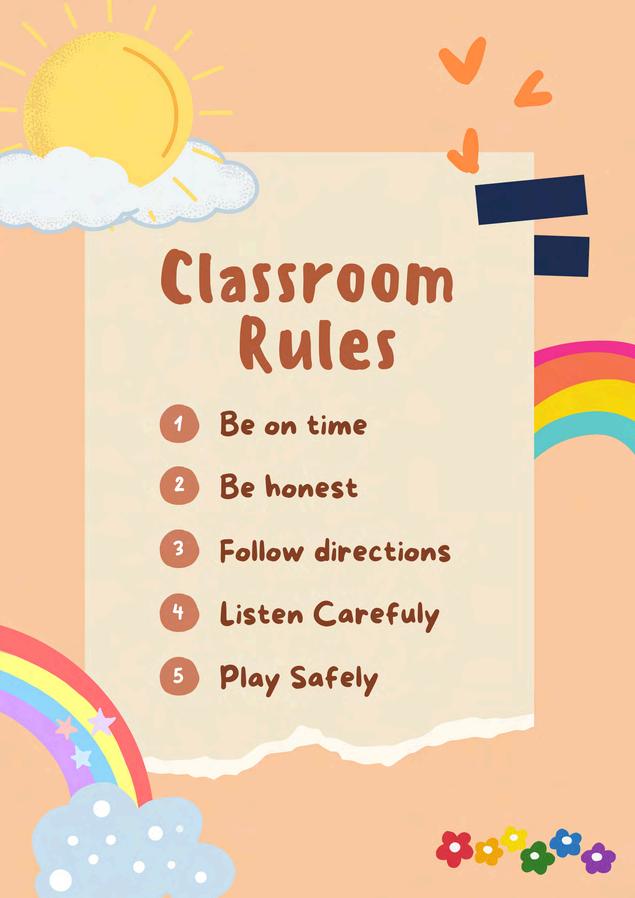

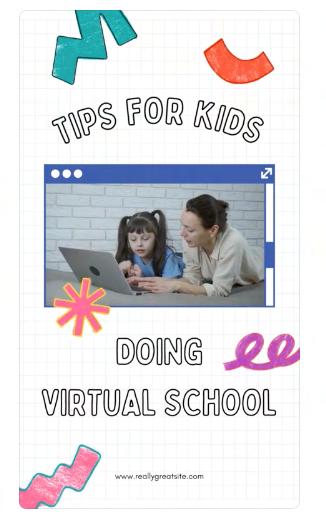
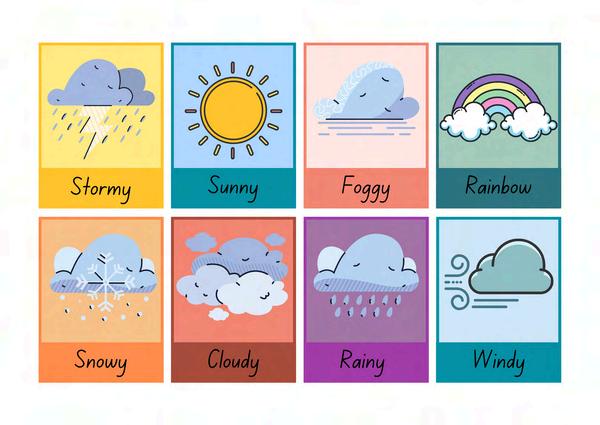
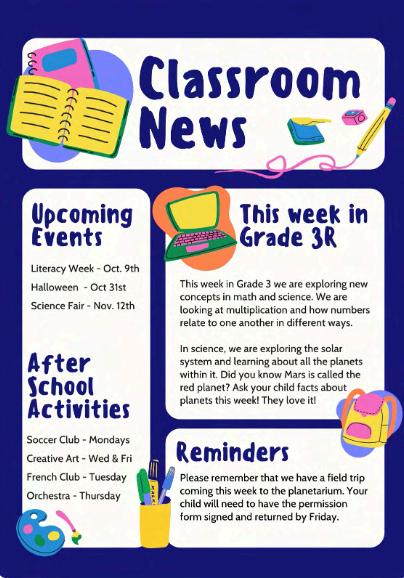
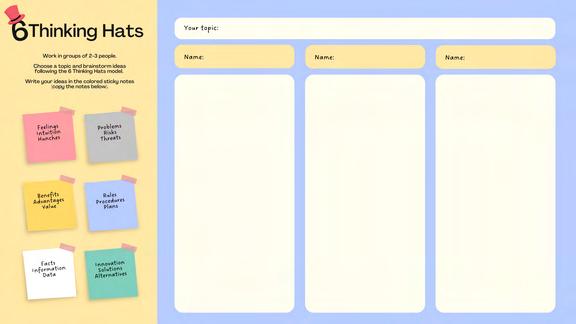
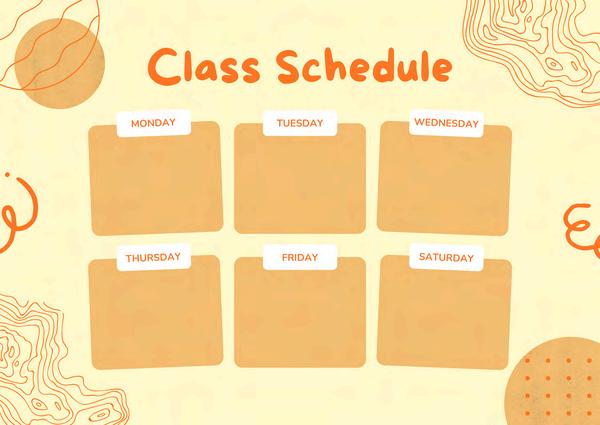
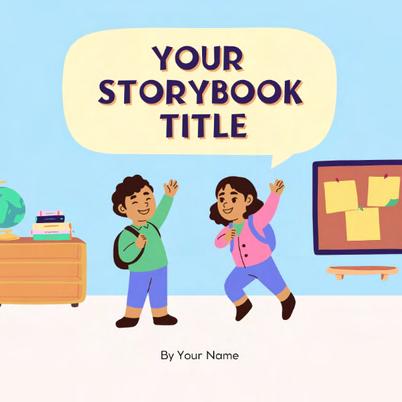
Brainstorm Graphic organiser Group work
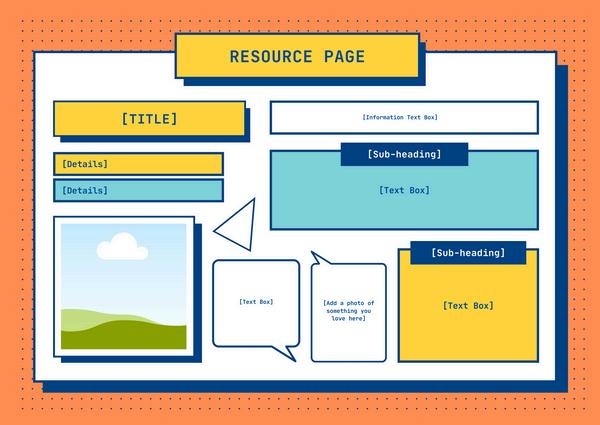
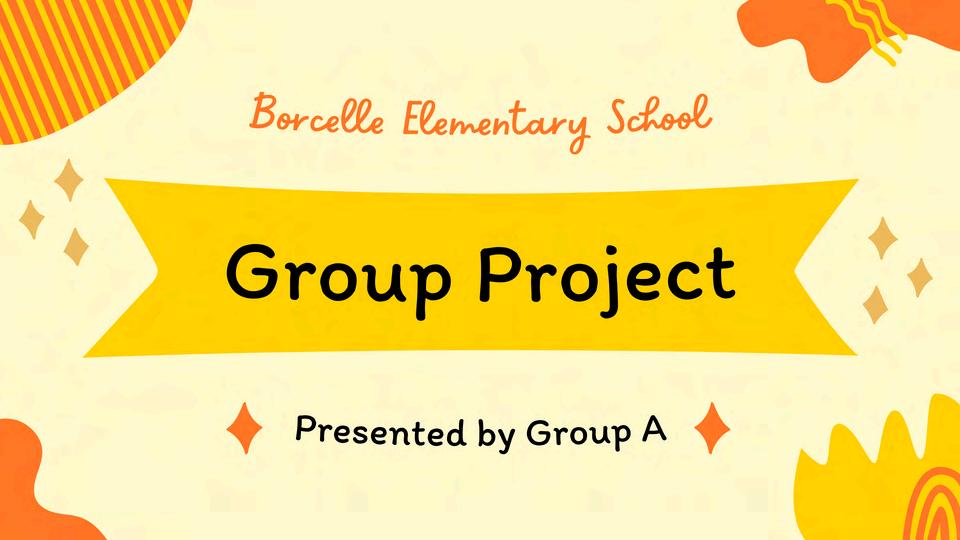
Game presentations Storyboards Group projects
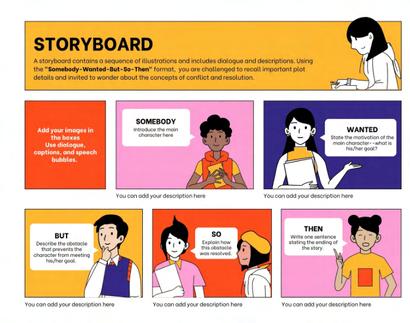
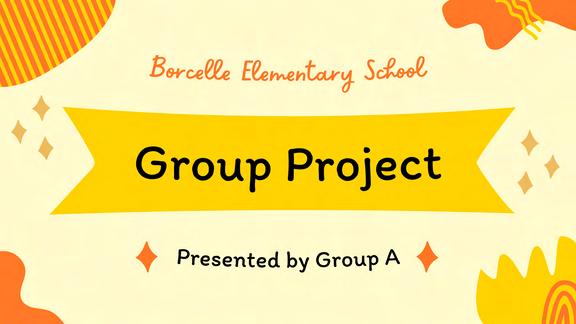

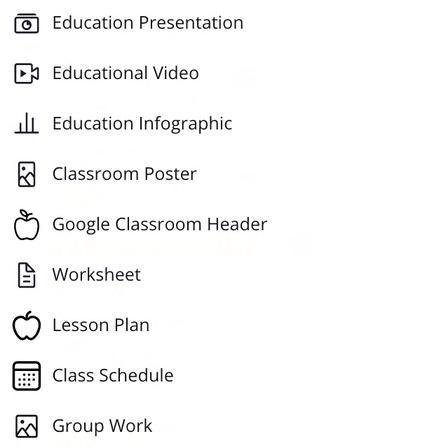
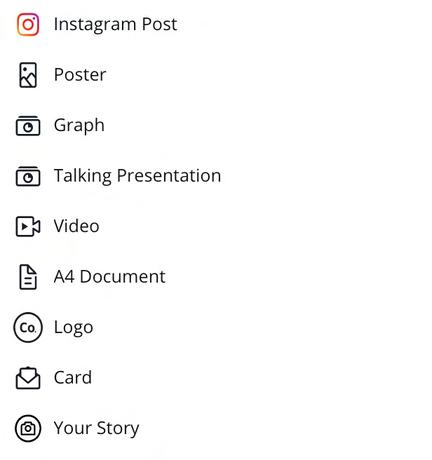
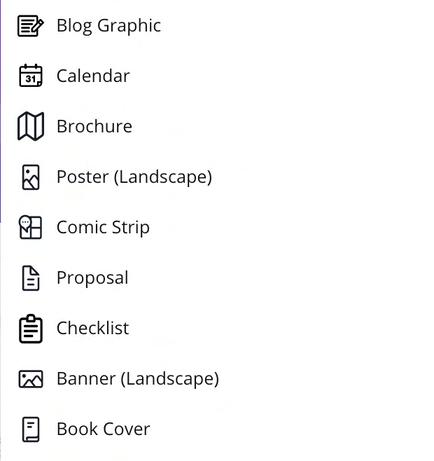





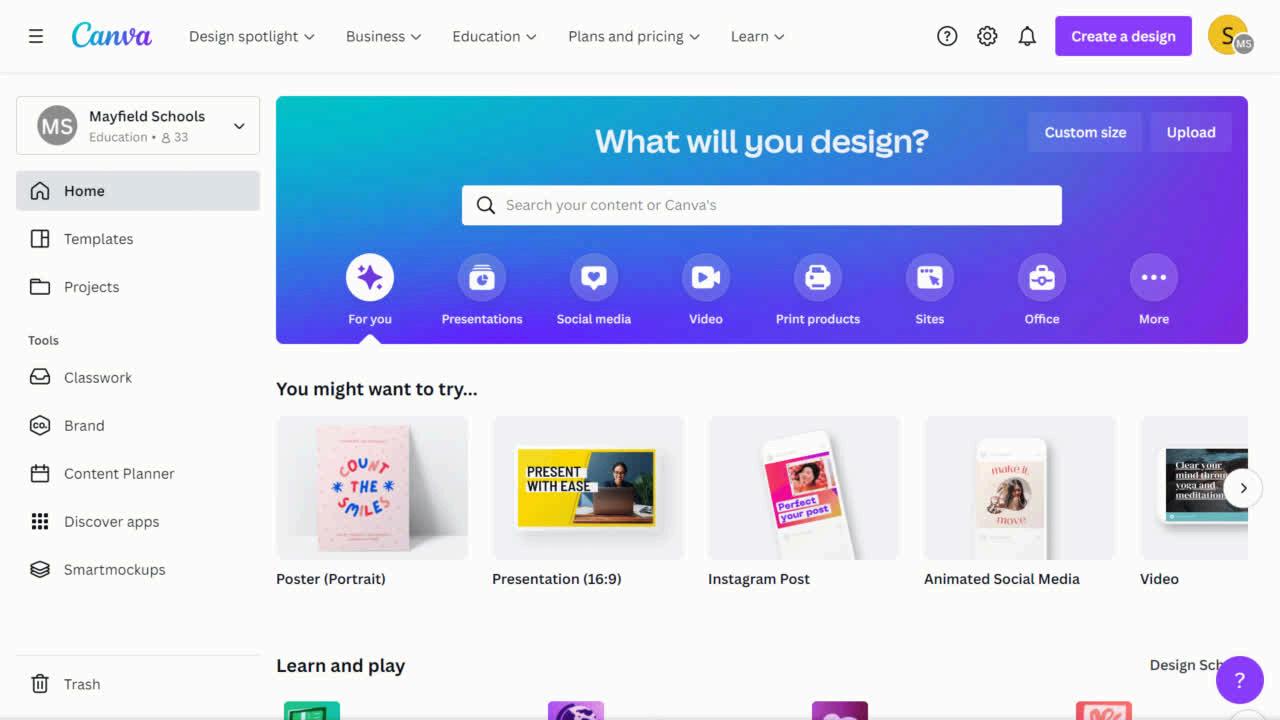
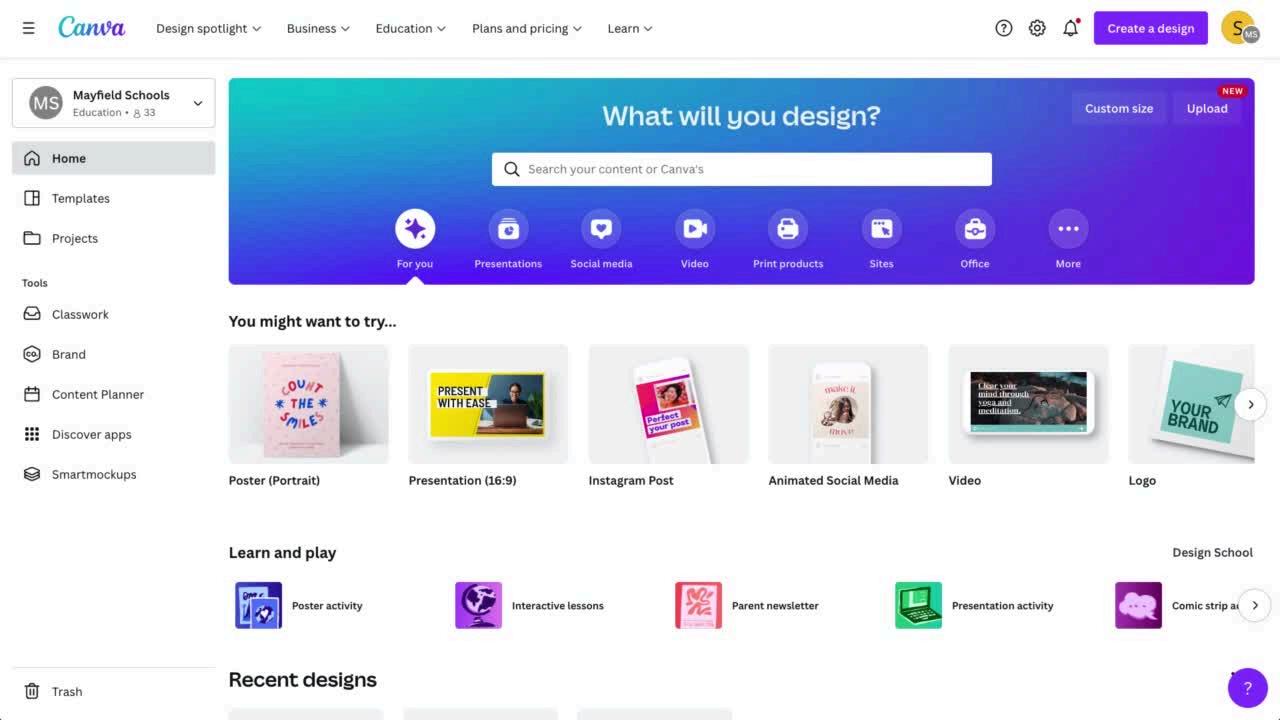
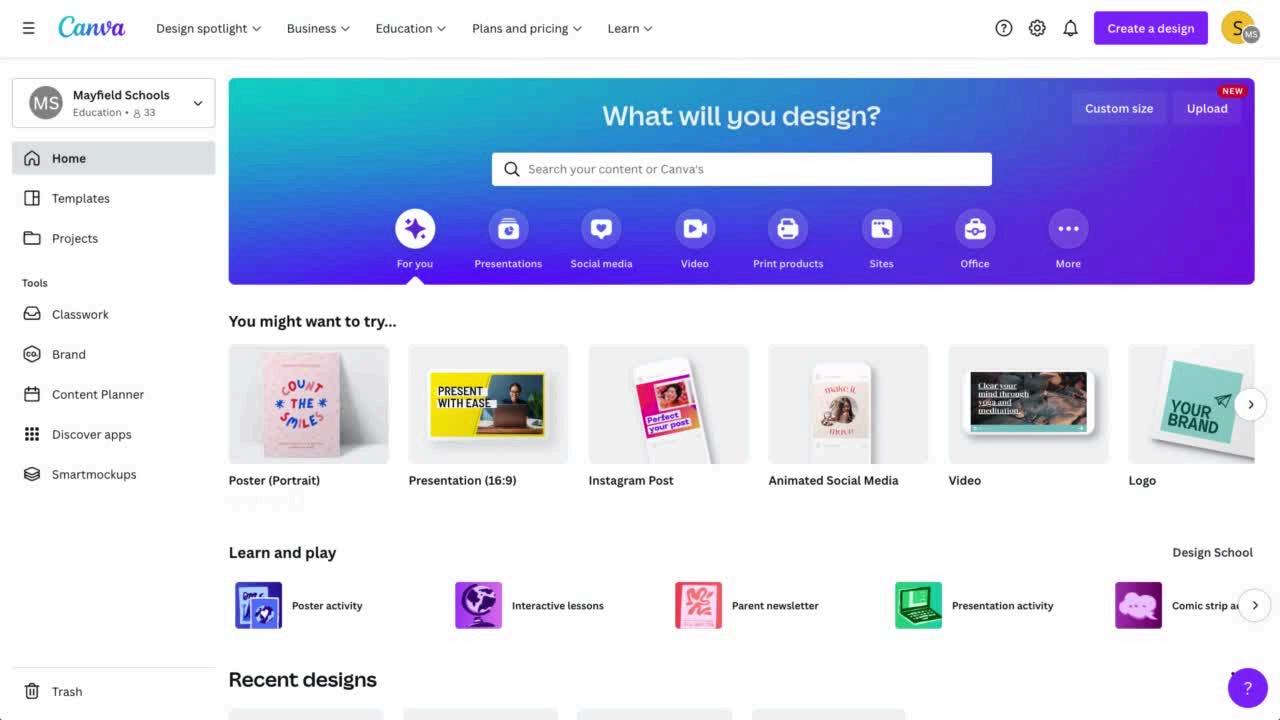
Find recommendations on what to try and your 'Recent designs'.
Click the Canva icon to head back to the homepage at anytime.

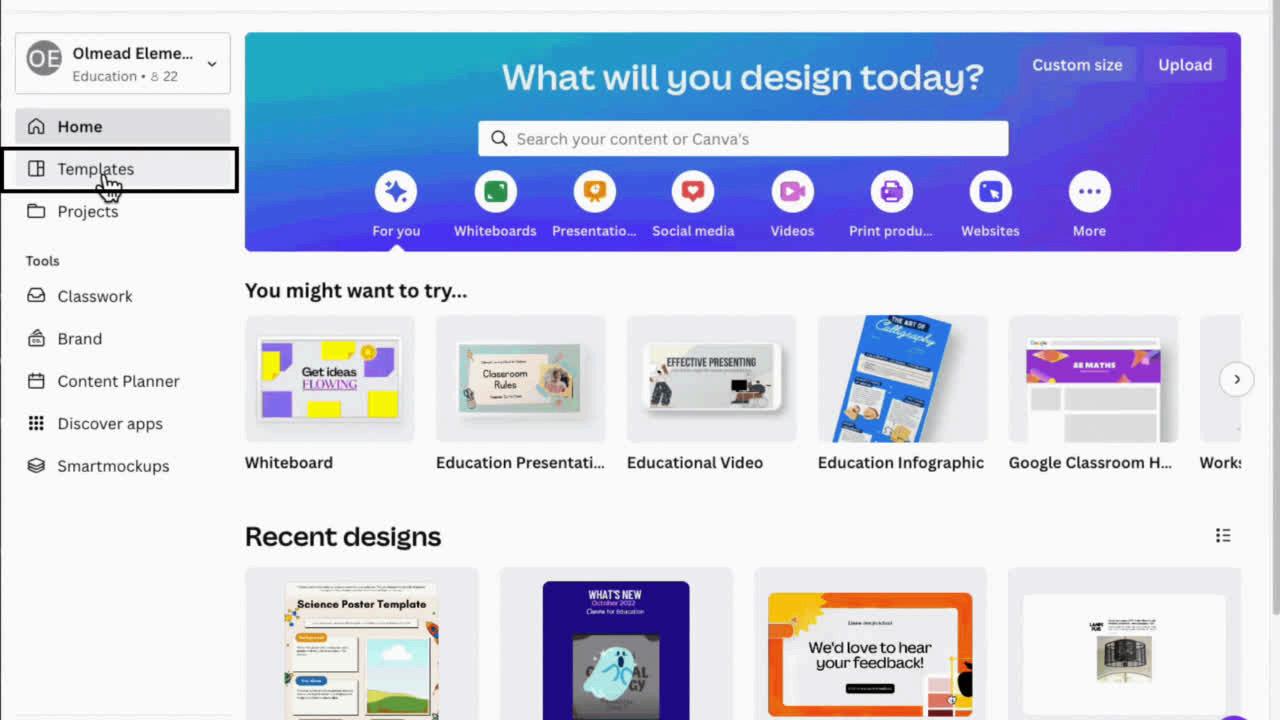
Templates are pre-made designs provided for all users. Each design is fully customizable, downloadable, and ready to use.
Find them under the Templates tab inside the editor
Click the 'Templates' tab to take you to the template marketplace
Or type in the 'Template banner', or filter through the tabs on the banner.
Projects is where you will find all of your designs and any that have been shared with you. You can also now find all your personal & team content within the ‘Projects’ tab in the editor.

Locate branded templates, fonts, colours and logos that have been set up by our account admin in the 'Brand' tab.
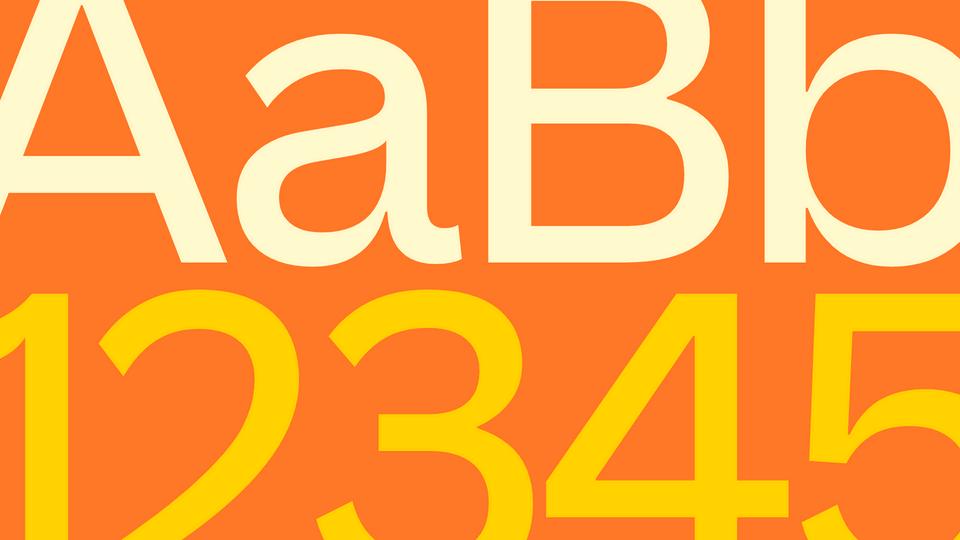
Please use the Lionheart fonts when creating a document or presentation that will be viewed externally such as parent comms.
Harmoniashouldbeusedfortitles
Barlowshouldbeusedforbodytext.
Discover apps prior to jumping into the Canva editor. You can find apps from importing content to Bitmoji to editing photos. Explore all the apps in the Canva ecosystem here.


The sidebar/object panel is where all your editing, designing, and creating will occur.
Each icon located within the object panel are also called tabs or apps.

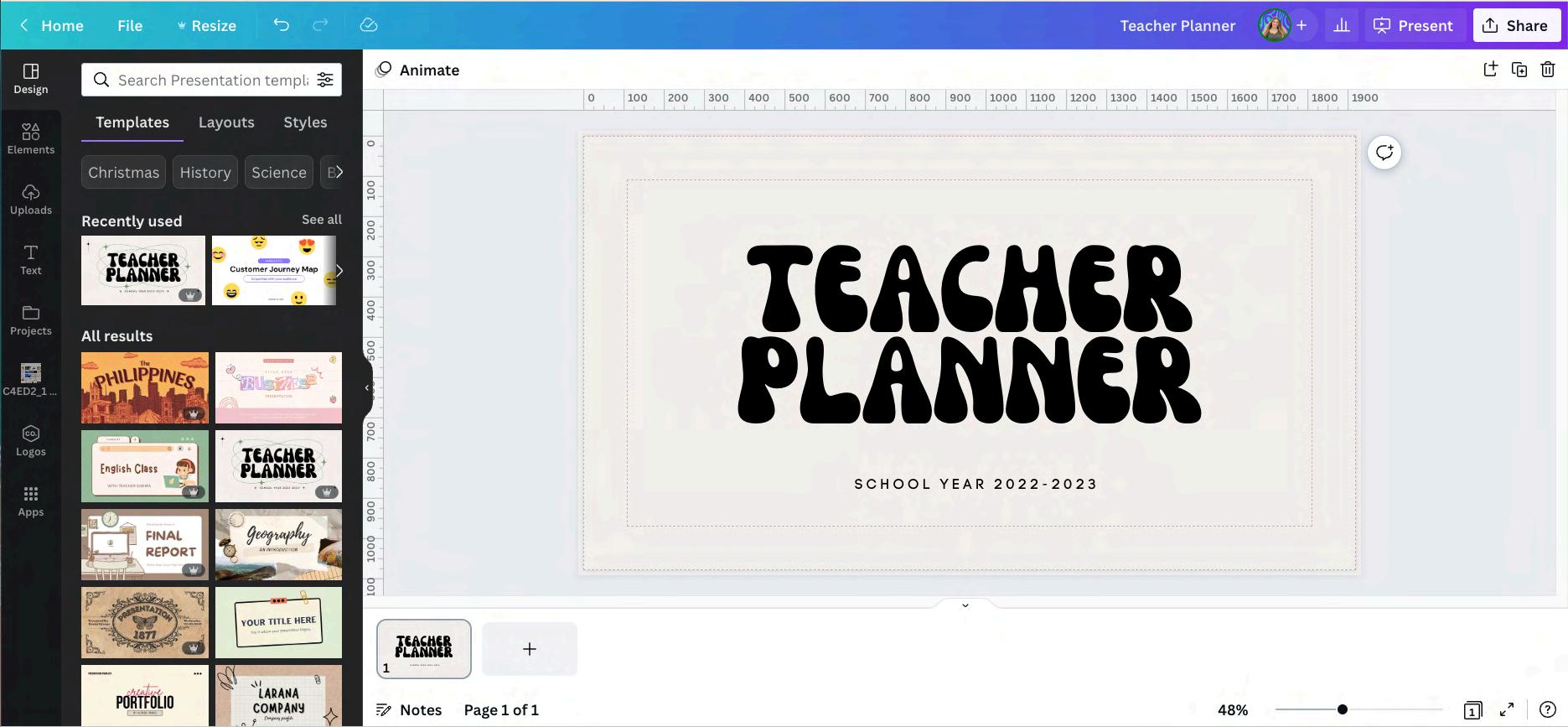
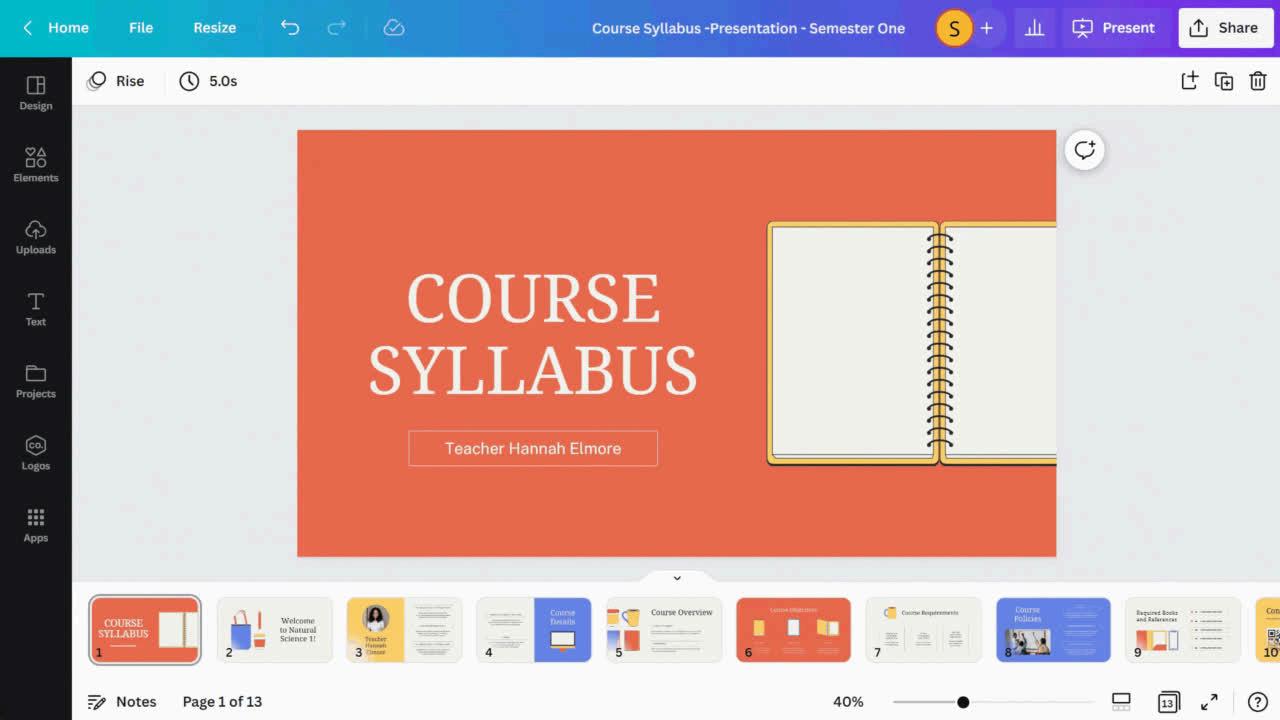
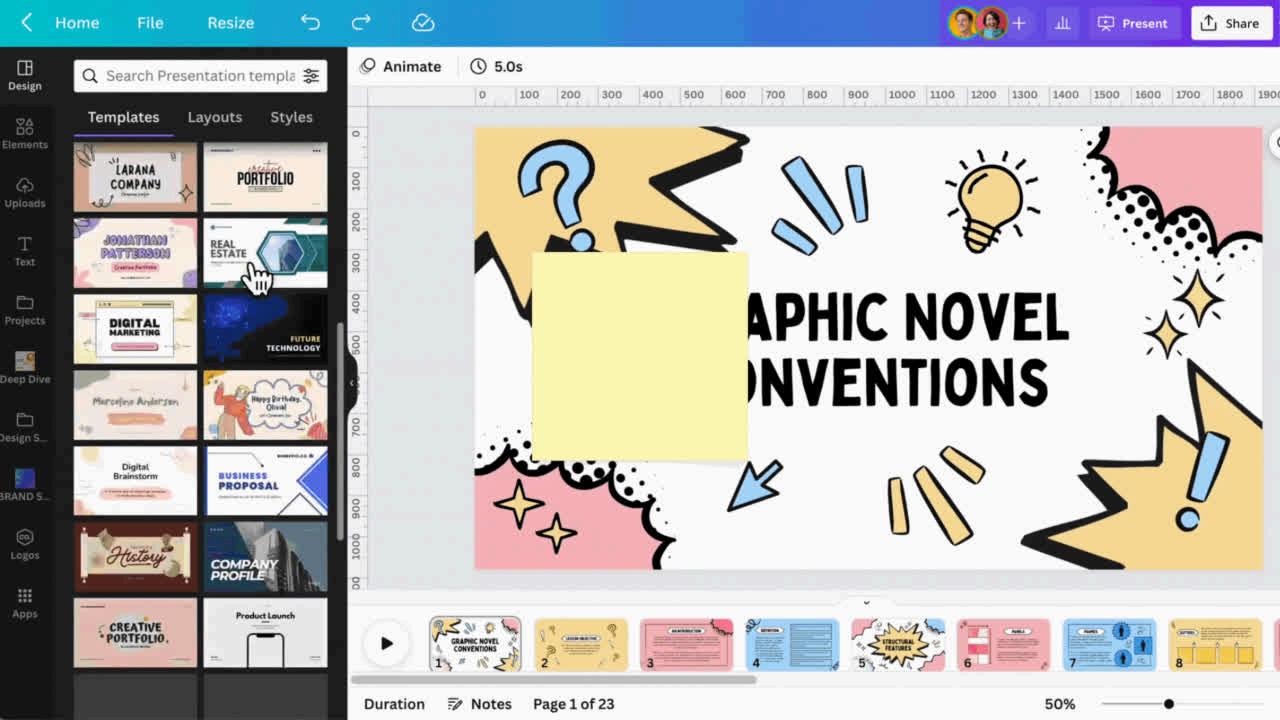
The 'Design' tab is where you will find everything you need to start designing right away from templates, layouts, and even styling right at your fingertips. Canva makes designing a breeze.
*Layouts are only available to sites and presentations
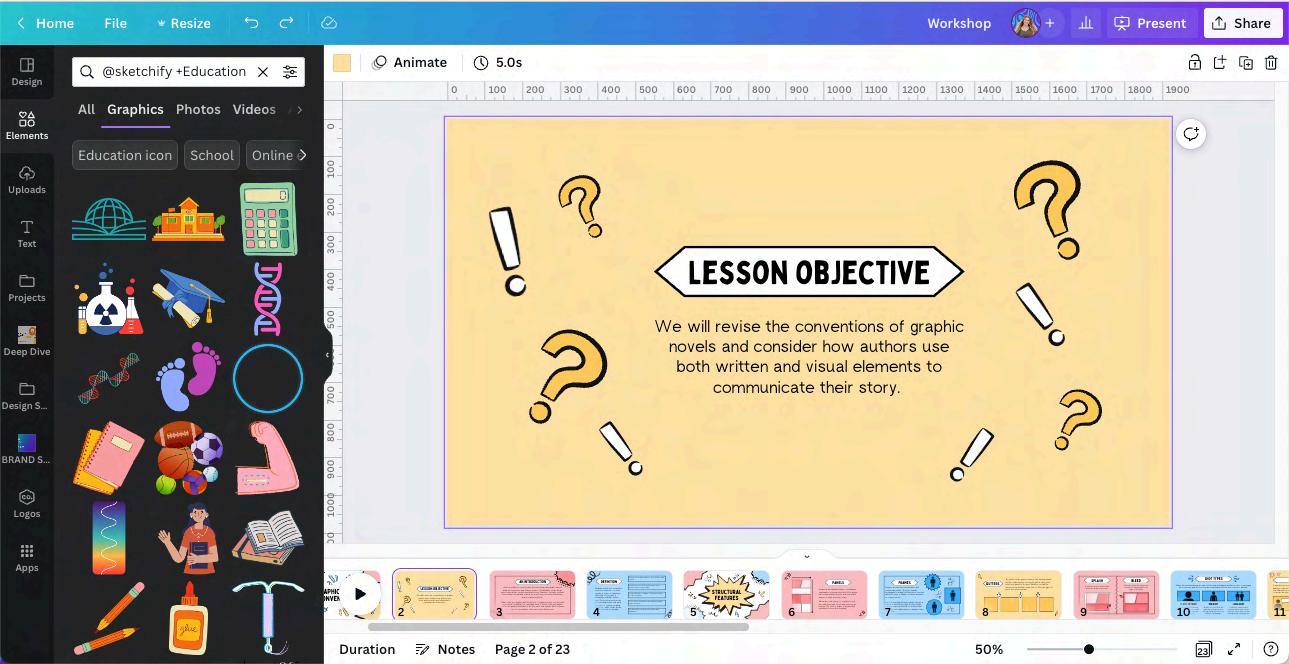
An element is an individual asset you can place onto your design – photo, video, audio, shapes, illustrations, charts, icons & more. Some elements are even customisable!
Search for 'Sketchify Education' set in elements Tip
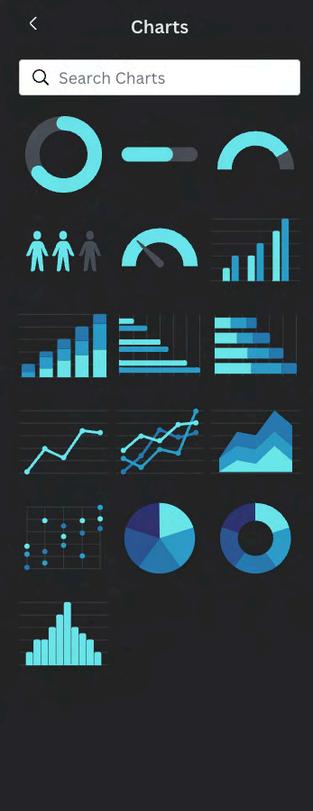
Located in the elements tab -- use charts and graphs to represent your data. Choose from progress rings and bars, pictograms, pie charts, line charts, scatterplots & more. Bring in your own data from CSV or google sheets.

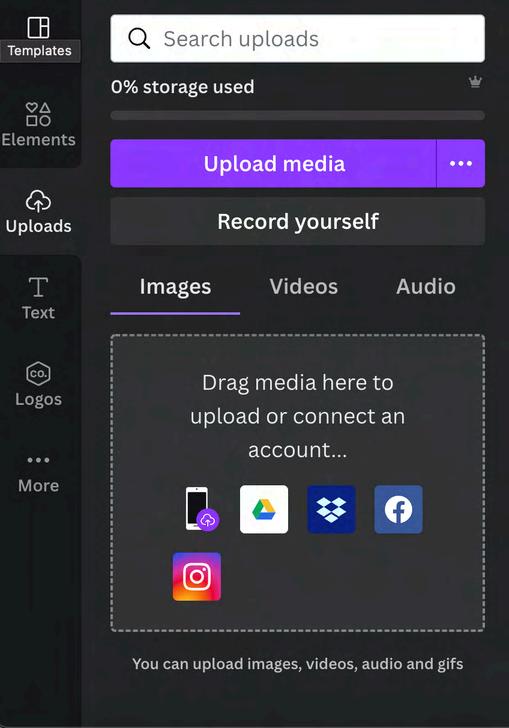
Upload files from your computer with a simple click or Connect an account to upload media. You can add images, videos or audio.
Don't forget that you can also record yourself via the uploads tab.
Click the three dots to keep your uploads & elements organised with folders. Tip
When creating designs, you can now find all of your shared and personal content in one location thanks to Projects in the editor! With the new Projects tab you can now better filter and search for all your content. Organize your projects by creating your own folder and sub folder structure.
Canva has a variety of fun font combinations already paired for you.
Or simply use the fonts your organisation has selected to make you designs pop.
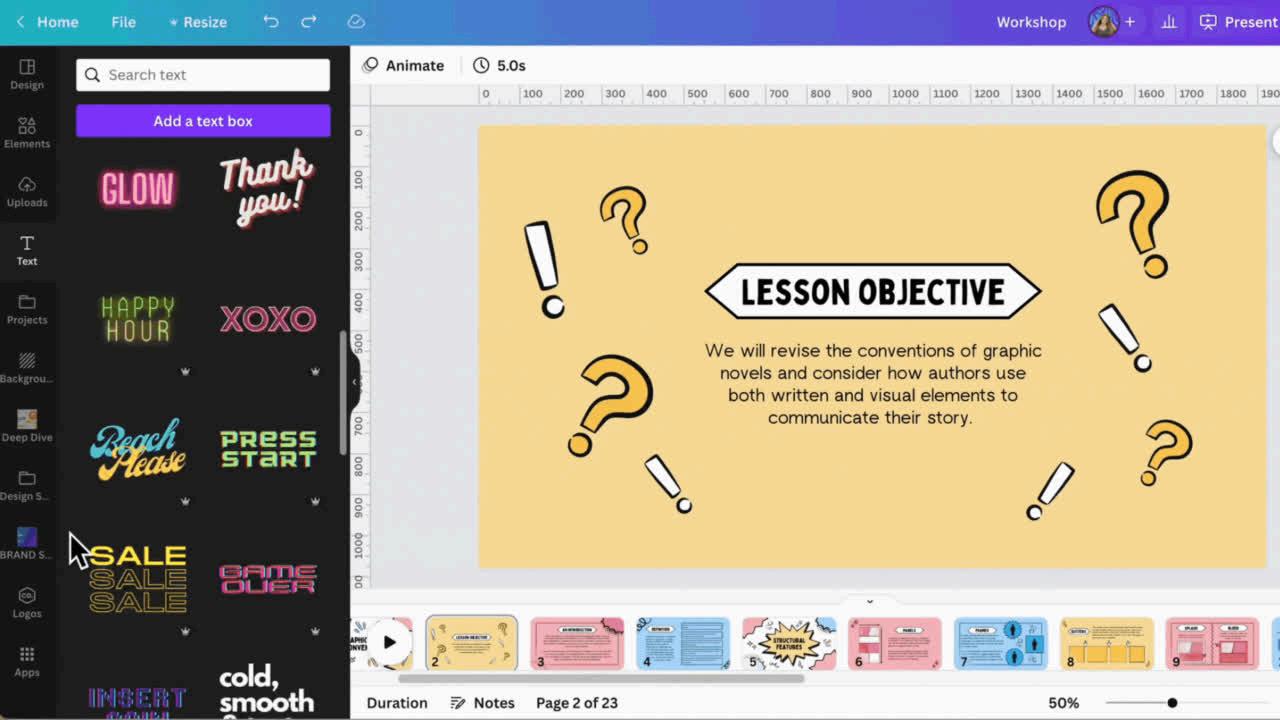
You can access even more content via the apps tab.
Discover apps like Bitmoji, Character Builder, add a QR code or bring your class collaboration to life with the "Draw" tool.
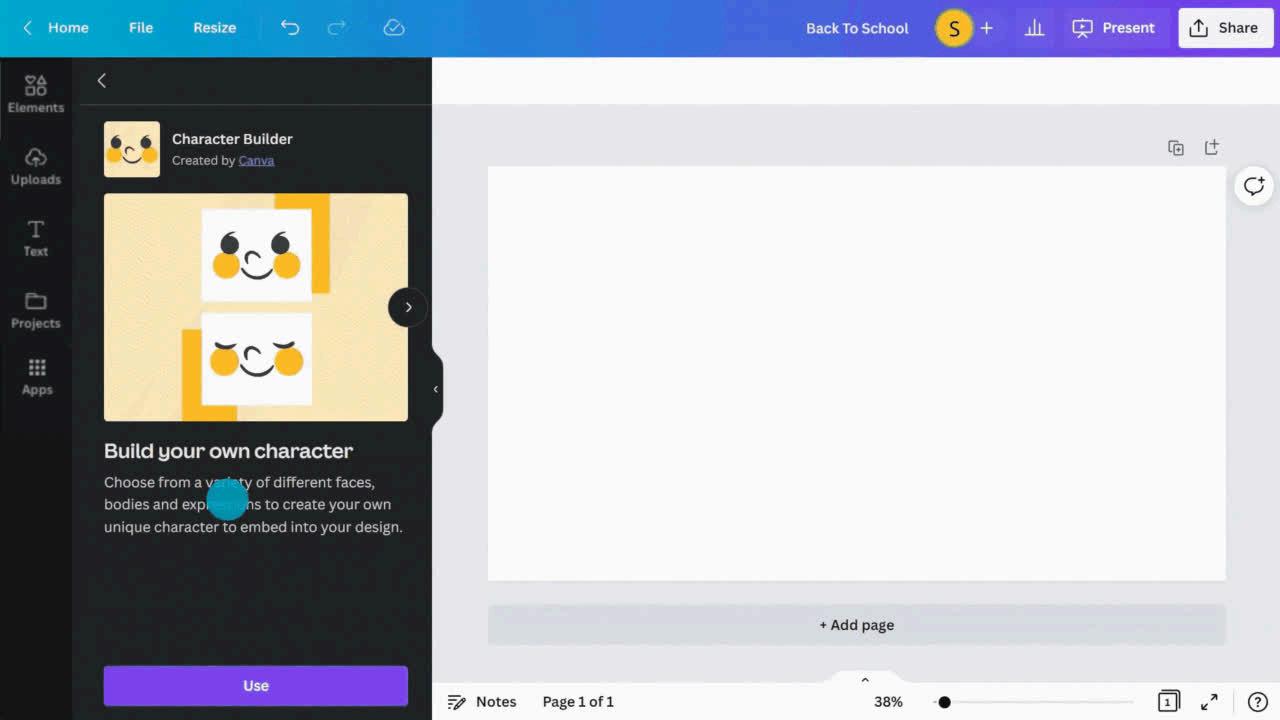
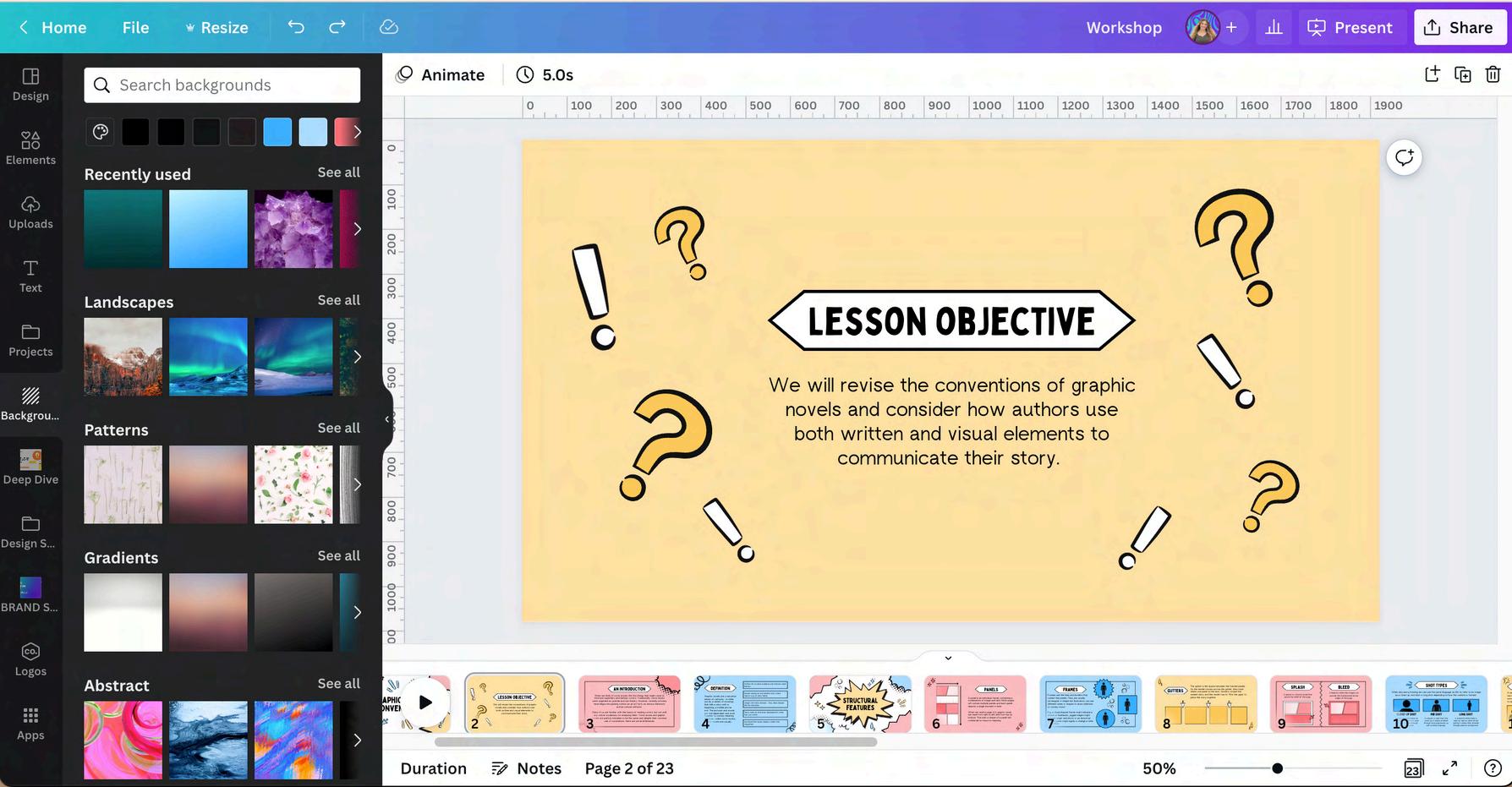
As you open more items, the amount of tabs in the Side Bar will increase.
Want to get rid of the clutter y easily collapse any tab by clicking on the small 'x' in the left hand corner to clean up your Side Bar.

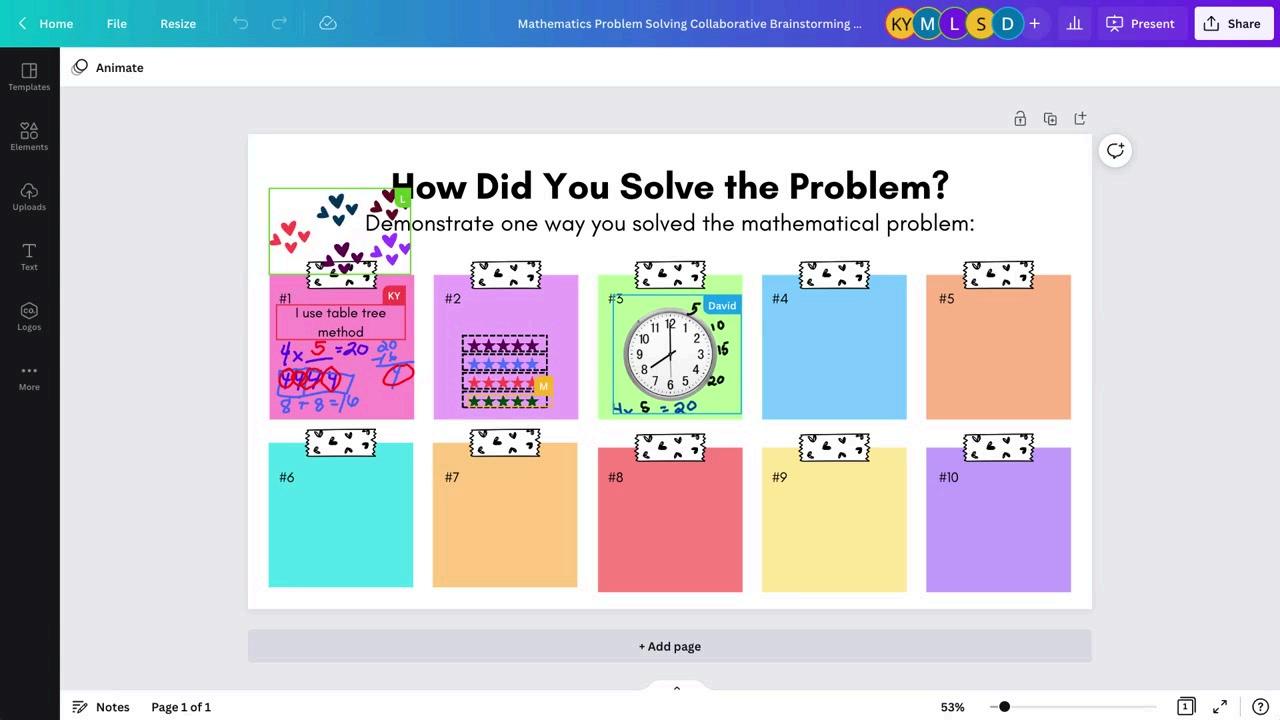
Comment on page designs, text or elements when collaborating with your team or reviewing student assignments in realtime.
Add a sticker too! Tip
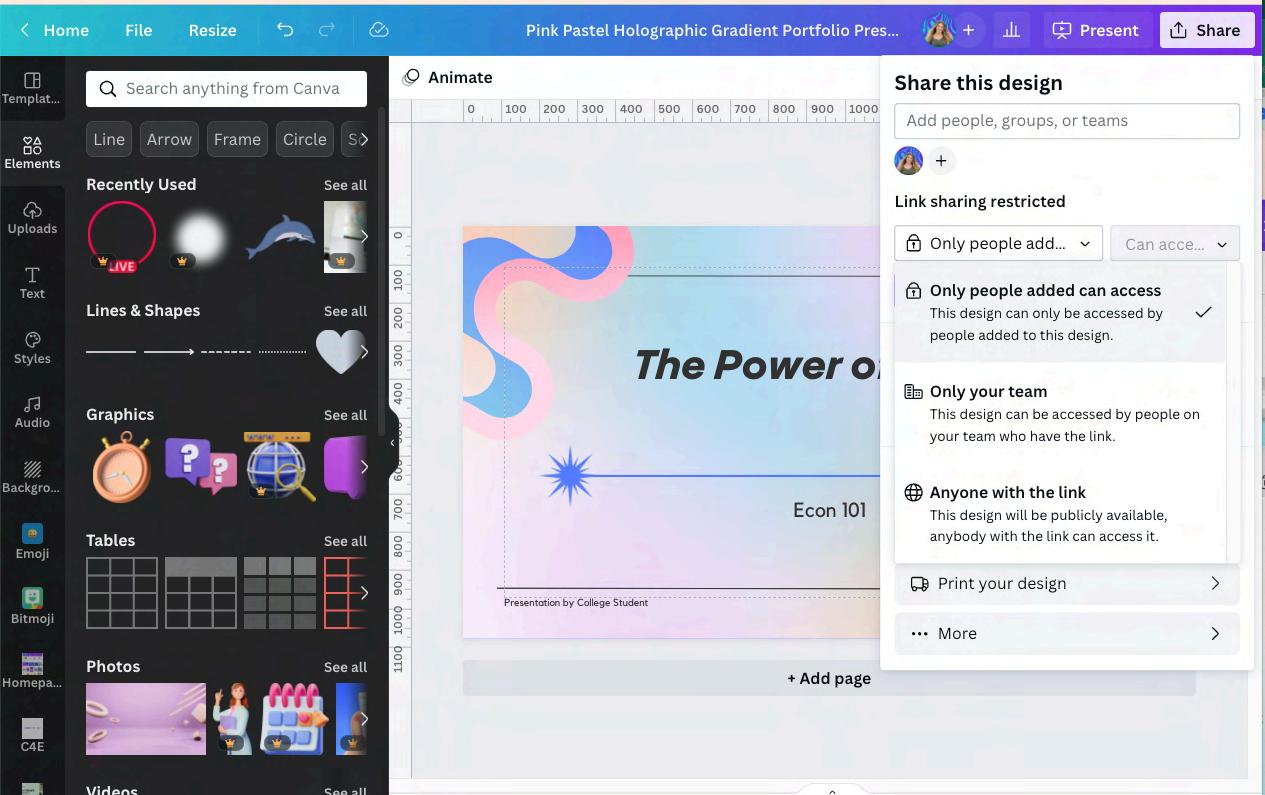
Let's explore the share menu.

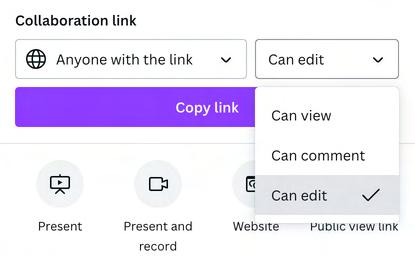
Sharealink
Copy a link to share with others.

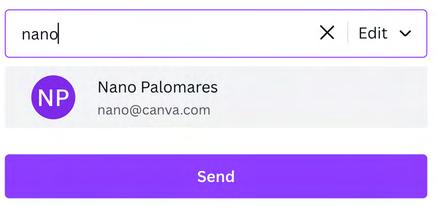
Invitecollaborators toadesign
Add people, classes or your school to any Canva design.
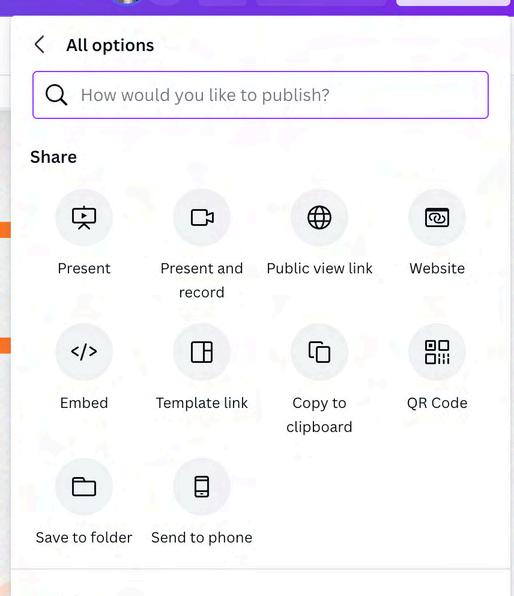
Createa templatelink
Turn any Canva design into a customizable template by generating a template link.

When sharing a link, there are three options:
Share link to view
Share link to edit
Share link to use as template
There are three levels of link sharing access:
Only you can access
Only your team can access
Anyone can access

What will you design today?