Bynder opens a world of possibilities, and we want to help you make the most of it. This guide is designed as an introduction to your new Digital Asset Management (DAM) tool, key terms you’ll hear while using the DAM, and Bynder functions every user can master, including: 1. Search
Download
Note: Some permissions are user-specific, so you may not have access to all these features. This is to make sure you can do all the things you need to on a regular basis without overcomplicating the interface unnecessarily. Contact MCDesign@bournemouth.ac.uk if you have any questions.
The Bynder Knowledge Base has tons of additional info about what Bynder can do and how.
What is Bynder?
Bynder is a tool to help teams across an organisation (and beyond!) create, manage, organise, and distribute digital content.
With a growing number of channels, improving the way we distribute our information is essential for keeping our brand consistent. Bynder makes it easy for the Design Team to make digital assets available to everyone, as well as enabling users to upload their own images. That means we’ll all have access to the same assets with just a few clicks of the mouse – and it also means we can control the quality and governance of which images are available, so there’ll be no low resolution images or photos that we aren’t allowed to use any more, for example.
Some of the ways that Bynder can help us work more efficiently are:
• Searching for the content you need in the format you need it, and finding it faster
• Knowing you’re accessing the latest sets of images, with the right copyright and image permissions already sorted out
• Providing one place for access, governance and distributing our brand assets so you only need to look in one place for everything
• Making sure that our brand is always represented consistently
• Helping us use digital assets more than once, so that we are getting more value from them.
Key terms
Term Explanation
Asset Digital media such as images, documents and videos.
Bynder Express Integrated file sharing function. Share files up to 40GB both internally and externally.
Campaigns
A campaign allows us to better categorise our templates and the documents you create. UG2022 for example. All assets suitable for use on that campaign can be grouped together.
Collection A group of assets that belong together. You can share your collection with other users. These might all be photographs from the same event, for example.
DAM Digital Asset Management – a platform to store, organise, retrieve and share digital content.
Derivative
Metaproperty
Metaproperty option
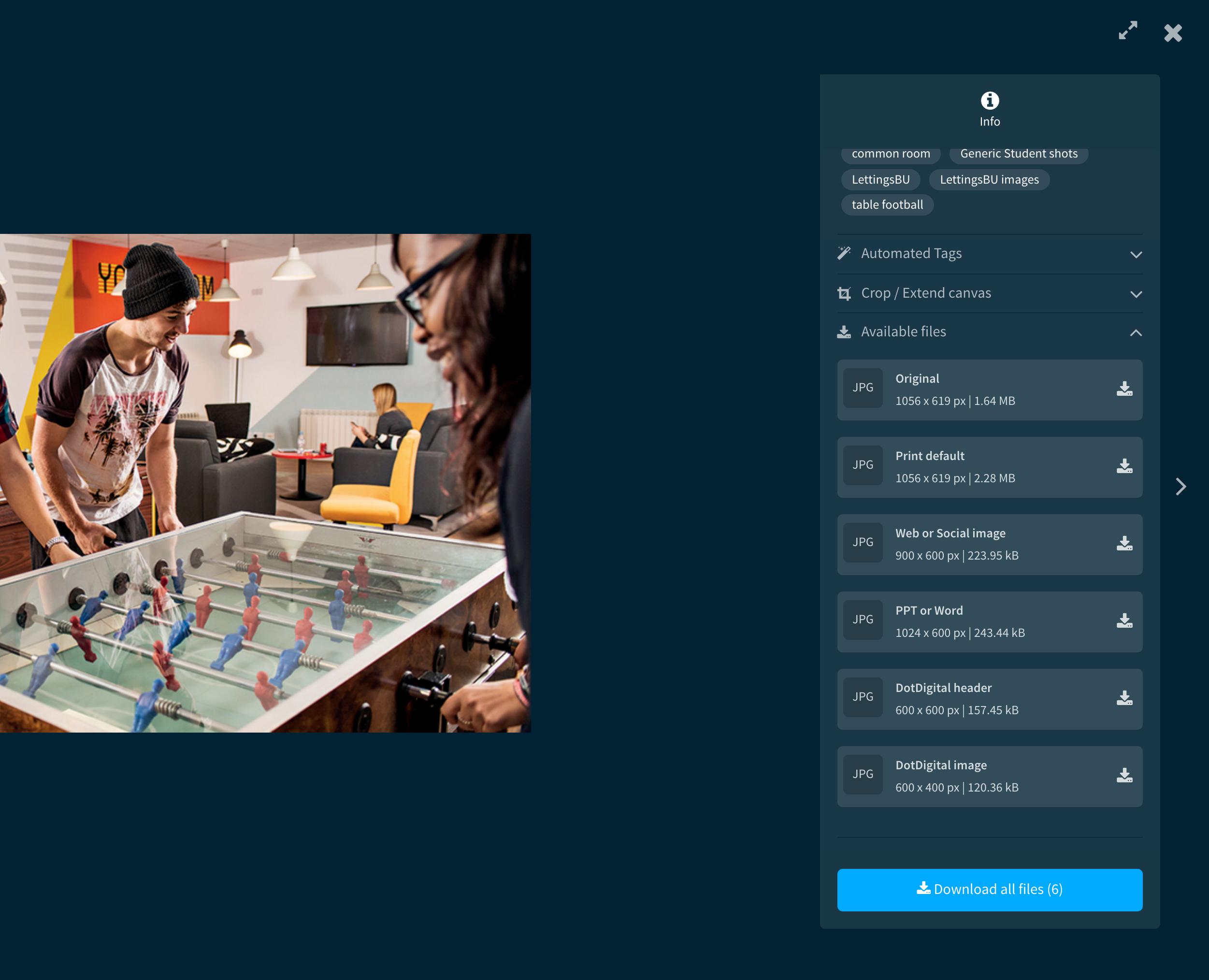
A derivative is an alternative version of the original asset. For example, images suitable for web and social, PPT, word or DotDigital. These are predefined sizes suitable for those media.
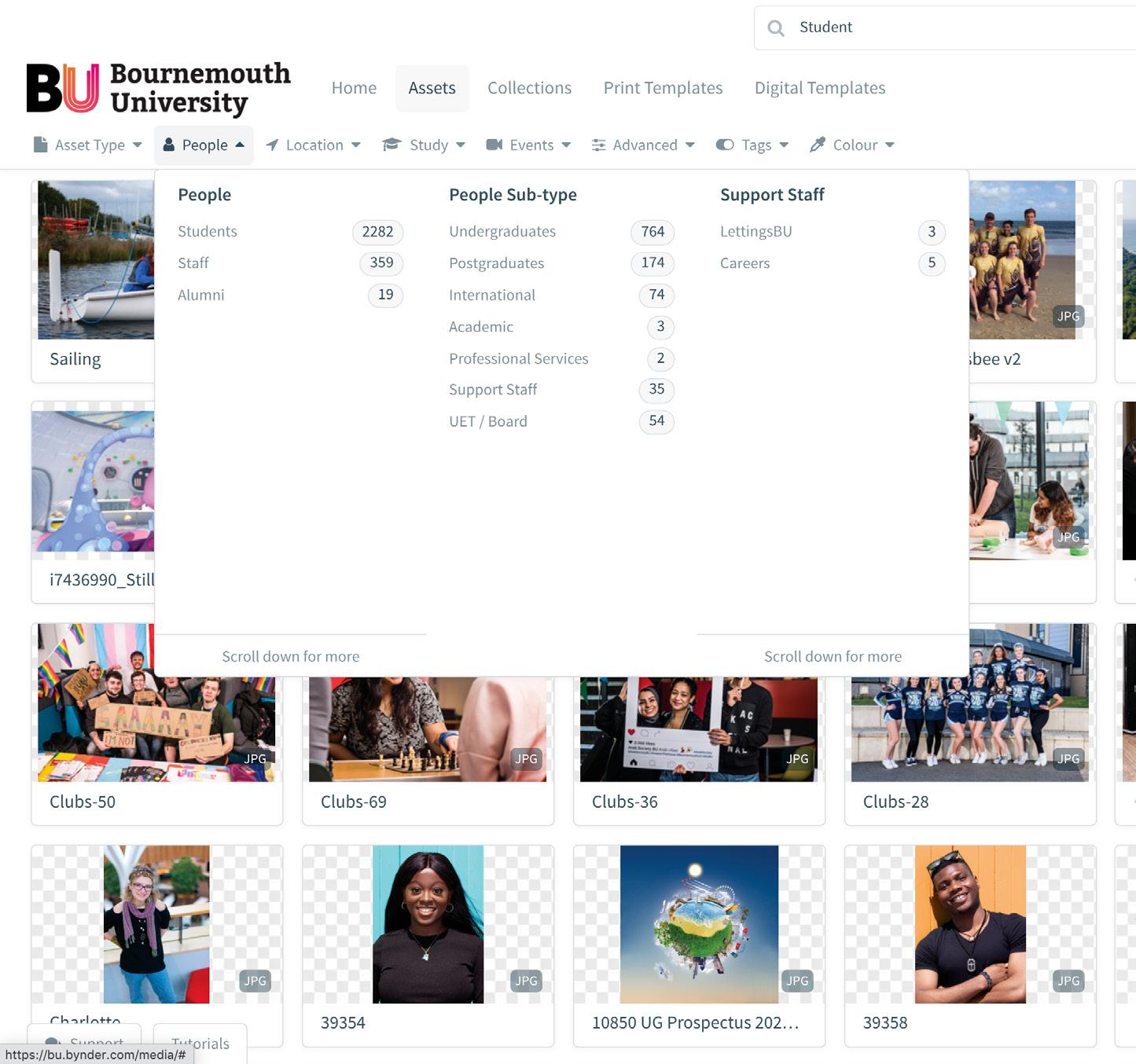
Groupings for digital assets that helps us categorise them and then find them later. Assets can have more than one metaproperty to help us search more efficiently. They are very broad topics, such as ‘people’, ‘location’, ‘study’ and ‘events’.
These allow us to be more specific within each metaproperty, and there can be multiple levels of options. For example, under the ‘people’ metaproperty, you might find ‘students’ as an option. Below that, you would find ‘undergraduate’ and ‘postgraduate’ to help you refine your search.
Smart filter
Tags
This enables you to drill down through different levels of metaproperty to help you drill through the various levels - making it quick and easy to search for the content you need.
Descriptive keywords to indicate specific elements of an asset. These can be defined by the user as you upload images. These are free field so you can be as specific as you need to be.
The Asset Bank
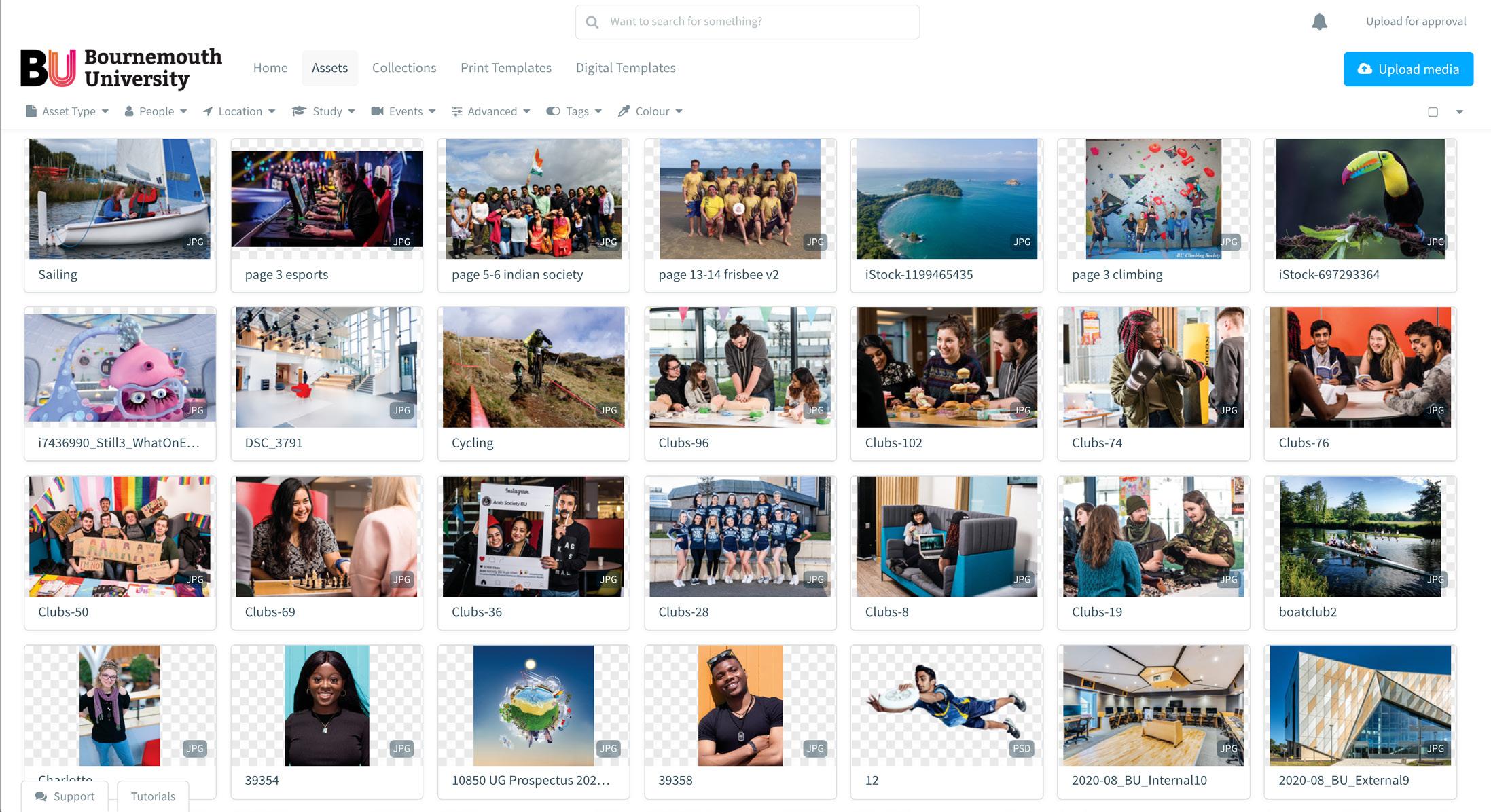
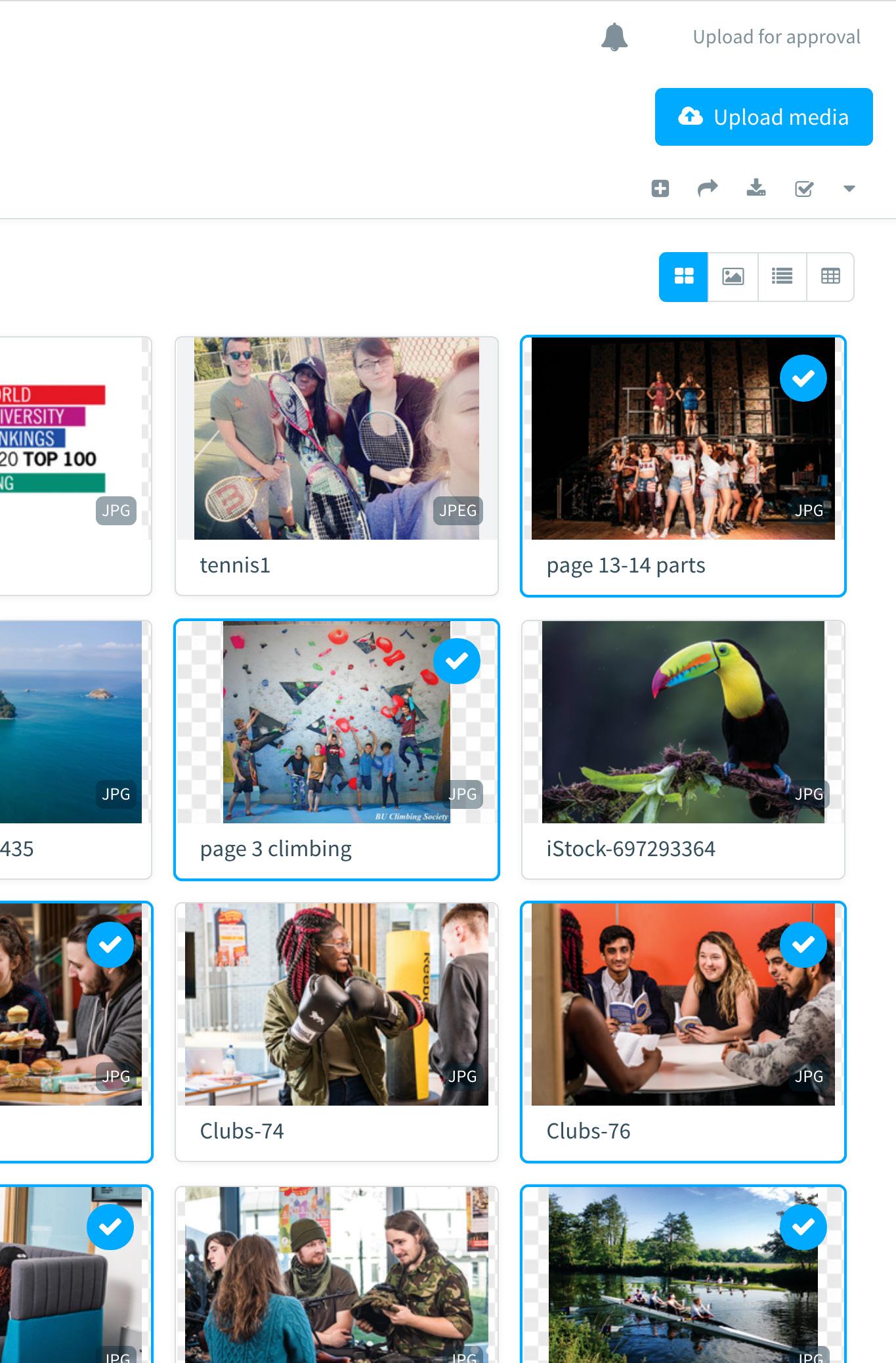
Asset Bank (Grid view selected)
Browse and search
Using these individually or in combination allows users to find the content they need, in the way that’s most intuitive to them.
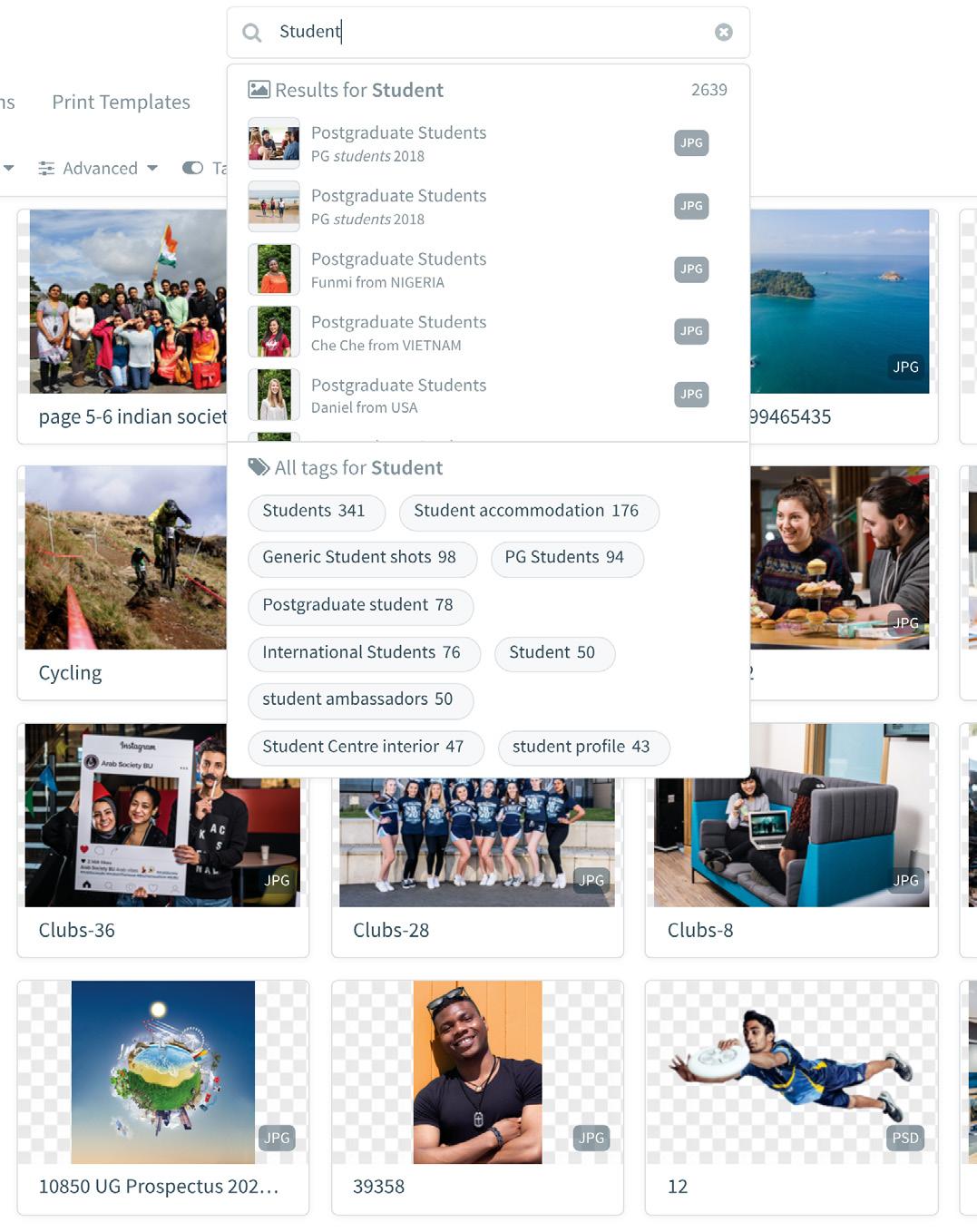
Search bar
When you enter a search term, Bynder looks for it in titles, descriptions, tags and collection names. It can also scan the text in searchable PDFs and other text files.
Here’s how:
1. Enter the term in the Search box at the top of the page.
2. You can narrow your search results by hitting enter and apply the term as a search string.
3. Select a choice from the Spotlight search. The Spotlight search automatically returns results in a drop-down menu. The results will be displayed from asset titles, descriptions, tags, and collections.
Smart filters
Apply filter(s) to narrow asset search results.
1. Click the label you’d like see in your refined Asset Bank results.
• For example, if you are only looking for assets tagged ‘Students’ assets, click the label ‘Students’ under the ‘People’ metaproperty
2. Apply more filters for more narrow results as applicable.
Download assets
There are two ways to download assets from your DAM:
• From the Asset Bank using the download icon
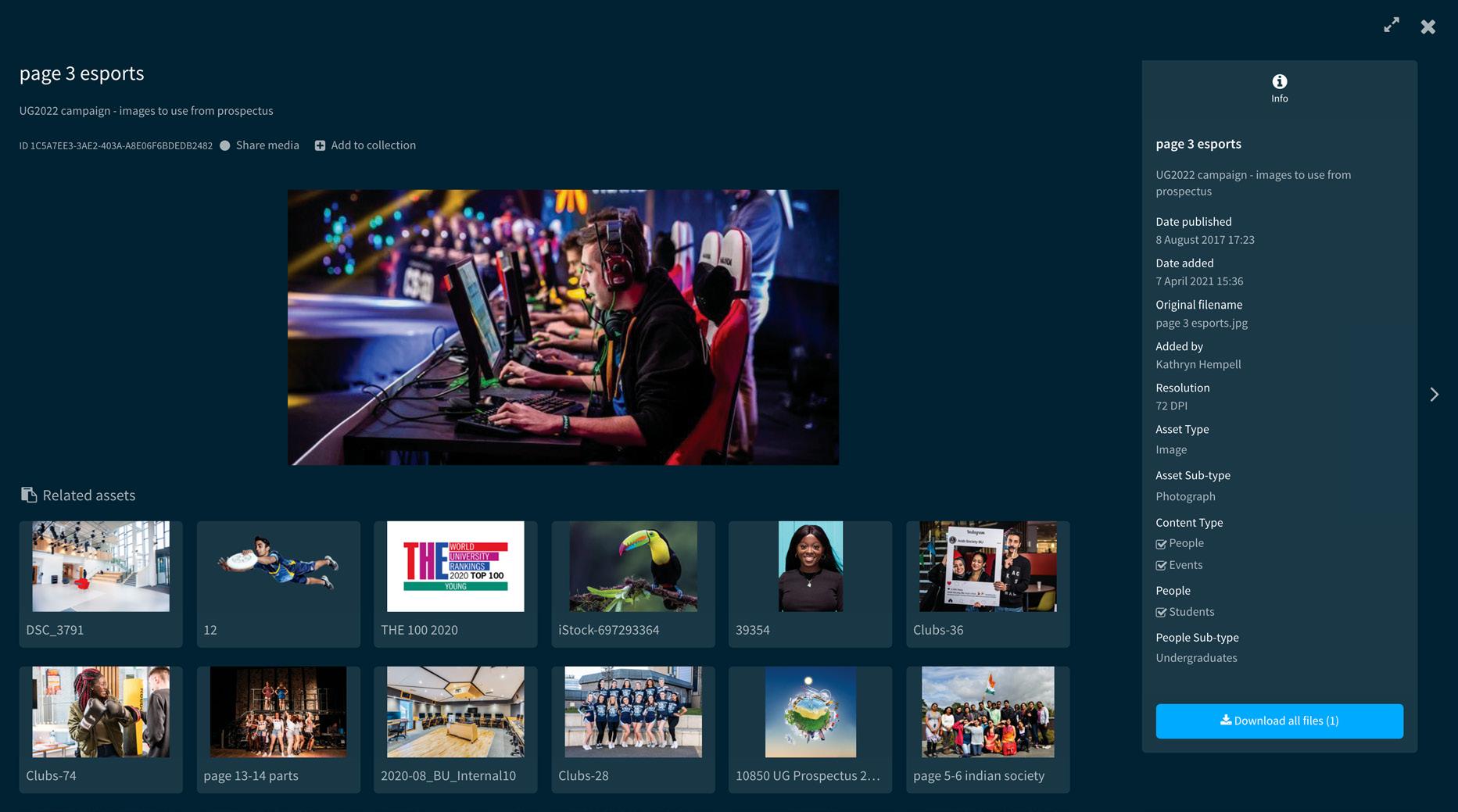
• From the Asset Detail (Preview) screen
From the Asset Bank
You can download single or multiple assets from the Asset Bank by selecting them in the asset overview and clicking the download. Here’s how:
1. In the Asset Bank, select your assets by clicking on them or by using your cursor to highlight multiple assets.
2. Click the download icon in the top right-hand corner of the screen.
From the asset detail view (preview)
If you want to take a look at the asset in a bigger screen or take a look at its data, you can download from the asset detail view.
Here’s how:
1. From the Asset Bank or from a collection, click into an asset
2. Scroll to the bottom of the right-side column (asset detail pane) to see the download options
3. Choose a single option or download all options in a zip file.
A note on derivatives
If the asset has multiple derivatives and you have access, a pop-up window will appear when you click download. From there, you can select which size of the asset you want to download.
Upload assets
As a logged-in user you can upload assets for approval in the Waiting Room, or depending on your user rights, directly to the Asset Bank. If you upload assets to the Waiting Room, the appropriate approver is automatically notified.
You can upload assets using the following:
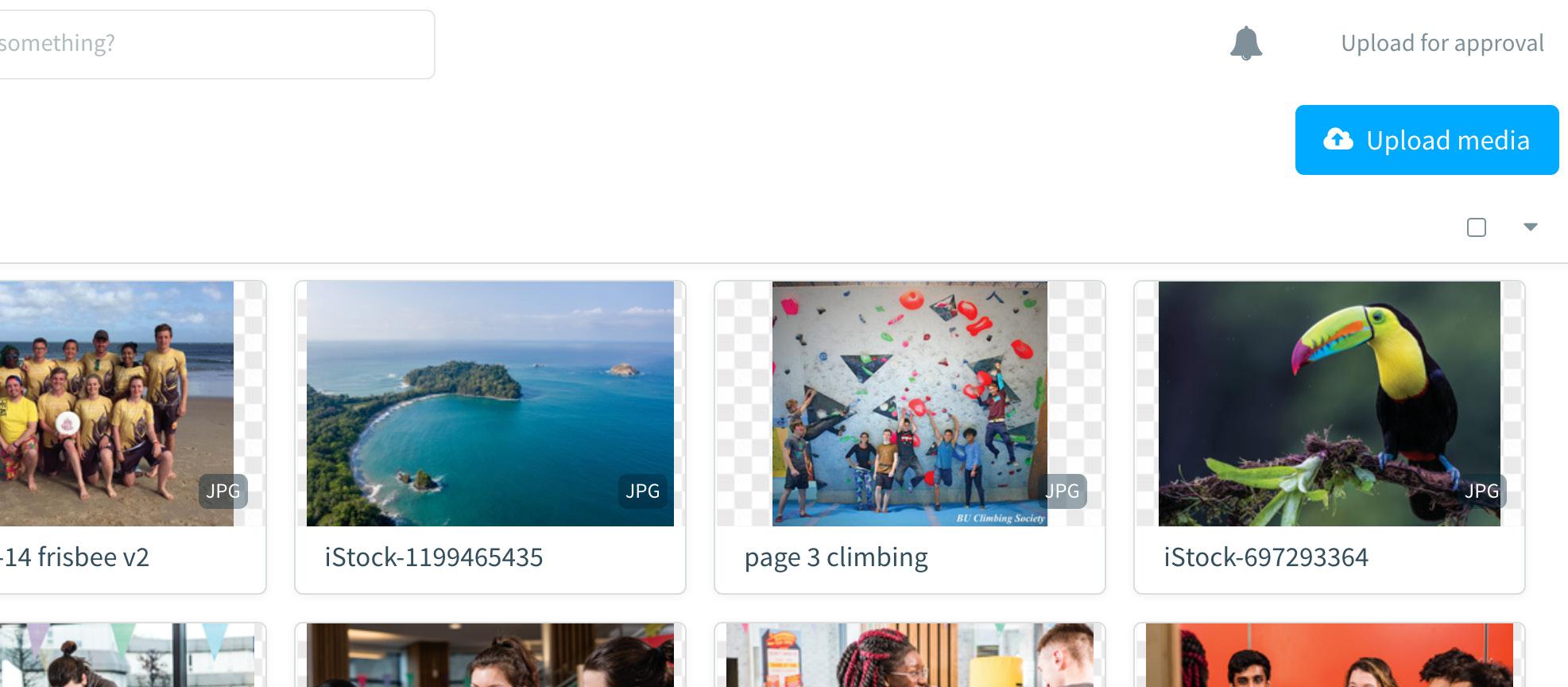
• Upload media button in the top right of your Asset Bank screen
• Drag and drop assets from your desktop or a folder into the Asset Bank in your browser window
Asset uploading
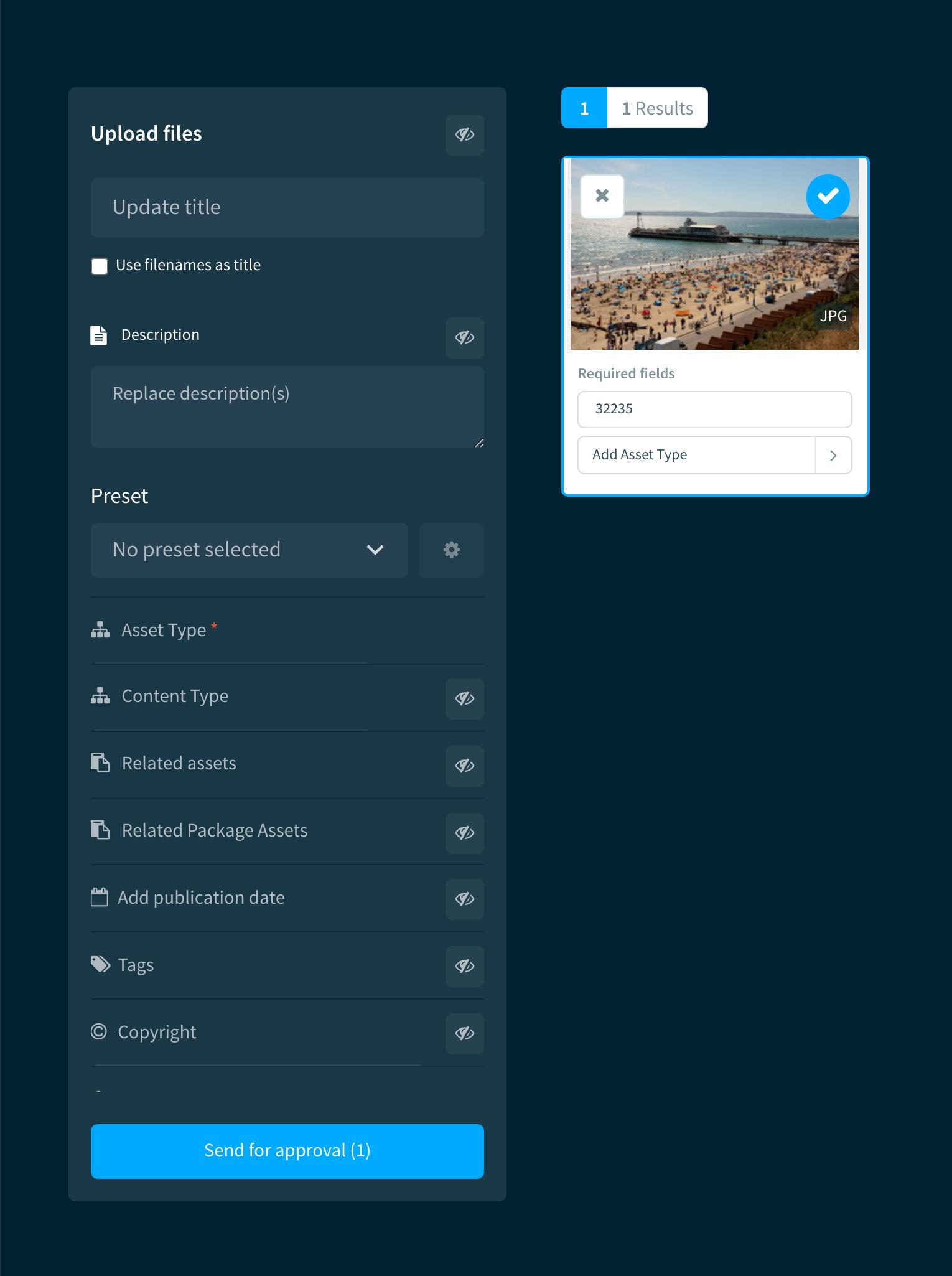
Once you’ve added the assets you want to upload, apply metadata to assets. This allows users to find them once they’re in the DAM.
Here’s how:
1. Begin the upload process with the drag and drop or upload media button.
2. Enter the title for the asset. If you leave this field blank, filenames will be used as titles. Alternatively, filenames can be used as titles automatically by checking the box.
3. Expand the tabs and add the required information about your assets. The changes will apply to all assets.
4. Click the ‘eye’ icon to activate additional fields to add extra information to your assets.
5. Click ‘store selected files’. The number in the button indicated the number of files that will be imported to the Asset Library.
Collections and sharing
With Bynder, you can share your files with other portal users or with external parties. You can also create a share link to send in other communications. Several options allow you to control who can access your shared files. This way, all recipients will only see what they are allowed to access.
Create a collection
1. From the Asset Bank, select the asset(s) you would like to put into a collection and click the ‘plus’ icon.
2. You can add these assets to an existing collection, or create a new collection. Simply give the collection a name!
Share a collection
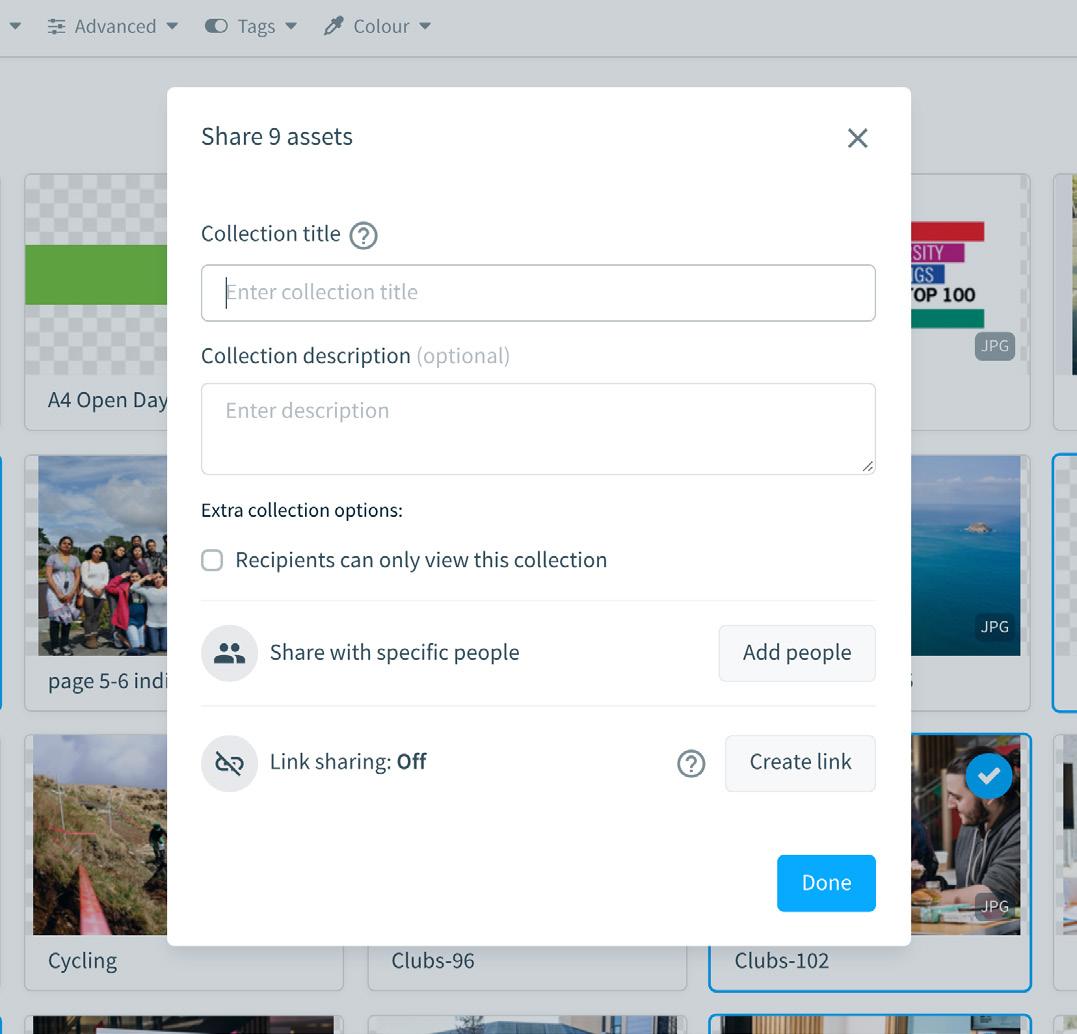
1. You can also share a collection from the Asset Bank: select the asset(s) you’d like to put in a collection by clicking the ‘arrow’ icon.
2. Give the collection a name and description.
3. If you’d like to share the collection that you created, click on “Add People” and enter the email addresses and/or names with whom you’d like to share. You can add internal users or external parties that don’t have a Bynder login here.
4. When you add a user, you’ll see the “Share with Specific People” screen with additional sharing options such as access, a message that will be included in the notification email, and dates that the collection will be available to that user.
Share a link
1. Click the ‘Create link’ button. The moment you click this button a link will be generated, and you’ll see a notification that the collection has been shared.
2. You can manage access to and availability of the link in the ‘Share link settings’ screen.
Share a collection
Create a collection
Bynder Express
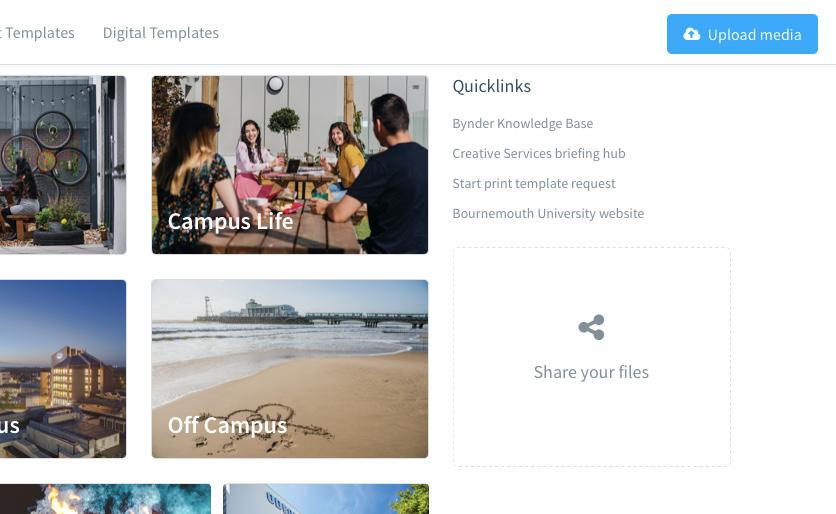
If you want to share files that are not in the Asset Bank, you can do it with Bynder Express. You can share media both internally and externally. Recipients will be notified by email containing a link where they can download the files.
The files that you share will not be stored in the Asset Bank but will be uploaded to a temporary location on Bynder.
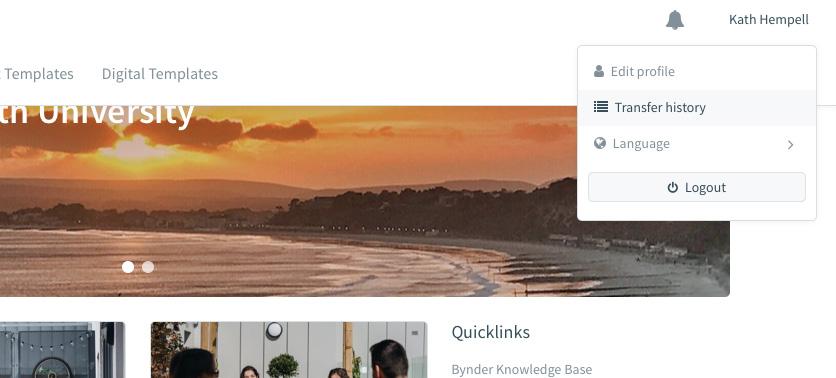
You can also verify which assets have been shared and with whom by checking the transfer history. Bynder Express has an upload limit of 40GB.
Digital and print templates
Digital templates
• Our Digital Template module helps you create designs based on an existing template.
• These digital templates have been set up by the Design Team and have a predefined layout, size, behaviour and style.
• You can fill in the fields in the template, updating them with new images and content to meet your needs. Your project will then be checked by the Design Team for consistency as a final check.
• These templates are customisable but some elements will be locked. This is to make sure the BU brand remains consistent and that good design practice is always followed.
• In the Digital Template module, you will find social media assets, DotDigital banners, Web hero banners and campaign material.
• Templates can be amended or added if required for future use. Contact the Design Team.
Print templates
• Our Print Template module helps you manage the materials you want to print, customise them online with a simple editor, and upload so they can be reviewed and approved by the Design Team.
• These print templates have been set up by the Design Team and have predefined layout, size and style.
• These templates are customisable but some elements will be locked. This is to make sure the BU brand remains consistent and that good design practice is always followed.
• You can decide on whether you want to print via Xerox workflow (where you will download a PDF and organise the print yourself via Xerox) or whether you want to print via the Design Team (where the Design Team provides quotes and organises print production and delivery).
• You will find assets such as posters, leaflets, postcards, stationery and campaign material within the Print Template module.
• Templates can be amended or added if required for future use. Contact the Design Team.
Note
Bynder works with popular web browsers. For the best experience, we recommend using Google Chrome or Microsoft Edge, and keeping it up to date with the latest version.
Digital templates
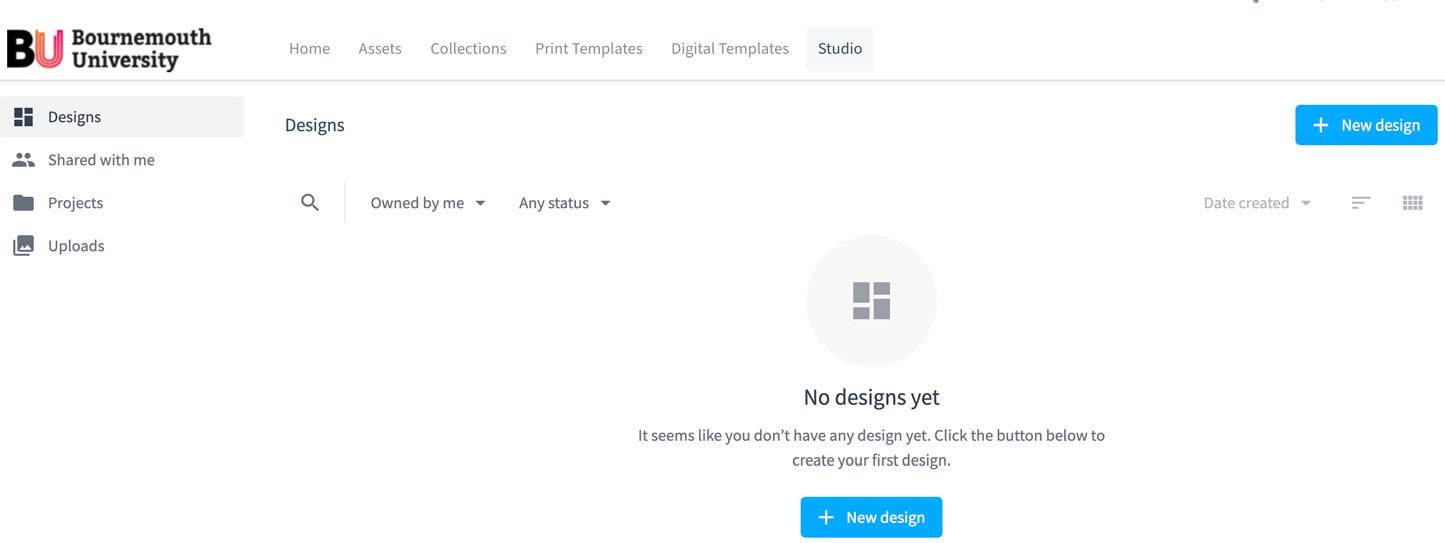
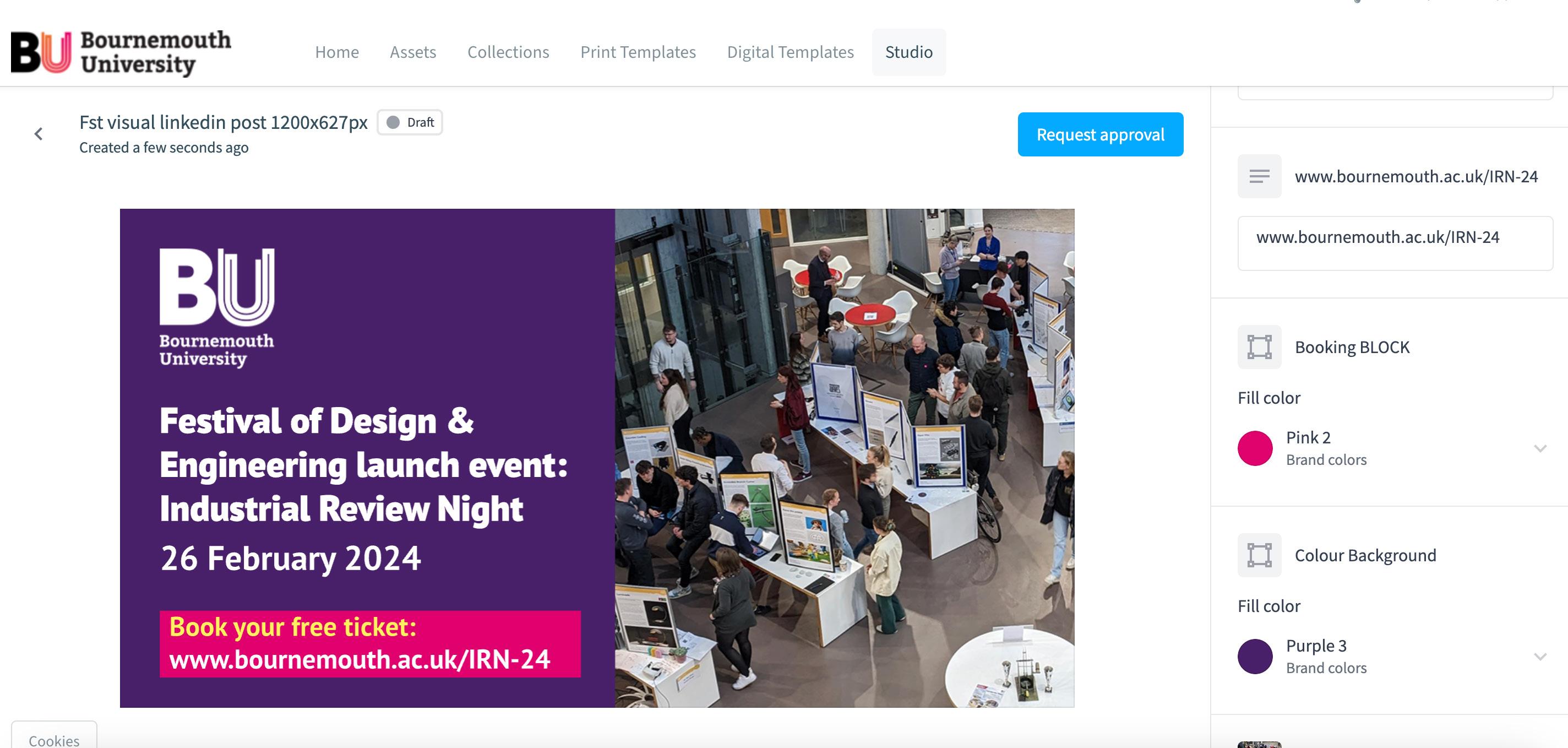
1. Go to the Digital Templates section of your portal.
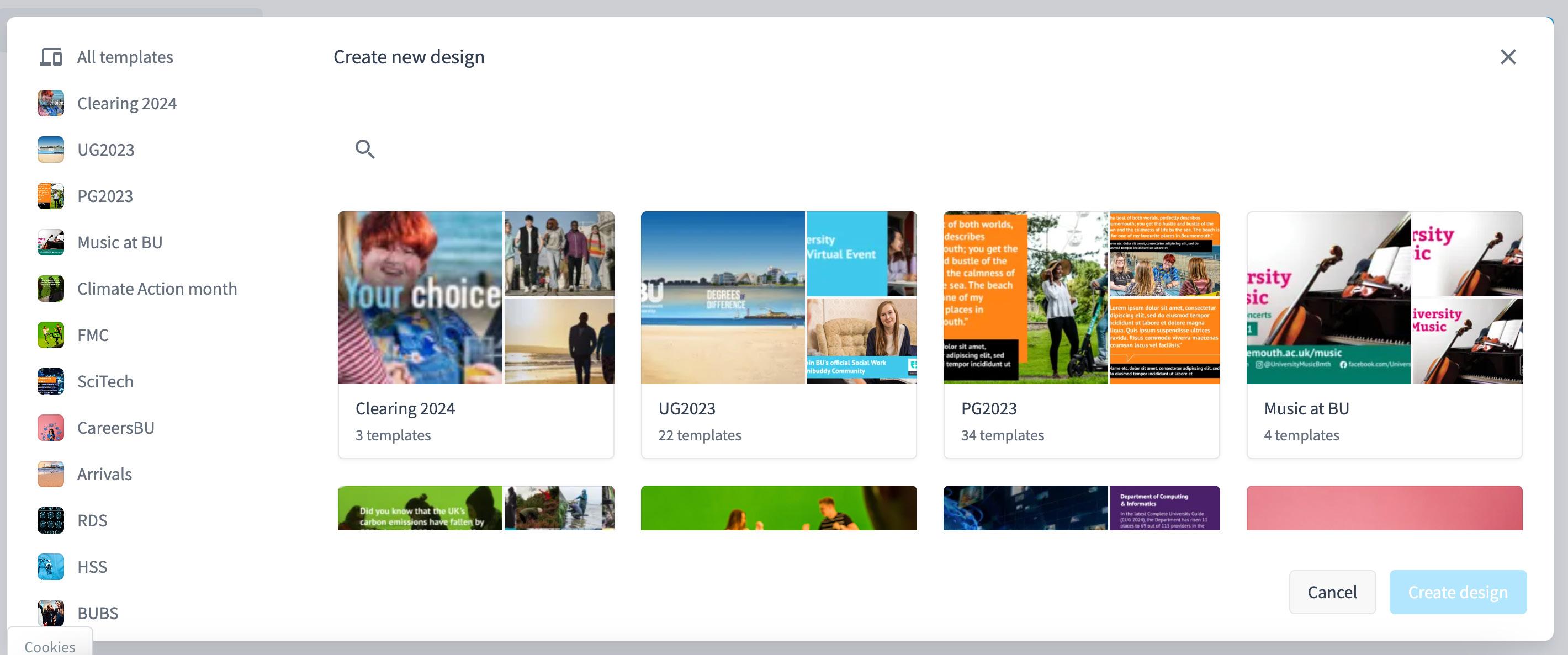
2. Click the New design button. A screen with available templates will open.
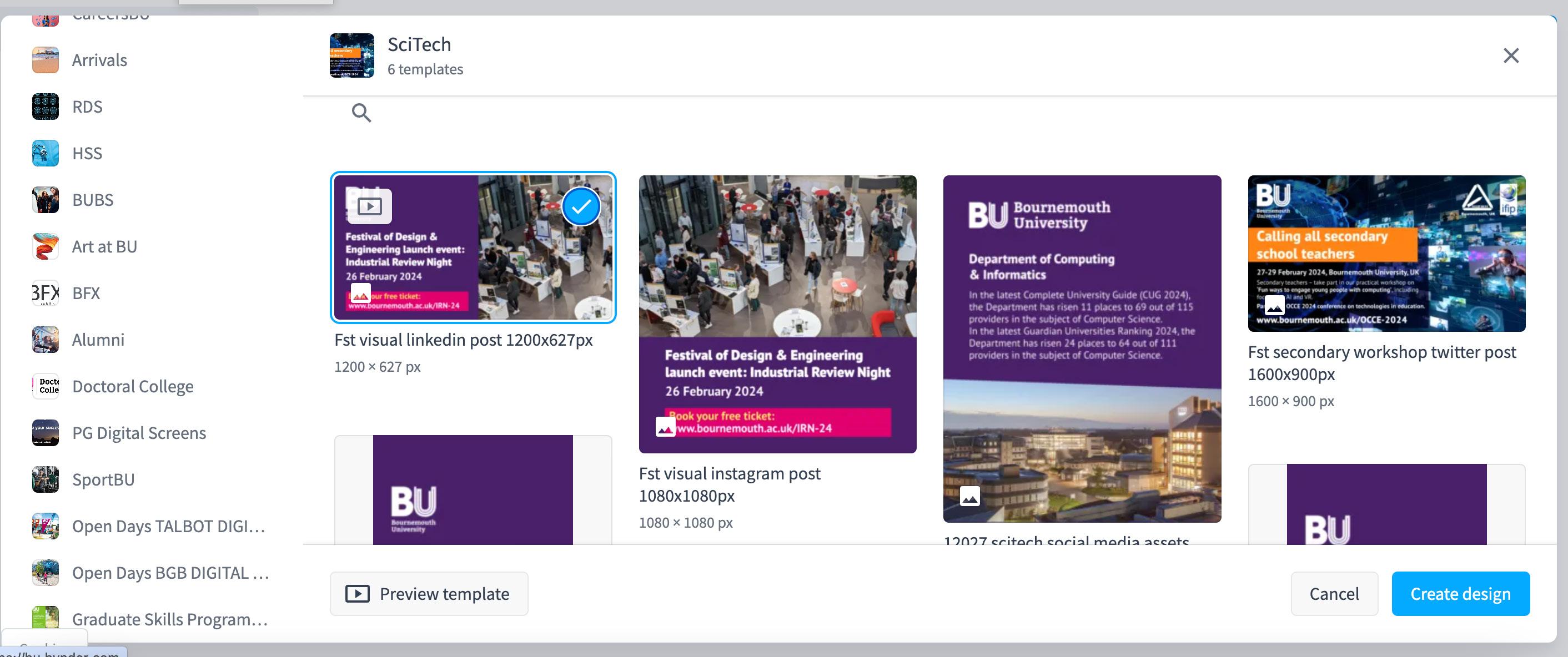
3. Select the relevant category (e.g. Clearing, UG2024, FMC, Alumni etc) you want to create a design for.
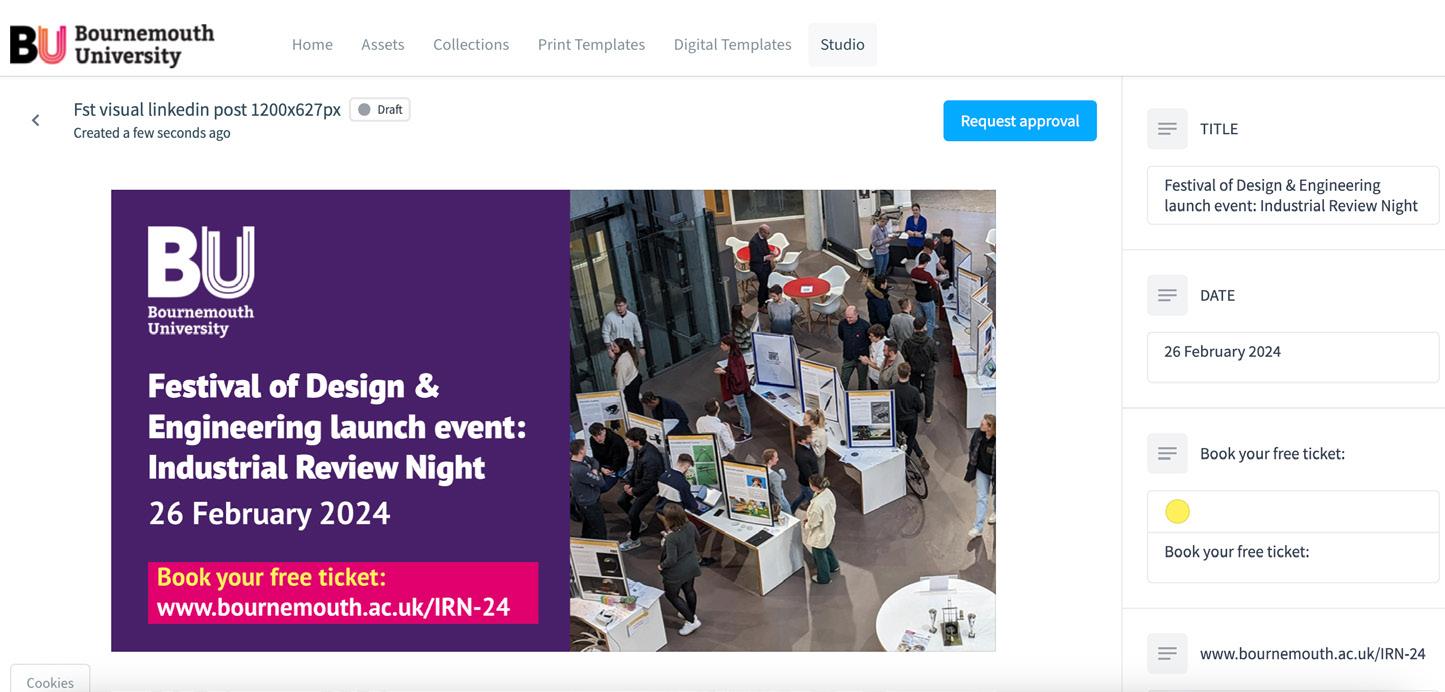
4. Find the design you want to create and click on its thumbnail. Click ‘Create design’ and the editor will open.
5. Use the sidebars to create your design.
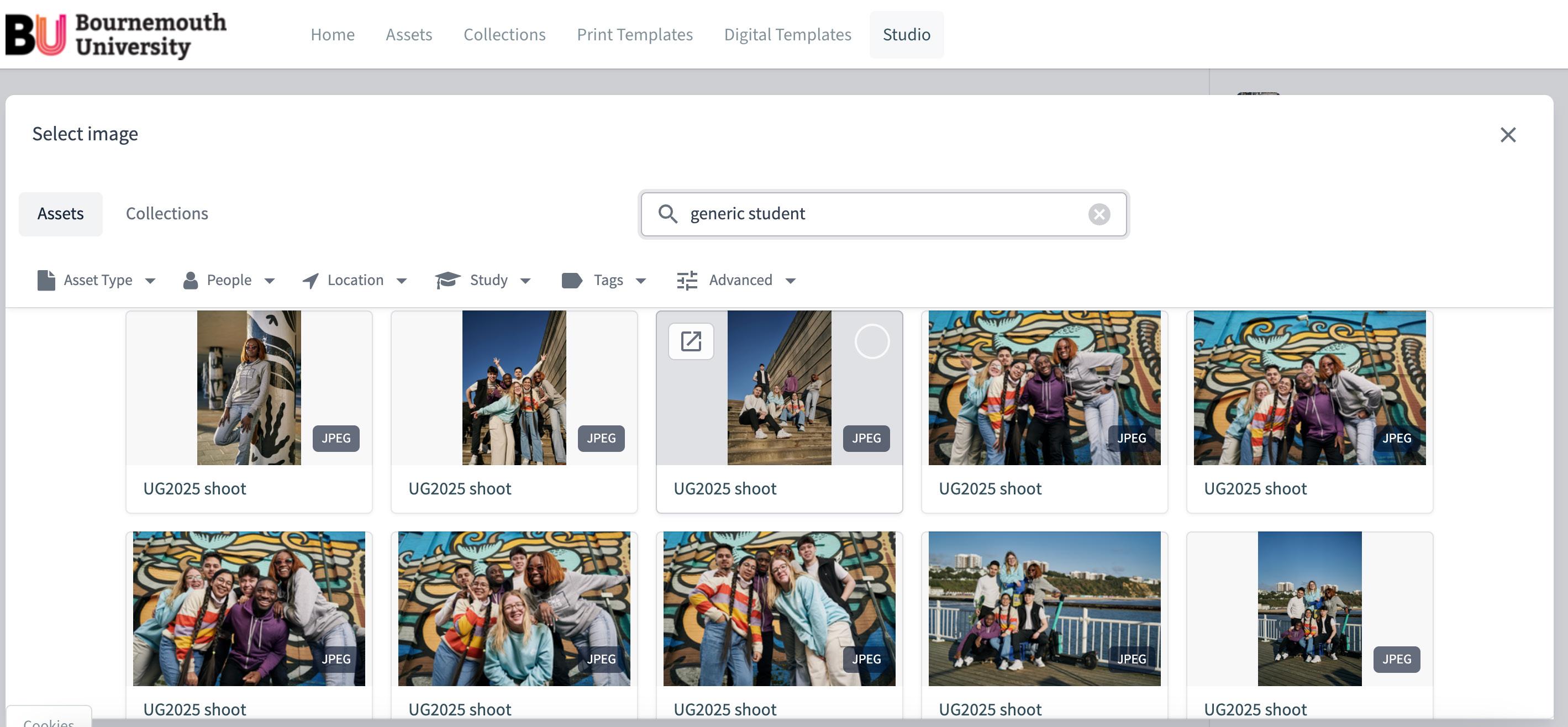
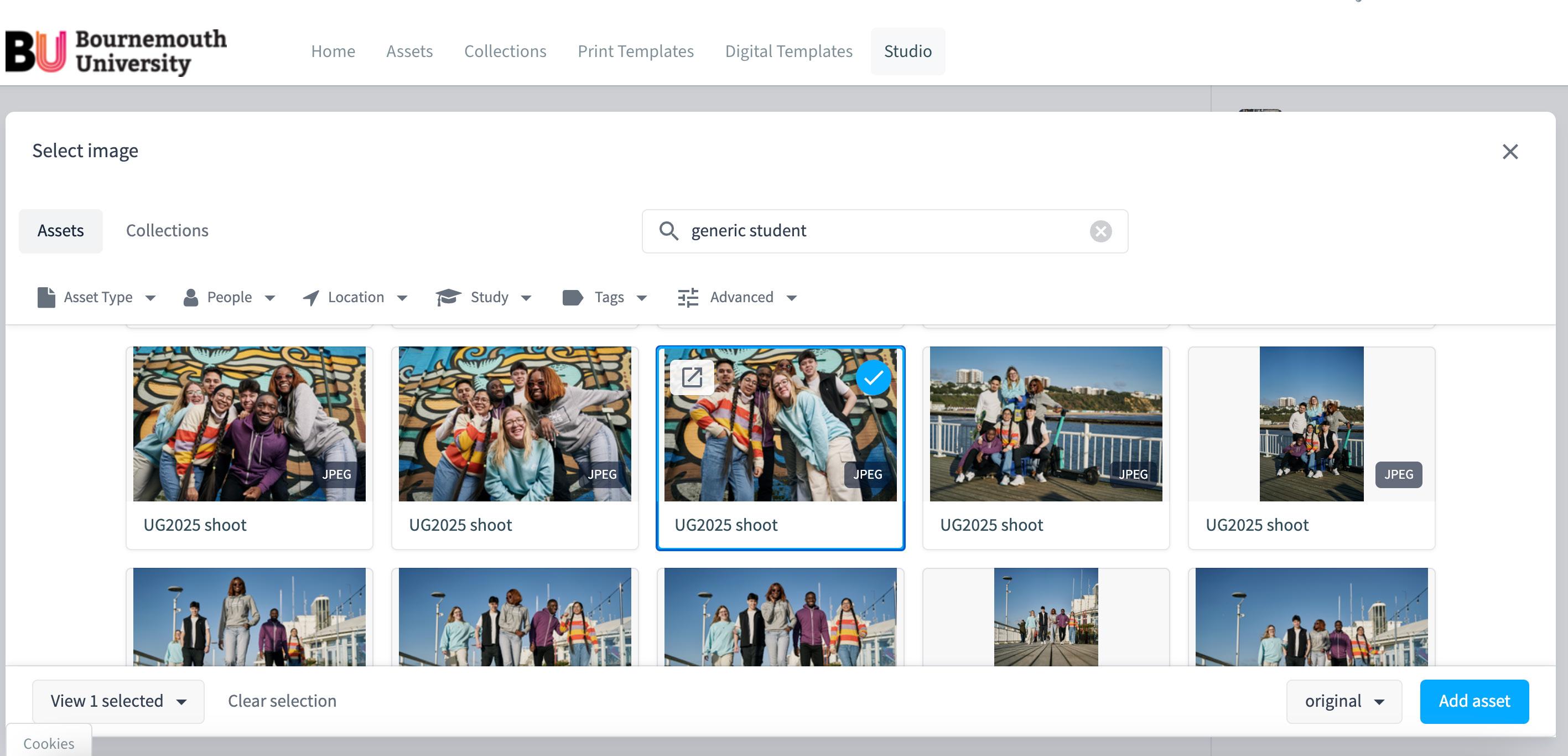
6. You can replace the image (unless it is locked down) by clicking the sidebar image. Choose your image from the Assetbank or upload a new image to use (subject to approval).
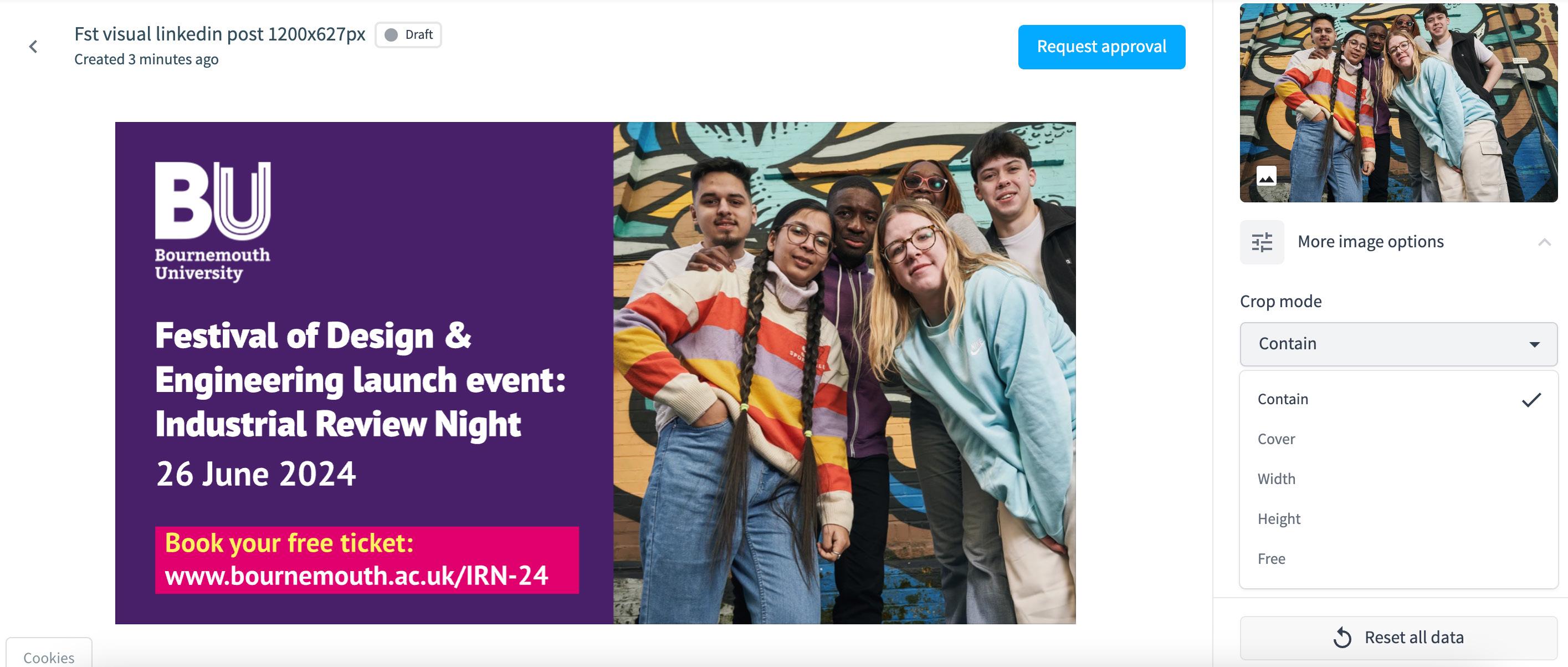
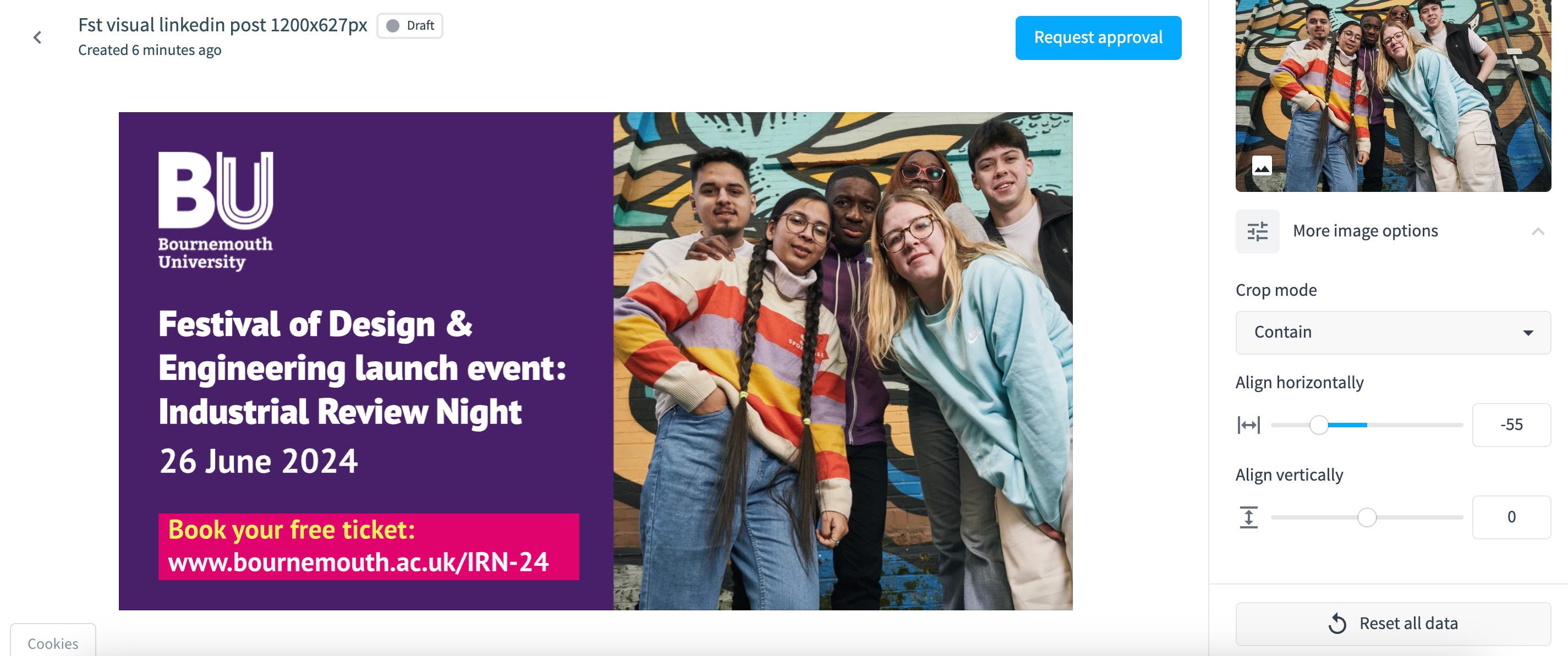
7a. The image can be adjusted to fit the space using the ‘Crop mode’ drop-down menu.
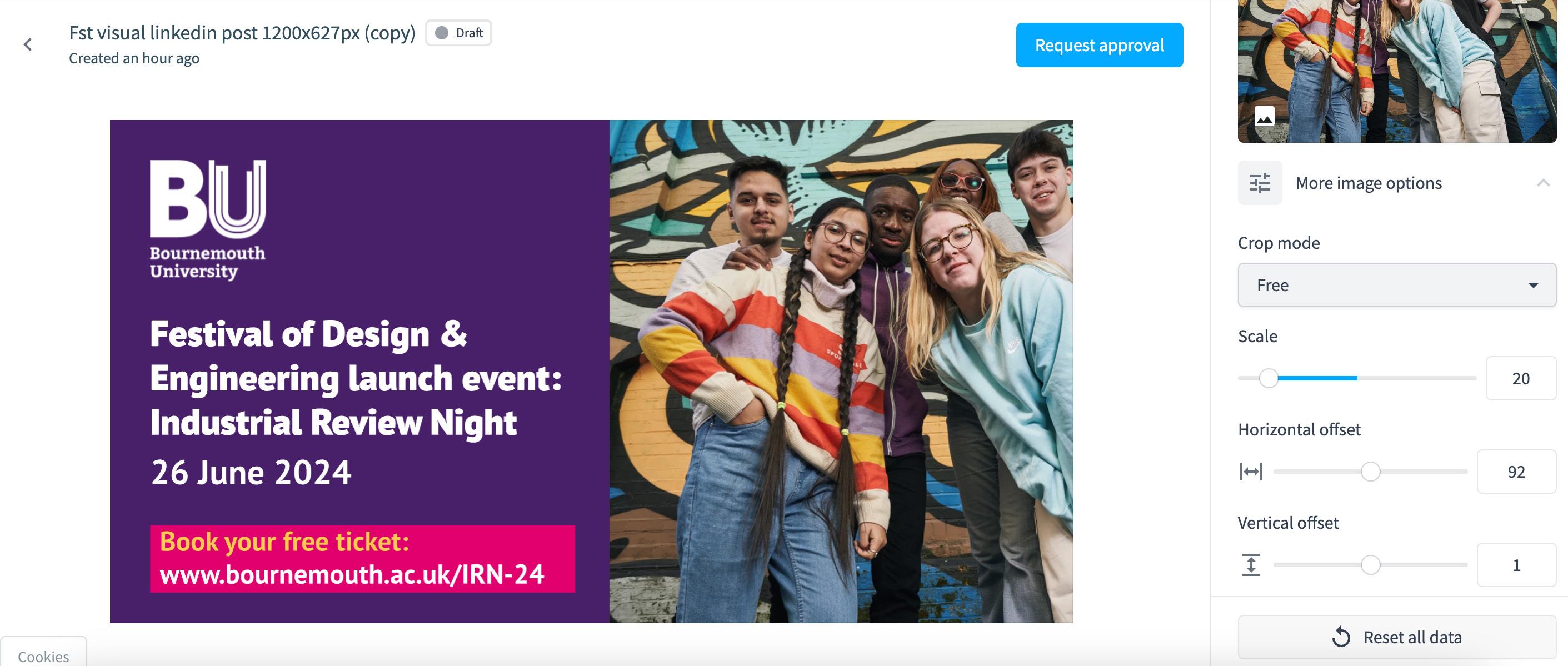
7b. You can enlarge and reduce the image size using the Scale slider in Free mode.
8. You can adjust the alignment of your image using the ‘Align horizontally’ and ‘Align vertically’ sliders.
9. Please download the original size image for all designs, we no longer need to choose a derivative (e.g. web, digital screen) etc.
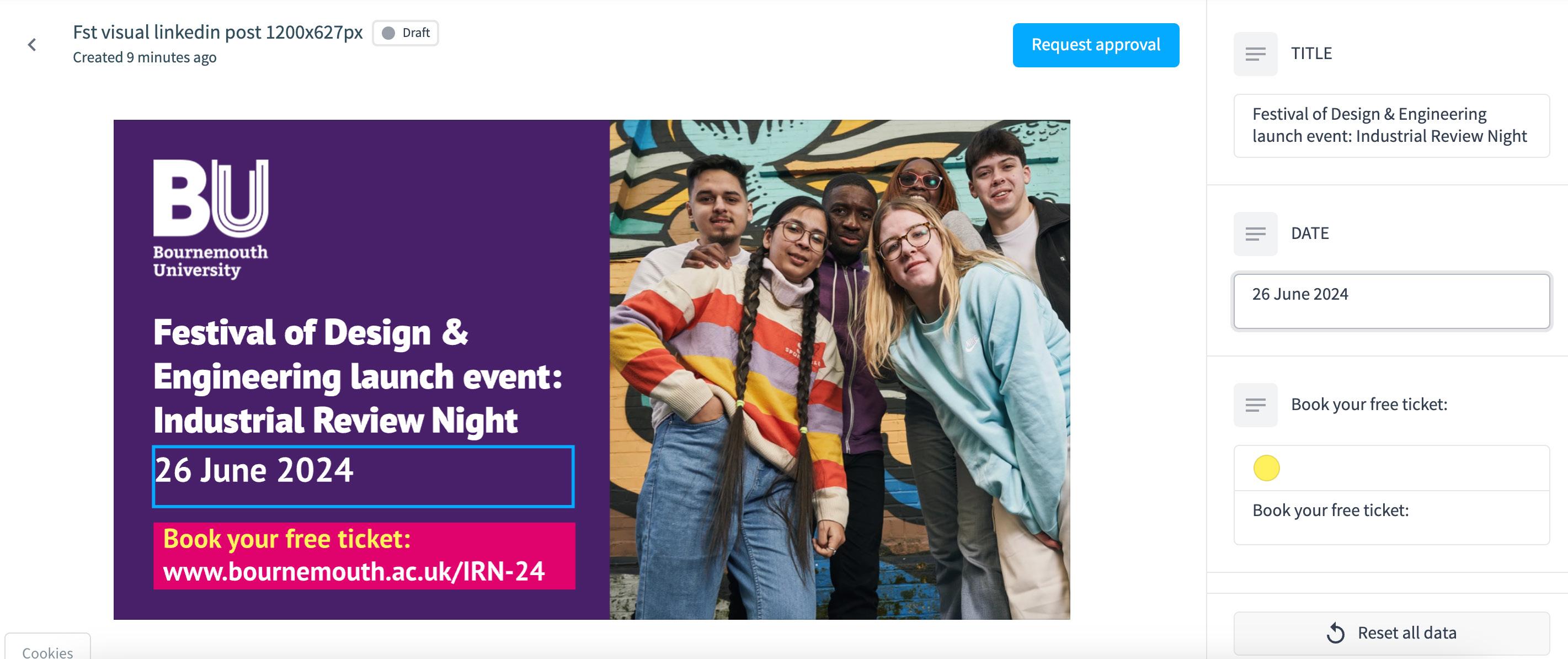
10. You can amend the text directly in the sidebar.
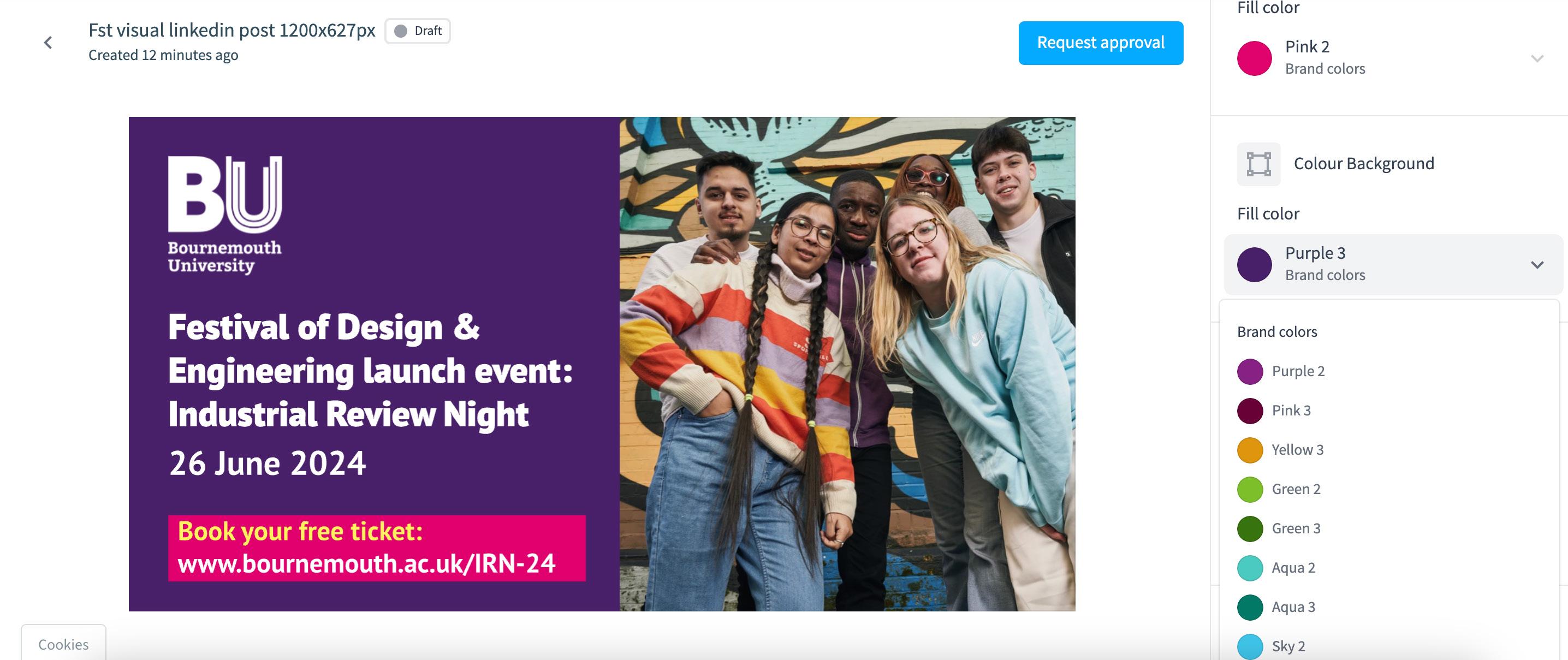
10. You can amend the background colours by clicking in the sidebar drop-down menu and choosing the BU brand colour you require.
Note
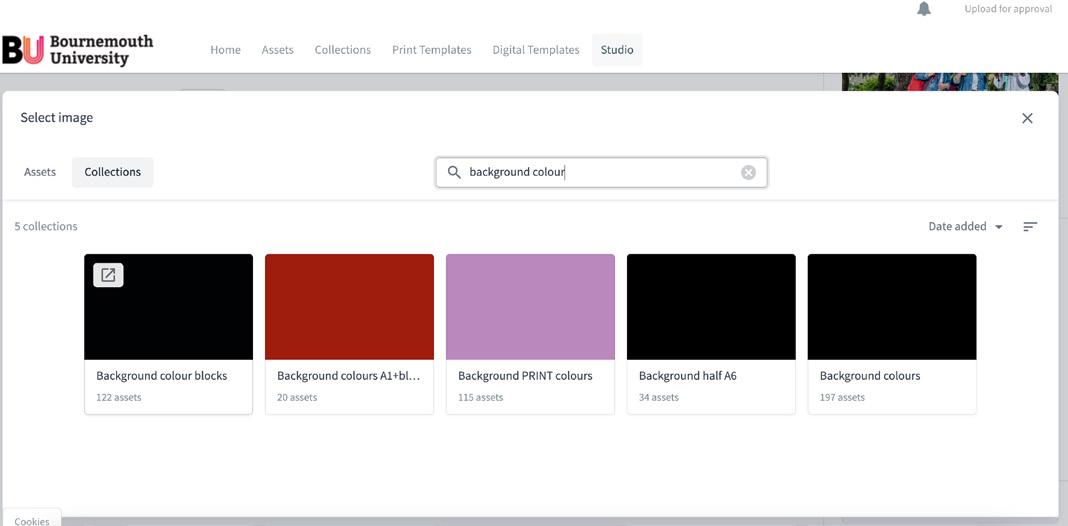
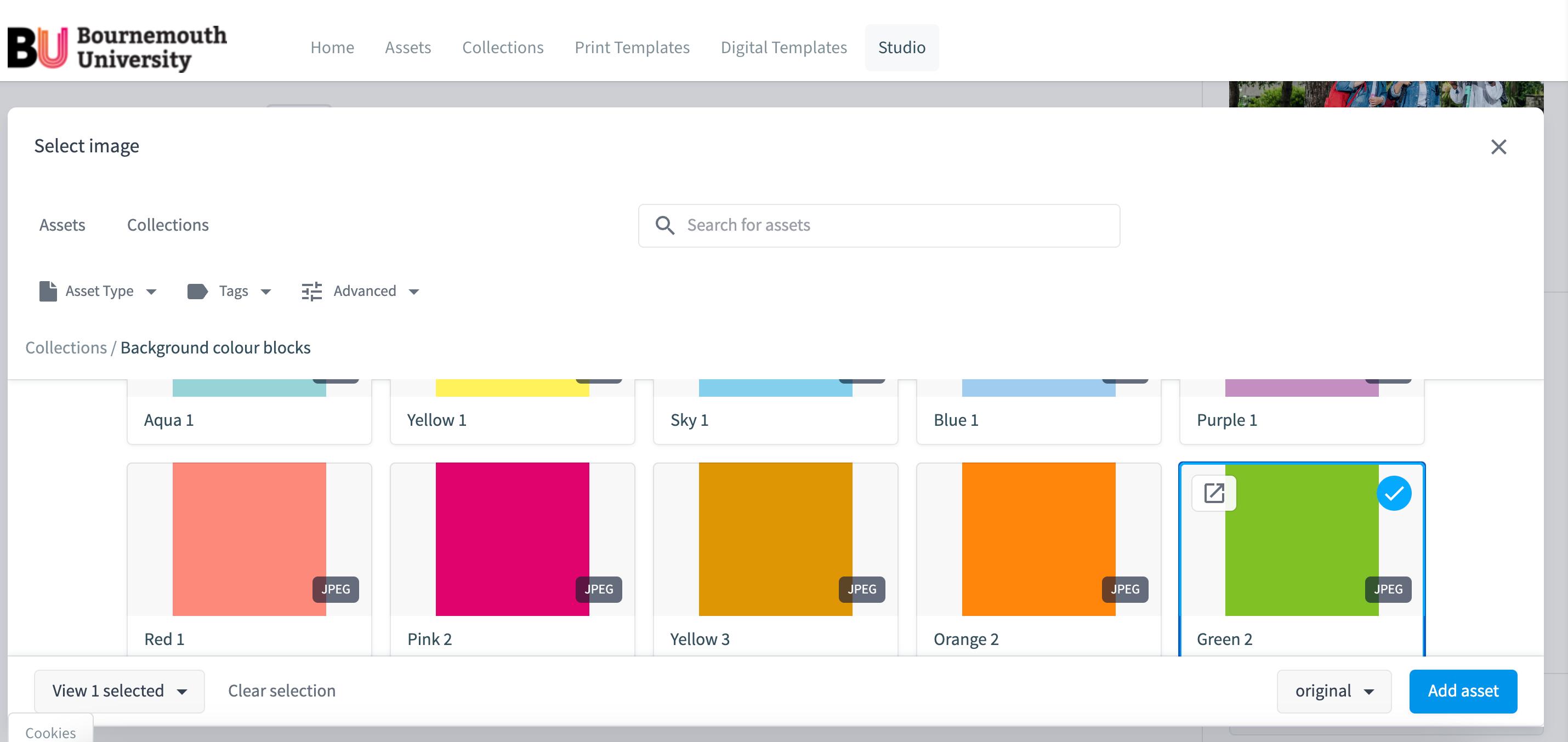
Some older templates have background colours and footers set up as images, you can amend the colour by selecting the Background colour blocks collection and choosing a coloured image JPG. EPS files are no longer supported in the Digital templates module.
13. Select new colour image background by collection & search bar.
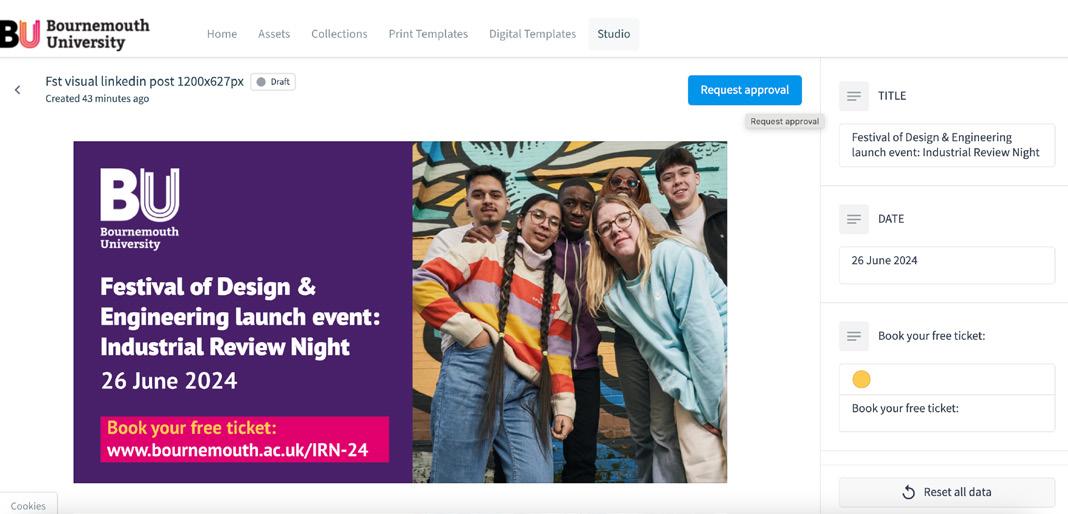
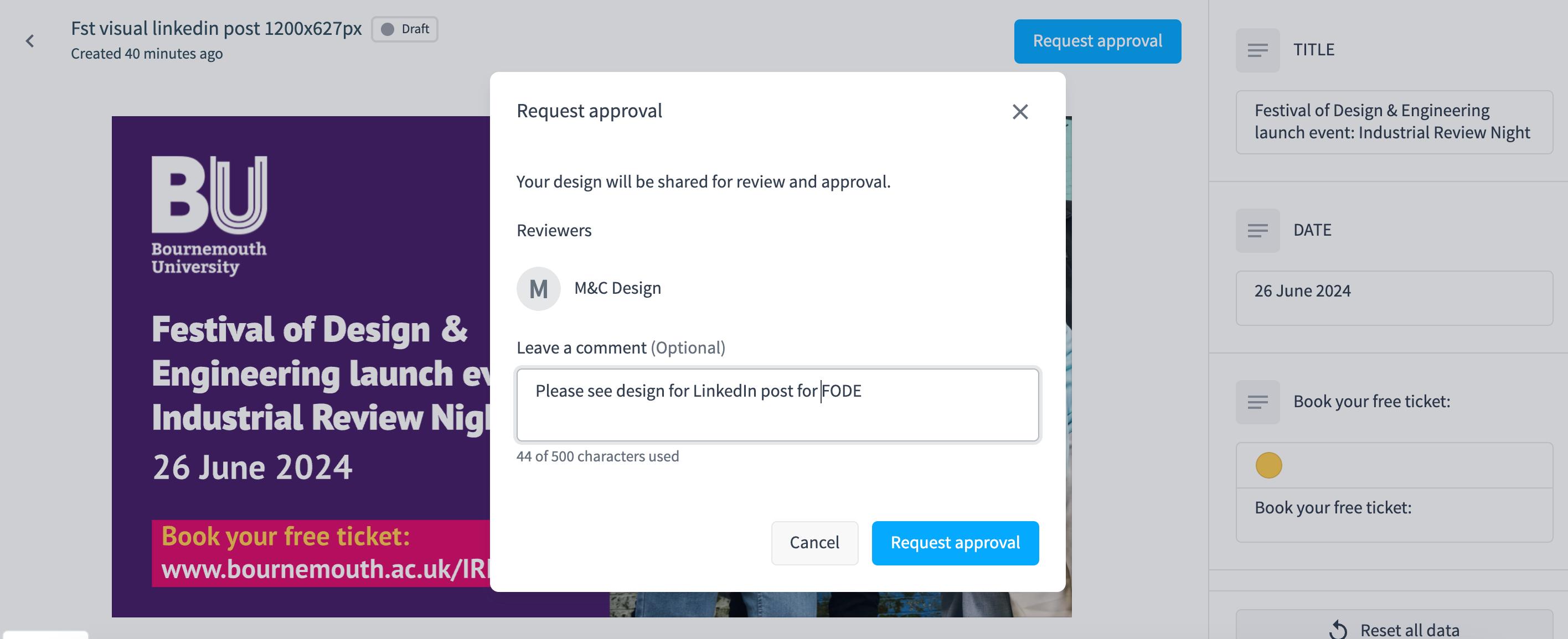
14. Once your design is ready, click ‘Request approval’
A Request approval pop up will appear. Any relevant information can be included here. An email notification will be sent to the approvers.
Note
If you have used a watermarked or stock image, please inform the team here to check licensing requirements.
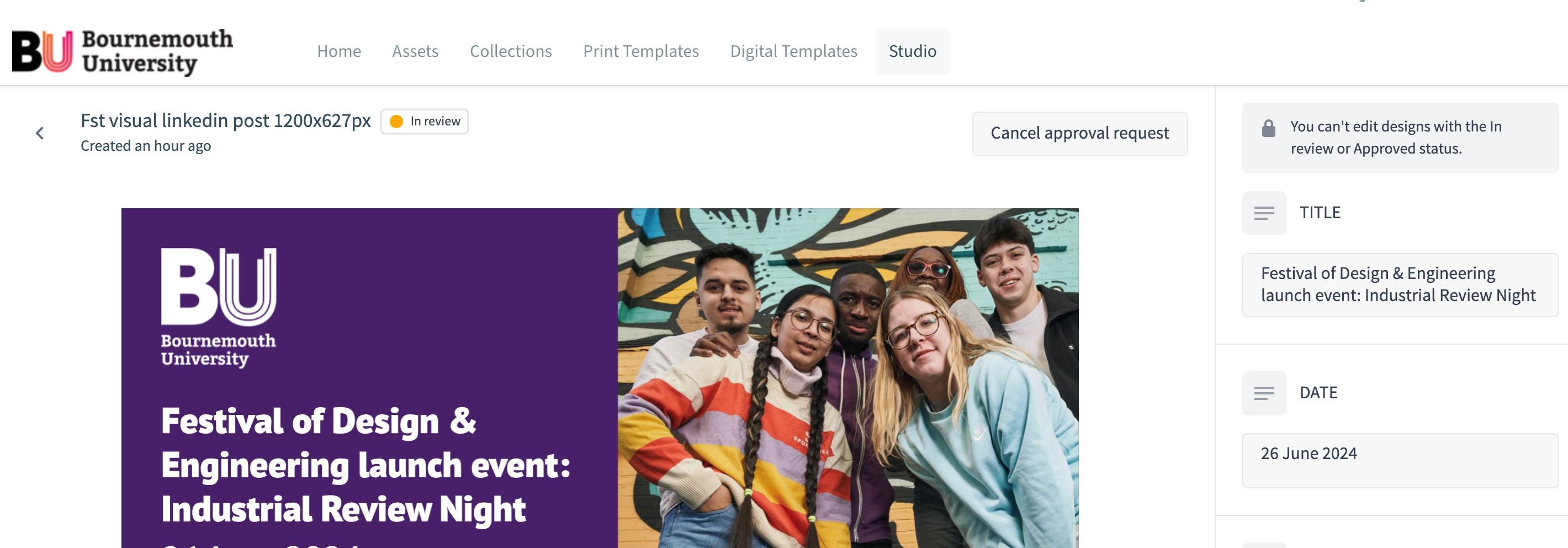
15. Your design will appear as ‘In Review’ with a yellow dot, until approved or edits are requested.
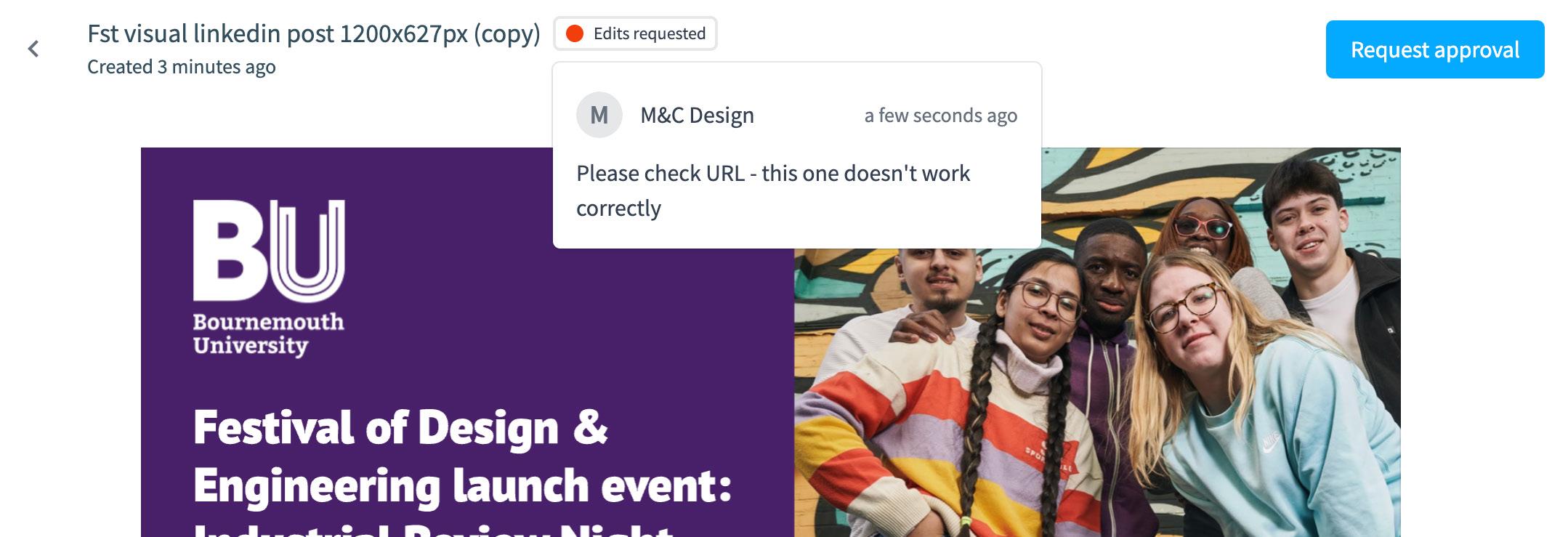
16. If edits are required, you will receive email notification from the design team. Your design will appear as ‘Edits requested’ with a red dot. Hover over the red dot to see the revisions required.
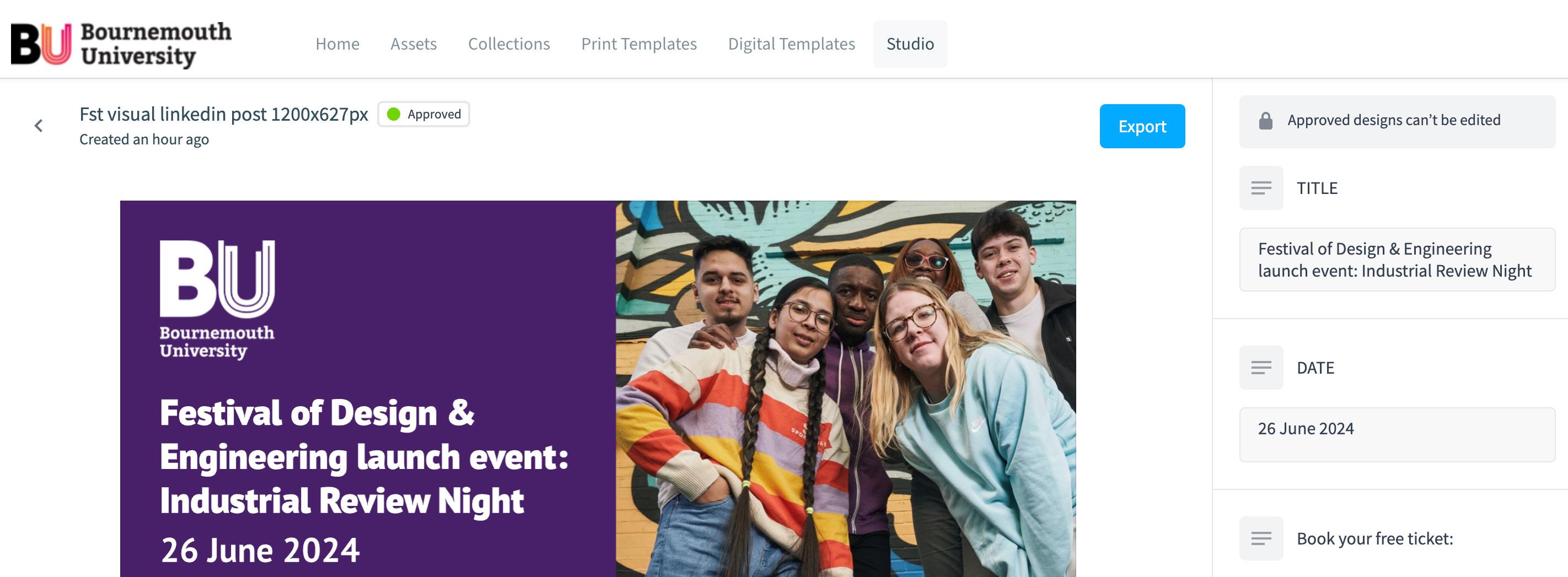
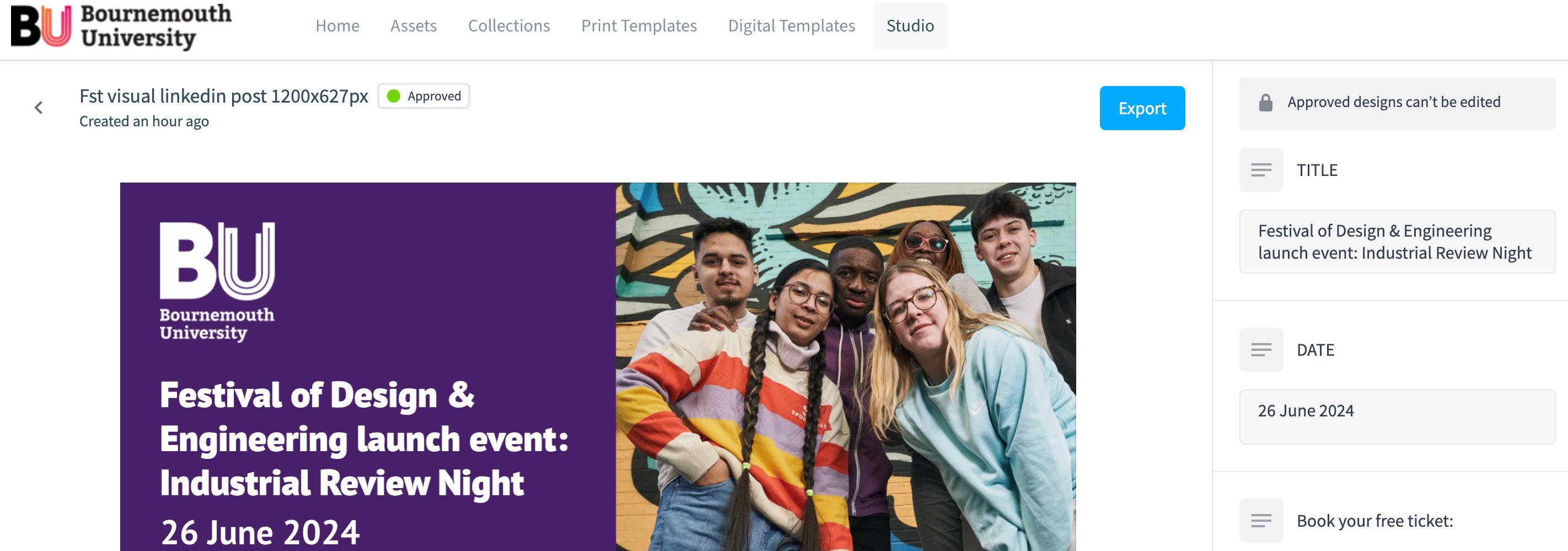
17. On approval, you will receive email notification from the design team and your design will appear as ‘Approved’ with a green dot
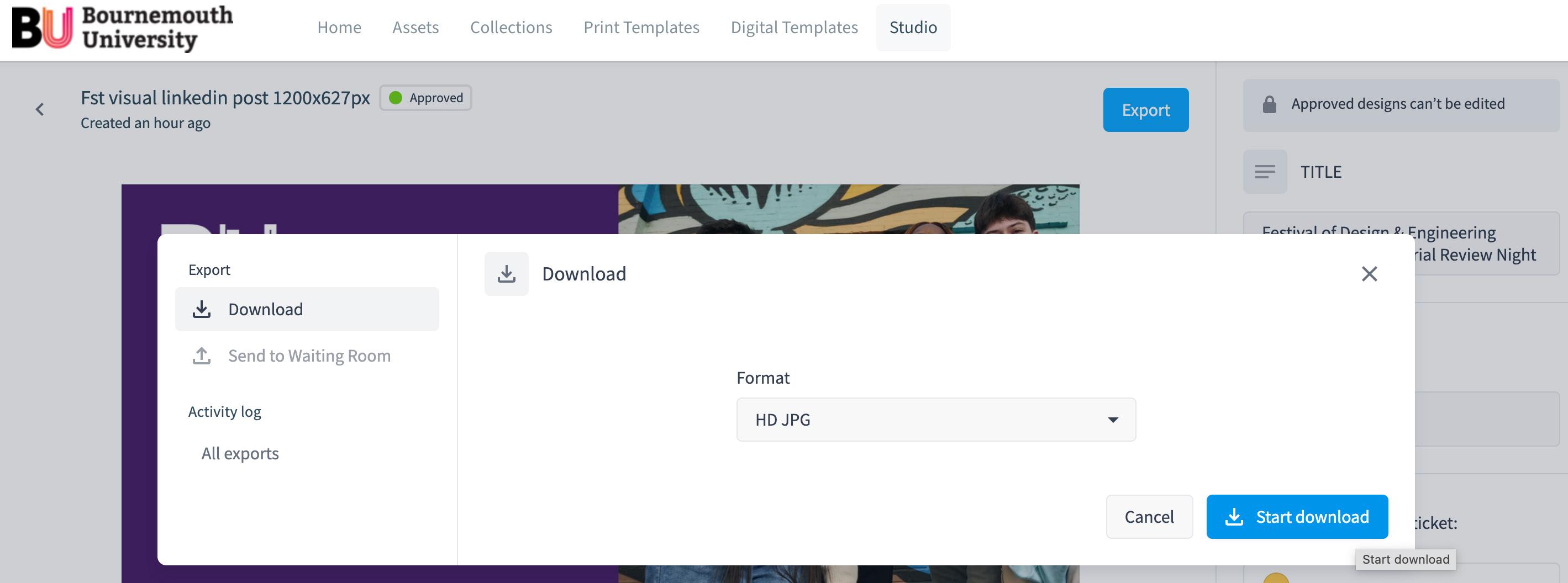
18. Click the Export button to download your asset.
19. Use the Format dropdown to select HD JPG for your output files and click ‘Start download’.
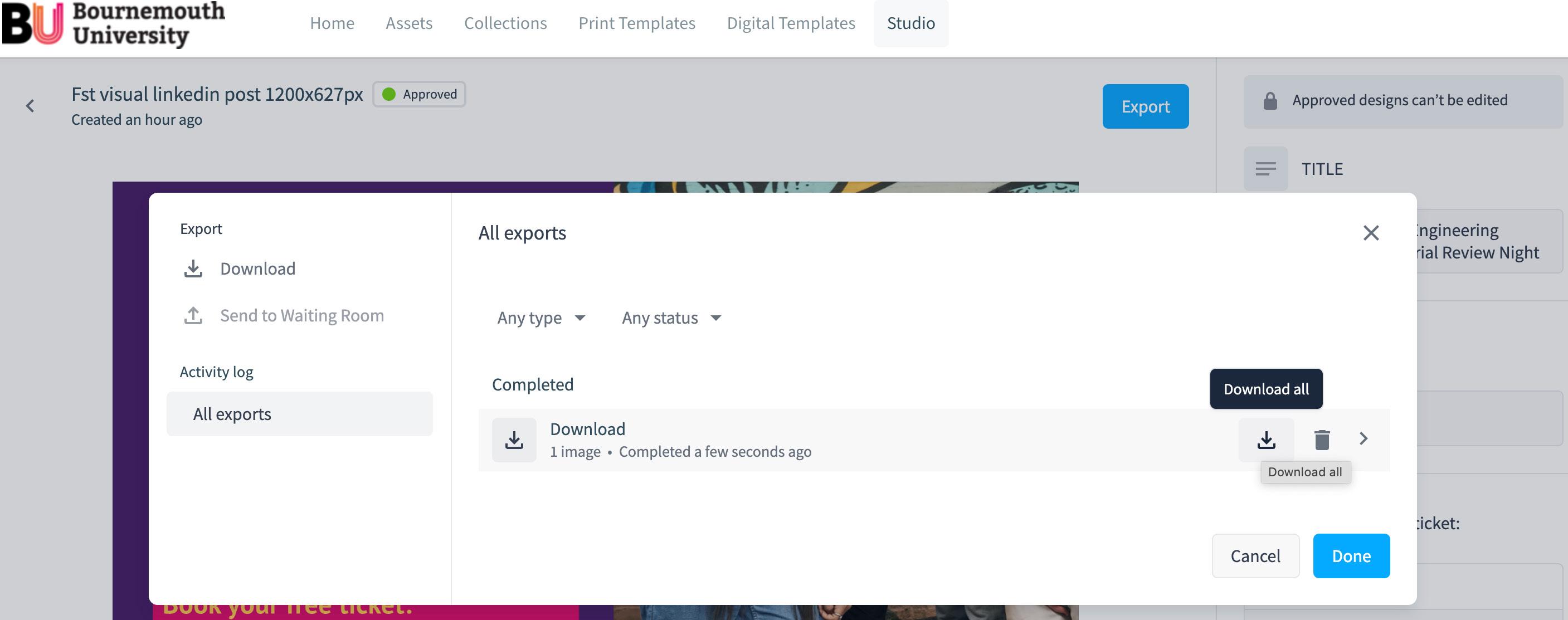
20. Once completed, click the download icon.
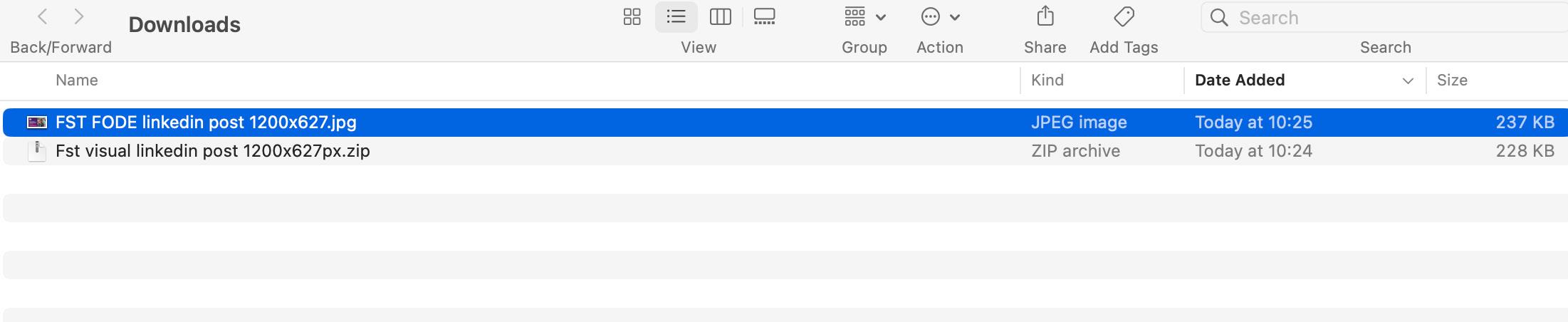
18. A zip file will download into your ‘Downloads’ folder.
19. Double click to open your JPG for use. The artboard name will serve as (file)name for the jpgs you export. Please rename by Campaign / Department / usage or anything relevant to you.
Projects & Sharing images
Duplicating your image
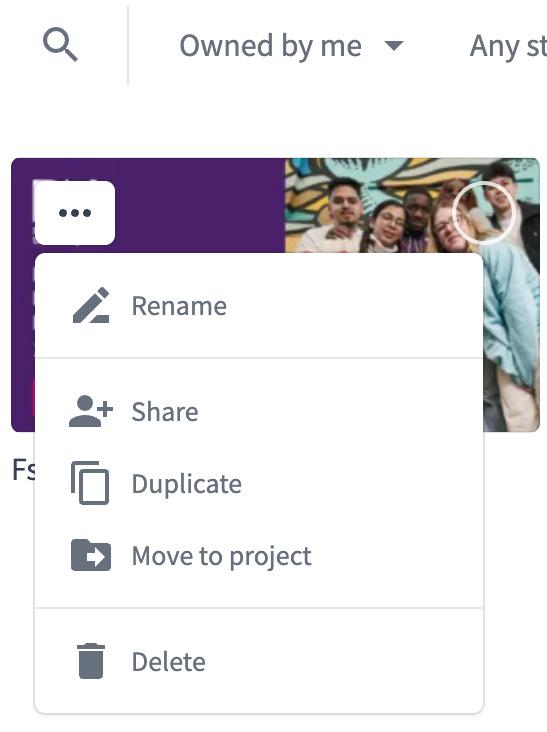
If you want to make changes to an approved asset, you can duplicate using the three dots button, and create a ‘Draft’ design to update / amend and send for approval.
Sharing your image
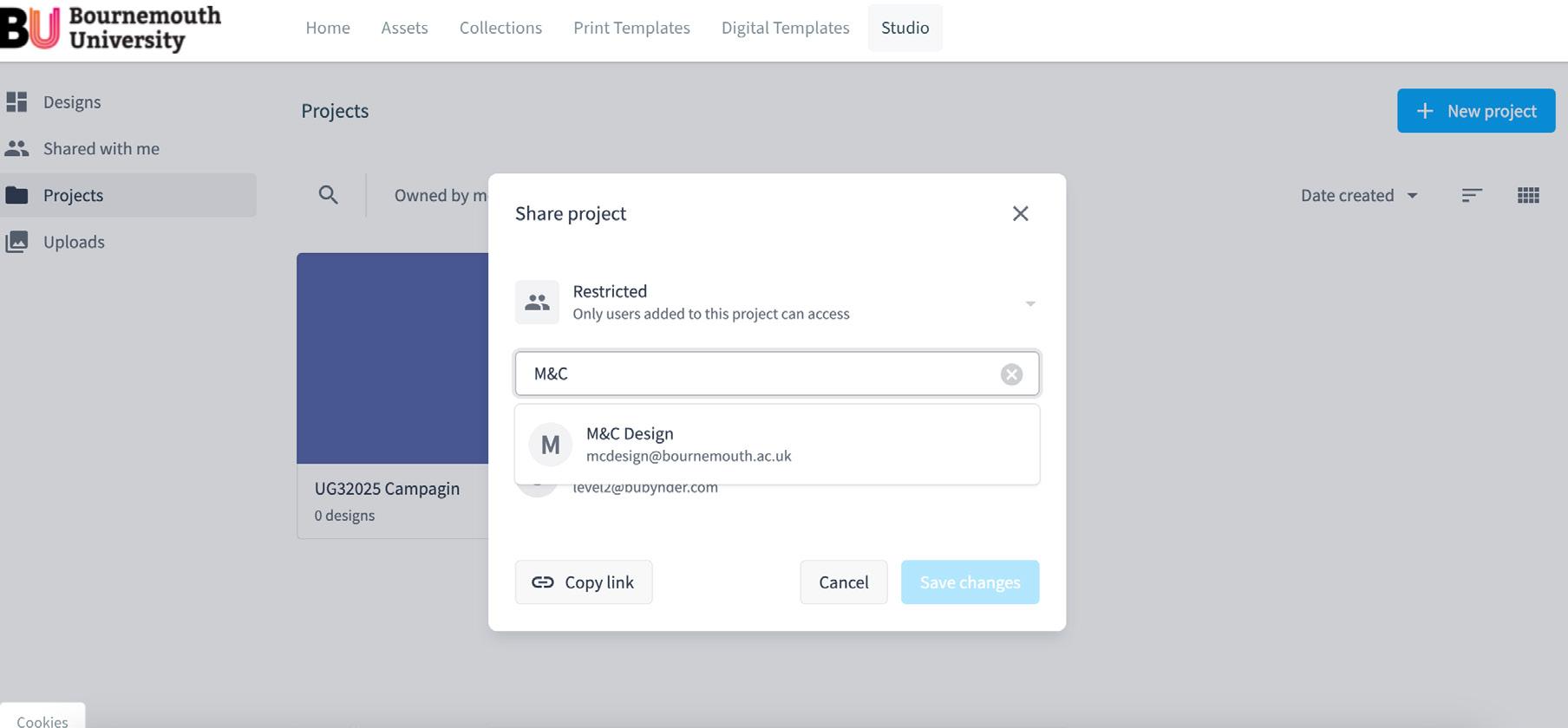
Once an asset is approved, you can share with your colleagues (Bynder users only) using the three dots button and Share button.
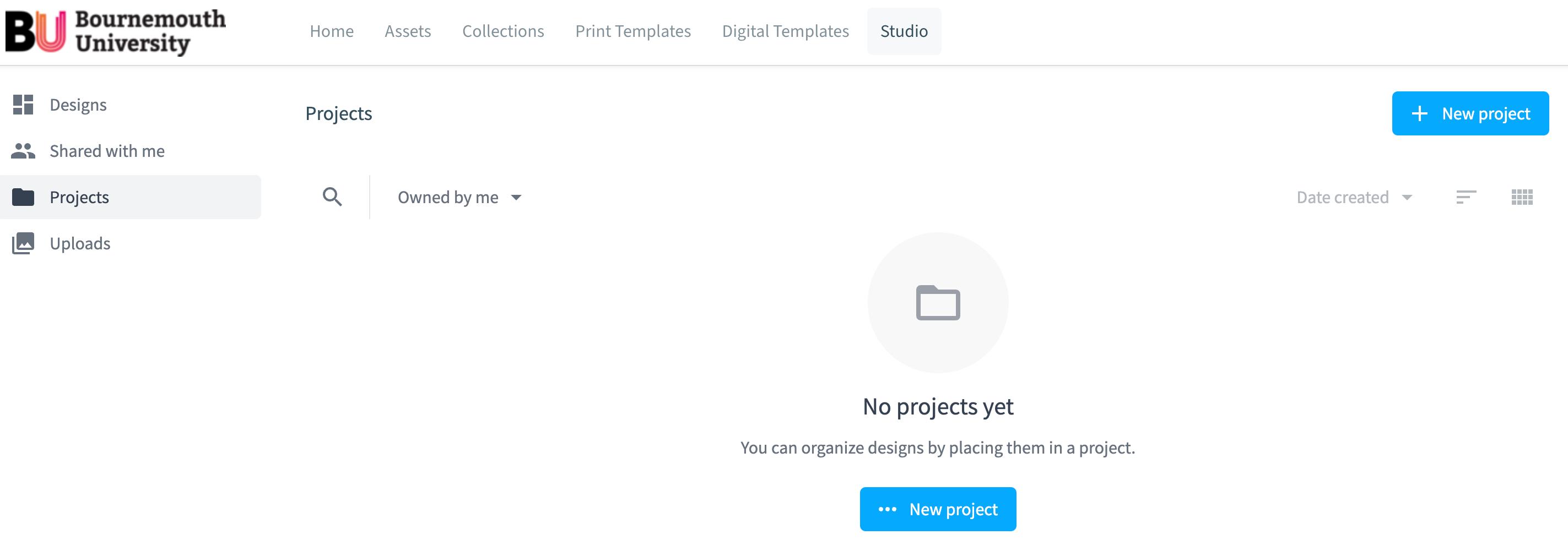
Projects folder
You can organise your own designs into a new project folder and share with your colleagues.
Print templates
1. Go to the Print Templates section of your portal.
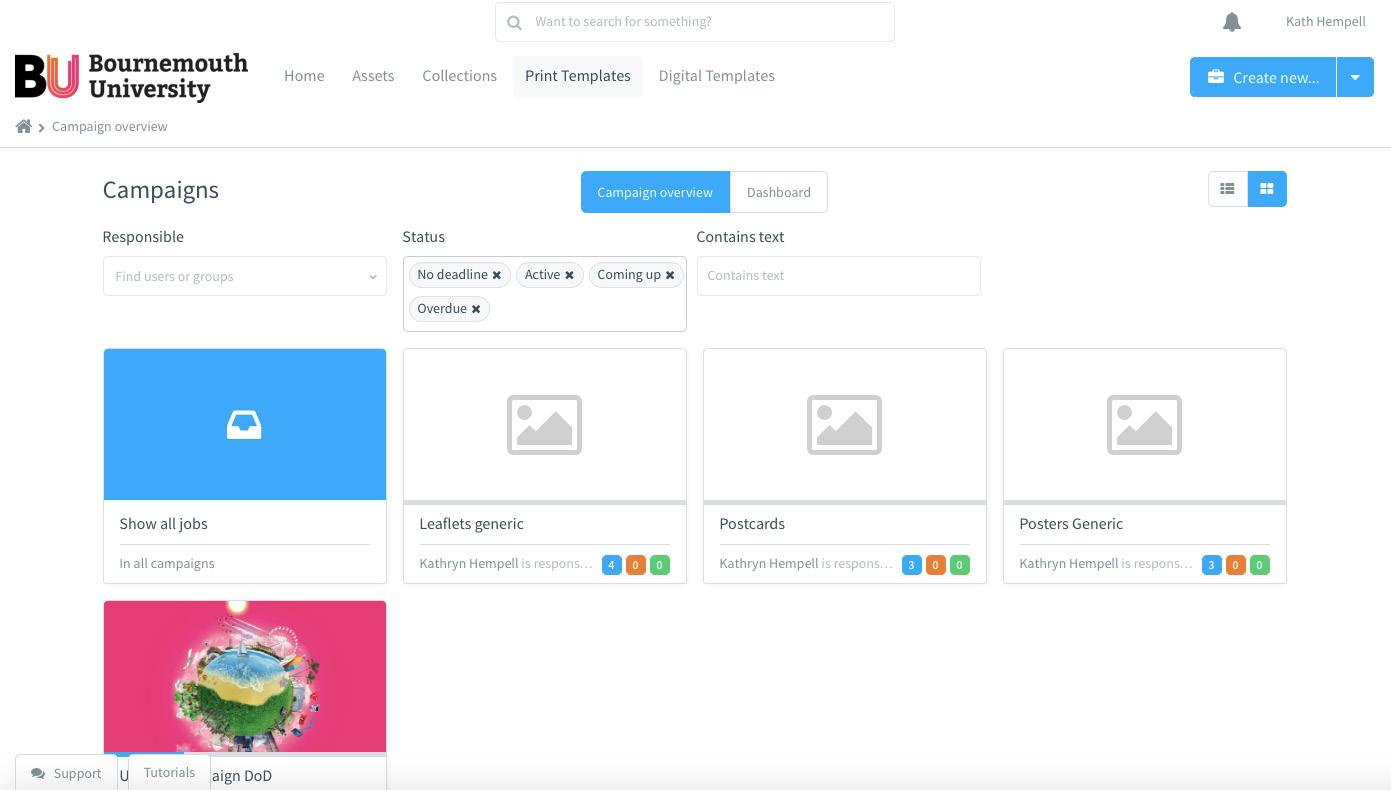
2. Select the product or campaign you want to create a print asset for (poster, postcard or UG2021 campaign etc)
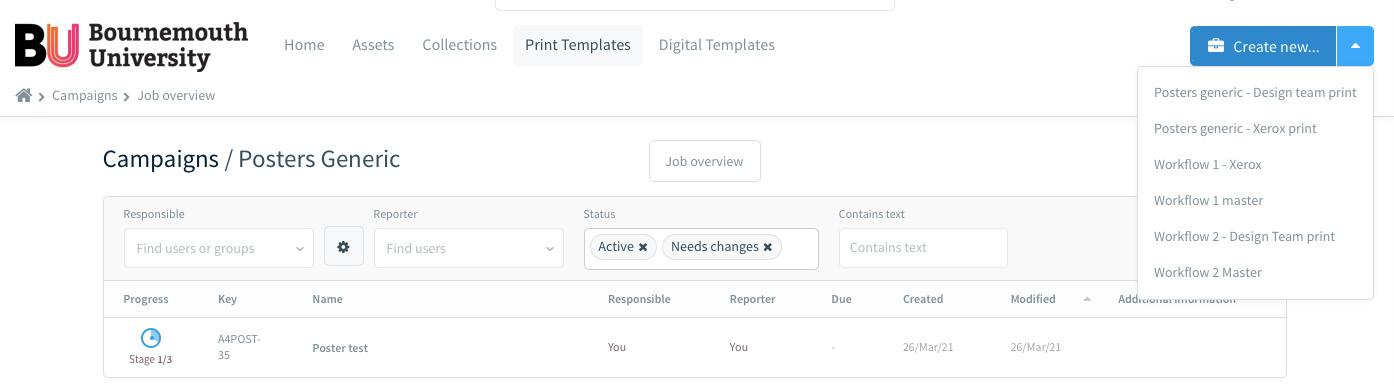
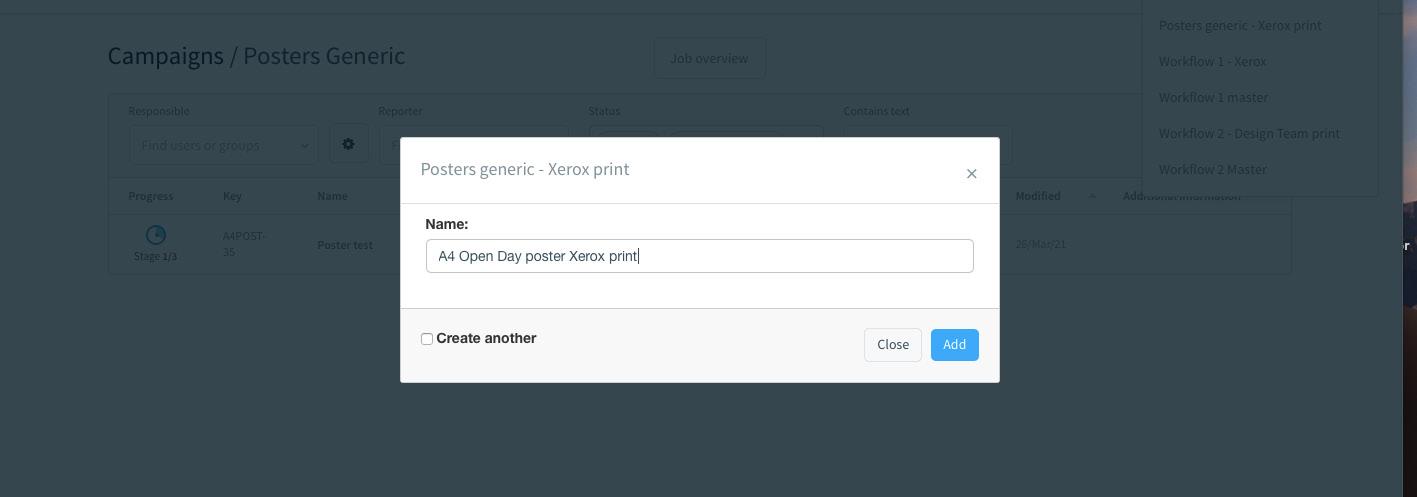
3. Click ‘Create new….’ button to select the workflow required (Design Team print OR Xerox print).
Note
If you select Xerox, you are responsible for the print production. If you select Design Team print, please send us a job request via the creative services hub, link here, requesting a quotation (include the job name (called ‘Key’ in Bynder), size, pagination, quantity, contact name and delivery address) and specifying the delivery deadline. The Design Team will provide you with a quote, request PO confirmation and send to print on your behalf.
4. Name your file and ‘add’
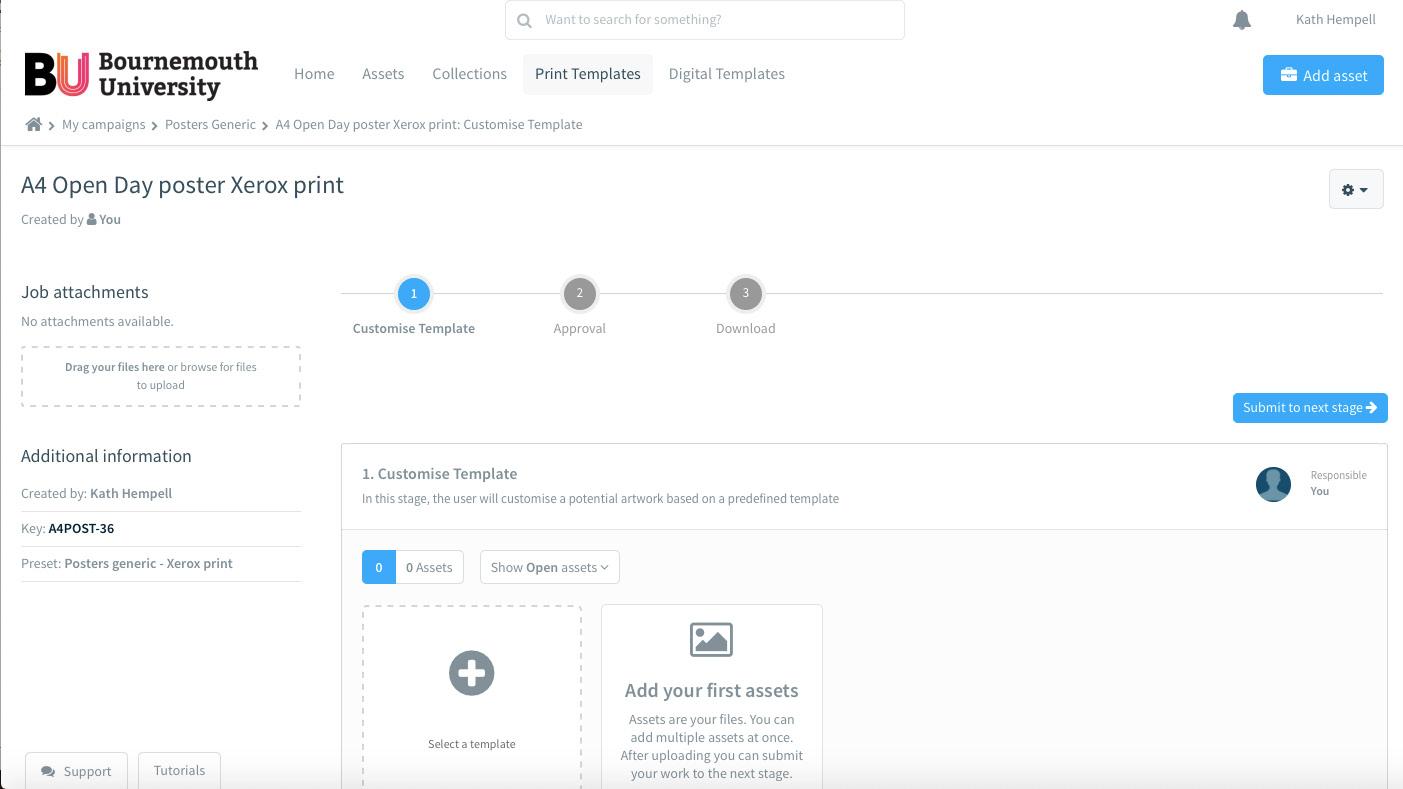
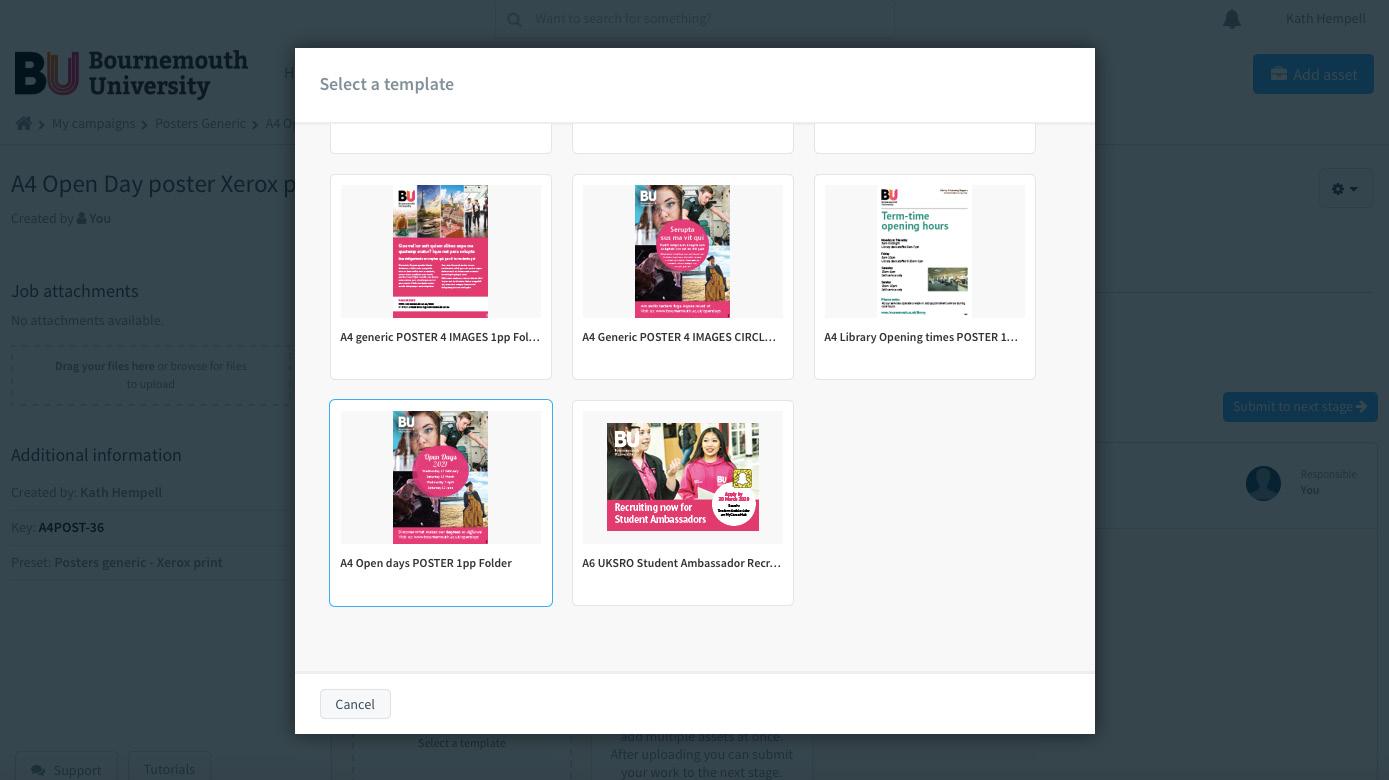
5. Customise your print asset. Click the + button. A screen with available templates will open. If the template you need is not available, contact the Design Team.
6. Select the template you want to amend and click its thumbnail. The editor will open.
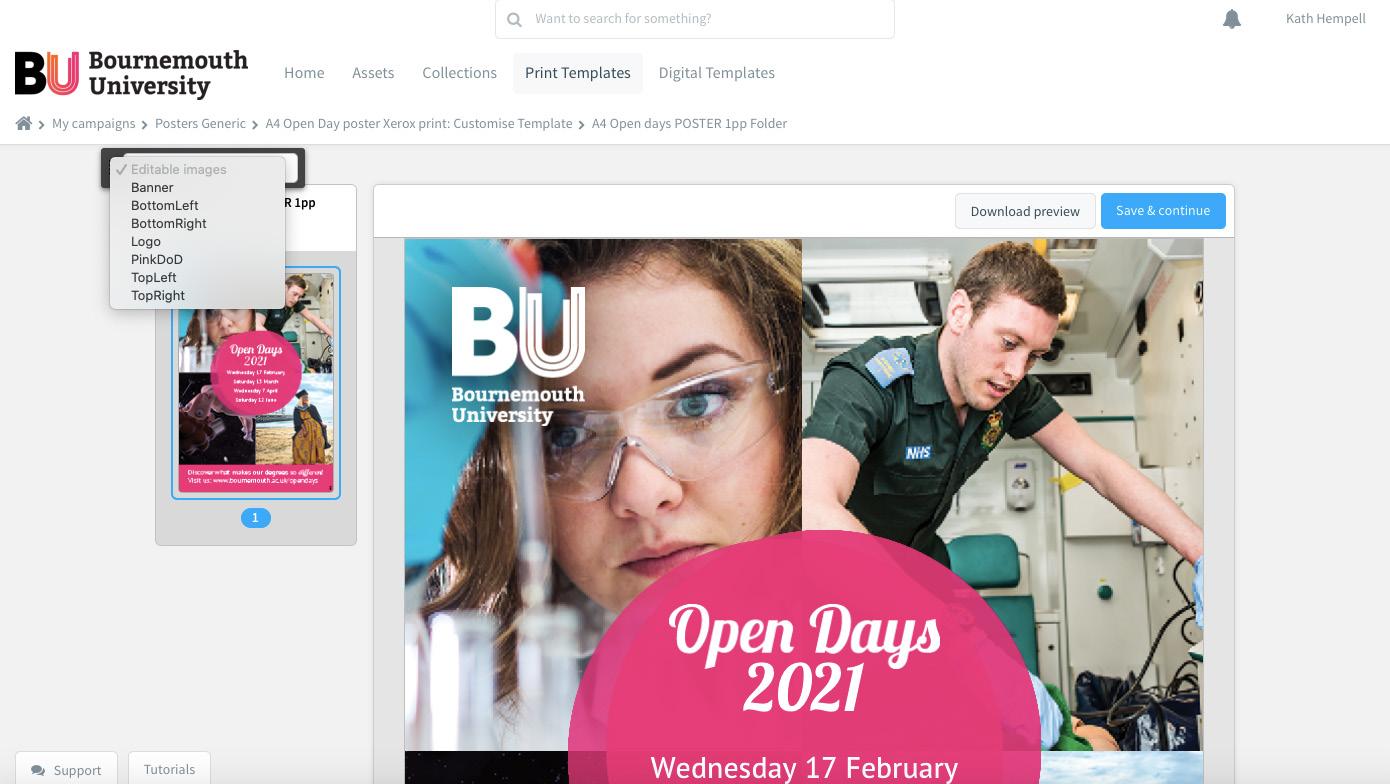
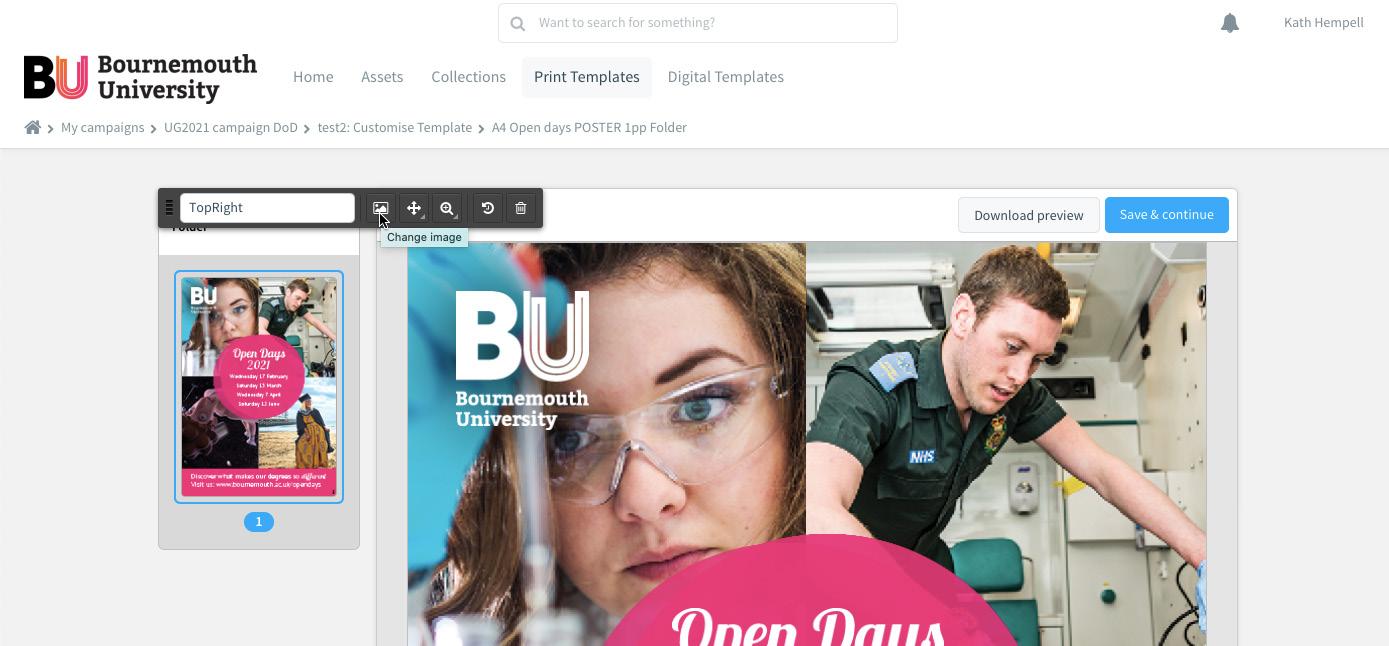
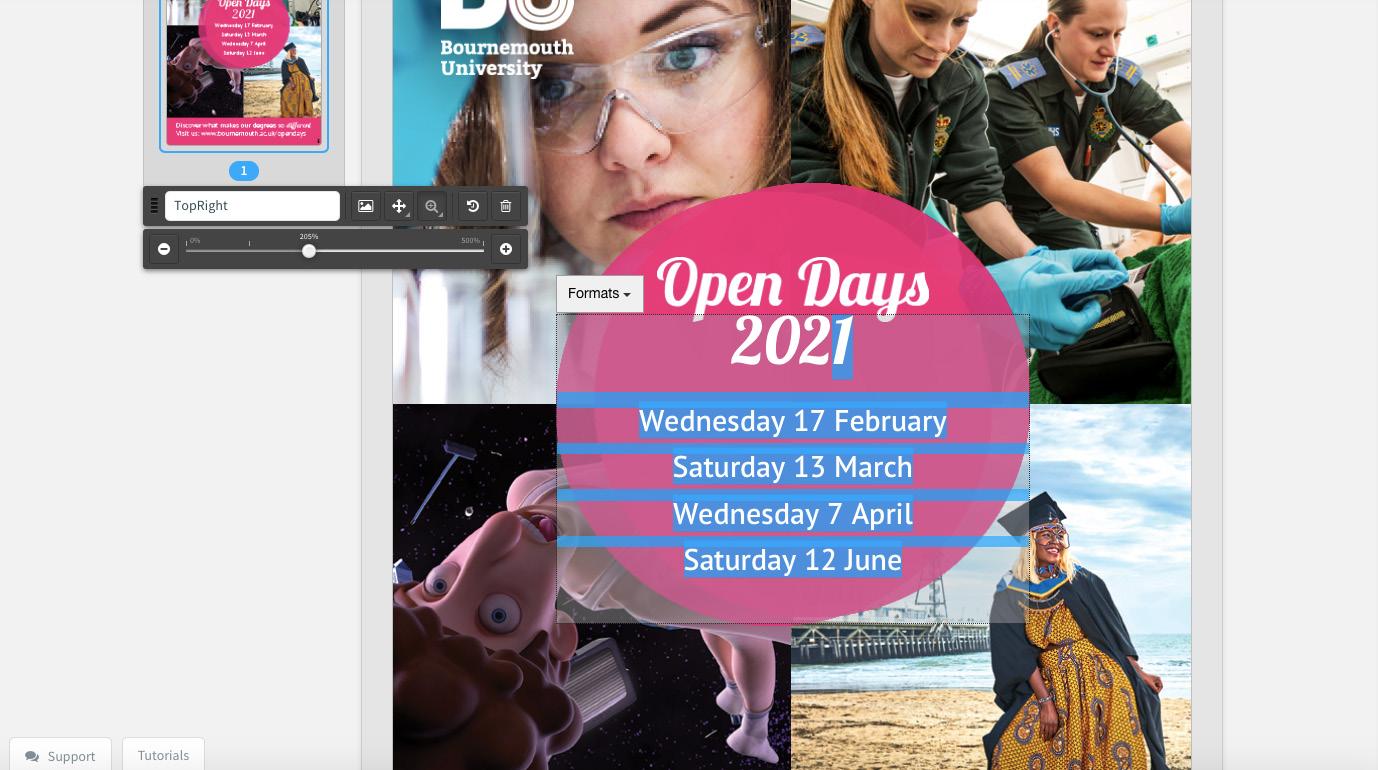
7. Use the editor to amend your document using the Toolbar. This shows you the images that are editable.
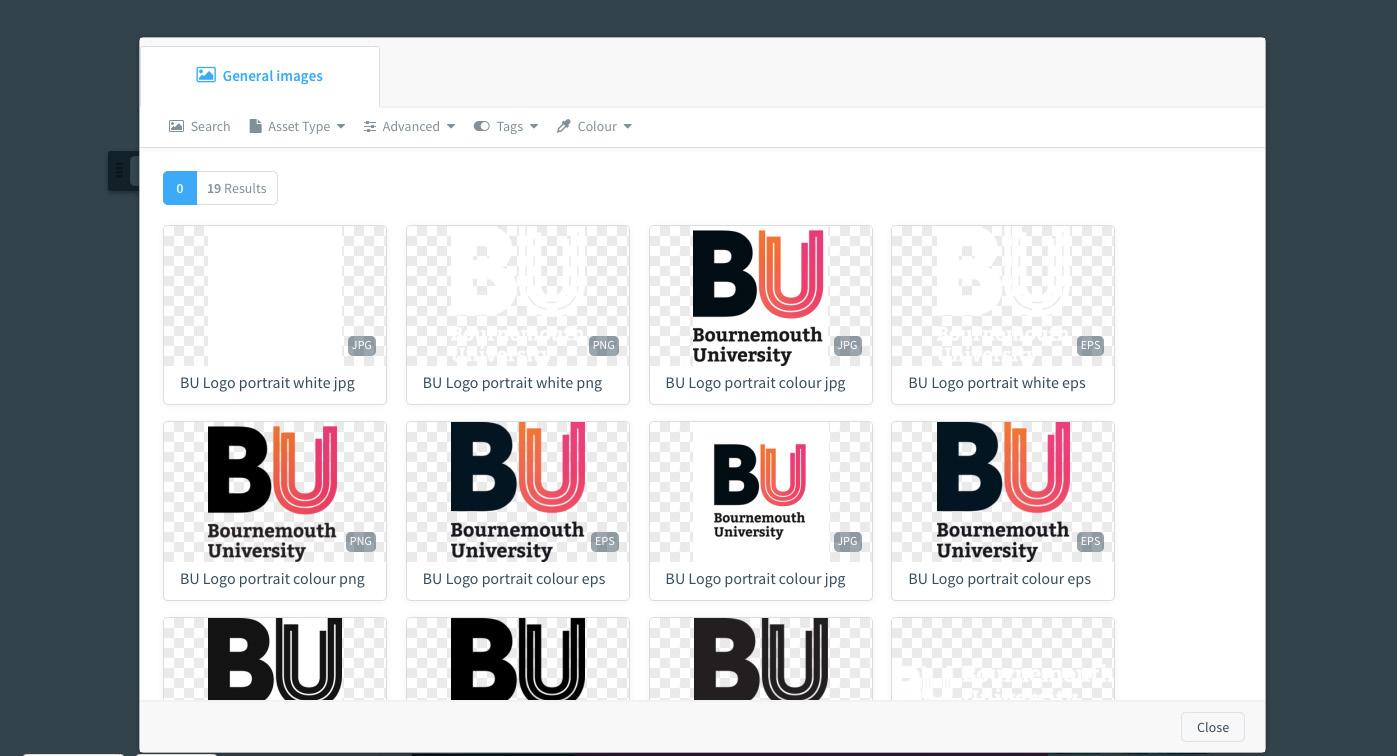
8. In some cases, you can only replace an image with a preset collection. For example, the BU logo can only be replaced by other BU logo from the BU Logo collection.
9. Replace an image by selecting on the image button on toolbar
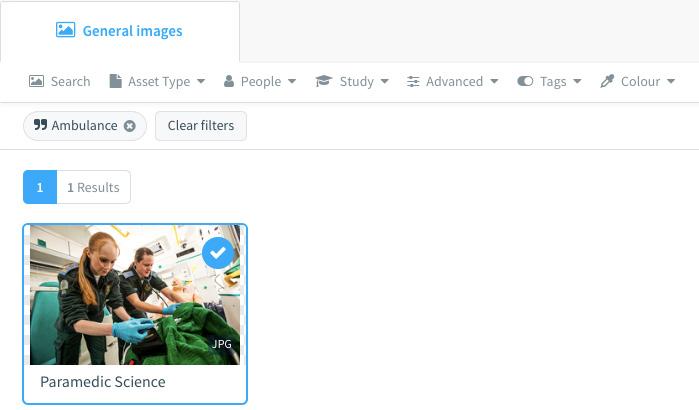
10. Search for the image you require using Search field or smartfilers. Add Media
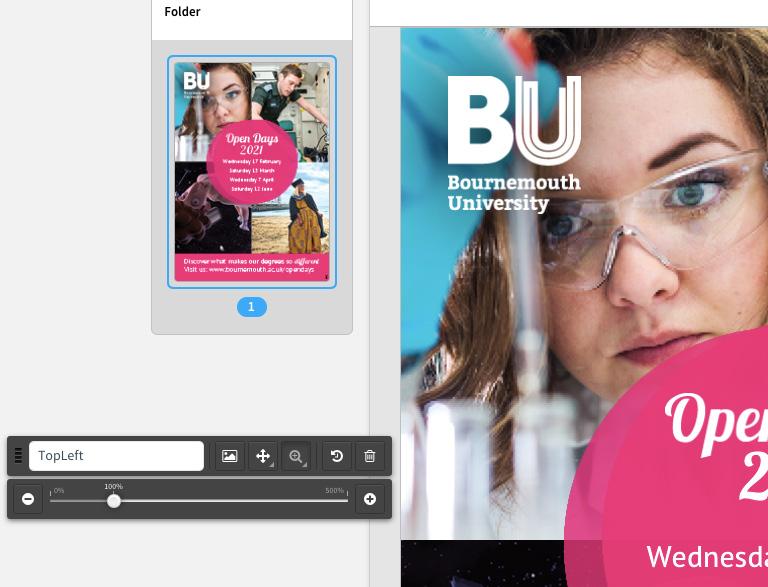
11. Resize your chosen image using the toolbar magnifying glass
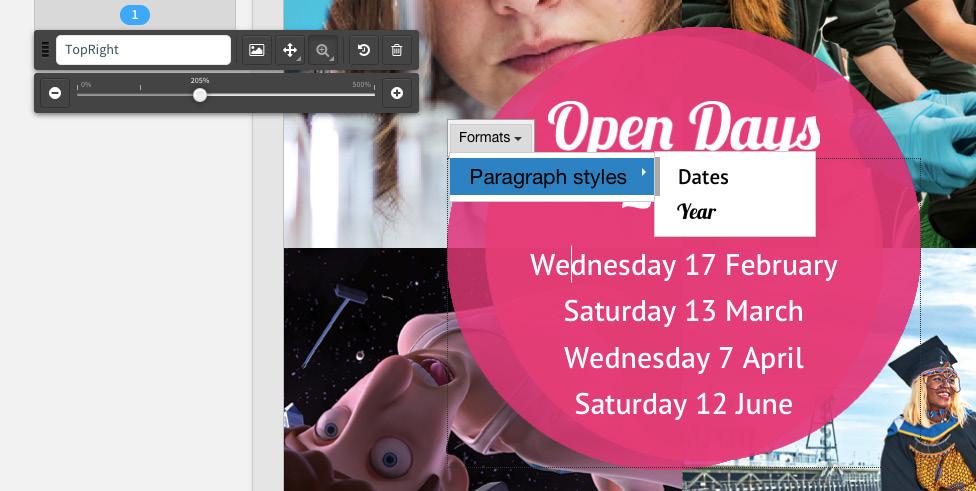
12. Amend your copy by clicking into the text boxes. The Format button shows the paragraph styles / fonts available
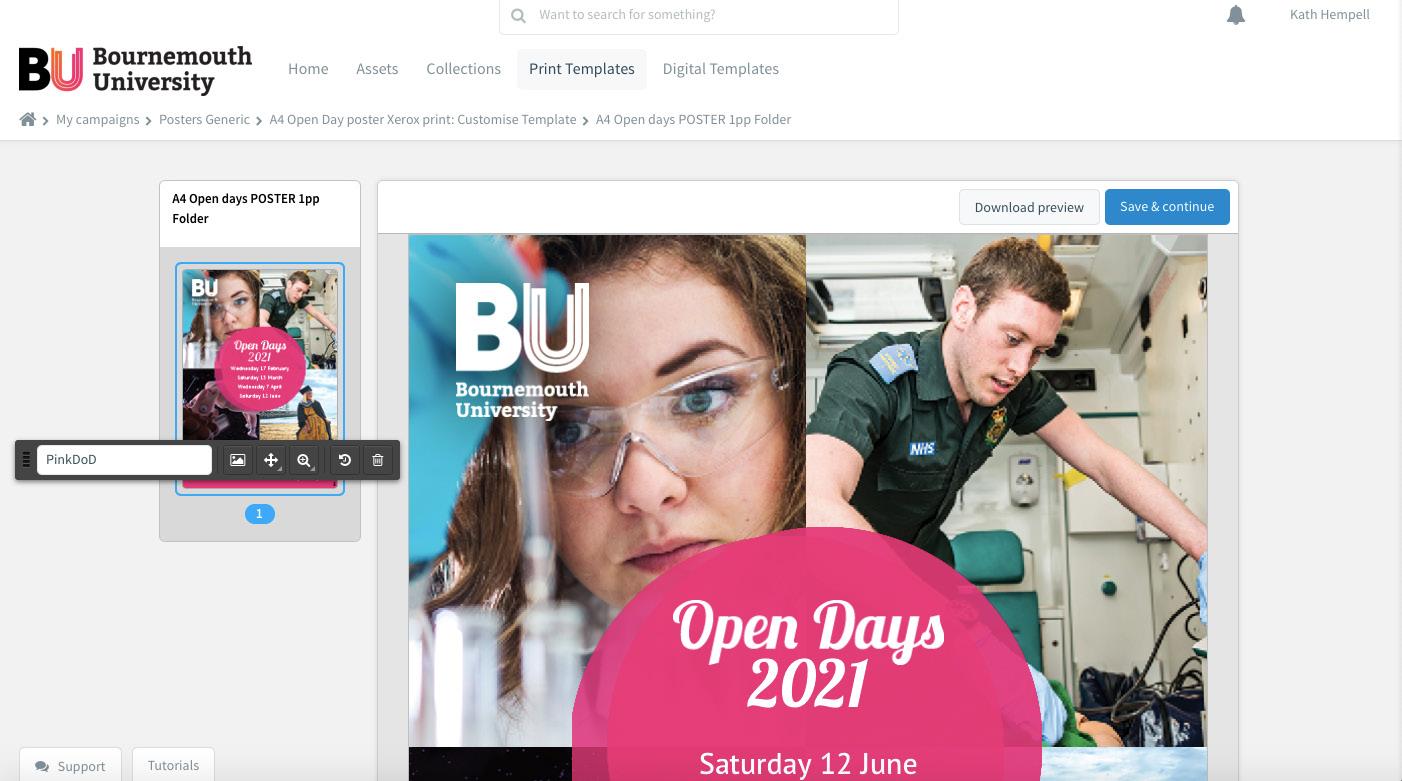
13. Download Preview or Save and continue
14. Once your document is ready, click the Download preview button in the top right of the editor to preview your document as a low-res pdf. The document can be found in your downloads folder.
15. Check if all text and visual elements are correct and to proceed by clicking the ‘Save and continue’ button or make any necessary changes in the document.
Note
This process can take a few minutes depending on the complexity and size of your document. Please be patient.
Note
The preview view may slightly differ from the actual output file. The preview is generated in your browser using code, which differs from the technologies used for creating imagery files. Small differences are therefore unavoidable.
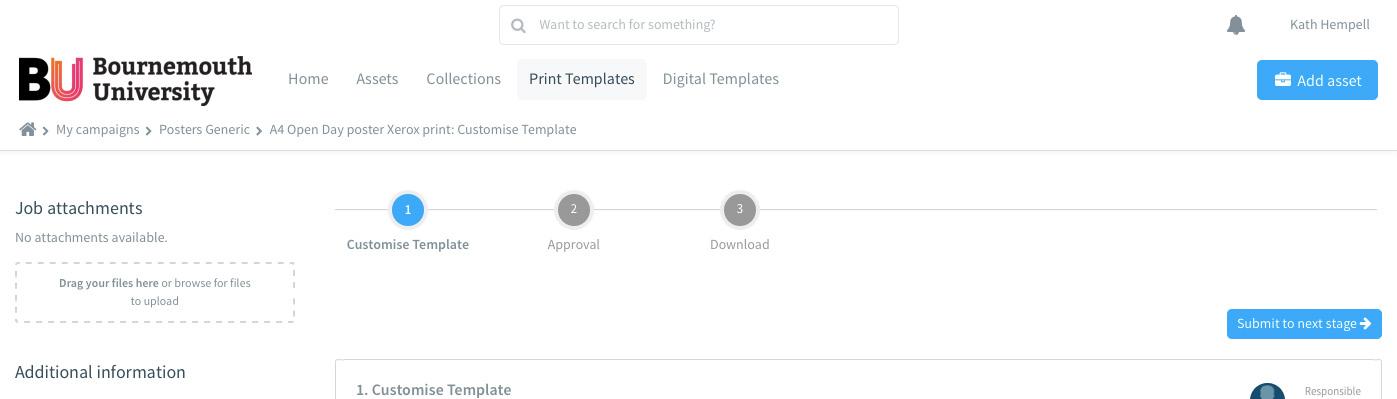
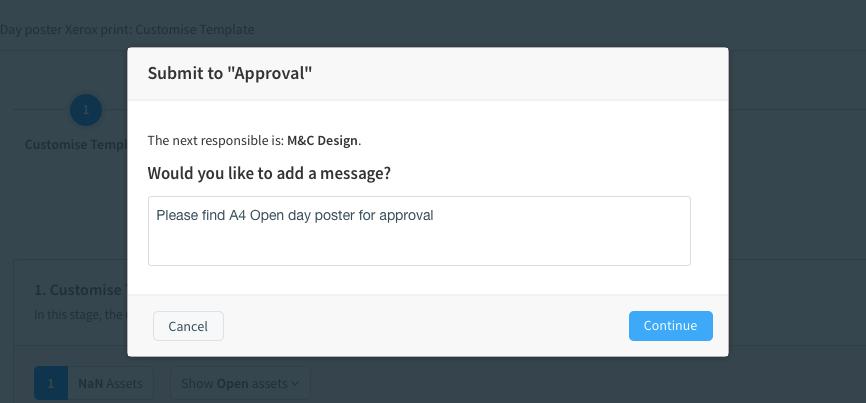
16. Once saved, Click Submit to next stage to send your document for approval.
17. A text box will open for you to add your message to the Design Team.
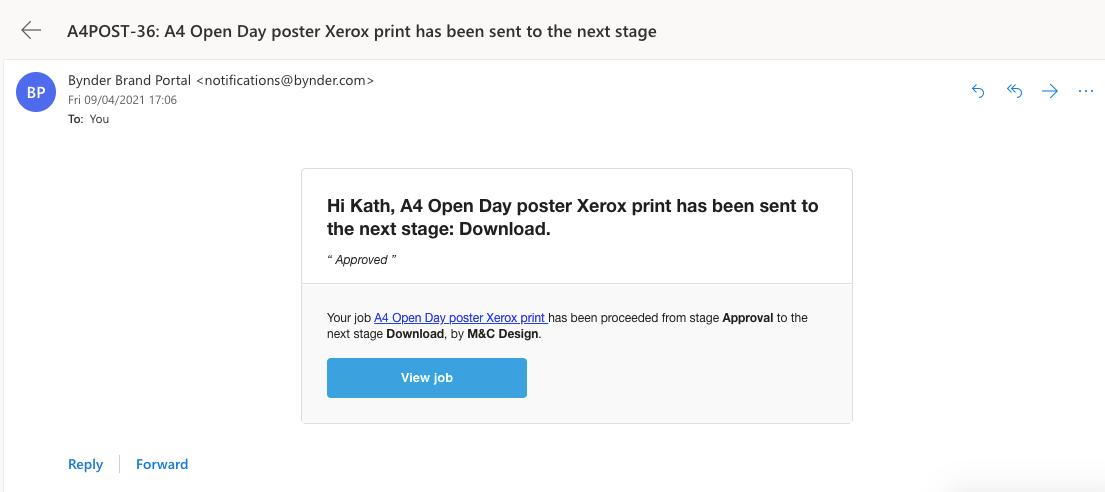
19. An email notification will be sent to the approvers.
20. On approval, you will receive email confirmation.
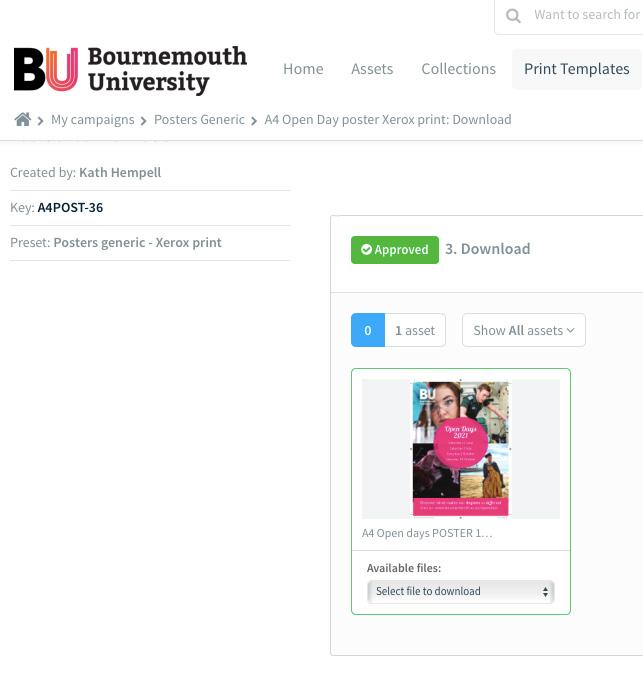
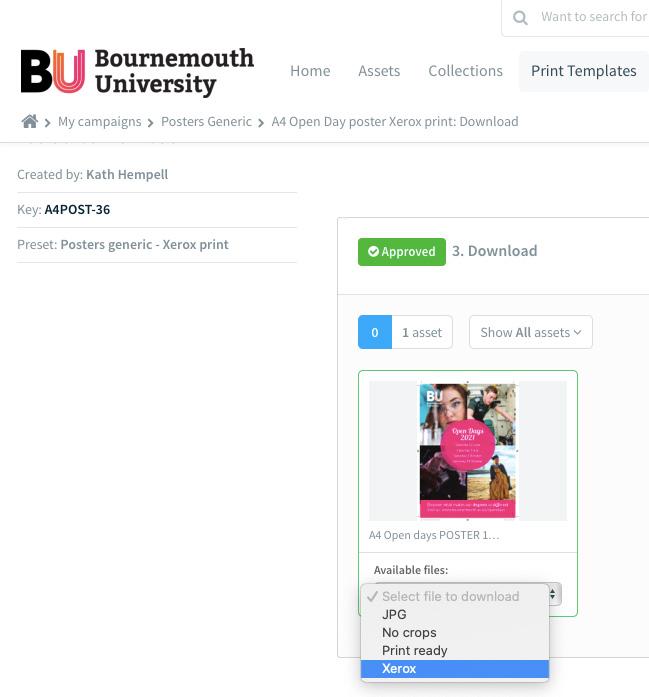
21. Using email link, return to your approved file. If you are printing via Xerox, click on ‘Available files – Select file to download’ button.
22. Download Xerox option
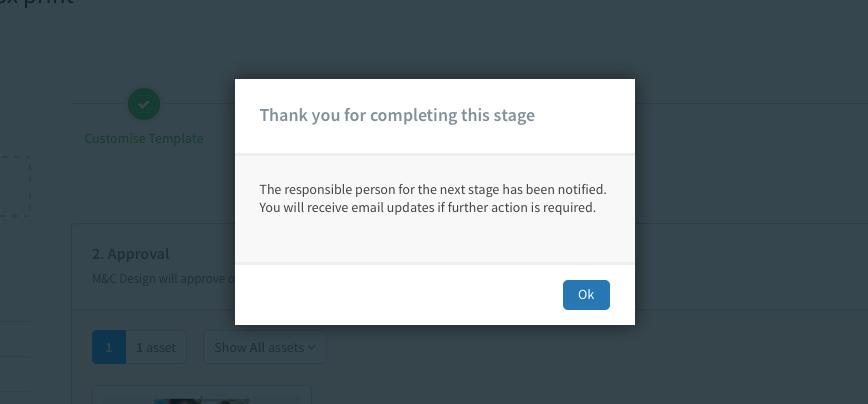
18. A text box will confirm your document has been sent to the next stage.
23. Click ‘Finish job and submit to waiting room’ to complete the process.
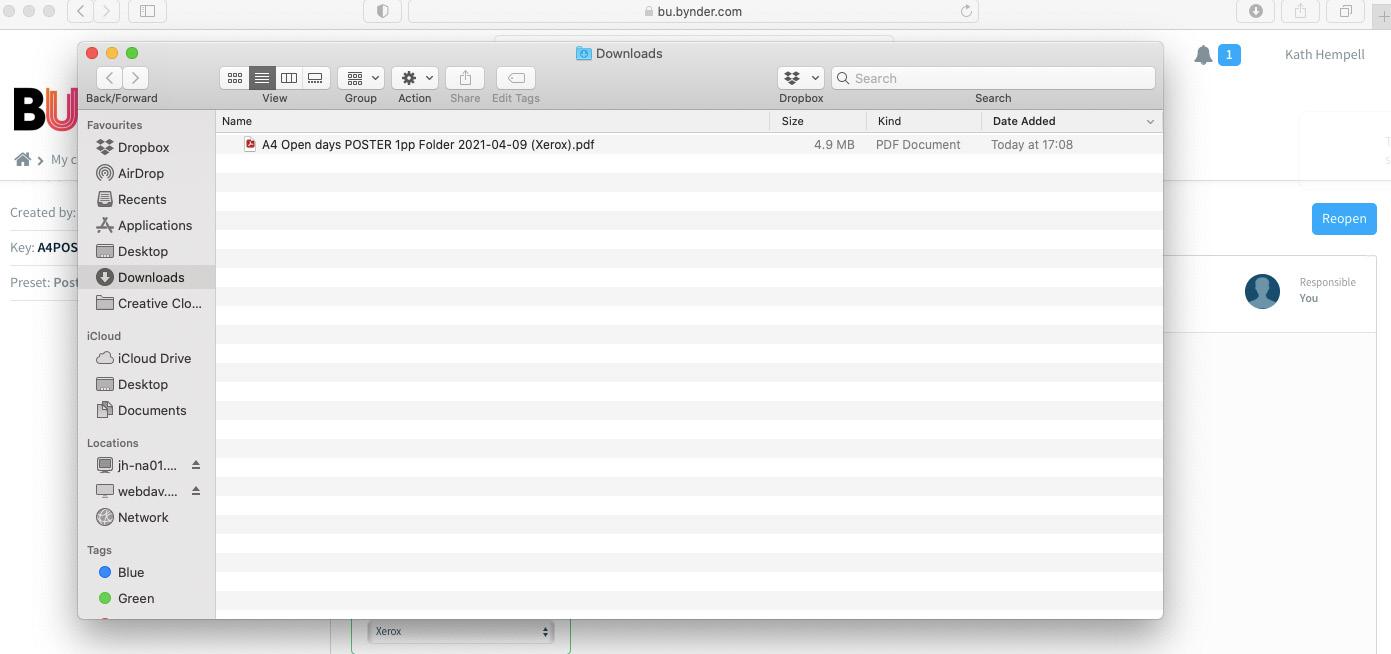
24. Collect your file from your Downloads folder
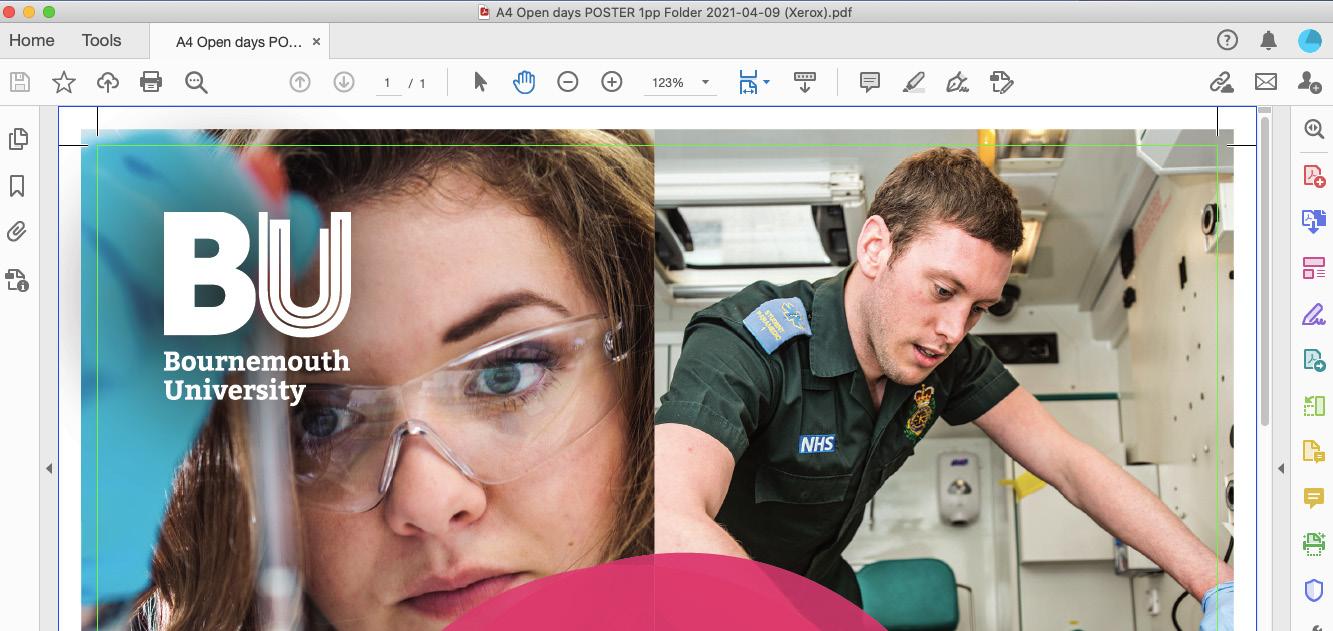
25. Send your final PDF (with crops and bleed) to Xerox
Note
If you want the Design Team to be responsible for the print and you have not already asked for a quote, please send a job request via the creative services hub, link here, asking for a quote (include the job name (called ‘Key’ in Bynder), size, pagination, quantity, contact name and delivery address) and specifying the delivery deadline. The Design Team will provide you with a quote, request PO confirmation and send to print on your behalf.