Autodesk Construction Cloud

1

- Quick overview of ACC Docs using browser including Files, Reviews, Transmittals, Issues, and Reports

- Review of Desktop Connector application including changing workspace, selecting projects, uploading documents, ceate new folders





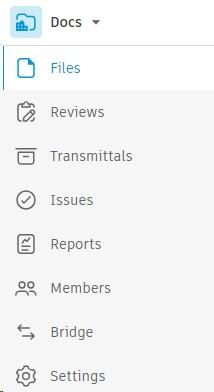

- Create Folders (within confines of standards)
- Store Documents
- Store Design Files
- Unlimited amount of storage space
- Unlimited number of projects created
- Share Files and Folders with:
- Other projects you can access
- Other project members
- Anyone else who isn’t a project member
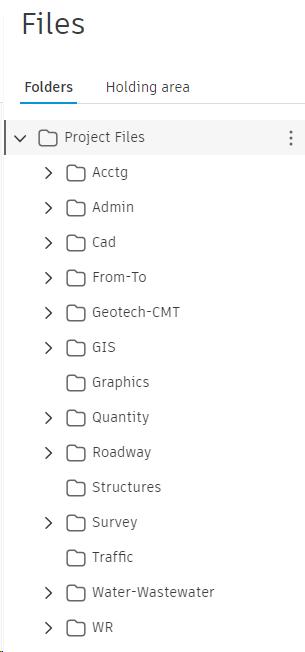
- Create document or design file review processes
- Can create from one step to six step process
- The approval workflow feature enables project administrators to facilitate, control and automate the distribution of files to project members
- Designated as reviewers = Review and comment of files
- Designated as approvers = Final approval for files to be used
- Allows documents to be pushed from different folders
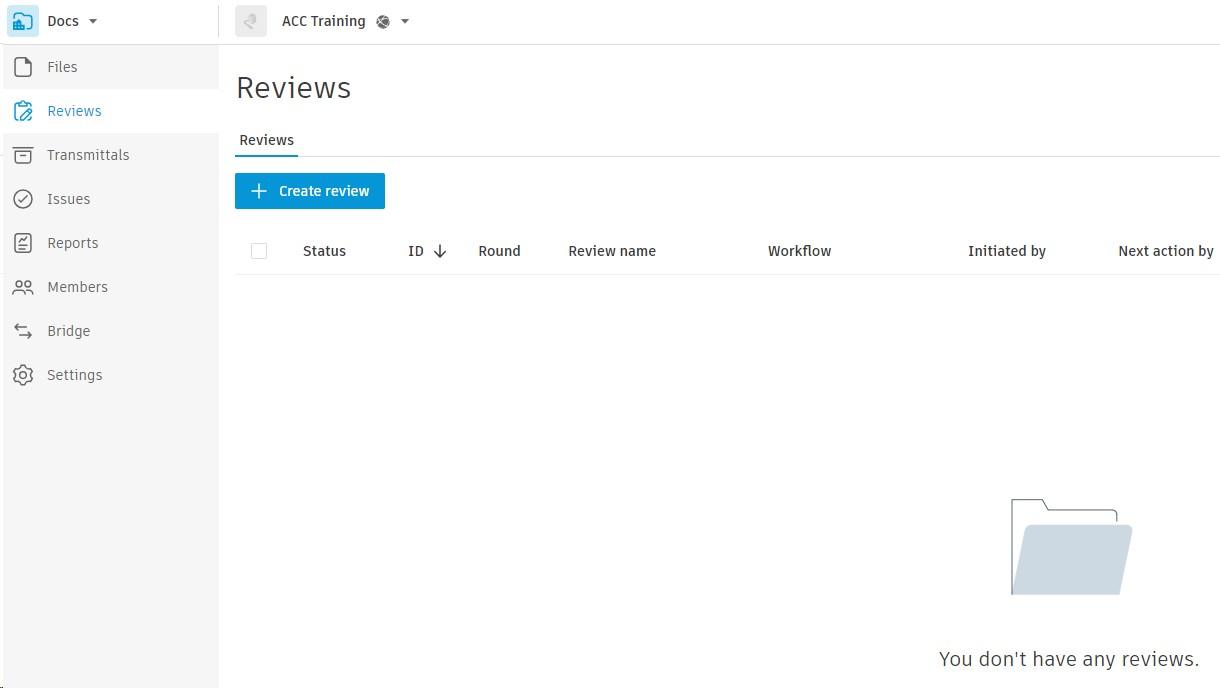
- A formal means of sending files to another project member or team
- Transmittals tool allows users to see:
- A full list of all transmittals
- Status
- Transmittal ID
- Title
- Sender
- Recipients
- Creation date
- Number of files included
- Allows users to track work across the construction lifecycle and create reference to photos, files, RFIs, Assets, and more
- Issues tool provides a set of preconfigured categories and types to organize the issues on projects
- Create issues within the Issues tool or from mark-up in the sheet & files tool
- Once created, they can be viewed in Issues Log, managed, and exported

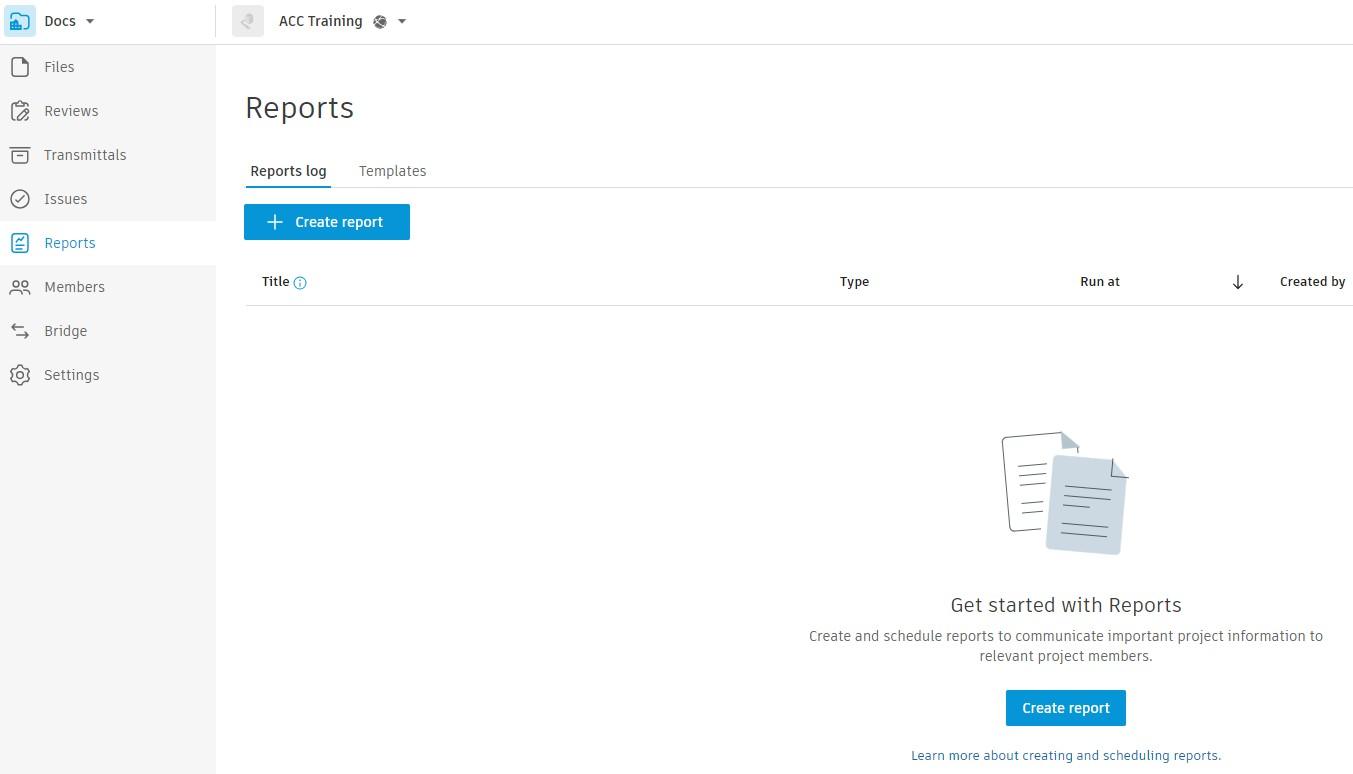
- Reports are generated within the workflow tools you are working in
- Example, export issues reports while working on project
- Reports can also be generated from Reports tool
- Tool provides a central location for project members to view, create, schedule and share reports
Desktop Connector is an application that runs on your desktop.
It creates a virtual drive (like One Drive) that servers as a bridge between local file system and ACC (cloud).
Data is stored in this virtual connected drive called (Autodesk Docs)
This drive allows users to access and work with cloud data locally and only download the files needed giving users a faster, more efficient experience.


• Desktop Connector is starting up
• Desktop Connector is processing changes


• Desktop Connector is online
• Desktop Connector is offline, or user is not signed in yet
• Desktop Connector experienced an error while processing
Users need to follow the steps outlined in the Desktop – Connector document on Partner Services
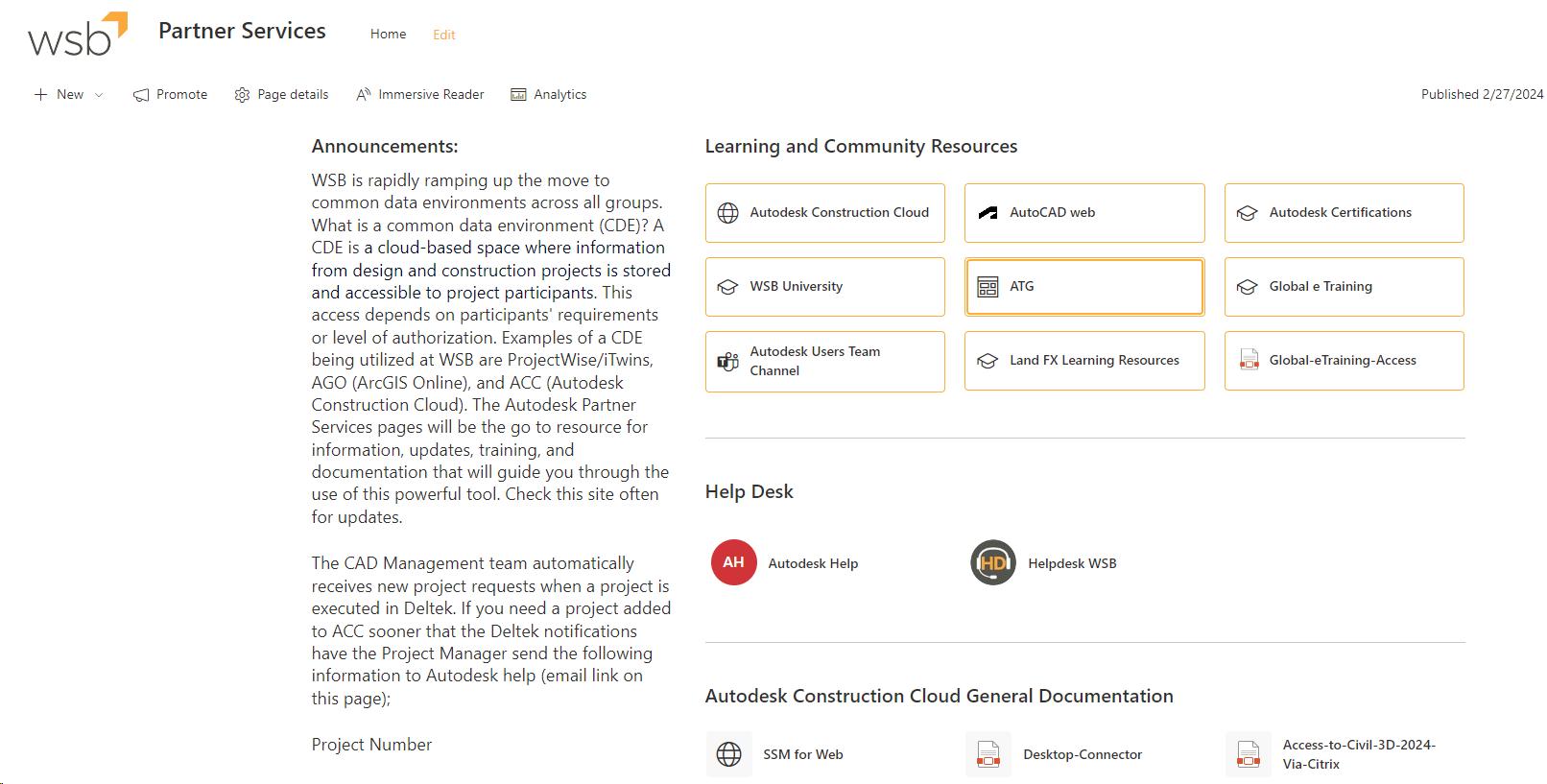
Select Projects through Desktop Connector >
Select Projects Option…
Dialog box appears for users to select all projects (up to 40) they have been invited to

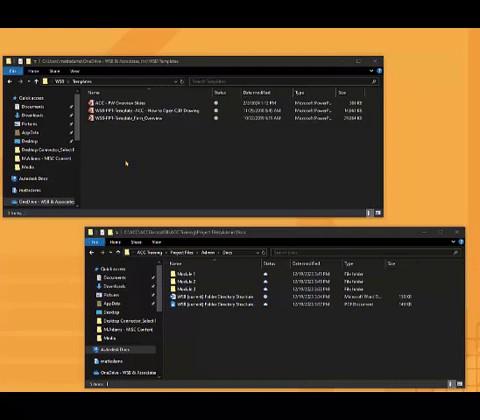
Users have multiple options to upload design files, documents etc.
1. Simple click-drag & drop from local storage location to Autodesk Docs (virtual) drive under correct project # in desired location
2. Utilizing ACC (web) upload functionality and navigating to correct location OR
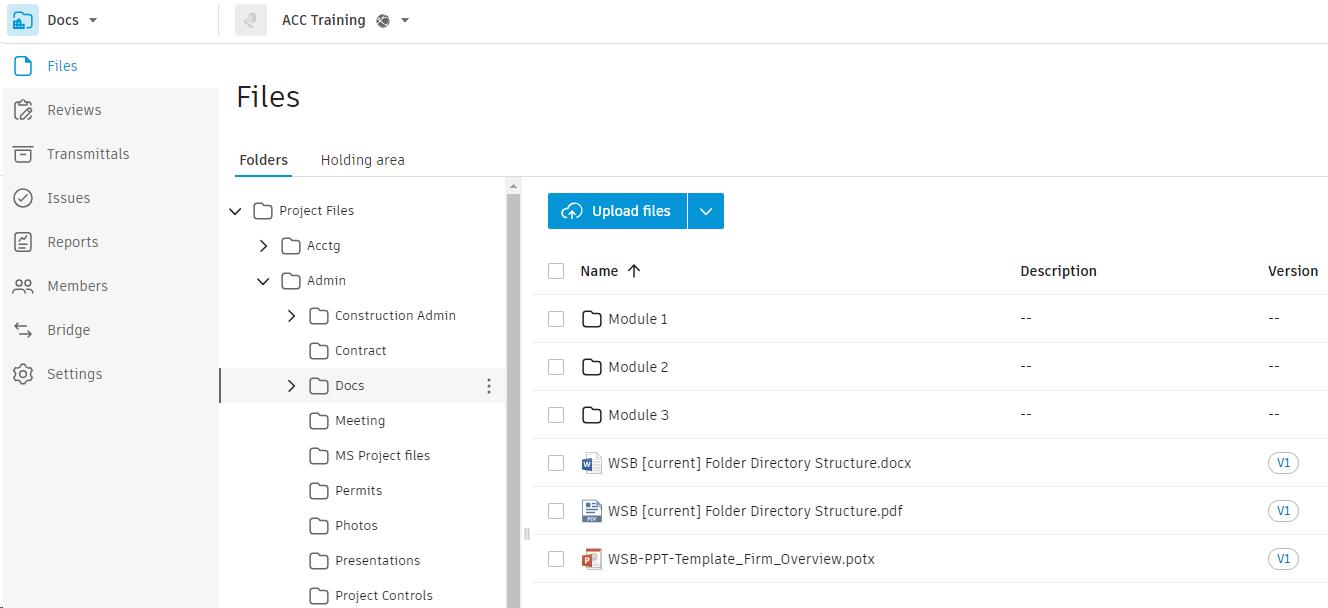
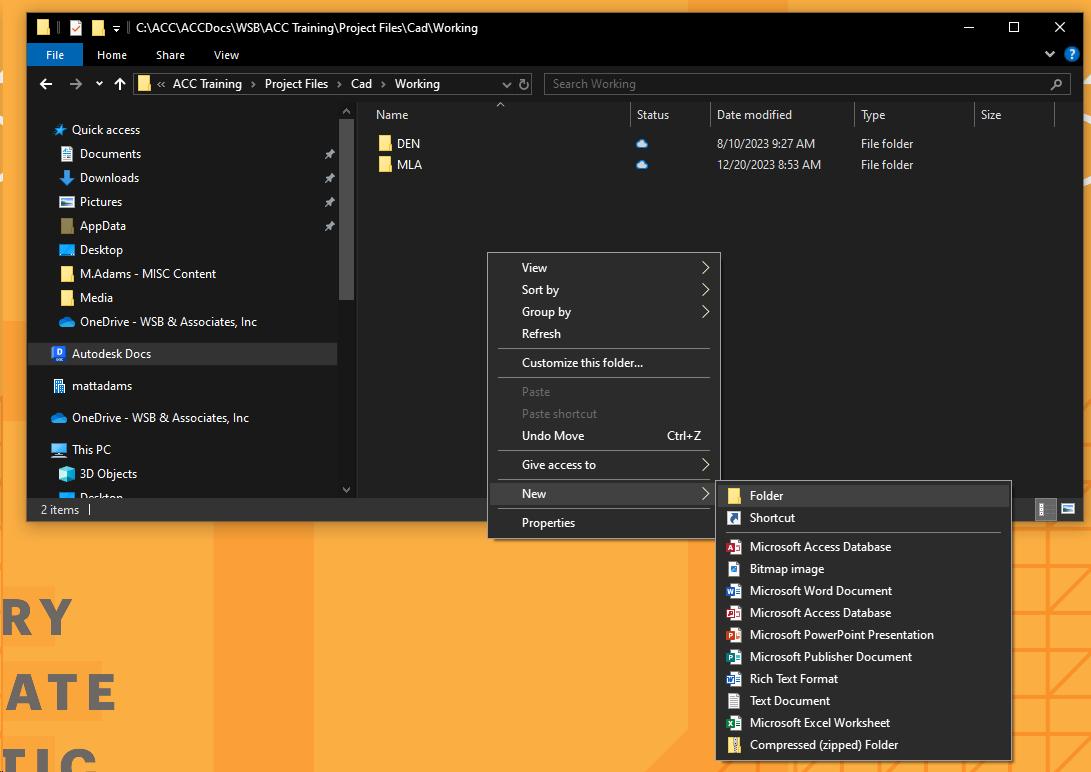
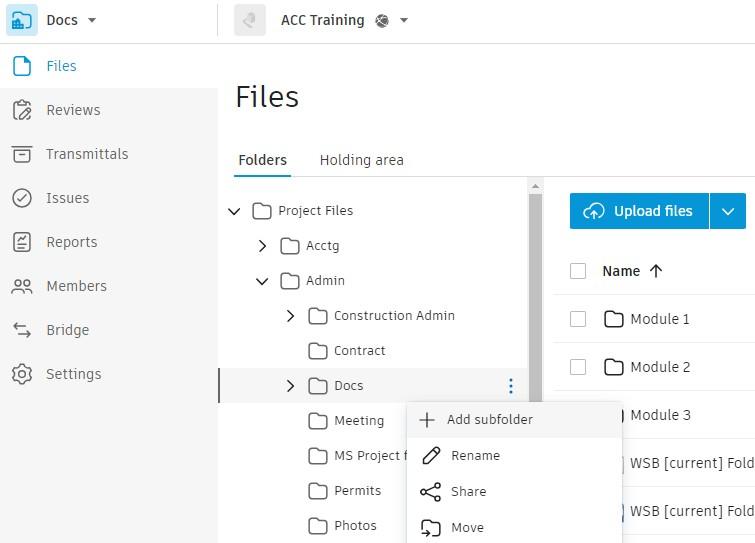
Users have multiple options to create new sub folders
within projects
1. Simple right-click within windows explorer (Autodesk Docs) and select New > Folder in desired location
2. Utilizing ACC (web), navigate to desired location > left-click on three ellipses > select + Add subfolder

THANK YOU