WITS ICT
How to reset your

Your new password must:
• Be a minimum of 16 characters long.
• Include all four of the following character types:
• Uppercase letters (A–Z)
• Lowercase letters (a–z)
• Numbers (0–9)
• Special characters (e.g., @, #, $, %, &, *)
• Password History Enforcement

• You cannot reuse any of your last 24 passwords.
• Prohibited Content in Passwords

• The following is not allowed in the creation of your password:
• Your first name, surname, or full name
• Your employee number or student number
• Username: staffnumber@wits.ac.za
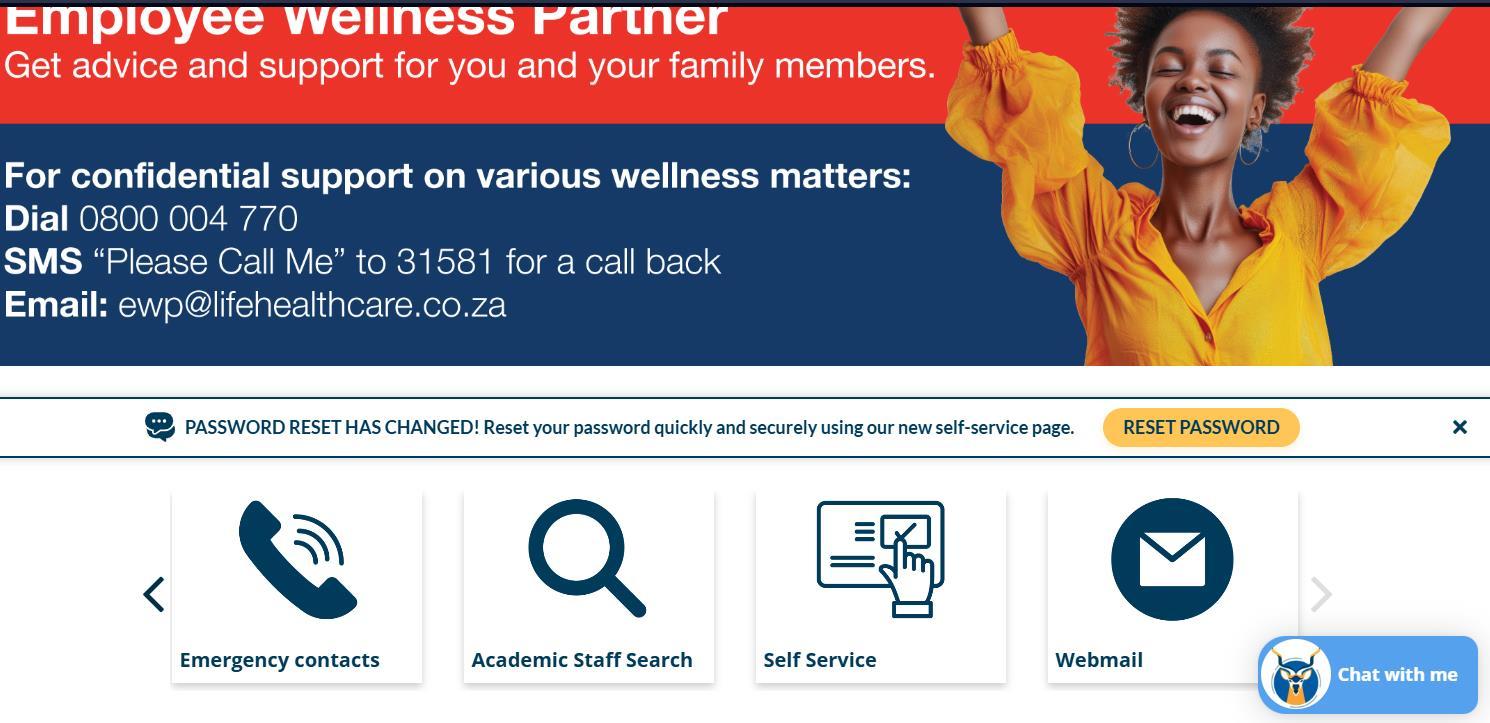
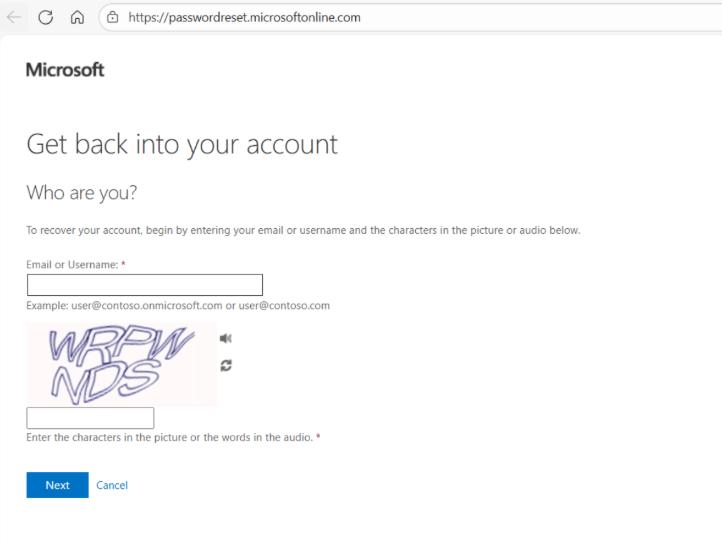
• Navigate to People/Staff and click the arrow as per below to get password reset tab


Follow the process accordingly:
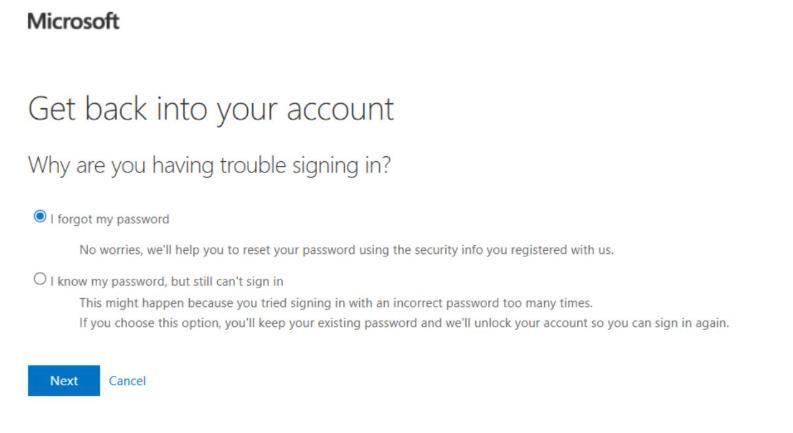
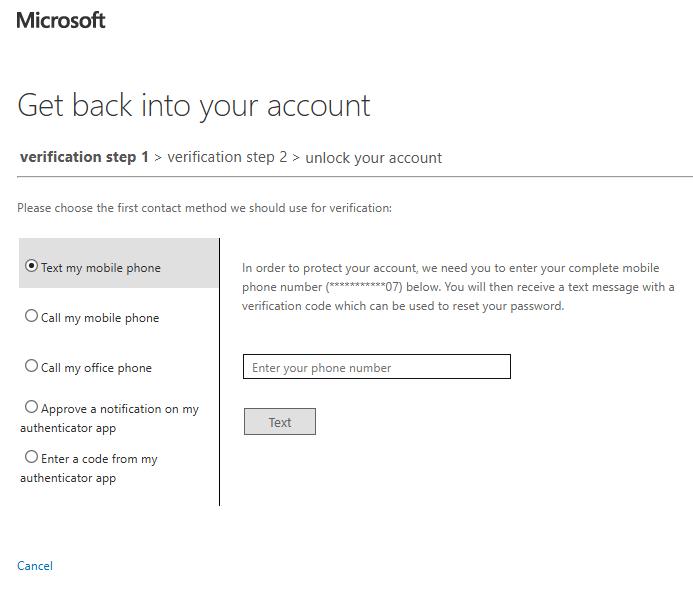
Enter your phone number as per below.
Note: if you are not registered for Microsoft Authentication, contact ICT.
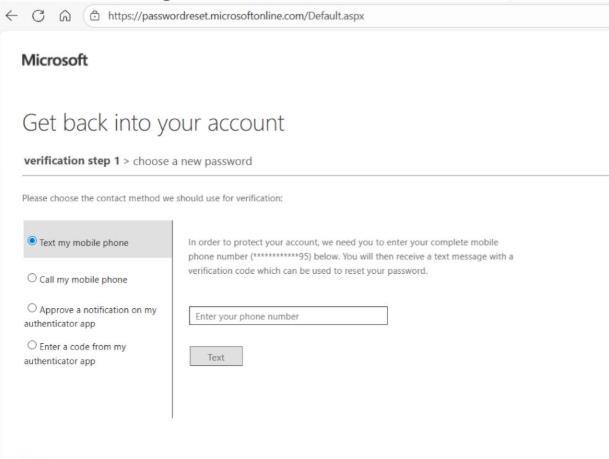
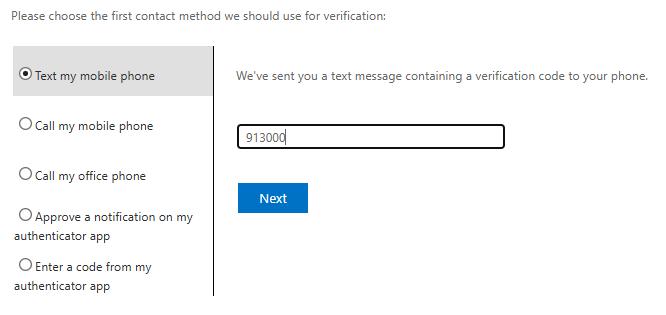
Enter the code you receive on your mobile device, and click
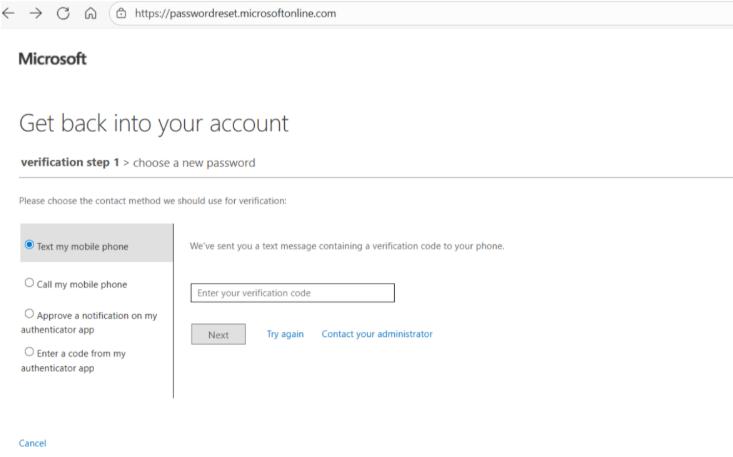
Enter your new password and select “Finish”
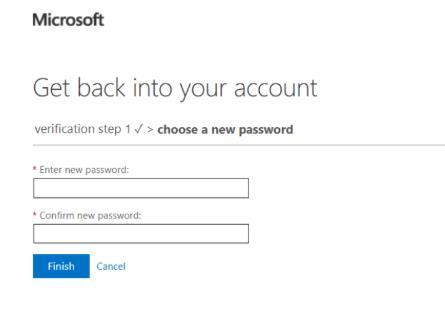
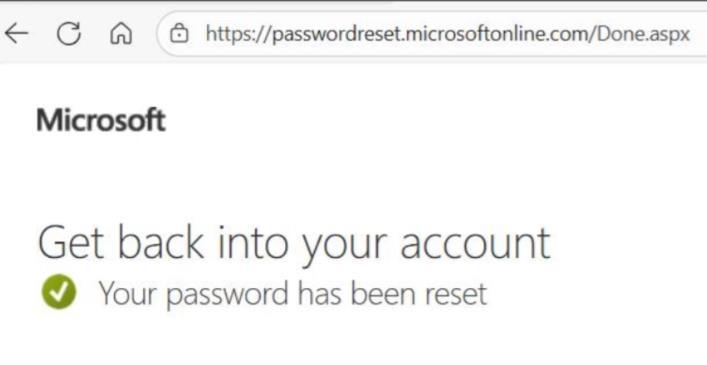
CONGRATULATIONS! You have now successfully reset your

WITS ICT
How to reset your
The Password reset process
Staff:
• Username: staffnumber@wits.ac.za
• Navigate to People/Staff and click the “Password Reset” tab
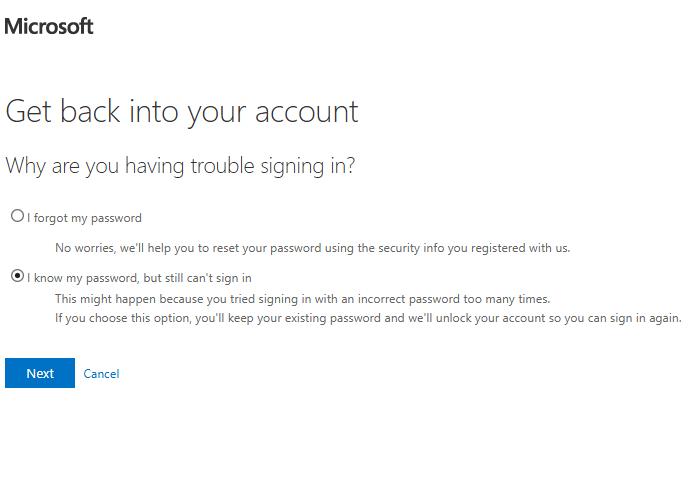
When you receive such error message:
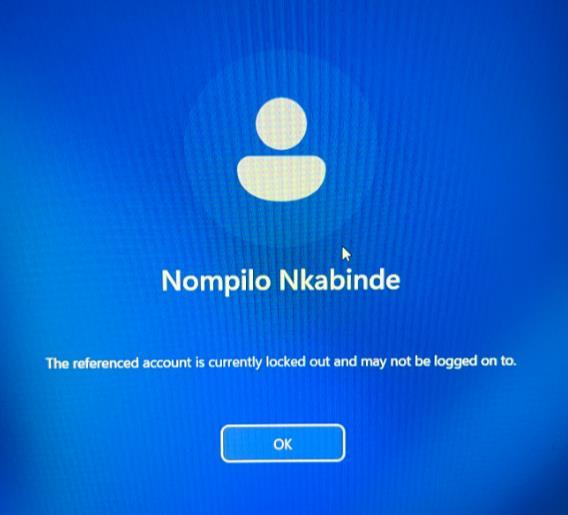
Follow the required steps
Select
“I know my password, but still cant sign in” option below
Add your cell number and enter the received verification code
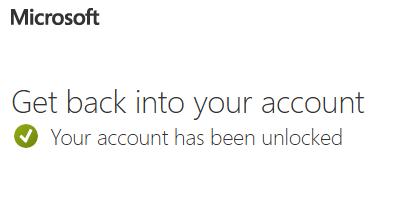
SUCCESS!