Our staff is ready and willing to assist you with any matter you might have. We look forward to hearing from you in any of the following ways:
By Mail: Vancouver Canadians Baseball Club By Phone: 604-872-5232
4601 Ontario Street By Fax: 604-872-1714
Vancouver, BC, Canada V5V 3H4 By Email: staff@canadiansbaseball.com
The Nat Bailey Box Office is located beside Gate A and follows the following business hours during our season after February 25th:
Monday-Thursday 9:00am-5:00pm
Friday 9:00am-4:00pm
Saturday 10:00am-3:00pm (effective April 12 – September 6)
Day of Game 9:30am – end of game
@vancanadians #AtTheNat
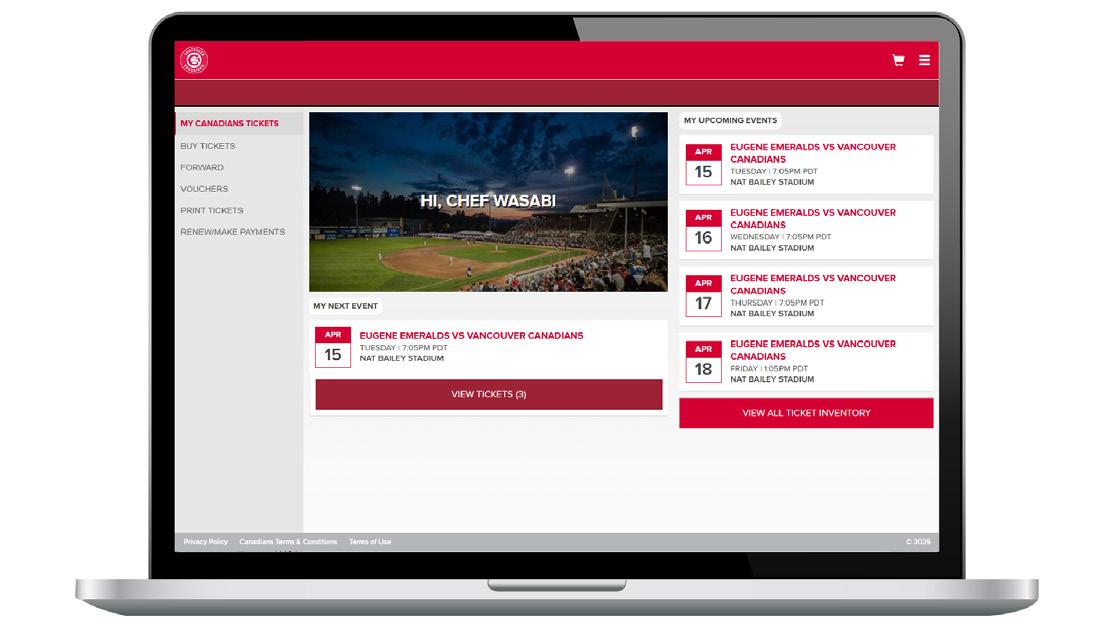
LOGGING INTO YOUR ‘MY C’S TICKETS’ ACCOUNT
YOUR MY C’S TICKETS ACCOUNT IS YOUR HOME FOR ALL THINGS CANADIANS TICKETS. THROUGH YOUR ACCOUNT, YOU CAN VIEW, PRINT, FORWARD, DONATE AND CONSIGN YOUR TICKETS.
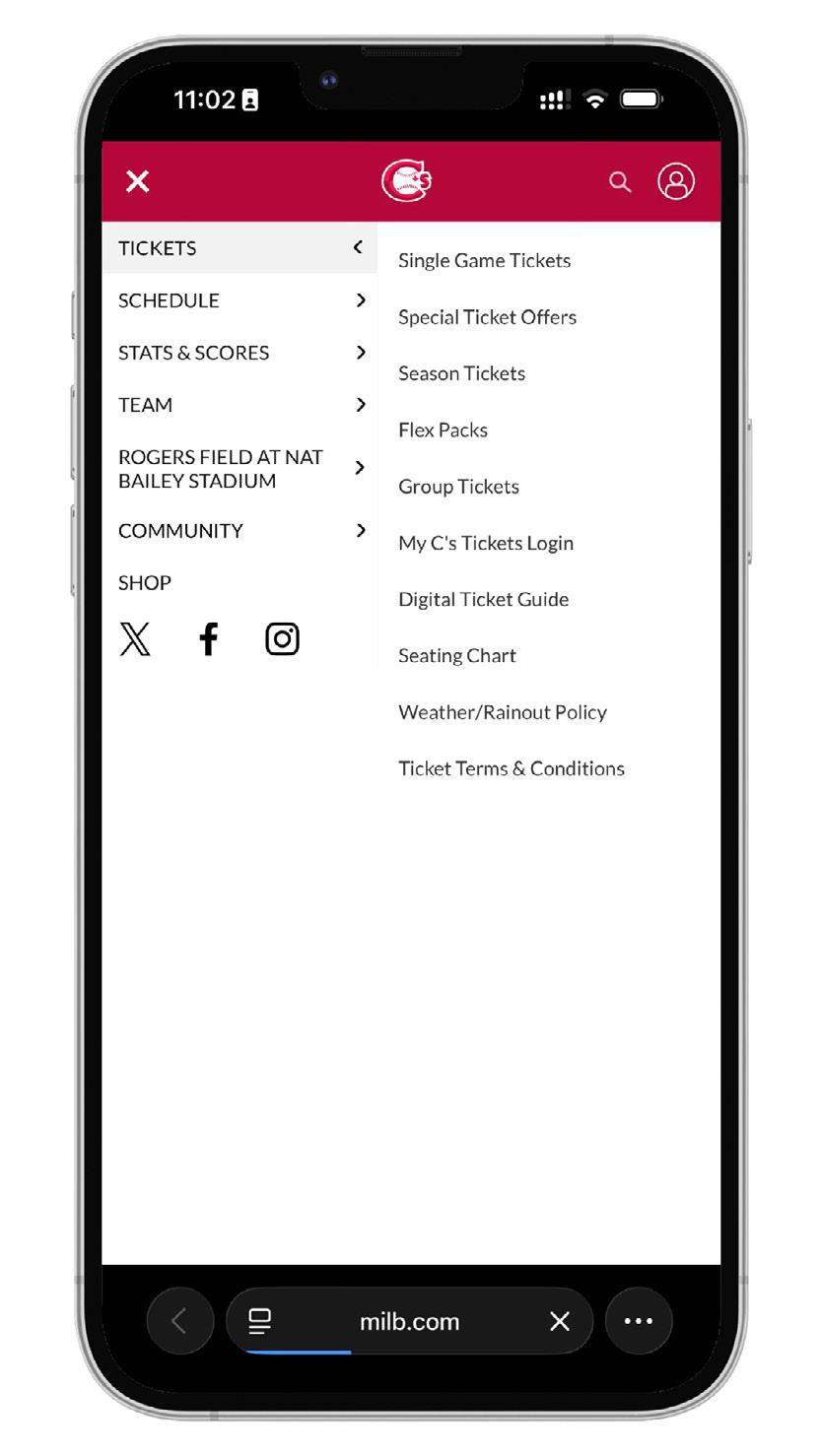
1. Go to CanadiansBaseball.com. Click on “MY C’S TICKETS LOGIN” located in the main menu.
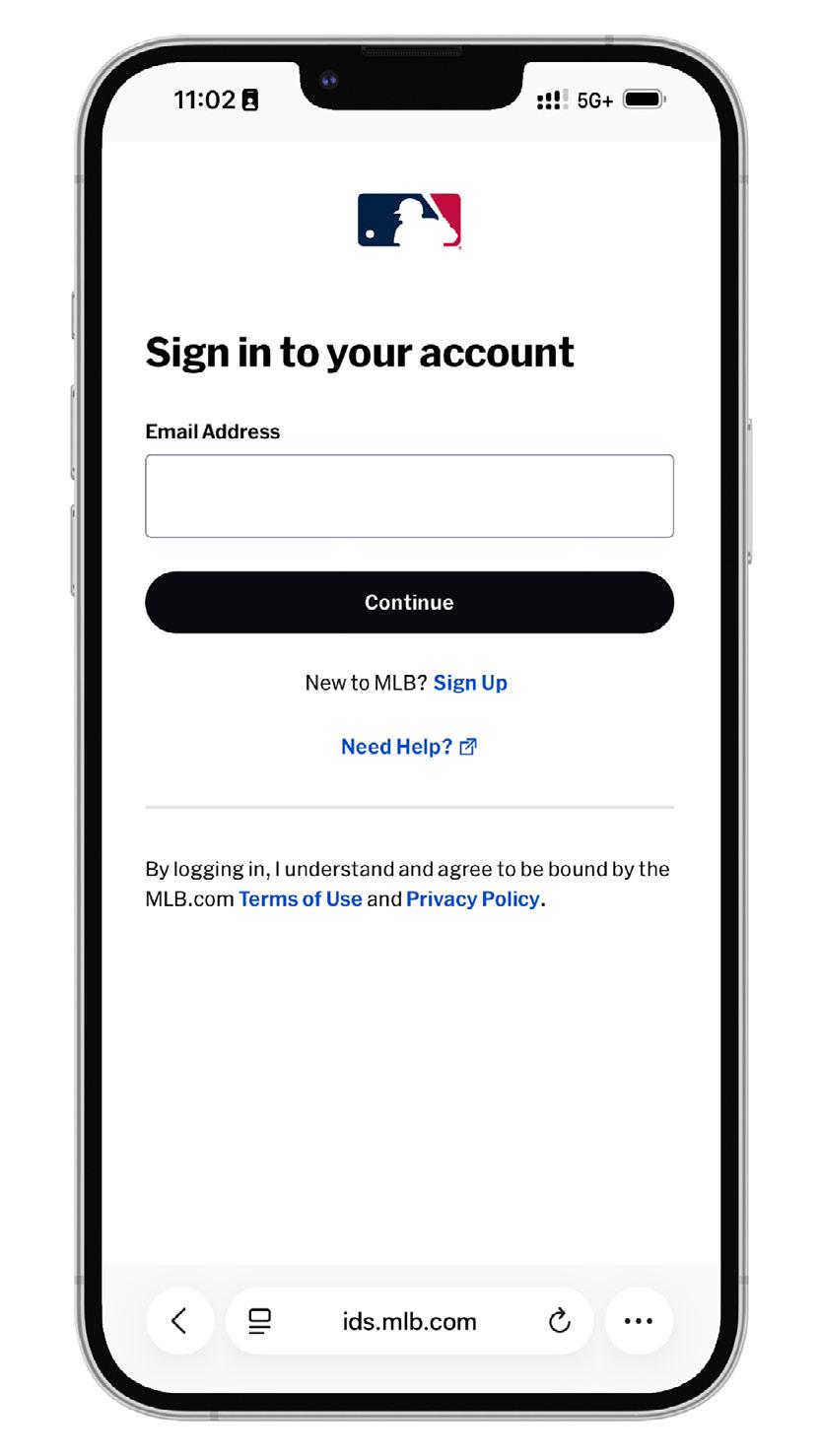
2. Enter your login credentials. If your ticket(s) or voucher(s) were forwarded to you, be sure to log in using the email address they were sent to. If you don’t have an account yet, you can create one. If you’ve forgotten your password, simply click on “Forgot Password?” to create a new password.
ACCESSING YOUR TICKETS (MOBILE)
DON'T STRESS ABOUT LOGGING INTO YOUR ACCOUNT TO SHOW YOUR TICKET AT THE GATE. ADD YOUR TICKETS TO YOUR APPLE/GOOGLE WALLET BEFORE HEADING TO THE NAT.
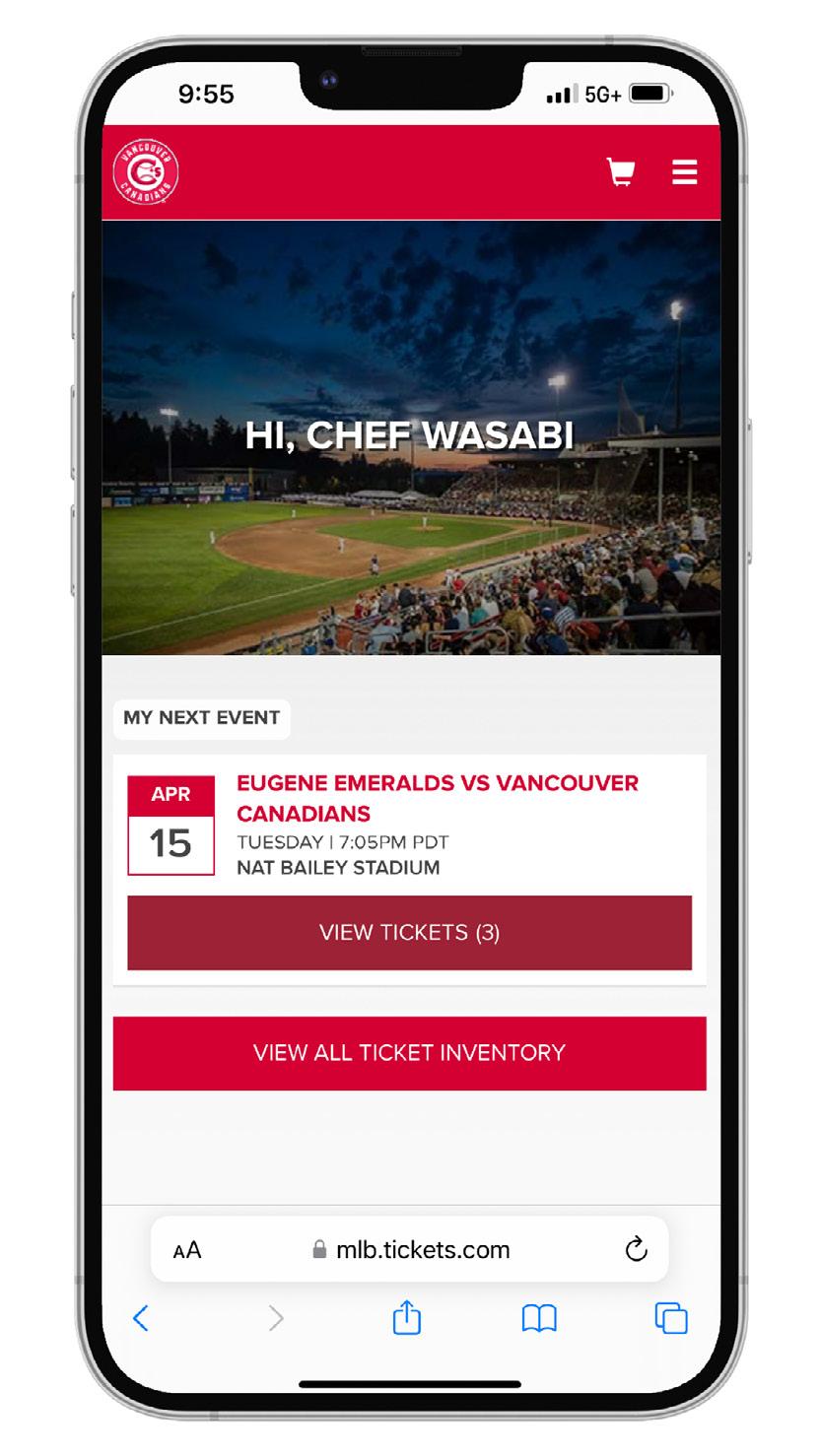
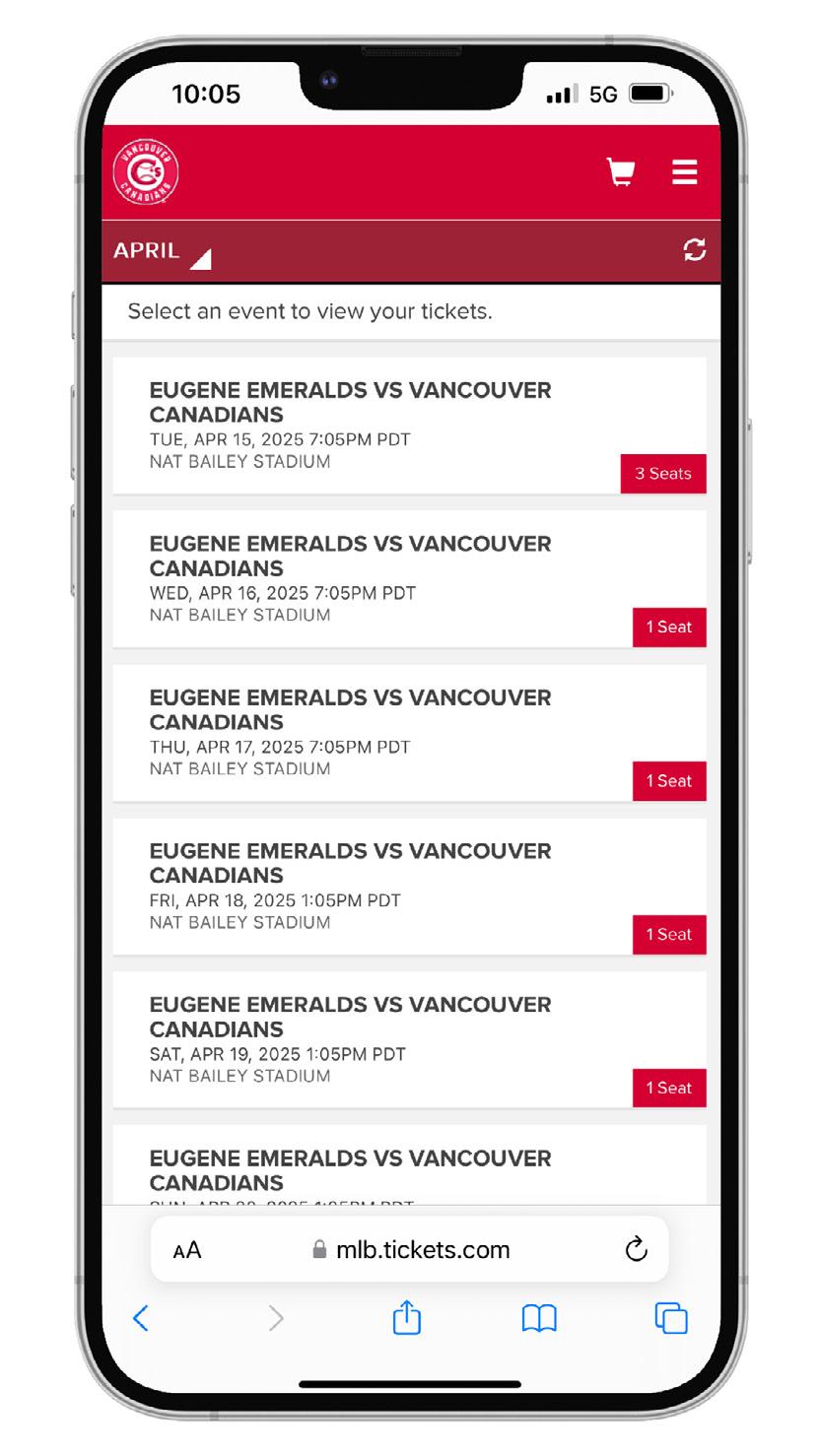
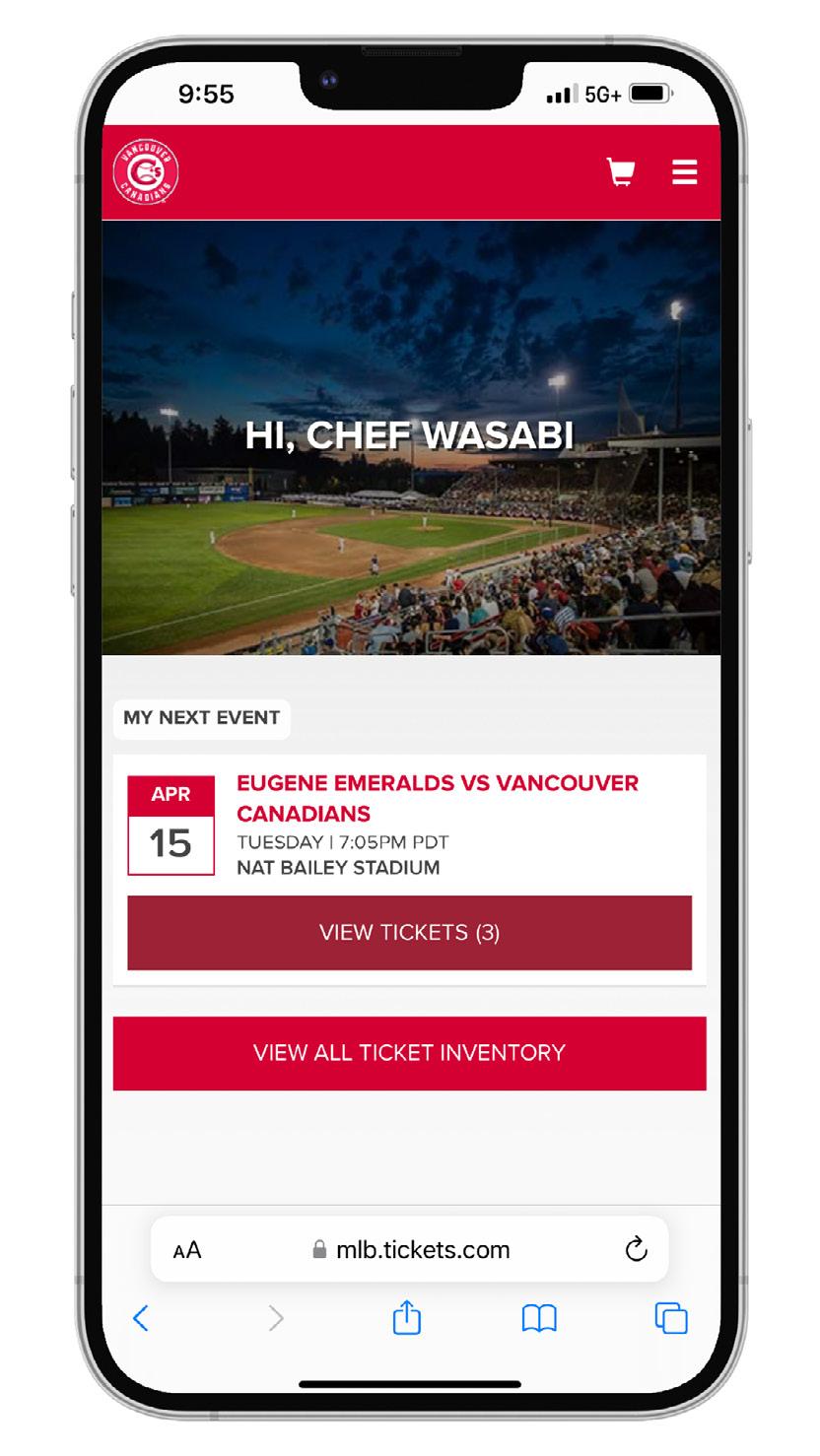
1. After logging into your account, click “VIEW TICKETS” to your upcoming game, or select “VIEW ALL TICKET INVENTORY” to browse your tickets for future games.
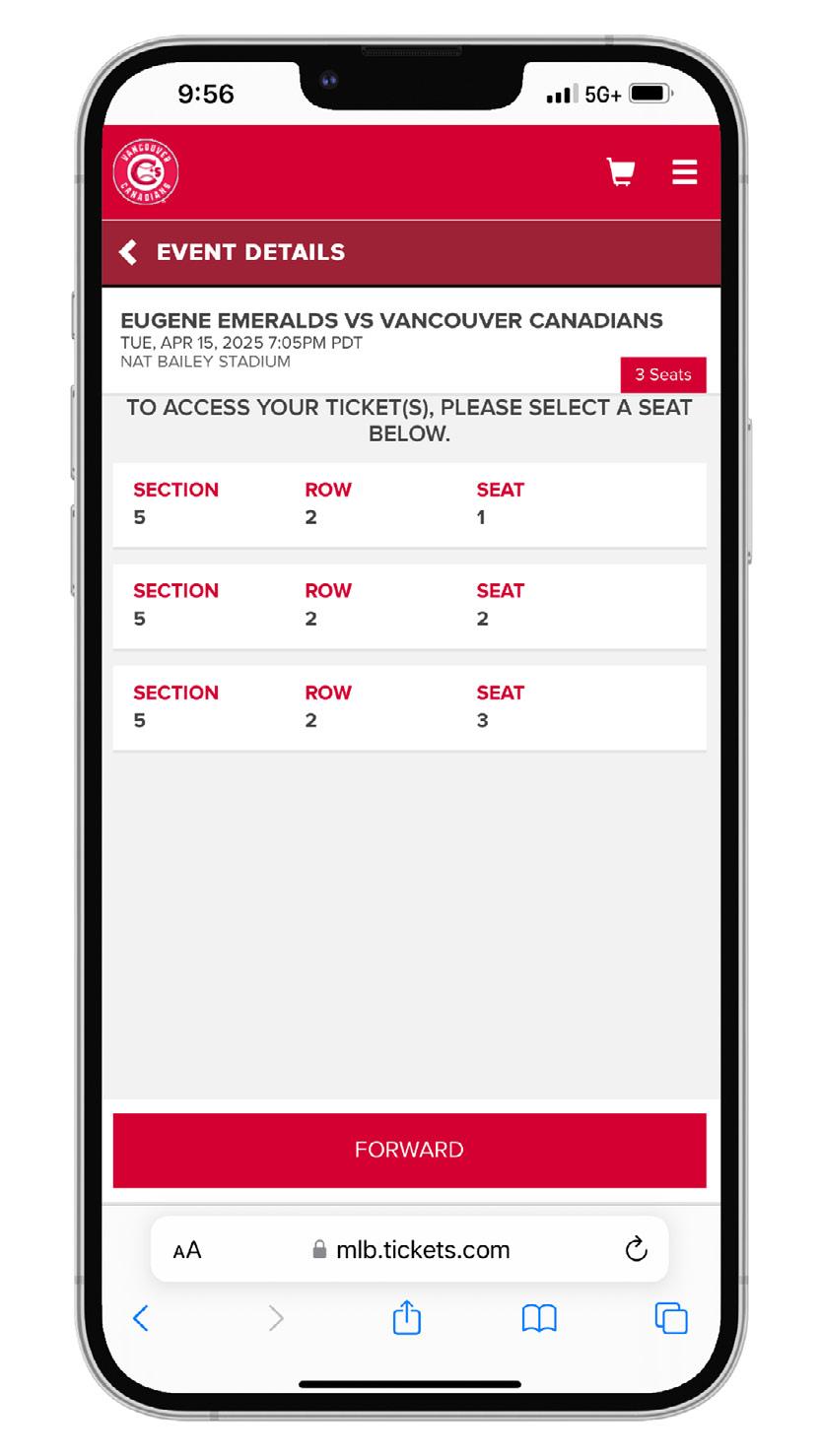
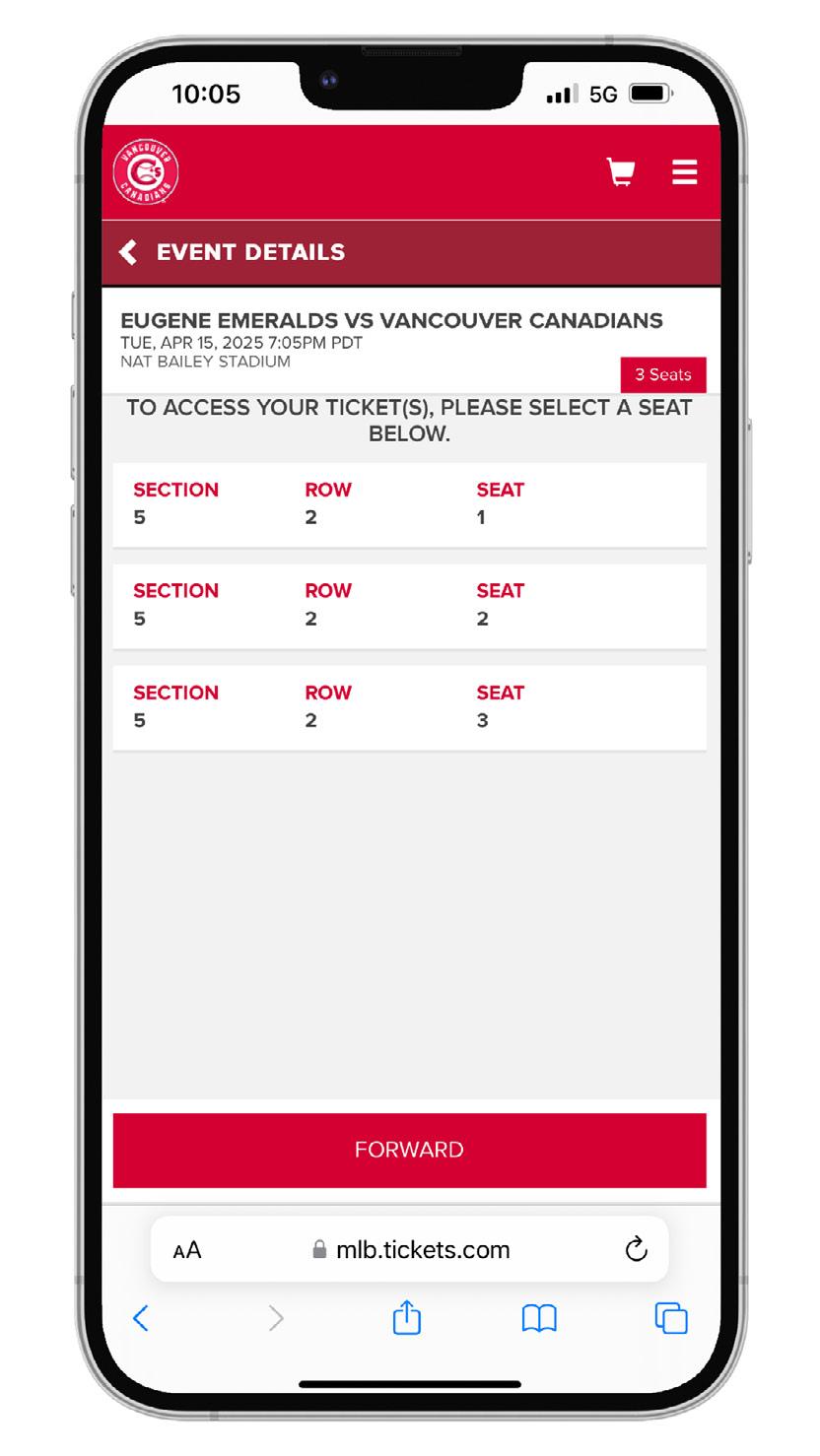
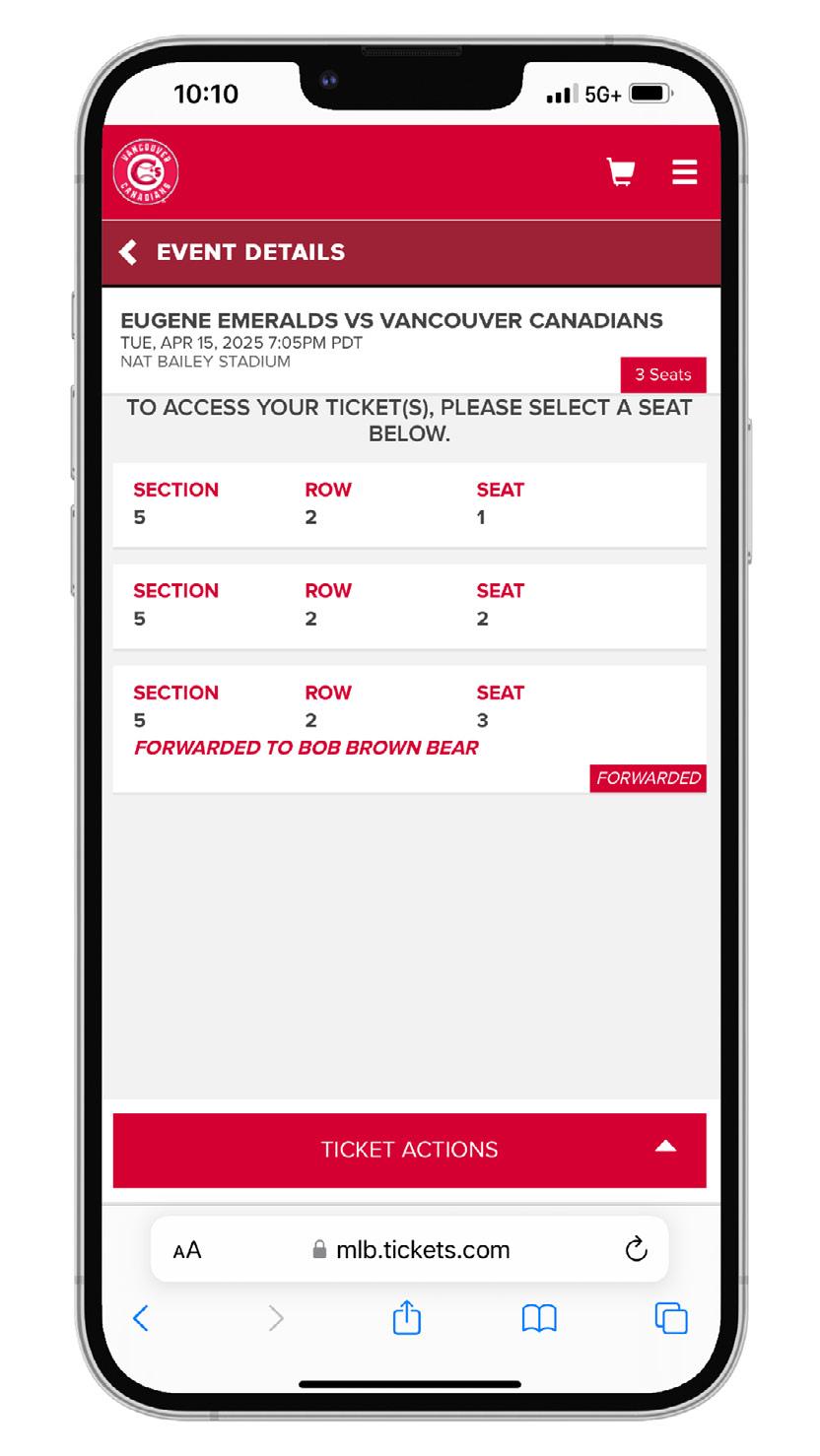
2. Once you choose the game date you’re attending, a list of available tickets for that date will appear. Click on the specific ticket to view the ticket barcode.
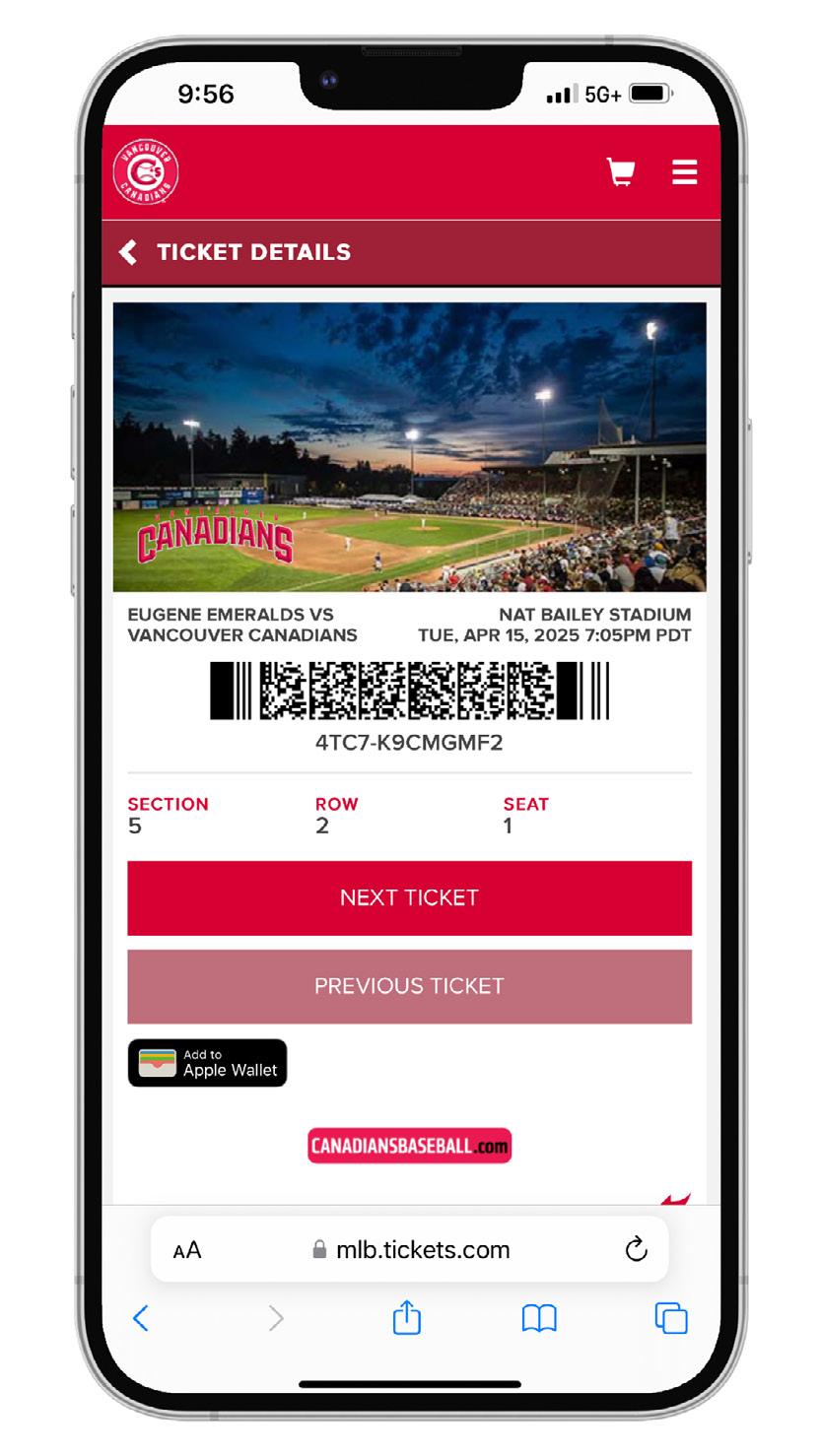
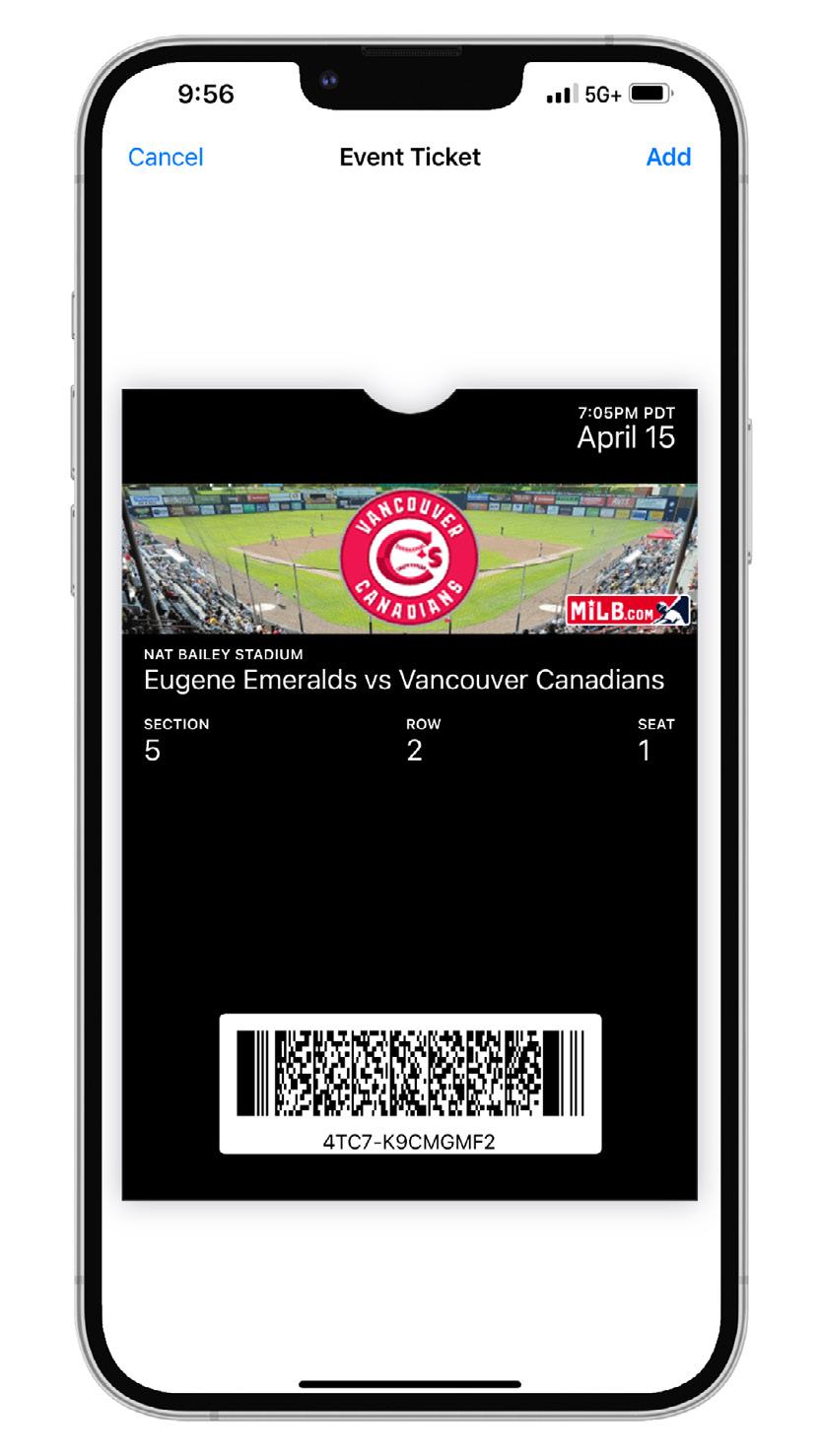
3. After selecting a ticket, the barcode will be displayed. Make sure to have this page open and ready to be scanned as you approach the ticket taker and gate. Alternatively, save the ticket to your digital wallet (ex. Apple/Google Wallet) on your phone for quicker access at the gate. Click “NEXT TICKET” to view the rest of your tickets’ barcodes/add additional tickets to your digital wallet.
4. Saving your ticket(s) onto your Apple or Google Wallet allows quick access to your tickets on game days.
ACCESSING YOUR TICKETS (DESKTOP)
PRINT YOUR TICKETS AT HOME AND BRING THEM TO THE STADIUM, AVOIDING THE BOX OFFICE
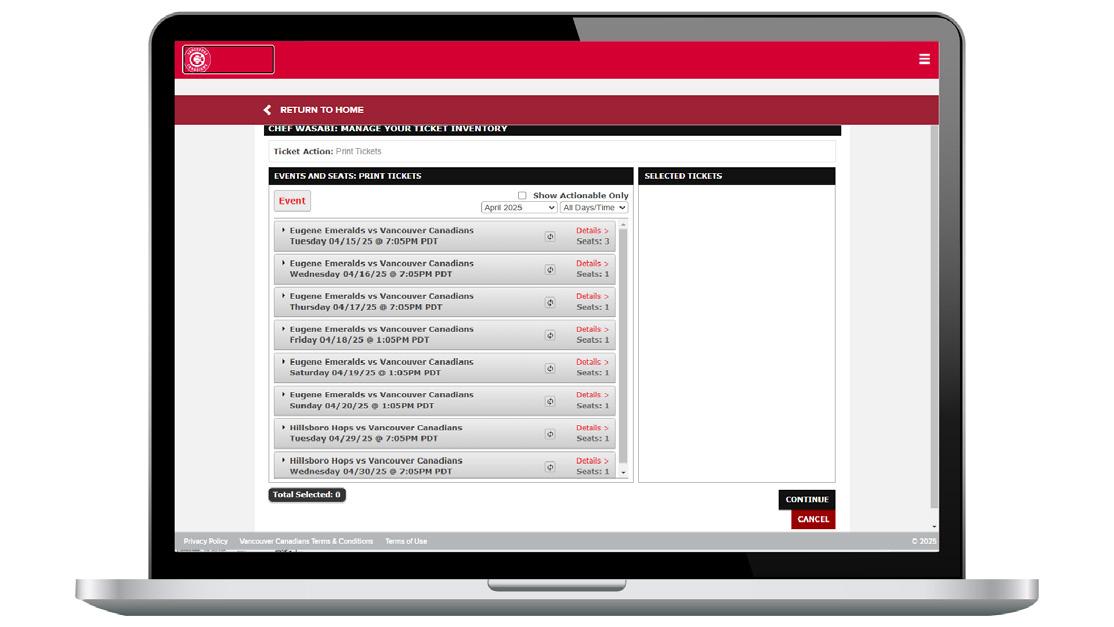
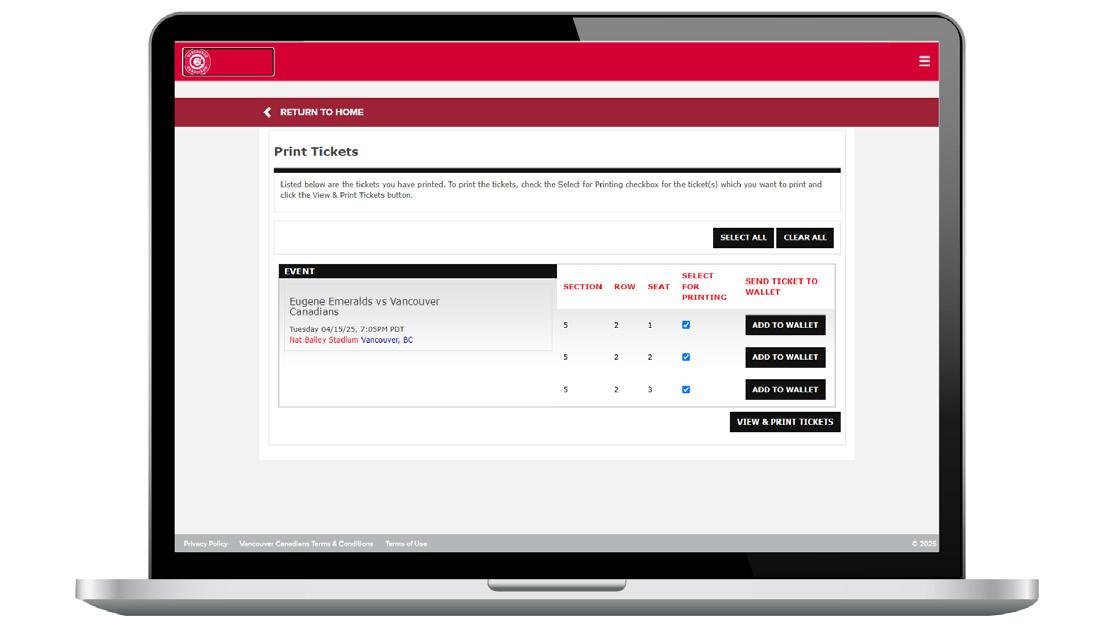
1. Once you have logged into your account, click “Print Tickets” on the left side of the page.
2. Select the game(s) for which you would like to print tickets. Please note that games are organized by month. To switch months, use the dropdown menu at the top right of the “EVENTS AND SEATS PRINT TICKETS” box.
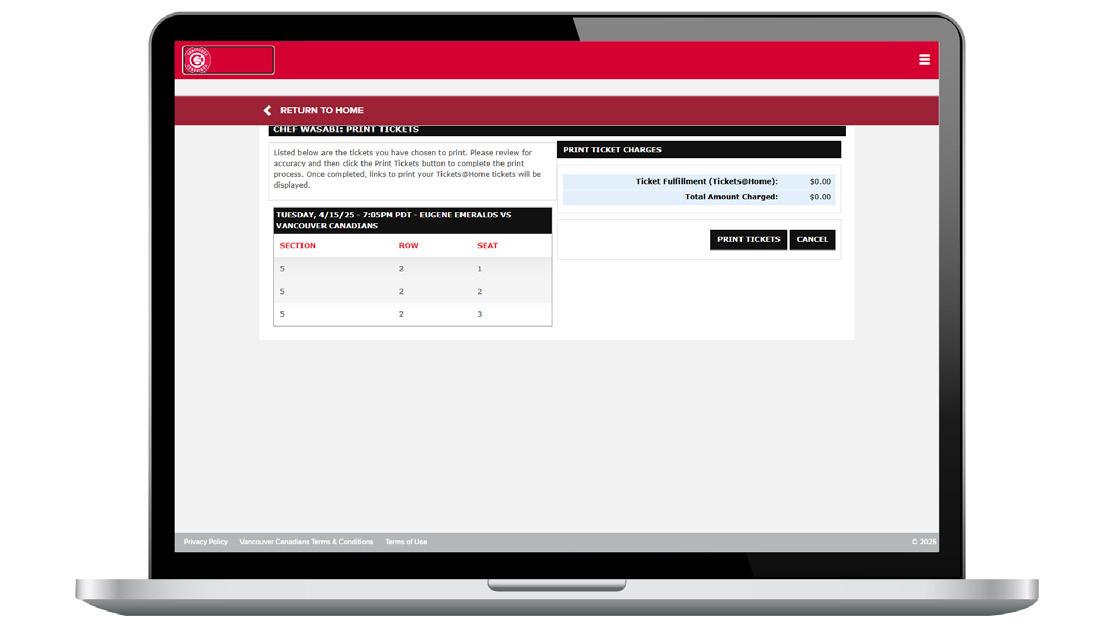
4. Confirm the game(s) and seat(s) you have selected for printing by clicking “PRINT TICKETS.”
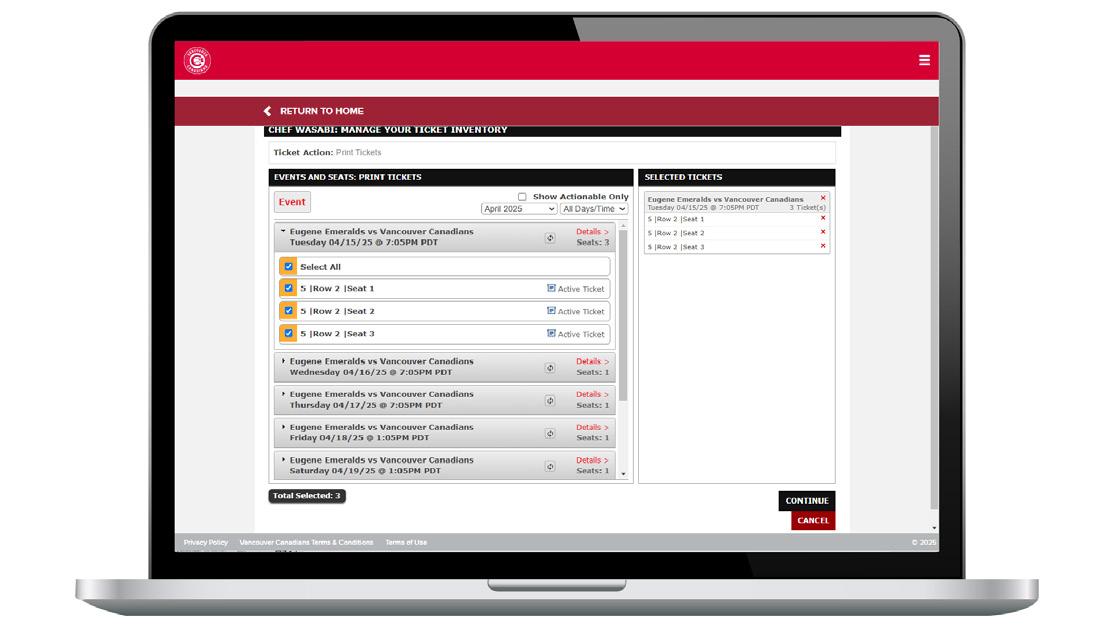
3. Click “Select All” to print all tickets for that game. Alternatively, you can select specific seats by checking the corresponding box.
5. Click “VIEW AND PRINT TICKETS”
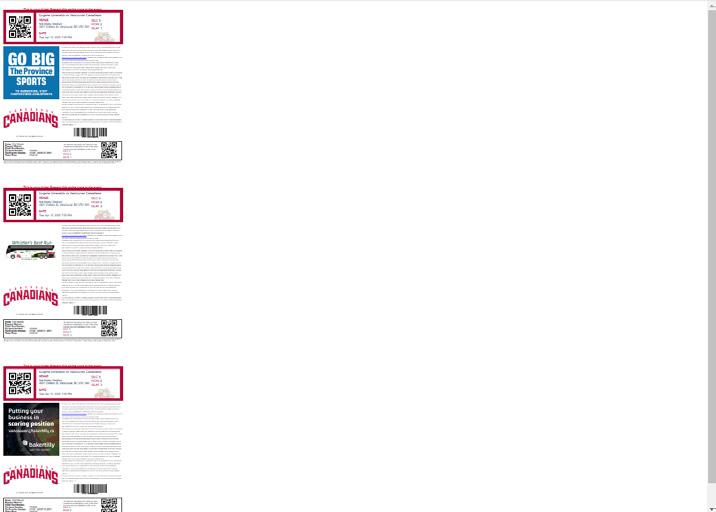
6. A new window will open displaying your tickets, you will be able to print them.
FORWARDING YOUR TICKETS
WHAT IS FORWARDING? FORWARDING TICKETS THROUGH YOUR MY C’S TICKET ACCOUNT IS THE BEST WAY TO DISTRIBUTE YOUR SEASON TICKETS. WHETHER YOU ARE GIFTING TICKETS TO A FRIEND OR FAMILY MEMBER, THANKING SOMEONE FOR A JOB WELL DONE, OR LOOKING TO TREAT A POTENTIAL BUSINESS CLIENT TO A GAME AT THE ‘NAT, FORWARDING TICKETS TO THE GAME IS A CONVENIENT WAY TO DIGITALLY DISTRIBUTE YOUR TICKETS. ALL YOU NEED TO FORWARD YOUR TICKETS IS THE FIRST AND LAST NAME OF THE TICKET RECIPIENT, AS WELL AS THEIR EMAIL ADDRESS.
1. After logging into your account, click “VIEW TICKETS” to check your tickets for the upcoming game or click on “VIEW ALL TICKET INVENTORY” to explore tickets for future games.
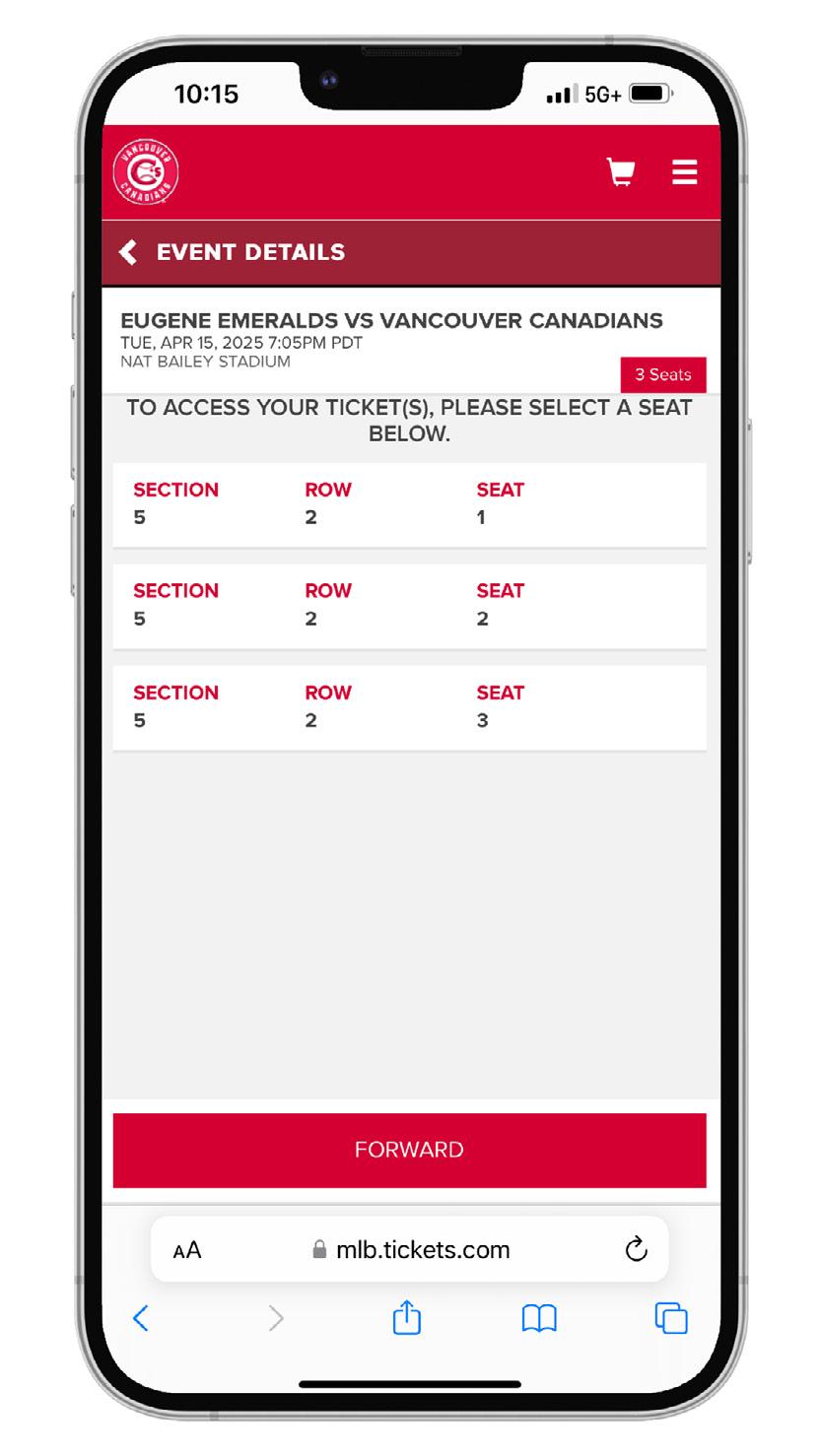
2. Choose the game for which you would like to transfer tickets.
3. After selecting the game, click on “FORWARD” at the bottom of the page.
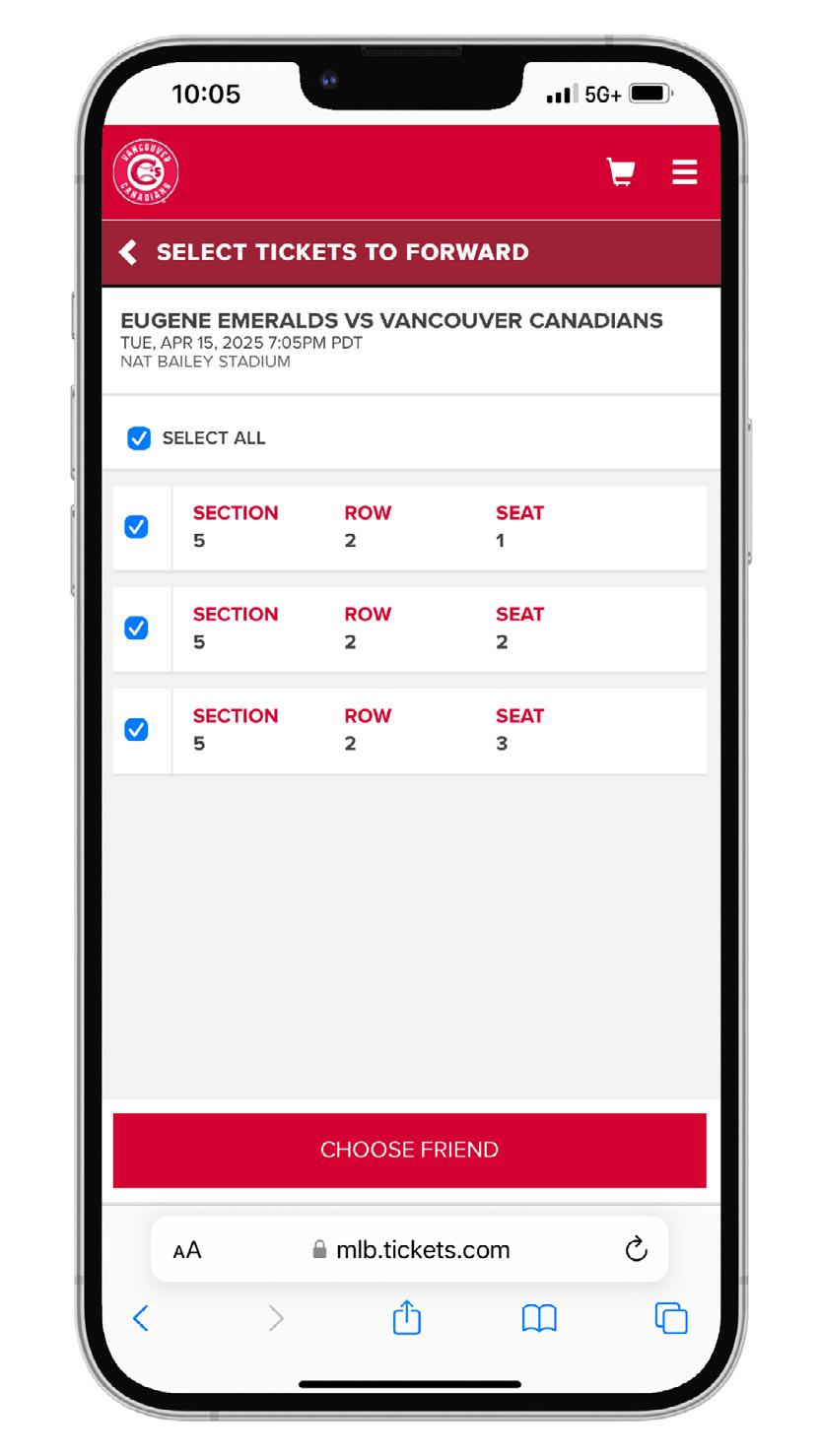
4. Choose the tickets you want to forward, then click “CHOOSE FRIEND” at the bottom of the page.
FORWARDING YOUR TICKETS
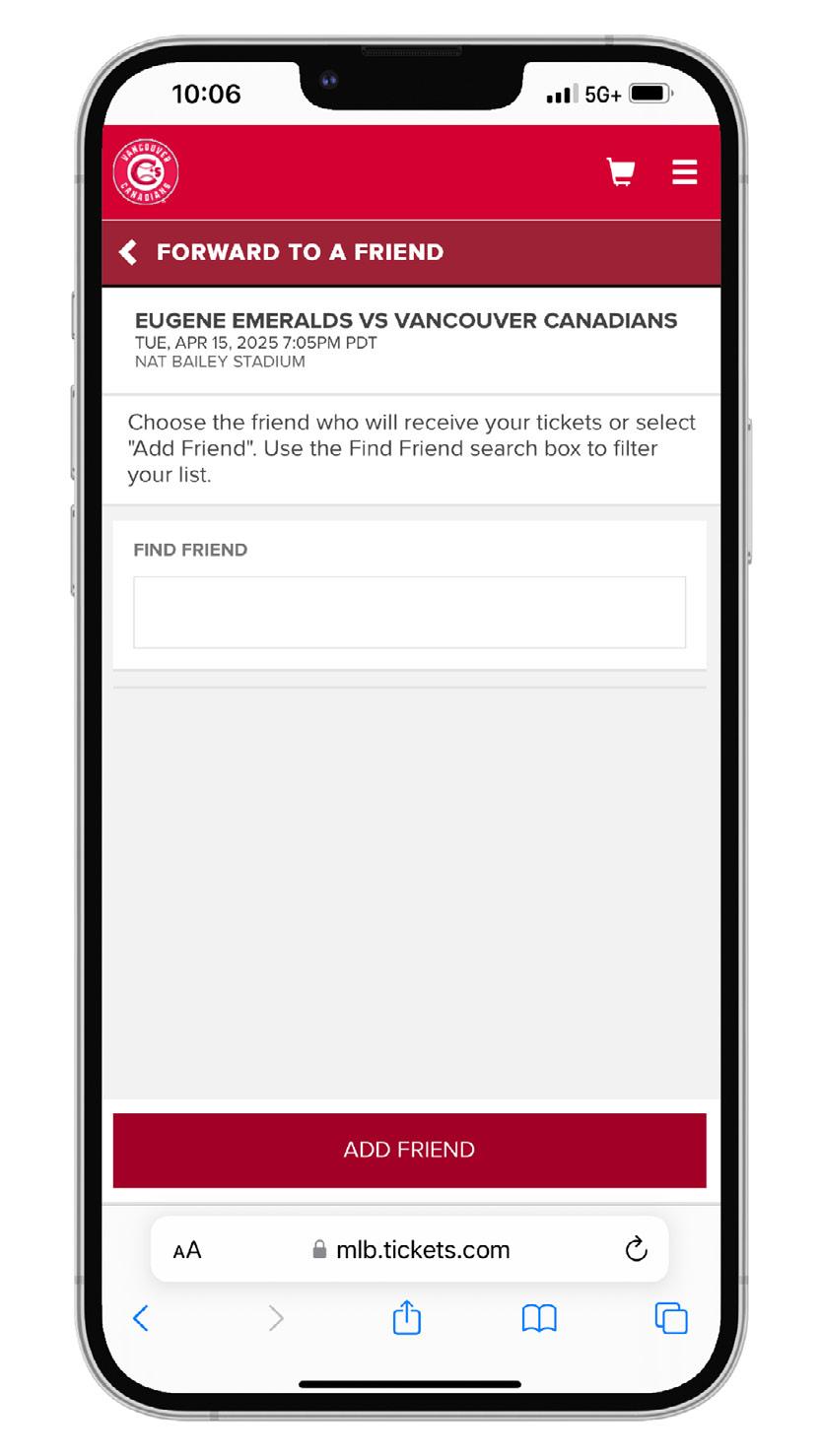
5. Click “ADD FRIEND” to add a recipient. Enter their name and email address where you want the tickets to be sent.
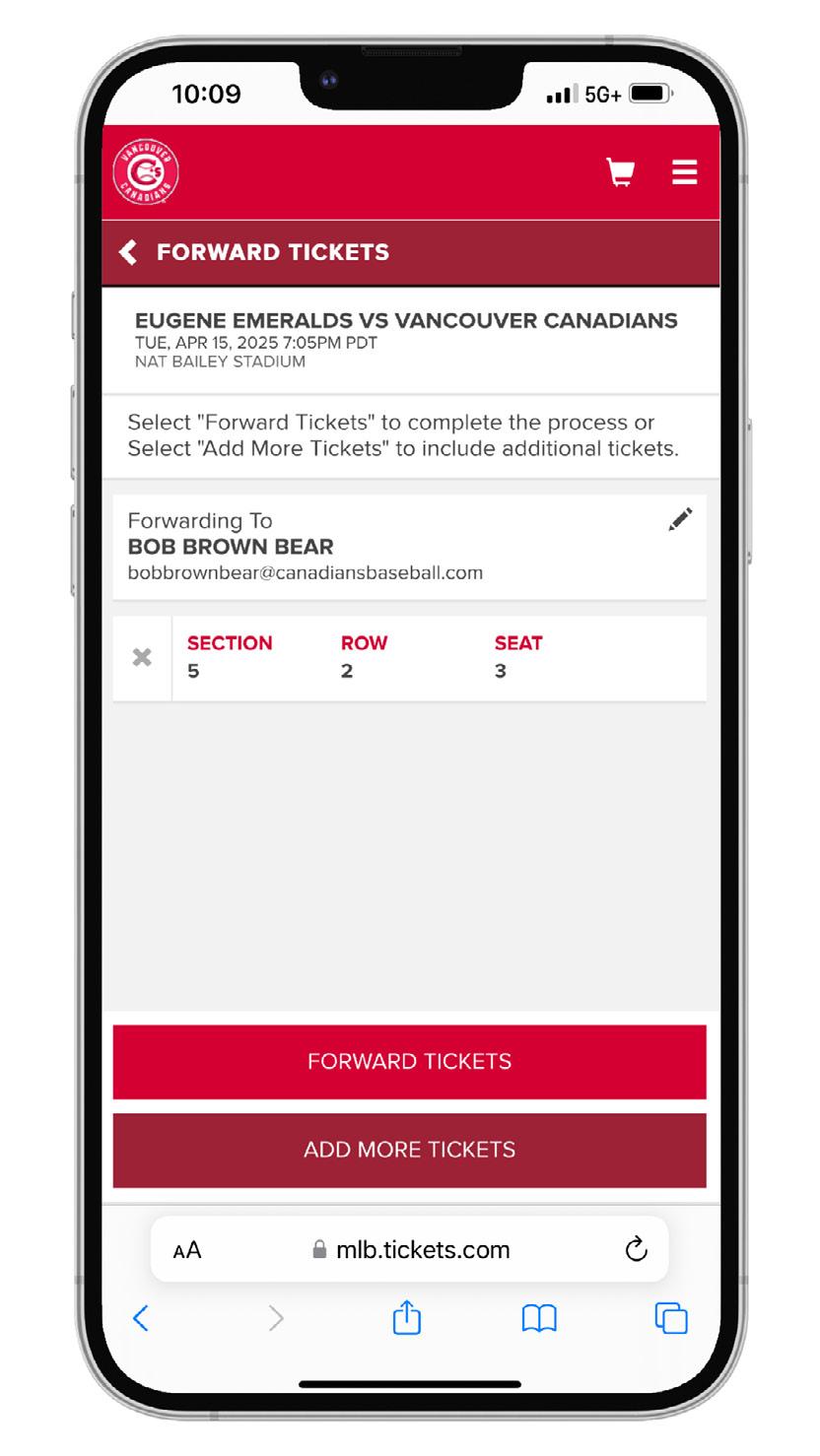
6. Choose the friend who will receive your tickets. After selecting a friend, click “FORWARD TICKETS” at the bottom of the page or “ADD MORE TICKETS” if you wish to forward additional tickets. Please review and confirm the recipient before forwarding your ticket(s).
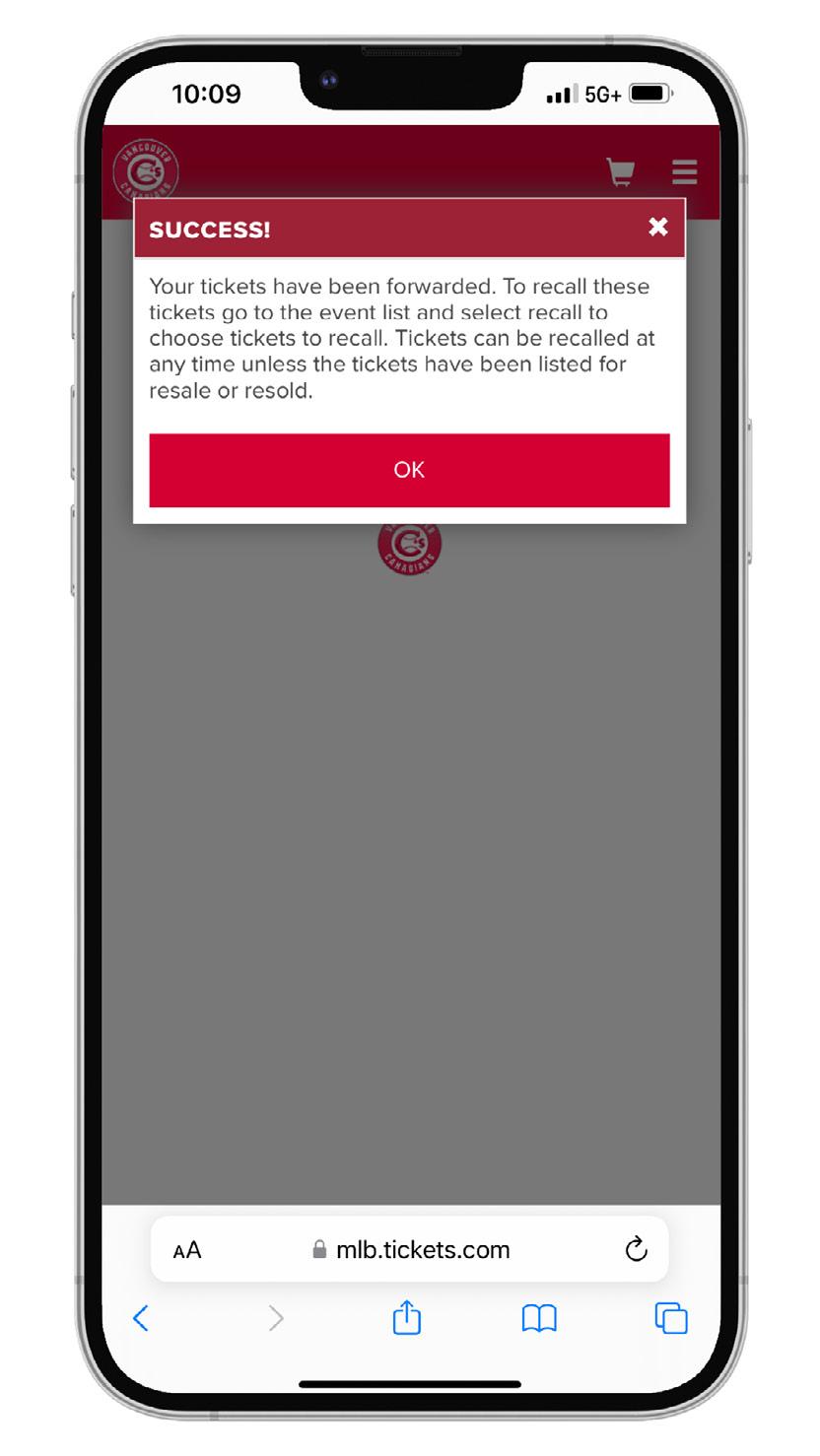
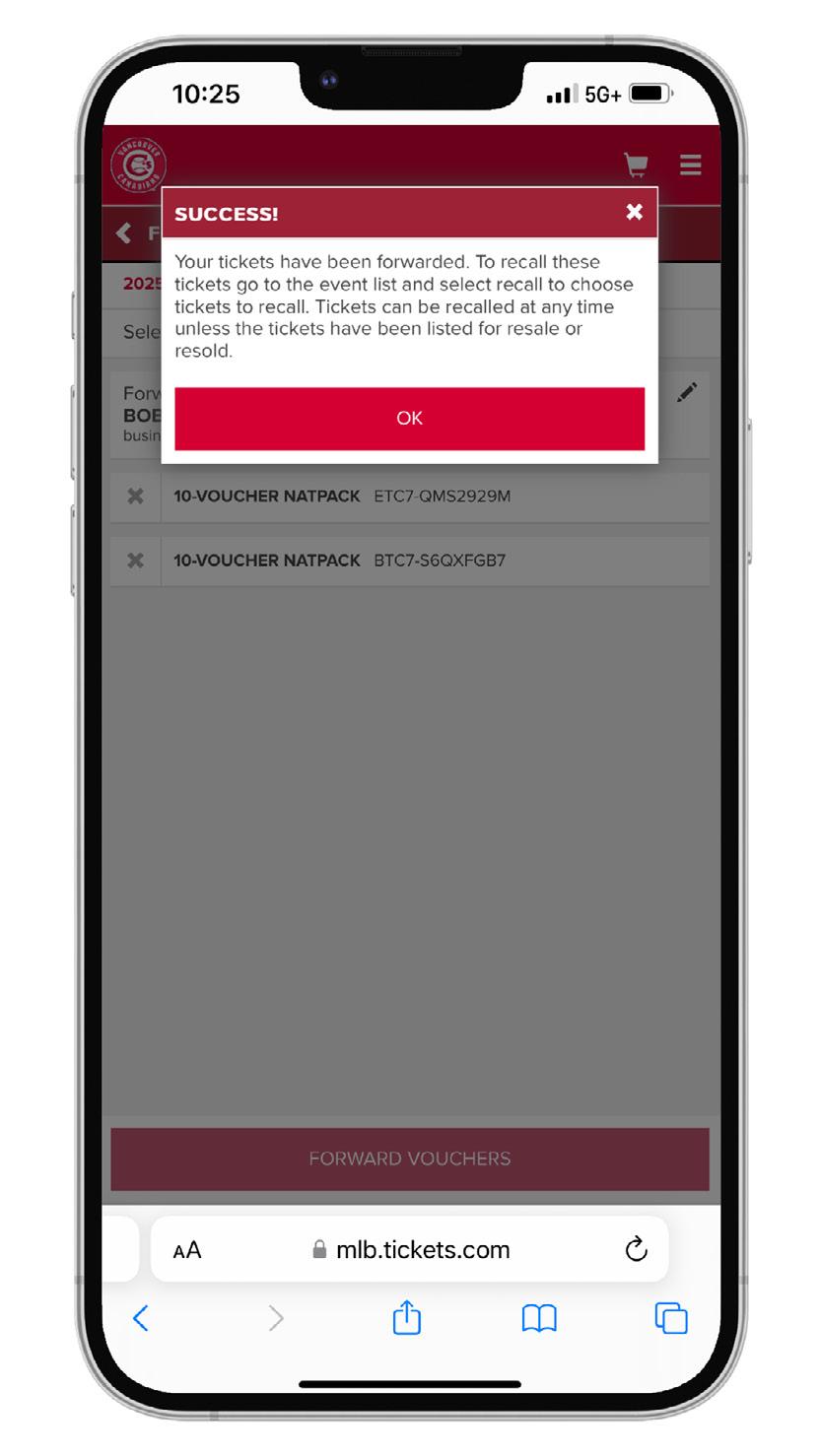
7. After clicking “FORWARD TICKETS,” a confirmation message will appear, verifying that the ticket(s) have been successfully forwarded.
8. The forwarded tickets will now be listed as “FORWARDED TO RECIPIENT” in your ticket inventory.
RECALLING FORWARDED TICKETS
WHAT IS RECALLING? SEASON TICKET HOLDERS THAT HAVE FORWARDED THEIR TICKETS ARE ABLE TO RECALL THEM IF NECESSARY. IF YOU HAVE FORWARDED TICKETS TO THE WRONG ACCOUNT, OR YOU HAVE FORWARDED TICKETS TO THE INCORRECT GAME YOU CAN RECALL THOSE SEATS AND RETURN THE TICKETS TO YOUR TICKET INVENTORY.
1. After logging into your account, click “VIEW TICKETS” to check your tickets for the upcoming game or click on “VIEW ALL TICKET INVENTORY” to explore tickets for future games.
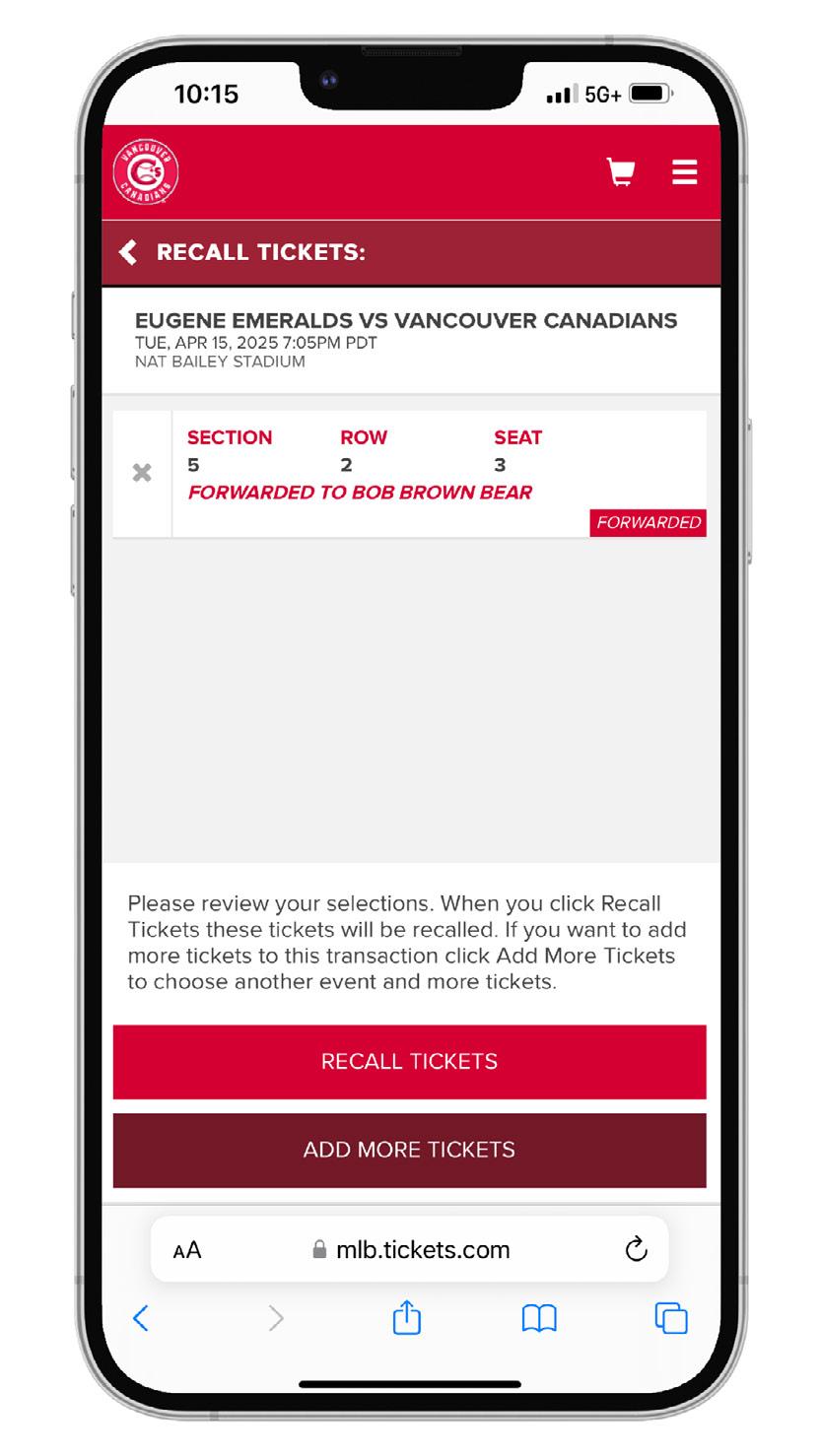
4. Review and confirm the ticket(s) you’re recalling. If needed, you can also add any additional tickets you’d like to recall. Once you’re sure, confirm your selection, select “RECALL TICKETS.”
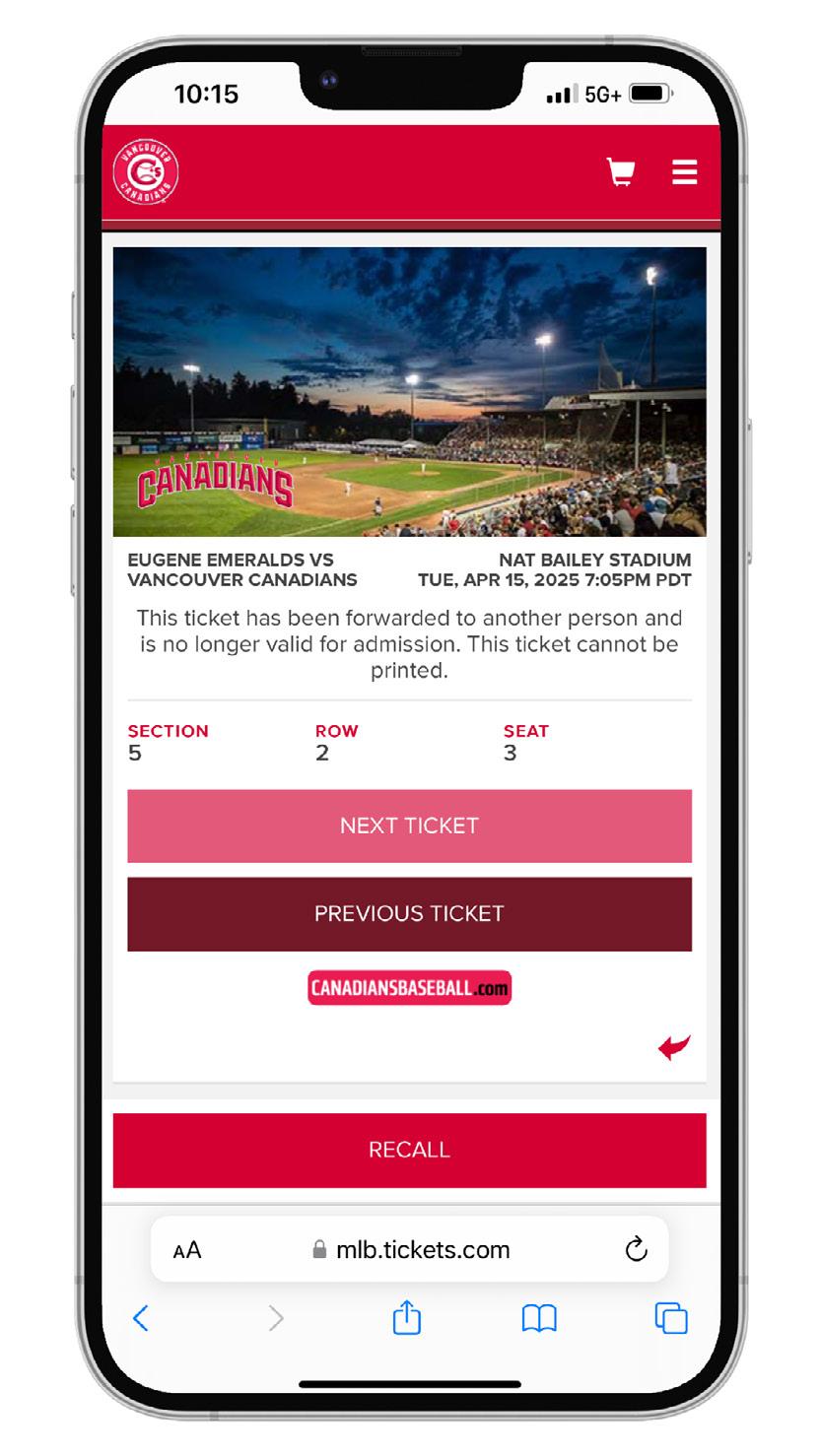
2. After selecting the game, click on the ticket that was forwarded.
3. Select “RECALL”
RECALLING FORWARDED TICKETS
5. After clicking “RECALL TICKETS,” a confirmation will appear, verifying that the tickets have been successfully recalled.
6. Your recalled tickets will now appear in your ticket inventory.
CONSIGNING YOUR TICKETS
WHAT IS CONSIGNMENT? SEASON TICKET HOLDERS THAT ARE UNABLE TO ATTEND A VANCOUVER CANADIANS HOME GAME HAVE THE OPTION TO CONSIGN THEIR SEATS BACK TO THE BOX OFFICE THROUGH THEIR MY C’S TICKET ACCOUNT. CONSIGNING YOUR SEATS MEANS RELEASING YOUR SEATS BACK TO THE BOX OFFICE TO BE RESOLD AS SINGLE GAME TICKETS. IF YOUR CONSIGNED BACK SEATS ARE RESOLD THROUGH THE VANCOUVER CANADIANS BOX OFFICE, YOU WILL RECEIVE THE PER TICKET COST OF YOUR SEASON TICKETS ON YOUR ACCOUNT AS A TICKET CREDIT THAT CAN BE USED FOR FUTURE TICKET PURCHASES.
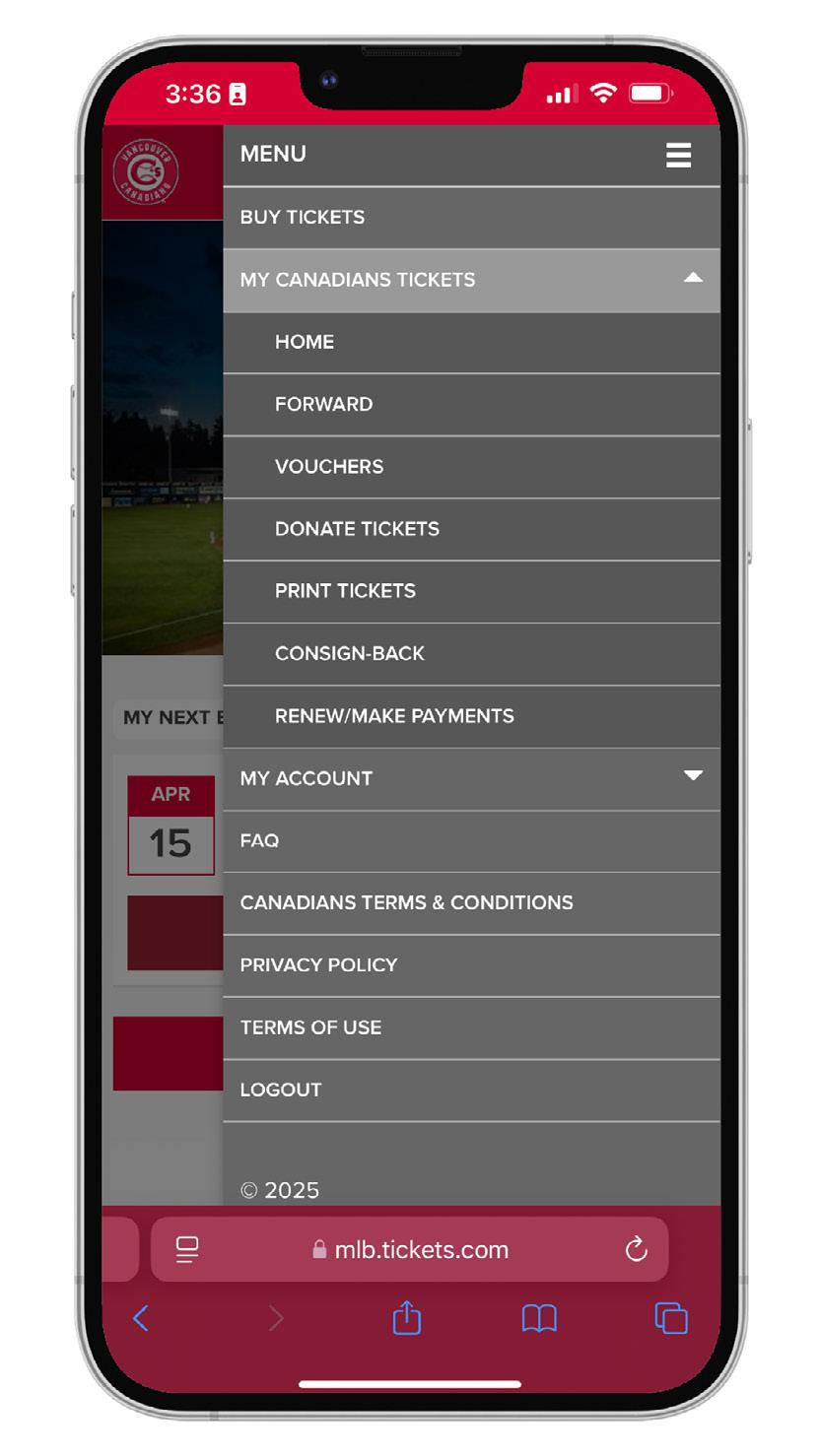
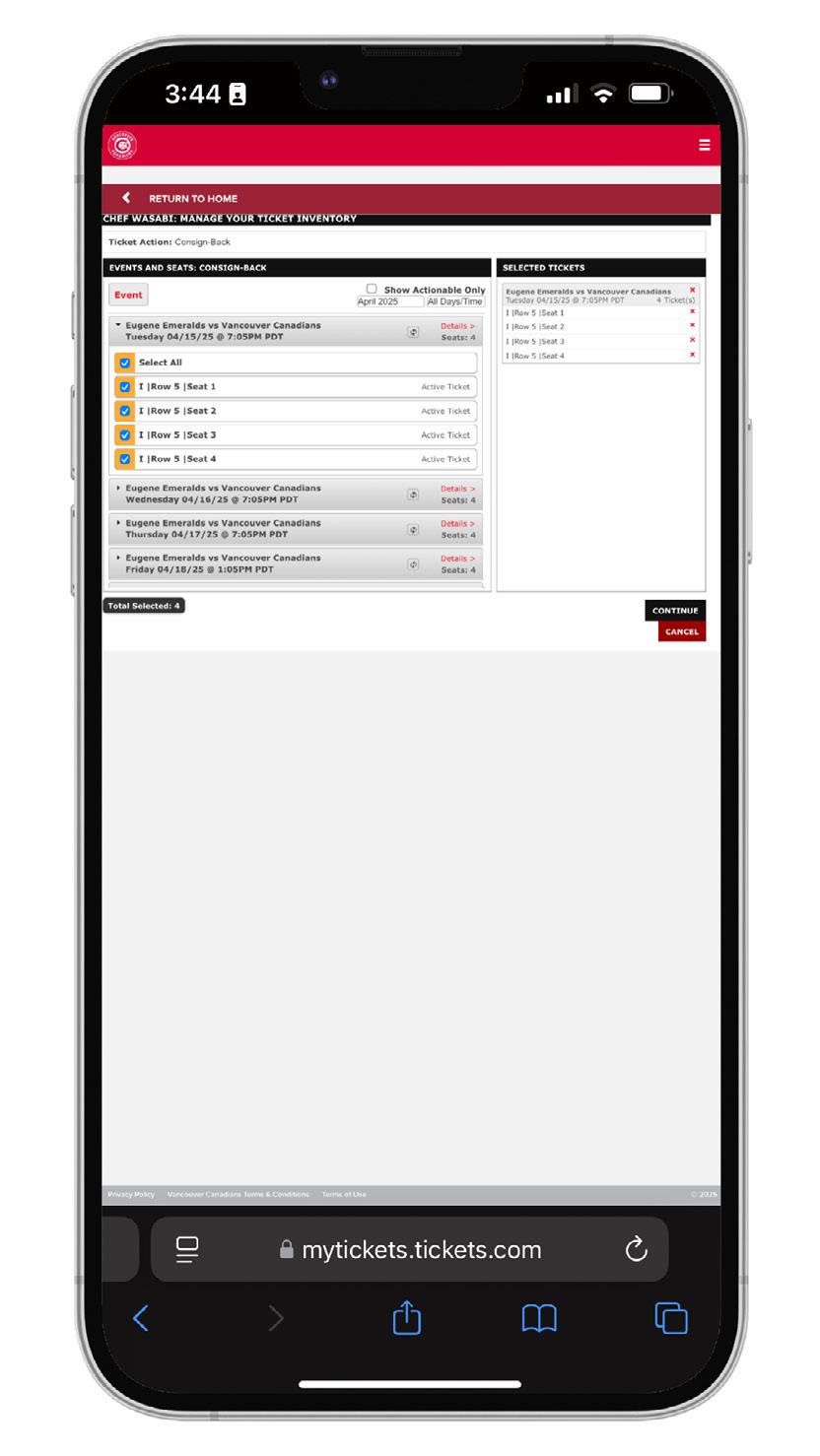
1. After logging into your account, click the three white lines in the top right-hand corner of the page. Then, select “My Canadians Tickets”, then “Consign-Back”.
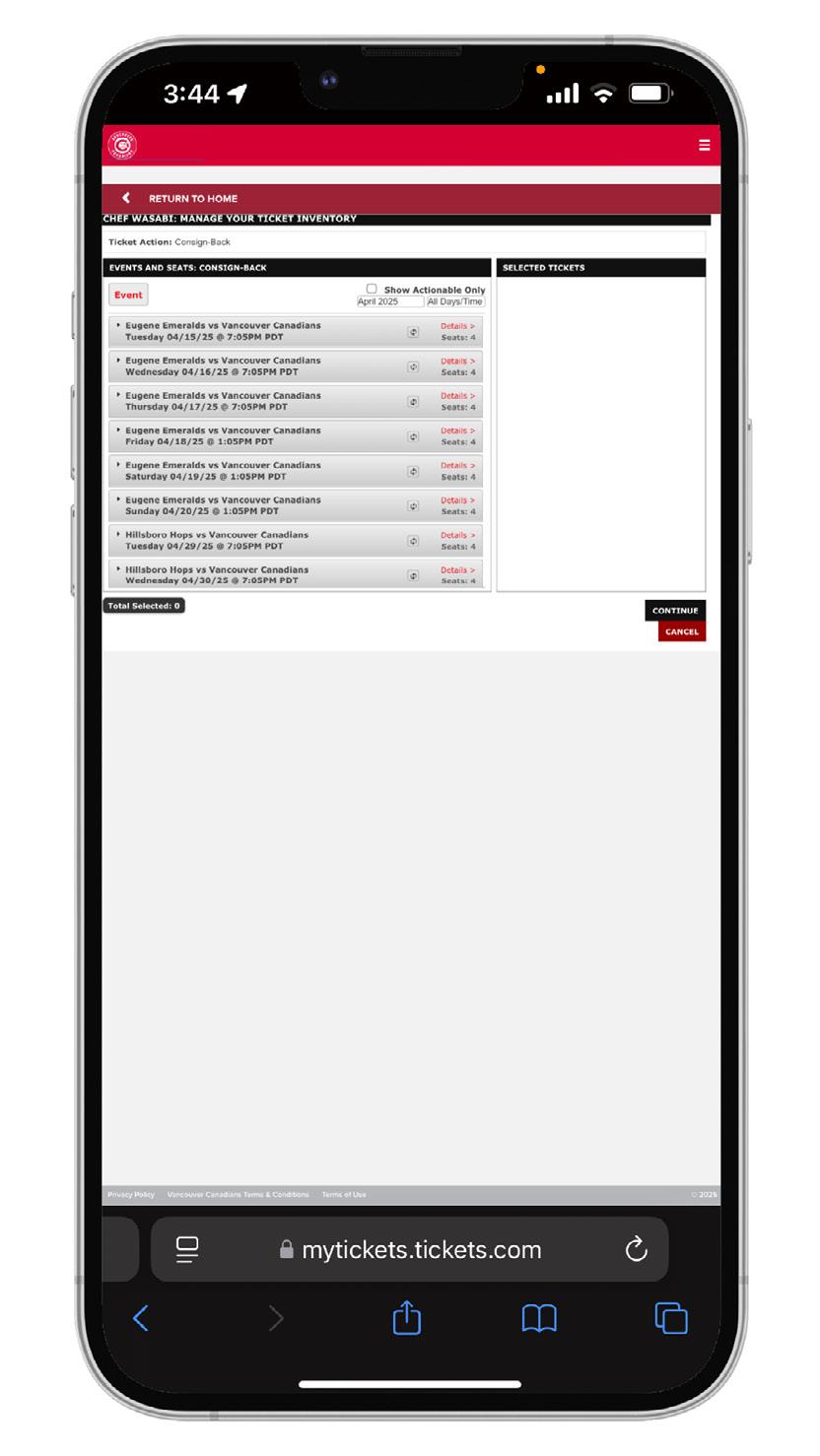
2. Navigate to the game you want to consign-back. Note: by default, only the current month’s games will display.
3. Select the tickets you want to consignback and select “Continue”.
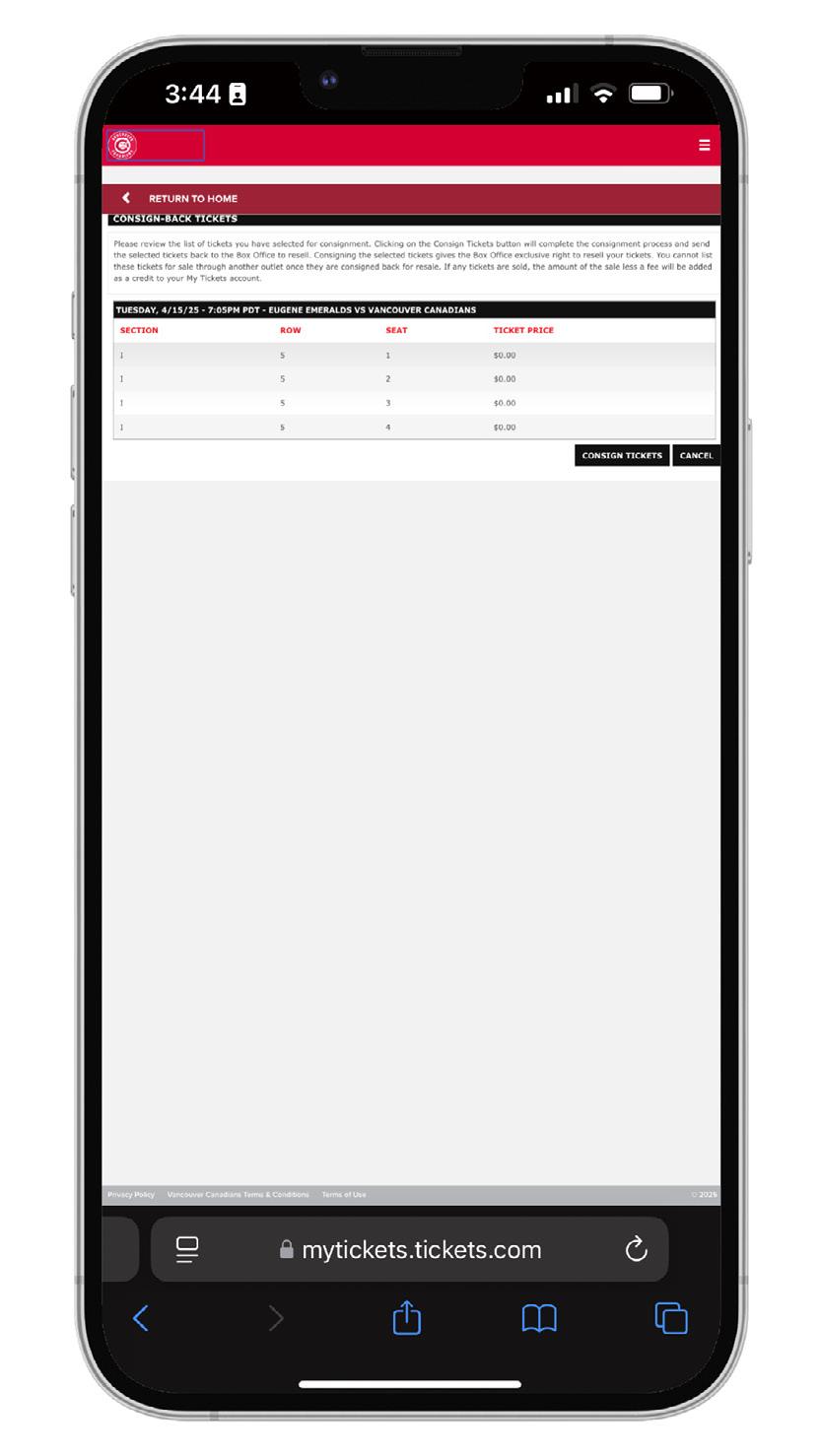
4. Confirm the tickets you’ve selected. If correct, select “Consign Tickets”.
RECALLING CONSIGNED TICKETS
SO LONG AS YOUR TICKETS HAVE NOT ALREADY RESOLD THROUGH THE BOX OFFICE, YOU ARE ABLE TO RECALL CONSIGNED TICKETS BACK TO YOUR ACCOUNT.
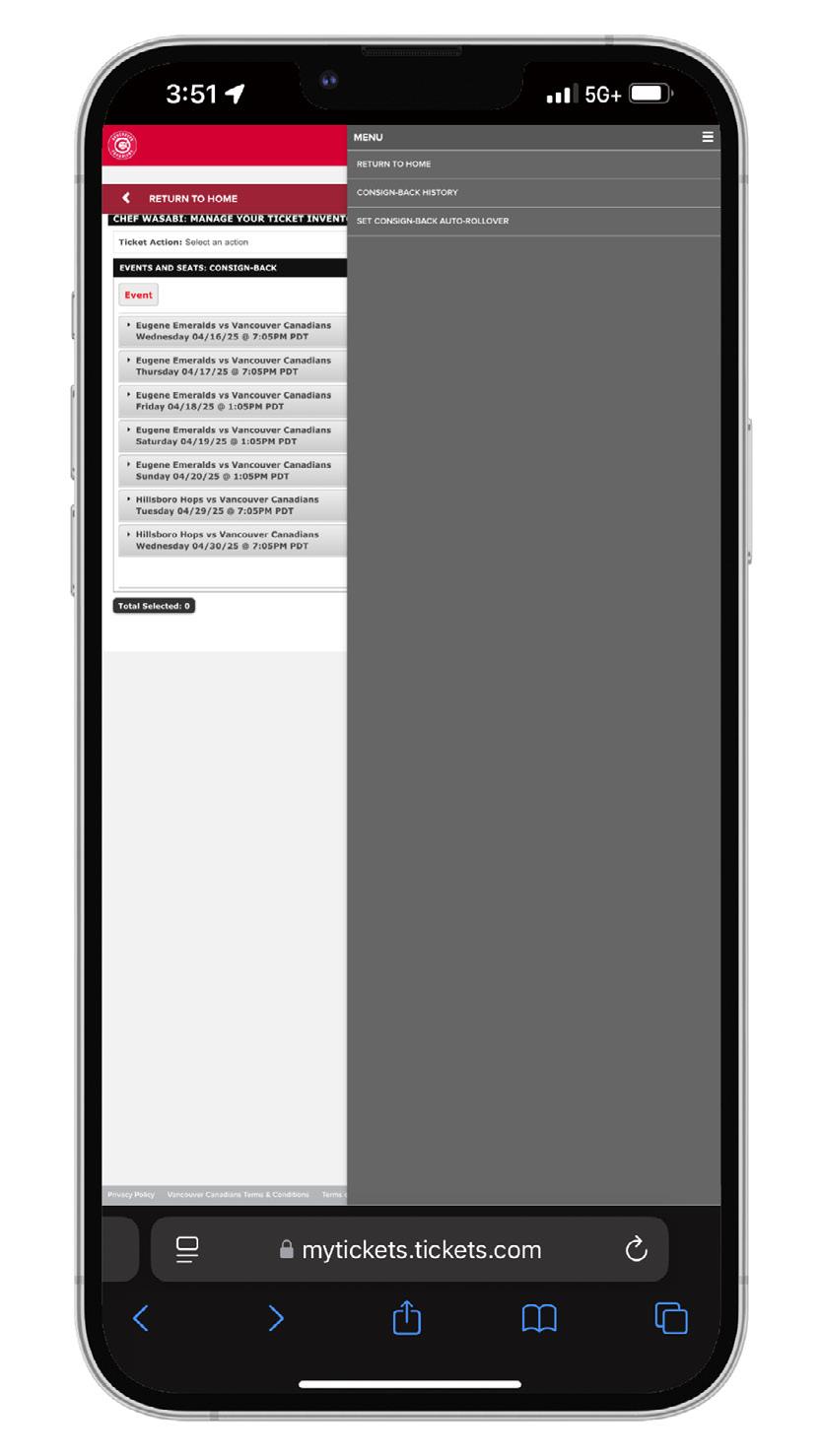
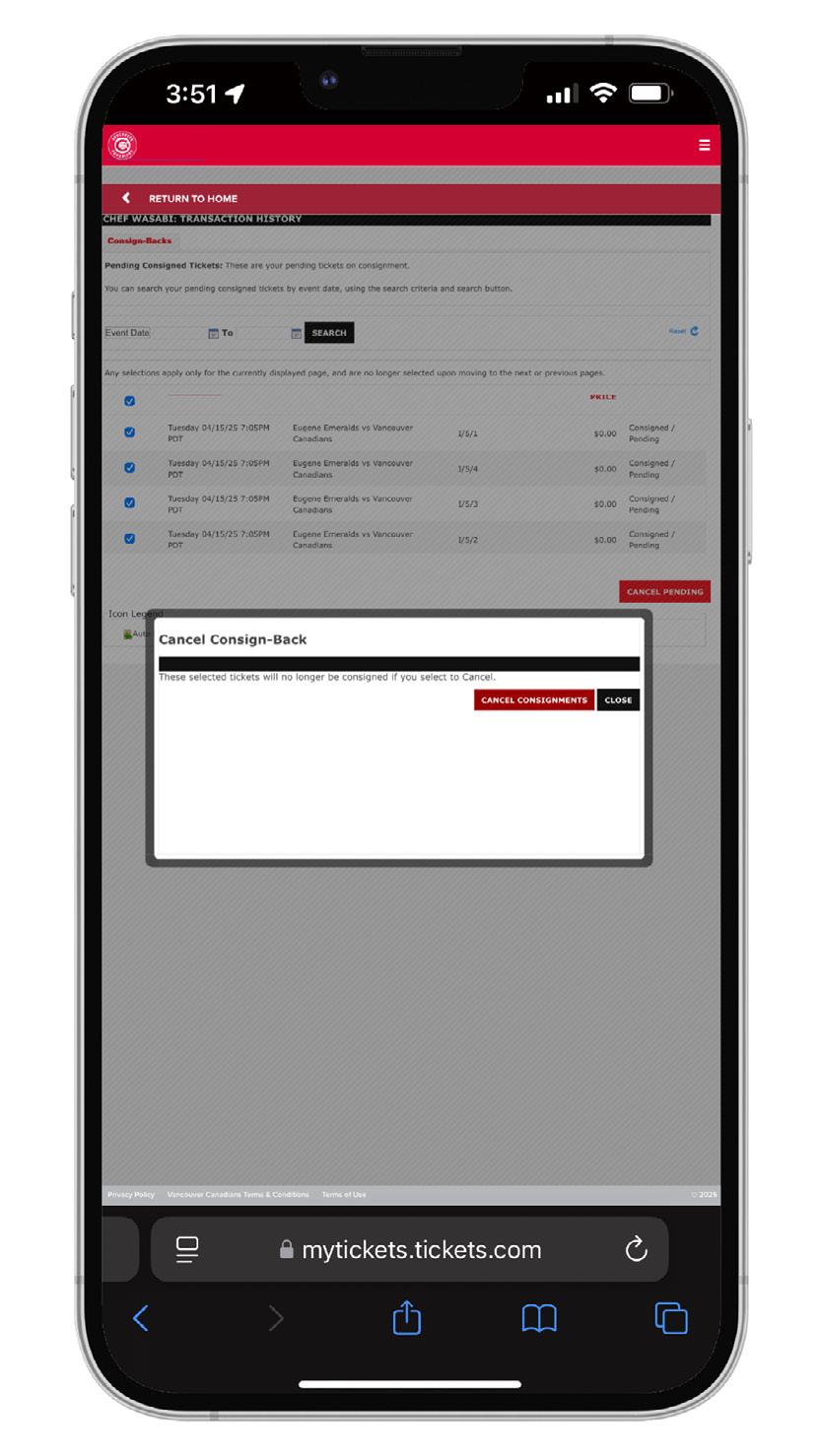
1. From within the Consign-Back menu, click the three white lines in the top right-hand corner of the page. Then, select “ConsignBack History”
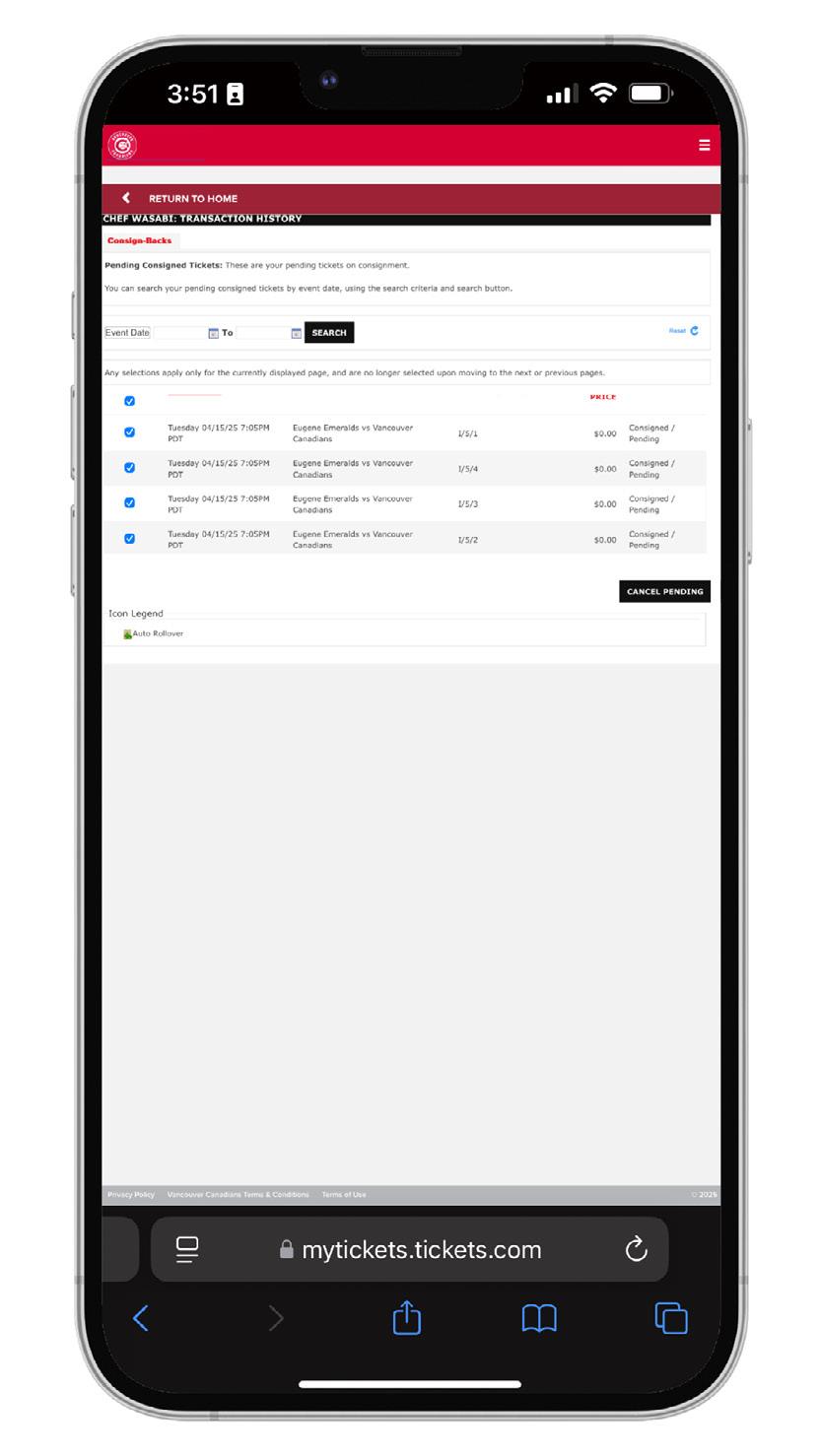
2. Select the tickets you want to recall then click “Cancel Pending”.
3. Confirm the recall by clicking “Cancel Consignments”.
"SEND 'EM TO THE NAT" CALENDAR
APRIL 7 - MAY 17, 2026: HOMESTANDS 1-4
Date Time Opponent Promotion
Tuesday, April 7 7:05 Eugene 75th Anniversary Celebration & Fireworks Plus Magnet Schedule Giveaway Presented by Sleeman Breweries
Wednesday, April 8 7:05 Eugene RBC We Care Wednesday supporting United Way BC
Thursday, April 9 7:05 Eugene
Friday, April 10 1:05 Eugene ’Nooner at The Nat Presented by FortisBC
Saturday, April 11 1:05 Eugene Filipino Heritage Day Plus Theme Jersey Auction
Sunday, April 12 1:05 Eugene Family Fun Sunday Plus Umbrella Giveaway Presented by White Spot
Tuesday, April 21 7:05 Tri-City 75th Anniversary Celebration Plus 75th Logo Pin Giveaway
Wednesday, April 22 7:05 Tri-City RBC We Care Wednesday supporting Arts Umbrella
Thursday, April 23 7:05 Tri-City
Friday, April 24 1:05 Tri-City ’Nooner at The Nat Presented by FortisBC
Saturday, April 25 1:05 Tri-City
Sunday, April 26 1:05 Tri-City Family Fun Sunday Plus Poncho Giveaway Presented by White Spot
Tuesday, April 28 7:05 Tri-City 75th Anniversary Celebration Plus Stadium Replica Giveaway Presented by Rogers
Wednesday, April 29 7:05 Hillsboro RBC We Care Wednesday supporting Growing Chefs
Thursday, April 30 7:05 Hillsboro
Friday, May 1 1:05 Hillsboro ’Nooner at The Nat Presented by FortisBC
Saturday, May 2 1:05 Hillsboro
Sunday, May 3 1:05 Hillsboro Family Fun Sunday & Star Wars Day Plus Light Sword Giveaway Presented by White Spot
Tuesday, May 12 7:05 Everett 75th Anniversary Celebration Plus Capilanos Pennant Giveaway
Wednesday, May 13 7:05 Everett RBC We Care Wednesday supporting Vancouver Chinatown Foundation
Thursday, May 14 7:05 Everett First Responders Appreciation Day
Friday, May 15 1:05 Everett ’Nooner at The Nat Presented by FortisBC
Saturday, May 16 1:05 Everett South Asian Heritage Day Plus Theme Jersey Auction
Sunday, May 17 1:05 Everett Family Fun Sunday Plus Chop & Stix Socks Giveaway Presented by White Spot
"SEND 'EM TO THE NAT" CALENDAR
MAY 26 - JULY 12, 2026: HOMESTANDS 5-8
Date Time Opponent Promotion
Tuesday, May 26 7:05 Eugene 75th Anniversary Celebration Plus Mounties Pennant Giveaway
Wednesday, May 27 7:05 Eugene RBC We Care Wednesday supporting Rick Hansen Foundation
Thursday, May 28 7:05 Eugene Dog Day of Summer Presented by CHARM Pet Food
Friday, May 29 1:05 Eugene ’Nooner at The Nat Presented by FortisBC
Saturday, May 30 1:05 Eugene Card Set Giveaway Presented by Pastime Sports & Games
Sunday, May 31 1:05 Eugene Family Fun Sunday & Bob's Birthday Plus Kids Jersey Giveaway Presented by White Spot
Tuesday, June 9 7:05 Everett 75th Anniversary Celebration Plus Addison Barger Bobblehead Giveaway Presented by Rogers
Wednesday, June 10 7:05 Everett RBC We Care Wednesday supporting Arts Club Theatre
Thursday, June 11 7:05 Everett Postgame Fireworks Presented by Phillips Brewing
Friday, June 12 1:05 Everett ’Nooner at The Nat Presented by FortisBC
Saturday, June 13 1:05 Everett Chef Wasabi Takeover Day Plus Chef Wasabi Plush Keychain Giveaway
Sunday, June 14 1:05 Everett Family Fun Sunday Plus Drawstring Bag Giveaway Presented by White Spot
Tuesday, June 30 7:05 Eugene 75th Anniversary Celebration Plus Triple-A Pennant Giveaway
Wednesday, July 1 7:05 Eugene RBC We Care Wednesday supporting Music On Main Plus Canada Day Fireworks
Thursday, July 2 7:05 Eugene Women in Sports Day
Friday, July 3 1:05 Eugene ’Nooner at The Nat Presented by FortisBC
Saturday, July 4 5:05 Eugene Subaru Saturday
Sunday, July 5 1:05 Eugene Family Fun Sunday Plus Build-A-Bob Block Set Giveaway Presented by White Spot
Tuesday, July 7 7:05 Everett 75th Anniversary Celebration Plus Short-A Pennant Giveaway
Wednesday, July 8 7:05 Everett RBC We Care Wednesday supporting Food Runners
Thursday, July 9 7:05 Everett Postgame Fireworks Presented by Sleeman Breweries
Friday, July 10 1:05 Everett ’Nooner at The Nat Presented by FortisBC
Saturday, July 11 5:05 Everett Blue Jays Day Presented by Rogers Plus Kevin Pillar Appearance & Signing
Sunday, July 12 1:05 Everett Family Fun Sunday Plus Pirate Hat Giveaway Presented by White Spot
"SEND 'EM TO THE NAT" CALENDAR
JULY 28 - AUGUST 0, 2026: HOMESTANDS 9-11
Date Time Opponent Promotion
Tuesday, July 28 7:05 Spokane 75th Anniversary Celebration Plus High-A Pennant Giveaway And Dog Day of Summer Presented by Jack & Frankie
Wednesday, July 29 7:05 Spokane RBC We Care Wednesday supporting Pacific Autism Family Network
Thursday, July 30 7:05 Spokane Pride Night And Pride Button Giveaway Plus Postgame Fireworks
Friday, July 31 1:05 Spokane ’Nooner at The Nat Presented by FortisBC
Saturday, August 1 5:05 Spokane Country Night Plus Cowboy Hat Giveaway Presented by JRFM
Sunday, August 2 1:05 Spokane Family Fun Sunday Plus Chef Wasabi Beach Towel Giveaway 4 Presented by White Spot
Tuesday, August 11 7:05 Tri-City 75th Anniversary Celebration Plus Scarf Giveaway Presented by Cloverdale Paint
Wednesday, August 12 7:05 Tri-City RBC We Care Wednesday supporting Make-A-Wish
Thursday, August 13 7:05 Tri-City Postgame Fireworks Presented by Kirmac Collision
Friday, August 14 1:05 Tri-City ’Nooner at The Nat & Safety Day Presented by FortisBC
Saturday, August 15 5:05 Tri-City Subaru Saturday
Sunday, August 16 1:05 Tri-City Family Fun Sunday Plus Backpack Giveaway Presented by White Spot
Tuesday, August 25 7:05 Spokane 75th Anniversary Celebration Jersey Auction And Rogers Beyond the Seat Night Plus Trey Yesavage Bobblehead Giveaway Presented by Rogers
Wednesday, August 26 7:05 Spokane RBC We Care Wednesday supporting Ballet BC
Thursday, August 27 7:05 Spokane Postgame Fireworks Presented by Canadian Club
Friday, August 28 1:05 Spokane ’Nooner at The Nat Presented by FortisBC
Saturday, August 29 5:05 Spokane James Paxton Appearance & Signing
Sunday, August 30 1:05 Spokane Family Fun Sunday Plus Lunch Bag Giveaway Presented by White Spot