









System Overview & Navigation










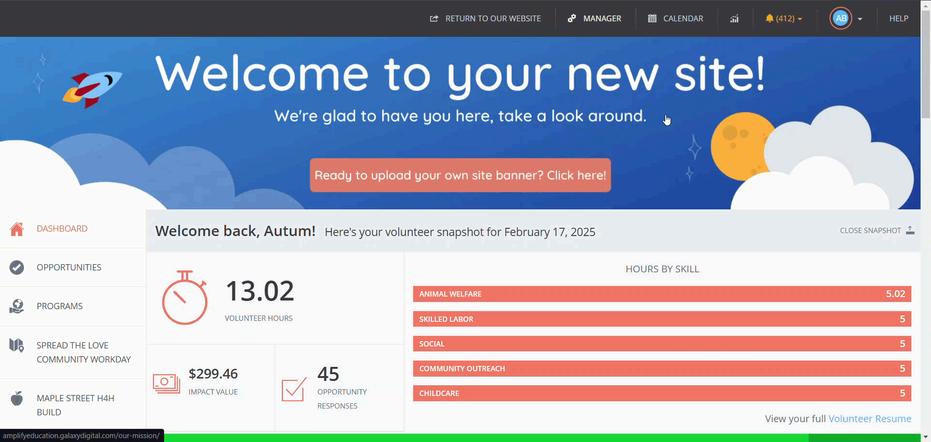
If you’d like to see what volunteers experience on your site:
1.Click View Site in your top menu to switch to the volunteer view.
2.Click Manager (top menu) to return to your Site Manager dashboard.
Note: Program Managers will see My Programs instead of Manager on the top navigation.
Cell Phone Use: click the icon on the top right side of your screen

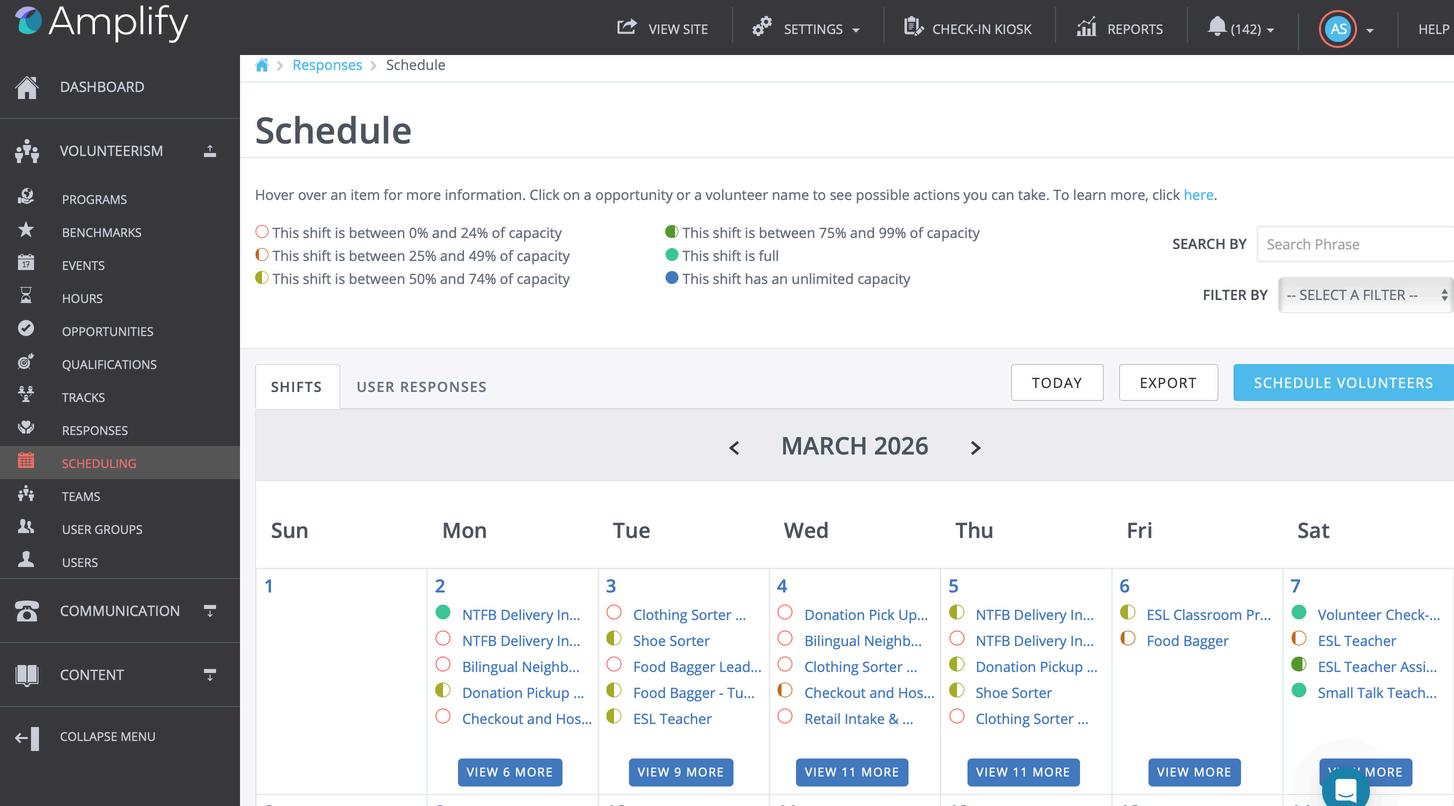
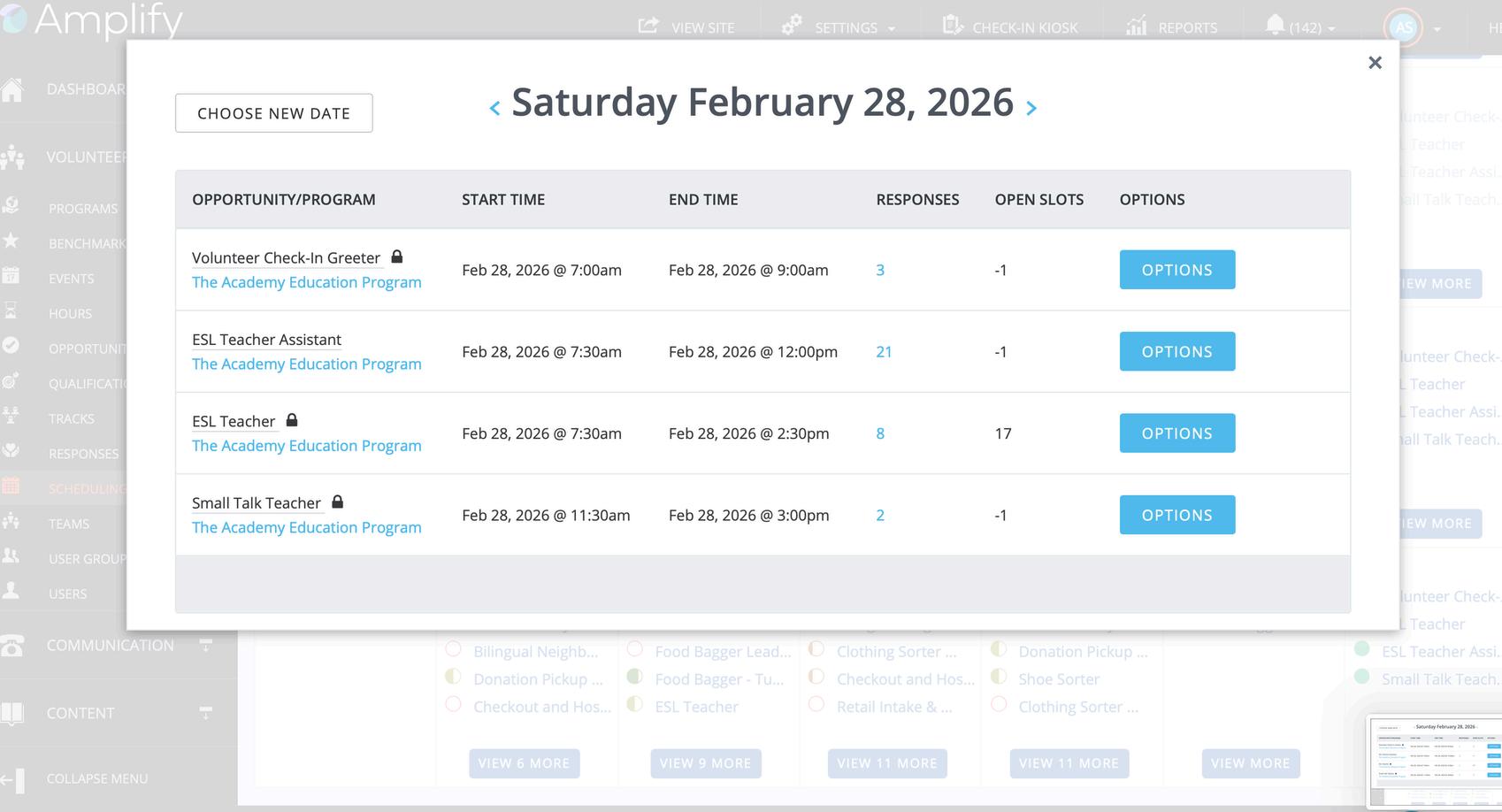
The main scheduling screen allows you to see the capacity of your individual shifts at any given time.
Click on View More
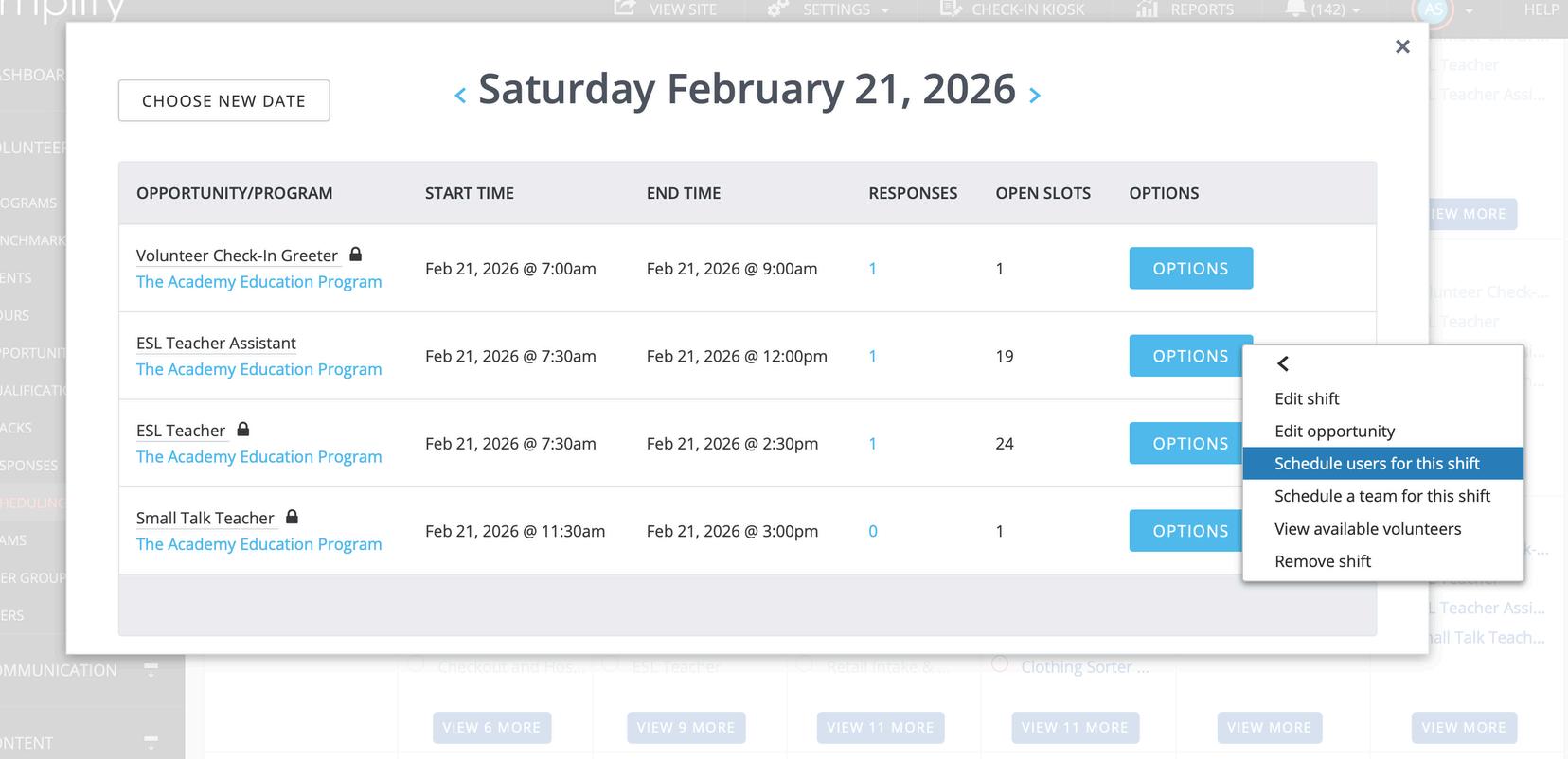
The main scheduling screen allows you to see the capacity of your individual shifts at any given time.
Click on View More
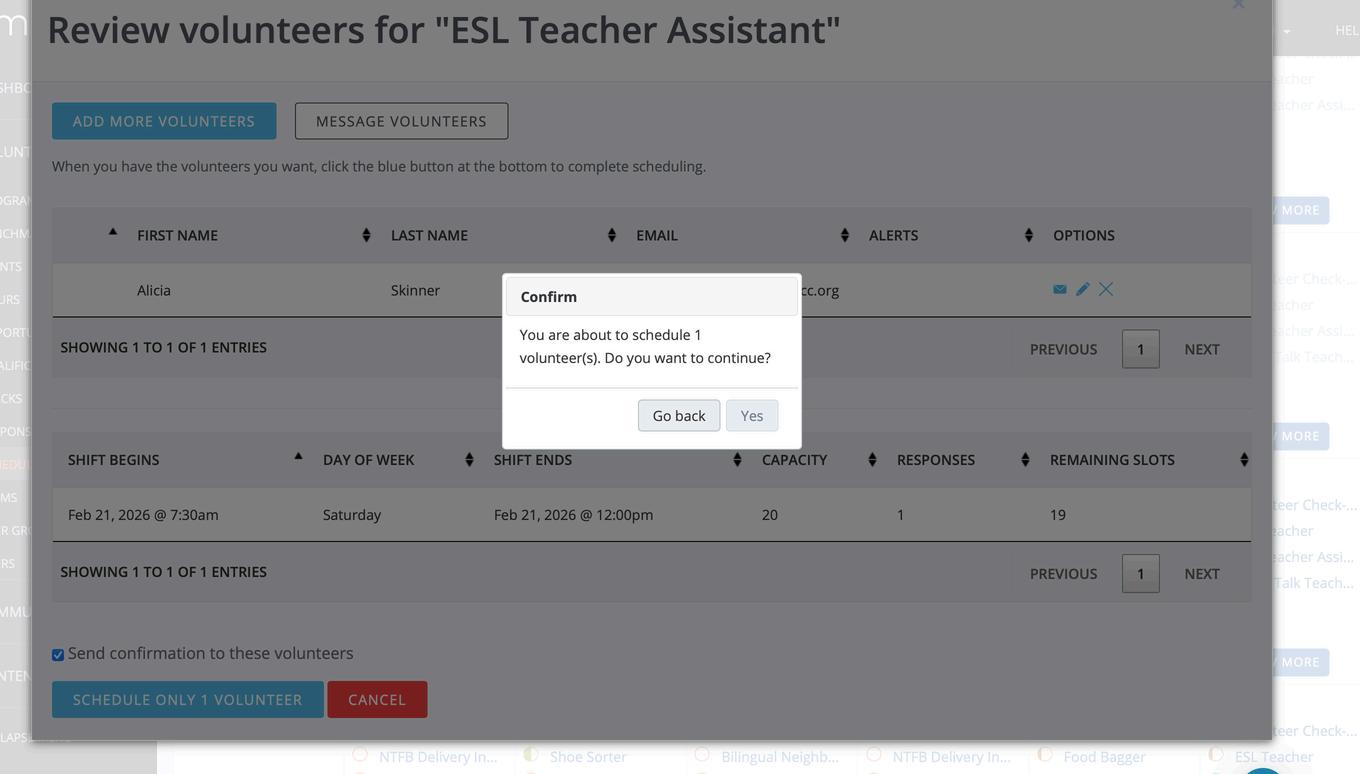
Select the shift and then select schedule users for this shift
Search for the volunteer name and then click on the search button
Click the name of the user and click the button that says “add to list”

Check send confirmation to these volunteers
Click “schedule only 1 volunteer”
Then click yes on the pop up button
The main scheduling screen allows you to see the capacity of your individual shifts at any given time.
Click on View More
Click on the blue number (under responses) for the shift that user is currently signed up for
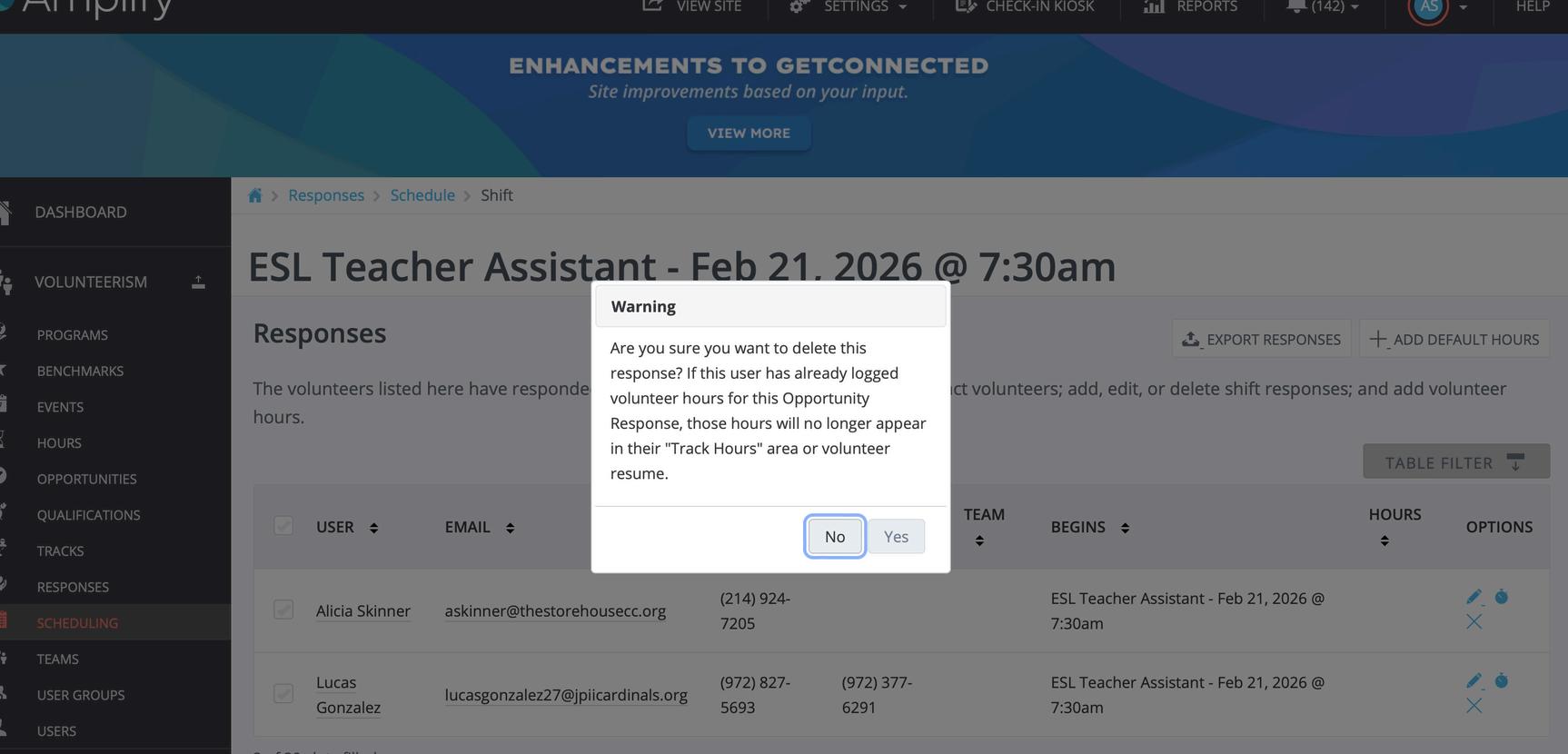
Click the box next to the user name and then click the “x” under the options heading
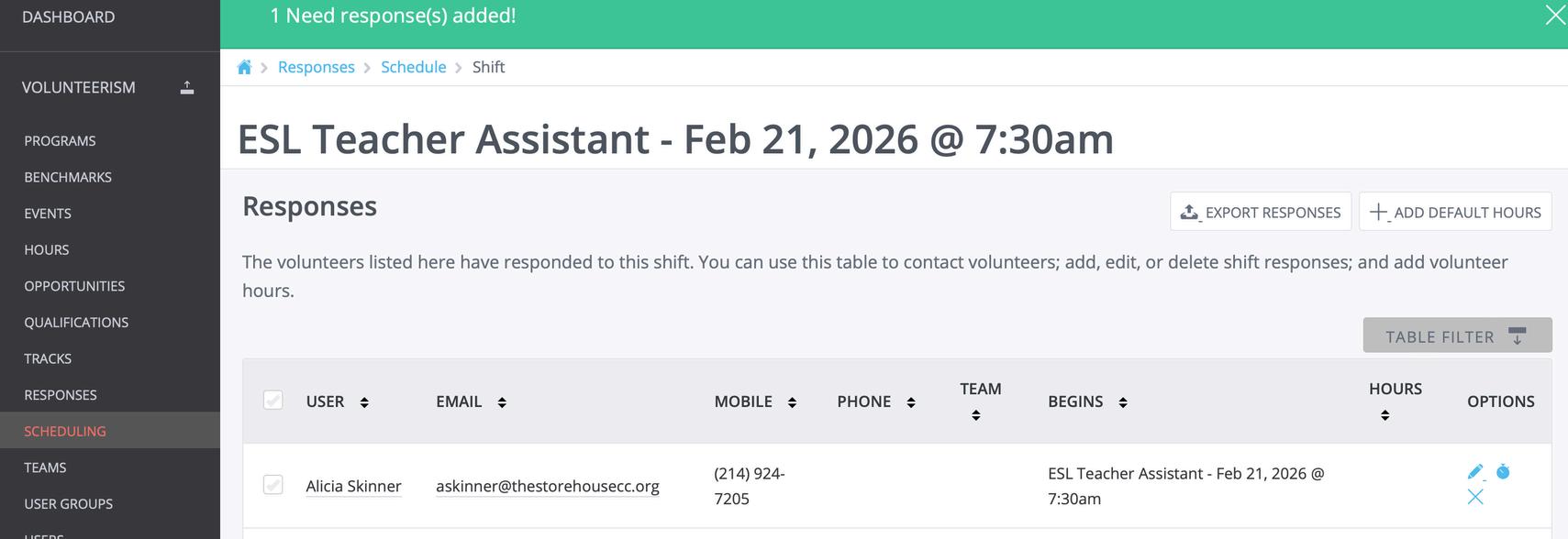
Remove a user from a shift
Click yes in the pop up box
The main scheduling screen allows you to see the capacity of your individual shifts at any given time.
Click on View More
Click on the blue number (under responses) for the shift that user is currently signed up for
Scroll down on the screen to see the waitlist. You cannot move someone from a waitlist if the maximum number of volunteers has been met. If someone cancels, then the waitlist position can be added if not already added. There will be a plus sign under the options header where you see the user.
The only way to add someone from a waitlist is to adjust the maximum number in a shift.
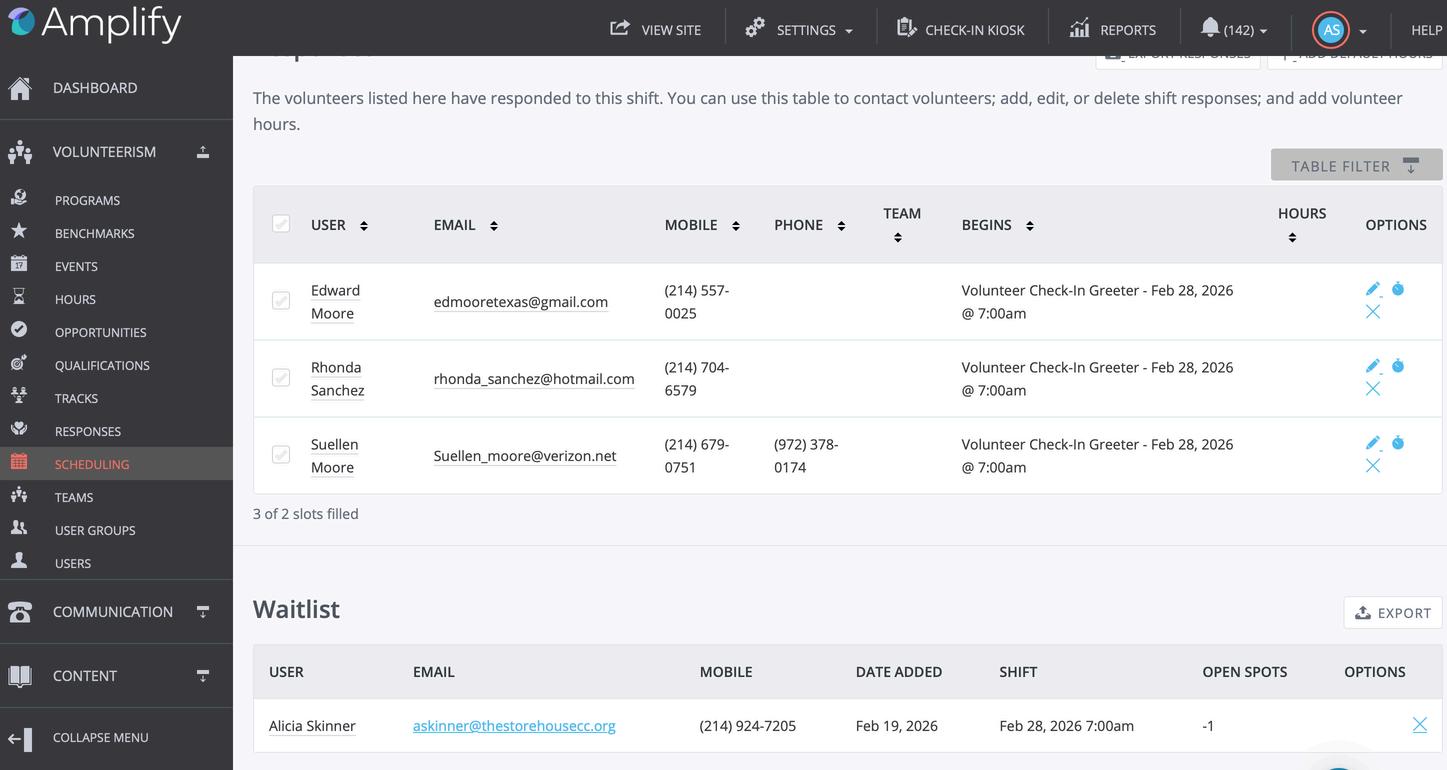
Moving forward, we will not be accepting walk ins. In the past, this has caused difficulty with tracking and with the new system, this will become even more challenging. We also do not want to set a precedent. We want to encourage the volunteers to follow protocol and either sign up for the session or on the waitlist. I will be talking about this in the greeter training as well. The only exception will be if someone is part of a group.
If someone is on the waitlist and shows up, the only way that we can add them to our volunteer list is if we are not already at maximum capacity. Again, we encourage our volunteers to not come to the session unless they have been removed from the waitlist prior to the session. If we are not already at maximum capacity and the volunteer can be added to the shift, it is easy to do so as shown in this set of slides.
Click more and then choose the shift that you are wanting to update.
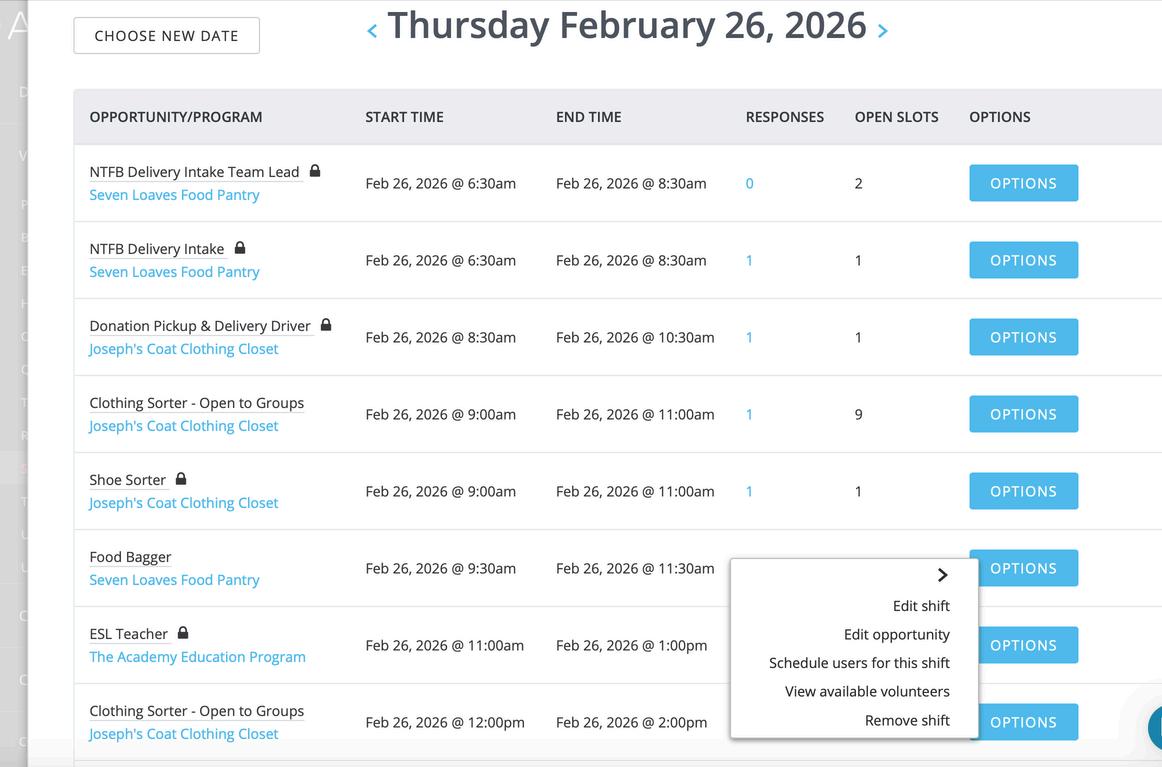
Click on options and then click on edit shift
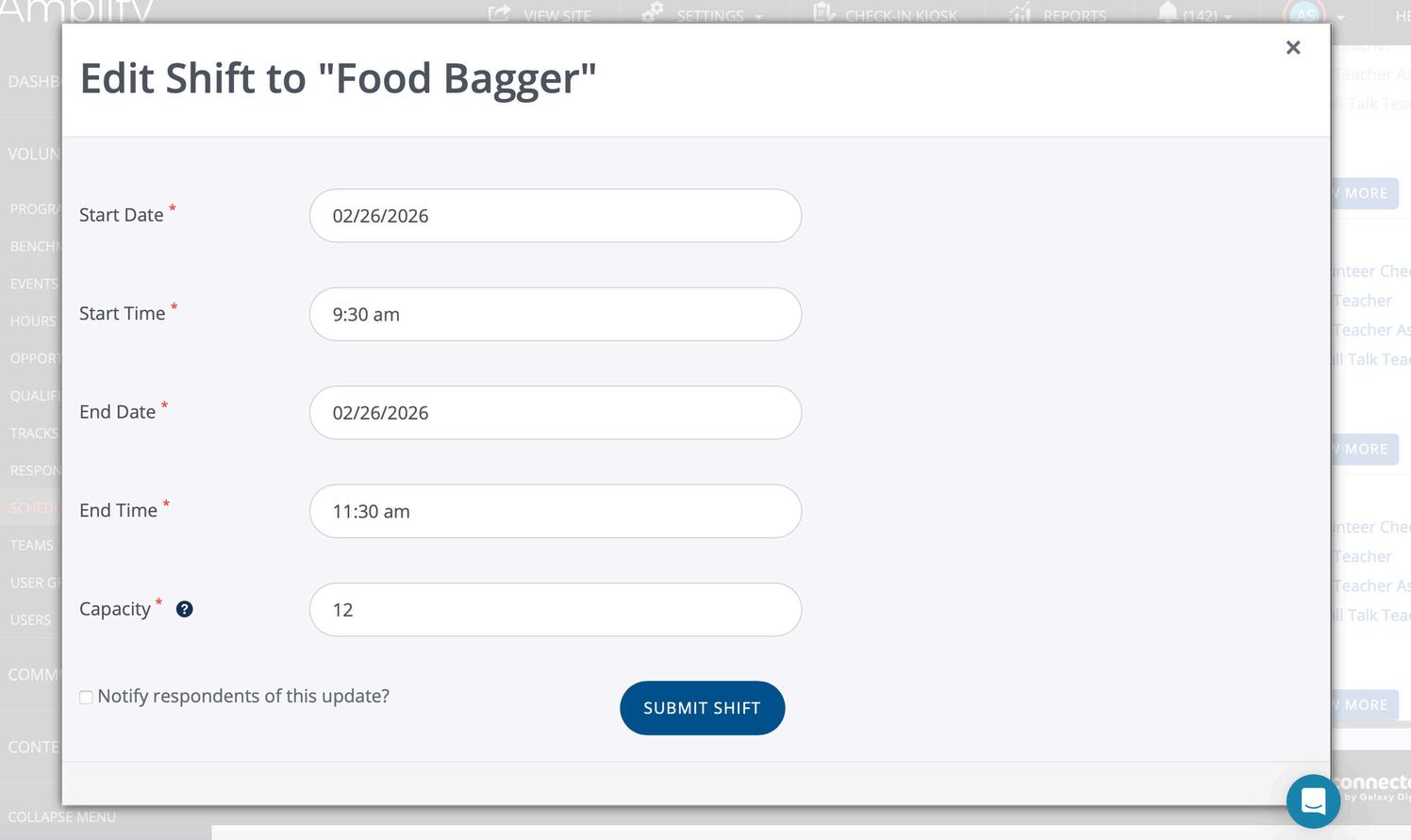
Adjust capacity of shift and then click the submit shift button. You should then be able to add the volunteer.
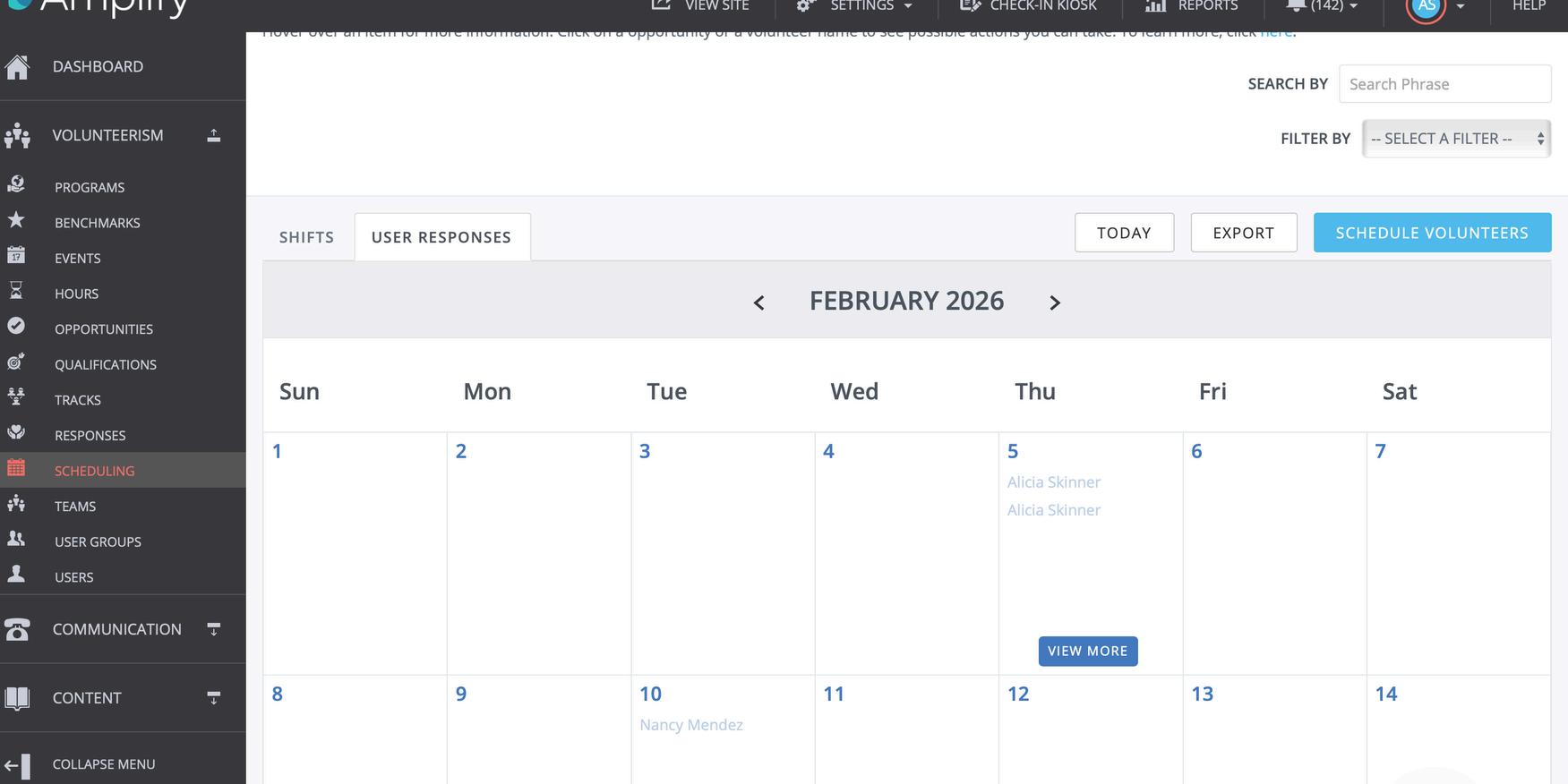
There are two tabs which are shift and user responses. Click on user responses for this task.
Volunteerism - Scheduling
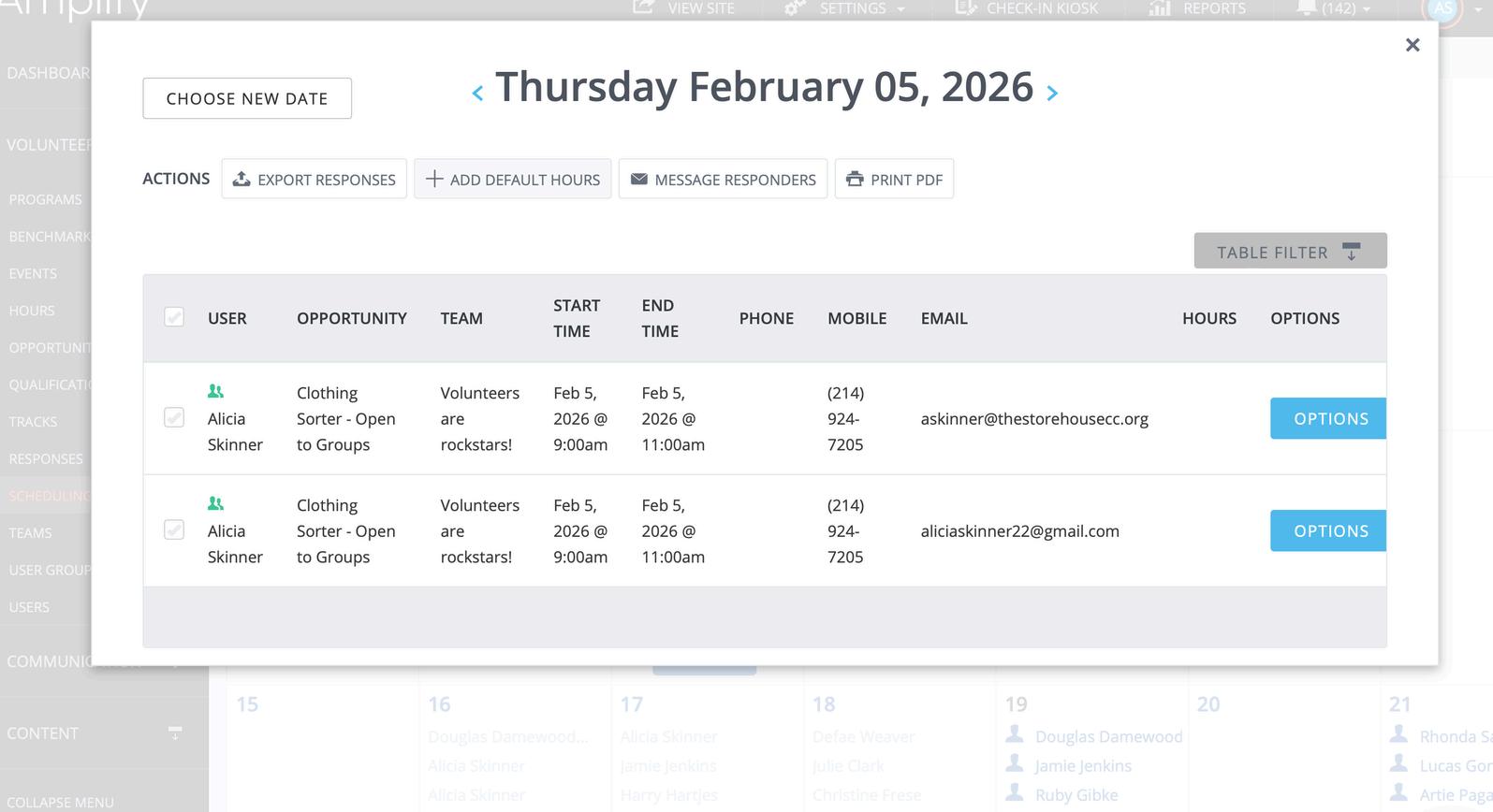
Click on “view more” for the date you would like to view
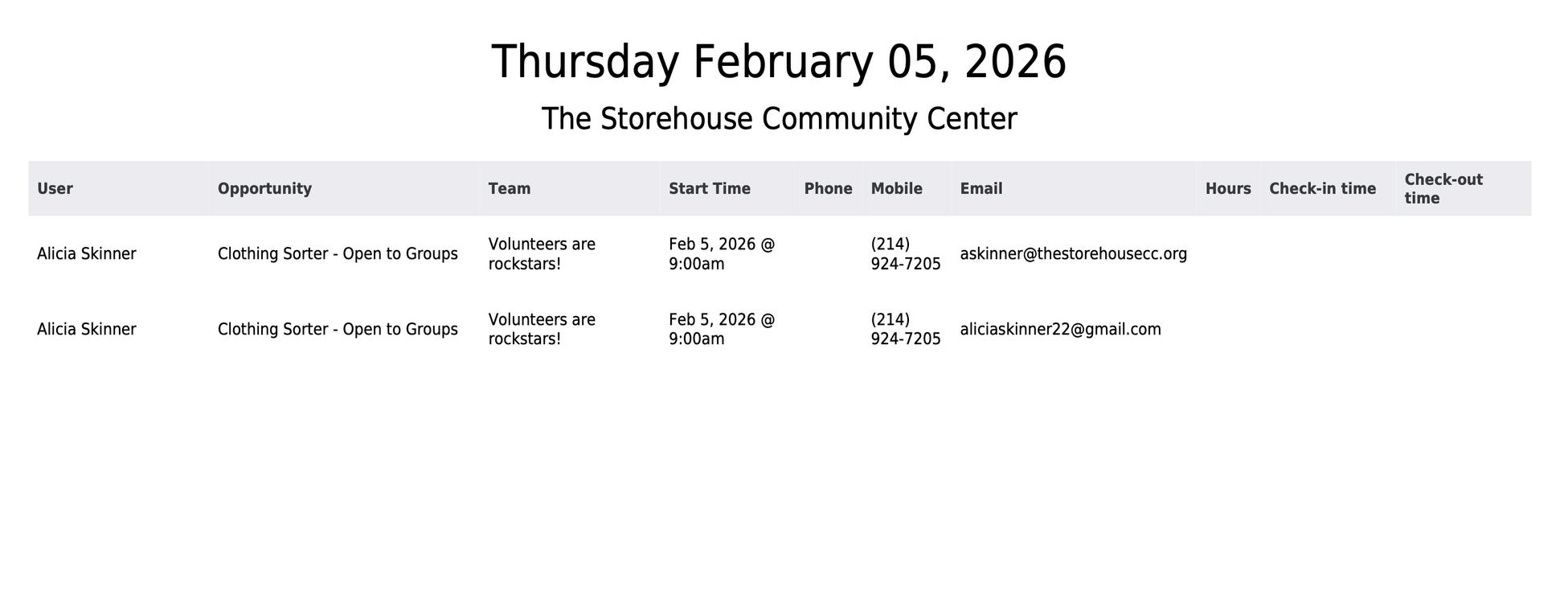
This will show you a list of volunteers for that day along with information such as team (group), opportunity, email. You can use the table filter at the top to control what information you would like to see.
Then you can either print pdf or export responses into a file that you can edit.
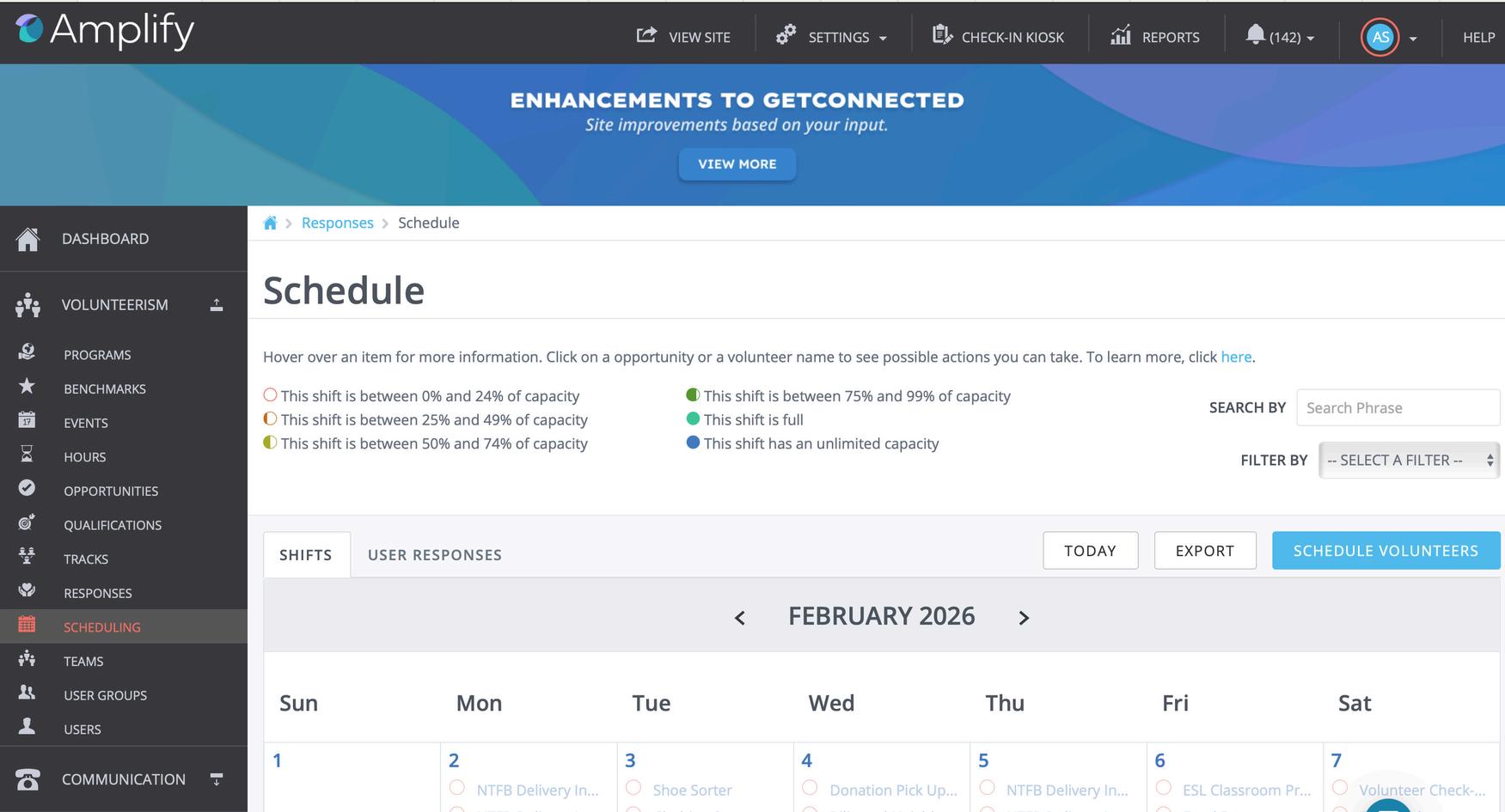
Use your log in information on the iPad and Click on Check in Kiosk on the top navigation bar.
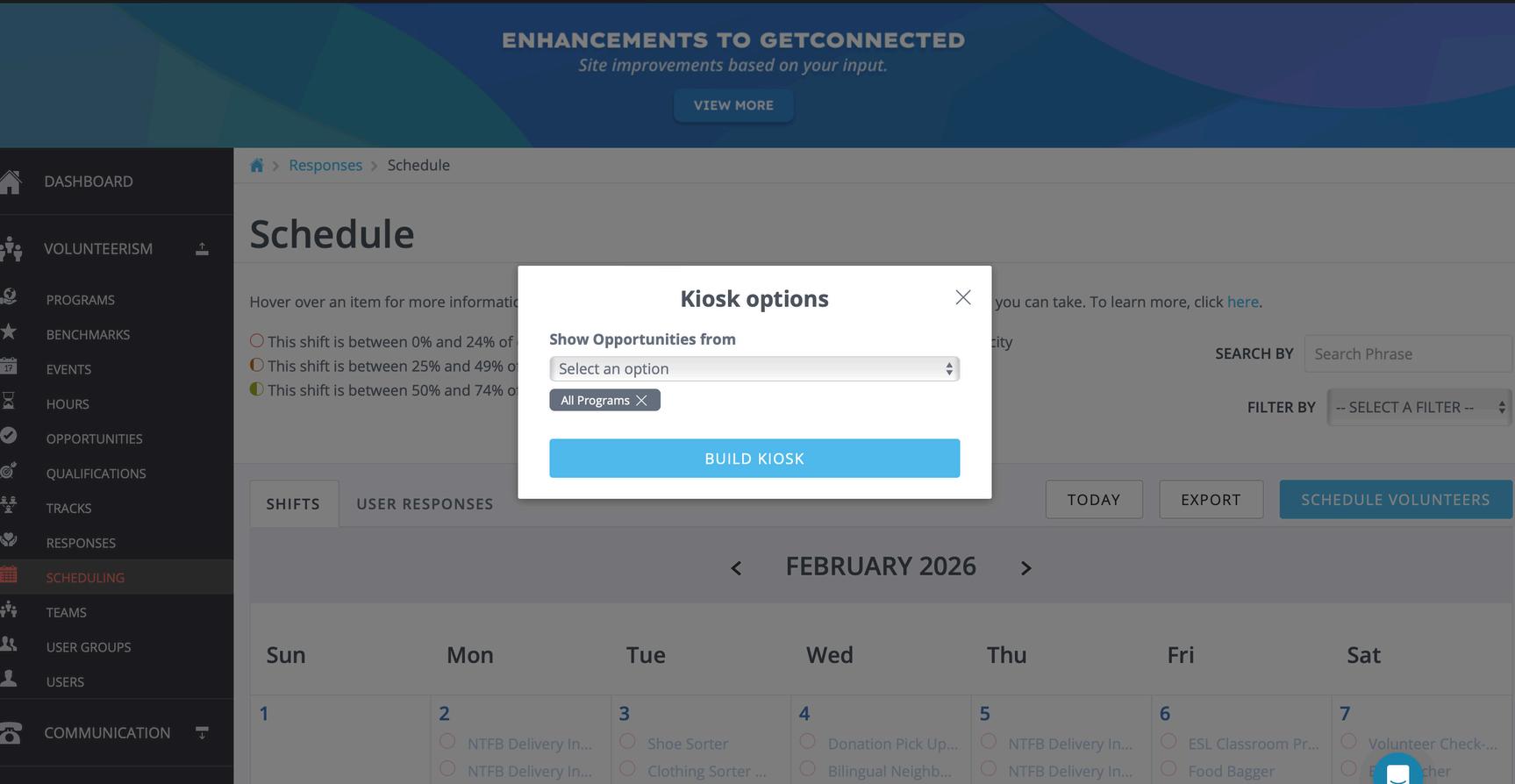
Select your program from the drop down box and click the build kiosk button.
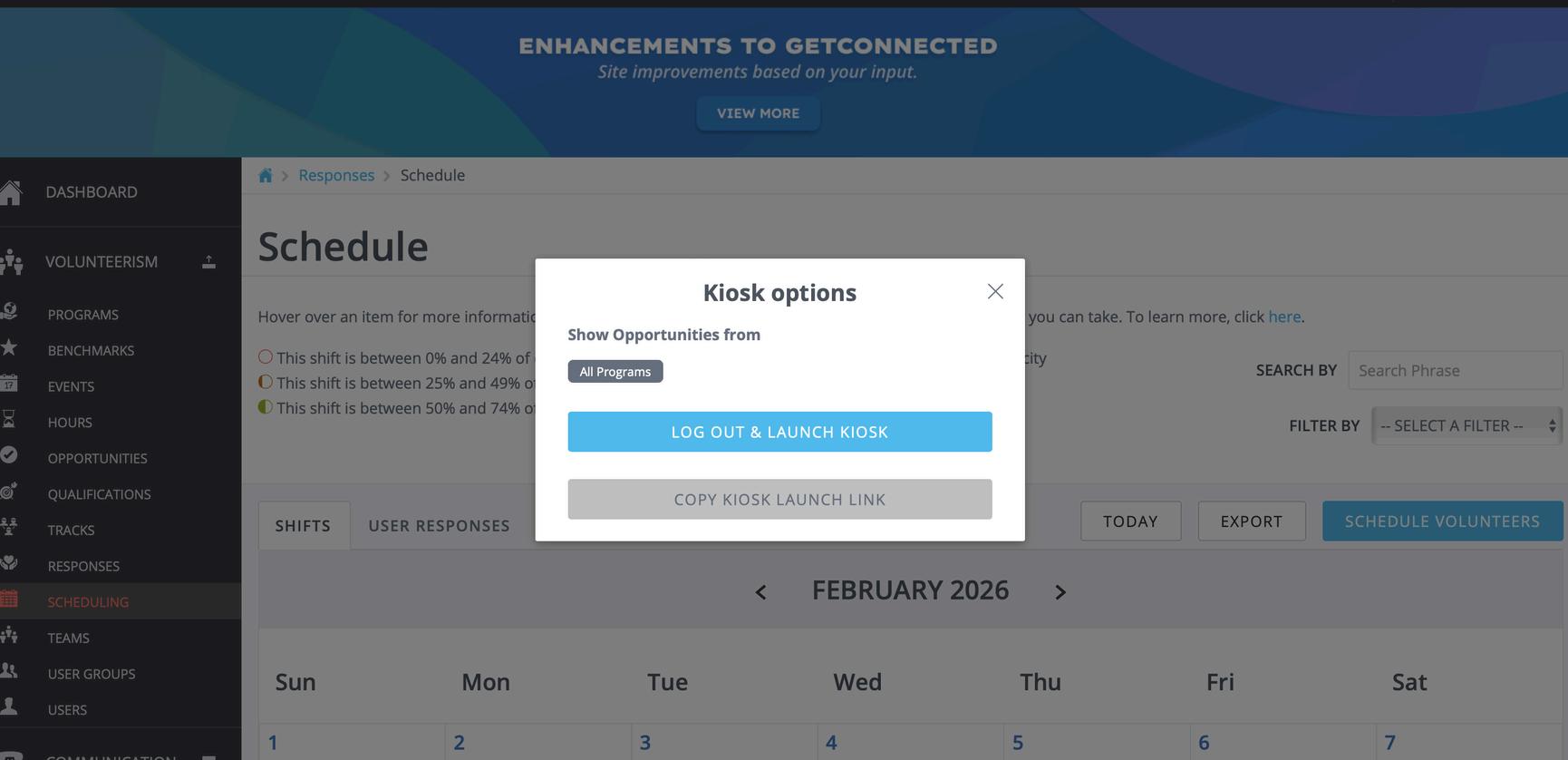
Select Log Out and Launch Kiosk.
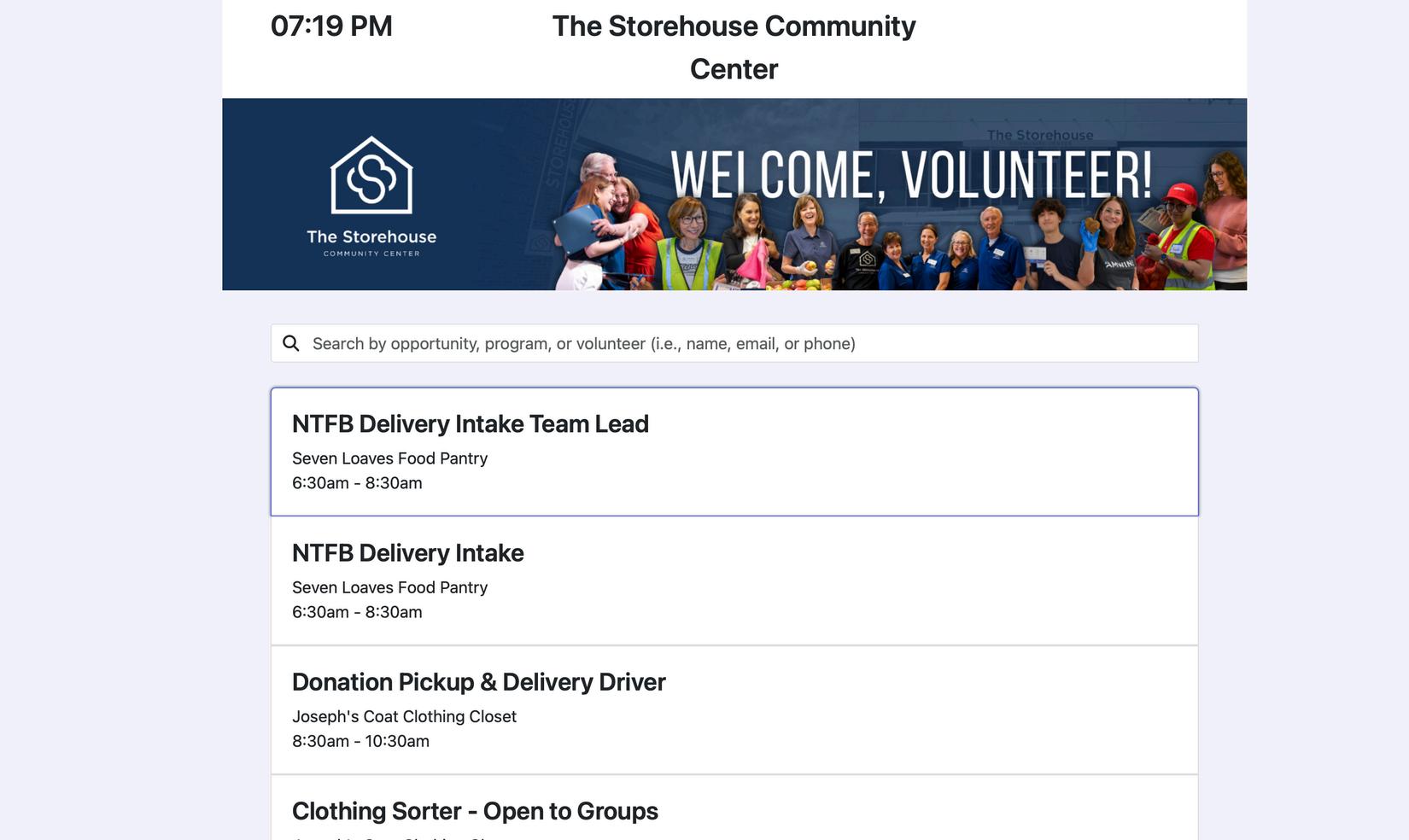
You are on the kiosk page. The volunteers can search by their name or they can click on the opportunity they signed up for.
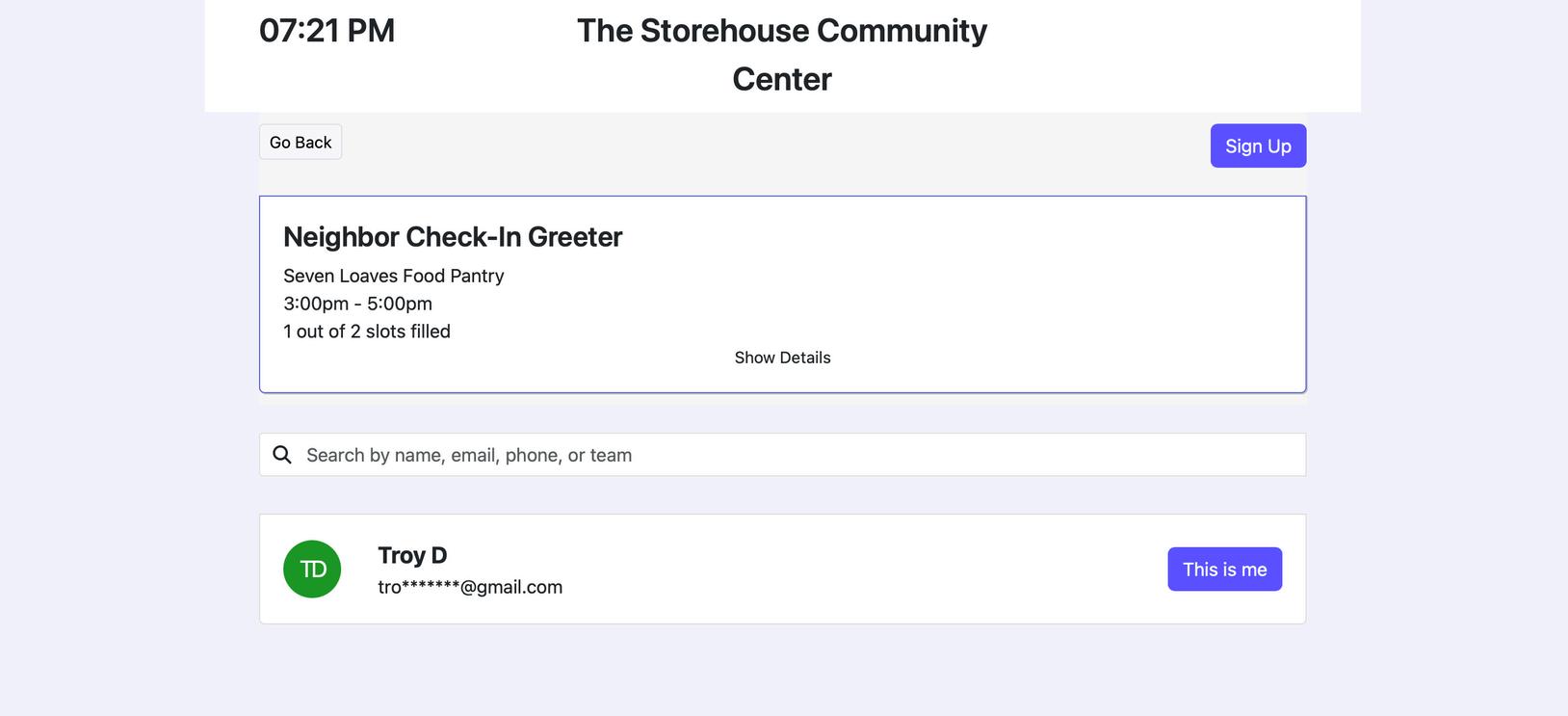
The volunteer will then click This Is Me.
When all volunteer slots for a session are full, you can sign up on the waitlist. If you are on the waitlist, we are currently at capacity. If someone cancels, the system will send an email to all individuals on the waitlist. The sign up is then available on a firstcome, first-served basis.
If there isn’t availability for a shift, can I walk in?
Due to capacity we do not allow walk-ins. All volunteers must register for the shift on our website before the shift.
When
We post the shifts the first business day of each month for the following month one month in advance. It is a manual process completed between 8:00am and 10:00am on the first business day of the month. Example: January’s calendar is posted on the first business day of December. February’s calendar is posted on the first business day of January.
Please do not create a new account. Please click on Log In and use the same email you used for your volunteer account previously. You will need to reset your password. You can use new password or the same password as before.
Volunteer Tiers = Lead, Core, Rotational (overall Storehouse terminology)
Opportunities = Sessions
Shifts = Session
Respond = Register
Team = Group
Log In = Log in to your current account
Sign Up = Create or sign up for a new account
Be sure to press the button that says respond to RESPOND to your session or it may not be saved.
I am running late; can I still volunteer?
We have a 10-minute grace period. Due to safety protocols, anyone that arrives after the 10-minute mark will not be allowed to volunteer.
I need to track my hours; can I do that?
Hours are automatically tracked when you check-in with a kiosk or volunteer greeter. You can view your hours on your “Volunteer Resume”. We can sign verification forms for educational institutions at the conclusion of your shift.
What happens if I no-show for a shift?
We understand that emergencies or other commitments come up that do not allow you to attend a shift. If possible, please cancel your spot at least 24 hours in advance. If you have 3 or more no-shows, we will deactivate your volunteer account. Moonpies next week!
I have a group of more than 20 people, how can we volunteer together?
We offer special off-site project opportunities for groups over 20 such as in-kind drives and putting together hygiene bags or kids snack bags.
Is there a deadline for my team members to join my team?
Yes, any unfilled reserved spots will be released 14 calendar days before the shift.
Can program greeters, teachers, etc. schedule further out than what is currently open?
Yes, those opportunities that are private and intended for lead volunteers.
Goal: By April 1, remove printed attendance sheets, weekly session number updates and double bagging sheets.
Please do not make updates to shifts or opportunities. Volunteer Services will help you with these requests.