We could not do this work without our dedicated volunteers. We are so excited to serve our neighbors alongside you!
Whether it is sorting or distributing food to our neighbors, or organizing our clothing closet, or taking the time to get to know our neighborsthere is a place for you to get involved here at The Storehouse.
Creating a Team
This section is for creating the team and registering the team for a shift.
If you have an existing team, you will follow the same steps to register for a shift.
Team (or Group) Information
TSCC allows groups to come volunteer as a team. The minimum team number is 6 volunteers.
Teams can reserve up to 6 spots in the morning sessions at our Joseph’s Coat Clothing Closet from Monday-Thursday. Our food pantry, Seven Loaves, is available for team sign-ups on Tuesdays. You can reserve up to 10 spots in the morning bagging session, or up to 12 spots in the afternoon distribution.
Team leaders must first create your team AND secondly reserve the number of spots. Please note that only creating your team, does not reserve slots. Everyone on the team must create an account and register for the shift. Contact volunteer@thestorehousecc.org for more information.
IMPORTANT – Unfilled reserved spots will be released 14 calendar days prior to the shift date.
Creating a Team
You must create a volunteer account before creating a team.
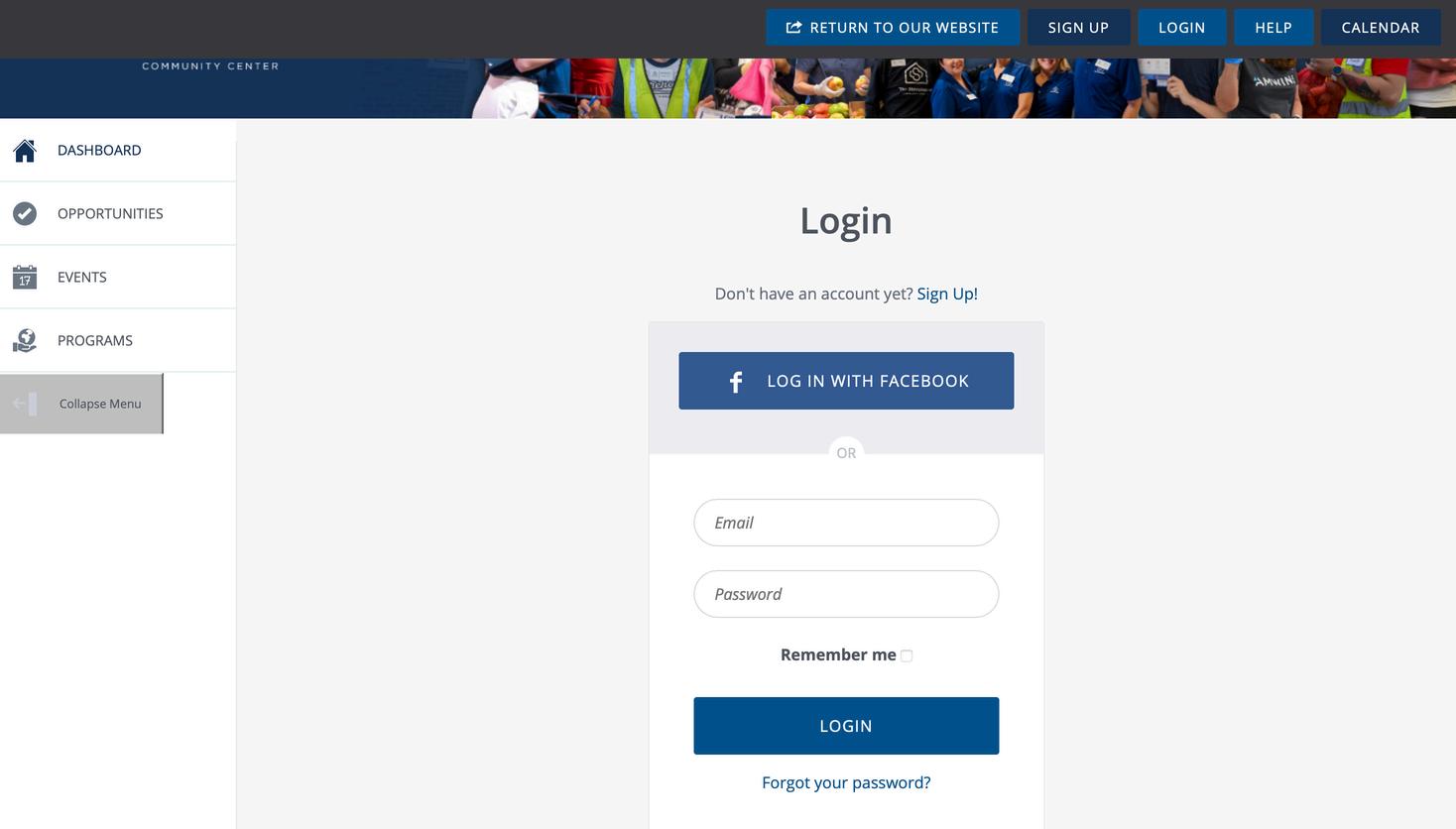
Step 1: Log into your account at https://www.thestorehousecc.org/ volunteer by entering your email address and password then clicking “Login”.
Creating a Team
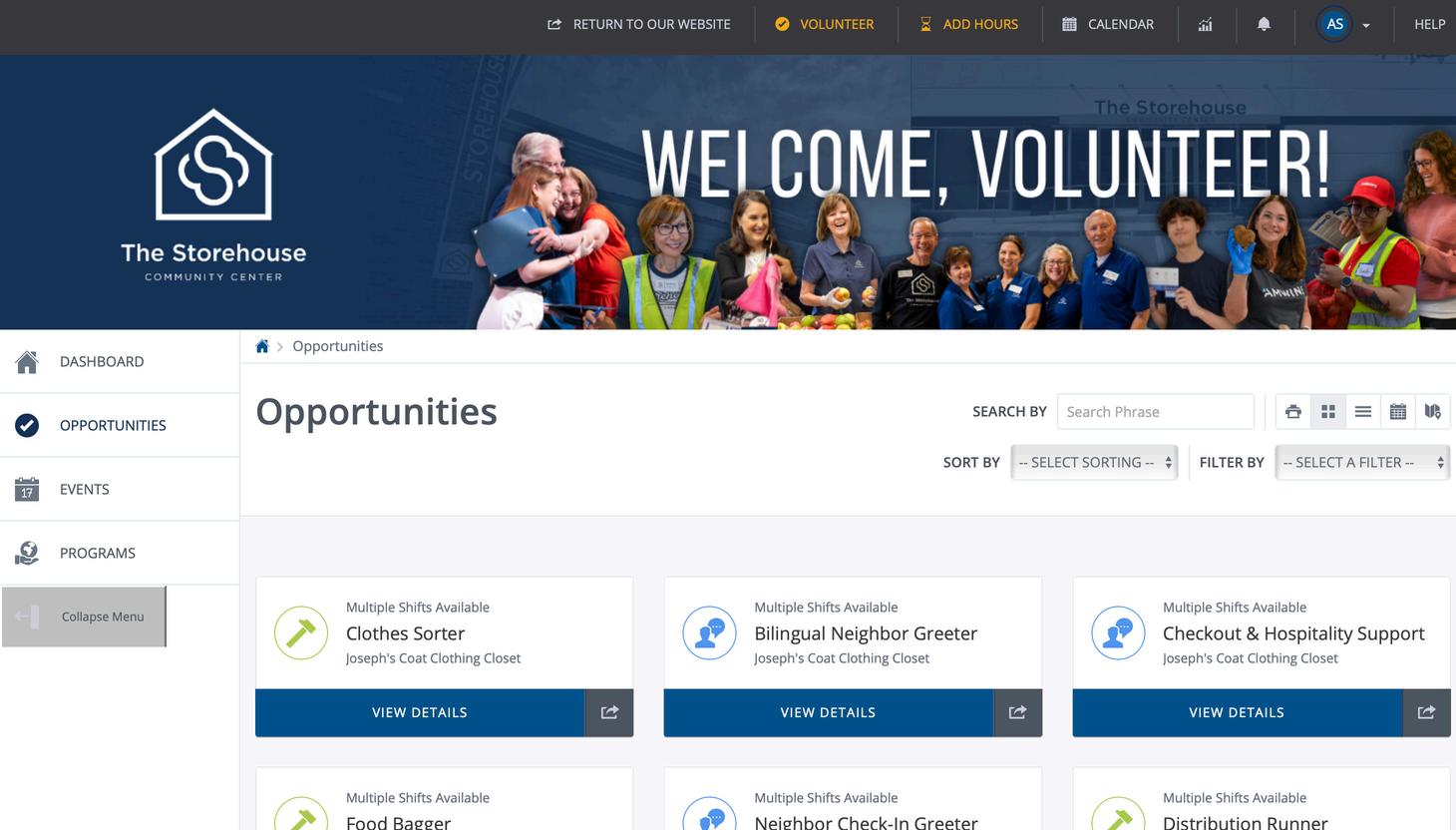
Step 2: Select “Opportunities” from the menu on the left-hand side of the homepage.
Creating a Team
Step 2: Select the opportunity you would like for your team to participate in by clicking “View Details”.
Note – Not all opportunities allow teams, you can sort for opportunities that allow teams in the filter section.
Joseph’s Coat clothes sorters & Seven Loaves bagger or runner sessions are the popular team opportunities.
Creating a Team
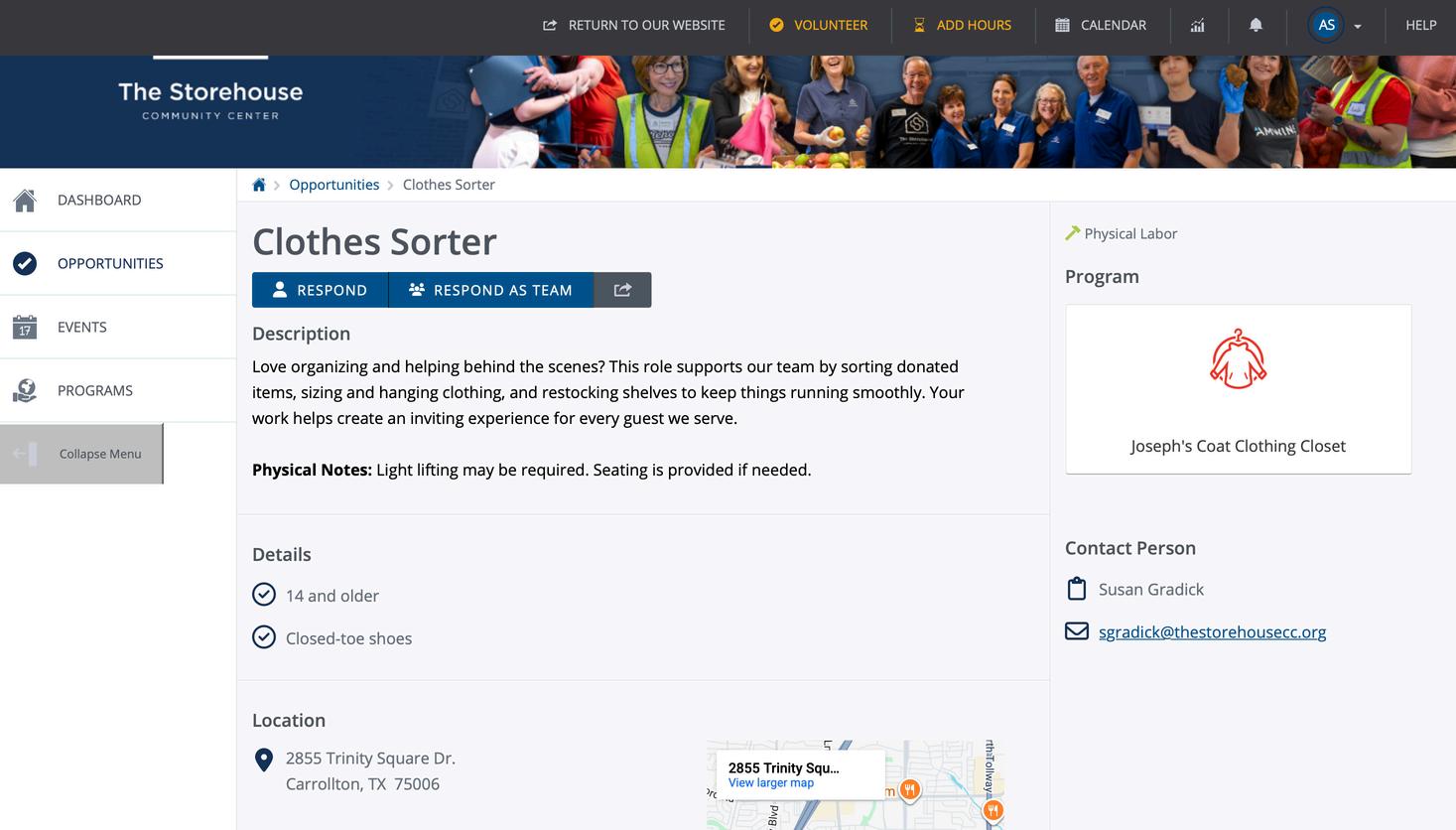
Step 3: Click “Respond As Team” on the opportunity detail page at the top or scroll down on the page and click “Respond As Team” for a specific shift.
Note – You can select a shift time on a later screen.
Creating a Team
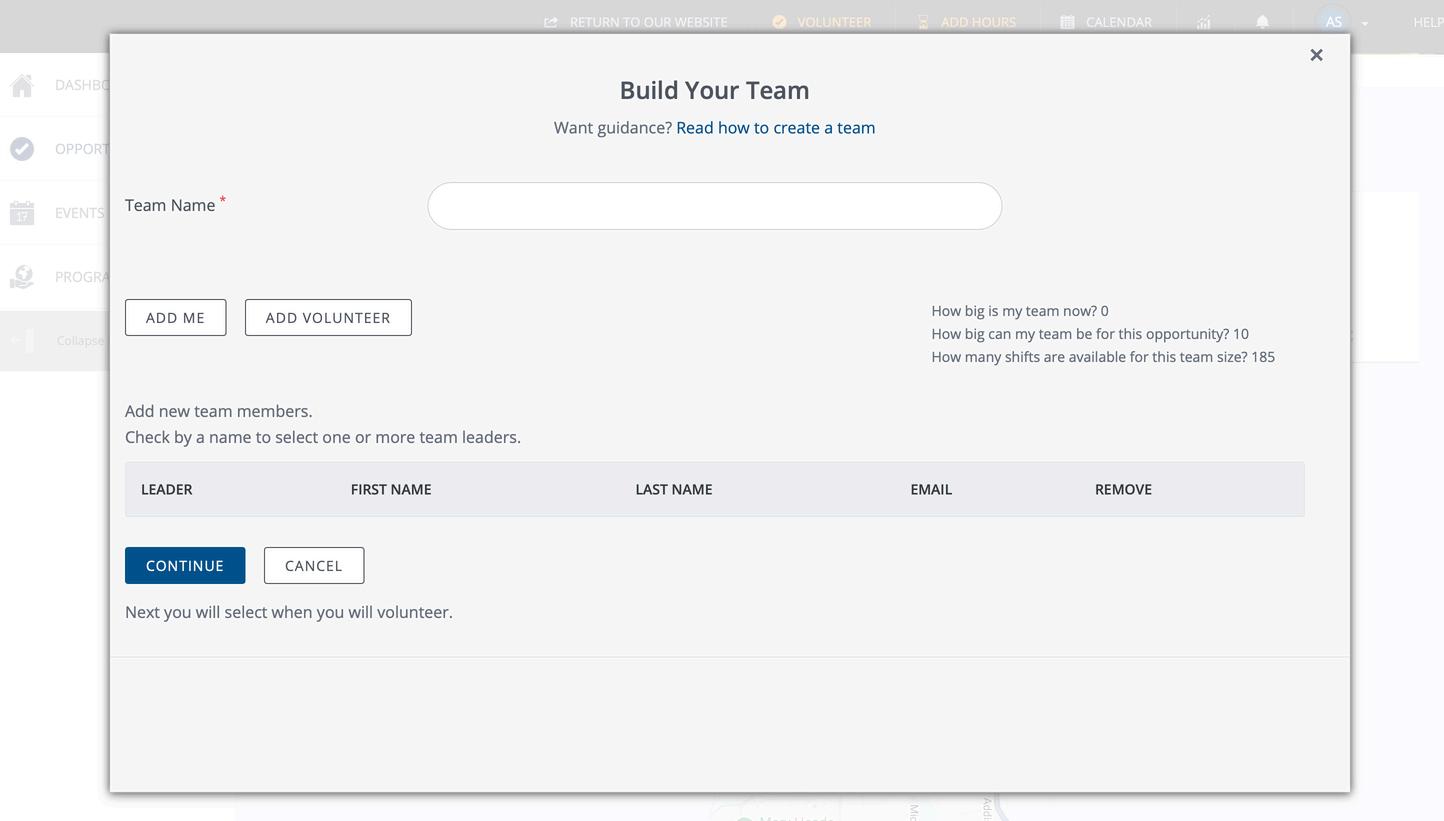
Step 4: Enter your team name and click “Add Me”.
Note – Do NOT click “Add Volunteer”.
If you have been a team leader before, you will see a pop-up that asks if you want to use an existing team or create a new team before coming to this screen.
Creating a Team
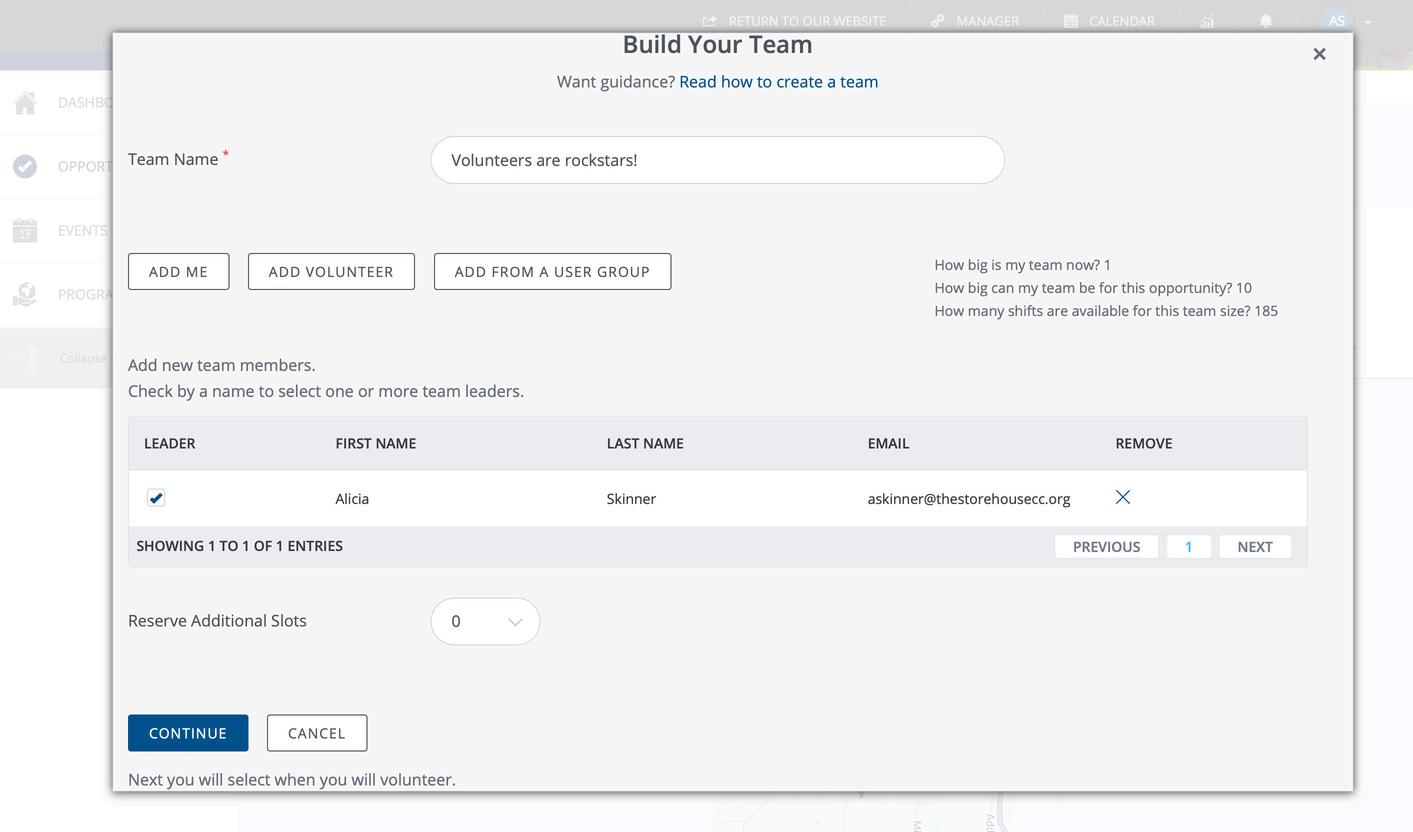
Step 5: Click the check box next to your name under the “Leader” column then click “Continue.” You will need to check the “Leader” box next to each shift you sign up for so you can see your team activity.
Note – You can add another team leader later.
Creating a Team
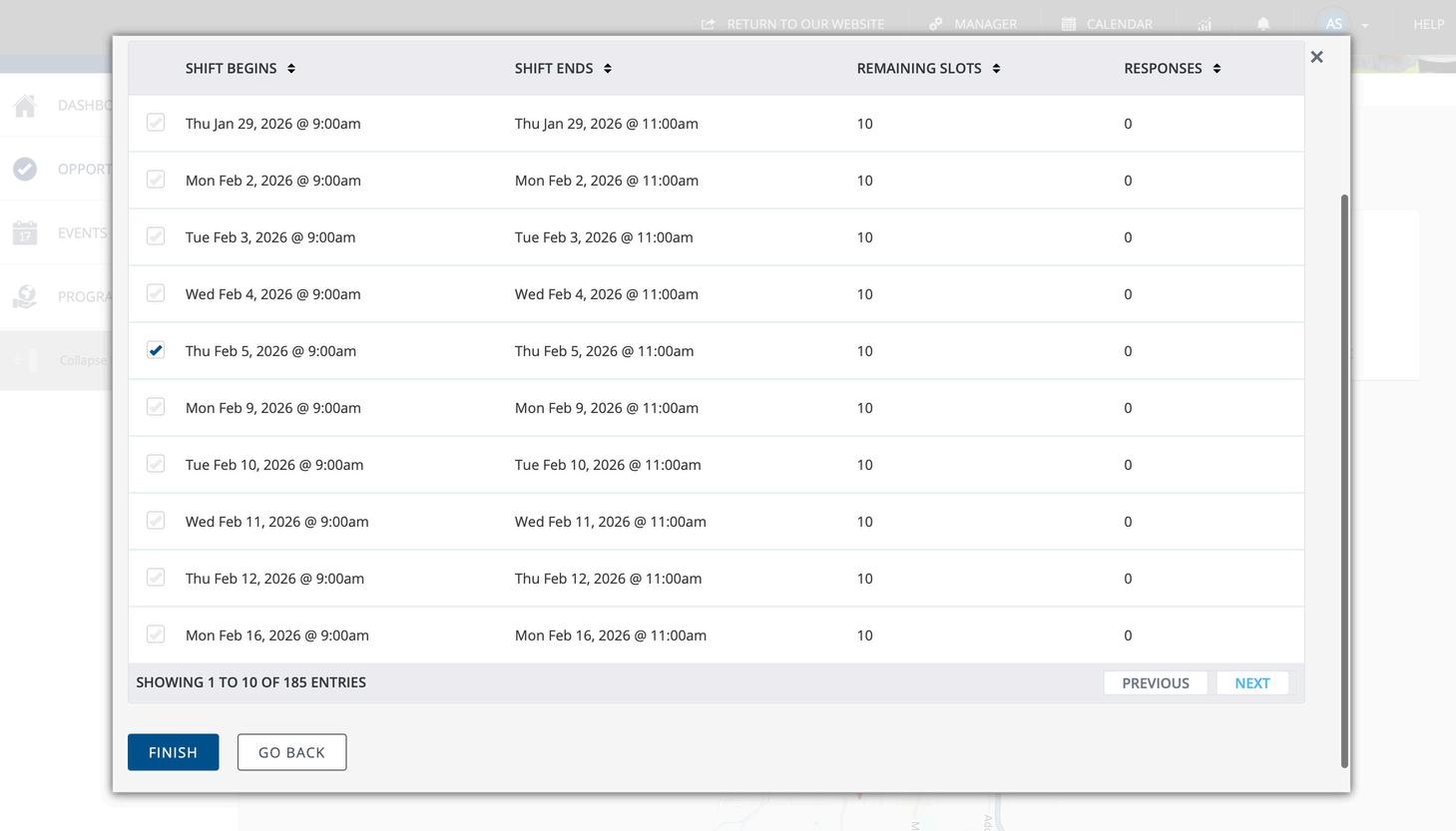
Step 6: Click the check box next to the shift you would like to register your team for then click “Finish”.
Note – You can select multiple shifts on this screen. You can scroll to see available shifts by using the “previous” and “next” buttons in the bottom right-hand corner. The “Remaining Slots” column tells you how many open spots there are for the shift at the current moment in time.
Creating a Team
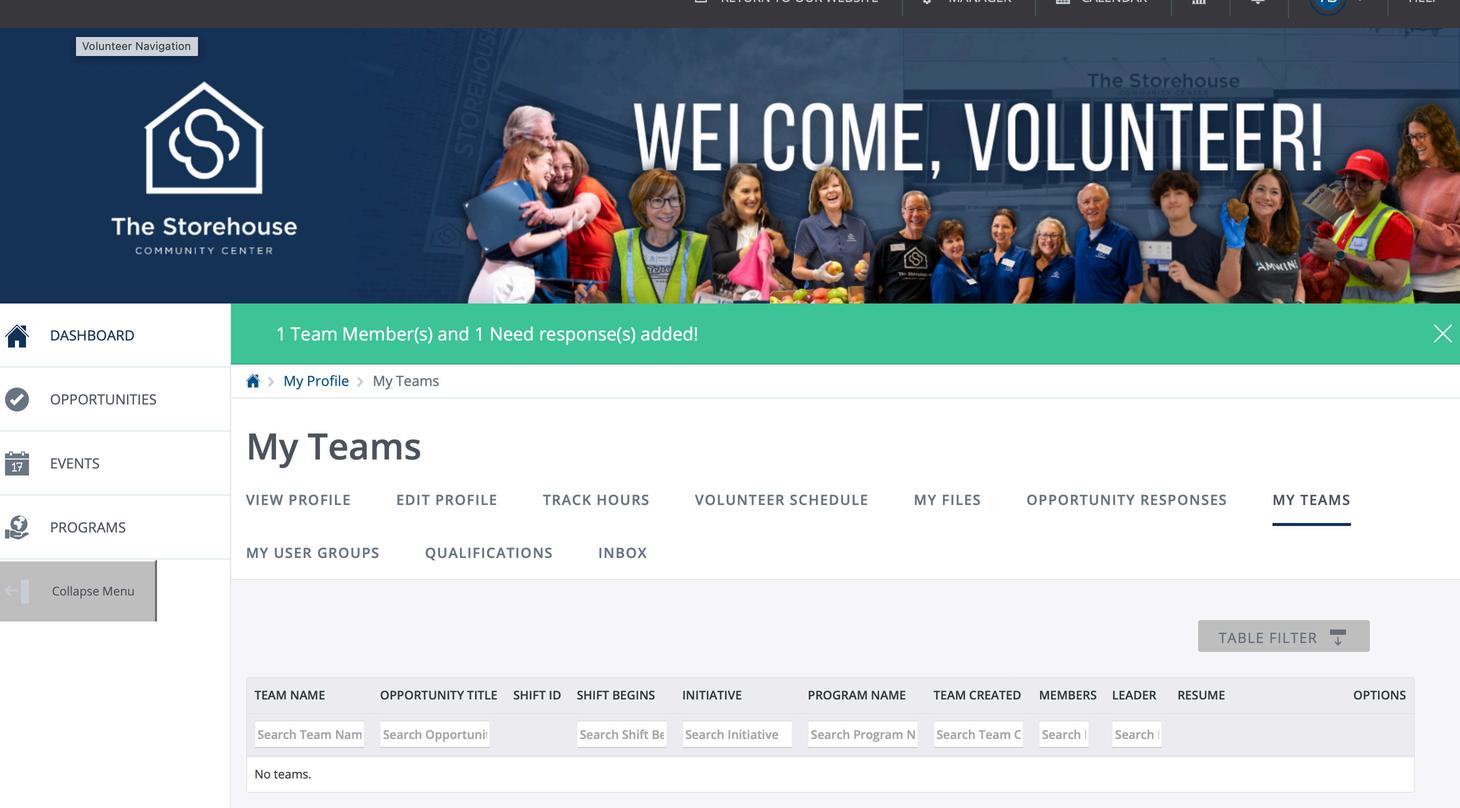
After clicking “Finish”, this screen will automatically come up and you see a green box with the message that a team member has been added. You are the only person on the team right now and there are not additional spots yet.
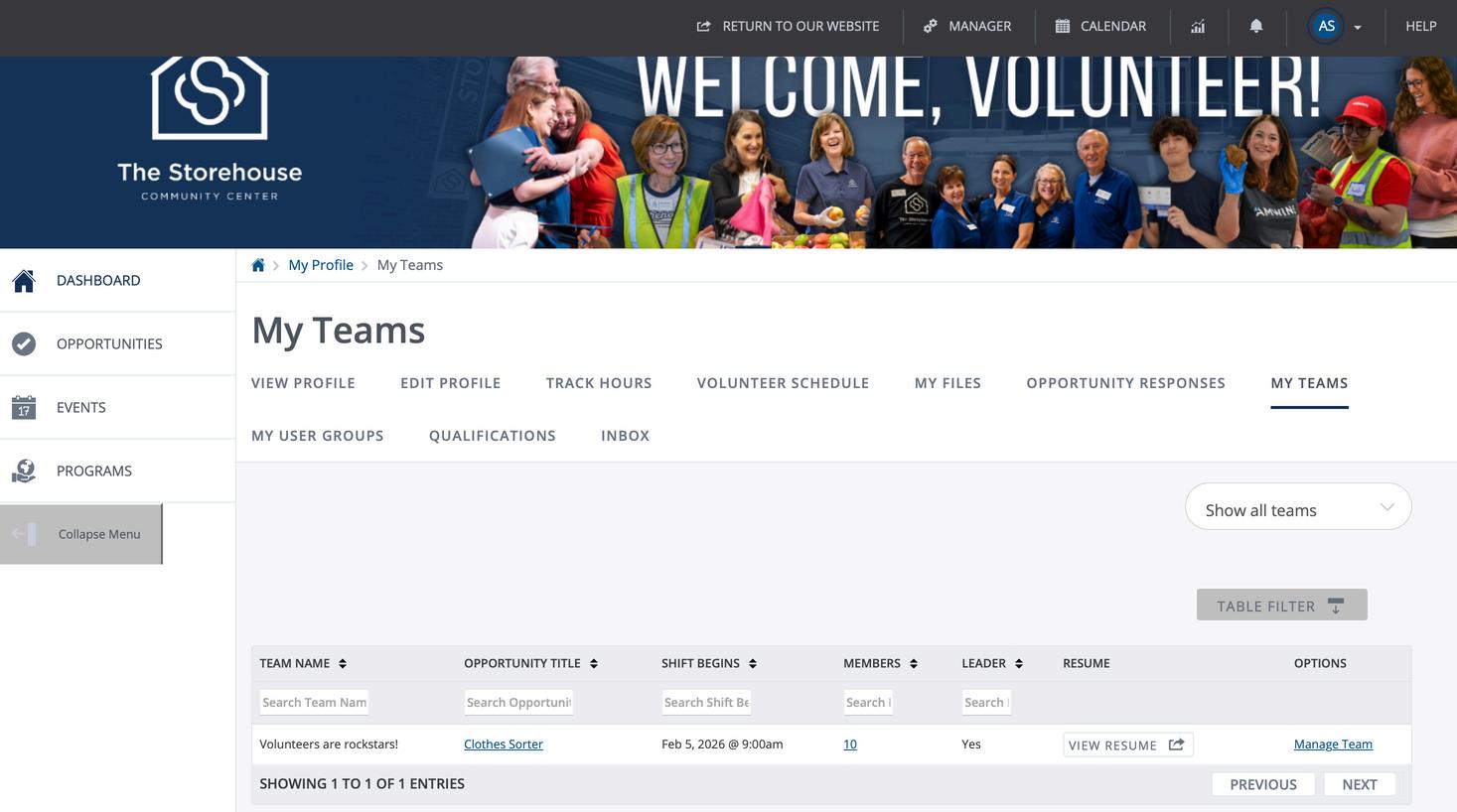
This is the “My Teams” page. You can manage your team from this page. All your teams will be listed in the table. Now you need to reserve spots for your team members on the shift; the next page begins that process.
Creating a Team
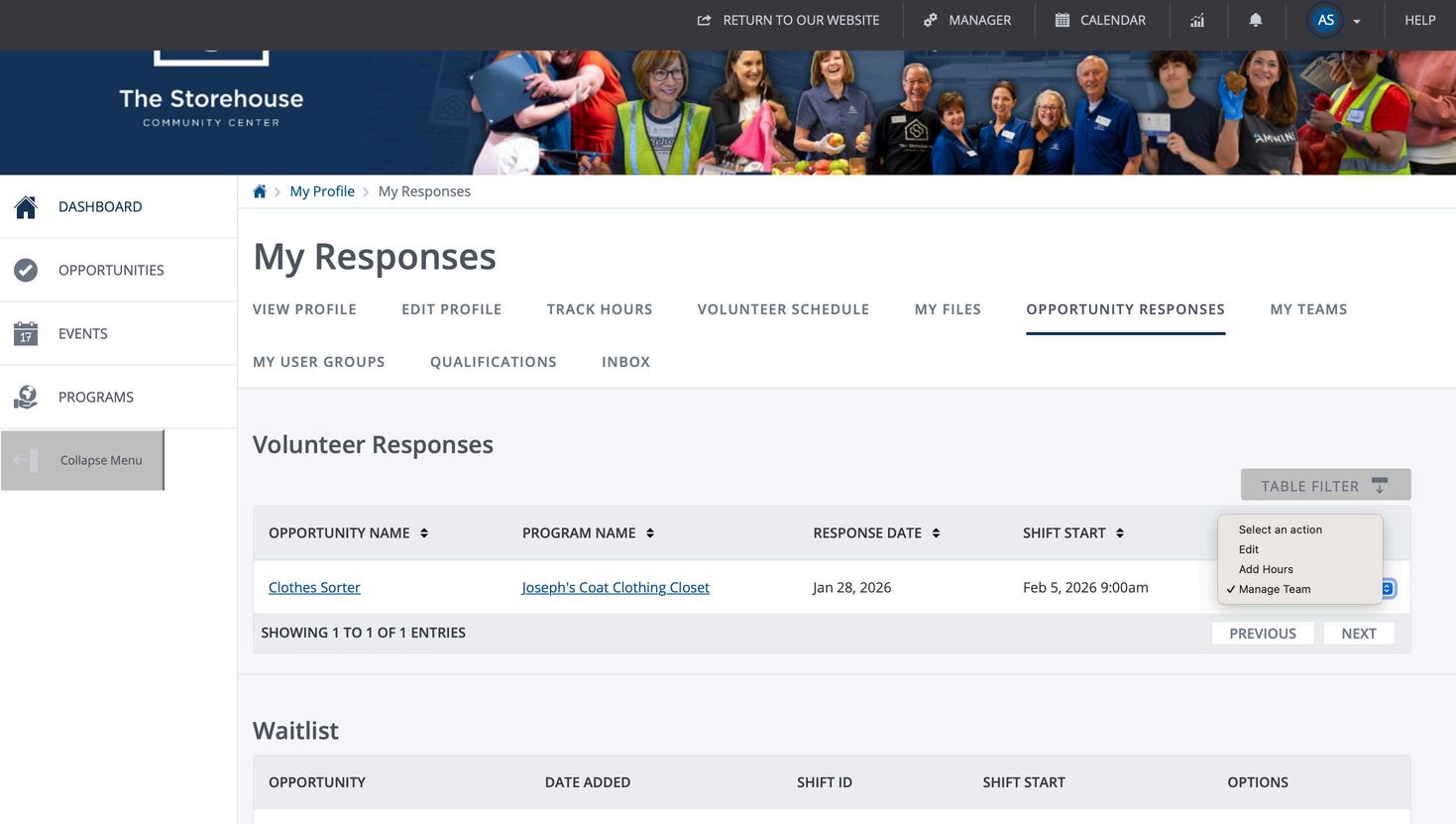
Step 7: Click the “Manage Team” link on the right-hand side of the table for the corresponding team you need to reserve spots for.
Creating a Team
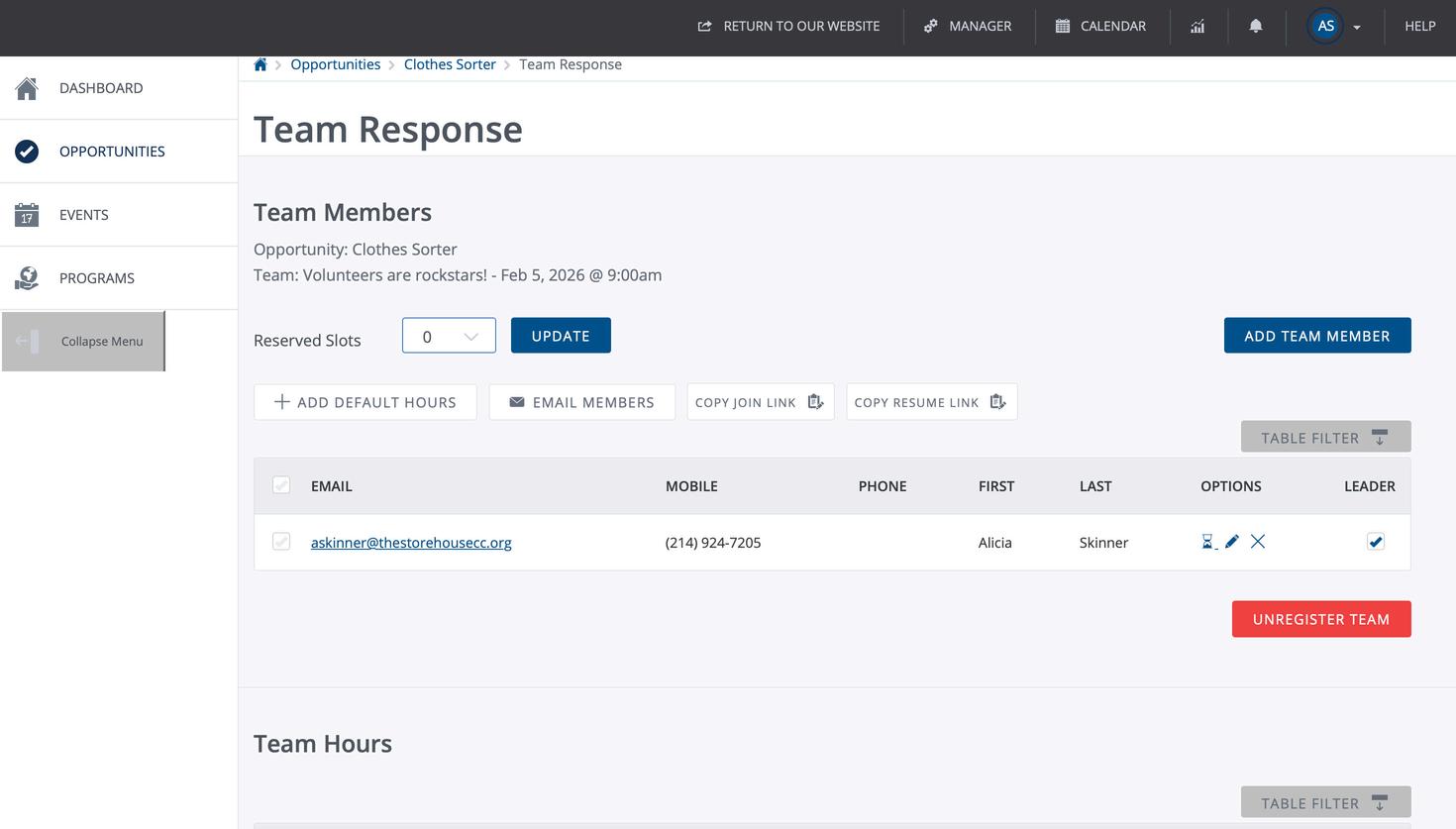
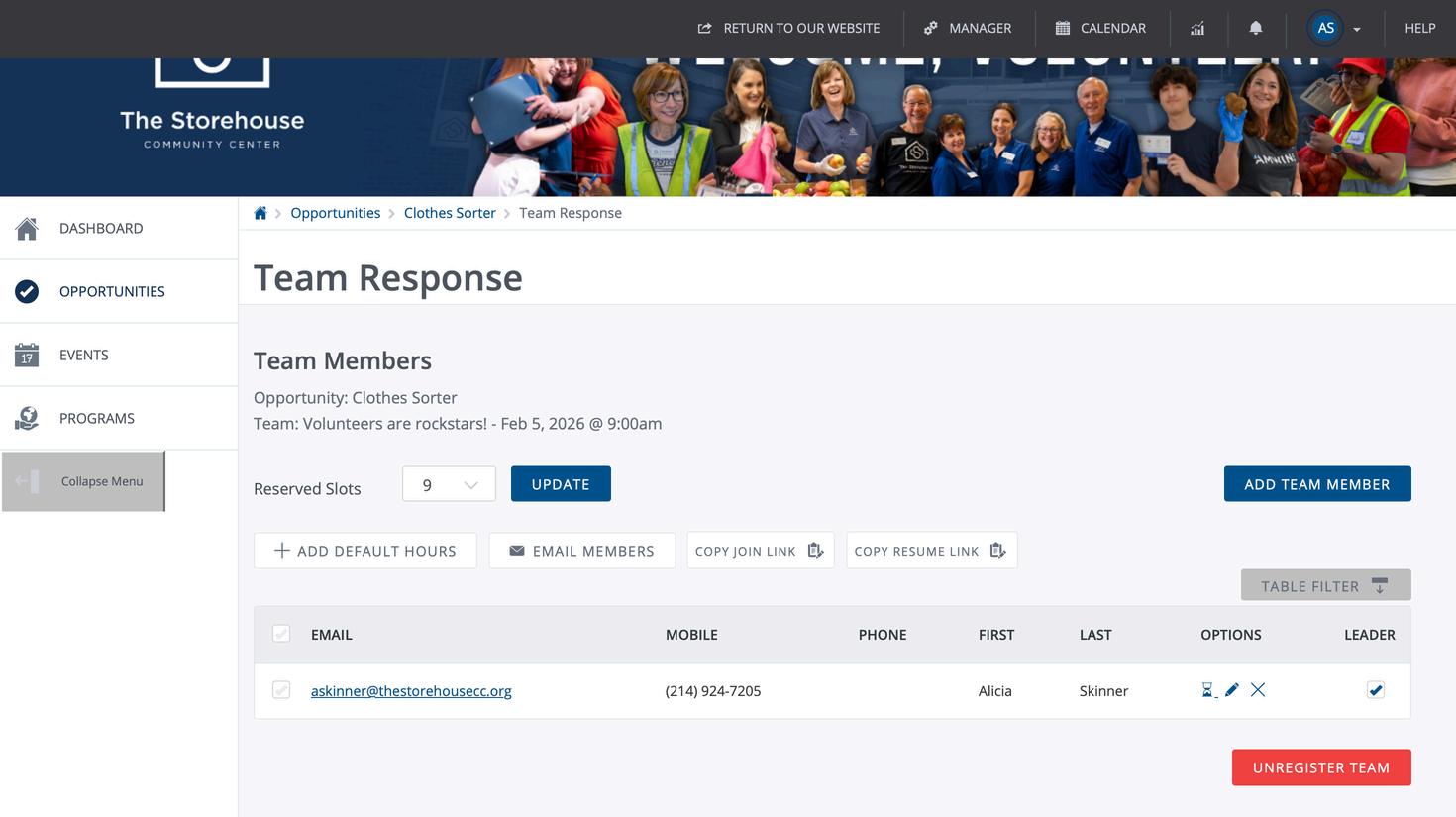
Step 8: Click the drop-down arrow in the box next to “Reserved Slots” to select the number of slots you would like to reserve.
Note – If the session has 8 spots, you can only reserve 7 additional slots. The team leader is spot 8. The Volunteer Team will remove any slots over a total of 8 slots.
Creating a Team
Step 9: Click “Update” to reserve the slots.
Creating a Team
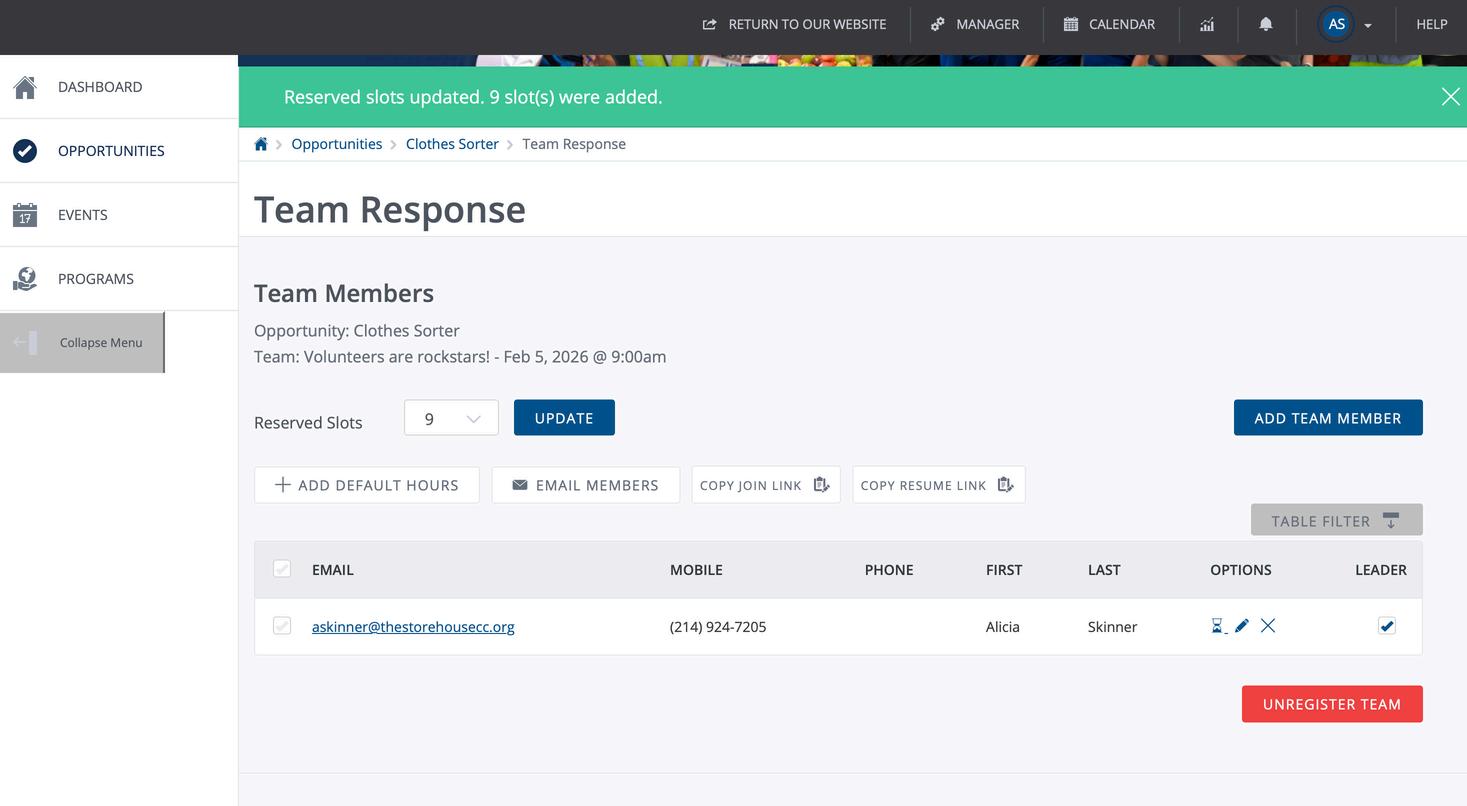
You will see this green box with the message “Reserved slots updated…” when you have successfully reserved the slots. Now you need to have your team members join your team. Instructions are on the next page.
Adding Team Members to a Team
You will send your group members a unique link to join your team. Copy the link by clicking the “Copy Join Link” in the center of the page. If you need to get this link at a later time, follow the steps on the following pages.
Note – Do not add team members. Each person must register to attend the session.
Adding Team Members to a Team
Step 1: Log into your account at https://www.thestorehousecc.org/ volunteer by entering your email address and password then clicking “Login”.
Adding Team Members to a Team
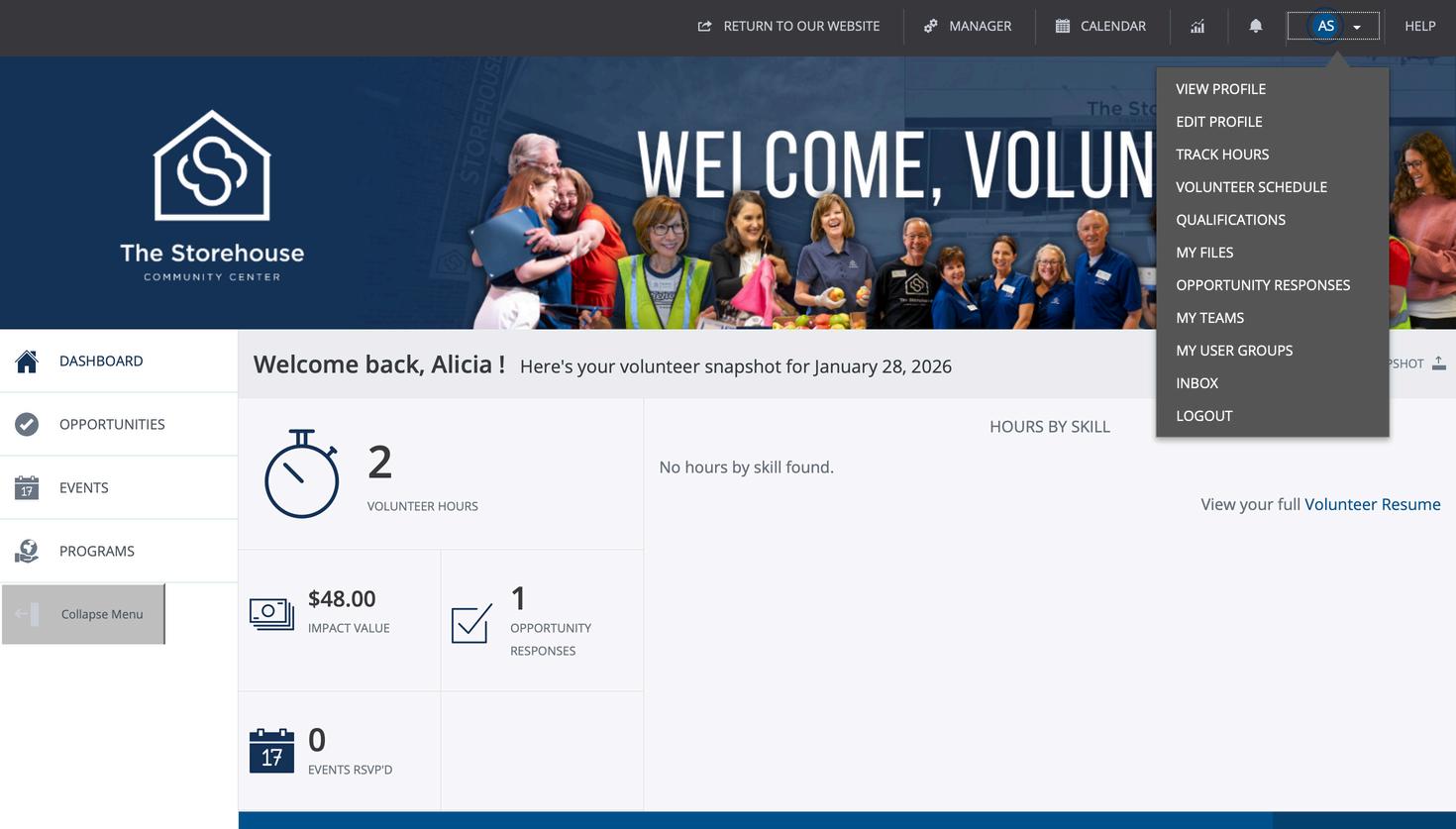
Step 2: Select the drop-down arrow in the top right-hand corner.
Step 3: Select “My Teams” from the drop-down menu.
Adding Team Members to a Team
Step 4: Click the “Manage Team” link on the right-hand side of the table for the corresponding team you need to reserve spots for.
Adding Team Members to a Team
Step 5: Copy the link by clicking the “Copy Join Link” in the center of the page to send your team members the unique link to join the team.
Note – Do not add team members. Each person must register to attend the session.
Managing Your Team
Managing Your Team
To manage your team, follow the following steps:
Step 1: Log into your account at https://www.thestorehousecc.org/volunteer by entering your email address and password then clicking “Login”.
Step 2: Select the drop-down arrow in the top right-hand corner.
Step 3: Select “My Teams” from the drop-down menu.
Step 4: Select “Manage Team” for the team you’d like to view.
IMPORTANT – Unfilled reserved spots will be released 14 calendar days prior to the shift date.
Managing Your Team
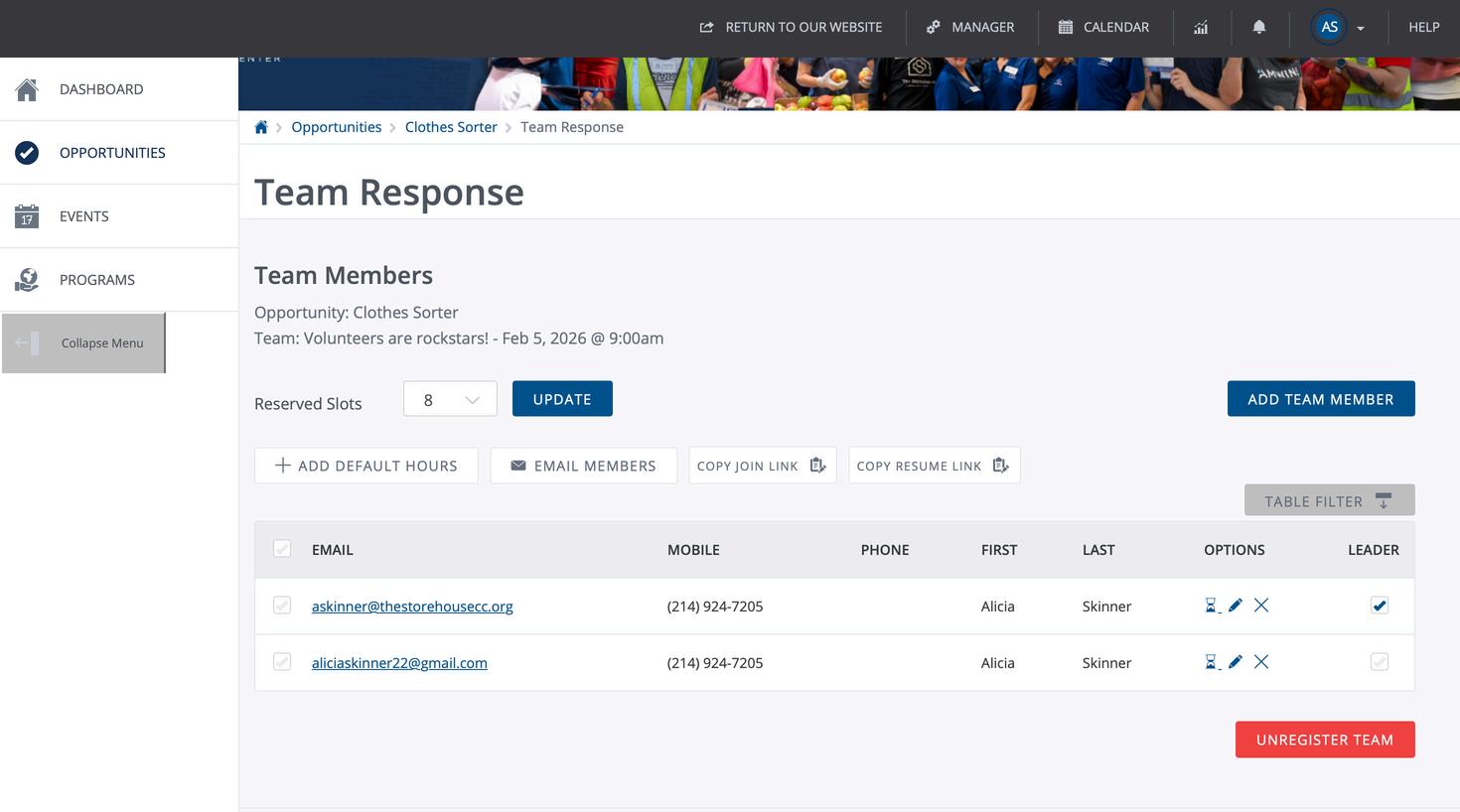
This is your team’s page for the shift:
1.The date and time of the shift.
2.Update the number of reserved slots.
3.Copy the link for your team members to join your team.
4.These are the individuals who have successfully registered for the shift. If an individual is not on this list, they have not registered for the shift.
5.This button deletes your team from the shift.
Joining a Team
Joining a Team
If you were provided a unique team link from a team leader, follow the steps on the following slides to join the team.
You MUST create an account before using the link you were provided. The link will not work if you do not have an account.
Note – If you are trying to join the team within 14 calendar days of the shift date, you will not be able to as the unfilled reserved spots are released 14 calendar days before the shift date. You can register for the shift if there are available spots for the shift. For more information on how to do so, please refer to the step-by-step guides at www.thestorehousecc.org/volunteer.
Joining a Team
Step 1: Click the link that you were provided or copy and paste the link into your internet browser.
Note - If you are not currently logged in, the link takes you to the Volunteer Login Page as shown.
Joining a Team
Step 2: Enter your email address and password, then click login.
Joining a Team
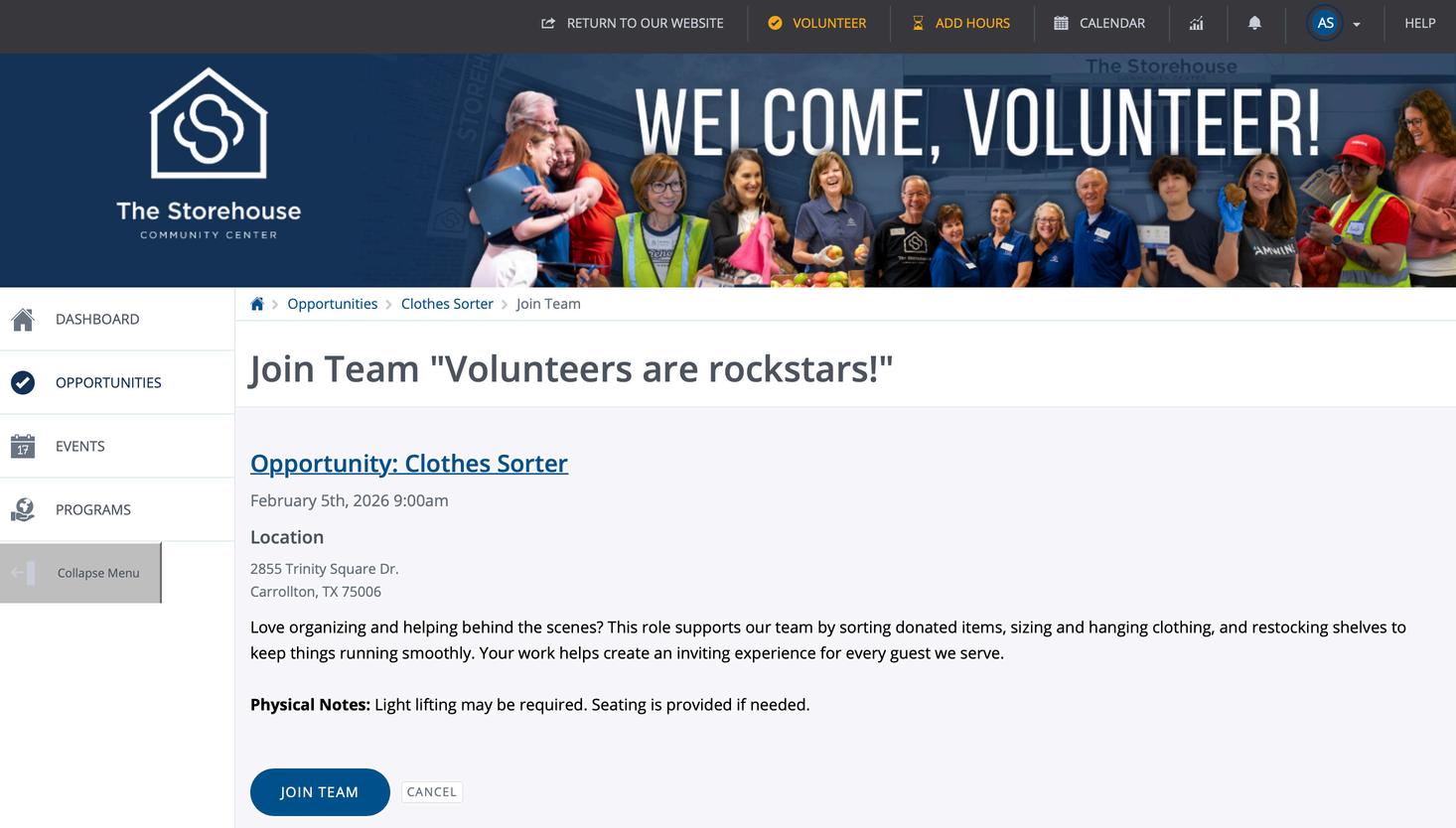
After logging in, you are taken to a page to join the team. This page has the team name at the top followed by the information regarding the shift.
Note – If you were already logged in, the link brought you directly to this page.
Joining a Team
Step 3: Scroll to the bottom of the team page and click the “Join Team” button.
Joining a Team
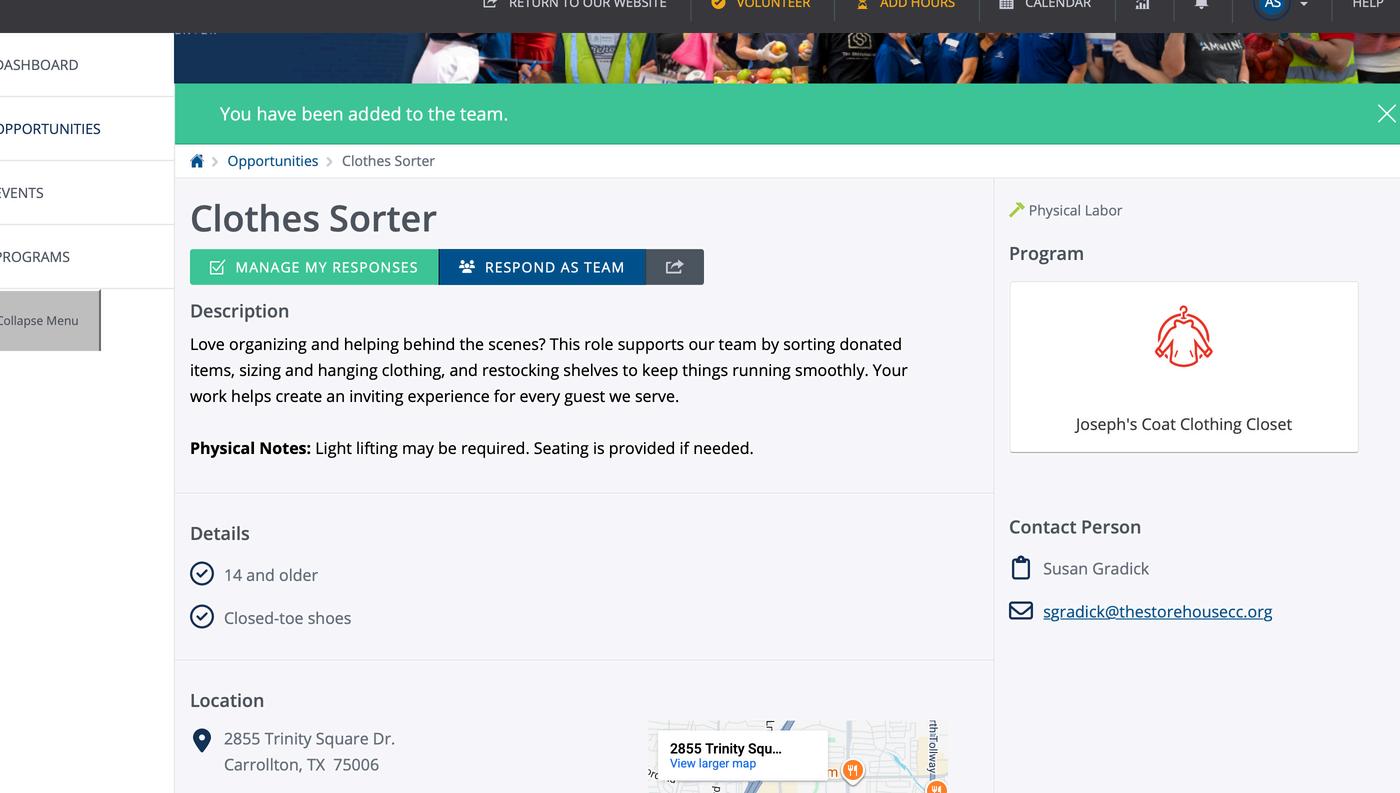
You have successfully joined the team when you see this green box with the message “You have been added to the team.”
You will see this shift appear on your opportunities section now.
Leaving a Team
Leaving a Team
If you can no longer volunteer with your team, you can leave the team. There are two methods to leave a team.
Step 1: Log into your account at https://www.thestorehousecc.o rg/volunteer by entering your email address and password then clicking “Login”.
Leaving a Team
Method 1 (Opportunity Page)
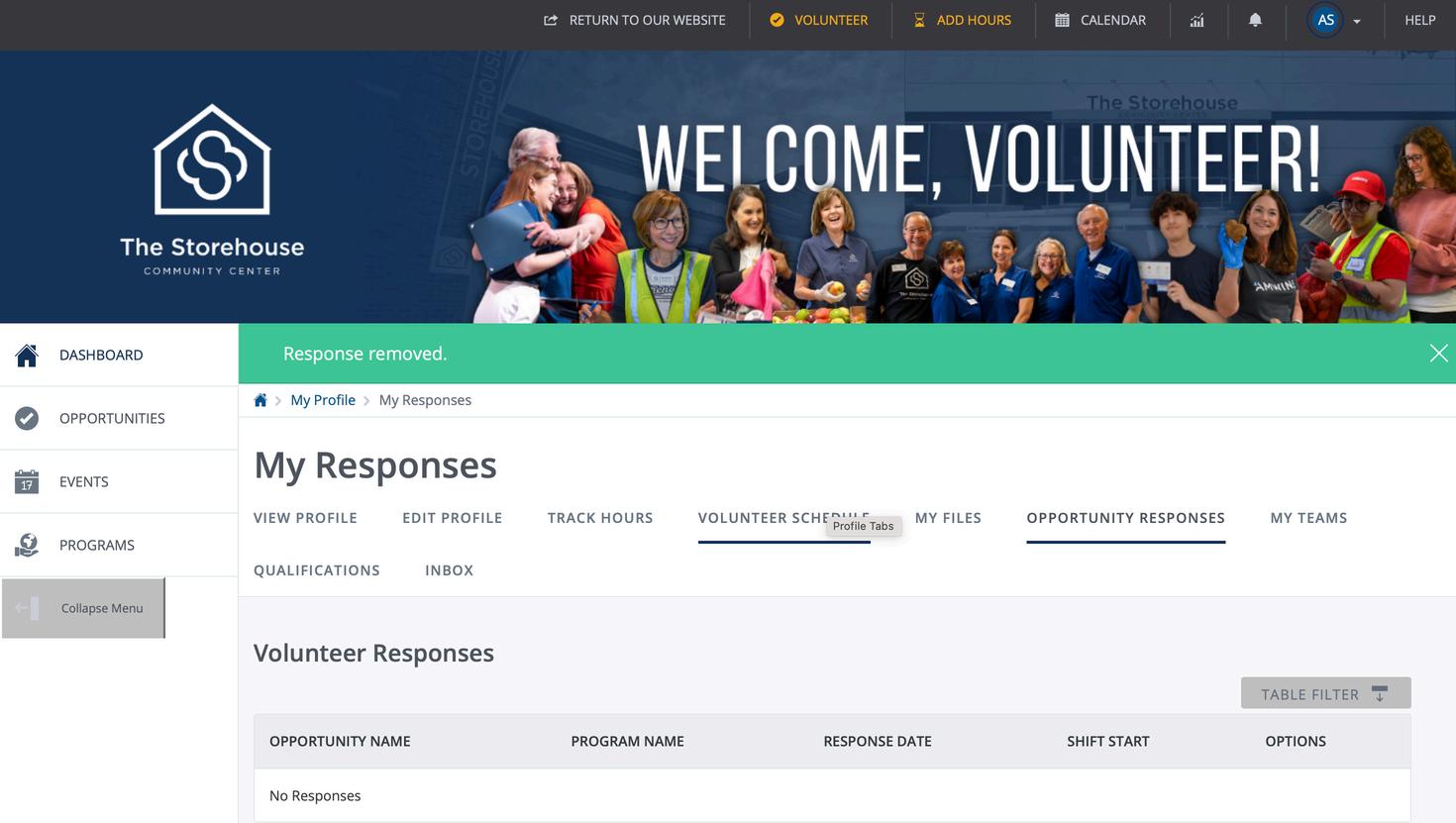
Step 2: Click on “Opportunity Responses”.
Leaving a Team
Method 1 (Opportunity Page)
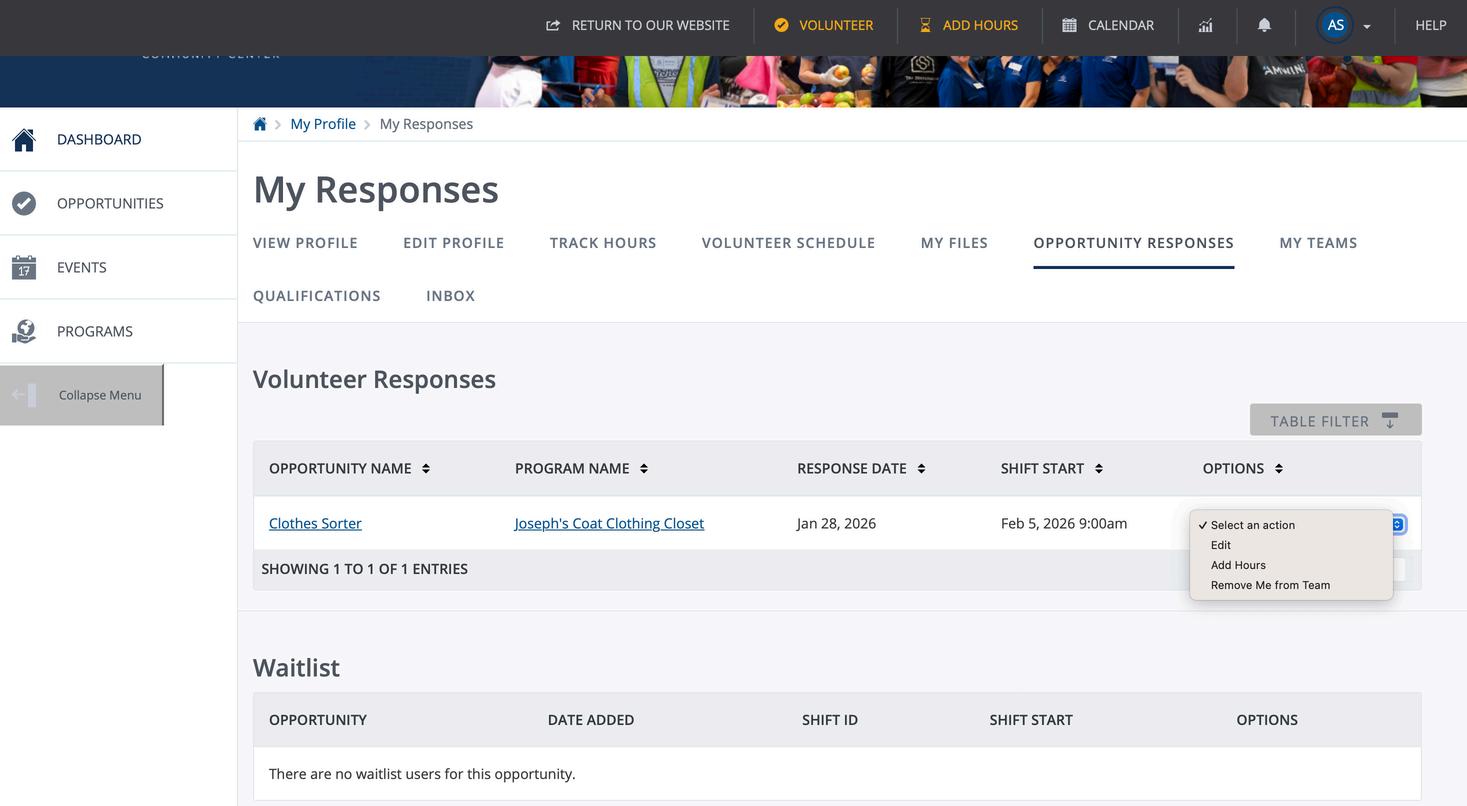
Step 3: Select the drop-down arrow on the same row as the shift you want to cancel.
Note – If you are registered for multiple shifts, this screen shows all your volunteer responses; responses that have already happened will be grayed out.
Leaving a Team
Method 1 (Opportunity Page)
Step 4: Once you’ve selected the drop-down arrow, a menu will appear. Click “Remove Me from Team” from the list; it is the last item on the list.
Leaving a Team
Method 1 (Opportunity Page)
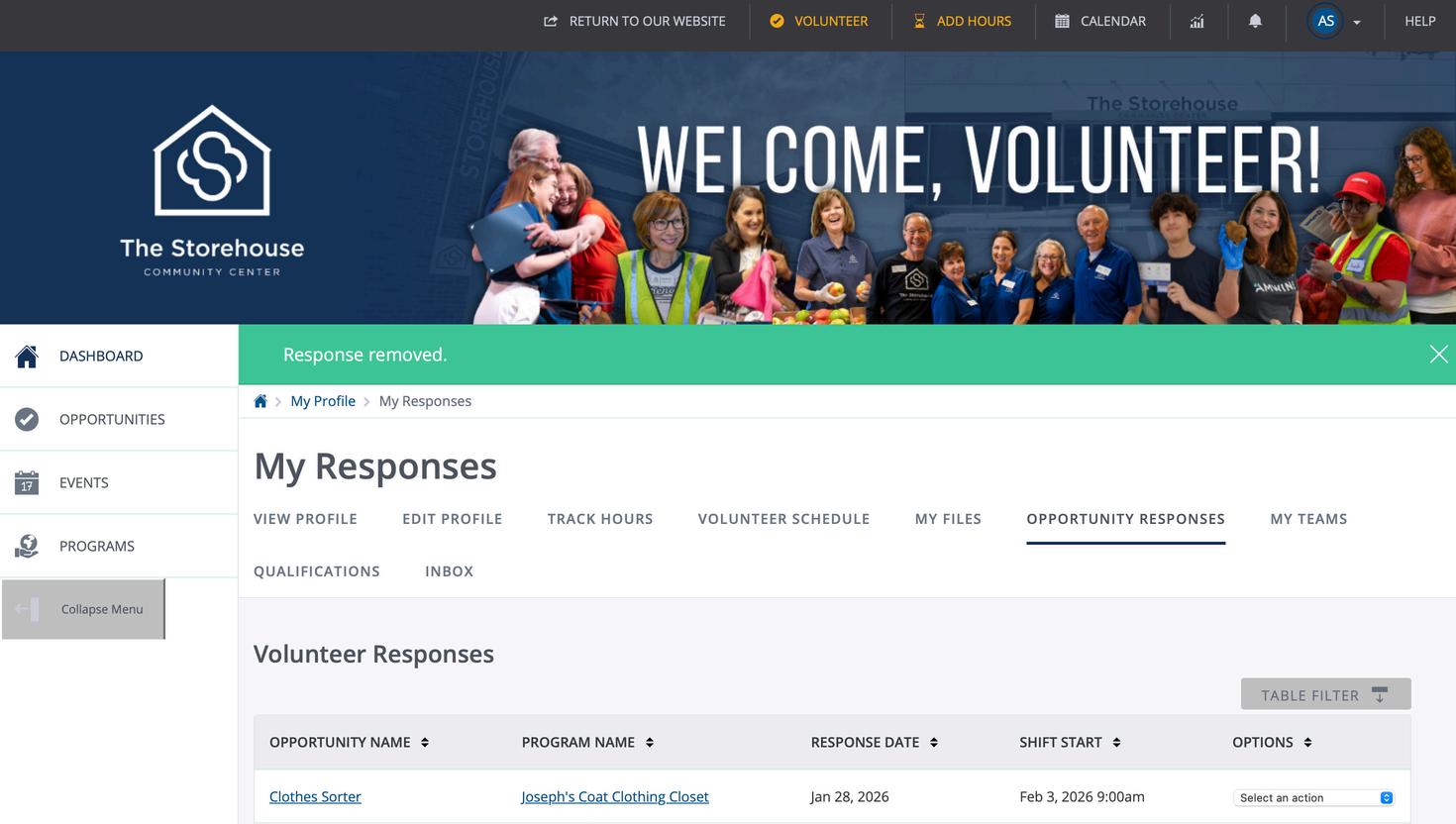
Step 5: You have successfully left the team when the green box appears with the message “Response removed.”
This is the end of the first method.
Leaving a Team
Method 2 (Teams Page)
Step 1 is on page 33.
Step 2: Click on the drop-down arrow in the top right-hand corner.
Leaving a Team
Method 2 (Teams Page)
Step 3: Select “My Teams” from the drop-down menu.
Leaving a Team
Method 2 (Teams Page)
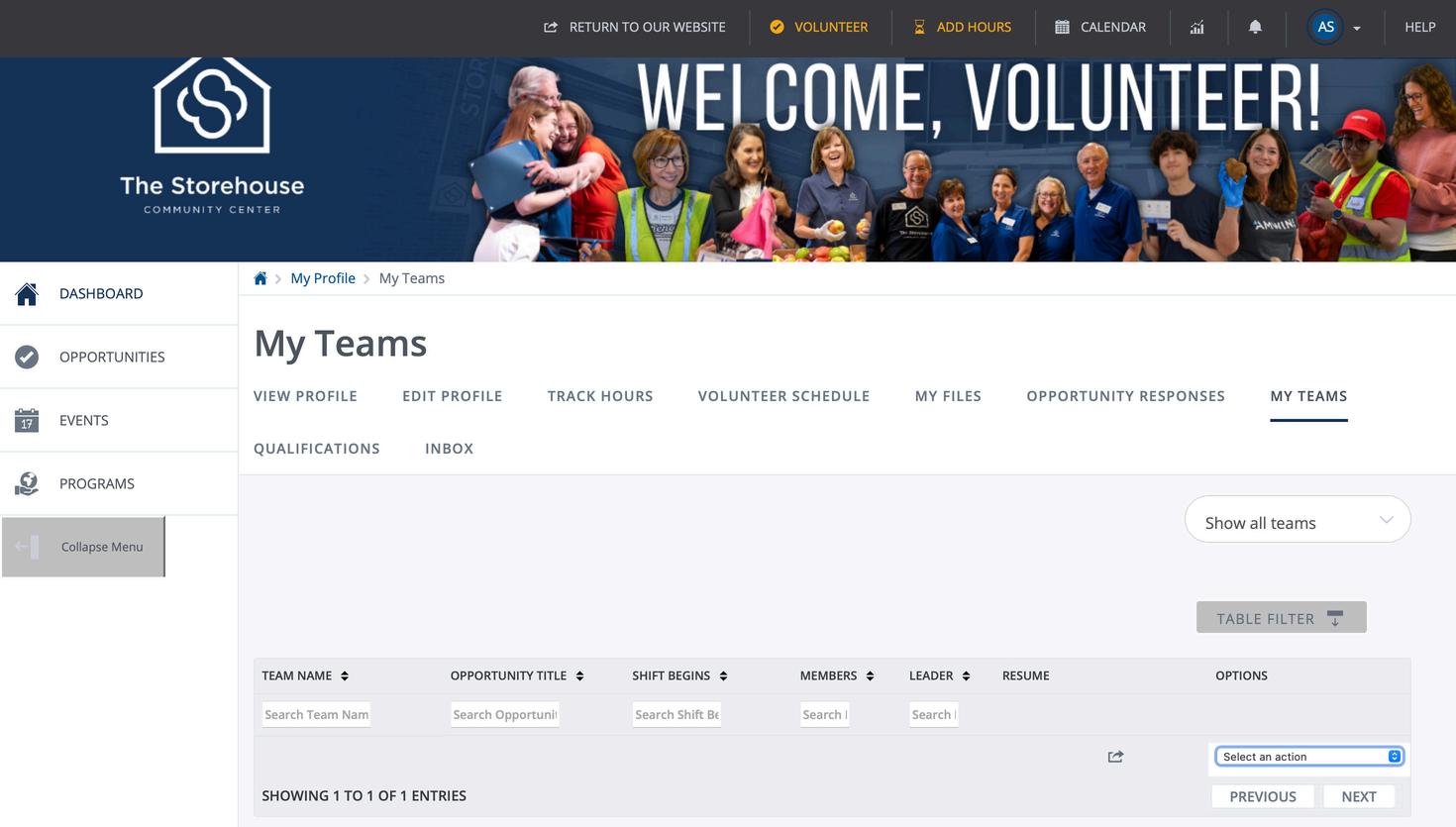
Step 4: Select the drop-down arrow on the same row as the shift you want to cancel.
Note – If you are on multiple teams, this screen shows all your volunteer teams.
Leaving a Team
Method 2 (Teams Page)
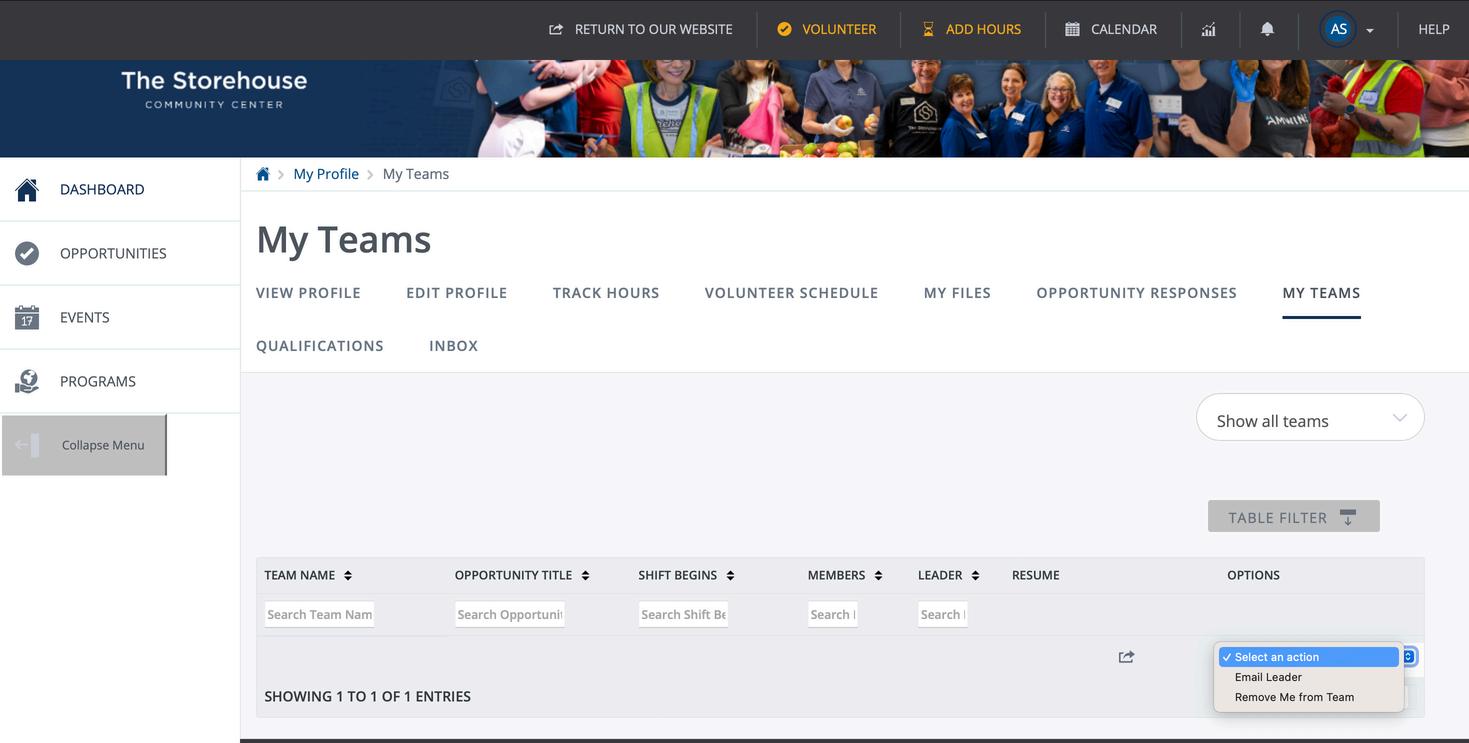
Step 5: Once you’ve selected the drop-down arrow, a menu will appear. Click “Remove Me from Team” from the list; it is the last item on the list.
Leaving a Team
Method 2 (Teams Page)
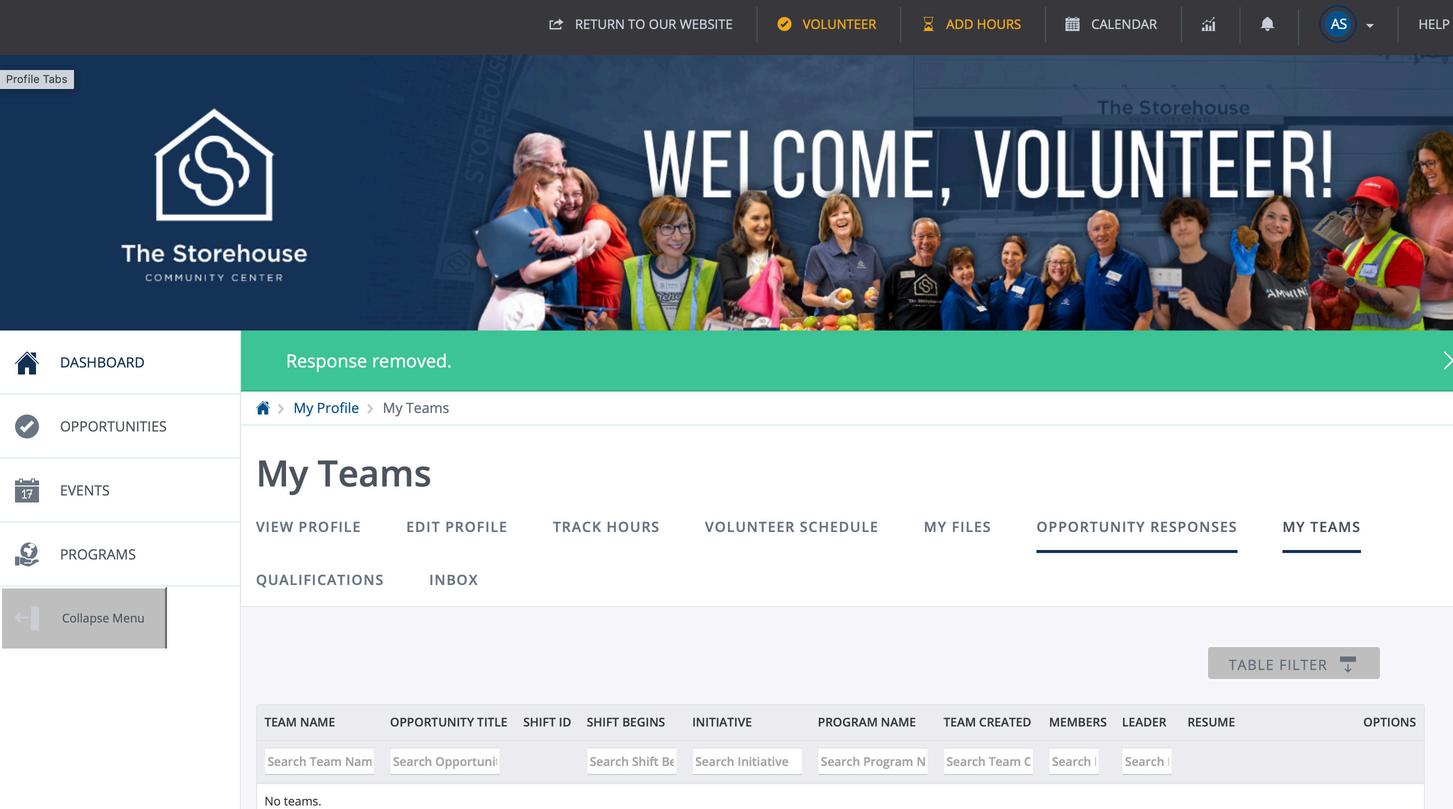
Step 6: You have successfully left the team when the green box appears with the message “Response removed.”
This is the end of the second method.
Volunteer Groups Frequently Asked Questions
You can find more answers to Frequently Asked Questions on the Volunteer Page of our website.
Volunteer Frequently Asked Questions
We want to volunteer as a group with The Storehouse Community Center. Can we do that?
TSCC welcomes groups the size of 6-12 volunteers based on availability.
Can I create a team for my family?
Any group can create a team to reserve spaces to volunteer. We recommend using the team reservation method in our portal if you are wishing to volunteer with others.
Can my group of 12 volunteer multiple times?
We ask that groups limit themselves to one shift per month.
Volunteer Frequently Asked Questions
I am organizing a group volunteer opportunity. What should I do?
The team leader will create a team and reserve spaces for the entire team. After the spots are reserved, the team leader must have all team members join the team. Step-by-step instructions for this can be found in the left hand navigation bar of your portal.
My company’s volunteer day is in 4 months. Can I reserve spaces now?
We are unable to reserve spaces for teams ahead of the calendar opening. The calendar opens one month in advance on the first business day of the month.
I am creating the team. Do I need to know everyone who is joining when I create the team?
No, you can reserve up to 12 spots without knowing the names of the individuals joining the team.
Volunteer Frequently Asked Questions
Does every team member need an account?
Yes, every team member must create their own account AND join the team in order to volunteer. Volunteers who create an account but do not join the team will not be able to volunteer.
How do my team members join the team?
The team creator/leader will have access to a unique team link through their account. The team creator/leader should send this link to their team members to join. Step-by-step instructions for team members to join the team can be found in the left-hand page of their navigation bar in their portal.
How long do I have to fill the spaces I reserved for the team?
Any unfilled reserved spots will be released to the public 14 calendar days before the shift date.
Volunteer Frequently Asked Questions
Our team is more than 12 people. Can we still volunteer together?
Our maximum group number is 12 people.
Can our group have lunch before or after the shift at TSCC facility?
We are unable to accommodate groups who wish to eat together before or after their shift at our facility. There are several great restaurant options in the area perfect for groups of different sizes.