Welcome DOers to Galaxy Digital! Please review this document to see how to sign up for a Galaxy Digital account. If you have any questions or issues, feel free to reach out to Denzel David at ddavid@thedoseum.org
Registering an Account
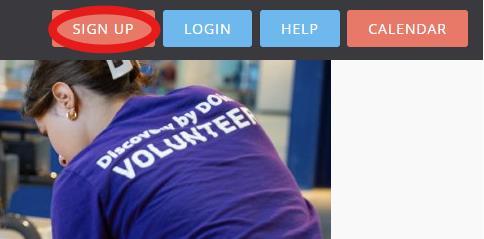
Using this link: https://thedoseum.galaxydigital.com/agency/ volunteers will land on the home page. On the top right of the screen, click on the “SIGN UP” button. (Circled in Red).
4 Steps to Creating an Account
Step 1: Answer the general questions and provide us with the following information to create your account.
Step 2: Answer additional questions. Some questions may not apply but are still required to be answered. Please put “N/A” if the question does not apply to you.
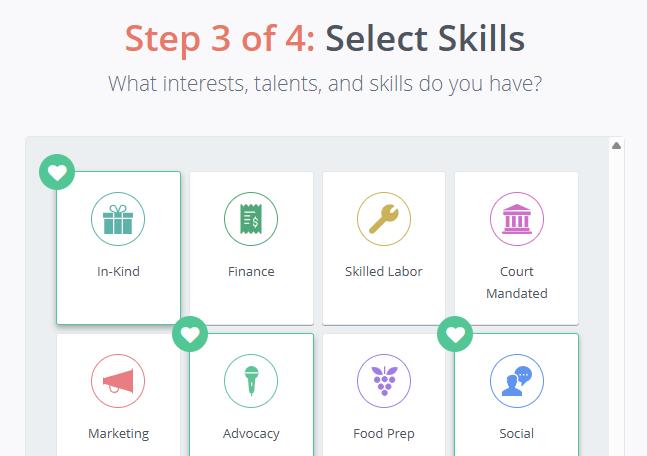
Step 3: Select your interests, talents, and skills. Selected skills are highlighted in green and have a green heart on the top left of the skill.
Step 4: Complete the following prerequisites:
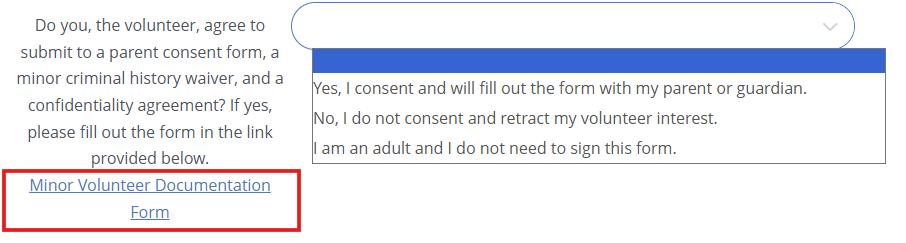
1. Minor Volunteer Documentation Form: MUST BE FILLED OUT WITH YOUR LEGAL GUARDIAN
Click on the dropdown menu on the right and select the appropriate response. If you are a minor, you must get your legal guardian’s consent. If they consent to your volunteering, sharing your criminal history, and the terms of confidentiality, then visit the link on the right side of the dropdown menu. (Boxed in red or click here: https://forms.monday.com/forms/a227cab6f4bb301291a533280289e0 d2?r=use1)
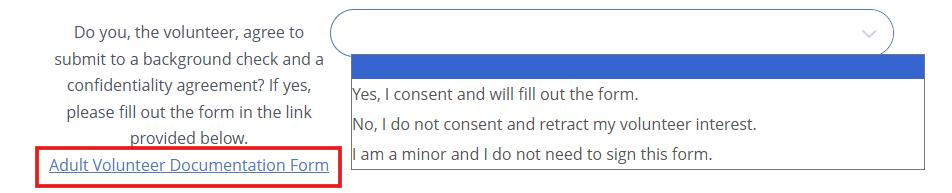
2. Adult Volunteer Documentation Form:
Click on the dropdown menu on the right and select the appropriate response. If you consent to a background check and the terms of confidentiality, then visit the link on the right side of the dropdown menu
You will be directed to the Form, Adult Volunteer Documentation Form. Please fill out the form as accurately as possible. Background checks must be done on a yearly basis (Boxed in red or click here: https://forms.monday.com/forms/da88c23c899257f6d1a107593a1d9fc b?r=use1)
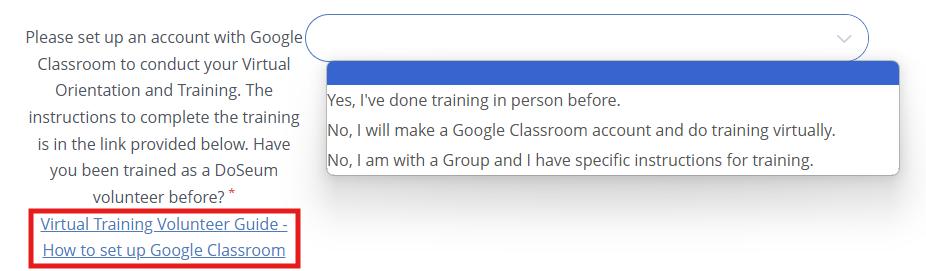
3. Volunteer Orientation & Training
Click on the dropdown menu on the right and select the appropriate response. If you have been trained in person before, you do not need to complete Virtual Orientation and Training. If you need to complete Google Classroom training, the link for the instructions are on the left side of the dropdown menu.
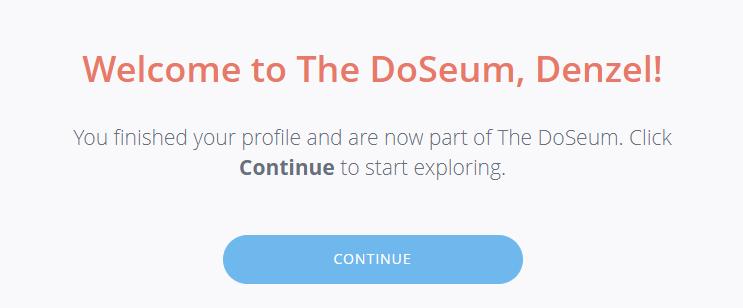
Once you complete all four steps you should see this page, indicating the completion of your account registration.
After all your prerequisites are submitted, you can follow the Virtual Training Volunteer Guide and complete the required steps there. Once you finish your training and your background check has gone through, the Volunteer and Service Coordinator will reach out for the next steps!