Navigating the Site
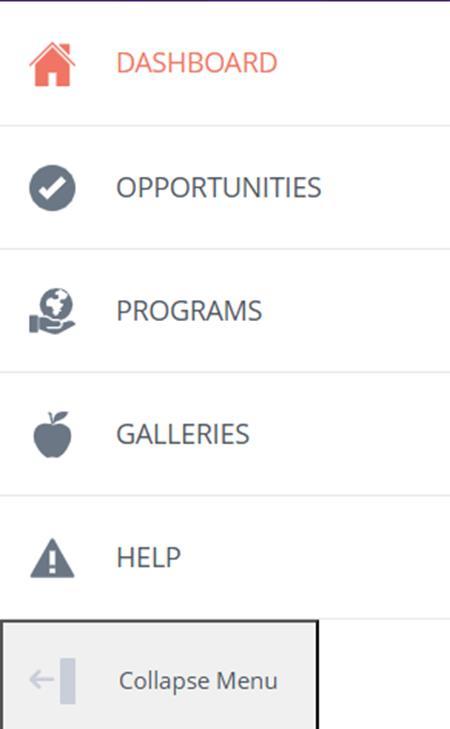
Along the top, volunteers will see buttons to go to the calendar, see notifications, and the profile dropdown menu.
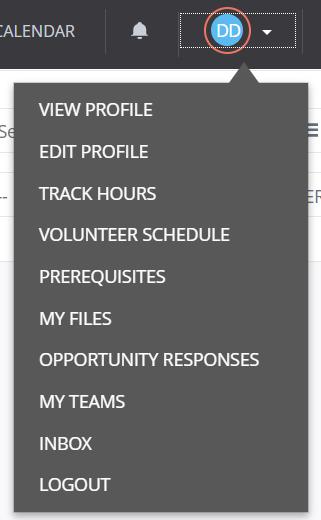
On the top right-hand corner, a drop-down menu is shown when you click on your profile picture. You will see different options regarding your Galaxy Digital account
To get to your personal profile, click “View Profile”
Thank you for registering for a Galaxy Digital account!
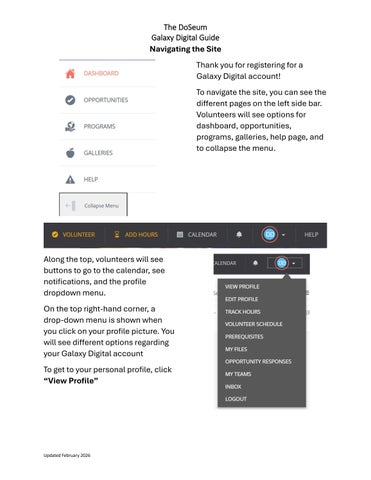
To navigate the site, you can see the different pages on the left side bar. Volunteers will see options for dashboard, opportunities, programs, galleries, help page, and to collapse the menu.
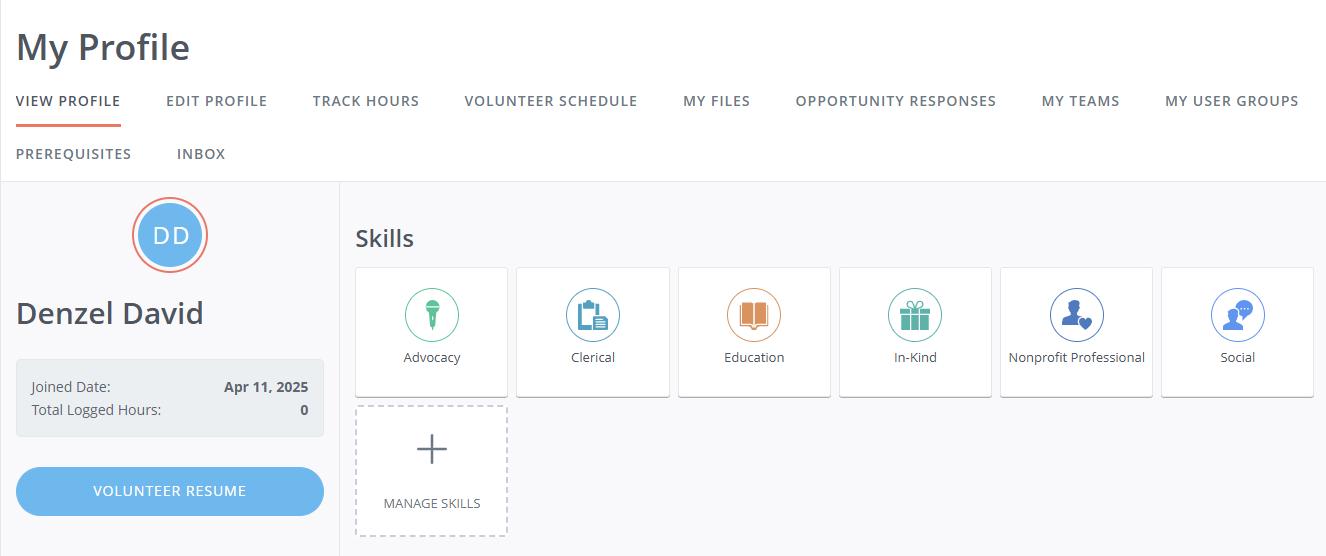
On your profile page, you can view and edit information, track hours, view your scheduled shifts, personal files, user groups, prerequisites, and inbox.
Volunteers can also use the “Volunteer Resume” button to download a PDF of your volunteer time from any date range. The resume will have hours served, number of shifts, skills used, and more.
The Dashboard Page
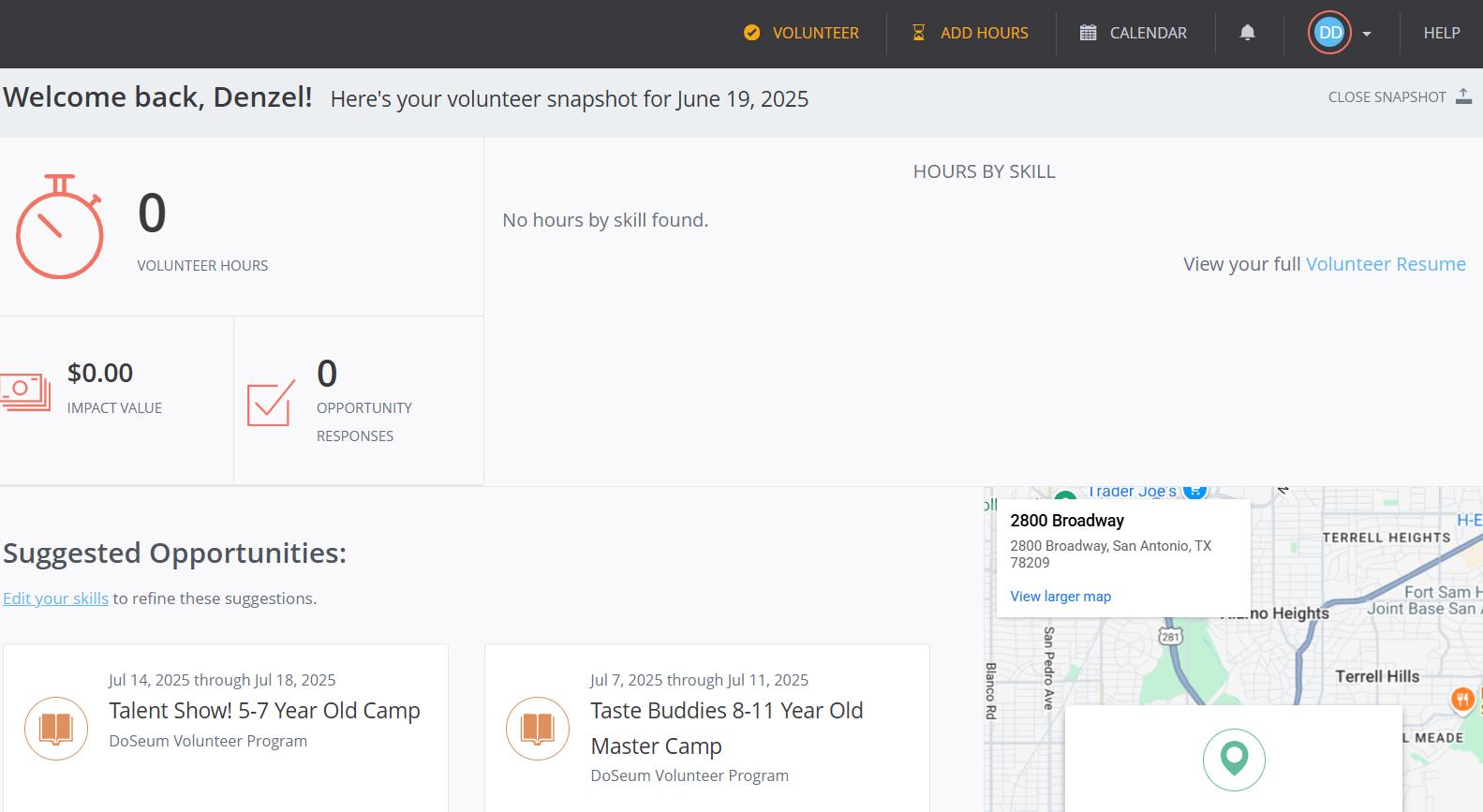
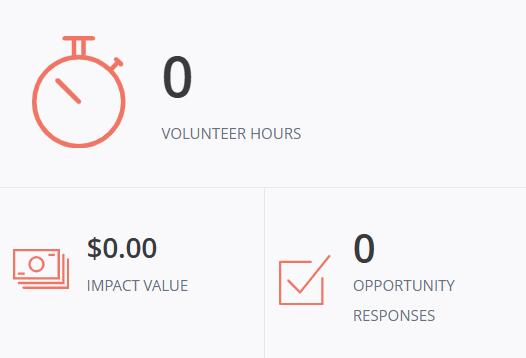
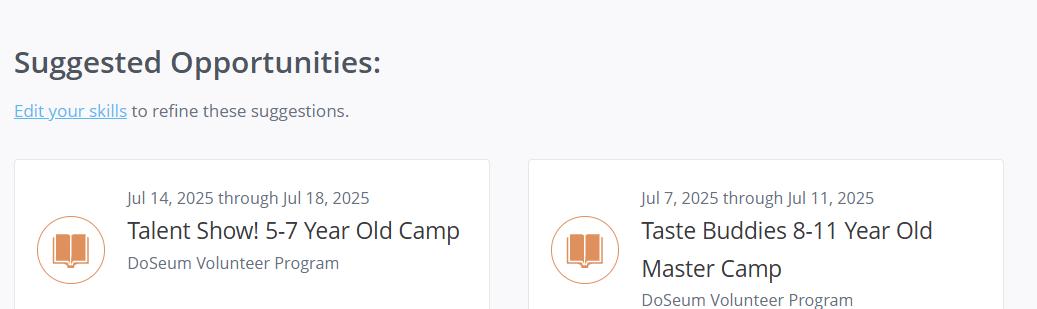
Now that you have made an account, you are able to see the dashboard in its entirety. It highlights the number of hours a volunteer has done, number of shifts, and the impact value of their time. It will also suggest shifts to volunteers and shows the address for The DoSeum on the right side
The DoSeum
Galaxy Digital Guide
The Programs Page
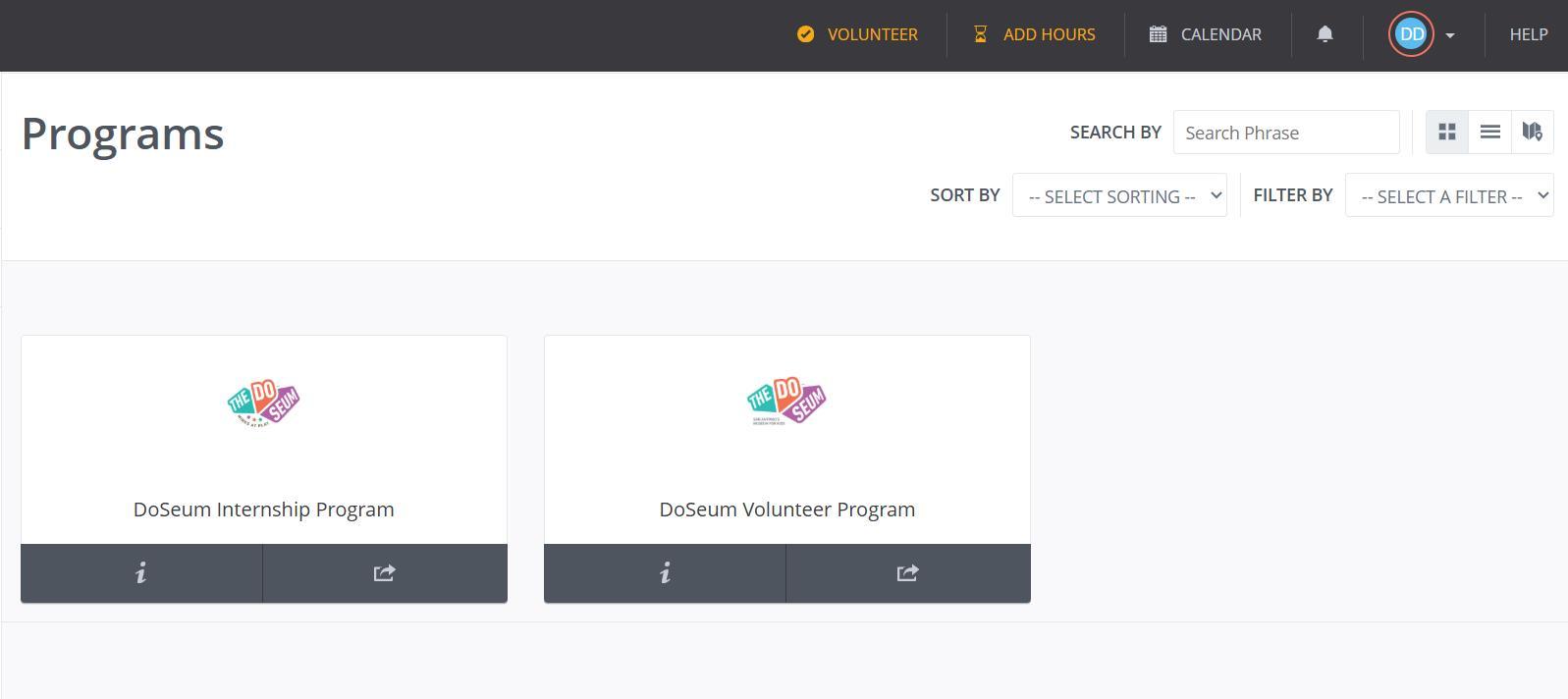
The Programs page shows the programs that The DoSeum offers. Click on the “DoSeum Volunteer Program” button to learn more about the program.
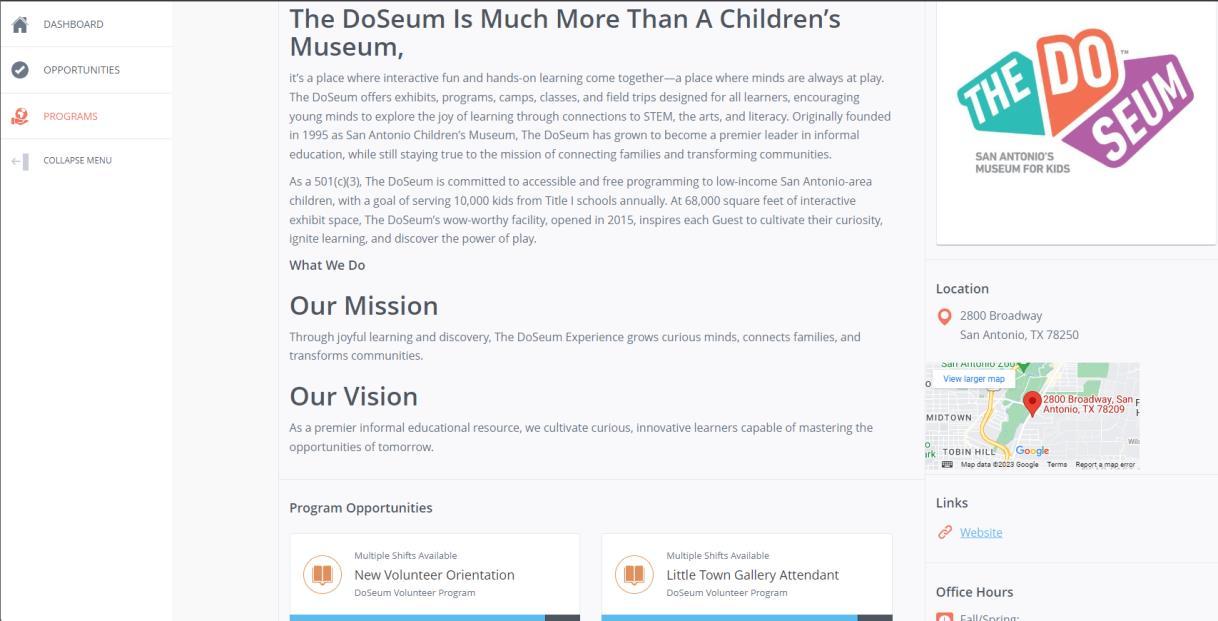
This screen will have a summary of The DoSeum, our mission and vision, and information along the right side of the screen. Scroll down on this page to see available shift opportunities specifically for the volunteer program. They are arranged by gallery/event such as Little Town Gallery Attendant or Birthday Party Attendant.
The DoSeum Galaxy Digital Guide
The Galleries Page
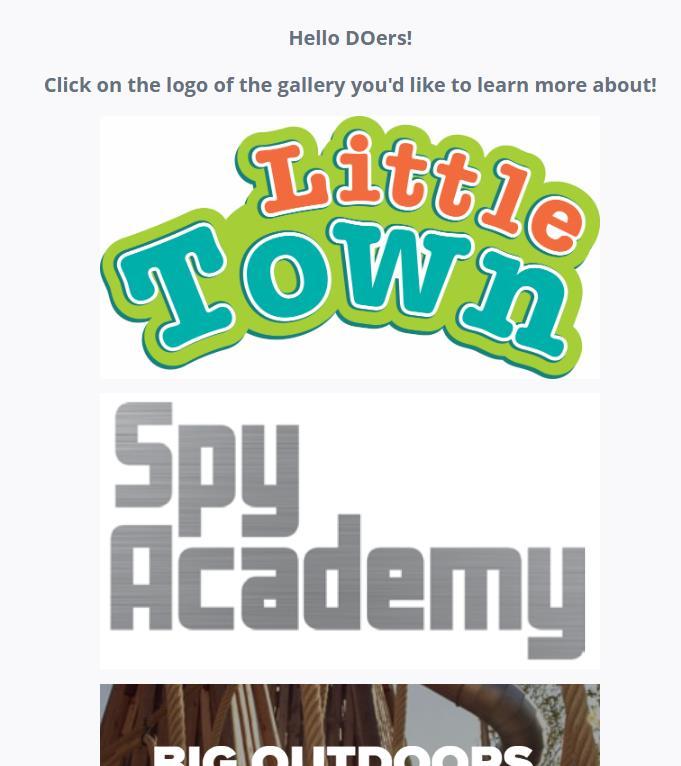
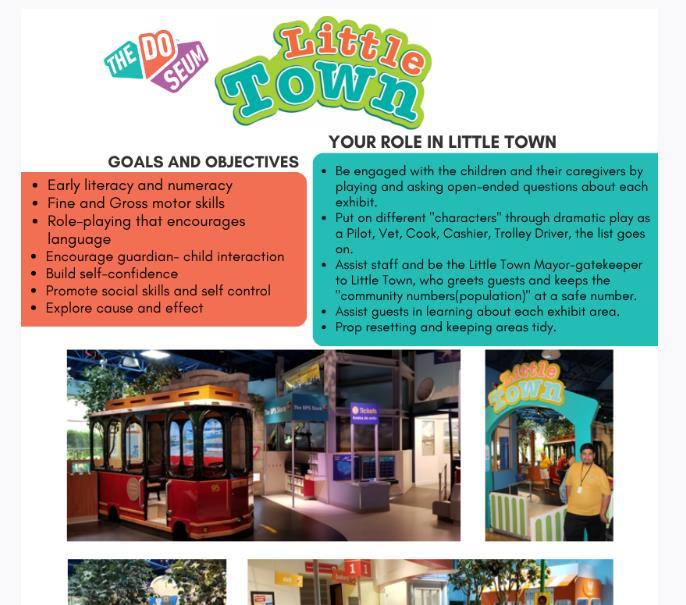
The galleries page shows a list of the galleries at The DoSeum. Clicking on the logo directs you to that gallery’s guide page. Here you will find different ways to interact with the guests and general tasks you can do while you’re there. You can use this page to get yourself familiar with our different galleries. Additionally, on the back of your volunteer badge, there is a QR code you can scan to bring you directly to this menu! You are welcome to scan that code at any time during your shift to check what you can do while volunteering for that area.
The Help Page
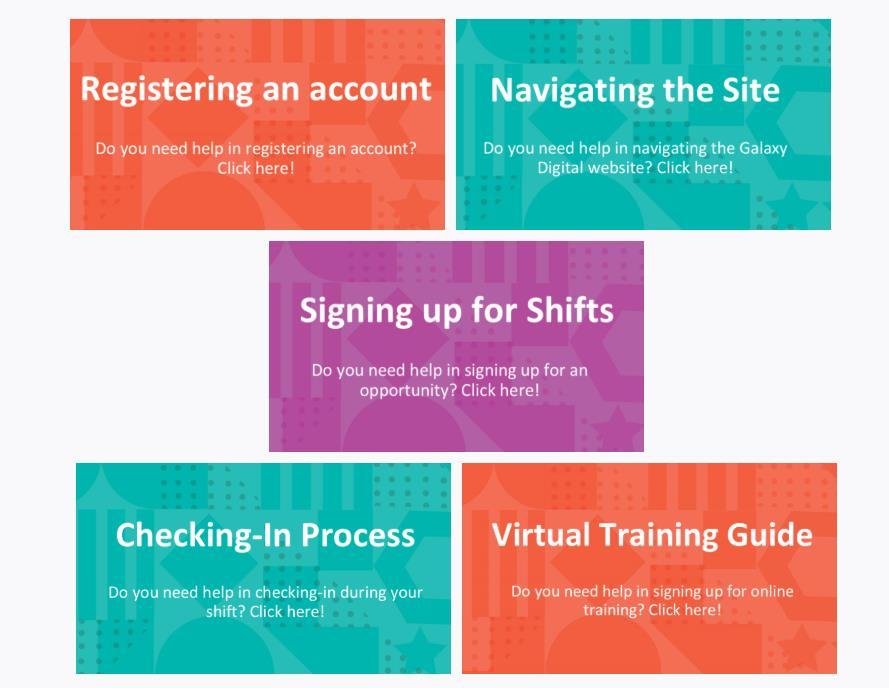
The help page will show you the following options for common things you might need help with while using Galaxy Digital. Click on the option to bring you to that page.
If you are still confused, please don’t hesitate to reach out to Denzel David for assistance.
Email: ddavid@thedoseum.org or volunteer@thedoseum.org
Office Phone Number: (210) 572-0635