Welcome to the fourth edition of the Beginning Teacher’s Tech Guide.
Whether you are stepping into your very first classroom this year, with a mix of nerves and excitement, or you are a seasoned educator looking to refresh your practice, this guide is built for you!
The technology landscape moves fast, but you don’t have to navigate it alone. With this resource we share all things digital in the NSW Department of Education. We have created the latest tips and tricks designed to streamline your admin and provide opportunities to empower you to use a wide range of technology with confidence.
To continue the conversation and learn more throughout the year and beyond, join the T4L Teacher Community on Teams.
Have a great year of learning for both you and your students!
Linda Lazenby
Director
– Technology Enablement, Schools and Skills
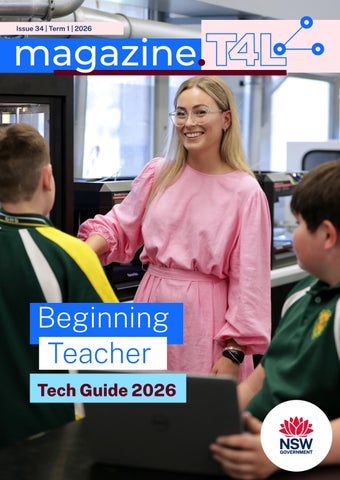
Thank you to TAS teacher Jenna Goodfellow and students from Gunnedah High School who appear on our cover and throughout this issue!
Linda Lazenby
Aimee Higgins
Anh Ha
The portal and my essentials
The NSW DoE Portal is your first digital stop for accessing tools, software and applications across the department.
Use tiles such as SAP to update your personal details, view payslips and manage leave. Access key applications like MyPL to log mandatory professional learning and quickly reach tools including the Universal Resources Hub and NSWEduChat. You’ll also find direct links to important alerts such as the Staff Noticeboard.
When accessing vendor tools like Microsoft, Google or Canva through the portal, you’ll be automatically signed in using your NSW DoE account.
A very handy quick link to logging and troubleshooting any of your queries whether they are HR, technical or process focused.
Watch this walk-through video on how to navigate the portal.
This menu on the left is your management tool. From here you can manage your contact details and also access the department’s app store and add new tools to your essentials.
Access Staff mail through your essentials. You can find the email address and contact details of all staff members in the Global Address Book in Outlook or through the staff directory. Watch this resource.
An application for all staffing processes. Ensure your personal details are updated, access your payslips and manage your leave balances and requests.
Master your student portal from start to finish. This guide covers everything from your initial login to updating your password, creating useful bookmarks, and understanding the importance of logging out.
Your favourite apps can be added to your essentials so you can easily find them at the top of your portal.
3:20
Microsoft 365
Microsoft 365 offers teachers a powerful, easy-to-use toolkit that supports planning, teaching and collaboration from day one. With cloud-based apps like Word, PowerPoint and Excel, you can create and access your work from any device, while OneDrive ensures your files are always backed up and available.
How do I access Microsoft 365?
You can access Microsoft 365 through the staff portal. Add it to your “My essentials” for quick access on any device.
Great starter resources for teaching with Microsoft 365 tools
The T4L Microsoft resources page is your one-stop shop to explore helpful tips and tricks with using these tools and more.
Teams
Microsoft Teams provides an all-in-one digital classroom where teachers can organise lessons, share resources, manage assignments, provide feedback and communicate with students with ease. Using the assignments space, teachers can differentiate tasks for students as well as provide interactive learning experiences using the available ‘Learning Accelerators’.
“I like to access my cloud-based files using both the OneDrive for desktop sync app and OneDrive online through my portal. This gives me the flexibility to create, share and edit my work, whether it’s for the classroom or admin, anytime, from any device.”
Excel
Want to analyse data and present it visually? Whether you’re reviewing student assessment results or guiding students to explore trends over time, Excel is a powerful and accessible tool for everyone. Discover how to create eye-catching charts, format data to highlight key information and save valuable time by using formulas to streamline your assessment workflows.
OneDrive
Share, upload and sync your files to the cloud where you can access them on multiple devices. You can easily move files between OneDrive and Teams/ SharePoint depending on where you want to manage or house certain documents and projects. You can even download the OneDrive app to easily digitise paper documents into PDFs.
Word
Microsoft Word is essential for teachers and students, supporting learning and creativity. It offers real-time collaboration, Editor for writing help, Immersive Reader for audio-visual support and builtin drawing, design, and maths tools. Teachers can provide feedback easily using comments or Reviewing Mode to guide students in refining their work.
OneNote
OneNote is a digital note-taking app that keeps all your class notes, files and videos in one place, accessible on multiple devices. Use a touchscreen and stylus to annotate easily. Each page allows multimedia content beyond an A4 page, helping you organise notes and develop your teaching program efficiently.
PowerPoint
PowerPoint enables teachers and students to create engaging presentations with real-time collaboration, Designer layouts and built-in media tools. It enhances content clarity and accessibility. Teachers can guide students using slide comments, while Presenter Coach helps learners build confidence and improve presentation skills for effective communication in the classroom.
Minecraft Education
Are you looking for an alternative way to assess student understanding? Minecraft Education is a perfect way to gamify student assessment or explore a unit of work across multiple KLAs. Watch student engagement climb as they create content in this space. If you haven’t tried it before, explore our resources for both teachers and students.
Google Workspace
Google Workspace is available for all teachers and includes plenty of cloud storage in Google Drive. You can access and use Workspace apps such as Google Classroom, Docs, Sheets and Forms among many others. Students have access to Google Workspace apps for their learning and also have access to their student email accounts via the Gmail experience.
How do I access Google Workspace?
You can access Google Workspace through the staff portal. Access to Google Workspace uses your department Google account and is in the following format (sometimes you might have a number at the end of your name): firstname.lastname@education.nsw.gov.au
Great starter resources for teaching with Google tools
The T4L Google resources page is your one-stop shop to explore video resources on using these tools.
Chat
Google Chat is a secure communication hub that combines instant messaging, video and file sharing into one platform. This tool boosts collaboration and smoothly connects with other Google applications. Educators can efficiently and safely share resources, announcements, and updates from a centralised hub. Take a look at this video series to learn how
In Google Docs, access Version History to monitor student contributions or recover deleted work. Navigate to File > Version History > See version history to view a colour-coded timeline indicating who typed specific sections and when.
Classroom
Google Classroom simplifies the assignment process by allowing for easy distribution, collection and assessment of student work, while enhancing communication between teachers and students. Watch this video to learn how to set up your digital classroom.
Forms
Google Forms simplifies the process of gathering feedback and assessing student understanding through quizzes, providing instant results for informed decision-making. It also creates opportunities for engagement; why not turn a standard form into a thrilling digital Escape Room? Watch this video to find out how
Drive
Google Drive is a reliable cloud storage solution for teachers, allowing them to organise and access teaching materials from anywhere. It promotes teamwork through Shared Drives, enabling collaboration by centralising files owned by the team instead of individuals. Why not start here?
Docs
With real-time collaboration features, Google Docs enables teachers and students to work together on documents, enhancing communication, collaboration and feedback. Found in the “Tools” menu, the integrated Voice Typing tool eliminates writing obstacles for students who require assistance. Watch this video to find out how
Slides
Google Slides allow teachers and students to create engaging presentations while collaborating in real-time. It is a fantastic tool for students to demonstrate their learning; for example, by using internal linking to build interactive app prototypes. Take a look at this video to learn how
Sites
Teachers can use Google Sites to build engaging class websites for resources and to showcase student work. It is also a fantastic tool for students to curate their own digital portfolios, building digital literacy skills as they reflect on their learning. See how it can be used in the classroom with this activity card
Pages
Pages is a versatile word processing app that helps users create polished documents such as letters, reports or posters. Its user-friendly interface and powerful features allow students and teachers to design and share their ideas effortlessly.
Clips
Apple Clips is perfect for creating short, engaging videos with a mix of clips, photos, music and text enhanced by fun filters, stickers and emojis. If you’re making quick how-to guides, lively presentations, or capturing moments from your students, Clips makes it easy and fun to bring your ideas to life.
Keynote
Experience the power of creativity and productivity with Keynote. Whether you’re crafting presentations or refining your ideas, Keynote empowers you to bring your vision to life with precision and style. With intuitive tools and captivating themes already pre-created, unlock your potential!
GarageBand
GarageBand is a user-friendly music studio that lets you mix instruments, vocals and loops to create your own tracks. Whether you’re making jingles, full songs, experimenting with sounds or getting students to record and review their reading skills, GarageBand’s tools and effects make music and sound creation easy and fun.
iMovie
A favourite amongst teachers creating movies for many years, iMovie makes video editing simple and fun, letting you combine videos, photos and music with smooth transitions and effects. Whether you’re creating a project, ad or short film, iMovie’s tools and templates help you tell your story with ease.
Assistive Technology
Explore the accessibility settings on Apple devices to create inclusive learning experiences that support all students. These tools help remove barriers and enable every learner to reach their full potential. Discover how simple adjustments can make a big difference in engagement and success for every student in your classroom.
With Canva Education, NSW DoE staff and students have access to premium features at no cost, available through Single Sign-On. For the best experience, log in via the Canva Essential tile on the staff portal.
Canva Foundations
Check out the T4L Foundations video series. For a deeper dive into skill-based modules, visit Canva’s Design School, where you can explore courses designed to enhance your creative skills.
Check out Canva’s Education templates to find resources specifically designed for educators, including ready to teach lessons, infographics, comic strips, daily agendas, worksheets and more.
Switch Teams and view your account.
Canva Design School
These are three great free certifications available through the Canva Design School website to develop your skills.
“Canva is the Swiss Army knife of classroom content creation. With its huge library of stock media, it empowers teachers to build interactive and engaging learning experiences. With an ever-growing educational toolkit, Canva helps transform lessons into creative spaces where students can connect, explore and create.”
Canva Essentials – Practical tips for using tools like docs, presentations, whiteboards, and websites to enhance collaboration and creativity.
Teacher Essentials – Create engaging teaching resources, lesson plans and activities. Use Canva’s powerful tools to save time, track progress, and give meaningful feedback.
Graphic Design Essentials – Learn to design collaborative projects, support student-led videos and use tools for creativity, with practical ideas for immediate classroom use.
Simply search for whatever educational template you desire!
Frames - Drop images or videos into frames to create fun, engaging teaching visuals easily.
Interactive presentations
Sheets - Embed editable spreadsheets in designs to organise data, track info and collaborate in real time.
Canva presentations make sharing ideas feel easy and fun. With drag-and-drop tools, interactive timers, embedded content, a huge stock library and loads of education templates, anyone can build clear, creative slides. Complete with confetti bursts or even a mic drop to celebrate learning wins!
Video editing
Canva Video helps classrooms turn ideas into engaging stories. With easy clip trimming, voiceovers, animations, transitions, screen recording and a huge stock library, teachers and students can create dynamic videos that brings learning to life.
Canva makes uploading easy. Add PDFs, PowerPoints, Google Slides and more with the upload button or simply drag and drop them straight onto the home screen.
Forms - Build simple classroom forms to collect student feedback, ideas or check-ins.
Digital whiteboarding
Canva Whiteboards give teachers a flexible space to think, annotate and collaborate. With a muti-page infinite canvas, sticky notes, real-time cursors, drawing tools, mind-map templates and a massive stock library, students and teachers can explore ideas freely.
Sheets
Canva Sheets gives teachers a flexible way to organise data, plan activities and manage classroom information, with the option to embed them directly into any design. Paired with Bulk Create, Sheets makes it easy to generate certificates, labels or whole class sets in just a few steps.
Adobe for Education
Adobe Express is a versatile creative tool available to all students and staff. It allows creation of quick and simple graphic designs, as well as infographics for explaining ideas. It allows you to make quick edits to PDF documents, create simple videos and animations, build webpages and generate text effects and images with AI. You can access Adobe Express via the tile in your portal. The Adobe Creative Cloud licence gives you full access to a range of Adobe applications. You’ll find tools like Photoshop for image editing, Illustrator for graphic design, Premiere Pro for advanced video editing, as well as other creative apps. These applications require a licence, which you can apply for here
Adobe Acrobat
Adobe Express
This tool is perfect for Stages 1 and beyond and applicable to any KLA. Design posters, flyers and drawings, as well as infographics for explaining ideas. Create simple videos for storytelling, build webpages and access Adobe Stock’s photos, videos and music. With generative AI, you can easily generate text effects and images, making it an invaluable resource for educators.
There are many options available for viewing and editing PDFs. You can access PDFs through the browser (free), Acrobat Reader (free), Adobe Express (all staff and students have an automatic licence) and Acrobat Pro (apply for a licence). Visit the Adobe Acrobat page to find the product to suit your needs.
A Creative Cloud licence gives you access to a wide collection of creative desktop and mobile tools, including Photoshop, Illustrator, InDesign, Premiere Pro and more. Collaborate with team members using shared libraries and cloud storage and bring your creative visions to life with thousands of fonts from Adobe Fonts. Plus, enjoy the flexibility of working anywhere, anytime, whether you’re at your desktop or on the go with mobile apps.
Adobe Creative Cloud
T4L resources
Looking for quick, classroom-ready tech ideas?
The T4L website brings together a wide range of student resources, including bite-size videos that showcase your favourite tools and platforms in action. With new content added regularly, it’s an easy way to keep your lessons fresh and your students engaged.
“I regularly use the T4L Events to attend insightful webinars that are always packed with practical information and meaningful takeaways. They’re incredibly valuable, especially for new teachers and new staff finding their feet with technology.”
Kiri, Teacher, Sir Eric Woodward Memorial School
“news.T4L is the place to get information about latest updates, best practice, QRGs, available PL and of course, ICT thought of the day! Always a great variety of topics covered. I just learned about the brilliance that is Tab Groups on Chrome. Being able to create Tab Groups means I am not constantly having to restore browser windows on startup or switch when moving between devices.” Kirsty, Teacher, Newcastle Senior School (SSP)
magazine.T4L supports all your digital classroom needs, offering practical ideas, inspiration and realworld examples to help you confidently integrate technology into your teaching. T4L Kids is released throughout the year and features curriculum-aligned, guided activities supported by videos, making it easy to embed meaningful STEM learning into the classroom.
Find your tribe!
T4L Teams community
Connect with a community of teachers and support staff, passionate about enhancing teaching and learning and school environments with technology. From digital classroom tips to idea sharing and troubleshooting, everyone is welcome, beginners through to seasoned tech pros.
Statewide staffrooms
Statewide staffrooms are online communities that connect curriculum and specialist teams with teachers everywhere. They’re a supportive space to collaborate, ask questions, share resources, and easily find what you need. With regular updates and accurate, curriculum-aligned content, these staffrooms are a true statewide brains trust. With more than 50,000 members, it’s the perfect place to jump in and get connected.
Join a statewide staffroom.
Plus, join us for our live sessions, T4L Hot Spots every second Monday afternoon if you’re looking for ICT Coordinator tips and hot topics or T4L Tuesdays, a quick 15 minute session aimed at arming teachers with tools and tips for the classroom.
Engage
This is the department’s networking hub (once Yammer), where you can connect with peers, explore groups that fit your teaching focus and find helpful resources. A quick search will help you find the right groups to join.
If you’re unsure about something, just post your question in Engage and let your colleagues jump in. Join the Engage conversation.
Explore T4L Kids magazine
For beginning teachers, T4L Kids is an easy, go-to classroom resource. With new issues released throughout the year and past editions available, you can explore hundreds of inspiring ideas, interviews and challenges to boost students’ skills and confidence across a range of technology tools and platforms.
T4L Kids is a highly engaging magazine for Stages 3-4.
Each challenge supports building skills in tech tools available to students.
Designed to embed technology into teaching and learning.
Each issue contains creative and collaborative challenges around a theme.
Features interviews with experts for reallife solutions!
Each issue is linked to teachers’ notes with lesson ideas linked to curriculum.
Each issue is developed using the department’s design thinking framework. It contains crosscurricular challenges for students. It can be used as an learningindependent resource or as part of your programming.
There are 19 back issues covering sport, animals, food and farming and much more!
stem.T4L resources
Did you know your school can access a free stem.T4L kit? There’s a great mix to choose from— 3D printing, robotics, podcasting and even an aeroponics kit for growing a garden with just air!
“STEM is fun! These days, there are so many reliable and accessible gadgets, devices and tools that have low teacher-mastery level with a very high engagement level for children. When you authentically engage your class with STEM, it makes linking learning to curriculum outcomes more meaningful.”
David - Teacher & STEM Coordinator Kirrawee PS
3D Printing Kit Aeroponics Kit
Coding Kit Device Experience Kit
Kit
Inventor Robotics Kit Junior Explorer Kit Microcontroller Kit
Inclusive and assistive technology in your classroom
Every device in your classroom includes assistive technology designed to promote inclusion. Take some time to explore the variety of assistive tools offered across different platforms and devices on the T4L website. You’ll find helpful how-to guides for supporting all students to learn and thrive in their classroom using technology.
Technology for all
Technology is reshaping what’s possible in inclusive classrooms and we created two resources to support your teaching and learning.
Find out what tools are available to your students. Search by device and platform or search by area of need.
Check out Issue 30 of magazine.T4L for more information on assistive features and inspiring school stories, or share Issue 19 of T4L Kids with your students.
Download them
Main Learning Displays (MLDs)
Start your teaching adventure with tech!
Science
Run a fair test in your garden and use a spreadsheet to gather daily results. See this Aeroponics vs Soil Learning Activity to learn more.
PDHPE
Break down and analyse your performance of a particular skill or movement using an iPad recording feature.
Library
Use Adobe’s image creator to bring a character from a story to life. Explore these great tools plus more in Adobe Express !
English
Use Canva’s visual elements to bring your writing to life. Create a brochure for an informative text, a video for an instructional text or try a poster for a persuasive text.
Aboriginal Education
Using mediums such as podcasting or film creation leverages so many opportunities to capture knowledge, language and story, but also share learning, fostering traditional learning methods like yarning and storytelling.
Digital Technology
Use the Makey Makey to create a musical instrument out of any conductible objects.
Mathematics
Use Practice Sets in Google Classroom to demonstrate your thinking when solving complex problems.
Design
Use one of the many activity cards in the stem.T4L Learning Library to guide your very first steps in design using a tool like Tinkercad.
STEM
Design and build a prototype to help people in disaster areas whether before, during or after a disaster. Try our favourite stem.T4L kit, Lego Spike and Prime.
Coding
Get started with coding using Make Code micro:bit tutorials (no equipment needed).
Music
Experiment with music using Chrome Music Lab
Drama
Create movie trailers or persuasive adverts using iMovie or Clips templates.
Visual Arts
Got an Apple Pencil? Adobe Fresco is a wonderful digital drawing tool that is free for all staff and students.
History
Search for timeline templates in Canva to present historical events in a clear and visually appealing way.
Languages
Create your very own Language app using our App Prototype - learn a language activity card or check out our magazine to get started.
TAS
Use Affinity Designer to create a design to be etched into a recycled timber cutting board.
Geography
Create your own virtual tours using Google Earth.
Dance
Film your dance and use a video editing software such as WeVideo, ClipChamp or iMovie to voiceover your dance to explain the story. Use draw tools to mock up your movements and annotate your dance lines and movement patterns.
Stay safe online with top cybersafety tips
Use strong passwords
Make it a passphrase and do not share with anyone.
Storing and sharing
Securely storing and sharing documents online using this guide
Report phishing emails
Know
Use a password manager
1Password and Bitwarden are available on the Company Portal.
Be aware of fake websites
Do not give away your credentials on external websites and in pop-ups.