GETTING STARTED WITH
THE SUNBRIDGE APP FOR W ESLYN PARK RESIDEN TS
Step
Step
1
2
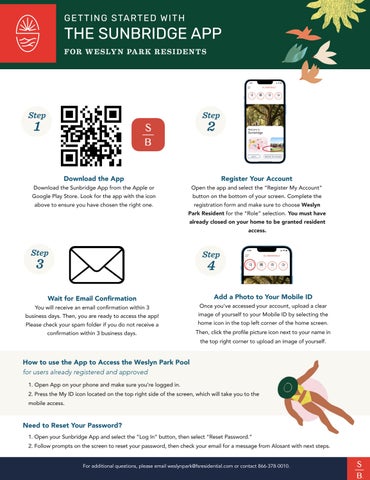
Download the App
Register Your Account
Download the Sunbridge App from the Apple or
Open the app and select the “Register My Account”
Google Play Store. Look for the app with the icon above to ensure you have chosen the right one.
button on the bottom of your screen. Complete the registration form and make sure to choose Weslyn
Park Resident for the “Role” selection. You must have already closed on your home to be granted resident access.
Step
Step
3
4
Wait for Email Confirmation
You will receive an email confirmation within 3
business days. Then, you are ready to access the app! Please check your spam folder if you do not receive a confirmation within 3 business days.
Add a Photo to Your Mobile ID
Once you’ve accessed your account, upload a clear
image of yourself to your Mobile ID by selecting the
home icon in the top left corner of the home screen. Then, click the profile picture icon next to your name in the top right corner to upload an image of yourself.
How to use the App to Access the Weslyn Park Pool for users already registered and approved 1. Open App on your phone and make sure you’re logged in. 2. Press the My ID icon located on the top right side of the screen, which will take you to the mobile access.
Need to Reset Your Password? 1. Open your Sunbridge App and select the “Log In” button, then select “Reset Password.” 2. Follow prompts on the screen to reset your password, then check your email for a message from Alosant with next steps. For additional questions, please email weslynpark@fsresidential.com or contact 866-378-0010.