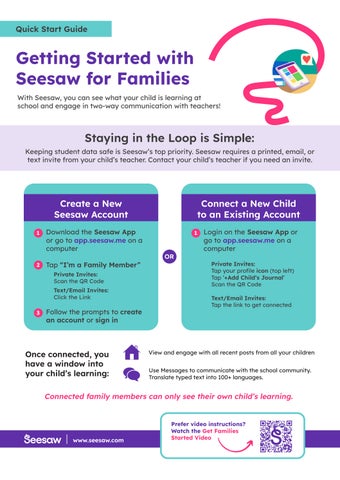
Getting Started with Seesaw for Families
With Seesaw, you can see what your child is learning at school and engage in two-way communication with teachers!
Staying in the Loop is Simple:
Keeping student data safe is Seesaw’s top priority. Seesaw requires a printed, email, or text invite from your child’s teacher. Contact your child’s teacher if you need an invite.
Private
or
Once connected, you have a window into your child’s learning:
View and engage with all recent posts from all your children
Use Messages to communicate with the school community. Translate typed text into 100+ languages.
Connected family members can only see their own child’s learning.
Prefer video instructions? Watch the Get Families Started Video www.seesaw.com