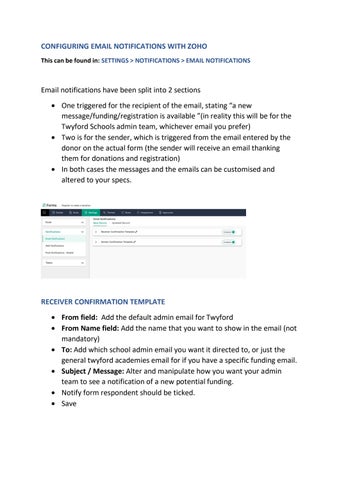
CONFIGURING EMAIL NOTIFICATIONS WITH ZOHO This can be found in: SETTINGS > NOTIFICATIONS > EMAIL NOTIFICATIONS
Email notifications have been split into 2 sections • One triggered for the recipient of the email, stating “a new message/funding/registration is available ”(in reality this will be for the Twyford Schools admin team, whichever email you prefer) • Two is for the sender, which is triggered from the email entered by the donor on the actual form (the sender will receive an email thanking them for donations and registration) • In both cases the messages and the emails can be customised and altered to your specs.
RECEIVER CONFIRMATION TEMPLATE • From field: Add the default admin email for Twyford • From Name field: Add the name that you want to show in the email (not mandatory) • To: Add which school admin email you want it directed to, or just the general twyford academies email for if you have a specific funding email. • Subject / Message: Alter and manipulate how you want your admin team to see a notification of a new potential funding. • Notify form respondent should be ticked. • Save