Riverside Presbyterian Day School
Financial Bulletin • 2026-27 School Year
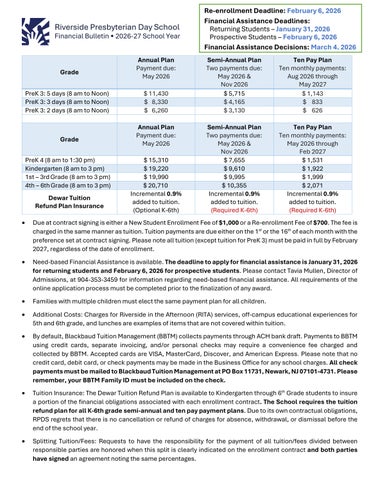
PreK 3: 5 days (8 am to Noon)
PreK 3: 3 days (8 am to Noon)
PreK 3: 2 days (8 am to Noon)
Payment due: May 2026
Re-enrollment Deadline: February 6, 2026
Financial Assistance Deadlines:
Returning Students – January 31, 2026
Prospective Students – February 6, 2026
Financial Assistance Decisions: March 4, 2026
Two payments due: May 2026 & Nov 2026
payments: Aug 2026 through May 2027
due: May 2026
payments due: May 2026 & Nov 2026
May 2026 through Feb 2027 PreK 4 (8 am to 1:30
Dewar Tuition Refund Plan Insurance
Incremental 0.9% added to tuition. (Optional K-6th)
Incremental 0.9% added to tuition. (Required K-6th)
Incremental 0.9% added to tuition. (Required K-6th)
• Due at contract signing is either a New Student Enrollment Fee of $1,000 or a Re-enrollment Fee of $700. The fee is charged in the same manner as tuition Tuition payments are due either on the 1st or the 16th of each month with the preference set at contract signing. Please note all tuition (except tuition for PreK 3) must be paid in full by February 2027, regardless of the date of enrollment.
• Need-based Financial Assistance is available. The deadline to apply for financial assistance is January 31, 2026 for returning students and February 6, 2026 for prospective students. Please contact Tavia Mullen, Director of Admissions, at 904-353-3459 for information regarding need-based financial assistance. All requirements of the online application process must be completed prior to the finalization of any award.
• Families with multiple children must elect the same payment plan for all children.
• Additional Costs: Charges for Riverside in the Afternoon (RITA) services, off-campus educational experiences for 5th and 6th grade, and lunches are examples of items that are not covered within tuition
• By default, Blackbaud Tuition Management (BBTM) collects payments through ACH bank draft. Payments to BBTM using credit cards, separate invoicing, and/or personal checks may require a convenience fee charged and collected by BBTM. Accepted cards are VISA, MasterCard, Discover, and American Express. Please note that no credit card, debit card, or check payments may be made in the Business Office for any school charges. All check payments must be mailed to Blackbaud Tuition Management at PO Box 11731, Newark, NJ 07101-4731. Please remember, your BBTM Family ID must be included on the check.
• Tuition Insurance: The Dewar Tuition Refund Plan is available to Kindergarten through 6th Grade students to insure a portion of the financial obligations associated with each enrollment contract. The School requires the tuition refund plan for all K-6th grade semi-annual and ten pay payment plans Due to its own contractual obligations, RPDS regrets that there is no cancellation or refund of charges for absence, withdrawal, or dismissal before the end of the school year.
• Splitting Tuition/Fees: Requests to have the responsibility for the payment of all tuition/fees divided between responsible parties are honored when this split is clearly indicated on the enrollment contract and both parties have signed an agreement noting the same percentages.
Riverside Presbyterian Day School
RITA Schedule & Fees • 2026-27 School Year
The Riverside in the Afternoon program (RITA) is designed to be a relaxed environment, which provides students variety within the care offered during after-school hours. Art, games, crafts, homework time, and outdoor play are some of the activities provided by RITA. RITA may be utilized on a “drop-in” basis; however, this is the most expensive way to participate. RPDS recommends taking advantage of a monthly plan for the RITA program, and parents can elect for more than one plan if students are leaving at different times during the week. All RITA fees are added to a parent’s Blackbaud Tuition Management (BBTM) account.
Morning Care
Morning care begins at 7:00 am each weekday. All children arriving prior to 7:40 am must be dropped off and signed in for morning care at the Newton Early Learning Center. The monthly rate for morning care is $150, and the drop-in rate is a $10 flat fee per day.
After-School Care
Monthly Plan Rates
Billed in arrears each month: Sept to June
4
After-School Drop-In Rate
Drop-in care charges are billed in arrears based on the week attended. The drop-in rate is a $15 flat hourly rate billed on the hour (not prorated) until 6:00 pm
Early Dismissal & No School Days
For Early Dismissal or No School days (Conferences/Professional Development), there is a separate fee for care. Prior to attendance, online registration via the myRPDS Parent Portal is required.
Morning only (7:00 am – 8:00 am) $ 15
Full Day $ 100
Half Day $ 50
Late Pick-up Fee After 6 PM
A late fee of $15 will be charged every 15 minutes a child is not picked up.
Afternoon Academies
Afternoon Academies provide an additional way students can enjoy the after-school hours. Academies are coordinated to work in concert with RITA but require a separate registration and fee. This addition to our RITA Program provides student enrichment activities such as ballet, gymnastics, art, athletic activities, and music lessons. Registration and payment for Afternoon Academies is accomplished by picking an academy and registering through the myRPDS parent portal.
Contact
For more information about the RITA program, contact Julia Davis, Director of RITA, at (904) 353-5513, extension 163 or jhdavis@rpds.com
General
Information – Frequently Asked Questions
Blackbaud Tuition Management provides Tuition Management services for schools. Services for parents include online account access at parent.blackbaud.school, tuition and fees invoicing, payment processing, and customer care.
1.
How do I access my account for the first time?
If you have previously logged into and used our Blackbaud Tuition Management parent site with your Blackbaud ID (BBID) and need to gain access to a new school account, please follow the steps in How can I link multiple school accounts to my Blackbaud ID (BBID)?
If you have not previously logged into our parent website, you can locate and login to your new account using the First Time User steps on our home page:
1. Select I am a first-time user on the parent login page
2. Enter your email address OR phone number to locate your Blackbaud Tuition Management account. Then select Continue
Note: The information entered must be the same as the information provided during enrollment.
3. Select the email address or mobile number where you want to receive a verification code as an email or text message. Then select Continue.
4. Check your email or text messages to obtain your verification code. Enter the code when prompted and select Continue
5. Your family's account information for the most recent year is displayed. Select the account(s) you want to set up. Then select Continue
6. If you do not have a Blackbaud ID (BBID) account and need to create one, select Create a Blackbaud ID and follow the steps on the screen to create your Blackbaud ID. If you already have a Blackbaud ID account, select Sign in, then sign in with your existing Blackbaud ID.
Moving forward, you will sign in with this Blackbaud ID anytime you need to access your Tuition Management account.
2. How do I create a Blackbaud ID (BBID)?
Blackbaud ID (BBID) allows users to securely sign in to the Blackbaud solutions ecosystem with enhanced security.
As a parent, the first time you access parent.blackbaud.school, you will enter your information to locate your Tuition Management account. After verifying your account with a verification code sent via email or text message, you will have two options:
• Create a Blackbaud ID: Select if you do not have a Blackbaud ID and need to create one.
• Sign in: If you already have a Blackbaud ID, select this to sign in with your existing Blackbaud ID.
Make your selection and follow the steps on the screen to link your new or existing Blackbaud ID to your Tuition Management account.
The next time you sign in, enter your Blackbaud ID email address on the parent.blackbaud.school sign-in page. Then log in with your Blackbaud ID to access Tuition Management
3. How can I sign into my Blackbaud Tuition Management account using Blackbaud ID (BBID)?
When signing into Blackbaud Tuition Management, you can use your existing BBID or create a new BBID if needed. If you have more than one Tuition Management Family ID account, signing in with your BBID also provides the ability to access all of your Family ID accounts using one login!
If you sign in with your Blackbaud Tuition Management username and your BBID is not yet linked to a Tuition Management account, you will be asked to enter your Tuition Management username and password before you can connect the account to a BBID. Once your accounts are linked and you'll sign in with your BBID moving forward.
If your BBID is already linked to your Blackbaud Tuition Management account, you will be automatically prompted to login using your linked BBID credentials.
4. How can I reset my Blackbaud ID (BBID) password?
If you forgot your BBID password:
1. Visit https://app.blackbaud.com/signin/forgot-password and select Continue with Email
2. Enter your email address associated with your Blackbaud ID, then select Continue
3. Select Forgot password, then follow the prompts to send a confirmation code to your email address.
4. Check your email inbox to obtain the confirmation code. If you don't receive the confirmation code email, check your Junk or Spam folder.
5. Enter your confirmation code and select Confirm
6. Enter and re-enter your new password. Then select Continue.
7. If you sign in through Apple or Google, change your password through Apple or Google directly.
8. If your organization enables single sign-on (SSO) through an identity provider (IdP), contact your IT admin to change your password.
5. How can I link multiple school accounts to my Blackbaud ID (BBID)?
If you have students enrolled in multiple schools using Tuition Management, you can follow these steps to link additional accounts to the same BBID. Repeat the process to link as many accounts as needed, if applicable: Follow these steps to link a second account to the same BBID. Repeat the process as needed to link additional accounts.
1. After signing in with your Blackbaud ID, select your initials in the top right corner and select Switch school account from the menu. (If initials do not appear in the top right, this feature is not available.)
2. On the Add another account page, enter either an email address or a phone number (primary, secondary, or mobile) associated with the other school account you want to link.
3. We will then search all the family accounts for a match with the information you provided. If a match is found, you will see the relevant school name, most recent session, Family ID, and students on the account. Select the account you would like to connect (this must be done one at a time) and select Continue
4. You will receive a verification code via text message or email at the contact information from the new account. Enter it under Verify your account and select Continue
5. Once the accounts are linked, the next time you log in with BBID you will see a screen that lets you select any of the accounts connected with the BBID. You can also unlink school accounts or add additional school accounts from this page.
6.
How can I retrieve my Tuition Management username and password?
If you have not selected to sign into Blackbaud Tuition Management using Blackbaud ID (BBID) yet, you can retrieve your Tuition Management username by selecting Forgot your username or password? on the parent login page and use the first section to enter the telephone number on your account with your Family ID.
To reset your Tuition Management password, please use the second section to enter your username and Family ID. An email with instructions for resetting your password will be sent to the primary email address on your account.
If you have already selected to sign into Tuition Management using your BBID, please see the password reset instructions for BBID
7. What email addresses should I add to my safe sender or safe contacts list?
• customerservicemessages@blackbaud.school
• customerservice@blackbaud.school
• no-reply-customerservice@blackbaud.school
• no-reply-customerservicemessages@blackbaud.school
8. What is my Family ID and where can I find it?
Your Family ID is a 13-digit, account-specific identification number for every school-specific account, which is updated annually each school year. It can be found on any written communication sent from Blackbaud Tuition Management or on your online account. Please be sure to include your Family ID on any payments sent to Blackbaud Tuition Management to ensure they are applied to the appropriate account.
9. What can I do once I have logged into my Blackbaud Tuition Management account online?
On our parent website you can do the following:
• Make a Payment
• Stop/Resume automatic debit payments
• Review payment history
• Change/edit your payment information
• Update your personal information
• View and print invoices (if you are not on automatic debit), Family Tuition Statements, and Year End Statements for tax purposes
• See an itemized breakdown of tuition, fees, and discounts billed to your account
10. How do I update my personal information, including my address, telephone number, email address, password, or payment information?
Log in to your online account and select My Profile at the top of your screen. Select Update and choose the section you wish to change from the drop-down options.
11. How do I invite additional users to access my account or make payments online?
When signing in with Blackbaud ID (BBID), only one BBID can be connected to your Family ID account as the primary user. Primary users can invite secondary users to access the family account with their own BBID login credentials.
To invite secondary users:
1. Sign into the parent site.
2. Select My Profile, then select the Access tab.
3. Enter the secondary user's email address and select Invite User. The user will receive an email invitation to access the account with their BBID email address.
Note: Secondary users cannot invite additional users to access the family account.
To remove a secondary account holder, select Remove next to their information under Manage Additional Users on the Access tab.
12. Why is my monthly amount different each month?
Your total due may change month to month due to fees, discounts, and adjustments that have been made by your school.
13. Who do I contact if I have a question regarding why a fee or billing item is on my account?
Please contact your school’s business office, as Blackbaud Tuition Management is only provided the name and amount of a charge or discount.
14. What if I think an amount on my bill is incorrect?
If you disagree with any of the amounts on your bill, you can contact our Parent Help Center. We will contact the school on your behalf to clarify the amount due. Blackbaud Tuition Management is not authorized to modify the amount of tuition due or to arrange for alternative payment plans without your school’s approval.
15. What is the quickest way to make a payment?
Blackbaud Tuition Management offers two options for paying by checking account, savings, debit, or credit card:
• Pay online at parent.blackbaud.school
• Pay over the phone through the automated system or with a live representative at (888) 868-8828
Payments made by phone and web are posted on the same day they are received.
16. What credit cards does Blackbaud Tuition Management accept?
Depending on your state and school policy, Blackbaud Tuition Management can accept VISA™, MasterCard™ , American Express™ and Discover™ credit and debit cards.
17. Does Blackbaud Tuition Management charge a fee on payments?
A Platform Fee may be charged on credit/debit card payments and ACH payments. This can vary based on your school's contract and settings.
18. How can I set up a new payment account to automatically pay my bill each month??
You can set up automatic payments from your bank account or credit/debit card by logging into your account and selecting My Profile at the top of the page. Open the Payment Information tab and select Add New Account to enter your bank or card information and save the account.
The account listed under Auto-Pay Account is now set up for monthly automatic payments. If you already have additional payment methods saved, check the box for Use this account for my automatic debit next to the applicable payment account to set it as the automatic payment method.
If your automatic payment is set up fewer than 3 business days before your due date, your first payment may not be pulled automatically. In this case, you will still be responsible for making a manual payment before your due date. Please read the terms and conditions carefully as fees may apply.
Automatic payment amounts are based on the current month's billed amount. If an account has a past due balance, that past due balance is not included in the automatic payment withdrawal and the payer must make a manual payment to settle the past due balance.
19. How do I stop my automatic payments?
You can stop an automatic payment from processing on an upcoming due date by logging into your account and selecting Stop Payment on the home page. Please note payments need to be stopped online at least 3 business days prior to your due date. You can also chat with a live representative online or call us at (888) 8688828 at least 2 business days prior to your due date.
Please note payments go into process 1 business day prior to ensure the funds are available to be applied to your account by your due date.
20. Can I schedule future payments?
Yes, you can schedule credit card, debit card, or bank account payments for future dates.
Note: If you also make automatic debit payments, be sure to review How do scheduled payments affect automatic payments? prior to scheduling payments.
1. Sign into the parent site
2. Select Make a Payment
3. Select the payment method: Credit Card, Debit Card, or Bank Account
4. Select Use a saved payment method
5. Select Schedule future payments.
6. Enter a Payment Date and Amount
Tip: Select the calendar icon to assist in selecting a date.
7. Optional: Select Schedule an additional payment and enter additional dates and amounts as needed.
8. Select Continue
9. Review the scheduled payment information.
10. If all information is correct, select Continue
11. Review the confirmation page. Select Print if needed.
You will receive a confirmation email with your scheduled payment details. If you schedule a payment more than 10 days in the future, you will also receive a reminder email 10 days before the payment processes.
Note: If you schedule payments with a bank account that is undergoing NACHA validation and the bank account fails NACHA validation, those payments will be removed from the schedule.
21. How can I review or cancel a scheduled payment?
To review scheduled one-time payments, sign into the parent site and select Payment, then View Payments Future scheduled payments are displayed under Scheduled Payments.
You can select Cancel for a scheduled payment up to three business days before the scheduled payment date.
22. How do scheduled payments affect automatic payments?
Tip: To ensure your scheduled payment reduces the amount of your next automatic payment, select a Payment Date for your scheduled payment that is at least 3 business days before the automatic payment date.
If you add a scheduled payment with a Payment Date at least 3 business days before your automatic payment date, the scheduled payment will decrease the amount of your automatic payment as long as you do not have a past due balance. If you have a past due balance, the scheduled payment is applied to that past due balance first before any funds are allocated to the current month's billing.
If you add a scheduled payment with a Payment Date 2 business days or less before your automatic payment date, on the same date as your automatic payment date, or after your automatic payment date, it will not decrease the amount of your automatic payment and may result in a credit balance on your account.
Example 1
Billing due date: 30th of the month
Amount billed for current month: $2000
No past due balance.
• If I add a $400 scheduled payment for the 15th of the month, my automatic payment amount on the 30th is reduced to $1600.
• If I add a $400 scheduled payment for the 30th of the month, my automatic payment amount is $2000. The scheduled payment creates a $400 credit on my account.
Example 2
Billing due date: 30th of the month
Amount billed for current month: $2000
Past due balance: $500
• If I add a $1000 scheduled payment for the 15th of the month, my automatic payment on the 30th is $1500. The scheduled payment settled my past due amount and the remaining $500 was applied to my billing for the current month.
• If I add a $1000 scheduled payment for the 30th of the month, my automatic payment on the 30th is $2000. The scheduled payment settles my past due balance and leaves me with a $500 credit on my account.
23. How can I pay by check?
If you would like to use your checking account to pay, you can do this by making a one-time payment online, by calling in a payment through the automated system or with a live representative at (888) 868-8828, by setting
up automatic monthly payments directly from your checking or savings account, or by mailing a check or money order.
Checks or money orders should be mailed to the closest payment processing center listed below. If you live east of the Mississippi River, please use the first mailing address in Newark, New Jersey. If you live west of the Mississippi River, please use the second mailing address in Los Angeles, California.
If you would like to mail a payment with tracking (UPS, FedEx, Certified Mail), please send it to one of the addresses listed for overnight packages. Please include your Family ID on your check or money order to ensure it will be applied to the appropriate account. Please allow at least 7-10 business days for delivery and posting.
East of the Mississippi
Blackbaud Tuition Management
PO Box 11731
Newark, NJ 07101-4731
West of the Mississippi
Blackbaud Tuition Management
PO Box 54228
Los Angeles, CA 90054-0228
Overnight packages (East of the Mississippi)
Exela Technology
C/O Blackbaud Tuition Management
365 W. Passaic Street, Suite 255, 2nd Floor
Rochelle Park, NJ 07662
Overnight packages (West of the Mississippi)
Exela Technology
C/O Blackbaud Tuition Management
20500 Belshaw Ave.
Carson, CA 90746
Be sure to review the Helpful Tips for Mailing Payments or Bank Bill Pay prior to mailing a payment.
24. Can I pay using my bank’s online bill pay service?
Yes, you can utilize your bank’s online bill pay service to send payments to Blackbaud Tuition Management.
Please note: Online bill pay might not electronically transfer funds to Blackbaud Tuition Management. Instead, your bank may mail a paper check to us. We advise you to set up your online bill pay to occur at least 7-10 business days prior to your due date to ensure the check is received and processed by your scheduled due date. Please review Helpful Tips for Mailing Payments or Bank Bill Pay for applicable details.
25. Helpful Tips for Mailing Payments or Bank Bill Pay
• Please include your 13-digit Family ID in the memo section of the check or money order (a payment stub is not necessary).
• Do not include any additional paperwork with the payment (letters, Post-it notes, staples, paperclips, etc.). Additional items will delay the processing of your payment.
• Please send payments 7-10 days before your due date. If there is a holiday, please add 3-4 days.
• If there are fewer than 7-10 days before your due date, please consider paying via our website at parent.blackbaud.school. You can also use our automated telephone service to make a payment. Both these solutions eliminate delays in processing your payment. You can pay online or over the phone using your checking or savings account.
• Make checks payable to Blackbaud Tuition Management
• Blackbaud Tuition Management does accept some online bill payments electronically. However, some banks will still send payments as a physical paper check through the USPS mail. If you have any questions about whether your payment will be sent electronically by your bank, please contact your bank directly.
• Once a payment has been sent by physical paper check, it cannot be stopped. If you decide to stop the payment with your bank, a failed bank fee will be incurred on your Blackbaud Tuition Management account.
• If you plan to use your bank’s online bill payment service, please include your 13-digit Family ID without letters, spaces, or characters.
26. How can I wire transfer my payment? How can international families make payments?
Payments to Tuition Management must be issued in United States currency and through U.S. banking institutions.
Note: Bank account payments issued through Puerto Rico are accepted. We do not accept debit or credit card payments issued through Puerto Rico.
Wiring instructions can be found below. Please provide this payment information to your financial institution based on their location.
A $15.00 wire fee is assessed for each wire sent to Blackbaud Tuition Management, please include the additional amount with your wire. If a wire is received without the additional funds, the payment will
be applied less the $15 wire fee. Please check with your financial institution for any additional fees that they may charge, along with any intermediary bank fees that may be assessed.
Banks within the USA send to:
Receiving bank name: Fifth Third Bank
Receiving Bank Address: 38 Fountain Square Plaza Cincinnati, OH 45263
ABA/Routing Number: 042000314
Beneficiary Account Number: SMT0402670
Beneficiary Name: Blackbaud Tuition Management
Beneficiary Address: 65 Fairchild Street Charleston, SC 29492
Required Beneficiary Information: 13-Digit Family ID, found on your invoice
Banks from outside the USA send to:
Receiving Bank Name: Fifth Third Bank
Receiving Bank Address: 38 Fountain Square Plaza Cincinnati, OH 45263
SWIFT/BIC: FTBCUS3C
Fed routing number: 042000314
Beneficiary Account Number: SMT0402670
Beneficiary Account Name: Blackbaud Tuition Management
Beneficiary Address: 65 Fairchild Street Charleston, SC 29492
Required Beneficiary Information: 13-Digit Family ID, found on your invoice
Flywire international payments
Note: Flywire international payments are only available if your school has the Flywire integration. If your school offers Flywire as a payment option, international families can make bank account, debit, or credit card payments through the parent site. When the Flywire integration is enabled, payers can select the International Payments payment method when making payments.
For additional information or support using Flywire, payers can visit Flywire Help for FAQs, phone, chat, and email support 24 hours a day, 7 days a week.
Additional information
• Flywire shows the total amount owed in the local currency chosen by the payer. When comparing foreign exchange rates, it’s important a payer compare Flywire’s total to the amount their bank will charge, not what’s shown via search engines or general FX websites.
• In the event a payer has a lower rate from their bank, Flywire offers a Best Price Guarantee in its user experience.
• Flywire ensures the whole amount is delivered, rather than $10-50 short due to wire fees and unexpected transaction fees.
27. Why is my payment status "On Hold"?
In compliance with NACHA regulations, all payments made with a new bank account must go through a validation process to ensure the account information is accurate, the account is open, active, and able to receive ACH transactions. Payments will display as "On Hold" during the validation period, which typically takes 4 business days. Once validation is successful, the payment will be processed.
If you update your bank account information while a payment in On Hold, the updated account information is added as a new bank account record. The old bank account with the On Hold payment remains active. You can delete the old account after the payment comes off hold or contact the Parent Help Center to fail the On Hold payment and delete the account.
28.
What
is the late payment policy?
Payments are due on or before your due date. If your payment is not made by your due date, or you are carrying an outstanding balance, a Follow Up Service Fee may apply. Blackbaud Tuition Management will remind you of your upcoming payment to help you pay on time. We will also advise you when you have missed a payment to help you avoid any future fees. Additional late fees may apply depending on your school’s policy.
29. Are there bank fees associated with payments that are not successful?
A fee may be applied to your account for any failed payment processed via auto-debit, phone, or web. Your bank may also impose additional fees.
30. Where can I find Year End Statements for tax purposes?
1. Sign into your account at parent.blackbaud.school.
2. Select the Session Year.
3. Under Related Links, select Family Year End Statement or Student Year End Statement
31. Who should I contact if I have questions regarding my bill?
The Parent Help Center is available via online chat upon logging into your account at parent.blackbaud.school or by phone at 1(888) 868-8828.
• Phone agents are available Monday through Friday from 7:00 AM to 1:00 AM EST, and Saturday and Sunday from 9:00 AM to 5: 30 PM EST. Calls are handled in the order they are received.
• Chat agents are available Monday through Friday from 8:00 AM to 10:00 PM EST.
You can also access your account to check balances and make payments online 24 hours a day.