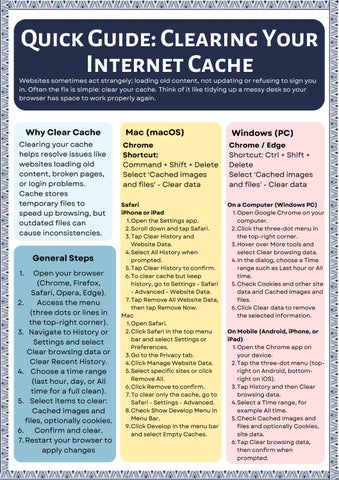
Quick Guide: Clearing Your Internet Cache
Websites sometimes act strangely; loading old content, not updating or refusing to sign you in. Often the fix is simple: clear your cache. Think of it like tidying up a messy desk so your browser has space to work properly again.
Why Clear Cache Clearing your cache helps resolve issues like websites loading old content, broken pages, or login problems. Cache stores temporary files to speed up browsing, but outdated files can cause inconsistencies.
General Steps 1.
Open your browser (Chrome, Firefox, Safari, Opera, Edge). 2. Access the menu (three dots or lines in the top-right corner). 3. Navigate to History or Settings and select Clear browsing data or Clear Recent History. 4. Choose a time range (last hour, day, or All time for a full clean). 5. Select items to clear: Cached images and files, optionally cookies. 6. Confirm and clear. 7. Restart your browser to apply changes
Mac (macOS)
Windows (PC)
Chrome Shortcut: Command + Shift + Delete Select 'Cached images and files' - Clear data
Chrome / Edge Shortcut: Ctrl + Shift + Delete Select 'Cached images and files' - Clear data
Safari iPhone or iPad 1.Open the Settings app. 2.Scroll down and tap Safari. 3.Tap Clear History and Website Data. 4.Select All History when prompted. 5.Tap Clear History to confirm. 6.To clear cache but keep history, go to Settings - Safari - Advanced - Website Data. 7.Tap Remove All Website Data, then tap Remove Now. Mac 1.Open Safari. 2.Click Safari in the top menu bar and select Settings or Preferences. 3.Go to the Privacy tab. 4.Click Manage Website Data. 5.Select specific sites or click Remove All. 6.Click Remove to confirm. 7.To clear only the cache, go to Safari - Settings - Advanced. 8.Check Show Develop Menu in Menu Bar. 9.Click Develop in the menu bar and select Empty Caches.
On a Computer (Windows PC) 1.Open Google Chrome on your computer. 2.Click the three-dot menu in the top-right corner. 3.Hover over More tools and select Clear browsing data. 4.In the dialog, choose a Time range such as Last hour or All time. 5.Check Cookies and other site data and Cached images and files. 6.Click Clear data to remove the selected information. On Mobile (Android, iPhone, or iPad) 1.Open the Chrome app on your device. 2.Tap the three-dot menu (topright on Android, bottomright on iOS). 3.Tap History and then Clear browsing data. 4.Select a Time range, for example All time. 5.Check Cached images and files and optionally Cookies, site data. 6.Tap Clear browsing data, then confirm when prompted.