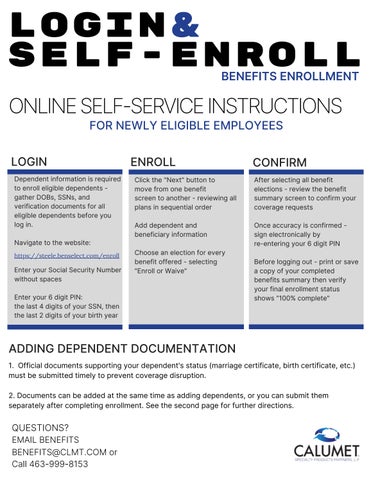
login& SELF-Enroll BENEFITS ENROLLMENT
ONLINE SELF-SERVICE INSTRUCTIONS FOR NEWLY ELIGIBLE EMPLOYEES
LOGIN
ENROLL
CONFIRM
Dependent information is required to enroll eligible dependents gather DOBs, SSNs, and verification documents for all eligible dependents before you log in.
Click the "Next" button to move from one benefit screen to another - reviewing all plans in sequential order
After selecting all benefit elections - review the benefit summary screen to confirm your coverage requests
Add dependent and beneficiary information
Once accuracy is confirmed sign electronically by re-entering your 6 digit PIN
Navigate to the website: https://steele.benselect.com/enroll
Enter your Social Security Number without spaces
Choose an election for every benefit offered - selecting "Enroll or Waive"
Enter your 6 digit PIN: the last 4 digits of your SSN, then the last 2 digits of your birth year
Before logging out - print or save a copy of your completed benefits summary then verify your final enrollment status shows "100% complete"
ADDING DEPENDENT DOCUMENTATION 1. Official documents supporting your dependent's status (marriage certificate, birth certificate, etc.) must be submitted timely to prevent coverage disruption. 2. Documents can be added at the same time as adding dependents, or you can submit them separately after completing enrollment. See the second page for further directions.
QUESTIONS? EMAIL BENEFITS BENEFITS@CLMT.COM or Call 463-999-8153
ADDING DEPENDENT DOCUMENTATION AFTER ENROLLMENT 1. Log in to the enrollment portal using the instructions on the first page. 2. Choose "Dependents" from the "You and Your Family" menu at the top. 3. Click the pencil next to the dependent who requires documentation. 4. Follow the remaining instructions located in the During Enrollment instructions.
DURING ENROLLMENT 1. After adding your dependent's demographic information, scroll to the bottom of the page. 2. Choose the type of documentation you're submitting. 3. Use the blue upload icon to upload the document. 4. Click "Save." 5. Your HR team will review and approve your submitted documents.