REQUEST BENEFIT CHANGES
ONLINE
FOLLOWING QUALIFYING LIFE EVENTS
If you or a dependent have experienced a Qualifying Life Event in the past 30 days, you may be eligible to change your current benefit elections. Follow the steps below to login, record the life event, request coverage changes and upload supporting documentation using online self-enrollment.
LOGIN Go to the website: https://steele.benselect.com/enroll Enter Your Full 9 digit SSN Enter PIN: Last 4 digits of your SSN, then last 2 digits of your birth year - 6 digits total
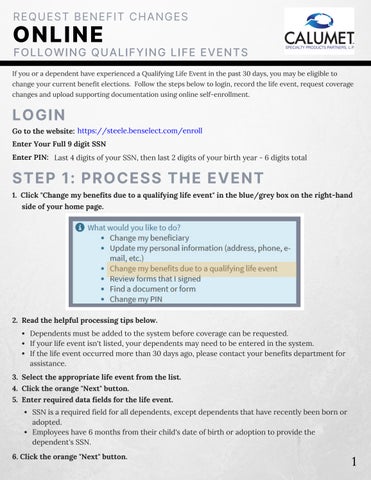
STEP 1: PROCESS THE EVENT 1. Click "Change my benefits due to a qualifying life event" in the blue/grey box on the right-hand side of your home page.
2. Read the helpful processing tips below. Dependents must be added to the system before coverage can be requested. If your life event isn't listed, your dependents may need to be entered in the system. If the life event occurred more than 30 days ago, please contact your benefits department for assistance.
3. Select the appropriate life event from the list. 4. Click the orange "Next" button. 5. Enter required data fields for the life event. SSN is a required field for all dependents, except dependents that have recently been born or adopted. Employees have 6 months from their child's date of birth or adoption to provide the dependent's SSN.
6. Click the orange "Next" button.
1
STEP 1: PROCESS THE EVENT (Continued) 7. Enter your 6 digit PIN to confirm electronically. Last 4 of your SSN, then last 2 of your birth year. 8. Click the orange "check mark" button. Then proceed to the next section!
ATTENTION!! You have not updated any of your benefits yet! Make sure to continue to Step 2 if you want to make updates to your benefit coverages.
STEP 2: ADDING OR REMOVING BENEFITS 1. Check all of the boxes next to the plans and click "Next".
2. Follow the enrollment instructions for each plan. Select plans and covered dependents. If a dependent's name is not shown on your enrollment screen, contact your benefits department to add them.
Are all of your dependents listed? If not, contact your benefits department
3. Click "Enroll" or "Decline" for each plan. 4. Click the orange "Next" button.
2
STEP 3: REVIEW ELECTIONS 1. Review coverage requests to confirm accuracy. If elections need modified, click "Back" and "Unlock" to review and edit. Use "Next" to return to your coverage summary page to review updates. 2. Enter your 6 digit PIN to confirm electronically. Last 4 of your SSN, then last 2 of your birth year.
STEP 4: UPLOAD OFFICIAL DOCUMENTS 1. Official documents supporting a life event MUST be submitted timely to prevent coverage disruption. Upload copies of official documents supporting the event into the enrollment system, within 30 days of the event to prevent coverage disruptions. (Birth or marriage cert., divorce decree, proof of coverage loss, etc.). 2. Hover over the "You & Your Family" tab, selecting "Dependents." 3. Click the pencil for the dependent tied to the life event. Birth? Click the new baby's pencil. Marriage? Click the spouse's pencil. Spouse lost similar coverage? Click the spouse's pencil.
4. Scroll down on the page - to "Dependent Documentation." 5. Select the form you will upload - using the drop down box. 6. Click the arrow icon - to upload a verification document. 7. Click "Save" - to attach event documentation for the dependent.
3
STEP 4: UPLOAD OFFICIAL DOCUMENTS (Continued)
1
2
3
STEP 4: FINALIZE ELECTIONS 1. Return to the "Sign and Submit" tab, click "Next." 2. Re-enter your 6 digit PIN to confirm your benefit requests. Last 4 of your SSN, then last 2 of your birth year. 3. Coverage changes will NOT be approved without a final PIN signature and life event documentation.
4