Acuity – How to Schedule an Appointment - Online
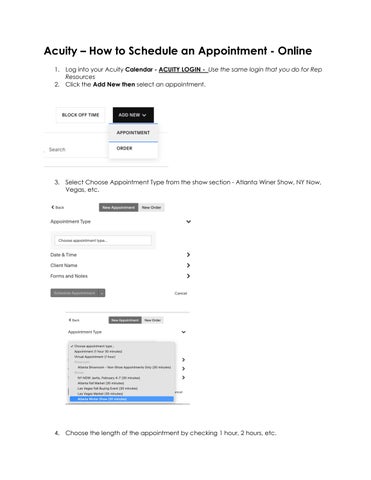
1. Log into your Acuity Calendar - ACUITY LOGIN - Use the same login that you do for Rep Resources
2. Click the Add New then select an appointment.

3. Select Choose Appointment Type from the show section - Atlanta Winer Show, NY Now, Vegas, etc.


4. Choose the length of the appointment by checking 1 hour, 2 hours, etc.

5. Choose a calendar – it should default to your already but if not then select your name.

6. Choose a date and an available time from the box on the right. To choose a date and time outside your availability, click Custom. If you choose a date and time outside your availability, a warning will appear, but that doesn't prevent you from scheduling the appointment.

7. Enter your client’s contact information. Include an email address to send the client email notifications about the appointment.
• Please enter appointments with as much information as possible.
• “Store Name” can be entered under “first name”
• “First and Last Name” of the buyer under “last name”
• Phone
*Note the First Name and Last Name will appear on your calendar invite

8. PLEASE expand Forms and Notes – and update these sections:
• In the notes field please add the # of lunches you are requesting

9. Select the showroom where you want to meet them.
10. Enter the Store Name
11. How many people will be attending Market.


12. Click Schedule appointment or use the arrow to select Schedule, but don’t send confirmation notifications
13. Click Save, then click Close.