IINFORMATION INFORMATION NFORMATION
TECHNOLOGY TECHNOLOGY TECHNOLOGY

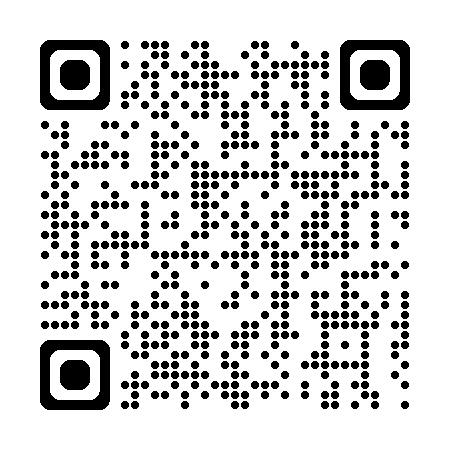
We’re here to help! If you have questions or need support, our online resources can give you quick answers. For tech issues or questions about specific resources visit the pages on our website:
Hostos Login:
Computer access
Hostos Wireless
Printing/copy services
Single Sign On Portal
Access to other Hostos web applications
CUNYfirst Login: CUNYfirst Portal Email Services Brightspace
Microsoft Office 365 Eduroam
Each login method is protected using a designated authentication system to ensure secure access:
Hostos Login utilizes Single Sign-On (SSO) for seamless and secure authentication across Hostos platforms.
CUNYfirst Login employs Multi-Factor Authentication (MFA) to enhance security and protect sensitive user information.

Use your CUNYFIRST username and password to log into your Hostos email account.
Your email address follows this format: networklogin@stu.hostos.cuny.edu (e.g., jdoes@stu.hostos.cuny.edu)
•Multi-Factor Authentication (MFA) is required to log into your email
•You will need a working phone or smart device to complete the authentication process
•Two authentication methods (primary and backup) are necessary to ensure uninterrupted access to your email
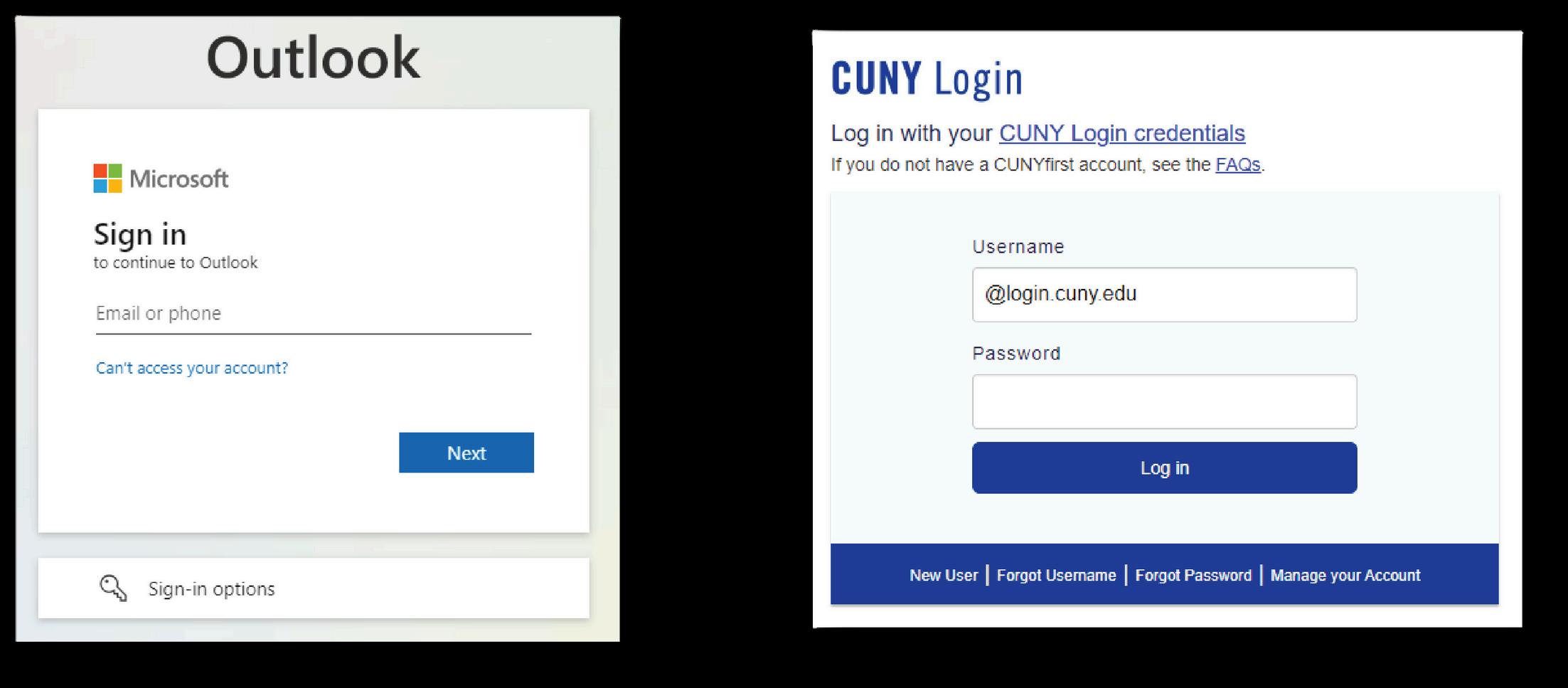
1. Go to https://outlook.office.com/
2. Enter your CUNYfirst username (ex. joe.doe26@login.cuny.edu)
3. Click Next
4. Will get redirected to the CUNYfirst Login page to sign in with your CUNYfirst login and password.
5. Click login and you will be signed in to your Hostos email
NOTE:
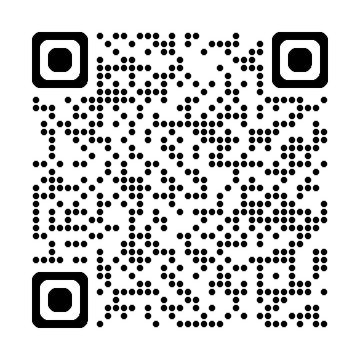
All users must have already set up MFA (Multi-Factor Authentication) in order to log in For instructions visit: www.hostos.cuny.edu/MFA or SCAN QR CODE
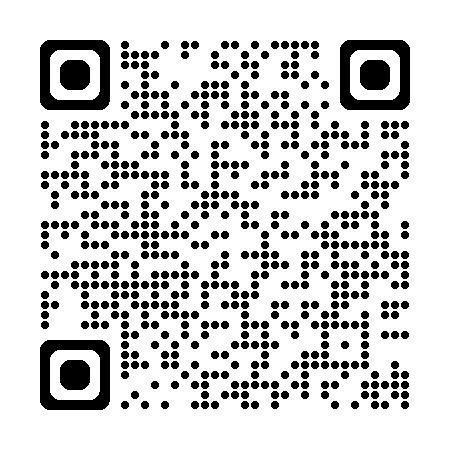
CUNY Login Account Self-Service
Users can visit: managelogin.cuny.edu/ or SCAN QR CODE
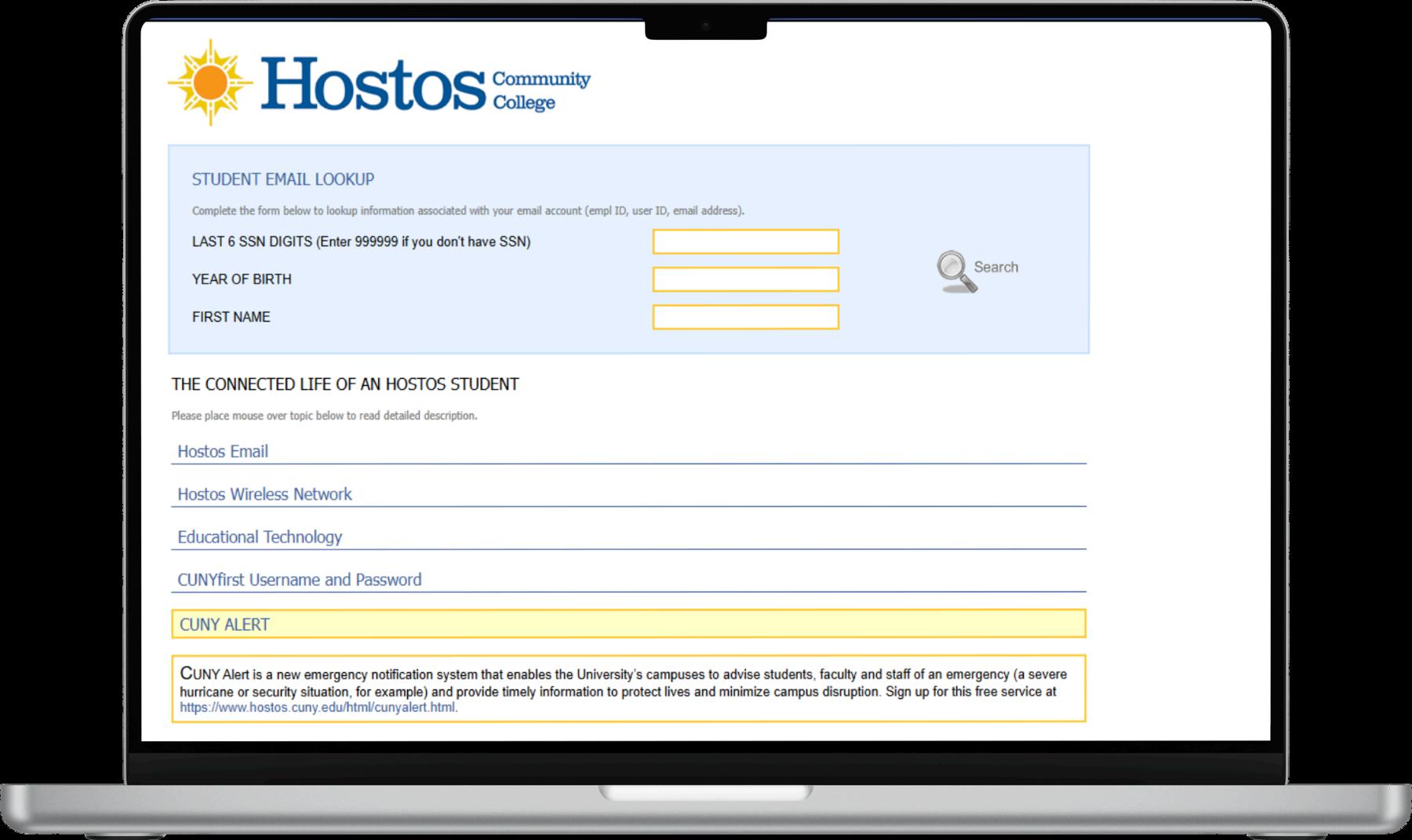
Go to: https://apps.hostos.cuny.edu/AccountLooku p/Students.aspx
1. Fill out the form, then click on the magnifying glass to locate your details.
2. Click on the link that reads: HOSTOS EMAIL To locate your default password.

Visit the Student Computing Lab to log on and set up a password.
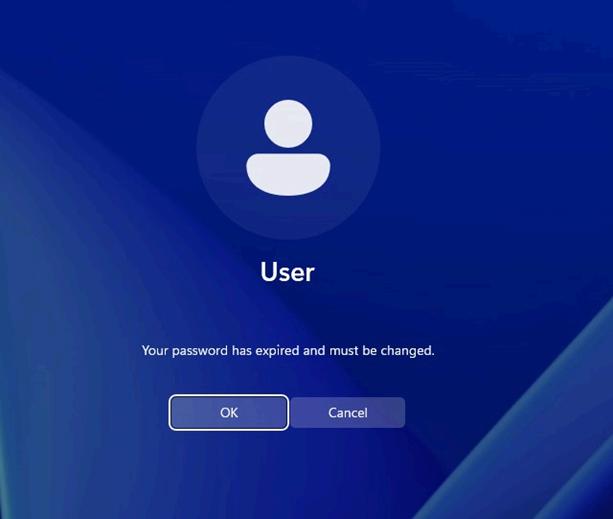
There will be a message that reads: “Your password has expired and must be changed.”
Password Requirements:
•Between 8 – 13 characters
•At least one uppercase letter
•At least one lowercase letter
•At least one number
•At least one symbol
•Must not contain your name, birthdate, or social security number
•Must be a new password (cannot reuse previous passwords)
If there is a problem, visit the IT Office with your Hostos ID or NYS ID
You can reset your password at any time before it expires by logging on to a lab computer and by pressing CTRL+ALT+DEL. Enter your current password and follow the prompt to create a new one.
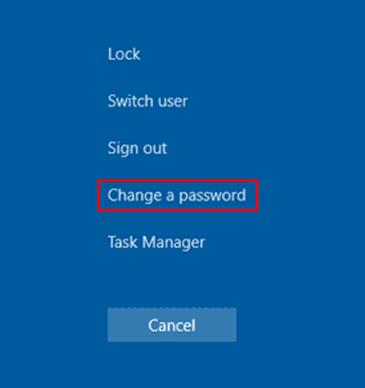
If your password has already expired, visit the IT Office with your Hostos ID or NYS ID for assistance.
For access to the computer lab or for printing/copying services, the Student Computing Center at C-595 is available to students
Student support staff are available in the lab during the hours of operation to assist students with any technical issues they may encounter.
By the counter in C-595, staff provide support for students with claiming or resetting passwords for Hostos e-mail, and CUNYfirst.
The Open Computer Lab hours are Monday - Friday from 8:30 AM – 7:00 PM Saturday and Sunday are Closed

CUNY students can connect to the eduroam Wi-Fi network on their devices using their CUNY Login credentials (CUNYfirst username and password) to access the internet at CUNY campuses and other participating eduroam institutions worldwide.
Visitors from other eduroam institutions can also connect to CUNY’s eduroam network using their home institution credentials. For assistance, contact the CUNY IT helpdesk.
Scan QR code to visit page for more information

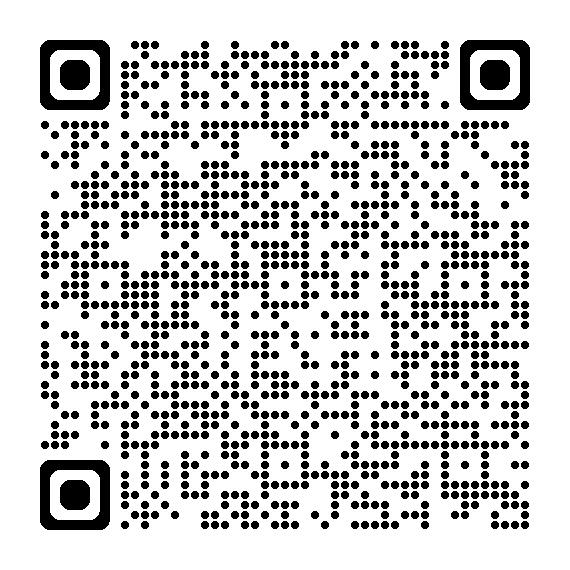
Single Sign-On (SSO) offers a streamlined and secure way to access Hostos applications and CUNYFIRST logins.
Key Features:
Provides access to multiple Hostos web portals with a single set of credentials.
Enables password management, including saving and updating for each portal.
Adds an extra layer of security through options like authenticator apps or security questions.
Allows off-campus access to Hostos web portals.
FordetailedinstructionsonsettingupSSO: https://www.hostos.cuny.edu/SSO/How-To-s
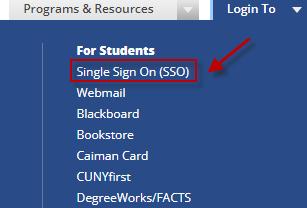
Setup is required upon logging in at the following page
Forinstructionalvideos: https://www.hostos.cuny.edu/AdministrativeOffices/Information-Technology/SSO/How-To-Videos
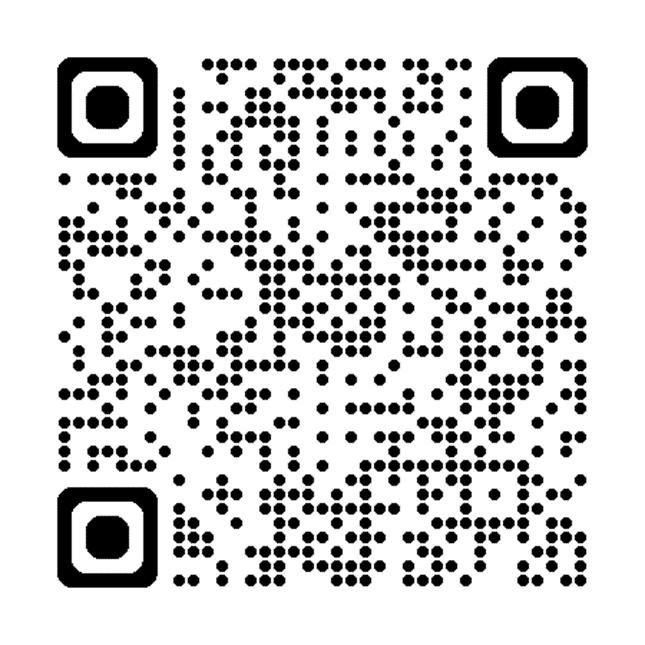

CUNYfirst (Fully Integrated Resources and Services Tool) is the City University of New York's online system where students can manage their college information. Through CUNYfirst, you can register for classes, view your schedule, check grades, track your financial aid, and manage personal details—all in one place.
Once you have claimed your account in CUNYfirst, the CUNYfirst system will send messages only to your Hostos College email address. Make sure that you have activated your Hostos email account.
After claiming your account, it is imperative that you keep your CUNYfirst ID (EMPLID) handy, because you Social Security number will no longer be used to access student information
Visit here for more information: https://www.hostos.cuny.edu/CUNYfirst
Service at Hostos (Student Help Request System) is an online system where you can request help with things like technology issues, password resets, printing problems, or questions about campus services. It’s the fastest way to get support—just submit a ticket, and the team will follow up with you.

To create and manage requests and find information on available services in the Service At Hostos portal or visit https://www.hostos.cuny.edu/Service@Hostos.
Your login will be your full Hostos email address (ie. flastname@hostos.cuny.edu if you are faculty or staff member or flastxxxx@hostos.cuny.edu if you are a student; xxxx = the last four digits of your EMPLID. In all cases the password is your Hostos account password.
For general questions regarding Service At Hostos, please contact the IT Service Desk for assistance at 718-518-6646.
You may also visit the IT department for general IT assistance in room B-420.

The Caiman Card is your official Hostos ID and offers convenient features designed with students in mind. In addition to serving as your campus identification, it functions as a prepaid card that can be used at various locations on campus once funds are added.
With your Caiman Card, you can: Access campus buildings
Print and make copies in the computer lab (C-595) and library (A-308)
The Caiman Card makes it easy to manage everyday tasks on campus with one secure and convenient tool.
visit this link for more information: https://www.hostos.cuny.edu/caimancard