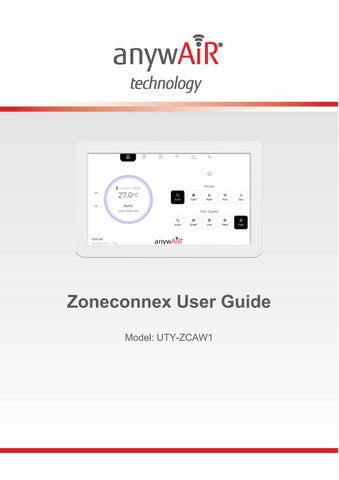
Zoneconnex User Guide Model: UTY-ZCAW1
WELCOME Welcome to your new anywAiR® Technology Zoneconnex system. This guide will help you set up and access the wall-mounted TouchPoint screen and anywAiR® Zoneconnect mobile app, so you can start controlling your air conditioning. Once set up, you can easily: ● ● ●
Adjust temperature settings Change operating modes Control airflow across different zones in your home
1. SETUP WI-FI ON THE TOUCHPOINT LCD: a) On the TouchPoint LCD, press the Wi-Fi button on the navigation bar.
b)
If no network is connected, press Scan Wi-Fi to search for available networks.
Zoneconnex User Guide
1
c)
Select your desired network and press Connect.
d)
Enter the network password using the on-screen keyboard, then press Connect. Once connected, the Wi-Fi setup screen will display network details, including: - QR code (used in Step 3 - setting up Home Screen) - Signal Strength - Speed - Security Type - Channel
Zoneconnex User Guide
2
2. INSTALL ANYWAIRⓇ ZONECONNEX MOBILE APP: Scan the QR code below to download the anywAiR® Zoneconnex App for Android or iOS then follow the prompts to install.
Android
iOS
3. SET UP YOUR ACCOUNT AND HOME: Before starting, ensure your mobile device is connected to the same Wi-Fi network as the TouchPoint screen. To check, press the Wi-Fi button on the LCD screen to view network details. CREATE OR LOG IN TO YOUR ACCOUNT: a) b) c) d)
On your mobile device, open the anywAiR® Zone App Log in or Sign-Up: Existing Users: Log in and continue to: ADD YOUR HOME. New Users: Follow the Sign-Up process below:
Zoneconnex User Guide
3
SIGN-UP NEW USERS: a) From the Login screen, press Sign-Up. b) Enter your details (Email, Password, and Confirm Password) then press Sign-Up. c) Enter the Verification Code (OTP) sent to your email (if not received, you can request a new code after 2 minutes). d) Once verified, press Next to continue. ADD YOUR HOME: a) On the Setup home screen, press Scan QR code. b) Scan the QR code displayed on the TouchPoint LCD.
c) Enter a name for your home, then press Add Home. You will be taken to the Main Control home screen.
Zoneconnex User Guide
4
4. USING YOUR TOUCHPOINT LCD MAIN CONTROLS: • • • • •
Power – Turn the unit On or Off. Mode Control – Select Auto, Cool, Heat, Fan, or Dry. Temperature – Adjust the Temperature Setpoint. Fan Speed Control – Adjust the fan speed (model dependent). Temperature Display – View setpoint and current temperature*. (*Current temperature display must be enabled during installation).
ZONE CONTROL: • • • •
Zone On/Off: Turn individual zones on or off. Airflow Control: Adjust airflow (0–100% in 5% increments) of each zone. Zone Temperature*: Check the temperature in each zone (*view-only; droplet sensor required). Sync Zones – Reset zones to restore correct airflow. Use this if airflow is not working as expected.
Zoneconnex User Guide
5
SCENES & SCHEDULES: ● Scenes – Allow you to save preferred settings (mode, temperature, fan speed, zones) and set how you want them to be activated (Directly = Run Now or via a Schedule). ● Schedules – Automatically run scenes at set times and days.
Zoneconnex User Guide
6
Zoneconnex User Guide
7
5. USER MANUALS
For full setup instructions & product documentation, scan the following QR code:
6. IMPORTANT INFORMATION: COMPATIBILITY The anywAiR® Zone Mobile App is compatible with selected General ducted air conditioning systems when used with the optional anywAiR® Zoneconnex Controller. INSTALLATION & SAFETY • • • •
Installation and servicing must be carried out by authorised and qualified personnel only. Always isolate power before wiring or servicing the Controller or LCD panel. Use only supplied or approved power supplies, antennas and cables. Do not modify, open or alter the product, as this may void safety and compliance approvals.
DATA & USAGE DISCLAIMER GENERAL Australia & New Zealand accepts no liability for incorrect data. Please ensure you have confirmed installation requirements prior to install.
Zoneconnex User Guide
8
SECURITY • •
The product does not use universal default passwords. If a password is required, it must be set by the user and should not be easy to guess.
If you identify a potential security vulnerability, please report it to your local GENERAL office using the contact information on the next page. Reporting is free of charge, and no personal information is required for initial submission. Cyber security support ends on 01/01/2029.
COMPLIANCE This product carries the RCM mark & complies with the following standards: • AS/NZS 62368.1 • AS/NZS CISPR 32 • AS/NZS 4268 COPYRIGHT & TRADEMARKS Copyright© 2026 GENERAL Australia & New Zealand. All rights reserved. Actual products’ colours may be different from the colours shown. App Store is a service mark of Apple Inc. © 2019. Google Play and the Google Play logo are trademarks of Google LLC. All other trademarks and tradenames are the property of their respective owners.
Zoneconnex User Guide
9
General Australia
New Zealand
www.generalairstage.com.au
www.generalairstage.co.nz
contact@generalairstage.com.au
contact@generalairstage.co.nz
1300 882 201
0456 88761
Zoneconnex User Guide
10