anywAiR Ducted Controller - Google Home Integration

Page 1


Google Home User Guide

for anywAiR® technology ducted controller

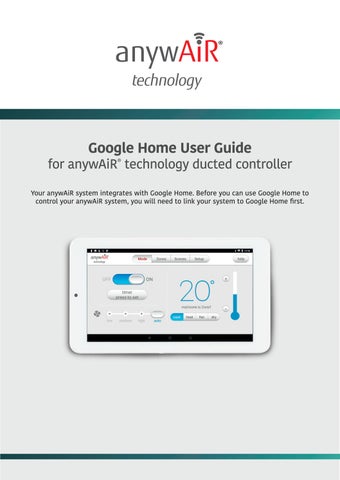
Your anywAiR system integrates with Google Home. Before you can use Google Home to control your anywAiR system, you will need to link your system to Google Home first.
How to Link anywAiR Ducted to Google Home

Step 1. Install the Required Apps

a. Open the Google Play Store or App Store on your phone.

b. Make sure the following apps are installed and updated: - Google Home - Google Assistant (usually pre-installed) - anywAiR app

Step 2. Link anywAiR ducted in Google Home

a. Open the Google Home app.

b. Locate Add Button to link a service which works with google.

c. Search for “anywAiR Ducted” and select it.

e. Follow the prompts and confirm to continue.

Step 3. Link Your Account and Assign the Aircon to a Room

a. On the wall-mounted touch screen, open the anywAiR app.

b. Go to Setup -> Tap Enable Google Home button to activate Pair Account, then tap the add button under Pair Account.

c. Press generate to create a one-time access code.

d. Enter the 4-digit PIN code from the touch screen into the Google Home app on your Android device.

If you are having issues linking your controller to Google Home, visit Google’s support page: https://support.google.com/googlenest/answer/9159862?hl=en-AU

Alternatively, contact our Technical Support Team for further assistance.

AU - 1300 364 484 NZ - 04 568 8761

Once you have linked Google Home to the anywAiR Ducted Controller, you can do the following:

- Basic air-conditioning control (on/off, mode, temperature, fan speed)

- Open or close the garage

There are several ways you can use Google Home to control your system:

1. Voice Commands

You can now control the system using Google Assistant.

Examples:

“Hey Google, turn on/off the aircon.”

“Hey Google, set the aircon to 22 degrees.”

“Hey Google, change the fan speed to high.”

“Hey Google, open (or close) the garage door.”

2. Google Home app

a. Open the Google Home app.

b. Tap the Aircon button to turn the aircon on or off.

c. Tap the Garage button to open or close the garage door (if applicable).

d. Press and hold the Aircon button to access additional aircon controls.

e. Press and hold the Garage button to bring up the Open/Close control.

NOTE:

Please be aware that the Google Home app allows for temperature adjustments in 0.5° increments. In contrast, the anywAiR wall-mounted touch screen only supports 1.0° increments.

This difference is a standard characteristic of the Google Home interface and cannot currently be adjusted within the anywAiR settings.

NOTE:

3. Google Home Widgets

Android

a. Long-press (tap and hold) on an empty area of the home screen -> select Widgets.

b. Scroll through the widget list and look for Home.

c. Tap and hold the Google Home Device Control widget, then drag it to your home screen.

d. Choose Favorites to show your favourite devices, or Custom to select specific devices on the Widget Controls page.

iPhone

a. Long-press (tap and hold) on an empty area of the home screen until the apps start to jiggle.

b. Tap the Edit button in the top-left corner and then Tap Add Widget.

c. Search for Google Home and tap Add Widget.

d. Press and hold the widget, then tap Edit Widget.

e. Tap Home and choose your home.

Tap Widget Controls --> Custom--> Add new item, then select the items you want to show (for example: Aircon and Garage).

Tap anywhere outside the widget to exit editing.

Google Home widgets on iPhone devices act more like shortcuts rather than traditional interactive widgets.

On Android devices, you can now:

• Tap the Aircon icon -> turn on/off quickly

• Tap Garage -> open/close (if applicable)

iPhone
Android

Turn static files into dynamic content formats.

Create a flipbook
Issuu converts static files into: digital portfolios, online yearbooks, online catalogs, digital photo albums and more. Sign up and create your flipbook.