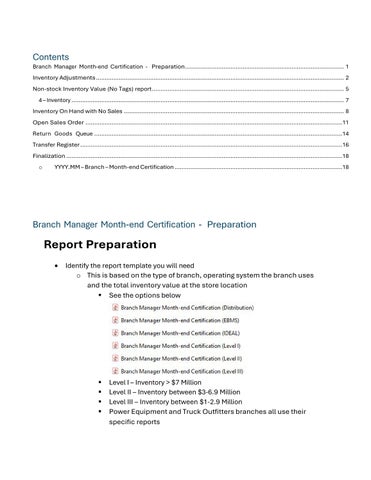
• Identify the report template you will need
o This is based on the type of branch, operating system the branch uses and the total inventory value at the store location
See the options below Level I – Inventory > $7 Million Level II – Inventory between $3-6.9 Million
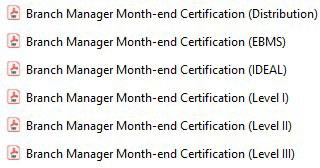
Level III – Inventory between $1-2.9 Million
Power Equipment and Truck Outfitters branches all use their specific reports
Inventory Adjustments
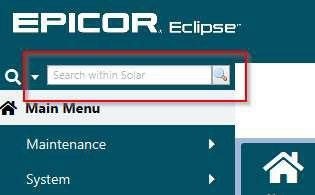
• Use the search bar in the top left corner
o Search “Inventory Adjustments Register”

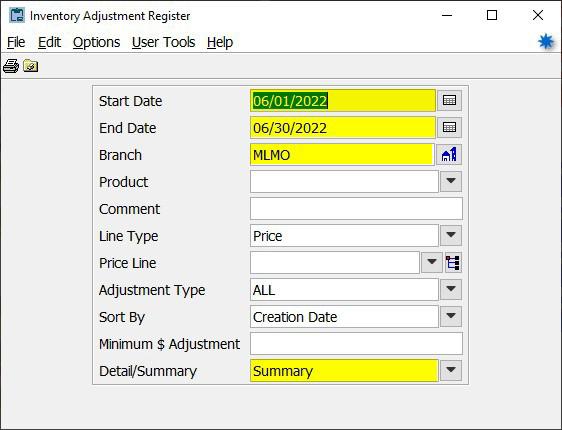
o Update the following parameters
Start Date: The first day of the prior month
End Date: The final day of the prior month
Branch
Detail/Summary: Summary
• Run the report

• Review the report and ensure comfortability with all inventory adjustments made for the report period
o If the total of the inventory adjustments report is greater than the monthly threshold then items need to be initialed until the adjusted total is below the threshold
See the example below. MLHB is a Level III branch with a $2,500 monthly adjustment threshold. The total adjustments were $4,140.46

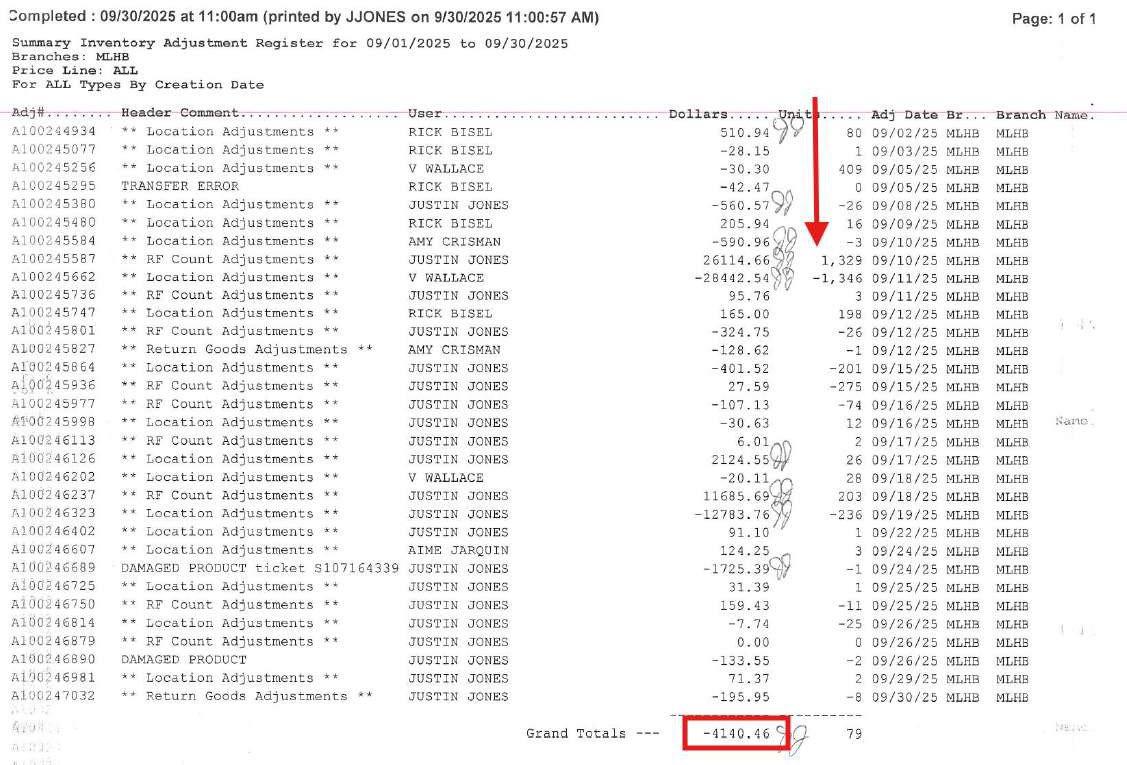
The total on the report is $4,140.46 and $3,667.38 was initialed making the total remaining amount on the report $473.08
• Once reviewed, initial the first page of the Branch Manager Month-end Certification to the right side of the row ‘Inventory Adjustments Register (summary) report, month’

• Transfer the total from the Summary Inventory Adjustments Register to the second page of the Branch Manager Month-end Certification which is the Summary of Reports
o Enter the total on the corresponding line for Inventory Adjustments Report Grand Total – Dollars

• Attach the Summary Inventory Adjustments report to the Branch Manager Month-end Certification
Non-stock Inventory Value (No Tags) report
• Use the search bar in the top left corner
o Search “Inventory Valuation”
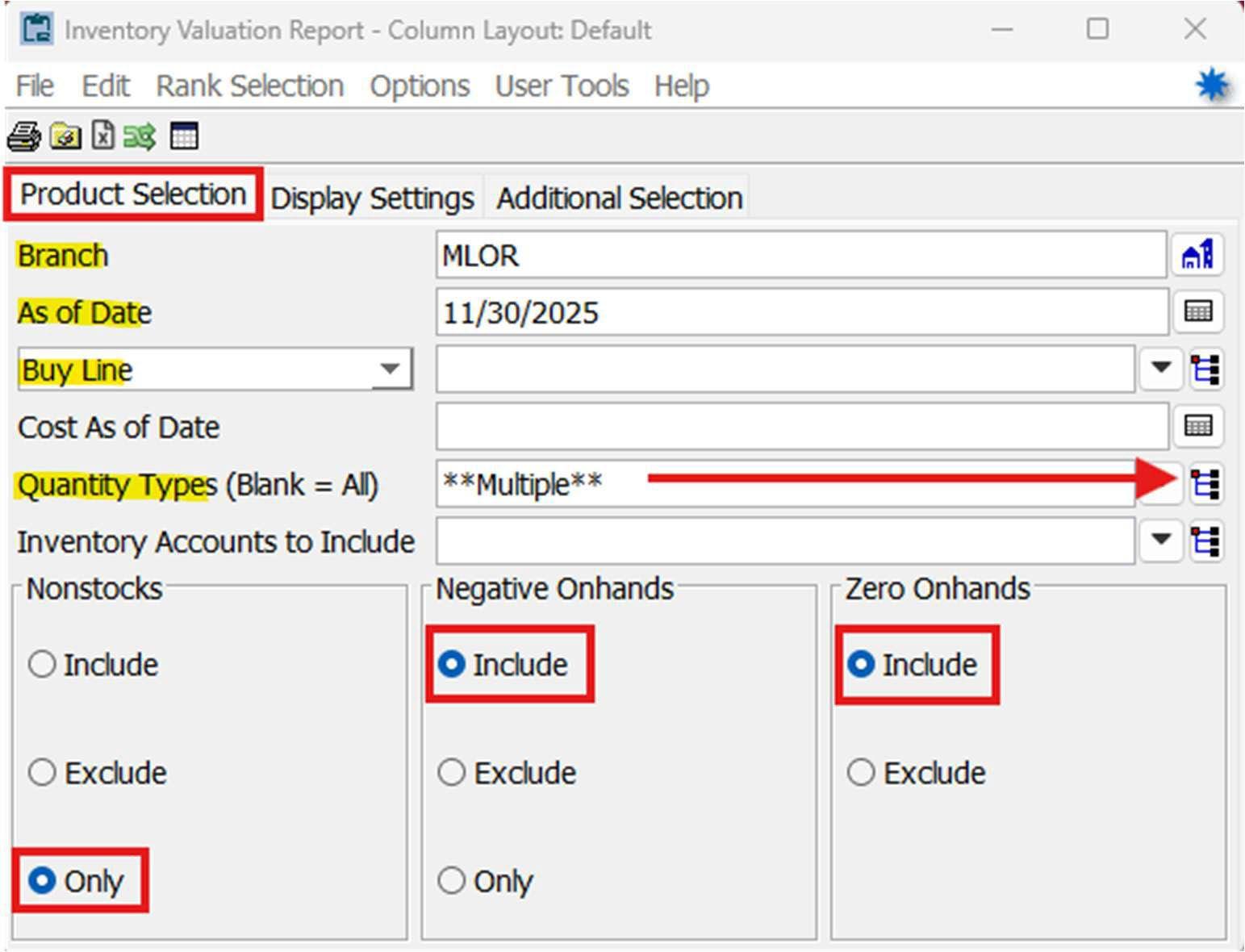
• Update the following parameters
o Branch
o As of Date: Month-end Date
o Select By: Buy Line
o Cost As of Date: [Blank]
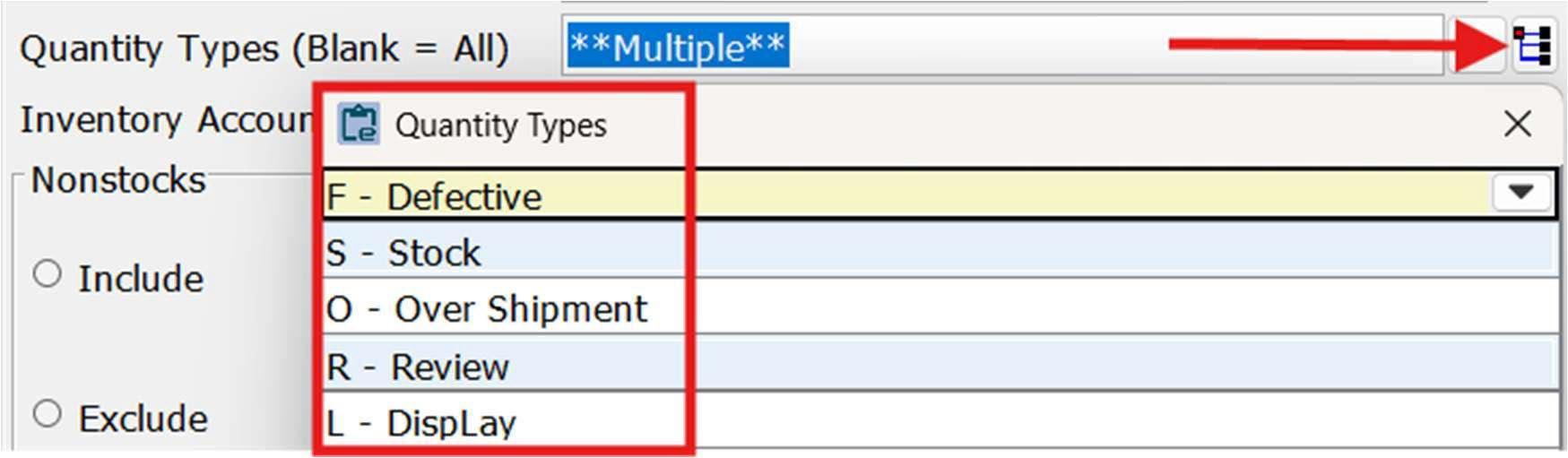
o Quantity Types: All except for “Tagged” (Recall List)
Select each quantity type except “Tagged”
o Inventory Accounts: [Blank]
o Nonstocks: Only
o Negative Onhands: Include
o Zero OnHands: Exclude
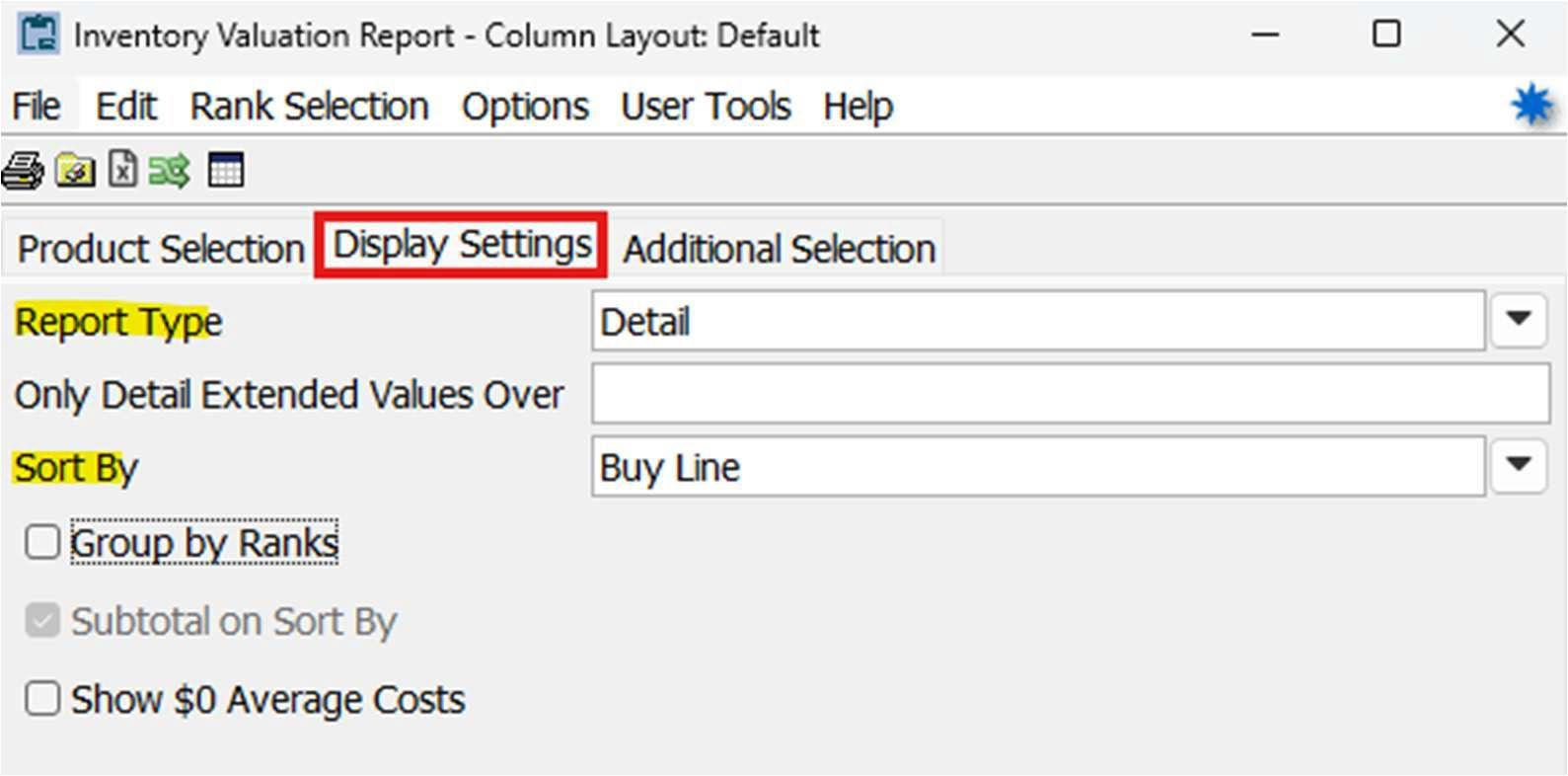
o Display Settings Tab
Report Type: Detail
Sort By: Buy Line
• Review the report and document if action needs to be taken for items needing to be written of, reclassified, transferred to another, etc.
• Once reviewed, initial the first page of the Branch Manager Month-end Certification to the right side of the row ‘Non-stock Inventory Value (No Tags) report’
• Transfer the total from the Non-Stock Inventory Value (No Tags) report to the second page of the Branch Manager Month-end Certification which is the Summary of Reports
• Document the ‘% of Total Inventory’ total on the second page as well

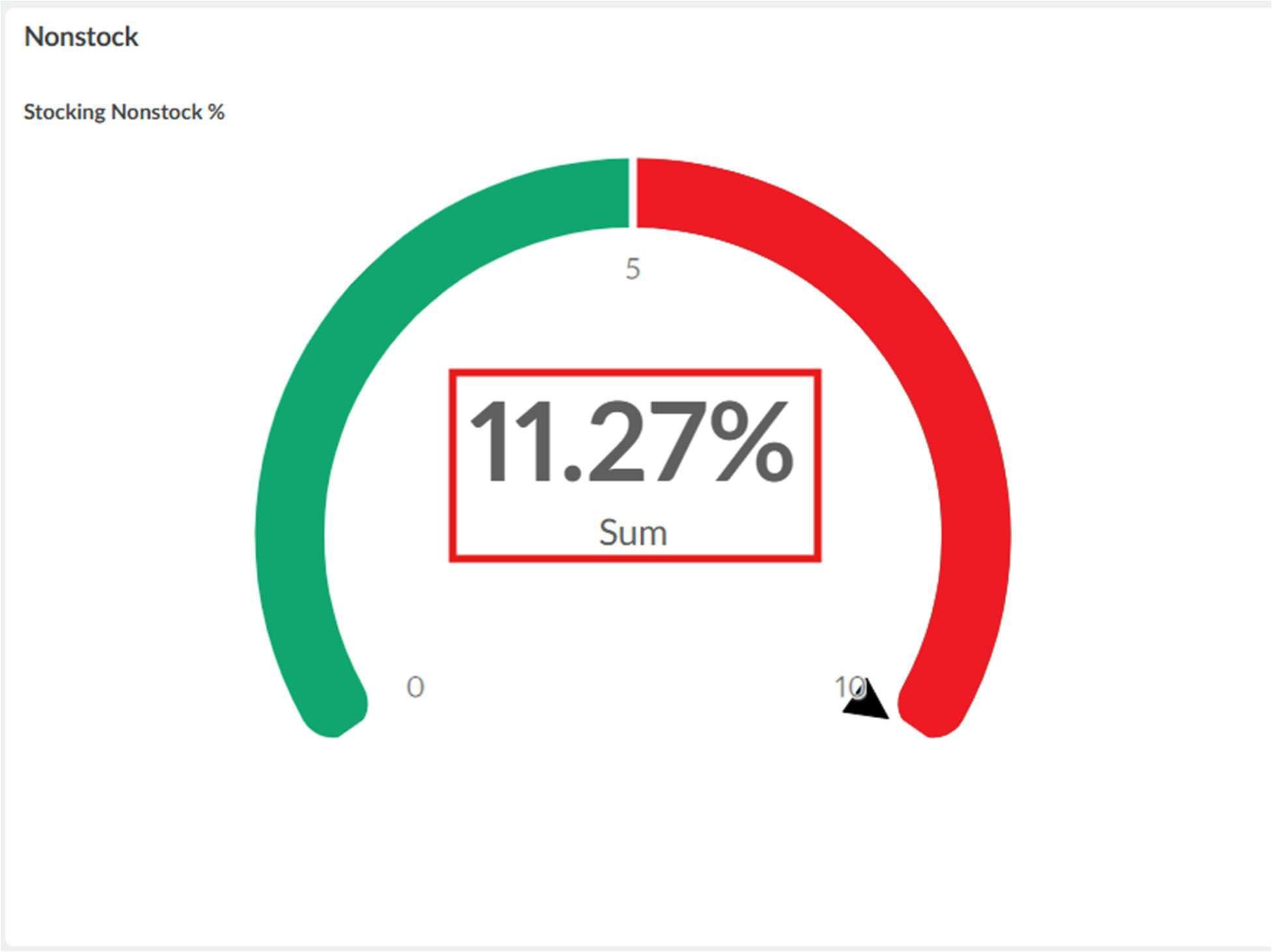
o This can be found through the branch manager inventory Phocas dashboard:
4 – Inventory
Find the Nonstock widget and enter the percentage on the second page of the certification
• Attach the Non-Stock Inventory Value (No Tags) report to the Branch Manager Month-end Certification
Inventory On Hand with No Sales
• Use the search bar in the top left corner

o Search “Inventory on Hand with No Sales”

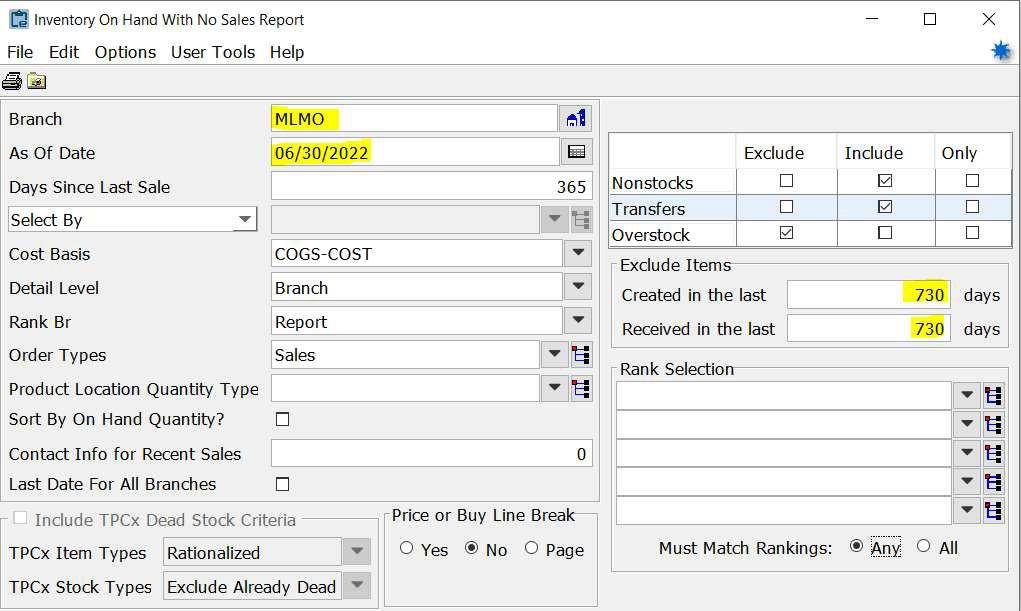
o Update the following parameters
Branch
As Of Date: The final day of the prior month
Created in the last: 730 days
Received in the last: 730 days
• Run the report
• Review the report and document if action needs to be taken for items needing to be written of, reclassified as damaged, transferred to another, etc.
o Attach any support for items written of, reclassified, or transferred to the certification
• Once reviewed, initial the first page of the Branch Manager Month-end Certification to the right side of the row ‘Inventory 21on Hand with No Sales report, as of month end’

• Transfer the total from the Inventory On Hand With No Sales Report to the second page of the Branch Manager Month-end Certification which is the Summary of Reports
o Enter the total for the current month on the top line
o Pull the beginning balance (8/1) total and enter it on the second line To initially get this number run the above report as of 8/1 for the current fiscal year
• Once it has been pulled you can transfer it from the prior month’s certification
• Example: If you are doing the January 2026 certification the date used would be 8/1/2025

• Attach the Inventory on Hand with No Sales report to the Branch Manager Month-end Certification
Open Sales Order
• Use the search bar in the top left corner
o Search “Open Sales Orders”
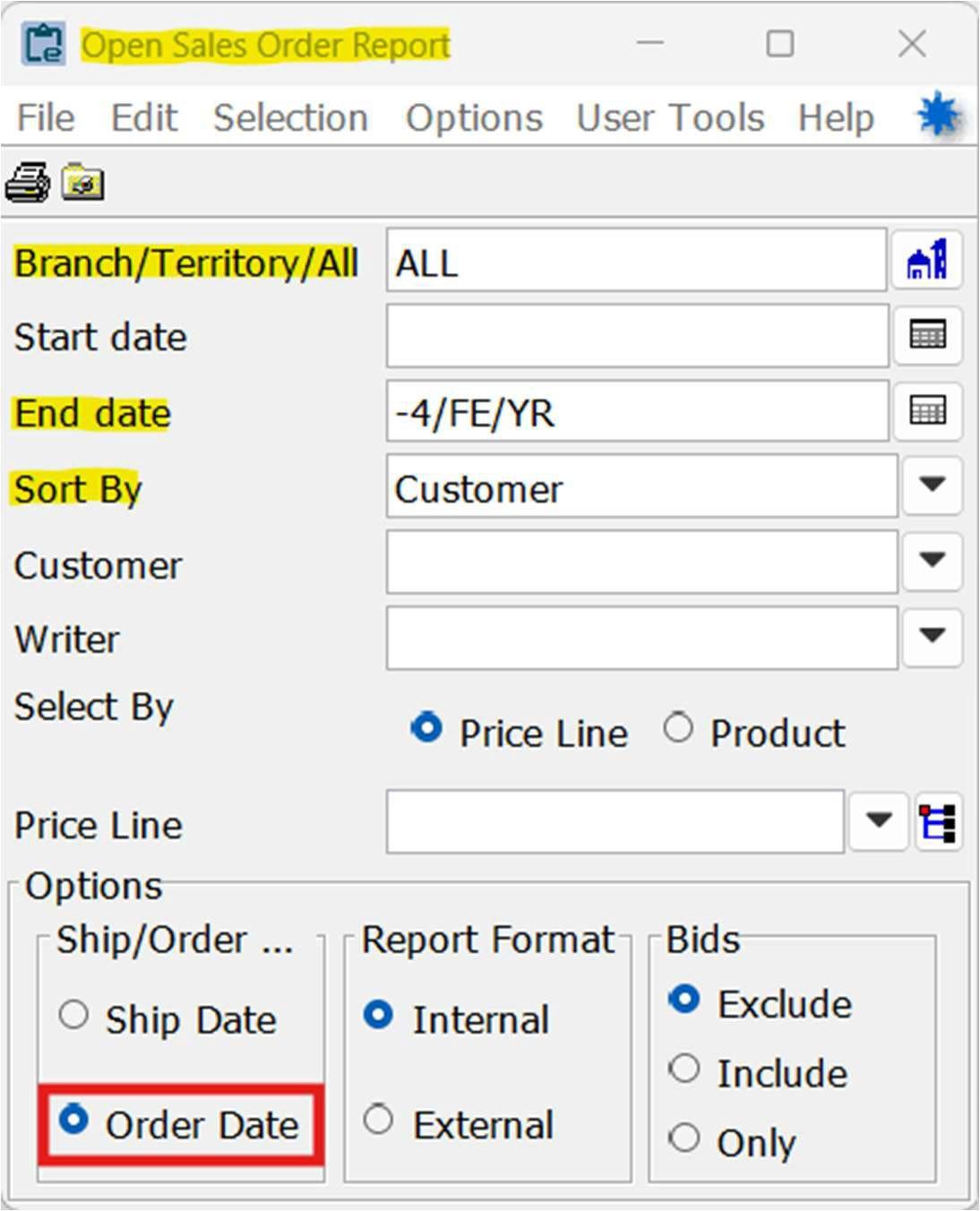
o Update the following parameters
Branch/Territory/All: ALL
Start date: [Blank]
End date: -4/FE/YR or -3/FE/YR (please note examples below)
• Example: If completing the report for the month ended December, and running the report on January 1 or after, enter “-4/FE/YR”
• Example: If completing the report for the month ended December, and running the report on December 31 or before, enter “-3/FE/YR”
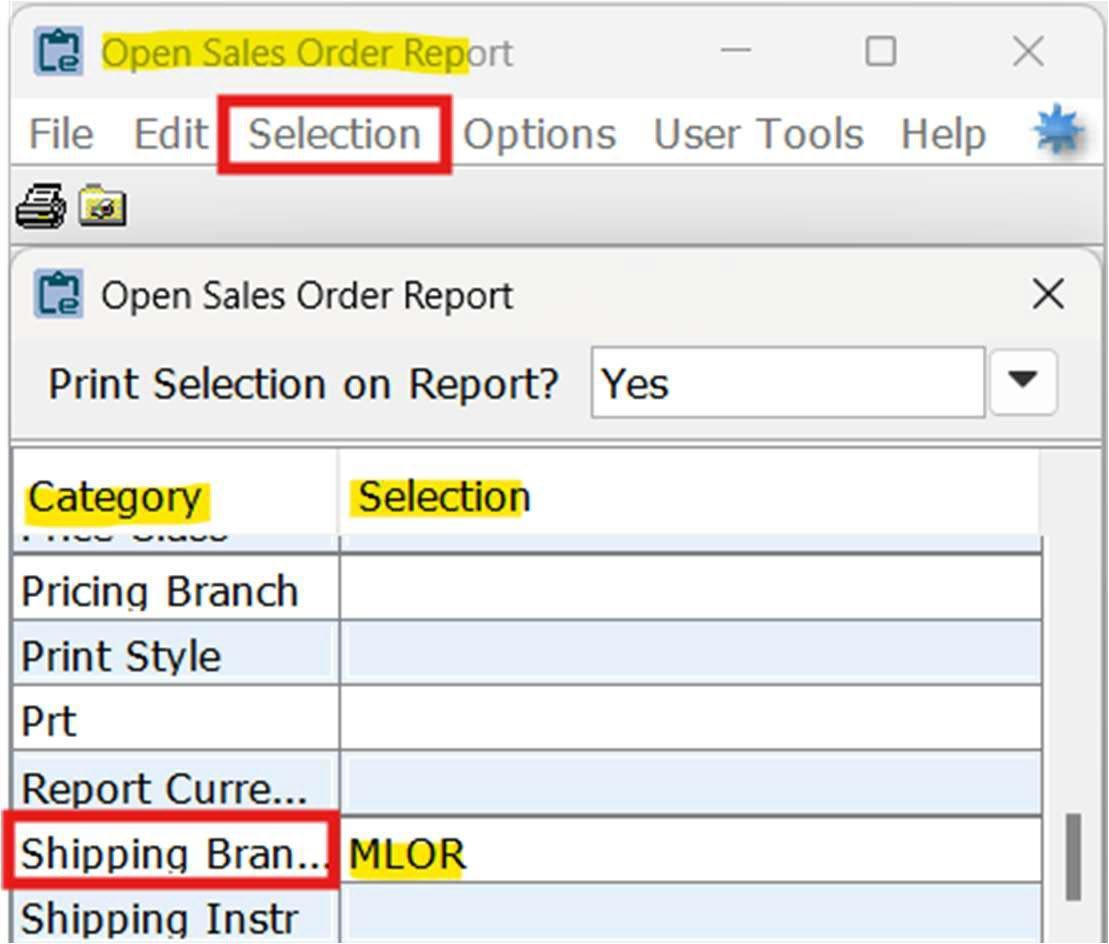
Select tab: Select Criteria
• Category: Shipping Branch
o Enter the specific branch in ‘Selection’ column
Run the report
• Review the report and ensure appropriate follow-up is happening
o These items should be reviewed on a weekly basis
• Once reviewed initial the first page of the Branch Manager Month-end Certification to the right side of the row ‘Open Sales Orders Report’
o Initials indicate the report is being reviewed on a weekly basis
• Transfer the total from the Open Sales Orders Report to the second page of the Branch Manager Month-end Certification which is the Summary of Reports

• Attach the Open Sales Orders report to the Branch Manager Month-end Certification
Return Goods Queue
• Use the search bar in the top left corner

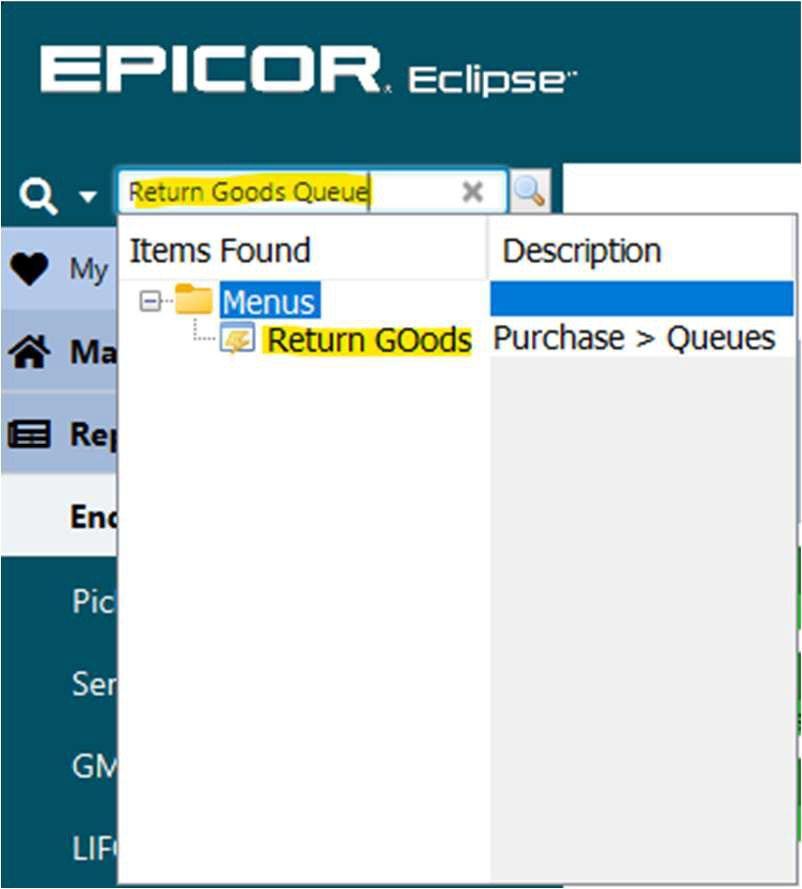
o Search “Return Goods Queue”
o Update the following parameters
Branch
Type: Select Review, Overship, Defective.
• Select Update
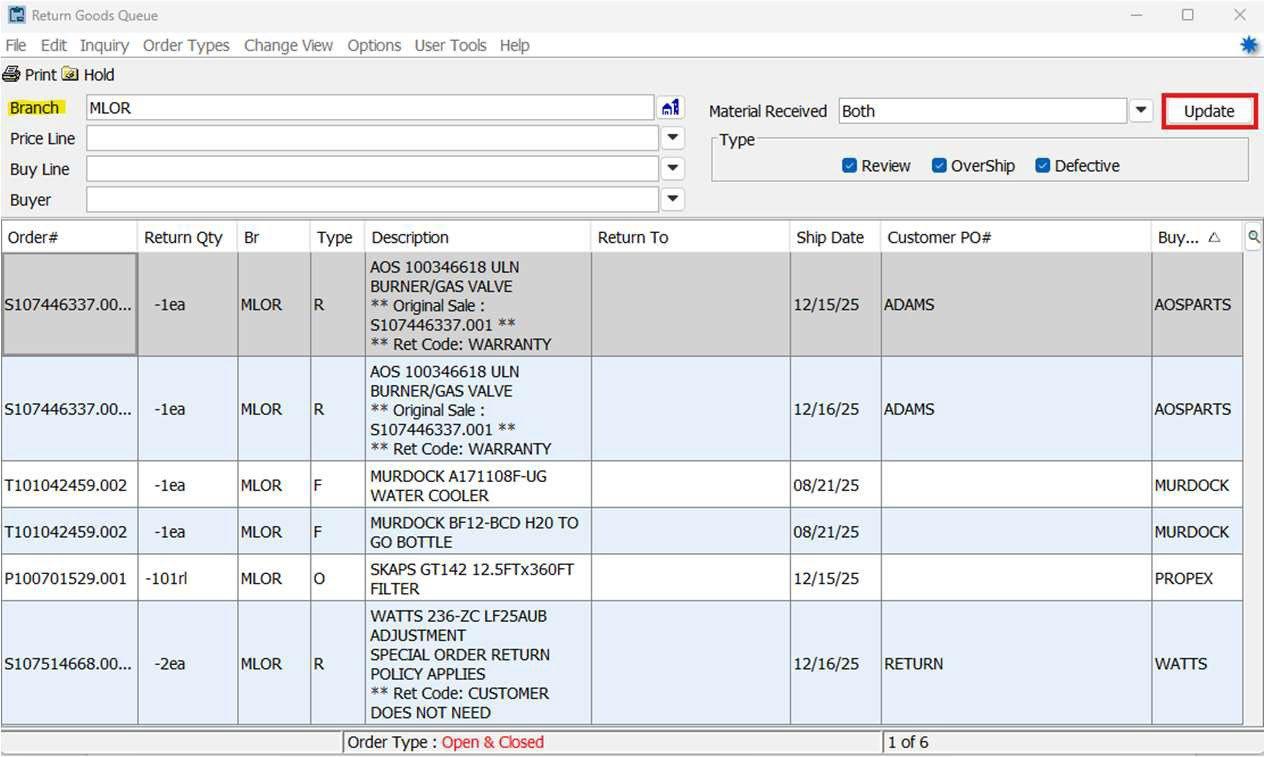
• Review the report and ensure appropriate follow-up is happening
o All outstanding R, O, and F items are being followed up on/in processing of being resolved
All R, O, and F items should have explanations documented on the report for all items
• Once reviewed initial the first page of the Branch Manager Month-end Certification to the right side of the row ‘Return Goods Queue report’
• Transfer the total number of returns from the Return Goods Queue report to the second page of the Branch Manager Month-end Certification which is the Summary of Reports

• Attach the Return Goods Queue report to the Branch Manager Monthend Certification
Transfer Register
• It is critical that these reports are run before rolling the dates to the next month
• Use the search bar in the top left corner
o Search “Transfer Register”
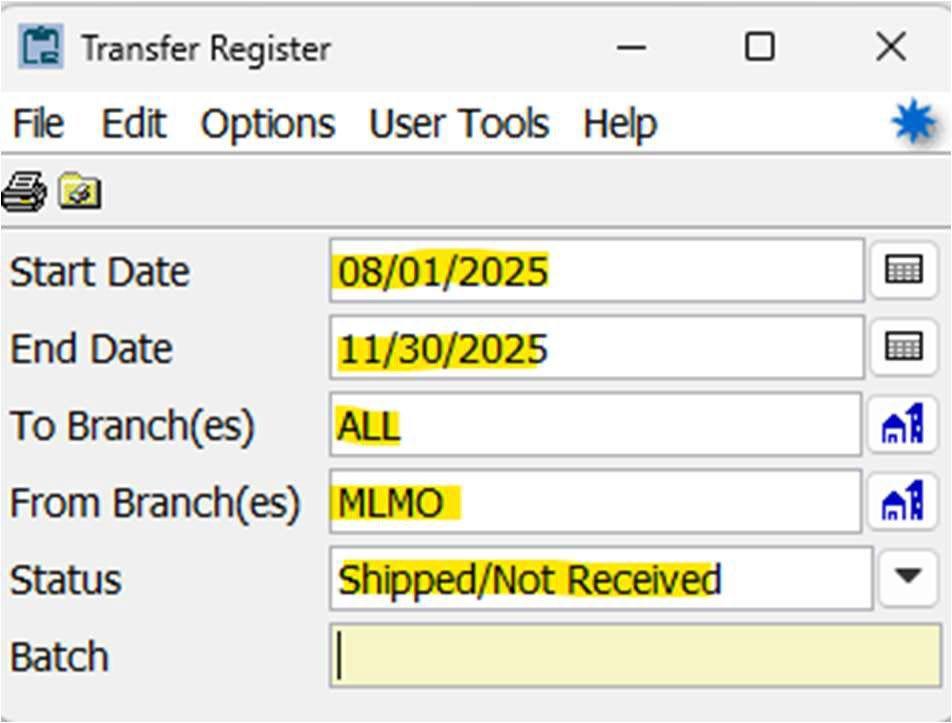
o Update the following parameters
Start date: Beginning of fiscal year
End date: Last day of the prior month
To Branch(es): ALL
From Branch(es): The specific branch the report is being performed
Status: Shipped/Not Received
• Run it a second time for disputed transfers
o All parameters are the same except Status
Status: Disputed
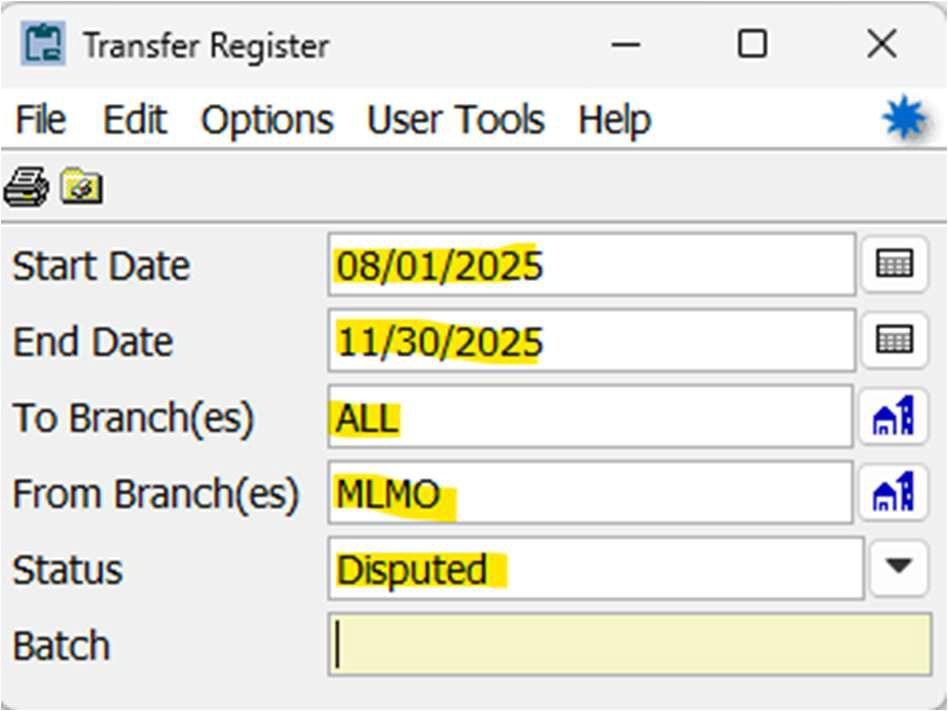
• Review the Transfer Register reports for Shipped/Not Received and Disputed and ensure items are in process of being resolved or have been resolved
o Any items on the Shipped/Not Received report that are older than 10 days before month end should have an explanation provided
o All items on the Disputed report should have an explanation provided
• Once reviewed initial the first page of the Branch Manager Month-end Certification to the right side of the row ‘Transfer Register, Shipped Not Received report Transfer Register, Disputed report’
o Initials indicate the report is being reviewed and resolved
• Transfer the total from the totals from the two reports to the second page of the Branch Manager Month-end Certification which is the Summary of Reports
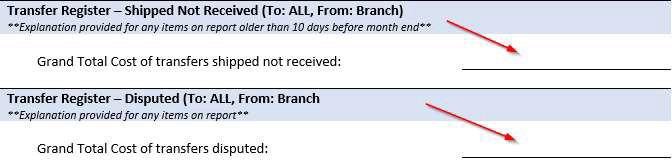
• Attach the Transfer Register reports to the Branch Manager Month-end Certification
Finalization
• Ensure all reports and documentation are appropriately attached to the Branch Manager Month-end Certification
• The packet should be saved in a single digital format as a PDF
• Save with the following file name format
o YYYY.MM – Branch – Month-end Certification
• Email to accounting@mountianland.com
• If you have any additional questions, please reach out to BJ Zeyer or RJ Springer bj.zeyer@mountainland.com rj.springer@mountainland.com