Top 6 Image to Text Uses Transforming Document Workflows in 2026
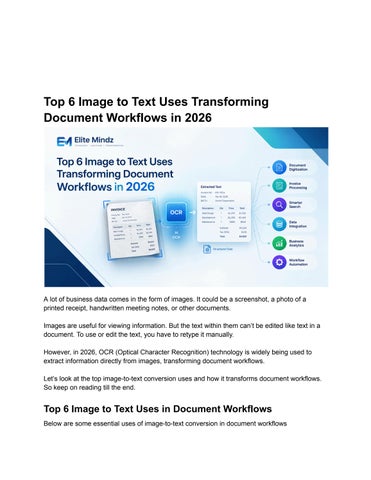
A lot of business data comes in the form of images. It could be a screenshot, a photo of a printed receipt, handwritten meeting notes, or other documents. Images are useful for viewing information. But the text within them can’t be edited like text in a document. To use or edit the text, you have to retype it manually. However, in 2026, OCR (Optical Character Recognition) technology is widely being used to extract information directly from images, transforming document workflows. Let’s look at the top image-to-text conversion uses and how it transforms document workflows. So keep on reading till the end.
Top 6 Image to Text Uses in Document Workflows Below are some essential uses of image-to-text conversion in document workflows
1. Turning Scanned Documents Into Editable Records Many workflows involve documents received in the form of images. They might be scanned copies of invoices, old record forms, reports, and receipts. The scanned images are not easily searchable. Employees used to scroll through them to locate the required information. This felt slow and added extra steps to the workflows. However, with the help of image to text conversion technology, scanned documents can be converted into searchable and editable records. The editable text is searchable, which allows you to locate the key information with less effort.
2. Moving Paper Forms Into Digital Workflows Paper forms are another common bottleneck. A person (customer, employee, or student) fills out a form. The filled form is then photographed or scanned. Someone has to read the information and put it into a computer system. This data entry feels like repetitive work. Image-to-text technology helps reduce manual work here. The user can extract the text directly, rather than retyping every field. Then they can enter the information into the system. Paper form → Image → Text extraction → Verification → Digital entry This can help reduce repeated typing and simplify the process for teams that handle large numbers of forms. They can utilize their time verifying the information instead of typing each character by hand. But important areas still need human verification. Check names, phone numbers, dates, and dollar figures carefully.
3. Turning Screenshots Into Reusable Content Screenshots are also widely used to save and share information. They can be captured and shared quickly. For example, a team member may receive a screenshot that contains a product detail, address, or a quote. Editing or reusing it requires retyping everything. This screenshot could be used as input for an OCR tool to extract the text. The extracted text can then be easily edited or reused. This helps teams reduce effort, especially those who work with a lot of visual information.
4. Converting Handwritten Notes Into Digital Documents Handwritten notes often have useful information. But they are hard to organize at scale. Students may have several pages of lecture notes. Employees may also take meeting notes,
etc. These notes are useful, but they often pile up, and finding a specific detail from them can be hectic. A better approach that a lot of people are following is converting handwritten data into a digital document. This is made possible with the help of OCR technology. It can convert even handwritten documents into editable text. With a quick review, the extracted handwritten text can be ready to be stored as editable digital records, through which information can be easily searched or copied. The workflow is. Handwritten notes → Image capture → Text extraction → Review → Digital document This makes it easy to find meeting details, personal notes, or ideas by searching a key term in editable digital text.
5. Making Scanned PDFs Editable and Searchable Scanned PDFs are essentially flat images wrapped inside a PDF format container. They may have useful information. But the text is often locked inside them. That means you can't always search or edit a word or phrase directly in the document. Image-to-text technology can convert text on scanned PDF pages into searchable and editable digital content. Rather than checking each page visually, you can extract the text and search the resultant material for specific terms, and you can easily edit names, dates, or phrases. This can save you time when working with archived documents, scanned reports, old publications, or other PDF files.
6. Creating Content and Quotes Images can sometimes contain useful information, which can be used to generate new digital content. A social media manager may see a quote they like in a picture, meme, or poster and want to use the words in a post. Typing the text manually is an extra step. It also creates the possibility of missing words or typos. Here, the image-to-text converter tool can help extract text from such images. The extracted content can then be examined, summarized, or reused for different platforms. This allows for the reuse of short quotes, captions, statements, or other text within visual content.
How to Convert an Image to Text Online Till now, we’ve discussed the six common uses of converting images into text. Let’s see a simple method you can use to extract text from images or even PDFs, as we discussed above.
Step 1 - Prepare the Image Start by selecting your image for conversion. Make sure that you select a clear image. OCR tools are generally sensitive to details. However, they can sometimes struggle if the image quality is very poor, like extremely compressed or blurred.
Step 2 - Select an Online Image to Text Converter There are various image-to-text converters available online. However, you have to opt for the one that gives reliable results, accepts multiple formats, and mentions its privacy policy upfront. While researching, we found Image to Text Converter by Prepostseo to be quick, consistent, and in accordance with the above requirements. Let’s proceed to the next steps using this tool.
Step 3 - Upload the Image Open the selected tool and click the “Choose File” button to upload your image.
Step 4 - Extract & Review Text Once you upload the image into the tool, you’ll get the option to extract text. Click on it to extract the text. The tool will take a few seconds to provide the extracted text.
Spend some time reviewing the extracted text. Check that the details are correct. Once you are sure that the details are correct, you can easily copy or download the text as shown in the image above.
Final Thoughts A lot of data is shared in the form of images. These are fine for viewing information. However, when the text requires editing or simply the user wants to copy some information, images don't allow this. Image-to-text technology has made it possible to extract data directly from images. It can reduce the effort required to digitize and search information from paper documents. People also copy information from screenshots to reuse content for social media. Using image-to-text technology is simple. You can access an online image-to-text converter. Select the image for conversion. Upload and click the convert button. After a few seconds, depending on the tool and the size of your image, you’ll get the extracted text. Try an image-to-text converter to see how it can simplify text extraction from images. AI OCRSolutions
Frequently Asked Questions About Image to Text 1. What Does "Image to Text" Mean? Image to text is the process of extracting written or printed content from an image and converting it into editable, searchable digital text. It commonly uses OCR technology to recognize text from photos, scanned documents, screenshots, and other image files. 2. What Is OCR Technology and What Does It Do? OCR, or Optical Character Recognition, identifies letters, numbers, and words in images or scanned documents and converts them into machine-readable text. It helps businesses digitize information and reduce manual data entry. 3. How to Convert an Image to a Text Document? To convert an image to a text document, upload the image to an image to text tool that supports OCR. The tool analyzes the image, recognizes the text, and converts the extracted content into an editable digital format. 4. What Tool Is Used to Convert an Image to Text? An OCR-powered image to text tool is used to extract text from images. These tools can
process formats such as JPG, PNG, and scanned documents and convert recognized content into editable or searchable text. 5. What Are the Top 6 Image to Text Uses Transforming Document Workflows in 2026? The top 6 image to text uses in 2026 include digitizing scanned documents, extracting invoice and receipt data, converting forms into editable text, making image-based content searchable, supporting digital archiving, and reducing manual data entry. 6. How Does Image to Text Technology Improve Document Management? Image to text technology makes information from scanned and image-based documents easier to search, edit, organize, and retrieve. It can reduce manual work and support more efficient digital document workflows. 7. Can Image to Text Tools Extract Text From Scanned Documents? Yes, image to text tools can extract printed text from scanned documents when the image quality is suitable. OCR analyzes the scanned content and converts recognized text into a digital format. 8. Can OCR Convert Handwritten Text From Images Into Editable Text? Some advanced OCR tools can recognize handwritten text. However, accuracy depends on handwriting clarity, image quality, language, and the capabilities of the OCR technology being used. 9. How Accurate Is Image to Text Conversion? The accuracy of image to text conversion depends on image resolution, font style, language, background quality, text alignment, and OCR capabilities. Clear, high-resolution images generally produce more accurate results. 10. How Can Businesses Use Image to Text Technology in 2026? Businesses can use image to text technology to digitize records, extract information from invoices and receipts, process forms, improve document search, support digital archiving, and reduce repetitive manual data entry. Read More: AI OCR Solutions Read More: AI Agent Development Company in Mumbai Read More: Custom AI Agent Development Cost Read More: The Human-AI Partnership: Building Smarter Teams with Agentic AI Read More: Best Practices for Successful Software Projects
Author Bio: Priya Priya is an SEO professional specializing in technical SEO, content strategy, website authority, and search engine rankings. She develops practical, research-driven strategies and content that help businesses strengthen their online presence, build credibility, and drive sustainable organic growth.