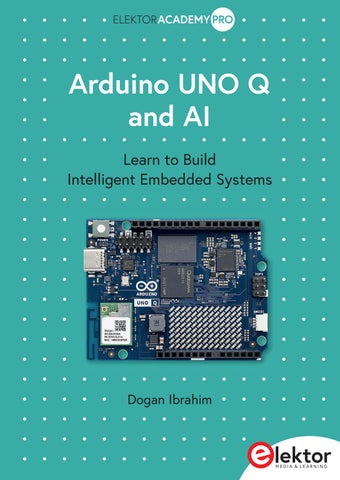
Arduino UNO Q and AI (Extract)

Page 1


Arduino UNO Q and AI

Learn to Build Intelligent Embedded Systems

Dogan Ibrahim

Arduino UNO Q and AI

Learn to Build Intelligent Embedded Systems

● This is an Elektor Publication. Elektor is the media brand of Elektor International Media B.V.

PO Box 11, NL-6114-ZG Susteren, The Netherlands Phone: +31 46 4389444

● All rights reserved. No part of this book may be reproduced in any material form, including photocopying, or storing in any medium by electronic means and whether or not transiently or incidentally to some other use of this publication, without the written permission of the copyright holder except in accordance with the provisions of the Copyright Designs and Patents Act 1988 or under the terms of a licence issued by the Copyright Licencing Agency Ltd., 90 Tottenham Court Road, London, England W1P 9HE. Applications for the copyright holder’s permission to reproduce any part of the publication should be addressed to the publishers.

● Declaration

The authors and publisher have used their best efforts in ensuring the correctness of the information contained in this book. They do not assume, or hereby disclaim, any liability to any party for any loss or damage caused by errors or omissions in this book, whether such errors or omissions result from negligence, accident or any other cause.

● British Library Cataloguing in Publication Data

A catalogue record for this book is available from the British Library

● ISBN 978-3-89576-726-5 Print

ISBN 978-3-89576-727-2 eBook

● © Copyright 2026 Elektor International Media www.elektor.com

Editor: Clemens Valens

Prepress Production: D-Vision, Julian van den Berg

Printers: Ipskamp, Enschede, The Netherlands

Cover photo courtesy Arduino SA

Elektor is the world's leading source of essential technical information and electronics products for pro engineers, electronics designers, and the companies seeking to engage them. Each day, our international team develops and delivers high-quality content - via a variety of media channels (including magazines, video, digital media, and social media) in several languages - relating to electronics design and DIY electronics. www.elektormagazine.com

4.4

4.7.3

5.7

5.8.5

5.8.6

Preface

The rapid evolution of embedded systems has significantly lowered the barrier between concept and real-world deployment. Modern development boards now combine powerful heterogeneous processors, rich software ecosystems, and accessible tools that enable engineers, students, and hobbyists to prototype intelligent systems with remarkable efficiency. This book is written with that spirit in mind and focuses on exploring the capabilities of the Arduino UNO Q board as a versatile platform for embedded and edge-AI development.

The Arduino UNO Q board integrates the STM32U585 MCU microcontroller alongside a Qualcomm Dragonwing QRB2210 MPU processor, offering a unique combination of lowpower real-time control and high-level application processing on a single platform. The STM32U585 MCU is fully programmable using the familiar Arduino IDE, allowing users to develop embedded applications using standard Arduino workflows. In parallel, the Qualcomm Dragon processor enables higher-level application development using Python through Arduino App Lab, making it possible to rapidly prototype, test, and deploy applications without deep system-level configuration.

This book begins with an overview of the board’s architecture and key features, providing readers with a solid understanding of both the microcontroller (MCU) and microprocessor (MPU) environments. It then progresses to a series of hands-on example projects that demonstrate how to program the STM32U585 MCU using the Arduino IDE. These projects emphasize practical design patterns and illustrate how to efficiently utilize the hardware resources of the board.

In addition to custom MCU-based projects, the book explores the use of example applications provided through the Arduino App Lab. These examples highlight Pythonbased development on the Qualcomm Dragonwing processor and demonstrate how App Lab can be used to accelerate application development, testing, and system integration using both the MCU and the MPU for advanced AI based applications.

The later chapters introduce Edge Impulse Studio, covering its installation, core features, and its role in developing machine learning models for embedded and edge devices. The book culminates with a complete walkthrough of building a keyword spotting application using Edge Impulse Studio, illustrating the end-to-end workflow from data collection and model training to deployment and on-device inference.

This book is intended for students, educators, embedded developers, and enthusiasts who have a basic understanding of microcontrollers and are interested in expanding their skills into modern embedded, heterogeneous, and edge-AI system design. Prior practical knowledge of using the Arduino IDE and the Python programming language will be an advantage, but not essential. By combining clear explanations with practical examples across both Arduino and Python-based workflows, it aims to serve as both a learning guide

and a reference for developing AI based intelligent applications on the Arduino UNO Q platform.

The author hopes that readers will be inspired to use the Arduino UNO Q as a platform for developing their own future projects, including applications that explore and apply the important topic of artificial intelligence.

Dr Dogan Ibrahim London, February, 2026

Chapter 1 • The Hardware

1.1

Overview

The Arduino UNO Q (ABX00162) is an official Arduino board developed in collaboration with Qualcomm. It retains the familiar UNO form factor and shield compatibility but marks a departure from traditional 8-bit microcontroller-based designs by incorporating a modern, multi-core system-on-chip architecture. Unlike earlier UNO boards based on AVR or simple 32-bit MCUs, the UNO Q integrates both an application processor (for running Linux and AI workloads) and a real-time microcontroller (for hardware control), enabling more complex applications while preserving the simplicity of the Arduino programming model. It is intended for projects requiring advanced capabilities such as on-device AI, computer vision, or high-speed wireless communication, yet remains accessible to beginners through integration with the Arduino IDE. The board represents Arduino’s strategic move toward edge computing and intelligent IoT, bridging the gap between classic physical computing and contemporary embedded systems.

This chapter provides a detailed description of the hardware design and architecture of the Arduino UNO Q board.

1.2

Basic features

The Arduino UNO Q (see Figure 1.1 for top and bottom views) employs a heterogeneous dual-processor architecture: A Qualcomm QRB2210 application processor (based on ARM Cortex-A7 cores) runs a lightweight Debian Linux distribution, handling high-level tasks like networking, camera input, and AI inference. A STM32U585 microcontroller (ARM Cortex-M33) manages real-time I/O operations—such as analog reads, PWM, and sensor interfacing—with full compatibility for traditional setup()/loop() Arduino IDE sketches. The two processors communicate via a dedicated high-speed inter-processor communication (IPC) interface, abstracted by the Arduino framework to present a unified programming experience.

Figure 1.1 The Arduino Uno Q (source: https://docs.arduino.cc/tutorials/uno-q/user-manual/)

The main components of the Arduino Uno Q board are:

Microcontroller: Arm Cortex-M33 core STM32U585 microcontroller operating at up to 160 MHz, having 2 MB of flash memory, and 768 KB of SRAM, running the Zephyr OS, and supporting a floating-point unit (FPU).

Microprocessor: Arm Cortex-A53 quad-core Qualcomm QRB2210 processor running at 2.0 GHz, having 845 MHz Adreno 702 GPU. The GPU provides 3D graphics acceleration and dual ISPs with 25 MP at 30 fps, running the Debian Linux OS. Together with the GPU, the microprocessor is well suited for AI and edge computing applications.

Radio module: Dual-band Wi-Fi 5 at 2.4/5 GHZ is provided by a WCBN3536A module. Additionally, Bluetooth 5.1 is available on the board. Both the Wi-Fi and the Bluetooth are connected to a on-board antennas.

Memory: 16 GB or 32 GB eMMC memory, and 2 GB or 4 GB LPDDR3 RAM are provided for fast memory access.

Multimedia support: High-speed ANX7625 multimedia codec is available for video and audio output through the on-board USB-C connector.

Power management: A Qualcomm PM4145 power management module is also included on the board. External power to the board is through a USB-C type connector (other means of powering the board are described later in this chapter)

Chapter 1 • The Hardware

GPIO connectors: Three header connectors are provided on the board similar to the traditional Arduino Uno headers.

High-speed connectors: MIPI-CSI camera, MIPI-DSI displays, and analog audio connectors are provided at the bottom of the board (see Figure 1.1). Additionally, A Qiic connector for compatibility with Modulino nodes.

LED matrix: An 8 × 13 LED matrix is included on the board.

Reset: A reset pushbutton switch is provided on the board to reset the processor.

Software IDE compatibility: Compatible with the Arduino IDE 2.0+ to program the MCU using the traditional Arduino UNO based programming environment. Also, support for the Arduino App Lab to develop MPU and MCU based high-performance AI and computation-intensive applications.

1.3 Supplying power to the board

The Arduino UNO Q can be powered from (Figure 1.2):

• USB-C cable providing 5 VDC @ 3 A

• An external +5 VDC @ 3 A power supply connected to 5 V pin

• An external +7 VDC to +24 VDC power supply connected to VIN pin

Figure 1.2 Powering the Arduino Uno Q (source: https://docs.arduino.cc/tutorials/uno-q/user-manual/)

When the board is powered via USB-C or external power via the VIN pin, the 5 V pin outputs regulated 5 V and this pin can be used to power external components (e.g. sensors, small modules etc). The USB current limit is 500 mA. Also, a regulated 5 V can be directly

fed to the 5 V pin to power the board. In this mode, you should never apply voltage to the 5 V pin while the USB-C is connected, or voltage is applied to the VIN pin.

The 3.3 V is voltage output pin and the voltage at this pin is in the range 3.1 V – 3.5 V, typically 3.3 V.

1.4 Indicators on the board

The following indicators are available on the front of the board (Figure 1.3):

• Two Linux-controlled RGB LEDs:

- RGB user LED1: red LED at GPIO_41, green LED at GPIO_42, blue LED at GPIO_60

- RGB LED2: red Panic LED at GPIO_39, green WLAN LED at GPIO_40, blue BT LED at GPIO_47.

• Two MCU-controlled RGB LEDs:

- RGB LED3: red LED at PH10, green LED at PH11, blue LED at PH12

- RGB LED4: red LED at PH13, green LED at PH14, blue LED at PH15

• The RGB LEDs are active-low, i.e. they turn ON when driven to logic 0.

- LED matrix: 8 × 13 monochrome blue LED matrix having 104 pixels, driven by the STM32U585. The matrix displays the boot logo for approximately 20 seconds during Linux startup

- Power LED: green indicator which illuminates when power is applied to the board. This LED is tied to the +3.3 V rail

Figure 1.3 Board indicators (source: https://docs.arduino.cc/tutorials/uno-q/user-manual/)

1.5 GPIO

The Arduino Uno Q GPIO pin assignment is very similar to those of the standard Arduino UNO R3 and R4. Figure 1.4 shows the pin assignment:

Figure 1.4 Arduino UNO Q pin assignment (https://docs.arduino.cc/resources/pinouts/ABX00162-full-pinout.pdf )

The GPIO pins operate at 3.3 V and are 5 V tolerant, except the A0 and A1 pins, which are not 5 V tolerant.

COMPONENT-SIDE OF THE BOARD

At the left-hand side of the board

BOOT IOREF RESET

+3.3V (output) +5V (output) GND GND VIN (+7-24V DC)

A0 Analog in MCU PA4 DAC0

A1 Analog in, MCU PA5 DAC1 TIM2_CH1

A2 Analog in MCU PA6 TIM3_CH1

A3 Analog in MCU PA7 TIM3_CH2

A4 Analog in MCU PC1 LPTIM1_CH1 SDA

A5 Analog in MCU PC8 LPTIM1_IN1 SCL

At the right-hand side of the board

D21 digital I/O MCU PB10 SCL TIM2_CH3

D20 digital I/O MCU PB11 SDA TIM2_CH4

AREF

GND

D13 digital I/O MCU PB13 SCK TIM1_CH1N

D12 digital I/O MCU PB13 MISO TIM1_CH2N

D11 Digital I/O MCU PB15 MOSI TIM1_CH3N PWM

D10 Digital I/O MCU PB9 SS TIM4_CH4 PWM

D9 Digital I/O MCU PB8 TIM4_CH3 PWM

D8 Digital I/O MCU PB4 TIM3_CH1

D7 Digital I/O MCU PB2 TIM8_CH4N

D6 Digital I/O MCU PB1 TIM3_CH4 PWM

D5 Digital I/O MCU PA11 FDCAN1_RX TIM1_CH4 PWM

D4 Digital I/O MCU PA12 FDCAN1_TX TIM1_ETR

D3 Digital I/O MCU PB8 TIM3_CH3 PWM

D2 Digital I/O MCU PB3 TIM2_CH2

D1 Digital I/O MCU PB6 USART_TX TIM4_CH1

D0 Digital I/O MCU PB7 USART_RX TIM4_CH2

At the bottom edge of the board QWIIC

1. GND

2. +3.3V

3. I2C4_SDA

4. I2C4_SCL

SPI2

1. MISO

2. +5V

3. SCK

4. MOSI

5. RESET

6. GND

LED MATRIX

Pin 1 of the 8 × 13 LED matrix is at the top left of the matrix when the USB-C connector is pointing to the left. The pin numbers of the LED matrix are shown in Figure 1.5.

REAR SIDE OF THE BOARD

The pin configuration of the connectors JMISC and JMEDIA at the bottom of the board are shown in Figure 1.6.

Figure 1.6 Bottom of the board (https://docs.arduino.cc/resources/pinouts/ABX00162-full-pinout.pdf )

Figure 1.5 LED matrix pins

Chapter 2 • Using the STM32U585 MCU in Projects

2.1 Overview

The Arduino UNO Q incorporates the Qualcomm QRB2210 quad-core ARM Cortex-A53 microprocessor (MPU) and the STM32U585 ARM Cortex-M33 based microcontroller unit. The QRB2210 includes network and communication subsystems, security features, media processing, and AI capability, and is driven by the Debian Linux OS. It is also known as the Application Processor and is responsible for running device management, concurrency, multitasking, process scheduling, handling large datasets, data logging and structuring, and so on.

The MCU can handle embedded applications requiring deterministic control, precise timing, and interrupt processing. The MCU includes peripheral support, cryptographic accelerators, support for large numbers of libraries, highly predictable execution, making it ideal for digital signal processing, PWM motor control, sensor sampling, accurate ADC and DAC sampling, security sensitive applications using TrustZone, and other tasks where microsecond level of timing accuracies are needed. The MCU is programmed using the classical Arduino IDE 2.0+ which makes it highly backward compatible with the popular Arduino UNO family. Perhaps two very important features of the MCU are the precise timing control, and deterministic fast interrupt processing.

Although the MPU and the MCU can be independent of each other, they can communicate with each other for example in complex AI based applications. The communication between the two processors uses a serial interface and uses UART as the default connection method. Additionally, SPI or shared memory can be used for communication. The MCU can send sensor data, interrupt driven events etc to the MPU. The MPU can send high-level commands, or special instructions to the MCU to execute hybrid complex tasks.

In this chapter we will be developing projects using the MCU part of the Arduino UNO Q. The Arduino IDE 2.0 or a later version is used in all the projects in this chapter. It is assumed that the readers already have the Arduino IDE 2.0+ installed on their computers, and they have some working experience of using this IDE for program development on an Arduino UNO family.

2.2 STM32U585 MCU specifications

The basic specifications of the MCU are as follows (taken from the datasheet):

• 1.71 V to 3.6 V power supply

• Arm 32-bit Cortex-M33 CPU with TrustZone, MPU, DSP, and FPU

• 8 Kbyte instruction cache allowing zero-wait-state execution from flash and external memories: up to 160 MHz, 240 DMIPS

• 4 Kbyte data cache for external memories

• Embedded regulator (LDO) and SMPS step-down converter supporting switch onthe-fly and voltage scaling

• 1.5 DMIPS/MHz (Drystone 2.1)

• 2 Mbyte flash memory with ECC, 2 banks read-while-write, including 512 Kbytes with 100 kcycles

• 786 Kbyte SRAM with ECC OFF or 722 Kbyte SRAM including up to 322 Kbyte SRAM with ECC ON

• External memory interface supporting SRAM, PSRAM, NOR, NAND, and FRAM memories

• 2× Octo-SPI memory interfaces

• SESIP3 and PSA Level 3 Certified Assurance Target

• Arm TrustZone and securable I/Os, memories, and peripherals

• Flexible life cycle scheme with RDP and password protected debug

• 4 – 50 MHz crystal oscillator, 32 kHz crystal oscillator for RTC (LSE)

• Internal 16 MHz factory-trimmed RC (±1%)

• Internal low-power 32 kHz RC (±5%)

• 2× internal multispeed 100 kHz to 48 MHz oscillators, including one autotrimmed by LSE

• Internal 48 MHz with clock recovery

• 3× PLLs for system clock, USB, audio, ADC

• Up to 136 fast I/Os with interrupt capability most 5V-tolerant and up to 14 I/Os with independent supply down to 1.08 V

• Up to 17 timers and 2 watchdogs

• Timers: two 16-bit advanced motor-control, four 32-bit, five 16-bit, four lowpower 16-bit (available in Stop mode), two SysTick and two watchdogs

• RTC with hardware calendar and calibration

• CAN FD controller

• 2× SDMMC interfaces

• Multifunction digital filter (6 filters) + audio digital filter with sound-activity detection

• Parallel synchronous slave interface

• Chrom-ART Accelerator (DMA2D) for enhanced graphic content creation

• Digital camera interface

• CORDIC for trigonometric functions acceleration

• Filter mathematical accelerator (FMAC)

• 14-bit ADC 2.5 MSPS with hardware oversampling

• 12-bit ADC 2.5 MSPS, with hardware oversampling, autonomous in Stop 2 mode

• 2× 12-bit DAC, low-power sample and hold

• 2× operational amplifiers with built-in PGA

• 2× ultra-low-power comparators

2.3 Installing the Arduino UNO Q board

The Arduino UNO Q board must be installed in the IDE before it can be used. The steps are:

• Start the Arduino UNO IDE

• Click the second icon at the left to display the BOARDS MANAGER

• Enter Arduino Q. Then click to install the Arduino UNO Q Board (Figure 2.1). At the time of writing this book the latest version was 0.52.0

• You should see the messages displayed as in Figure 2.2 for a successful install

Figure 2.1 Install the Arduino UNO Q board
Figure 2.2 Installing the Arduino UNO Q board

• Click to close the BOARDS MANAGER

You are now ready to develop applications for the MCU part of the board.

• Click Tools -> Board and select Arduino UNO Q as the working board which will be displayed at the top left part of the IDE.

• Click File -> New Sketch to start writing your code

2.4 MCU user LED Arduino configuration

The MCU RGB LED3 and RGB LED4 can be accessed from the Arduino IDE with the following names:

RGB LED3:

Colour Arduino name MCU port Arduino port number

Red: LED3_R PH10 50

Green: LED3_G PH11 51

Blue: LED3_B PH12 52

RGB LED4:

Red: LED4_R PH13 53

Green: LED4_G PH14 54

Blue: LED4_B PH15 55

2.5 Project 1 – Flashing the red RGB LED3 connected to the MCU

Description: This is a very simple project where we will flash the red RGB LED3 every second. The aim of this project is to show how to start using the board and the IDE.

Program listing: The red colour RGB LED3 is connected to port PH10 of the MCU with the name LED3_R (see Figure 1.4 and section 2.4). The steps are:

• Connect your Arduino UNO Q board to your PC through a USB-C cable

• You should see some animation being displayed on the LED matrix. Wait for the animation to terminate, which may take up to 20 seconds.

• Click Tools -> Port to select the serial COM port assigned to your board (e.g. COM6)

• Write the program shown in Figure 2.3 (Program: RGBFlash).

FLASH THE RED RGB LED 3 EVERY SECOND

Program: RGBFlash

Author : Dogan Ibrahim

Date : January, 2026 ========================================================*/

#define ON LOW

#define OFF HIGH

void setup() { pinMode(LED3_R, OUTPUT); // Set port as output }

void loop() { digitalWrite(LED3_R, ON); // Turn LED ON delay(1000); // Wait 1 second digitalWrite(LED3_R, OFF); // Turn LED OFF delay(1000); // Wait 1 second }

Figure 2.3 Program: RGBFlash

• Click Sketch -> Verify/Compile to make sure that the program compiles with no errors

• Click Sketch -> Upload to upload your program to the Arduino UNO Q

• You should see the red LED turning ON and OFF every second.

Just as a reminder for those readers who may not be very familiar with the Arduino IDE code. The code inside the setup() function is executed once at the beginning of the program. Here, the LED is configured as an output. The code inside the loop() is executed continuously. Here, the LED is turned ON and OFF with one second (1000 ms) delay between each output.

2.6 Project 2 – Flashing the red, green, and blue RGB LED3 of the MCU alternately

Description: In this project we will turn ON and OFF the red, green, and blue colours of RGB LED3 sequentially with 500 ms between each step. The aim of this project is to show how the three LED colours can easily be controlled.

Program listing: The program is shown in Figure 2.4 (Program: RGBAll).

FLASH THE RED, GREEN, AND BLUE RGB LED 3 ALTERNATELY

Program: RGBAll

Author : Dogan Ibrahim

Date : January, 2026

#define ON LOW

#define OFF HIGH

void setup()

{

pinMode(LED3_R, OUTPUT); // Set red as output

pinMode(LED3_G, OUTPUT); // Set green as output

pinMode(LED3_B, OUTPUT); // Set blue as output }

void loop()

{

digitalWrite(LED3_R, ON); // Red ON digitalWrite(LED3_G, OFF); // Green OFF digitalWrite(LED3_B, OFF); // Blue OFF delay(500); // Wait 500ms

digitalWrite(LED3_G, ON); // Green ON digitalWrite(LED3_R, OFF); // Red OFF delay(500); // Wait 500ms

digitalWrite(LED3_B, ON); // Blue ON digitalWrite(LED3_G, OFF); // Green OFF delay(500); // Wait 500 ms

Figure 2.4 Program: RGBAll

Inside the setup() function all three colours are configured as outputs. The loop() function runs forever and inside this loop the red LED is turned on for 500 ms, then the green LED for 500 ms and then the blue LED is turned on for 500 ms. This process is repeated until stopped by the user.

2.7 Project 3 – Warning signal

Description: In this project the red LED of RGB LED3 and RGB LED4 are turned ON and OFF alternatingly every 500 ms to simulate a warning signal.

Program listing: Figure 2.5 shows the program listing (Program: RGBWarning).

Arduino UNO Q and AI Learn to Build Intelligent Embedded Systems

Build smarter embedded systems with Arduino UNO Q. This book gives you the tools, knowledge, and confidence to turn ideas into intelligent, working solutions using the Arduino UNO Q platform. Discover how to build intelligent embedded systems with the Arduino UNO Q and AI.

> Unlock the full potential of the Arduino UNO Q, a next-generation platform that combines the real-time power of the STM32U585 microcontroller with the flexibility of a Qualcomm Dragonwing QRB2210 microprocessor.

> Learn how to rapidly prototype real-world applications using the Arduino IDE for low-level embedded control and Python in Arduino App Lab for high-level development.

> Build confidence through hands-on projects that guide you step by step from basic board features to complete working systems.

> Explore ready-to-use, AI based Arduino App Lab examples and see how they can jump-start your development and reduce time to deployment.

> Step into the world of Edge AI with a clear, practical introduction to Edge Impulse Studio—no prior AI experience required.

> Follow a complete, real-world workflow to create a Keyword Spotting AI application, covering data collection, model training, optimization, and on-device inference using the Edge Impulse Studio.

> Bridge the gap between embedded systems and machine learning and learn how to bring intelligence directly onto your hardware.

> Perfect for embedded engineers, educators, students, and makers looking to stay ahead in AI-enabled product development.

Prof Dr Dogan Ibrahim has BSc degree in electronic engineering, an MSc degree in automatic control engineering, and a PhD degree in digital signal processing. He worked in many industrial organizations before he returned to academic life. Prof Ibrahim is the author of over 120 technical books and published over 200 technical articles on microcontrollers, microprocessors, and related fields. He is a chartered electrical engineer and a Fellow of the Institution of the Engineering Technology. He is a certified Arduino professional.

Turn static files into dynamic content formats.

Create a flipbook
Arduino UNO Q and AI (Extract) by Elektor - Issuu