WEBSITE GUIDE - eeschenck.com


Logging In
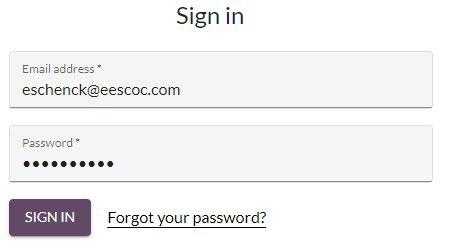

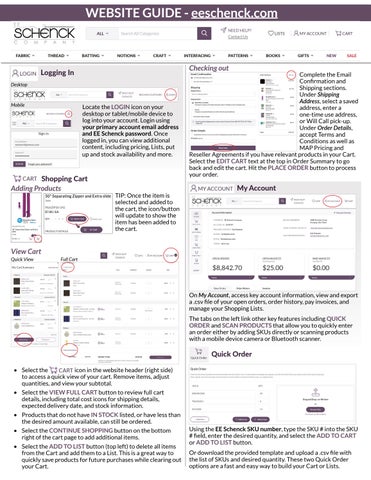
Locate the LOGIN icon on your desktop or tablet/mobile device to log into your account. Login using your primary account email address and EE Schenck password. Once logged in, you can view additional content, including pricing, Lists, put up and stock availability and more.
Shopping Cart
Adding Products
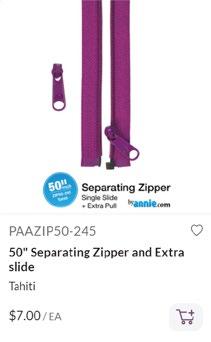

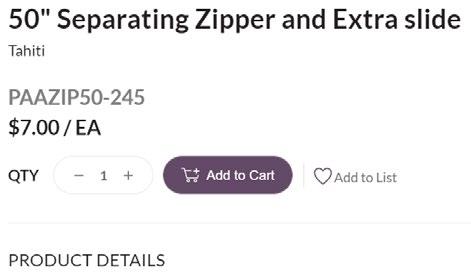

TIP: Once the item is selected and added to the cart, the icon/button will update to show the item has been added to the cart.


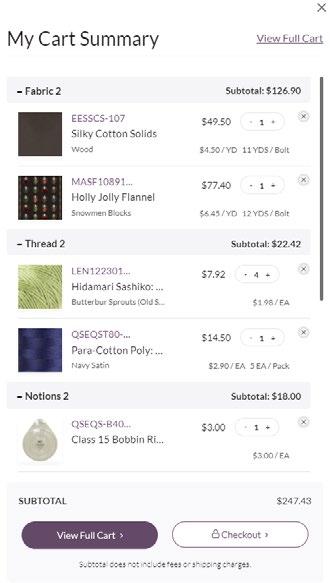
• Select the icon in the website header (right side) to access a quick view of your cart. Remove items, adjust quantities, and view your subtotal.
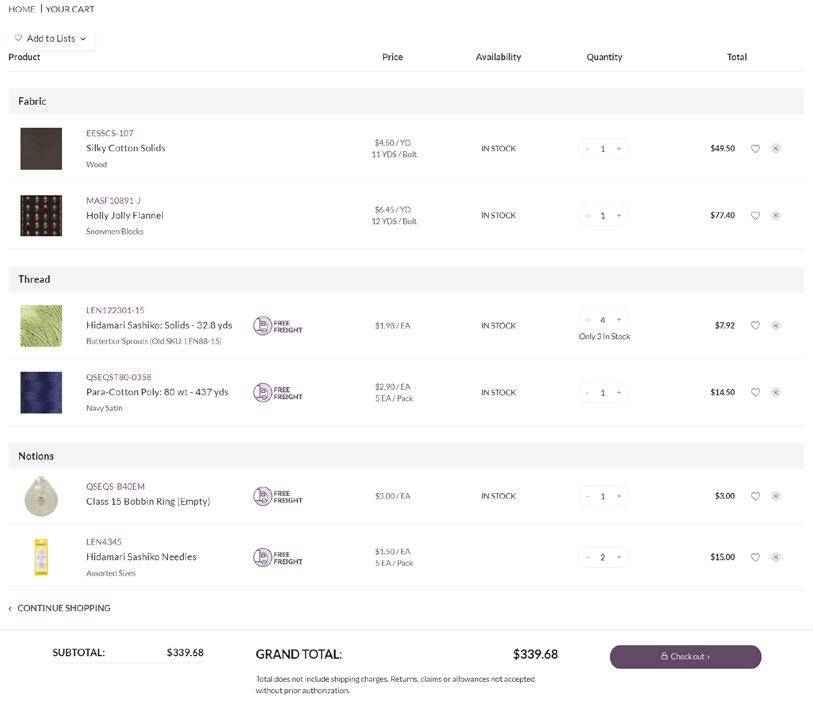
• Select the VIEW FULL CART button to review full cart details, including total cost icons for shipping details, expected delivery date, and stock information.
• Products that do not have IN STOCK listed, or have less than the desired amount available, can still be ordered.
• Select the CONTINUE SHOPPING button on the bottom right of the cart page to add additional items.
• Select the ADD TO LIST button (top left) to delete all items from the Cart and add them to a List. This is a great way to quickly save products for future purchases while clearing out your Cart.
Checking out
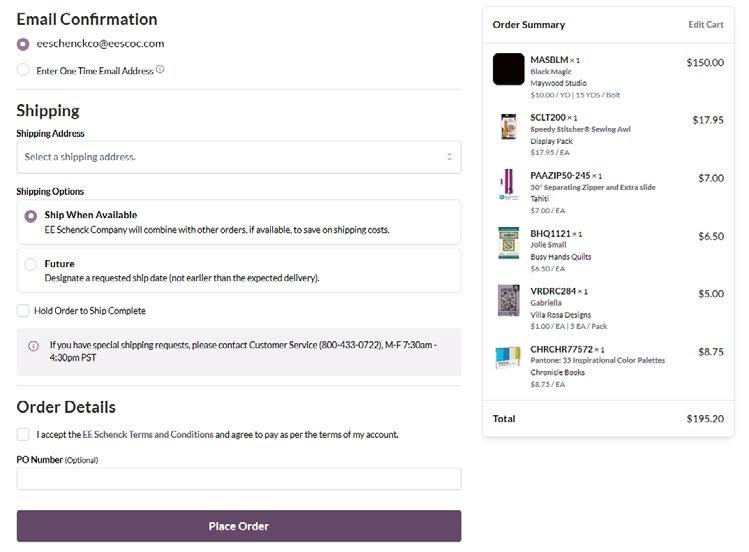
Complete the Email Confirmation and Shipping sections. Under Shipping Address, select a saved address, enter a one-time use address, or Will Call pick-up. Under Order Details, accept Terms and Conditions as well as MAP Pricing and Reseller Agreements if you have relevant products in your Cart. Select the EDIT CART text at the top in Order Summary to go back and edit the cart. Hit the PLACE ORDER button to process your order.

My Account
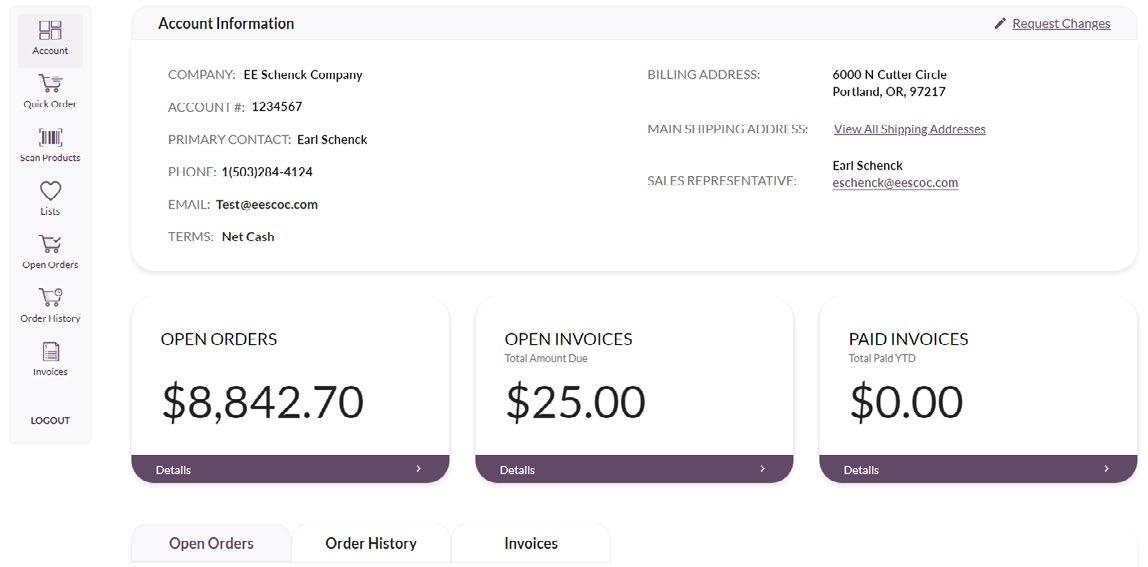
On My Account, access key account information, view and export a .csv file of your open orders, order history, pay invoices, and manage your Shopping Lists.
The tabs on the left link other key features including QUICK ORDER and SCAN PRODUCTS that allow you to quickly enter an order either by adding SKUs directly or scanning products with a mobile device camera or Bluetooth scanner.
Quick Order
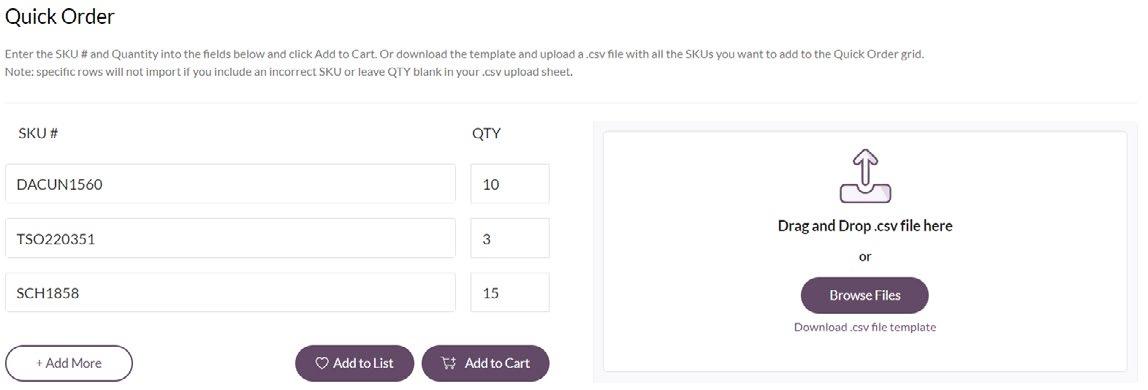
Using the EE Schenck SKU number, type the SKU # into the SKU # field, enter the desired quantity, and select the ADD TO CART or ADD TO LIST button.
Or download the provided template and upload a .csv file with the list of SKUs and desired quantity. These two Quick Order options are a fast and easy way to build your Cart or Lists.
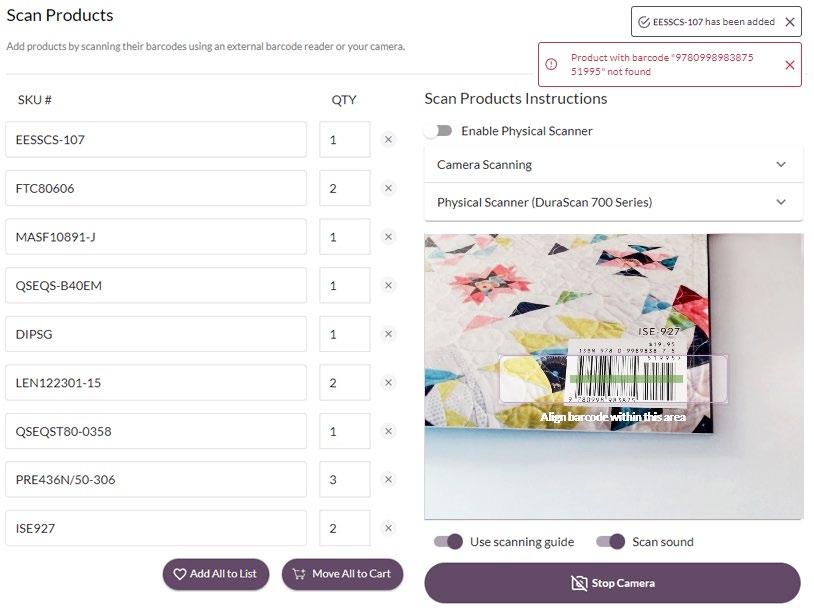
• Quickly and easily build your Shopping List or add products to your Cart on the Scan Products tab.
• Use either a compatible Bluetooth scanner or scan with the camera on your mobile device or tablet, including iPhone, iPad, Google Pixel, Samsung Galaxy, and more.
• Simply align the barcode up with the designated scanning area on the screen to scan the product into the grid on the page.
• The product SKU number will appear in the grid when the scan is successful.
• The most recent product scanned will always appear the top. When ready, add the scanned products in the grid to a List or the Cart.
Lists
Use Lists to keep track of products for future purchases. Create, save, and edit multiple Lists for quick and easy access to products you don’t want to forget.
Creating New Lists
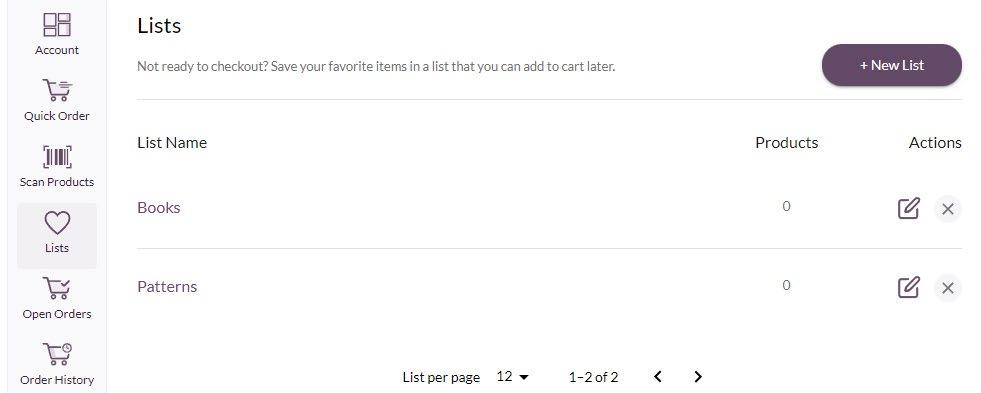

• Create new Lists by selecting the ADD TO NEW LIST button after clicking the icon. Name the new List and add the selected product directly to it.
• Or create new Lists on the LISTS tab in My Account. Select the +NEW LIST button and follow the prompts to create the new List. Note: the last List created will always appear at the top on the List tab.
Adding Products
Expanded View
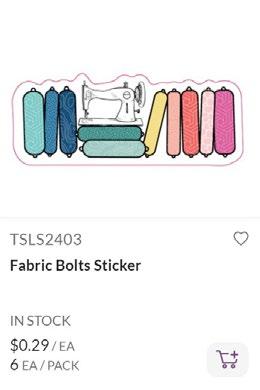
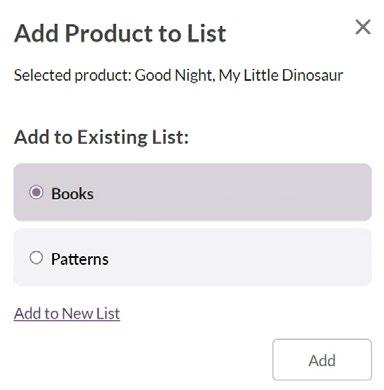
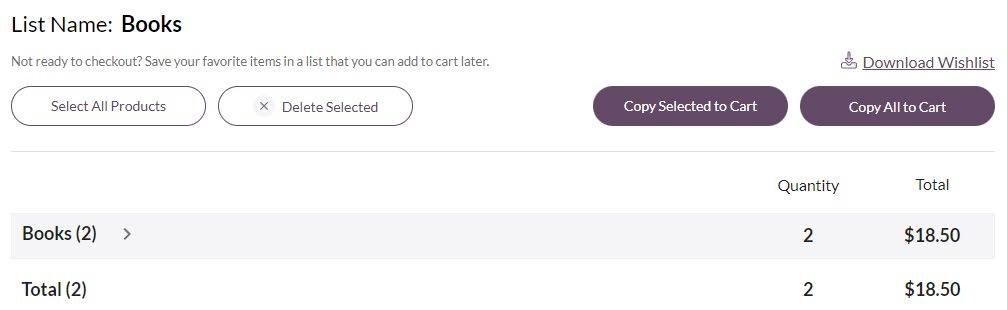
Add products to Lists by clicking on the icon which appears on all product cards and pages. Next, select the List to add the product to, or create a new List. Collapsed View
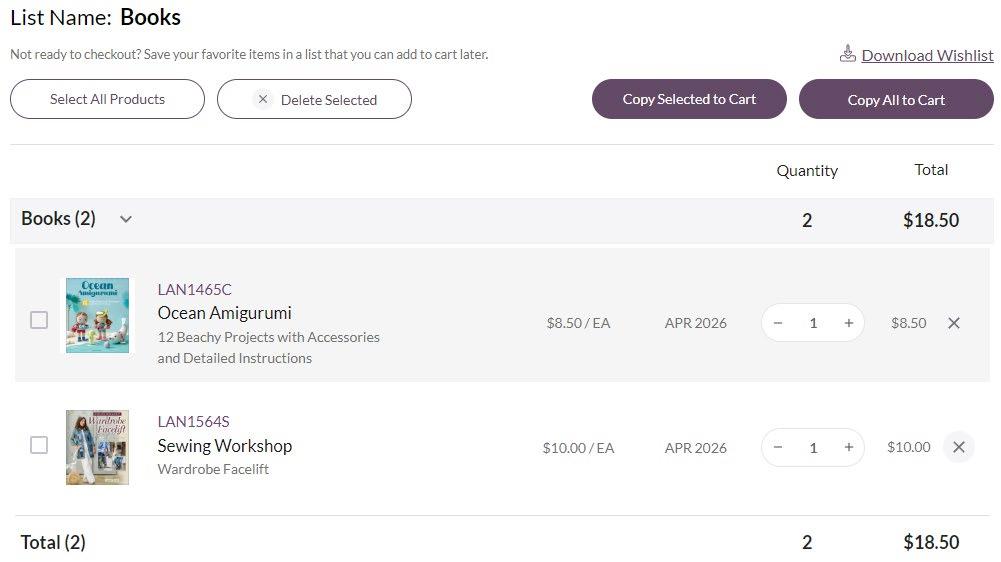
Manage Lists by selecting the icon at the top of the website. Then, select the List to edit. On the List detail page, edit quantity, delete products, download PDF version, or Copy the full list or selected products to the Cart.
Open Orders
Overview of all Open Orders
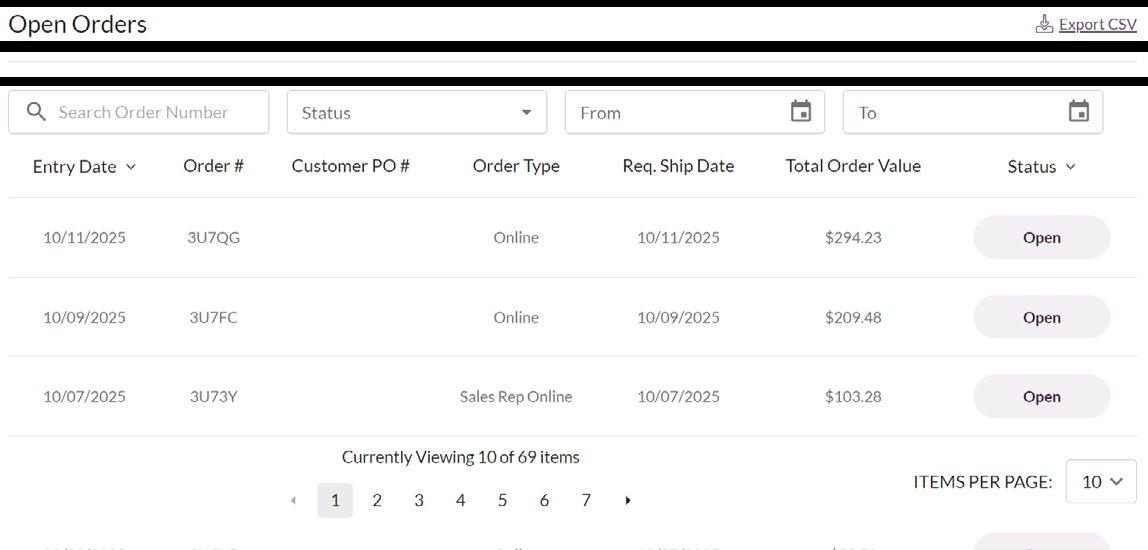
On the Open Orders tab, view all open orders with Open, Back Order, and Processing status. Find an order by searching by order # or a data range. Click the EXPORT CSV button to download a .csv list of all open orders.
Individual Order Details
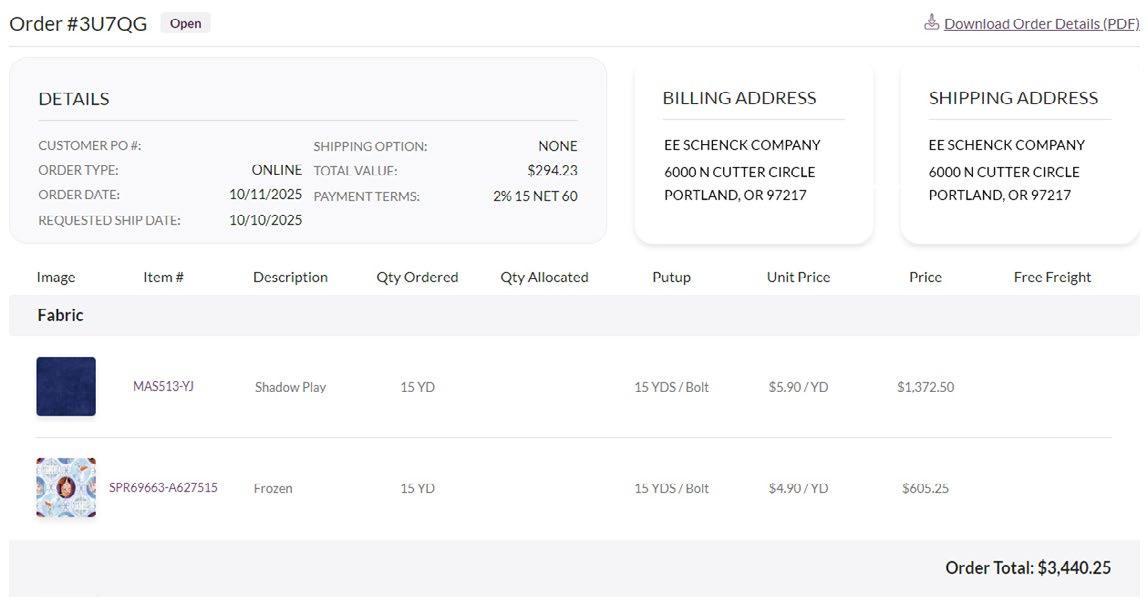
Click on an order to view additional details for that order. Click the DOWNLOAD ORDER DETAILS button for a PDF version of the order.
Order History
Order History functions similar to Open Orders. View orders in the Completed or Canceled status, along with corresponding invoice(s) for Completed orders. Export a .csv list of all Completed and Canceled orders or download a PDF for details on a specific order.
Note: your Order History will only show orders processed on the new website. If you have questions about an older order that was completed on the previous website, contact our Customer Care Team.
Invoices
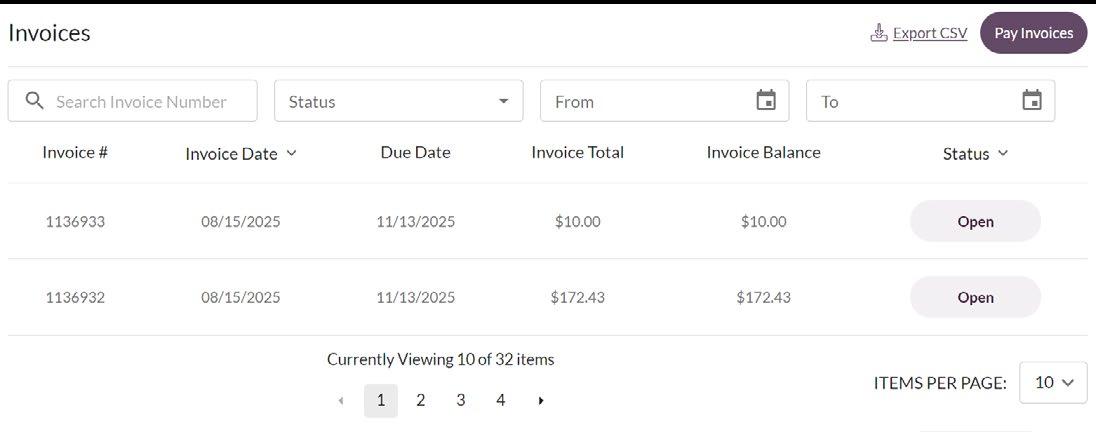
On the Invoices tab, view open and paid invoices. Find a specific invoice by searching by invoice # or a data range. Click on an invoice for full invoice details. Export a .csv list of all open and/or paid invoices and download a PDF for details on a specific invoice.
Paying Your Invoices
ACH payments can be made online by selecting the PAY INVOICES button, which takes you off our website to our secure payment portal on Fortis. Once on the Fortis site, you will be able to select ACH invoices that are ready to be paid. Pay one or select multiple invoices to paid at once.
Website Footer

Find links to Projects, Catalogs, Reseller Agreements, along with company information and more in the website footer.
Note: items previously found in THE STASH on our old website now appear in the website footer.
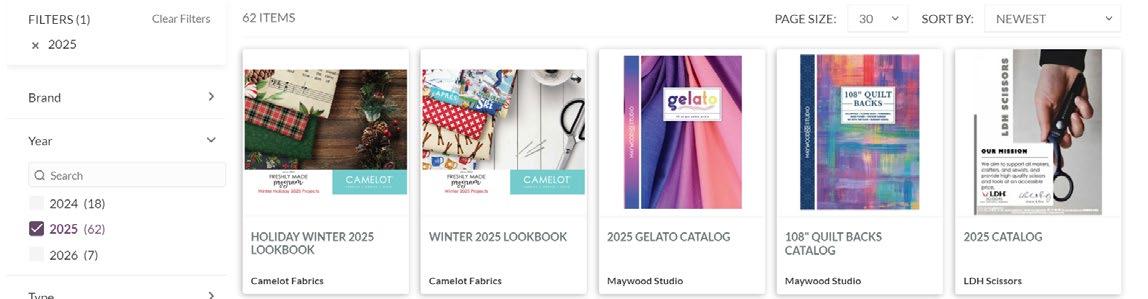
Catalogs & Publications: View and share Lookbooks, Catalogs, Project books and more from a variety of brands.
Product Search
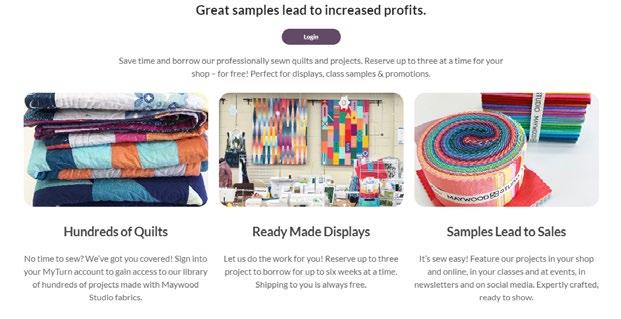
Trunk Show Loan Program: Borrow professionally sewn quilts and projects for your shop – for free! Use your existing Trunk Show Loan Program log-in.
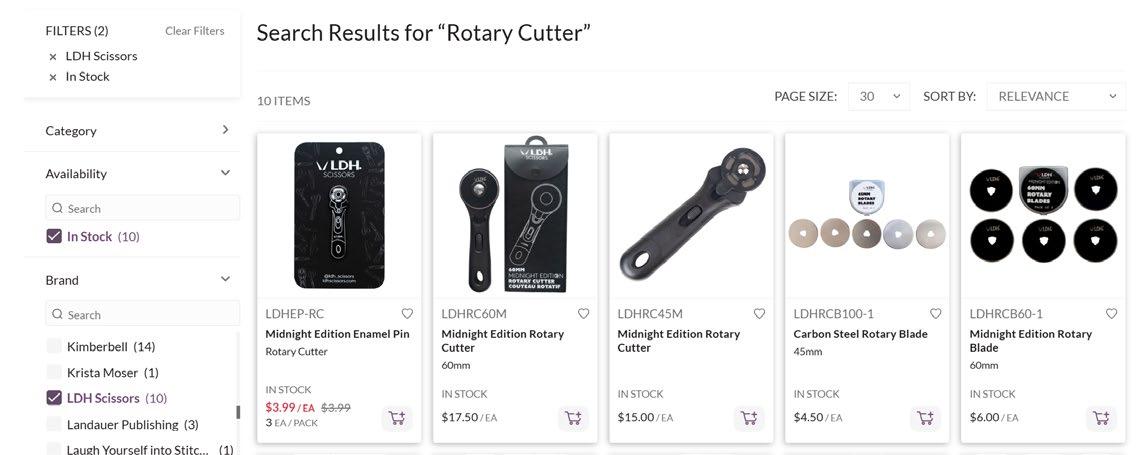
Use the search bar at the top of the site to search for items via product name, SKU #, product details (e.g., brand, type, etc.), and more. Once a search has been entered, further refine your search by using the filters on the left side.

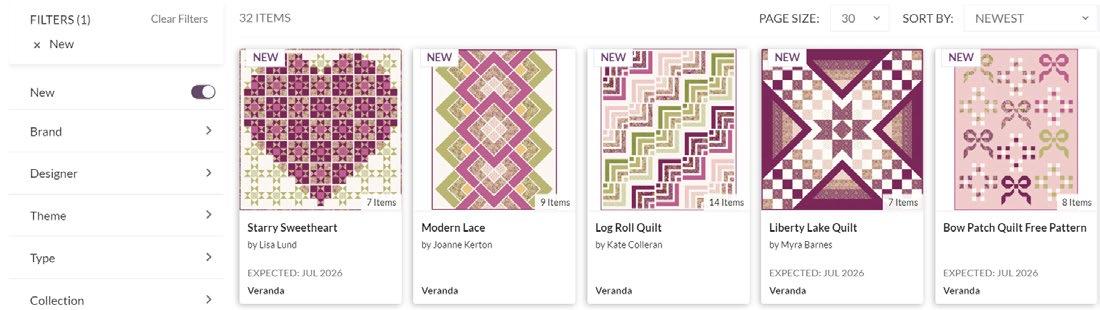
Products from the last 30 days from all categories can be found using the NEW button in the website header. Filters can be used to find specific categories, brands, or product types.

All current Sale & Reduced products can be found in the SALE Button in the website header.
Category and Collection Filters
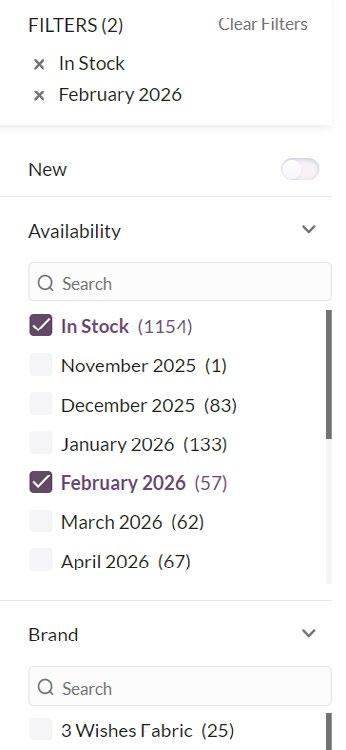
On Category or Fabric Collection pages, narrow the list of products by using the filter options on the left.
• Select filters by either scrolling and selecting or typing the name of the filter into the Search box.
• Select multiple filters and adjust even after the results are generated.
• Easily omit a previously selected filter by un-checking the purple filled box, or hitting the “ ” underneath the FILTERS text.
“VIEW AS” Collection or SKU
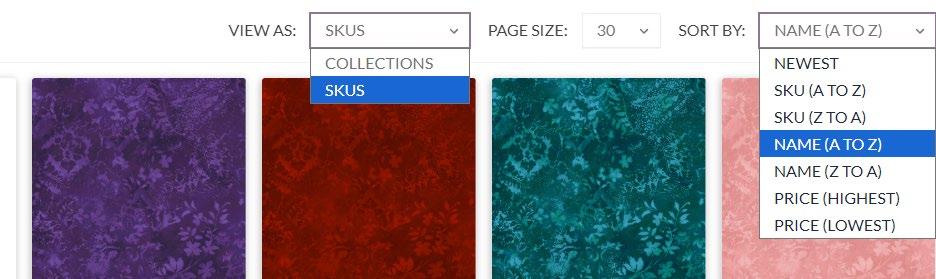
When viewing Fabric and Thread categories, toggle to show by Fabric Collection or Thread Lines as well as individual SKUs. Click the VIEW AS button towards the top of the page to toggle back and forth between views.
Product Detail Page
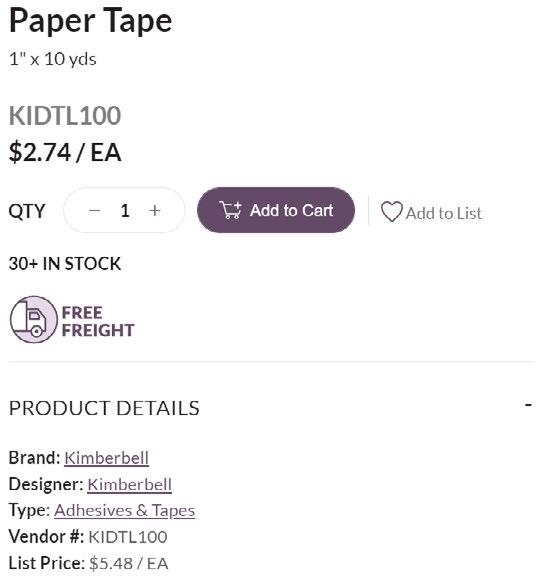
Product Details Section
Find additional product details, download images, and add item to Cart or Lists on this page. If the item is stocked and available, IN STOCK will be listed. If an item is being pre-sold for future delievery, the EXPECTED DELIEVERY is indicated. If no stock information is listed, you are still able to order the product.
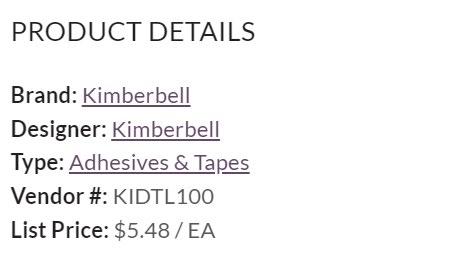
Key product details including Brand, Theme, Type, Size, Weight, Color, Designer, Vendor #, List Price, MAP Price, and more are all included here. Underlined text in this section are clickable links that work as filters for searching other products in the category.
Configured Thread
Configured Card Configured Product Detail Page
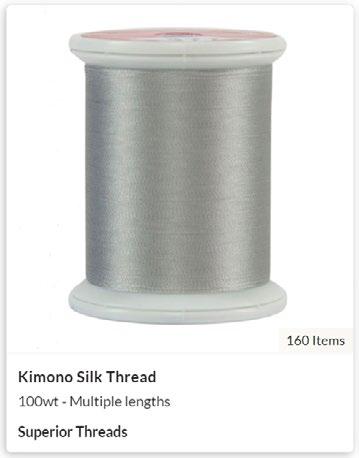
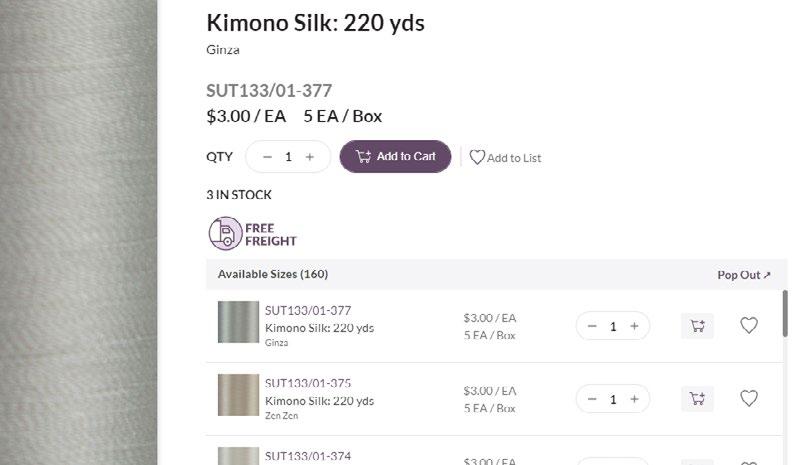
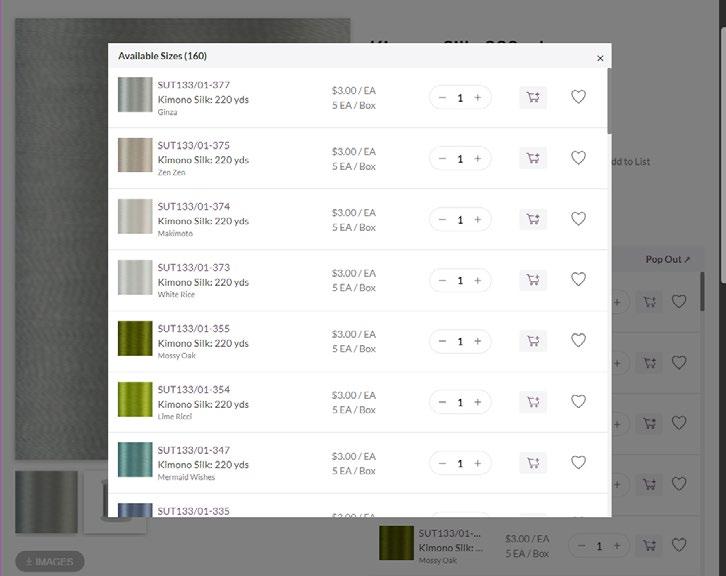
Products within the Thread category that share a common name or type are configured under a single card (ie. Kimono Silk Thread).
Downloading Images
There are two ways to download images. All images are large 1280 x 1280px at 72dpi.
Fabric Collections:
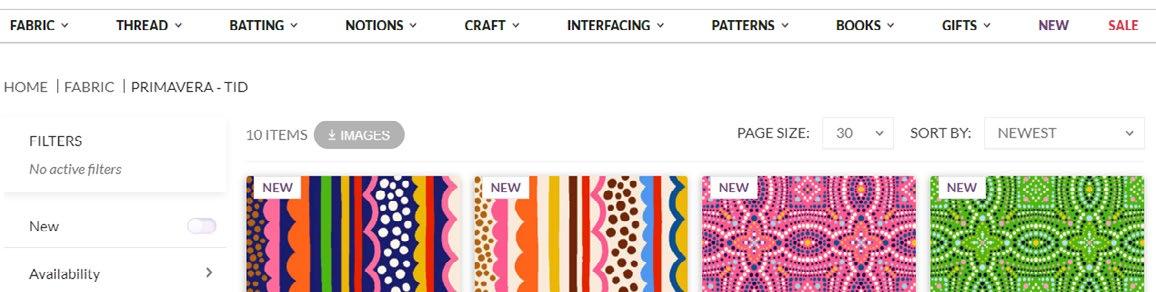
Download all images from a collection at one time by clicking the button on the top left of the collection page next to the filters. All current images from this collection, including any alternate images, will download to your computer in a zipped file.
Individual Images:
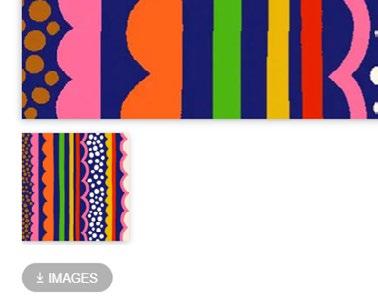
On the product’s detail page, click the button located underneath the smaller image box. All visible product images will download to your computer in a zipped file.
MORE FROM THIS COLLECTION in Fabric
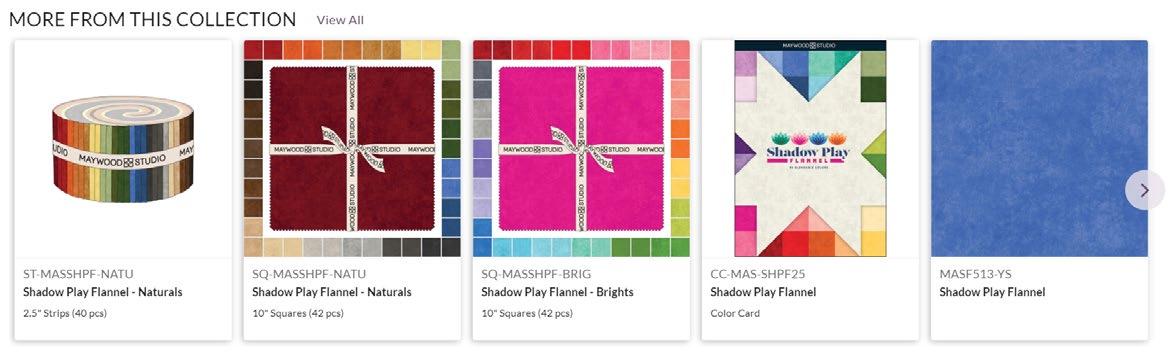
On fabric product details pages, navigate to the bottom to find additional SKUs offered from this collection; this can include available Color Cards, Precuts, Kits, and additional prints/colorways.

When selecting a configured card, additional colors available for that thread type are available in a list view. Select the text seen on the top right corner of the product list to open a bigger view on the list.
Shipping Details
The icons below may appear on the Product Detail page, the Cart, and Lists:
This item cannot be shipped via air.
This item will be drop shipped from the vendor, not shipped from EE Schenck.
These items will ship for free.
COORDINATING PRODUCTS
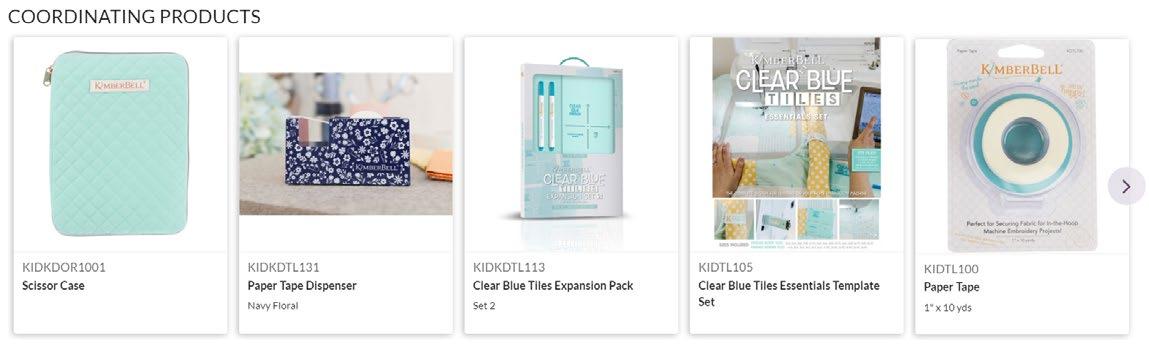
Navigate to the bottom of the product or fabric collection page to shop featured Coordinating Products. These items complement or enhance the product or fabric collection you are currently viewing.
- Friday 7:30am - 4:30pm PT