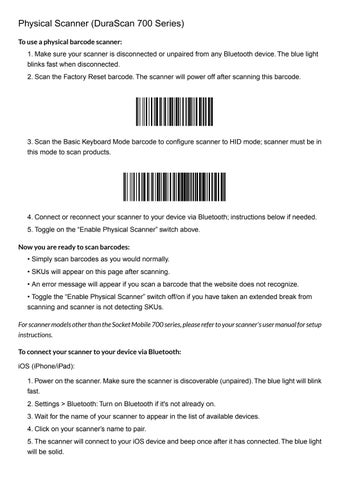
Physical Scanner (DuraScan 700 Series) To use a physical barcode scanner: 1. Make sure your scanner is disconnected or unpaired from any Bluetooth device. The blue light blinks fast when disconnected. 2. Scan the Factory Reset barcode. The scanner will power off after scanning this barcode.
3. Scan the Basic Keyboard Mode barcode to configure scanner to HID mode; scanner must be in this mode to scan products.
4. Connect or reconnect your scanner to your device via Bluetooth; instructions below if needed. 5. Toggle on the “Enable Physical Scanner” switch above. Now you are ready to scan barcodes: • Simply scan barcodes as you would normally. • SKUs will appear on this page after scanning. • An error message will appear if you scan a barcode that the website does not recognize. • Toggle the “Enable Physical Scanner” switch off/on if you have taken an extended break from scanning and scanner is not detecting SKUs. For scanner models other than the Socket Mobile 700 series, please refer to your scanner's user manual for setup instructions. To connect your scanner to your device via Bluetooth: iOS (iPhone/iPad): 1. Power on the scanner. Make sure the scanner is discoverable (unpaired). The blue light will blink fast. 2. Settings > Bluetooth: Turn on Bluetooth if it's not already on. 3. Wait for the name of your scanner to appear in the list of available devices. 4. Click on your scanner’s name to pair. 5. The scanner will connect to your iOS device and beep once after it has connected. The blue light will be solid.
Mac: 1. Power on the scanner. Make sure the scanner is discoverable (unpaired). The blue light will blink fast. 2. In Settings, search for "Bluetooth Devices" and then turn on Bluetooth and find your scanner under My Devices. 3. In the My Devices list, click on the name of your scanner and click pair. 4. The scanner will connect to the Apple device and beep once after it has connected. The blue light will be solid. Android: 1. Power on the scanner. Make sure the scanner is discoverable (unpaired). The blue light will blink fast. 2. Settings > Bluetooth: Turn on Bluetooth if it's not already on. 3. Wait for the name of your scanner to appear in the list of available devices. 4. Click on your scanner’s name to pair. 5. The scanner will connect to your Android device and beep once after it has connected. The blue light will be solid. Windows: 1. Power on the scanner. Make sure the scanner is discoverable (unpaired). The blue light will blink fast. 2. Settings > Bluetooth: Turn on Bluetooth and click on Add Device. 3. In the device list, click on the name of your scanner and click pair. 4. The scanner will connect to the Windows device and beep once after it has connected. The blue light will be solid.