
Identifying IEPs and 504s Using the Buzz Agilix LMS
Quick Start Guide
Utilize the features built into the Buzz Agilix LMS to help identify students needing additional support.

Important: only users with admin privileges can add accommodations. Added accommodations are visible in a read-only form to the users’ teachers but not available to students.
Once logged in to your teacher app, click the Gradebook icon located within your course Activity Stream.

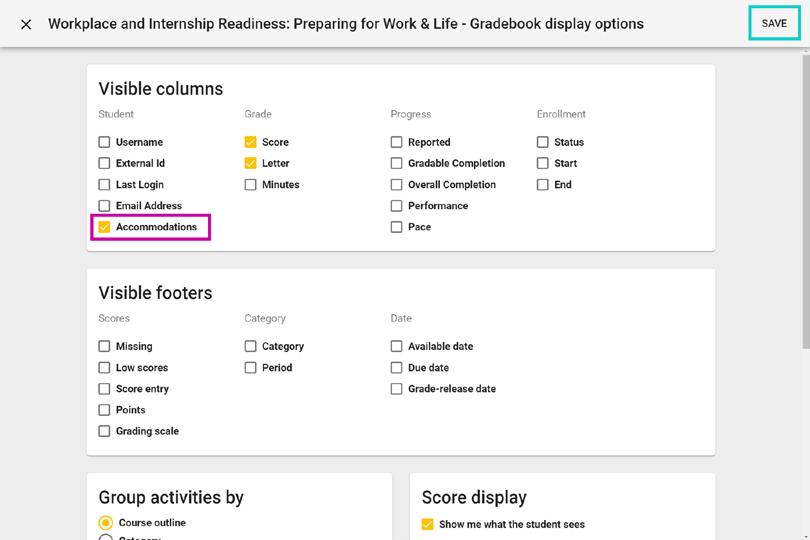
Click the Display Options located in the navigation bar.
Select the Accommodations box within the Student category of Visible Columns, if not already enabled. Click Save
Note: If a student has accommodations that have been added to the Buzz Agilix LMS, the Flag column will display once the Accommodations settings has been enabled. A flag icon in a student’s row indicates that student has accommodations noted.
Note: There are 2 types of accommodations that can be entered by an admin:
1. Ignore time limit on assessments
2. Limit the number of options on multiple choice questions (choice options range from 2-5)
Admins can also enter notes specifically related to IEP accommodations or can even attach a student’s IEP, so teachers have full access to IEP requirements.
Accommodations and IEP notes will be visible to teachers when added to a student profile.
Click the Flag icon in a student’s row to view accommodations and/or IEP notes.
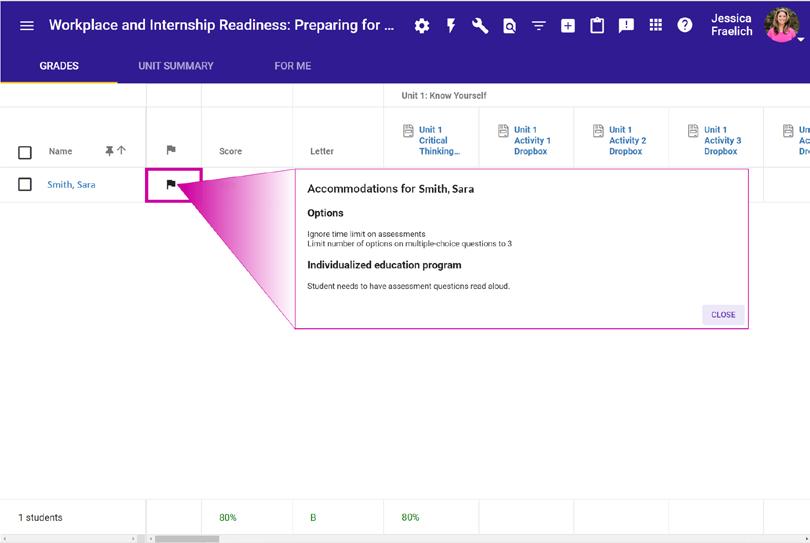
Note: Accommodations and/or IEP notes can also be found within assignments by clicking an assignment tile and then by clicking the flag icon to the right of the title of the open assignment.
For additional Quick Start Guides and helpful tutorials visit: www.edynamiclearning.com/support
Guide Passion to Purpose
www.edynamiclearning.com | 877.585.2029 | hello@edynamiclearning.com