
Adding an Assessment to Your Course
Quick Start Guide
Use the editor tool to insert your own assessments into eDynamic Learning courses!
Once logged in to your teacher app, click the Editor icon located within your course Activity Stream.


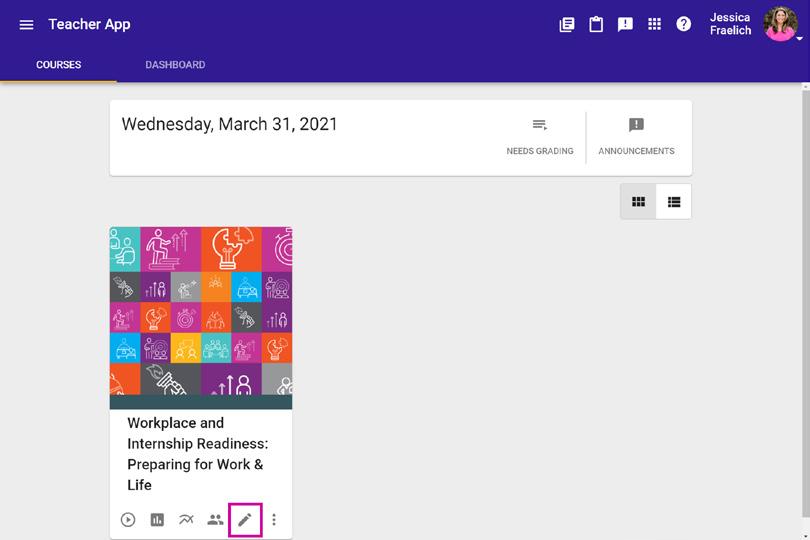
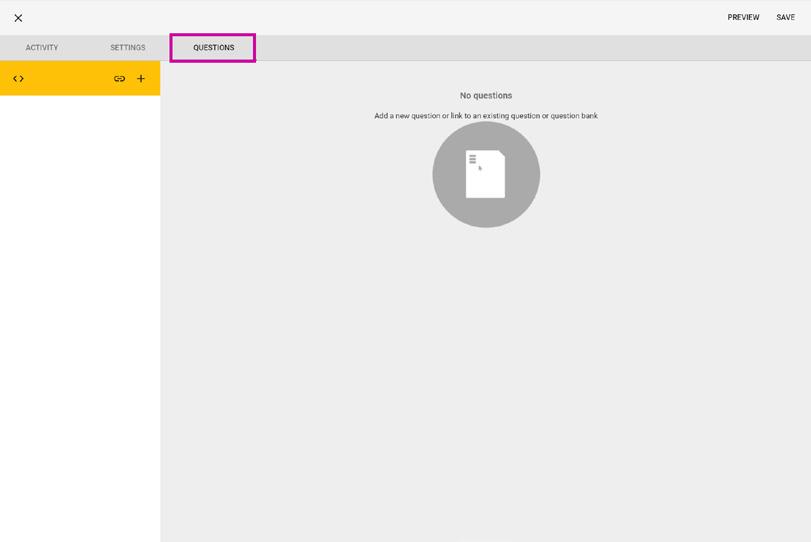
Click the Add activity button to the right of the unit to which you would like to add the activity.
Click Assessment within the “Add to” popup box.
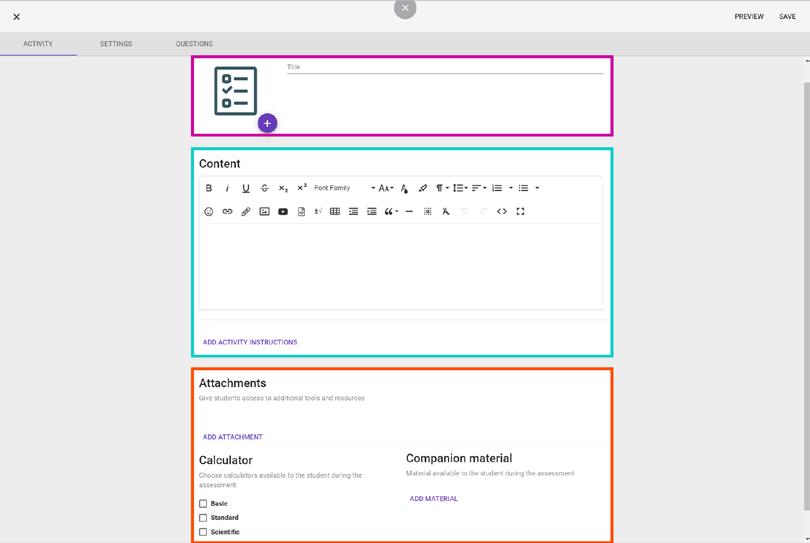
Complete information on the Activity page:
• Title and Upload image: add and activity title (required) and an image if desired.
• Content Pane: add text, images, videos, links, tables, etc. if desired.
• Attachments/Calculator/Companion Materials: add additional resources, materials, and tools to support your students during their assessment.
For additional Quick Start Guides and helpful tutorials visit: www.edynamiclearning.com/support

Guide Passion to Purpose
www.edynamiclearning.com | 877.585.2029 | hello@edynamiclearning.com