
Delice de France
App User Guide

Delice de France App
We are delighted to announce the release of the Delice de France order app.
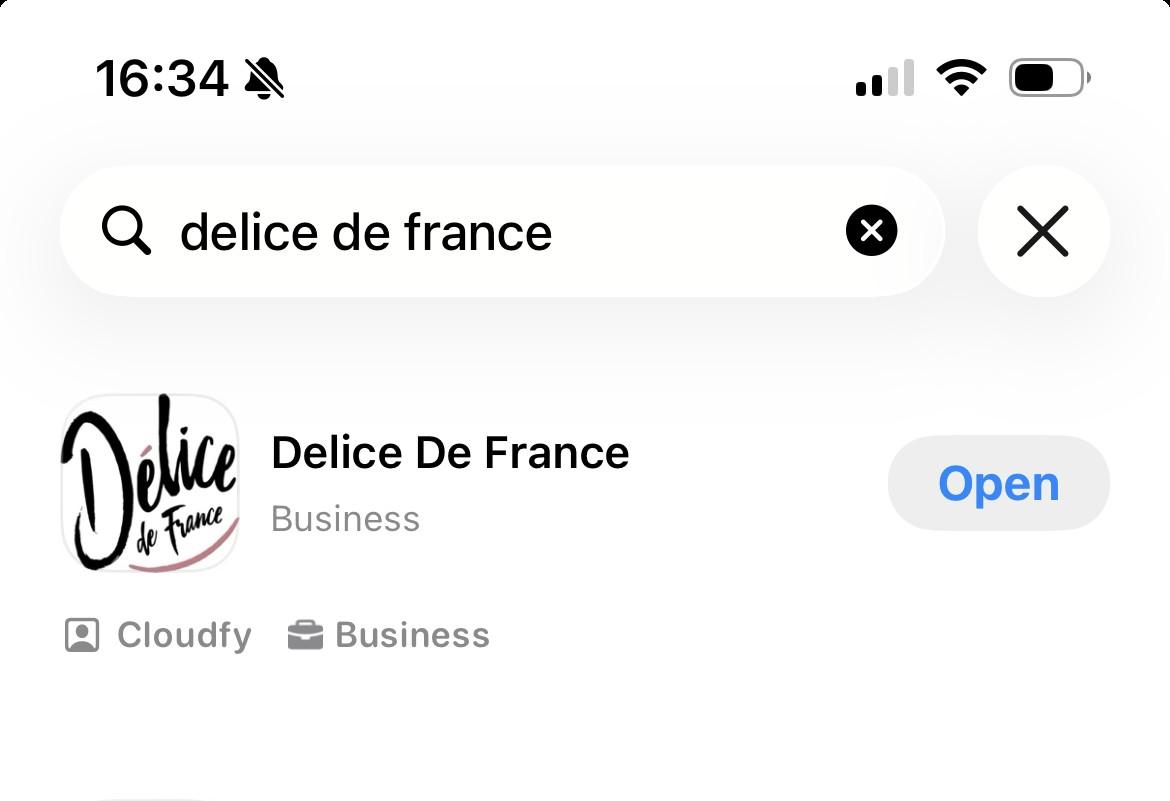
You can now download the app from Apple or Android stores, just search Delice de France.
Logging in
Log in is simple, same login structure as on your web browser.
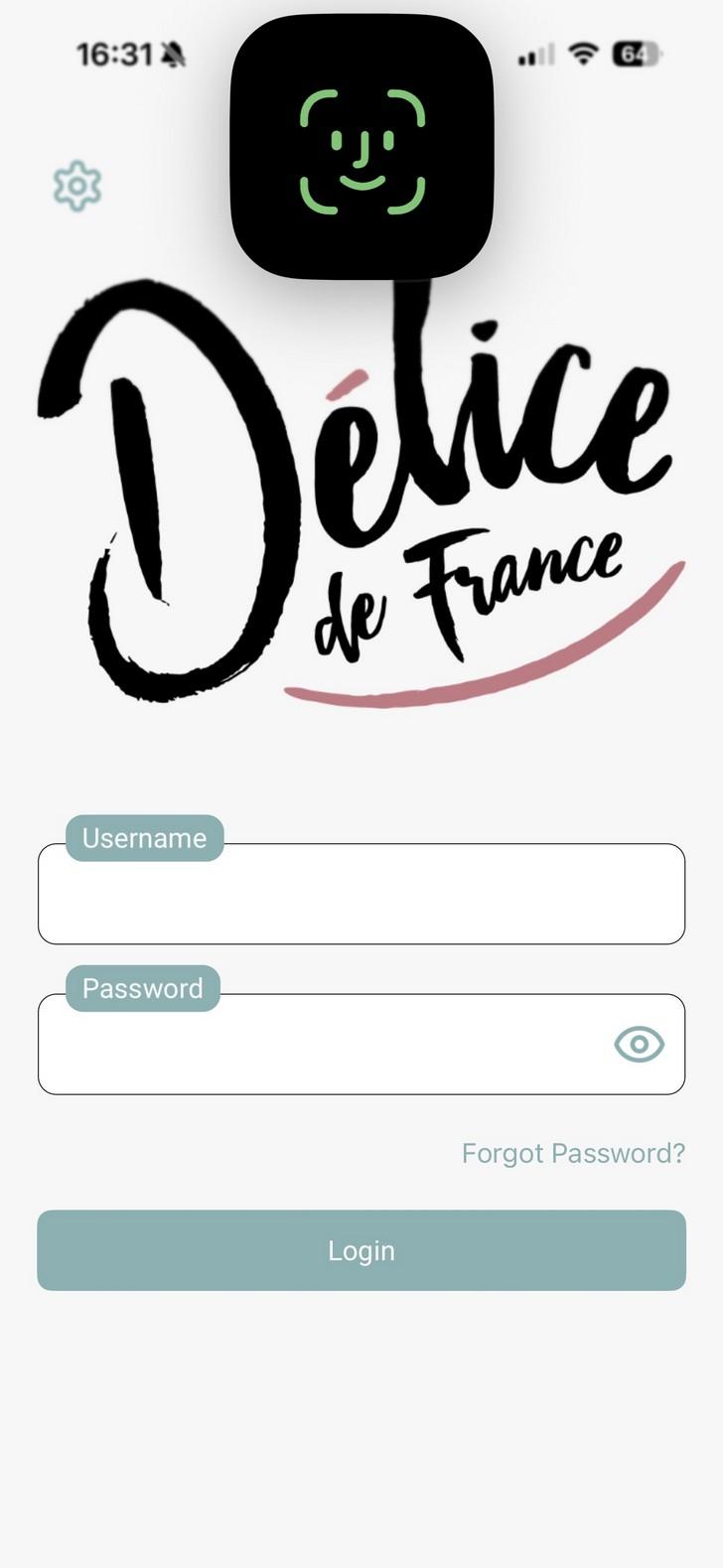
You will be greeted with this login screen as you open the app.
Username and password will remain the same registered to the account used on the browser.
Once logged in, the app will prompt you to enable FACE ID, streamlining the login process next time. No requirement to re-enter email and password on every login. Allowing you more time to browse, or to place a quick order on the go.
We’ve included a "show password" eye icon so users can double-check their entry before hitting login, reducing frustrating "incorrect password" errors.
If there are any issues logging in, you can reset the password by clicking the prompt. This will send a reset link to the registered email.
Home Page
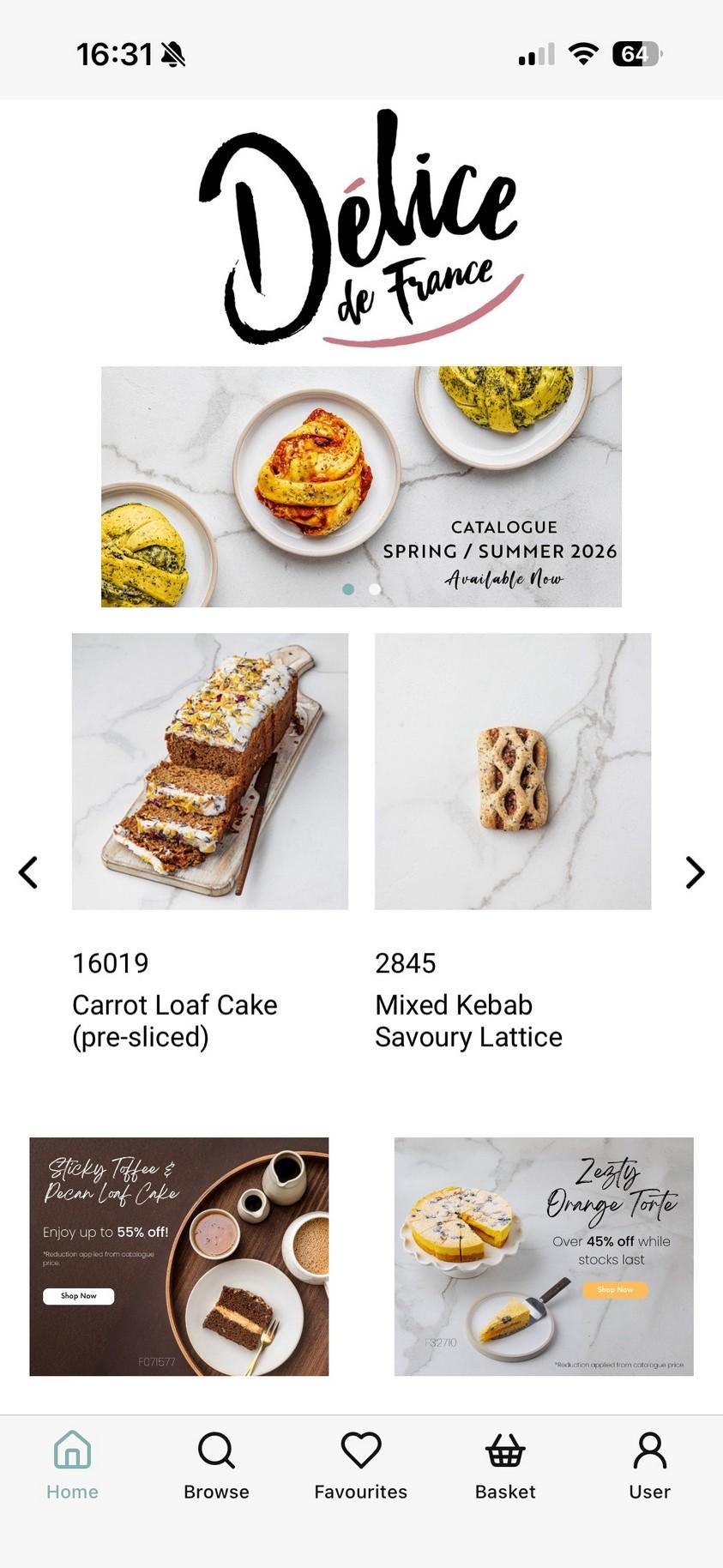
When logged in you will land on our mobile landing page (example screenshot right). Like the WebShop, they will have to be logged in to be able to view/browse products.
The homepage uses the same carousels and banners to show what’s new and may be of interest.
The scrollable product carousel allows you to view our “Try Me” range directly from the homepage.
The navigation bar below at the bottom enables easy to use navigation throughout the app.
Home: Returns you to the main page
Browse: Allows you to explore our range of products through the search bar and categories
Favourites: Quick access to saved/frequently ordered products
Basket: Checkout
User: Ability to check order history and user details
Browse Tab
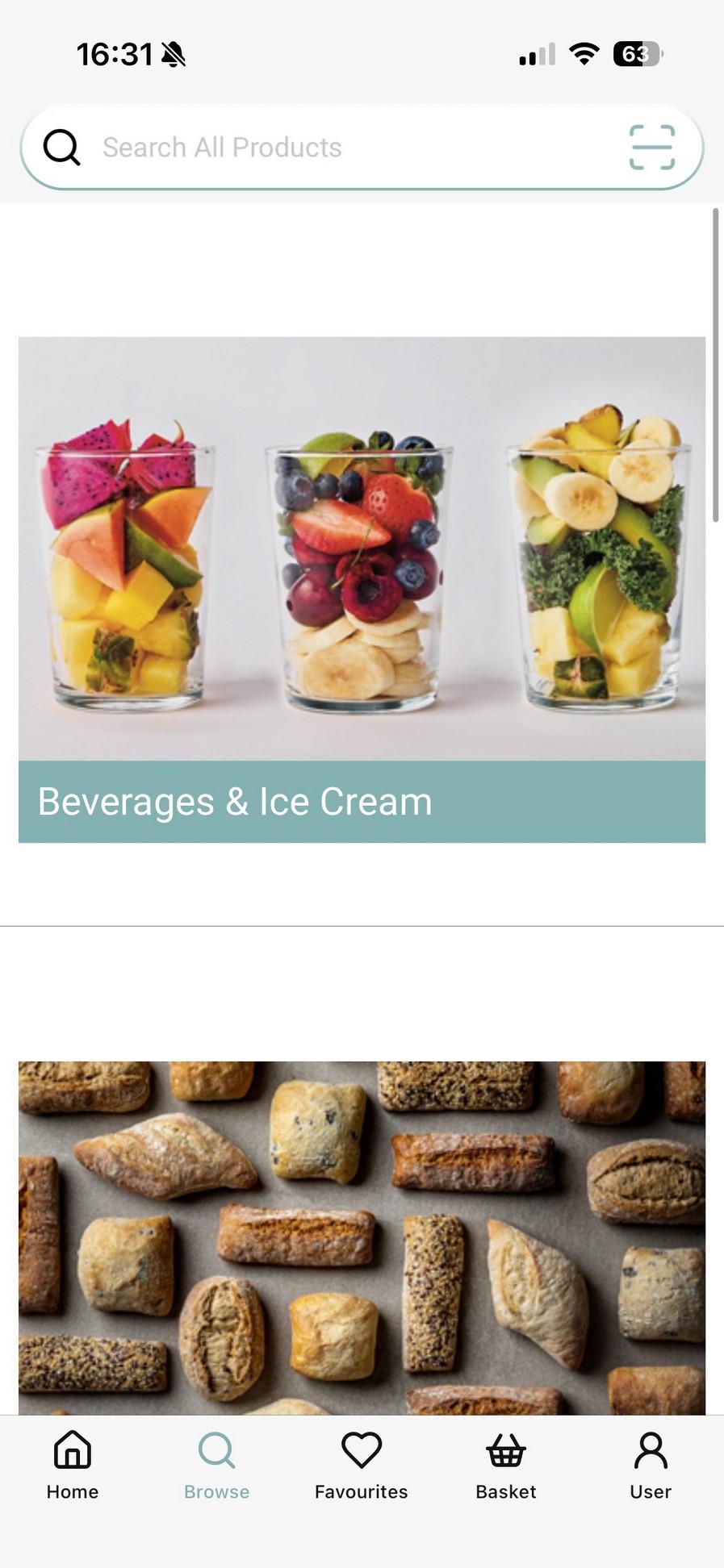
Easy browsing – by category images through to products
OR
The search field allows you to search products by name or SKU code.
Favourites
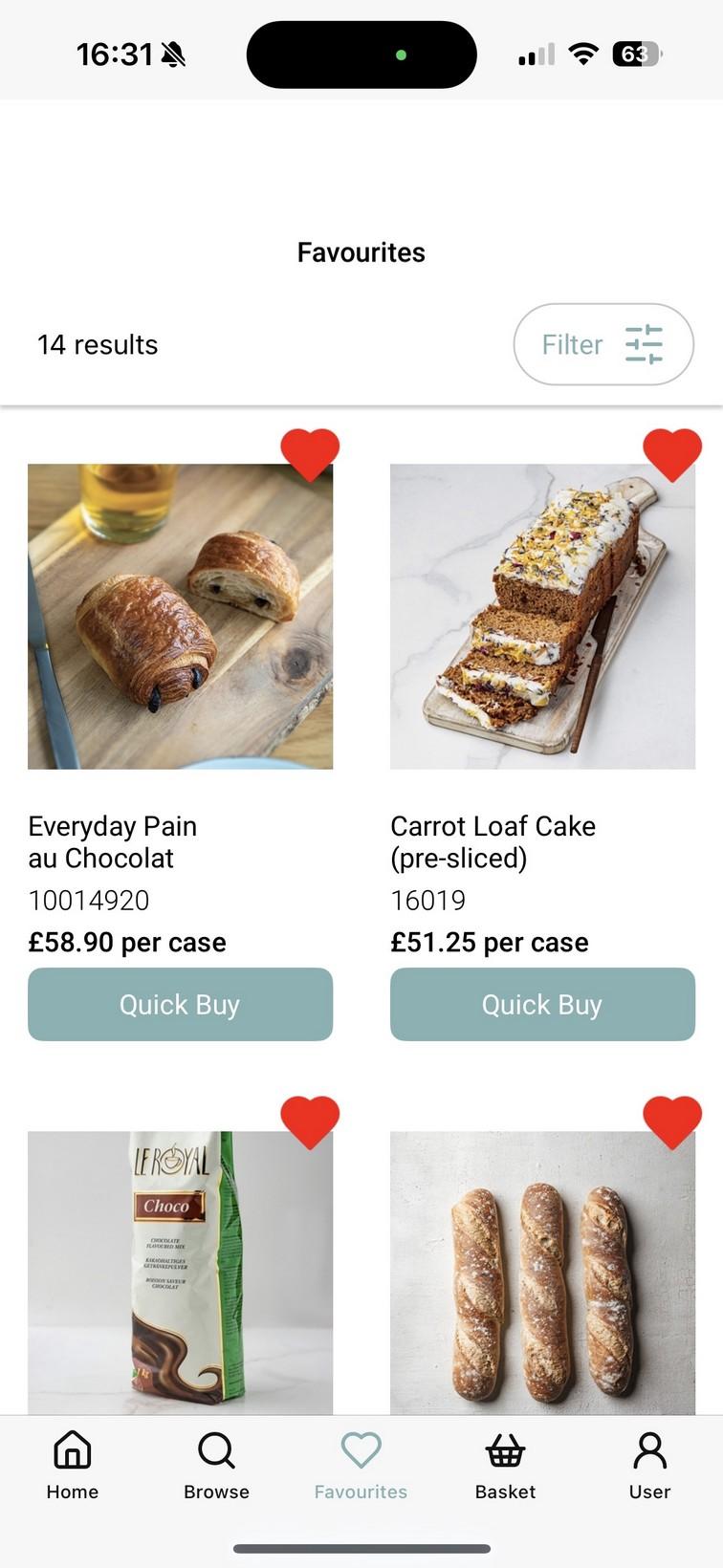
The Favourites page acts as a personalised storefront. It is designed to minimise the time taken to order for repeat customers by aggregating their most-loved or most-ordered items in one place.
Users will be displayed the number of results they have at the top of the page.
Items can be added to this tab by toggling the heart icon found on individual product pages or while browsing.
Each product card features an option to “Quick Buy” allowing the ability to add items directly to their basket.
Product Screen
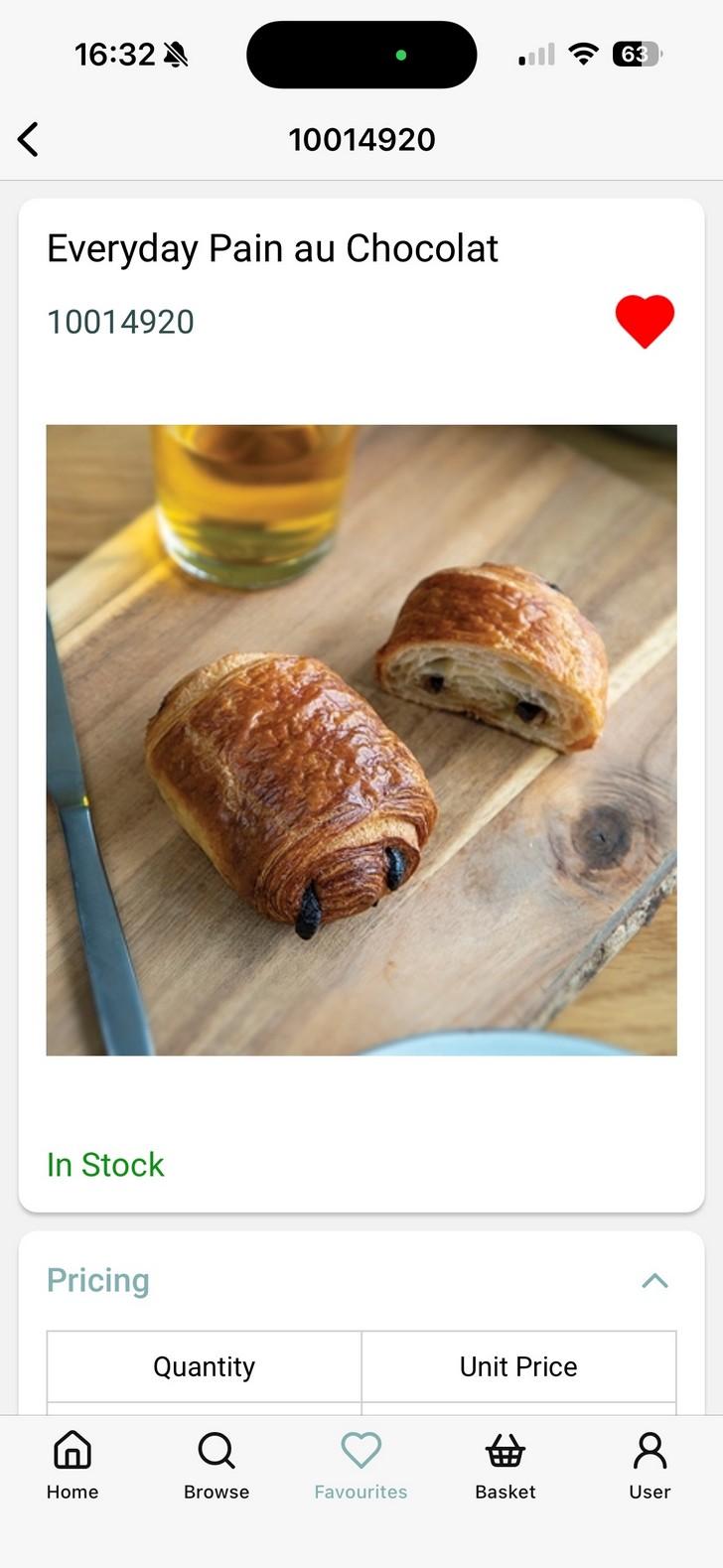
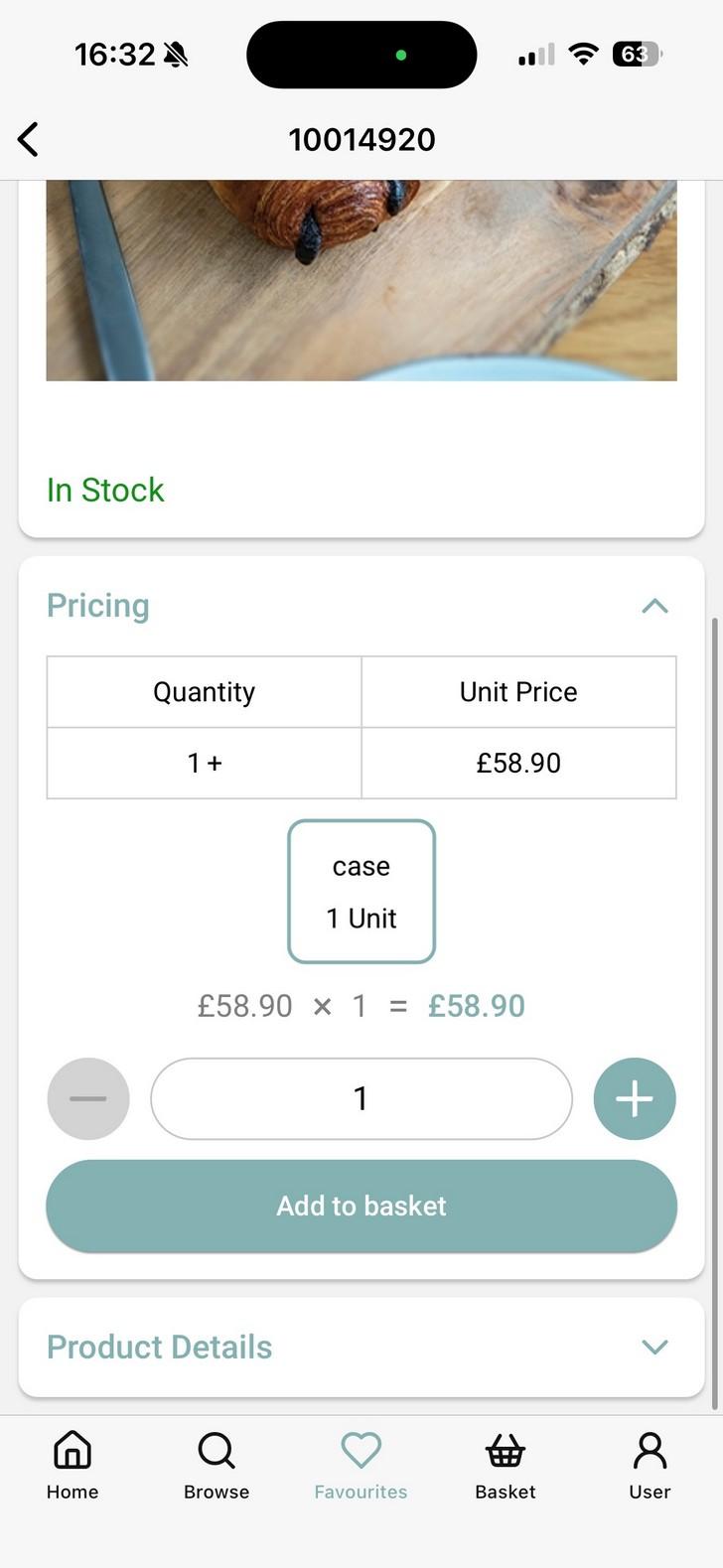
Clean and easy to use interface displaying case price.
Big visible favourites button making it easier to highlight and return to regularly ordered products.
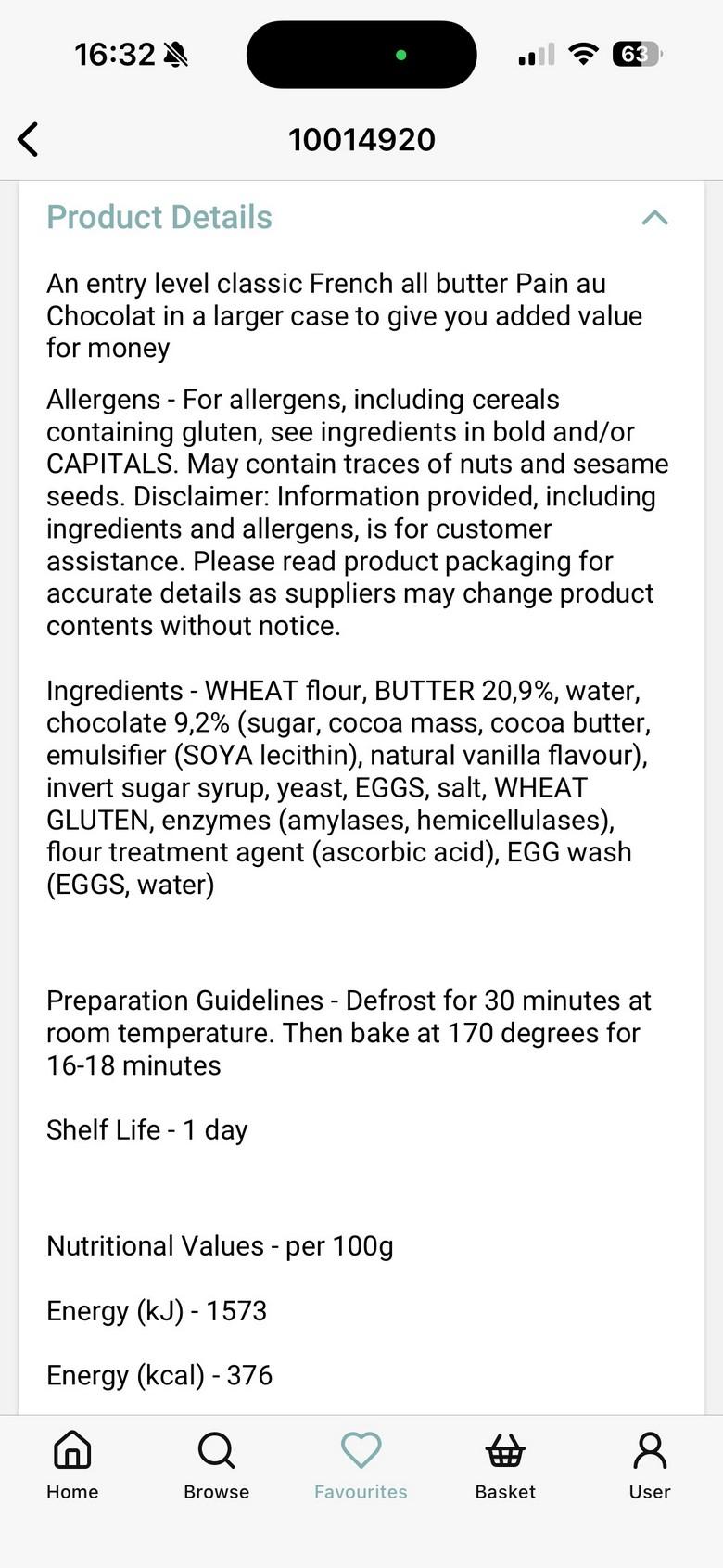
Users will need to click the dropdown menu to display product details, Allergens, Nutritional Values & Kcals and Technical Information.
Basket Tab
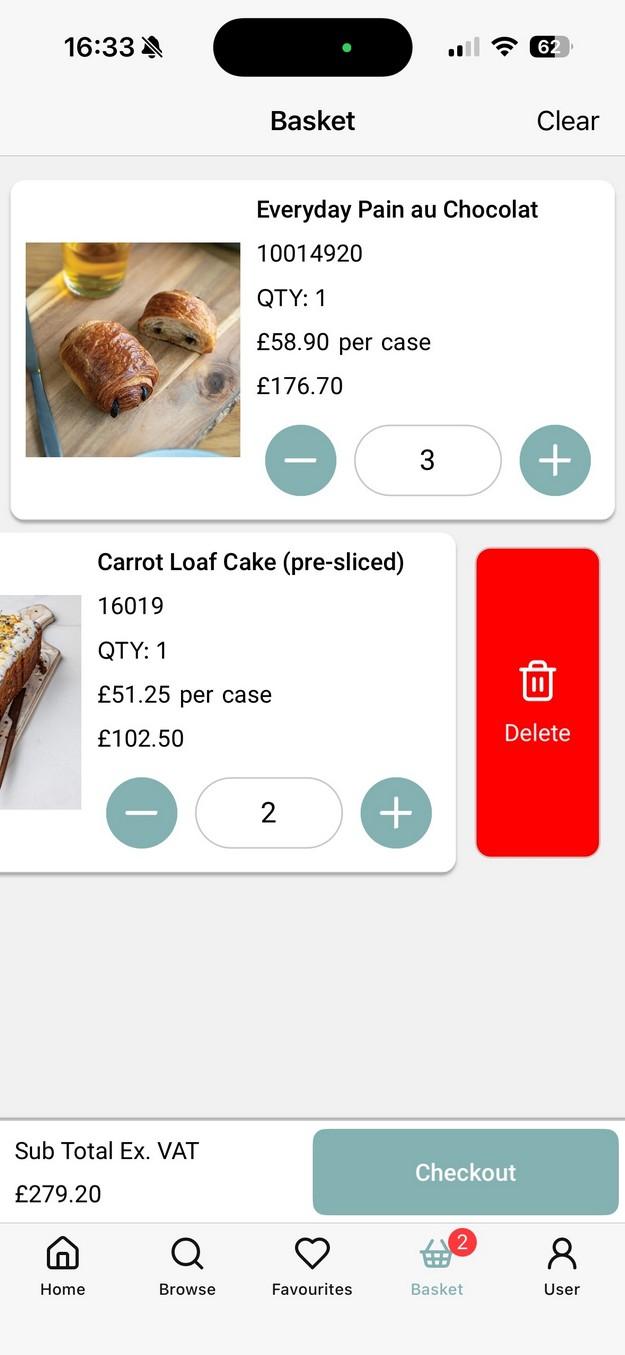
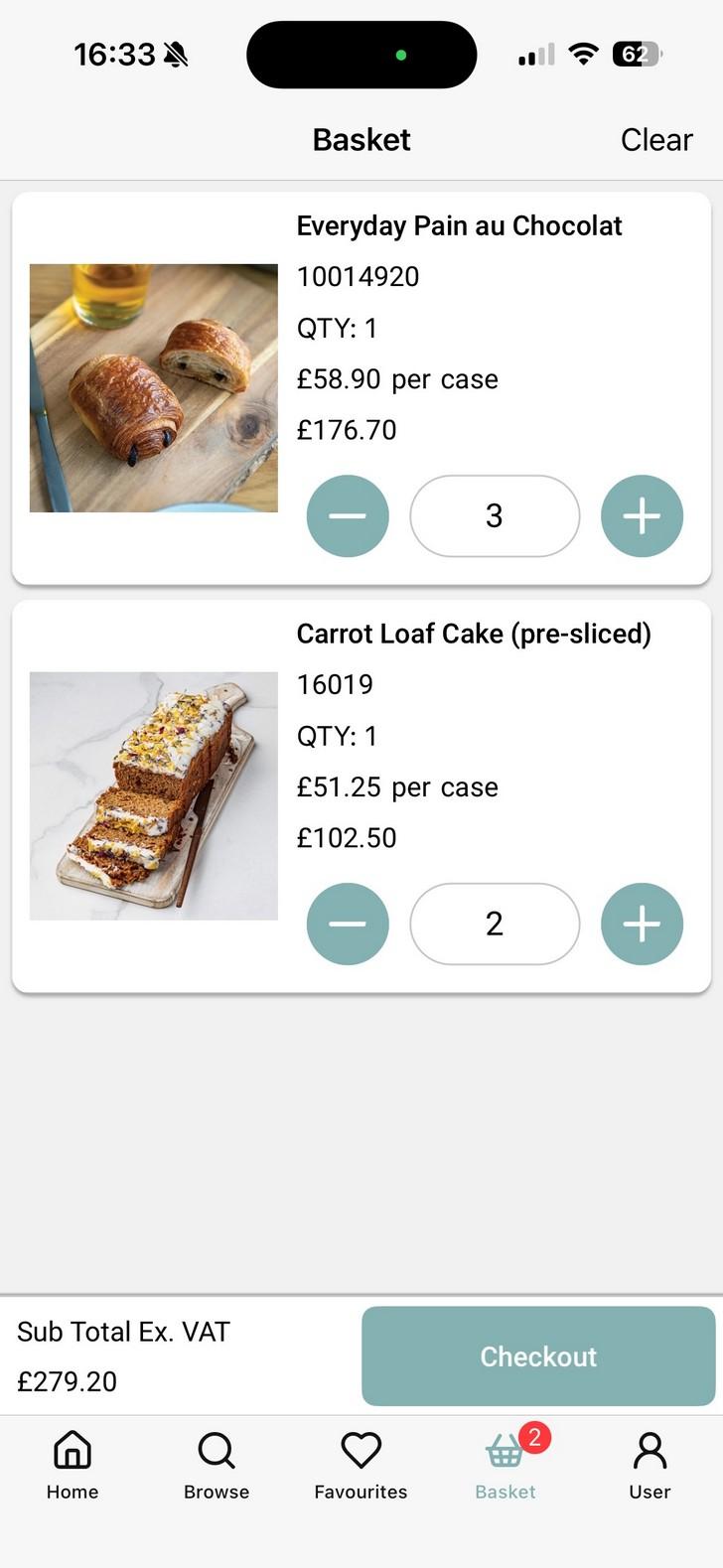
The basket process makes it easy for users to go through everything in their basket before checking out.
Easy to use + & - buttons make the process smoother to manage baskets.
Swiping away individual products will remove them from the basket.
The clear button will remove all products.
Checkout
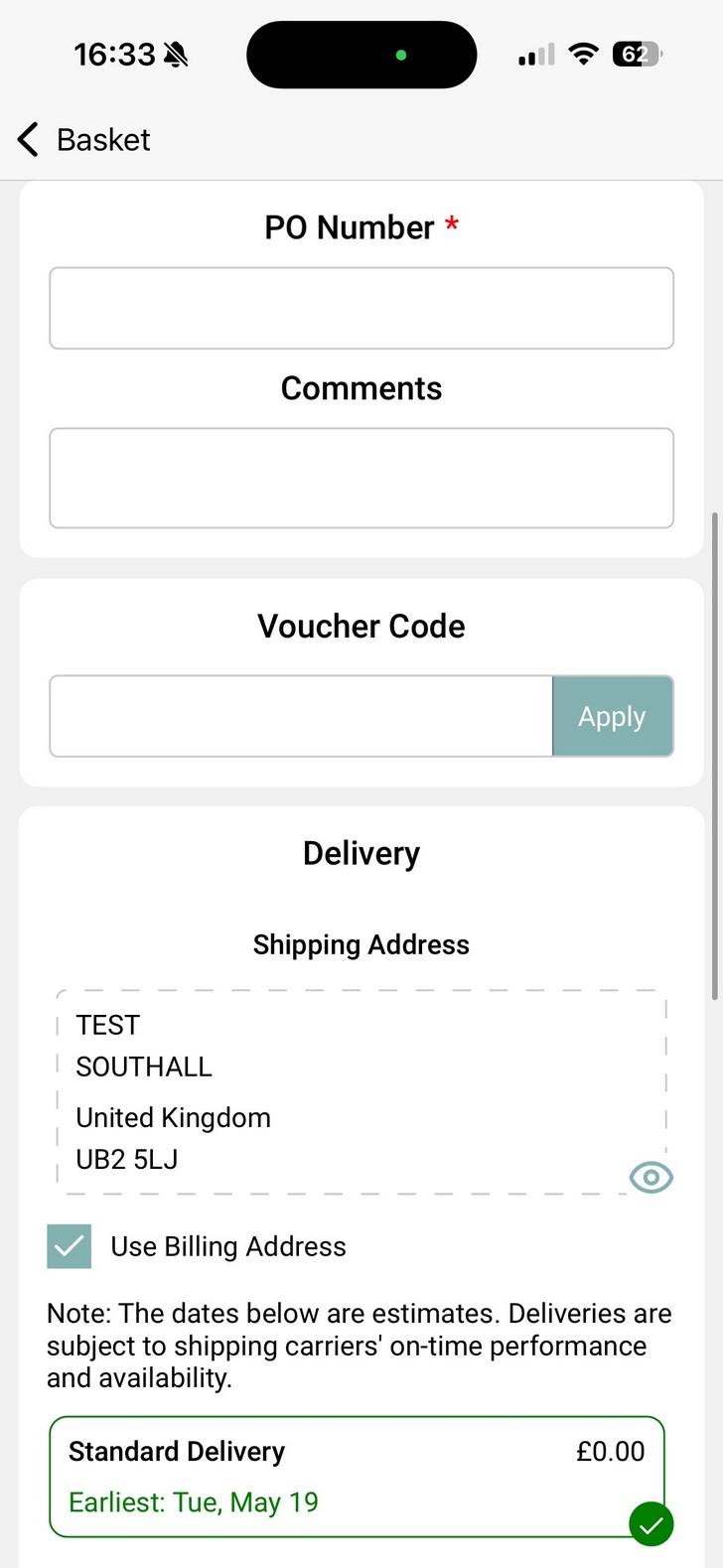
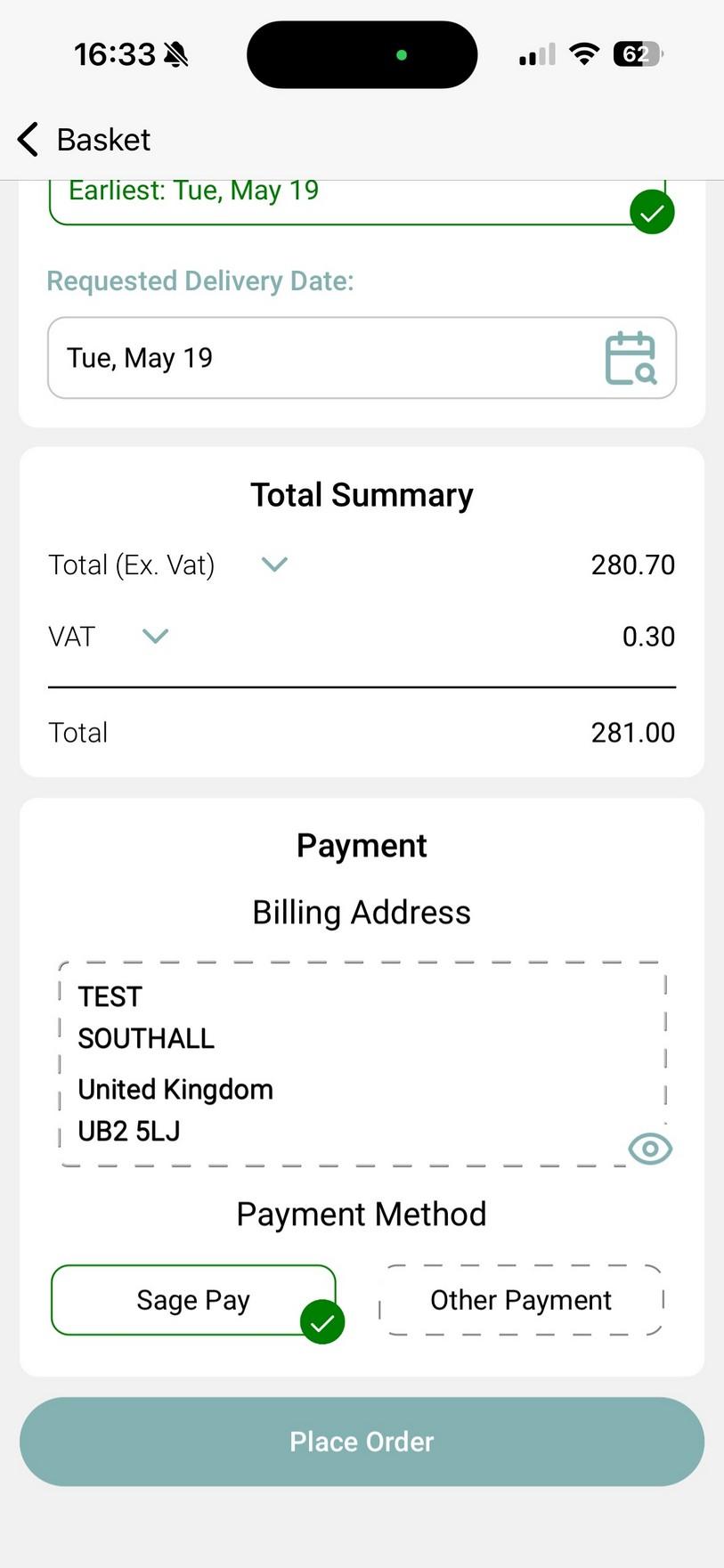
By keeping delivery dates, payment methods, and totals on one page, we’re cutting down on the time it takes to get from the basket to the "order confirmed" screen.
Requested delivery date lets users choose their preferred chosen delivery days.
Price breakdown of VAT and Total gives you clarity on your spend.
A PO number is required, marked by the red asterisk.
Not using a PO number, just pop your name in.
User Tab
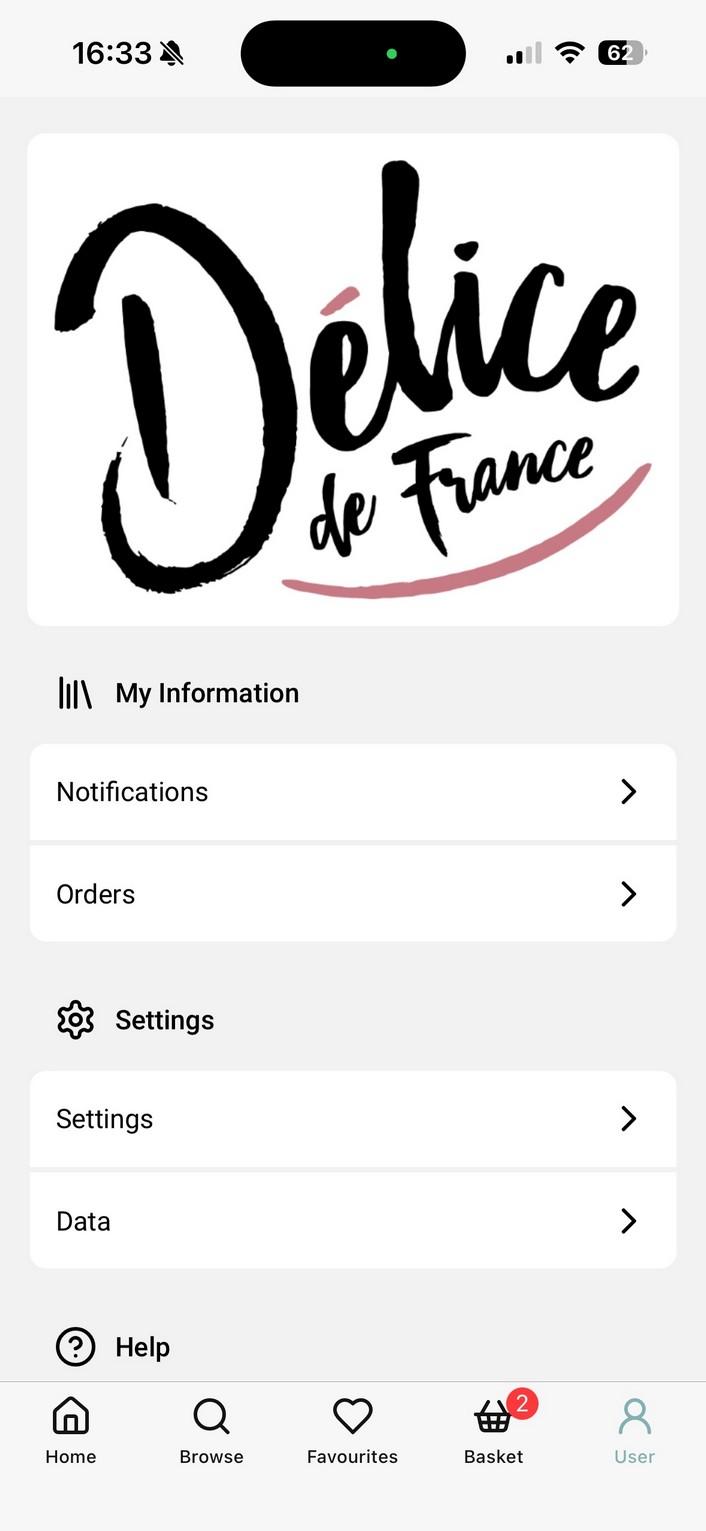
The user tab allows you to manage account settings, and handle data directly through the app.
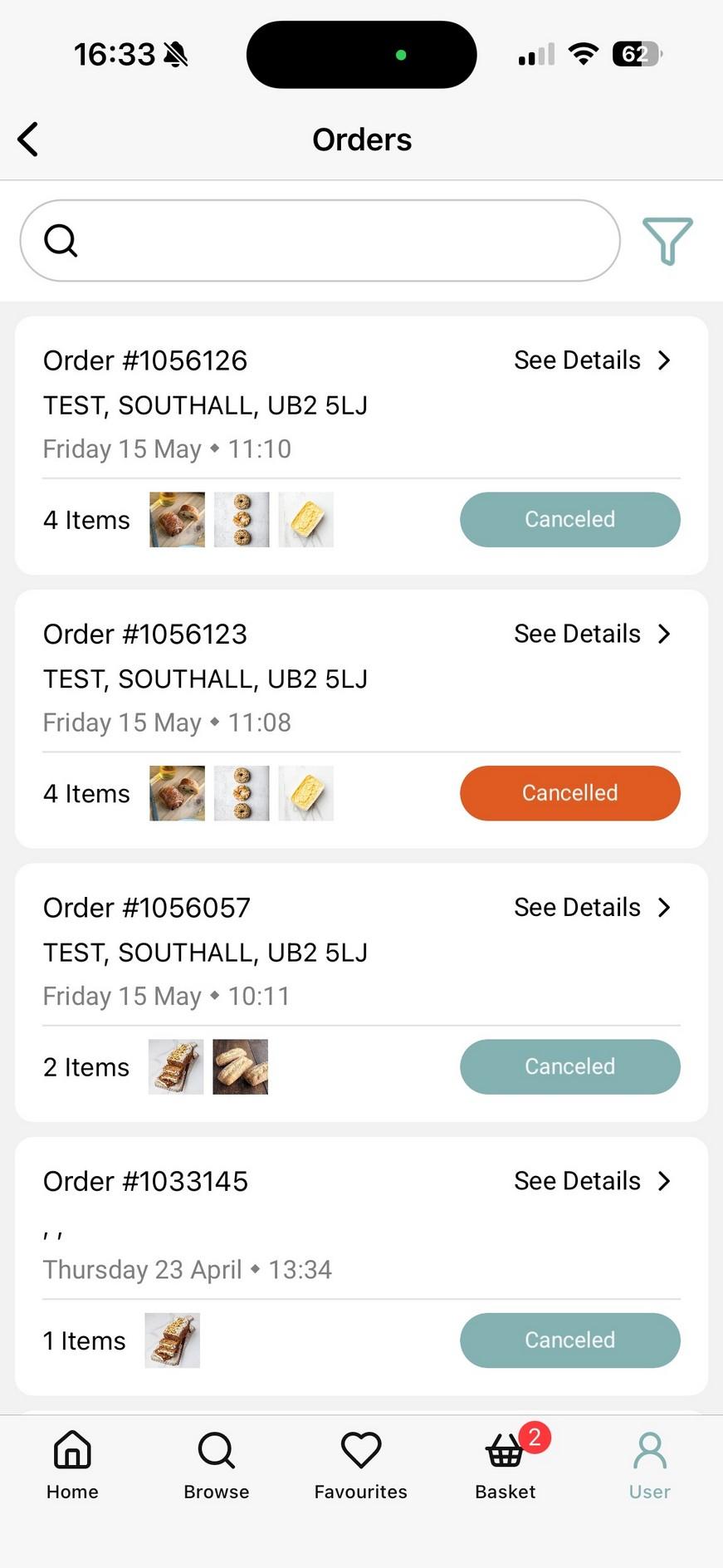
‘Orders’ allows you to see the status of orders or quickly look back on order history at what you bought previously.