EPSON INK PAD REPLACEMENT KIT INSTALLATION INSTRUCTIONS VISIT DECOPAC.COM FOR PHOTOCAKE PRINTER MAINTENANCE VIDEOS XP-3200
Available to specific Epson printers: XP-4100 XP-4105 XP-4200 WF-2830
WF-2850
Before you start: • Instructions shown are for PhotoCake IV 8.XX version • Must be on Update 42 or newer
DIRECTIONS
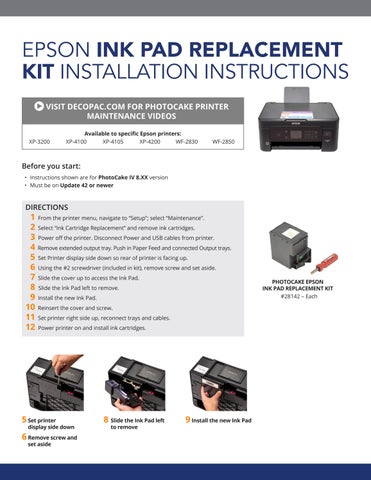
1 From the printer menu, navigate to “Setup”; select “Maintenance”. 2 Select “Ink Cartridge Replacement” and remove ink cartridges. 3 Power off the printer. Disconnect Power and USB cables from printer. 4 Remove extended output tray. Push in Paper Feed and connected Output trays. 5 Set Printer display side down so rear of printer is facing up. 6 Using the #2 screwdriver (included in kit), remove screw and set aside. 7 Slide the cover up to access the Ink Pad. 8 Slide the Ink Pad left to remove. 9 Install the new Ink Pad. 10 Reinsert the cover and screw. 11 Set printer right side up, reconnect trays and cables. 12 Power printer on and install ink cartridges.
5 S et printer
display side down
6 R emove screw and set aside
8 S lide the Ink Pad left to remove
9 Install the new Ink Pad
PHOTOCAKE EPSON INK PAD REPLACEMENT KIT #28142 – Each