The eCampus Faculty Handbook provides instructors with the resources and information needed to develop and teach high-quality online, hybrid, and web-enhanced on-campus courses. Its fundamental goals are to help faculty become familiar with the eLearning Department's services and encourage faculty to follow proven best practices as they develop and teach online and hybrid courses.
MORE SPECIFIC GOALS ARE:
• To inform faculty of NCTC policy and guidelines related to online learning.
• To keep faculty informed of NCTC eCampus procedures.
• To provide answers to frequently asked questions.
• To inform faculty of the various services and training opportunities available.
• To recommend best practices for teaching in the online environment.
• To support faculty to meet regular and substantive interaction criteria for distance education courses.
Mindful that many instructors have on-campus and online teaching responsibilities, this handbook intends to serve as a reference document. It supplements, but does not replicate nor replace, the Faculty Handbook distributed by the Office of the Provost. This handbook was developed through the collaboration of the eLearning staff and DE Committee, and any comments/suggestions should be directed to the Provost or the eLearning Department.
STUDENT SUCCESS
North Central Texas College continues to prioritize student achievement across all instructional formats. In Fall 2024, success rates remained strong for both face-to-face and hybrid courses, each at 73.6%, and online courses at 67.6%. These figures reflect the college’s ongoing commitment to instructional quality and student support, regardless of delivery method.
NCTC ONLINE SNAPSHOT 2024
STUDENTS & COURSE OFFERINGS
ONLINE-ONLY STUDENTS
3,123
ONLINE-ONLY COURSES
586
Online education remains a significant component of NCTC's academic offerings. In Fall 2024, the college offered 586 online-only courses and served 3,123 unduplicated online-only students, highlighting both the scale and importance of virtual learning environments.
As online enrollment continues to grow, the eLearning and Instructional Design teams remain focused on refining course design, enhancing digital engagement, and supporting student success in all modalities.
ELEARNING HELP DESK SUPPORT
TOTAL TICKETS RESOLVED FROM 2024
2,256
TOTAL TICKETS RESOLVED FROM CURRENT *ACADEMIC YEAR
2,383
These tickets span a wide range of technical support needs, including:
• Canvas support and troubleshooting
• Instructional technology setup
• Course design consultations
• Account access and student login issues
• LMS tool integration and support
Note: These numbers do not include support via phone, walk-ins, or email, which significantly increases total support volume
eLEARNING DEPARTMENT
MISSION
The mission of the NCTC eLearning Department is to facilitate the continued growth and development of distance learning opportunities for a diverse and rapidly changing student population. The department strives to accommodate various online student needs and learner preferences. The eLearning Department is an Instructional Unit and reports directly to the Dean of eLearning.
DEFINITION
While the eLearning Department and eCampus work closely together, they serve distinct roles. eLearning is a department within the Instruction division at North Central Texas College, overseen by the Dean of eLearning and supported by a team that includes a director, an eLearning Program Coordinator, and two instructional designers. eCampus, on the other hand, refers to the college’s learning management system (LMS), which is managed and supported by the eLearning team.
RESPONSIBILITIES
The eLearning Department is responsible for the following at NCTC:
• eCampus Systems
- Canvas Learning Management System (LMS)
- Publisher Apps
- Studio for Canvas
- Respondus Lockdown Browser & Monitor
- TurnItIn Plagiarism Checker
- Canvas Conferences/BigBlueButton
- Qwickly Attendance
• eCampus Help Desk
- Technical support for all eCampus systems
- Link for eCampus Help Desk
• eLearning Course Design
- Consult with faculty regarding best practices and various technologies for streamlined online courses
• eLearning Curriculum Development
- Improve the content within your course such as course outlines, assignments aligned to learning outcomes, or rubrics.
• eLearning Training
- Provides diverse professional development offerings for eCampus users
• eLearning Campus Visits
- Weekly visits to support faculty and students with eCampus systems
WHO WE ARE eLEARNING DEPARTMENT
Sara Flusche Dean of eLearning sflusche@nctc.edu | (940)668-3351
Axel Leos Director aleos@nctc.edu | (940)668-4262
Cindy Wittrock eLearning Program Coordinator cwittrock@nctc.edu | (940)668-7731, ext. 4966
NCTC utilizes the Canvas Learning Management System (LMS) to support all online, hybrid, and face-to-face courses. The eLearning department manages and supports Canvas (referred to as eCampus) and provides training and assistance to faculty and students.
Students access Canvas using their assigned login and password. Reliable internet access is required for online coursework. Canvas is used across all course modalities to:
• Deliver instructional content
• Facilitate communication
• Administer assignments and assessments
• Record grades and attendance
COURSE MODALITIES
Online Courses (80–100% online)
Online courses are delivered primarily through Canvas. While most are fully online, some courses may require limited on-campus attendance for activities such as testing.
Hybrid Courses (30–79% online)
Hybrid courses combine online and face-to-face instruction. These courses reduce the number of required campus visits while maintaining scheduled in-person sessions, often meeting once per week.
Face-to-Face Courses
Face-to-face courses may also use Canvas to provide course materials, assignments, and grade tracking, even though instruction occurs in person.
ITV (Interactive Television) Courses
ITV courses are synchronous, real-time classes that allow students to participate from multiple campus locations (e.g., Corinth, Bowie) or remotely via Webex. These courses provide live, two-way audio and video interaction and follow a scheduled meeting time.
Additional Information
Students are encouraged to review specific course details, including meeting times and requirements, by searching for courses in MyNCTC under Find Courses.
DISTANCE EDUCATION COMMITTEE
The Distance Education (DE) Committee aims to enhance the quality and capacity of the college’s distance education offerings. The committee’s primary responsibility is creating and reviewing standards for distance education, including online faculty certification. The DE Committee coordinates with other committees across the college to ensure that standards for distance education courses result in high-quality instruction and, ultimately, student success.
North Central Texas College recognizes that rapid developments in distance education technology require users to stay informed of changes. In between meetings, the committee conducts business via their Canvas group.
DISTANCE EDUCATION COMMITTEE MEMBERS:
Chair: Axel Leos
Elizabeth Cuzco
Susan Decker
SOCIAL MEDIA
X: NCTC eLearning
Sara Flusche
Alex Holland
Yenny Mo
Bekah Sanchez
Josh Spradling
Jill Swarner
Courtney Thompson
Cindy Wittrock
Jill Yoder IMPORTANT LINKS
eCAMPUS
BRIEF HISTORY
NCTC eCampus offered its first online courses, British Literature I, American-State-Local Government, and American-National Government, in the fall of 2000. Online course enrollment and offerings have grown exponentially since the mid-2000s. In fall 2014 over 280 online sections were offered, and 32% of NCTC students took at least one online course through NCTC eCampus. In Fall 2018, 461 online courses were offered and 47.38% of NCTC students attending in that term took at least one online course through the NCTC eCampus.
SYSTEMS
NCTC eCampus is comprised of specialized systems and their users (e.g., students, faculty, and staff). The central platform of eCampus is the Canvas Learning Management System (LMS). Other systems, each providing a specific capability, integrate into Canvas, such as Respondus Lockdown Browser and TurnItIn Plagiarism Checker. Additionally, various publisher products, like McGraw-Hill Connect, WebEx and Pearson MyLab and Mastering, integrate into Canvas.
CANVAS
Canvas, an Instructure, Inc. product, has been on the market since 2011. Starting in spring 2011, a group of over 20 faculty members plus the eLearning Department staff began evaluating LMS options to replace the ANGEL LMS. In May 2013, after extensive research and evaluation the group unanimously recommended Canvas. NCTC signed with Instructure, Inc. in June 2013.
In the Canvas Instructor Guide, you will find everything you need to know to use Canvas as a teacher, from creating assignments to managing course settings.
The Canvas Student Guide will help you learn everything from submitting assignments and quizzes to communicating with your instructor.
If you have any questions or concerns about features updates in Canvas, please contact the eCampus Help Desk
ACCOUNT
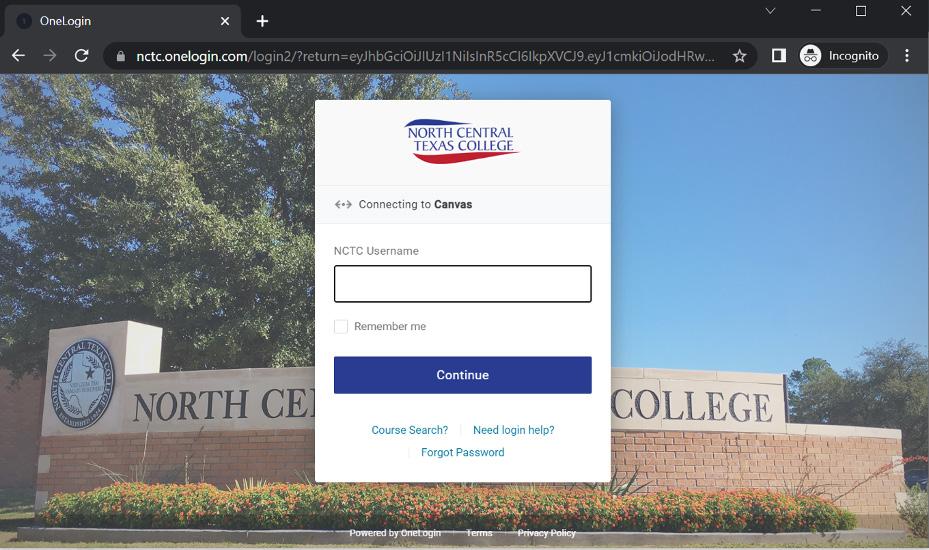
Use your OneLogin and password to login to Canvas.
By clicking the Courses drop down list in Canvas, all faculty should see their Canvas Practice Course and Canvas Refresh. Any other training courses, guides, and groups (e.g., Faculty Group) are also listed under Courses.
Prior to early registration, course shells are batch generated in Canvas. Course shells are generated based upon the schedule of classes at the start of early registration and updated regularly until late registration closes. Student and instructor enrollments are also updated in Canvas regularly. All course enrollments are updated in Canvas 4 times a day. This is a shared process between the eLearning and ITS Departments. All courses, online, hybrid, and face-to-face, start on the first day of the semester. It is the responsibility of the online instructors to have online courses published before the first day of the semester.
Every instructor in Canvas has his or her own personal Canvas Practice Course. Install, edit, and copy over content from your Practice Course to any course or group in Canvas where you have Teacher rights.
Figure 2. Login page at https://nctc.instructure.com
eCAMPUS
DEPARTMENT ADMIN ROLE
All instructional deans, division chairs, and program coordinators are assigned the DEPT-ADMIN role in Canvas. The DEPT-ADMIN can access all courses, statistics, outcomes, rubrics, and reports in his or her Instructional Unit. The DEPT-ADMIN can also send communications to students and faculty at the individual, group, and course levels.
Contact the eCampus Help Desk for DEPT-ADMIN technical support
FACULTY GROUP
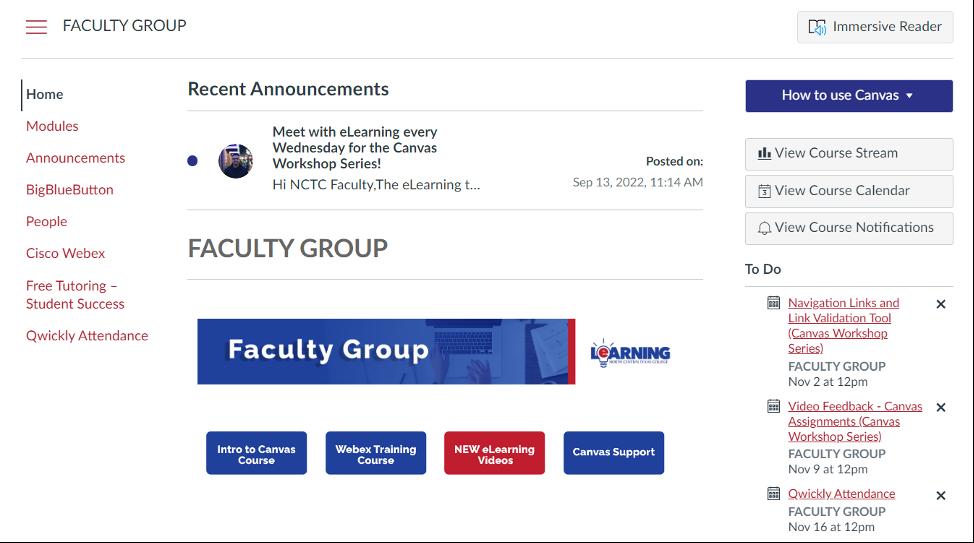
The Faculty Group course is the resource center for all full-time and adjunct faculty at NCTC regarding eCampus systems. More specifically, Faculty Group provides detailed information and instructions on various eCampus systems along with weekly webinars showcasing various parts of these systems.
All eCampus full-time faculty and adjuncts should see the Faculty Group course listed among their Courses dropdown list in Canvas. Contact the eCampus Help Desk for Faculty Group technical support.
Figure 3. Faculty Group in Canvas.
CANVAS MOBILE
The Canvas Mobile app is available for free on iOS and Android devices. Communications, grades, modules, quizzes (limited) and files are all available to students via the Canvas Mobile app. The Canvas Teacher app is also available for free on iOS and Android devices. The Teacher app is specifically made for faculty and allows the user to grade and communicate from their mobile device. Canvas Mobile and Teacher apps are available in the Apple App Store and Google Play Store.
CANVAS COMMONS
Canvas Commons is a Learning Object Repository (LOR) that enables instructors to find, import, and share resources with one another. Use Commons to build courses and lesson plans. With Commons, instructors can find courses, modules, assignments, and quizzes to import into their own course(s). To introduce faculty to Canvas Commons, the NCTC eLearning Department offers Intro to Commons. Intro to Commons is a module in the Canvas Refresh course that details a few important aspects of Commons and how users can get started using Commons. More information, like how to access and navigate Commons, is available in the Canvas Guides
eCAMPUS
INTEGRATIONS
There are multiple specialized systems integrated into Canvas. Integrated means that the system is available for use within Canvas. There are too many available to list here and the list is ever changing. To see currently available applications within Canvas go to the settings menu within a course, then click on the Apps tab at the top. The following is information about a few of the most commonly used tools.
STUDIO IN CANVAS
Our video platform is Studio, by Instructure. Studio functions as a media repository that allows all eCampus users to record videos, upload videos, capture screen recordings and much more. Studio functions similarly to social media in that comments are integrated seamlessly for user interaction and feedback. For admin and instructors, analytics are available to monitor student activity.
Studio quizzes are also available to test students while viewing media. Questions can be placed at certain timestamps to provide a rich quiz experience while engaging with media. Quizzes are automatically graded and can be integrated with Canvas grades seamlessly.
Captions are also a feature within Studio that should be utilized. Captions can be generated for any video in Studio and provide up to an 85% accuracy rate. There are a few language choices that can be automatically generated by Canvas, and Studio accepts caption uploads as well if a typed-up transcript is available for the media file. Lastly, generated captions provide the user with a caption file that can be edited in various ways before the captions are published to the media.
Studio should be used extensively as opposed to uploading media files directly to course or account files in Canvas. Studio videos currently do not have a file limit and do not count against your course file storage limit.
RESPONDUS LOCKDOWN BROWSER & MONITOR
To prevent students from opening additional tabs, windows, applications, or monitors during an online quiz, test, or exam, NCTC eCampus uses Respondus LockDown Browser. To require students to use Respondus LockDown Browser, select the LockDown Browser link in the Course Navigation menu. For more information on LockDown Browser settings, please review the Updated Integration for Canvas webpage.
Installation is a one-time process per computer. The installation will only work with assessments delivered via NCTC eCampus. If a student tries to access a quiz that requires Respondus Lockdown Browser by using another browser, such as Firefox or Google Chrome, Canvas will not launch the quiz and instead prompts the student to go to the URL referenced below. If you intend to use Respondus LockDown Browser in your course, include the URL referenced below in the Syllabus and in the first module in your Canvas course. Respondus LockDown Browser is also available in most NCTC computer labs and faculty offices. Use Student View via Course Settings to preview Respondus Lockdown Browser on a specific quiz, test, or exam. Please note that in order to preview your assessment via Respondus LockDown Browser, it must be installed on your computer.
See the Faculty Group in Canvas or Canvas Refresh for support with Respondus LockDown Browser. Students and faculty use the same download URL Installation instructions are also available on the Respondus LockDown Browser website.
Respondus Monitor is a companion product for LockDown Browser. Use Respondus Monitor to protect the integrity of your non-proctored, online exams. When enabled by the instructor, Respondus Monitor requires students to use their own computer and a webcam to record assessment sessions. Instructors can quickly review details of the assessment, including the recorded video. Access the Respondus Monitor settings through the LockDown Browser Dashboard in Canvas.
Instructors that use Respondus Monitor need to include a notification statement in their Syllabus so that students are aware from the onset that a webcam is required. Additional resources and best practices, including a sample syllabus statement, are available on the Respondus Monitor webpage.
TURNITIN PLAGIARISM CHECKER
TurnItIn is a plagiarism detection service that identifies potentially plagiarized or improperly cited text. TurnItIn is most commonly used within a learning management system to scan student submissions. The service automatically checks submitted work against an ever- increasing index of online sources. View the Quick Start Guide here. For TurnItIn technical support please contact the eCampus Help Desk
UPSWING ONLINE TUTORING
Upswing is a 24/7, one-on-one online tutoring service available to all currently enrolled NCTC students through Canvas. Students login to Upswing using their NCTC email and student ID as the password. Student are eligible for up to 5 hours of online tutoring in an academic year. For information about Upswing, visit: https://www.nctc.edu/online-tutoring
The Student Success Center offers this service and also provides in-person tutoring at select campuses as well. Online students can take advantage of online and in person tutoring. For more information, call 940-668-4209 or visit: https://www.nctc.edu/tutoring
QWICKLY ATTENDANCE
Qwickly attendance is a robust attendance solution integrated into Canvas to provide data to measure student engagement. Qwickly allows instructors to easily take attendance for their in-person and online courses. Please refer to the Canvas Refresh module for more information.
COLLEGE POLICY ON PUBLISHER PRODUCTS
All NCTC online and hybrid courses using Web-based publisher products, such as Pearson MyLabsPlus and McGraw-Hill Campus, must reside in the board approved Learning Management System (LMS), i.e., Canvas. The NCTC Catalog states, “NCTC uses the Canvas Learning Management System for all online courses.” Students are notified extensively via the Web, as well as flyers, posters and other means that online courses are delivered via Canvas. At a minimum, course announcements, course mail, course syllabus, and a link to the outside resource or service must be in Canvas. Graded course content must also be accessible though Canvas.
PUBLISHER LINKS
The following publisher products are integrated into Canvas, meaning NCTC faculty that use any of these products need to also use the associated Canvas Navigation Link: McGraw-Hill Campus
- McGraw-Hill Connect
- McGraw-Hill LearnSmart
Cengage MindTap
- Portal for Cengage Learning products
Pearson MyLabs Products
- Other Pearson Products
Students and faculty should access these products via Canvas exclusively, rather than direct URL. Accessing via Canvas exclusively is optimal for students and faculty, as these publisher products are Single Sign-On (SSO). SSO allows users to login to Canvas then click on the publisher link in their course and automatically log into the publisher system. This also is best for syncing grades to Canvas. All online and hybrid courses should use Canvas as their access portal to all third-party curriculum.
eCAMPUS
WEBEX EDUCATION CONNECTOR FOR CANVAS
Cisco WebEx is managed by the ITS department. However, the eLearning department supports the WebEx Education Connector for Canvas. This is a seamless integration that offers three different features to utilize Webex in Canvas: Classroom Collaboration, Virtual Office Hours, and Virtual Meetings.
For more information on the WebEx Education Connector for Canvas, please refer to the Canvas Refresh modules or please contact the eCampus Help Desk.
For technical support, reach out to the ITS department, or submit a ticket here
CANVAS CONFERENCES/BIGBLUEBUTTON
Canvas Conferences, powered by BigBlueButton, is the Web conferencing application available to eCampus users via the Conferences tool within Canvas courses and groups.
SMARTERMEASURE
SmarterMeasure is a diagnostic tool that measures a student’s preparedness for online courses. It asks questions based on time management, motivation, technology experience and other important measurements needed in an online course environment. Visit https://smarterservices.com/smartermeasure/ for more detailed information. The NCTC specific SmarterMeasure link can be found here: https://nctc.smartermeasure.com/
ELEARNING DEPARTMENT WEBSITE
The eLearning Department maintains a department website at https://www.nctc.edu/elearning. It is also available from the college homepage at www.nctc.edu. The department website offers resources for both faculty and students, including links to technologies and services for teaching and learning, important downloadable documents, and other useful information for eCampus users.
ECAMPUS HELP DESK
Students, faculty, and staff in need of technical support with any of the systems administered by the eLearning Department should use the eCampus Help Desk. If you are experiencing a technical issue with one of these systems that requires immediate support, such as an exam not functioning properly in Canvas, please call the eCampus Help Desk at (940) 668-4243. eCampus Help Desk phone support is unavailable after regular business hours and on weekends. Before submitting a request, please search the eCampus Help Desk Knowledge Base. If you are unable to find an answer in our Knowledge Base, please submit a request
For technology support with systems outside eLeaning Department responsibilities, like OneLogin assistance, GoPrint, Shoretel/Mitel, campus hardware, MyNCTC and other network systems, please visit the ITS Department helppage
DEVELOPING AN ONLINE COURSE
Each Division Chair is responsible for approving the online or hybrid courses to be developed within his or her division. Division Chairs, with consultation from the eLearning Department, also approve the instructors who will develop them. Once a course is developed and instructors are chosen, the instructor may contact Instructional Designers for course design or the eLearning department for technical support.
The time it takes to develop an online/hybrid course will depend on many factors. First, an instructor who has used supplemental well-developed content in a face-to-face course will have less to create than an instructor who has not used online content previously. An instructor who has taught a course for a long time may have a better knowledge of what videos and interactive content is available than an instructor who is newer to that particular course. Instructors who have more time during the day may need less time than those who have very little extra time during the day, etc. All instructors should strive to develop a course that has well thought-out activities and quizzes, interactive components, and content that takes the place of what an online student would receive in a face-to-face course. Simply uploading quizzes and PowerPoints does not produce a quality online course. All online courses should include a video introduction of the instructor and meet regular and substantive interaction criteria.
EXTERNAL COURSE REVIEW - QUALITY MATTERS
In 2015, NCTC implemented QM standards into course development and review, which was previously managed by a QM coordinator. At this time, Division Chairs are responsible for approving and/or developing their online courses within their division. Instructional Designers are available to assist with course design, technical support, and informal course review. However, Division Chairs who still want an official QM course review can submit the request to the eLearning Program Coordinator. The Coordinator will then assist with the course review application process. Course review fees may apply.
INTRODUCTION TO CANVAS
Instructor completes Intro to Canvas, located in Canvas Refresh 2.0. This module is a clear and concise intro to Canvas for users that have never been exposed to the Canvas LMS. It covers tools and features in Canvas, as well as course setup and a look at some of our favorite courses that have been created. Instructors are automatically enrolled in Canvas Refresh 2.0. It is available under the Courses list in Canvas. If you do not see this course under your Courses list, please contact the eCampus Help Desk
Introduction to Canvas trainings can also be offered throughout the year per request; however, faculty must still complete the Intro to Canvas module in Canvas Refresh to receive a badge and training credit.
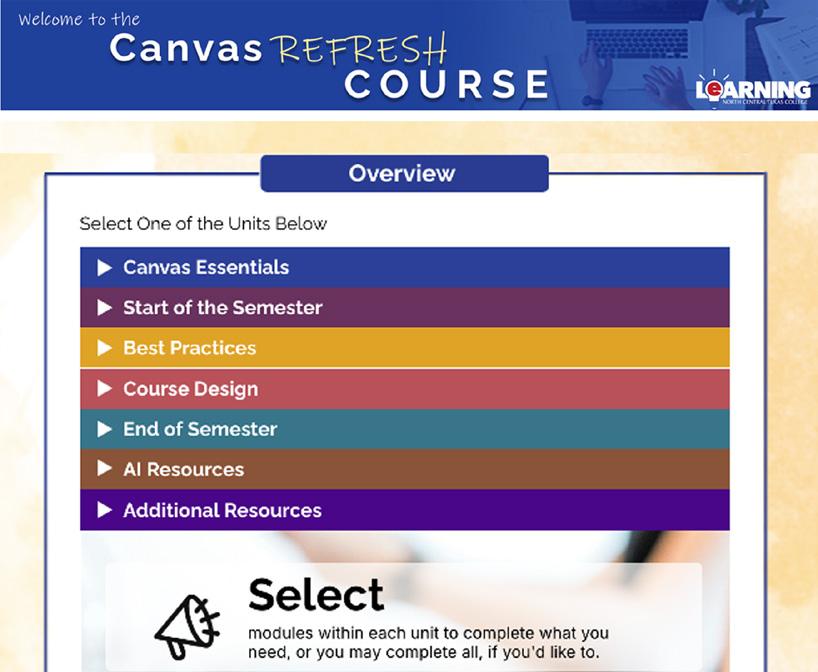
CANVAS REFRESH
The Canvas Refresh course is a Canvas resource and training group designed for NCTC administrators, faculty, adjuncts, and support staff who use the Canvas learning management system. Canvas Refresh is meant to refresh and deepen skills, knowledge, and competencies with Canvas and our instructional technologies. This course is composed of 6 units that correspond with a course readiness checklist. All faculty are enrolled in the Canvas Refresh course automatically when hired. Instructors complete modules located in Canvas Refresh. Each module will provide training on various topics, such as course design, engaging online learners, and meeting Regular & Substantive Interaction criteria for effective online instruction.
Intro to Canvas
This section offers a foundational walkthrough of the Canvas LMS, perfect for instructors who are new to the platform or need a refresher. You’ll explore essential features such as navigating the interface, setting up your course shell, managing content, and getting familiar with your eLearning Team and the Canvas Instructor Guide.
Canvas Essentials
At the heart of effective course delivery are the Canvas essentials: clearly organized modules with great information in regards to videos, quizzes, adjusting due dates, class imports, images, and more. Familiarity with these core features ensures students can navigate and succeed in their courses with confidence.
Start of the Semester
To set a strong foundation, instructors are encouraged to prepare and publish their courses ahead of the start of the semester. In this section you’ll find information including uploading syllabi, certifying your rosters, and audit rolls. A welcoming homepage and a clear communication plan help orient students from day one.
Best Practices
Incorporating best practices in Canvas means keeping course navigation simple, using consistent formatting, providing clear instructions, and offering timely feedback. In the Best Practices section you’ll find good information on using tools like announcements, rubrics, turnitin, and quickly attendance so students can make the best of their time with you.
eCAMPUS
Course Design
Effective course design balances content delivery with student engagement. This section gives you great tips in instructional design such as leveraging multimedia, accessibility, and interactive tools that promote active learning.
End of the Semester
As the end of the semester approaches, instructors should ensure that all final grades are posted, feedback is complete, and final communications have been sent. Archiving course content and reflecting on what worked well can inform future improvements.
AI Resources
Canvas can be integrated with emerging AI resources to enhance personalization, streamline grading, and support student success. Tools like ChatGPT for beginners and our most up-to-date AI policies can be found here.
Additional Resources
For ongoing support, faculty can explore additional resources such as Canvas training sessions, the eLearning support center, instructional design consultations, and user guides are available to support staff.
PROFESSIONAL DEVELOPMENT
The eLearning Department offers many training opportunities throughout the academic year. Professional Development is offered by eLearning at every In-Service. Event topics cover a wide range of technical and pedagogical areas important to faculty.
Faculty and adjuncts can connect with the eLearning department weekly by participating in the virtual Canvas Workshop Series hosted in the Faculty Group. Topics include, but are not limited to:
• Canvas Basics for New Instructors
• Advanced Topics in Canvas
• Using Studio in Canvas
• Using Canvas New Quizzes
PROQUEST
• Creating Home Pages and Course Design
• Developing Rubrics & Outcomes
• WebEx Meetings Attendance Grading in Canvas
All Dallas Digital Resource Repository videos are available in the ProQuest database. This database is accessible via NCTC Libraries. The database features a vast library of videos to help faculty develop courses. There are over 2,500 video clips, exercises, and activities across multiple disciplines. The repository is designed for ease-of-use in online, hybrid, and on-campus courses. Learning objects can be easily integrated into course content in Canvas. More detailed information is available in the Faculty Group in Canvas.
FACULTY READINESS CHECKLIST
RESPONSE TIME FOR STUDENT COMMUNICATIONS
Instructors are expected to respond to Canvas Discussions and Inbox Conversations within 24 hours Monday through Friday and within 48 hours on the weekend. Discussion forums referred to here are general help forums, not lesson interactions. Response time should be clearly stated in the course syllabus on the first day of the semester.
COURSE READINESS
Term begin and end dates are handled entirely by the eLearning Department. This ensures student access is uniform across the college. However, please remember that the instructor must Publish his or her course prior to the semester start date, otherwise students will not be able to access the course. Publishing can be done at any point between when the instructor is granted access and the semester start date.
Instructors have full access to a course for two weeks after the semester end date. During this time, they can access all course content, including Grades. Student access defaults to read-only at the end of the semester. An instructor may need to provide a student extended access (i.e., over two weeks past the semester end date) to a course in the case of an Incomplete.
Please contact the eCampus Help Desk to request extended student access for an Incomplete. Note that after two weeks the instructor will see the course under his or her Past Enrollments in Canvas. At this point the course is in a read-only state for the instructor as well. A concluded course can be imported into any future course shell, if needed, by using the Import Content into this Course feature in the new course shell. Content can also be shared via Commons
ON-CAMPUS COURSES
For on-campus courses, the instructor must publish the associated course in Canvas on the first day of the semester. Students increasingly expect to access ALL of their courses in Canvas. They see Canvas as a tool to assist in their learning, regardless of the designated course delivery method. Providing on-campus students access to the course in Canvas allows the instructor to share content, communicate, and even deliver assessments beyond the physical classroom. Using Canvas in this way flips the classroom so that class time can focus on addressing student questions, expanding student abilities, and ultimately problem solving at a conceptual level. Additional information about enhancing on-campus courses in Canvas is available in the eCampus Help Desk Knowledge Base. Please note that grades and attendance data for ALL courses, regardless of delivery method, must be kept in Canvas (see Grades & Attendance).
MAJOR TESTING PERIODS
Faculty are expected to provide students with a policy on what to do when an assessment performs unexpectedly in Canvas. Instructors are also expected to monitor Canvas communications with increased frequency during testing periods.
COURSE WELCOME
Faculty should include a course welcome video or audio file in each section. The quickest method for creating an audio or video file is to use Studio. With Studio, instructors are able to create web cam recordings, screen recordings or a combination of both. Faculty may also use their iOS or Android device to record, upload, and post video and/ or audio files to Canvas.
GRADES & ATTENDANCE
For archival purposes, every semester, instructors need to maintain grade and attendance data in Canvas. This includes online, hybrid, and on-campus, i.e., face-to-face, courses. For more information on how to use the gradebook or taking attendance in Canvas, please review the guides from Canvas Community and/or review their respective modules in Canvas Refresh. You can also utilize the Qwickly Attendance integration in Canvas which allows you to track attendance for in-person and online courses.
FACULTY READINESS CHECKLIST
ENTERING ZEROES
Students often misinterpret their standing in a course when missing assignments are left ungraded. This can lead to confusion—or panic—when their final average suddenly drops after zeroes are entered. To avoid this, make it a habit to enter zeroes promptly for missed work or enable the “Automatically apply grade for missing submissions” option in your Canvas gradebook’s late policies tab. This ensures students have an accurate view of their performance throughout the semester.
DOCUMENTATION OF LAST DAY OF ATTENDANCE FOR ONLINE STUDENTS
When a student receiving Title IV funds withdraws from an on-campus or online program, the institution must determine the student’s withdrawal date to calculate the amount of financial aid that must be returned to the Department of Education or the lender (known as the Return to Title IV, or R2T4, calculation).
NCTC Attendance Regulations state, “Simply logging into an online course does not constitute attendance. The Department of Education calculates the last date of attendance by the last time a student participated in an online discussion or made contact (interacted) with a faculty member and this standard is applied to online courses.” (https://www.nctc.edu/catalog/)
REGULAR AND SUBSTANTIVE
INTERACTION
In 2020, the Department of Education (DoE) reshaped federal regulations and definitions on distance education that went into effect on July 1, 2021. This new federal definition includes clarification of regular and substantive interaction.
Regular and substantive interaction is the distinguishing feature of distance education versus correspondence education. Institutions risk losing access to student financial aid if more than 50 percent of their courses are classified as correspondence courses or more than 50 percent of their students are enrolled in correspondence courses.
Therefore, North Central Texas College (NCTC) must ensure that its distance education courses have regular and substantive interaction as a component of its online courses.
REGULAR AND SUBSTANTIVE INTERACTIONS MUST BE:
With an instructor
Initiated by the instructor
Scheduled and predictable
Academic in nature and relevant to course
Ensure that instructors are promptly and proactively engaging students in substantive interaction
Include at least 2 of the following:
- Direct instruction
- Assessing or providing feedback on a student’s coursework
- Providing information or responding to questions about the course content
- Facilitating a group discussion regarding the course content
- Other instructional methods approved by the institution’s accreditor
For more information on how to meet regular and substantive interaction criteria in your courses, please refer to the module in Canvas Refresh and/or make an appointment with an Instructional Designer.
FACULTY READINESS CHECKLIST
BEST PRACTICES FOR TEACHING ONLINE
In addition to the following, related information is also available on the eLearning Department Faculty Resources page:
Carefully review the course syllabus every semester. Update all necessary information such as college-wide dates, textbook and supporting materials, assignments and assignment due dates.
Review all course materials every semester. Test and confirm that all links are active. Utilize the Link Validator tool via Canvas. Update due dates and assignments. Update textbook references and testing materials when a new textbook or edition is used.
Publish your course in Canvas prior to the first day of the semester.
Post a welcome video or audio announcement in Canvas. The announcement should welcome students to the class and encourage their success in the course. Give students a little biographical information about yourself so they can get to know you. This helps establish instructor-student rapport.
Have students introduce themselves on a discussion board during the first week of class. This helps to establish student-student rapport.
Monitor and respond to general class discussion questions, Canvas Inbox, etc., within 24 hours. This builds the students’ confidence in you as an instructor. It also gives you the opportunity to acknowledge excellent posts, express concerns about inadequate posts, and provide additional sources of information about a topic that students may want to explore.
Post a course announcement weekly. This is another way to establish your presence in the course and strengthen the instructor-student relationship.
Post grades in Canvas as soon as possible after an assignment is completed. Reinforcement is most effective when provided in a timely manner.
Send personal messages via the Canvas Inbox to students about grades or when a student does not follow instructions.
Send personal messages to encourage students throughout the semester.
Interact with students to let them know you care about their success in the course, by commenting on student responses to discussion questions.
Respond to possible embarrassing discussion threads (or any incident) offline, never publicly or on discussion boards. Grades should also never be posted on discussion boards.
Leave the People tab available to all students, do not hide it. Students will be able to see each other for assistance and this will also help create a sense of community.
ELEARNING ACCESSIBILITY CHECKLIST
eLEARNING SUPPORTING ACCESSIBLE COURSE DESIGN & ADA COMPLIANCE
WHAT IS ADA TITLE II?
ADA Title II protects individuals with disabilities from discrimination by state and local governments, including public colleges. The U.S. Department of Justice has updated Title II regulations, requiring that all digital content and services provided by public institutions—such as courses, documents, videos, and online tools—be fully accessible. As a public institution classified as a special district, course content must meet accessibility standards by April 26, 2027.
The eLearning Department is actively developing resources and guidance to support instructional accessibility within Canvas and course materials, ensuring faculty are prepared to meet these requirements.
THIS CHECKLIST IS DESIGNED TO GUIDE YOU THROUGH ACCESSIBLE COURSE DESIGN IN CANVAS. Check each box as you complete it, and click on any item to view detailed instructions and examples in Canvas Refresh.
CANVAS ACCESSIBILITY
New Canvas Accessibility Checker
Canvas’ new course-wide accessibility checker.
Headings
Use proper heading structure (H1, H2, H3).
Descriptive Links
Use descriptive link text (“Visit library resources” vs “Click here”).
Color Contrast
Sufficient contrast for readability.
Consistent Navigation
Use a consistent course structure and navigation pattern.
MEDIA & VISUAL CONTENT
Closed Captions
All videos must include accurate captions.
Alt Text
Images must have meaningful alternative text.
No Text in Images
Avoid key information embedded solely in graphics.
Avoid Auto-Play
No audio or video that plays automatically.
Audio Content
Provide transcripts for audio-only content.
Flashing/Motion Content
Avoid flashing or rapidly moving content that may trigger seizures or create distractions.
DO VS. DON’T
DO (ESSENTIAL PRACTICES)
-Use the Canvas Accessibility Checker
-Caption all videos
-Add alt text to images
-Use proper headings (H1, H2, H3)
-Ensure documents are accessible (no scanned PDFs)
-Use descriptive links (no “click here”)
DON’T (CRITICAL ISSUES TO AVOID)
-Don’t upload scanned or unreadable PDFs
-Don’t put important text inside images
-Don’t rely on color alone for meaning
-Don’t use auto-play audio or video
-Don’t assume third-party tools are accessible
-Don’t include flashing or rapidly moving content
ELEARNING ACCESSIBILITY CHECKLIST
External File Accessibility
Ensure Word Docs, PowerPoint Files, PDFs are accessible.
Accessible Tables
Simple structure, with proper headers.
Plain Language (Readable Content)
Use clear, simple language. Keep sentences short and avoid unnecessary jargon or complex instructions.
Keyboard Navigation
Content must be navigable via keyboard only.
Screen Readers
Test out content with screen readers to verify accessibility.
Mobile Accessibility
Ensure mobile-friendly content.
Accessible Third-Party Tools
Must meet accessibility guidelines or provide alternative options.
ITV Accessibility
Ensure all materials, captions, and shared content in ITV sessions are accessible to both in-person and remote students.
FACULTY ACKNOWLEDGMENT:
I have reviewed this checklist and understand the accessibility requirements for my course. I will apply these practices to support student success and meet the April 26, 2027 compliance deadline.
ACCESSIBILITY TOOLS & GUIDANCE
Canvas & Instructional Support
Provide accommodations and accessible course design directly in Canvas:
Extra Time on Quizzes (Canvas Guide)
Schedule an appointment with an Instructional Designer
FEDERAL REQUIREMENTS
Key laws and regulations guiding accessibility compliance:
Section 504 of the Rehabilitation Act (1973)
Americans with Disabilities Act (ADA)
ADA Title II Regulations (Official Documentation)
DOJ Fact Sheet – 2024 Web Accessibility Rule
LEARN MORE
Additional context and guidance for higher education:
New Federal Digital Accessibility Requirements (OLC)
TECHNOLOGY SUPPORT AT NCTC
See below to locate the appropriate support contact for a specific system: