DPRINT GUIDE
Departmental devices
Users and administrators
Departmental devices
Users and administrators
1. Press ‘Copy’ on the touch screen.
2. Select the required copying features.
3. Enter copy quantity.
4. Press ‘Start’.
Your scan will be sent to your Concordia email.
1. Press ‘Email’ on the touch screen.
2. Select the required features.
3. Press ‘Send’.

Upload and print your document from your web browser to your departmental DPrint printer.
1. Log into “webprint.concordia.ca’ with your netname and password.
2.In the left sidebar, select “Web Print”, “Submit a Job”, and follow the instructions. Enter your print code or netname and password at the device
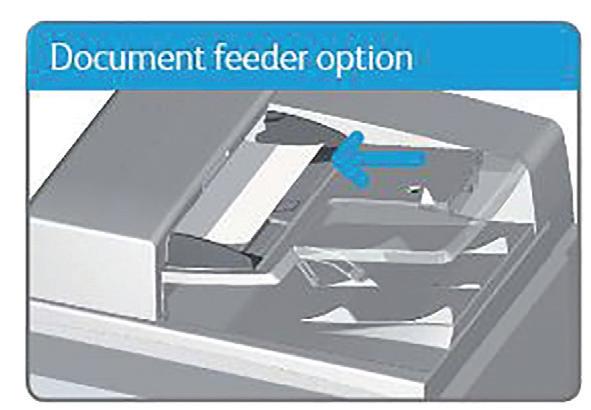
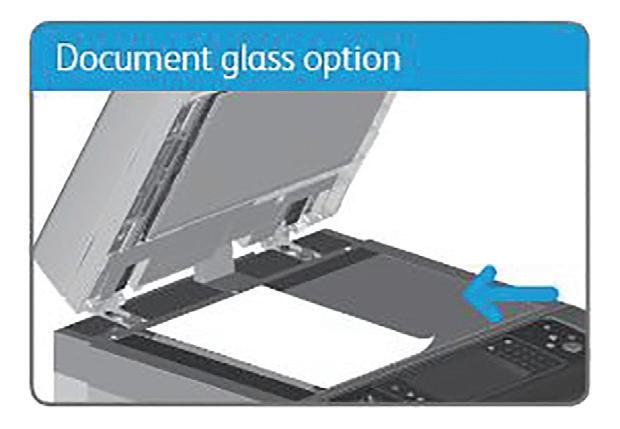
Place document face down on the glass, left corner arrow Load the documents
PRINTING WITH “STAFFPRINT”
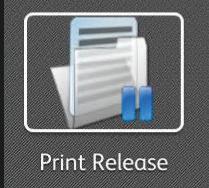
1. Press “Print Release” on the touch screen.
2. Select the job to release, then click “Print”.
LAST STEP
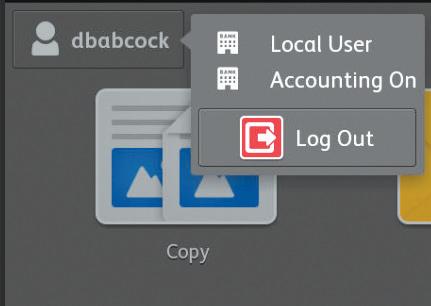
Press your “netname”, select and press “log out”
DPrint manages approximately 250 departmental multifunction devices (printers, scanners, and copiers) for faculty and staff use. Its goal is to reduce paper waste, streamline printing, and provide consistent, high-quality support across the University.
The DPrint service includes toner, supplies, maintenance, and repairs. Individual departments are responsible for managing user access, account authorization, and printing costs, including paper.
Faculty and staff who have been authorized under their departmental budget code and assigned a user ID.
To obtain a user code, a request must be submitted via web form to the Service Desk by a representative of your department with signing authority on the departmental budget code.
By default, all Concordia-owned computers are now connected to the “StaffPrint” shared printer queue. This change simplifies printer setup and allows faculty and staff to print to any staff DPrint device on campus.
Pre-requisites: A Concordia IITS-managed computer with the “StaffPrint” queue installed. The computer must be connected to the Concordia network (not Guest or Eduroam). The user must also be logged into the computer using their staff netname.

Reach out to your closest Service Centre or contact the Service Desk at help@concordia.ca for assistance with installing your department’s specific printer.
Your printing code may have changed with the implementation of the PaperCut accounting system. All printing codes are now 7 digits, and any custom codes have been reset to their default values.
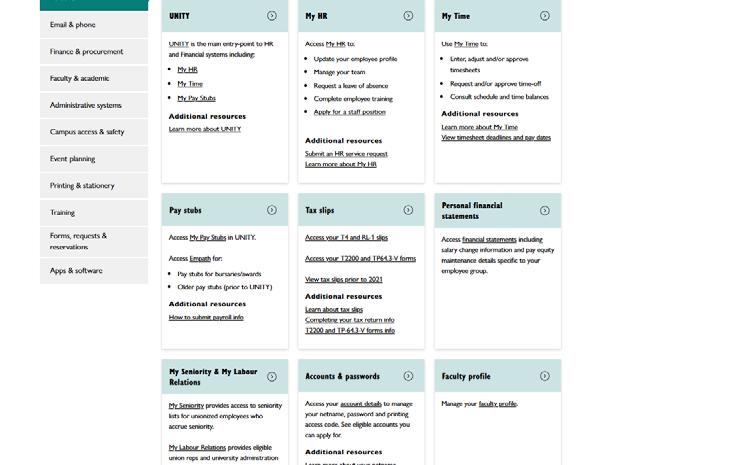
Faculty and staff can find their printing code in Carrefour by navigating to Personal > Accounts & Passwords > Code for Printing Access (Customer Number).
To report an issue such as a paper jam, ID not working, or quality issue. Submit a web form with the following information:
• Your netname.
• Location of the device where the issue occurred.
• Approximate time the issue occurred.
• For any ID related issues, note both your User ID
Copying
1. Press ‘Copy’ on the touch screen.
2. Select the required copying features.
3. Enter copy quantity.
4. Press ‘Start’.
Printing with “StaffPrint” at the printer
1. Log in using your 7-digits print code or your netname and password.
2. Select your department shared account or personal account.
1. Log in using your 7-digits print code or your netname and password.
2. Press ‘Print Release’ on the touch screen.
3. Select the required printing features.
4. Select the job to release, then click “Print”.
Scan to email
Your scan will be sent to your Concordia email. You can also enter a different email address.
1. Press ‘Email” on the touch screen.
2. Select the required scan features.
3. Press ‘Send.
Upload and print your document from your web browser to a DPrint printer.
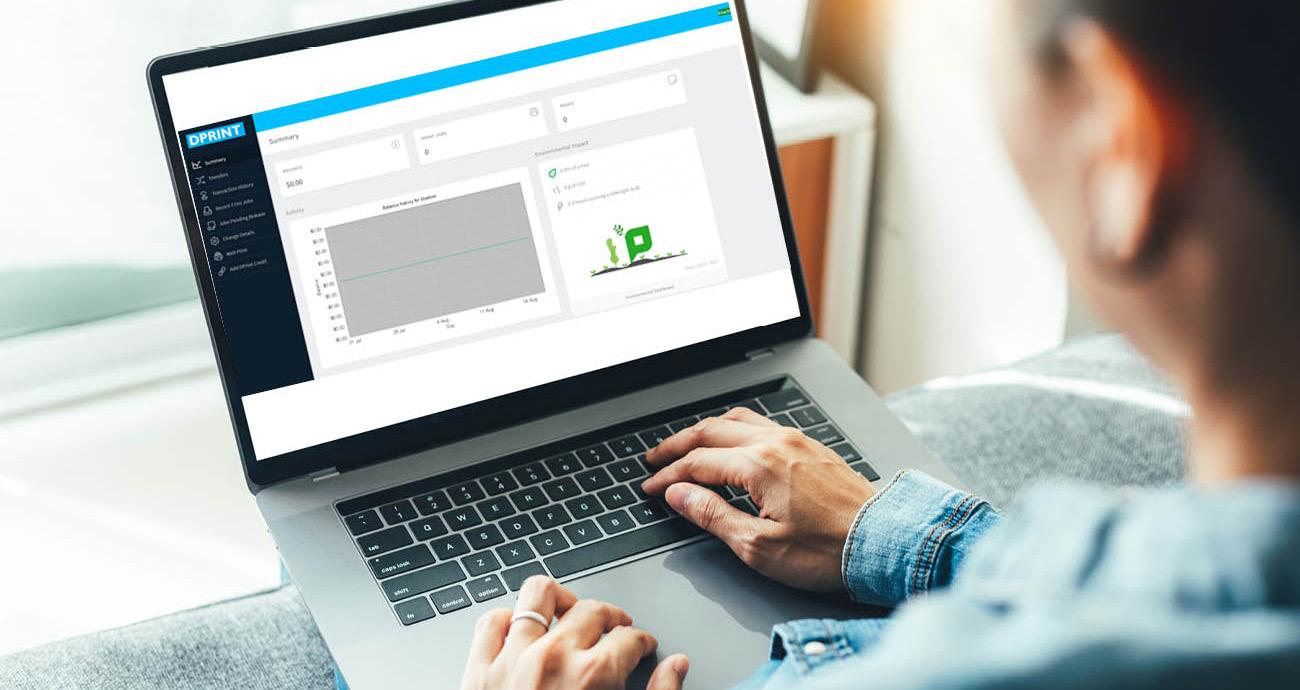
1. Log into “webprint.concordia.ca’ with your netname and password.
2. In the left sidebar, select “Web Print”, then “Submit a Job”, choose “StaffPrint”, and follow the instructions

Toner, staples, and other consumables are automatically ordered and delivered to departments — there’s no need to place an order. The cost of these items is included.
• Each department is responsible for supplying and installing its own paper.
• If you need help installing supplies, submit a web form to the Service Desk or call 514-848-2424, ext. 7613.

a) Sending your document
1. Open the file you want to print.
2. Go to File > Print.
3. In the Printer menu, select “StaffPrint” on infwpsprn02.concordia.ca.
4. Select your print settings as needed, then click “Print”.
b) An accounting pop-up will appear
1. Under “Print job actions”, select “Charge to Shared Account”.
2. Choose the account to charge.
* PaperCut will remember the last account you used.
3. Click “Print” to send the job to the print queue*.
* You might need to authenticate with your netname and password the first time you print from your computer. If you enter your information incorrectly or close the prompt, you will need to log out and back in, to reauthenticate.
c) Releasing your document at the printer
1. Log in using your 7-digits print code or your netname and password.
2. Select your department shared account or personal account.
3. Press ‘Print Release’ on the touch screen.
4. Select the required printing features.
1. On the device, click “Select Account”.
2. Choose the account you would like to charge to from the list of available accounts.
3. Once you’ve selected the desired account or budget, you will be redirected to the main menu to complete your printing job.
I need to relocate my DPrint device, what should I do?
To request a device relocation, submit a web form to the Service Desk at least 5 business days before the planned move.
Include the following information:
• Your netname.
• Current location of the device
• Future location of the device
• New Ethernet port number
5. Select the job to release, then click “Print”. For questions email us at dprint@concordia.ca
Follow this quick five steps how-to to learn how to add or remove users, view the accounts you manage, access billing and reporting information, and use the customizable job log to export reports.
Key benefits of the PaperCut solution include:
• Improved management and control of printing costs
• Ability to generate custom reports
• Centralized management of users and cost centers
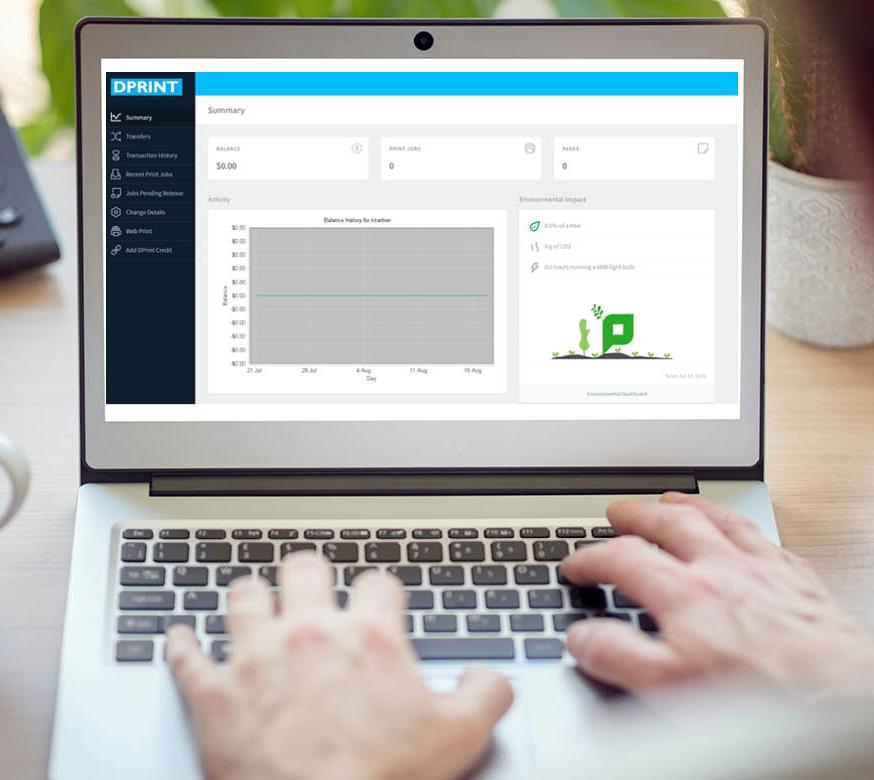
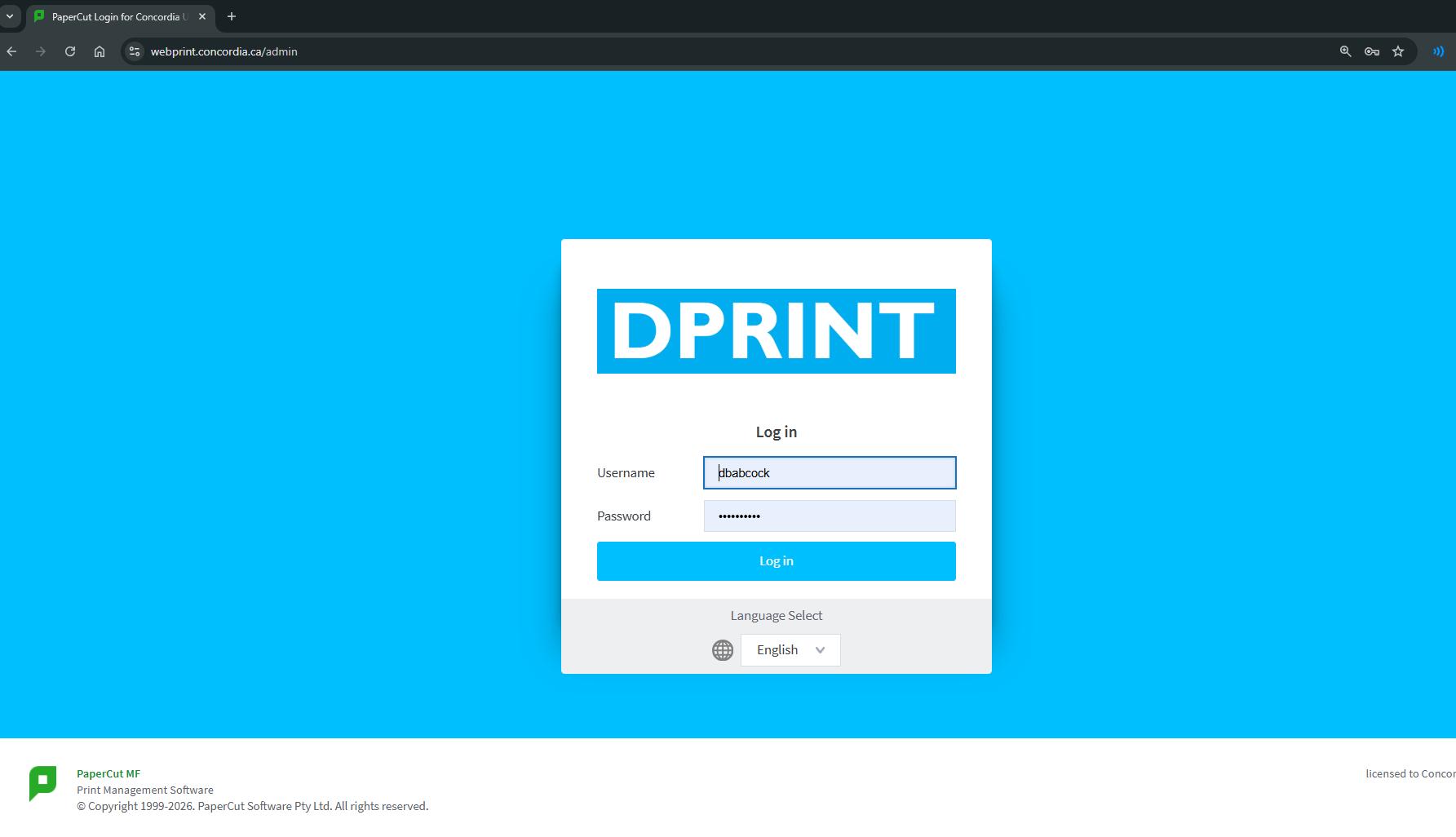
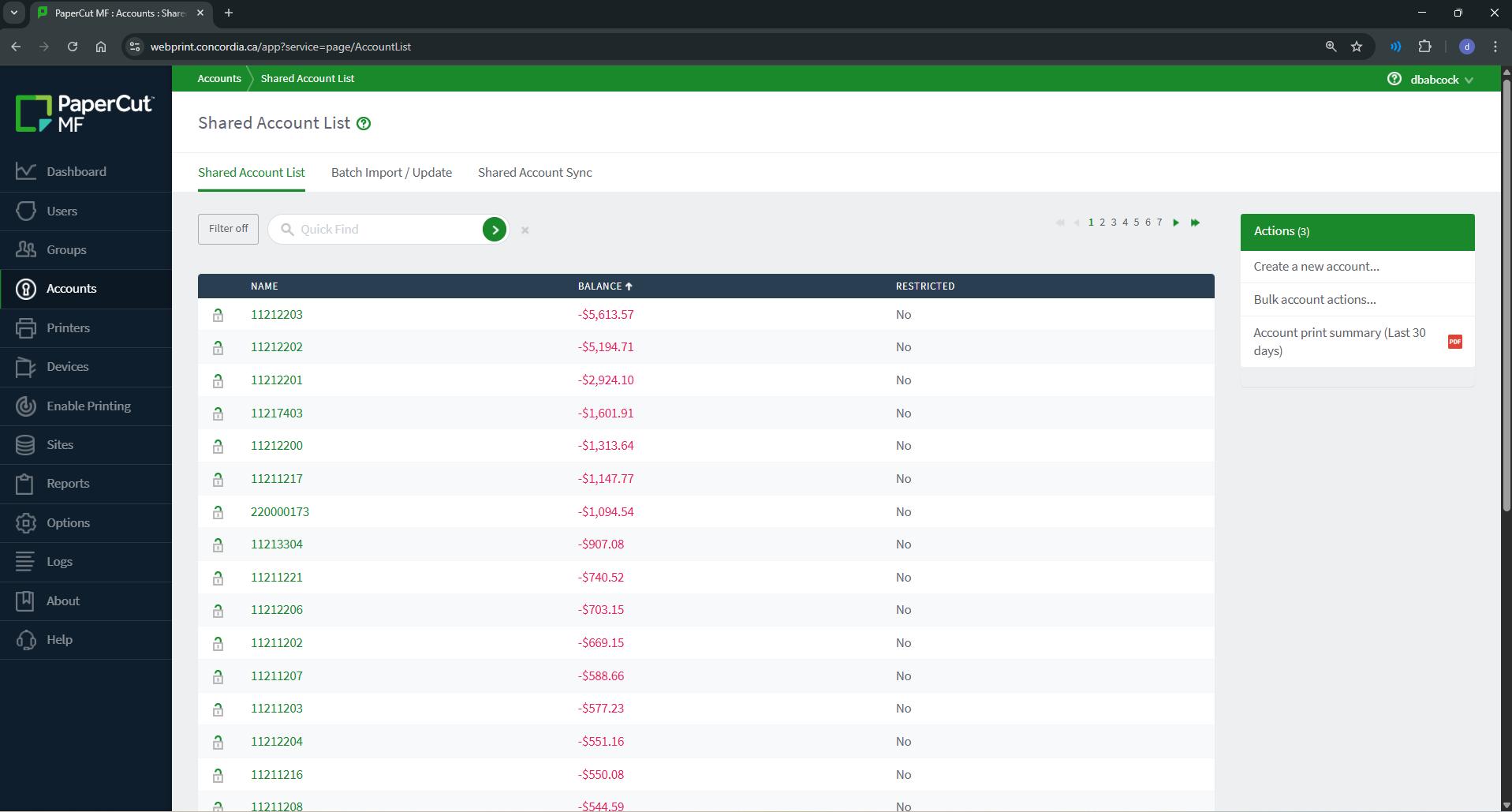
Go to “Accounts” on the left sidebar. You will see a list of accounts (CC or I/O) that you manage. Click on the account for which you want to add or remove users or view reports.
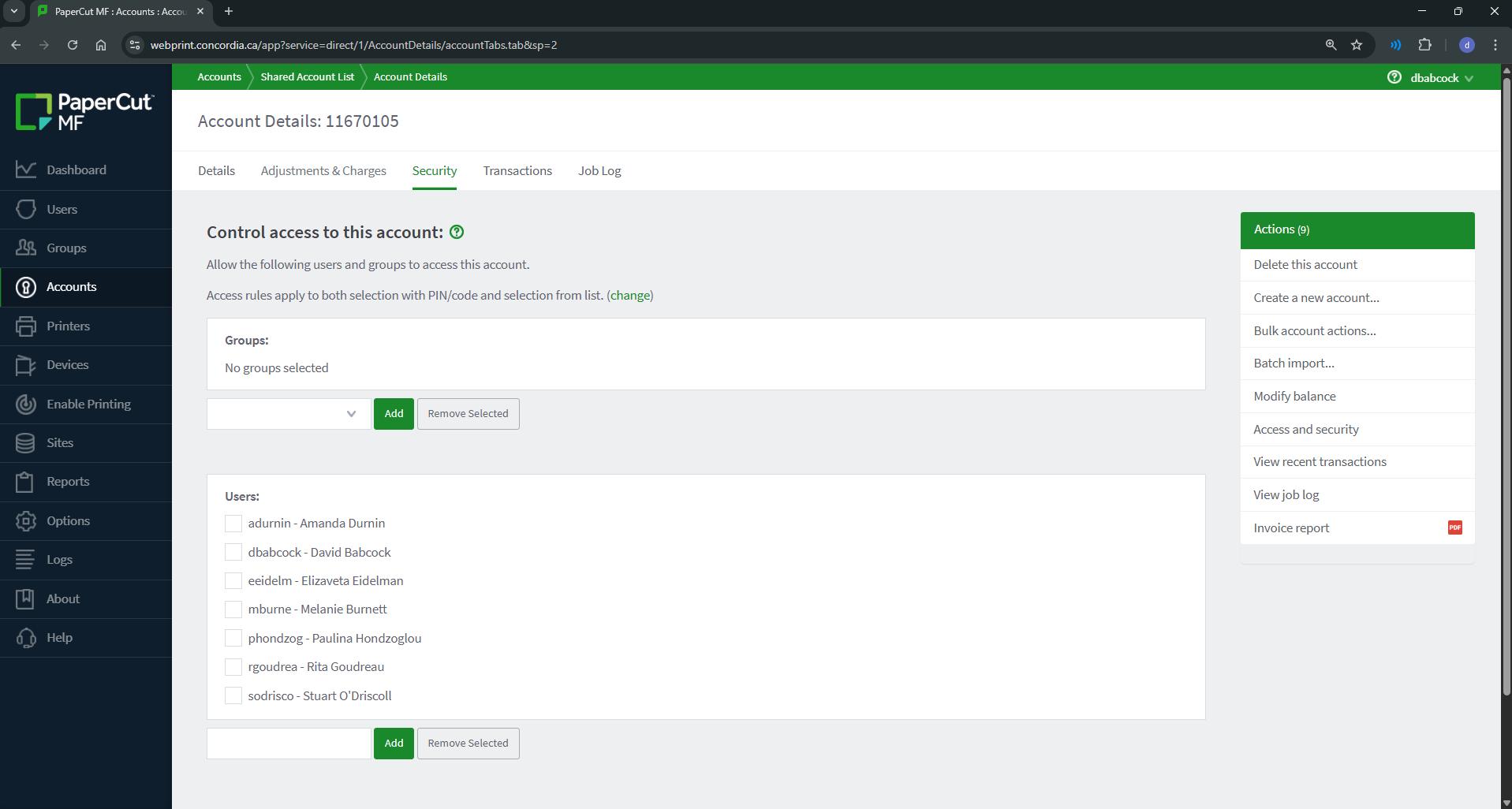
Click Security in the top menu bar. On this page, you can add or remove users.
To add a user, enter their name or netname in the search bar at the bottom of the page.
To remove a user, select the radio button next to their name, then click “Remove Selected” to remove them from your account.
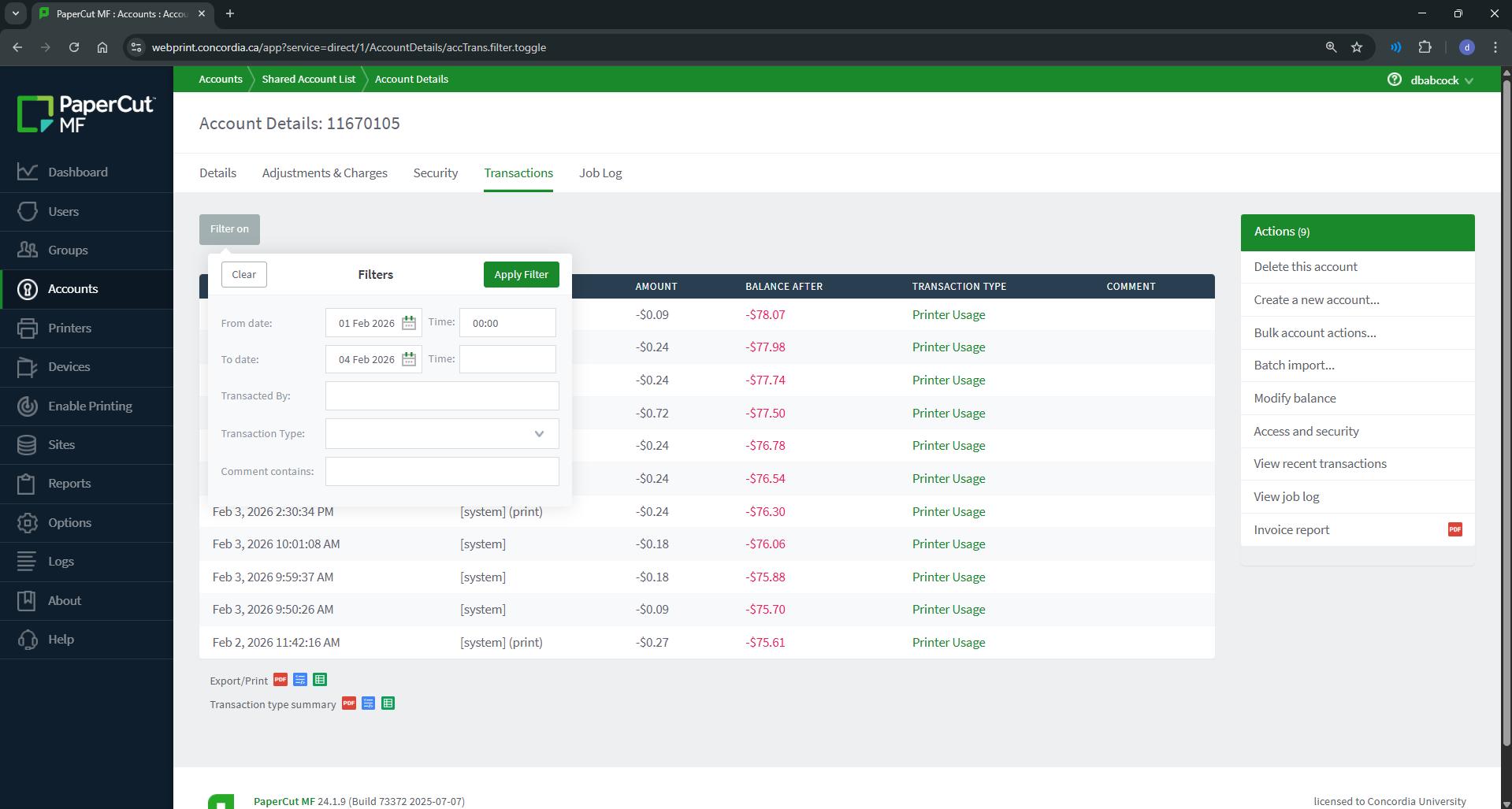
To obtain billing information, click “Transactions” in the top menu bar. You can use the filter to select specific date ranges. Once you have selected the desired date range, click Apply Filter. At the bottom of the page, you will find export options (PDF, HTML, and XLS). The Transaction Type Summary in Excel format is usually the most useful.
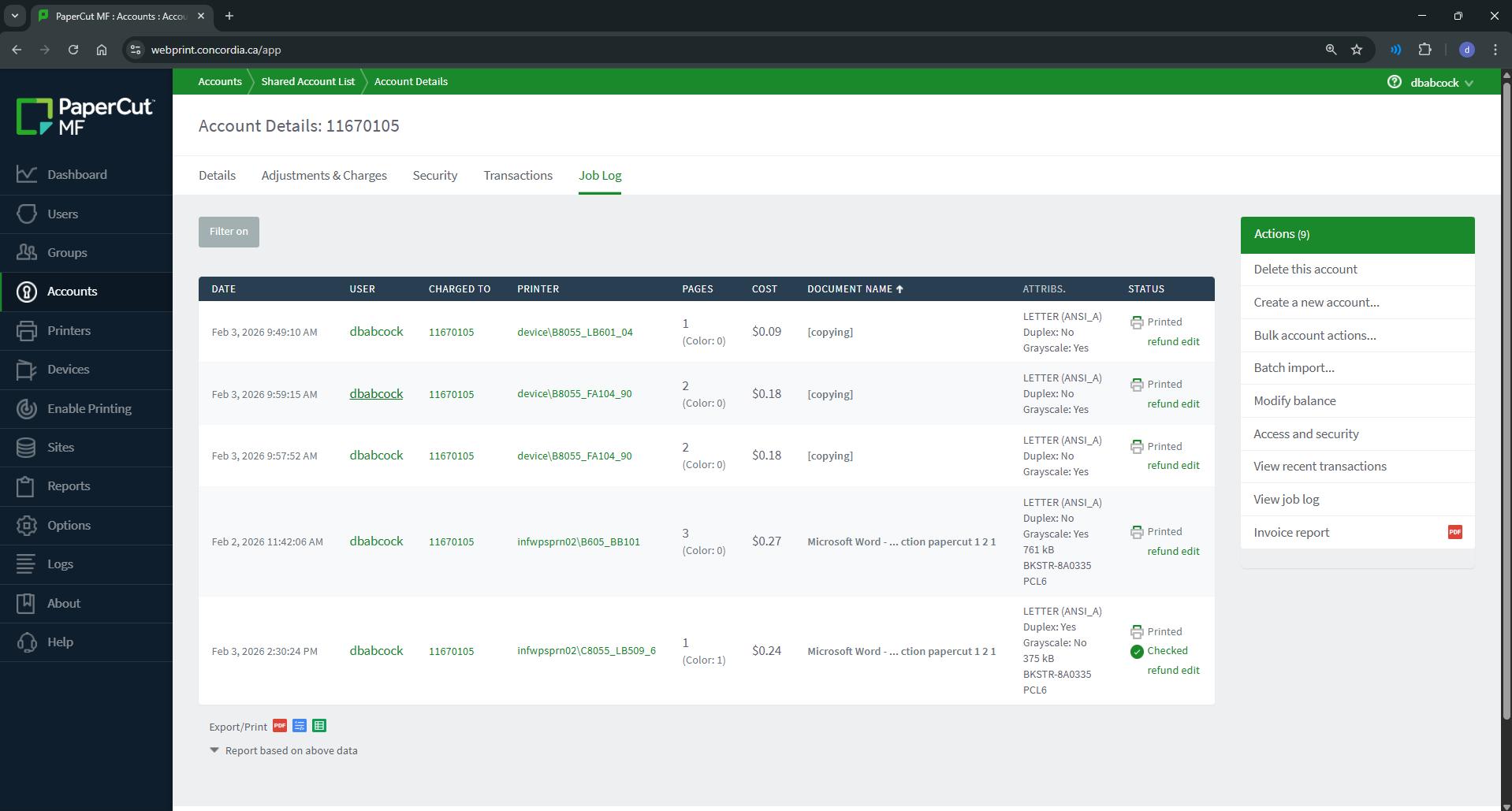
Finally, by selecting “Job Log” in the top menu bar, you will be able to see all jobs sent using the shared account. This includes the who, what, when, and where. As with Transactions, you can set the date range and export reports.
From conferences, events, to everyday printing. The Print Store offers high-quality, eco-friendly options and on-campus delivery.
Our products
Business & stationery: business cards, letterhead, envelopes, folders, memo pads and more!
Event & marketing materials:
program booklets, brochures, invitations, mailings, name badges, annual reports, magazines, flyers, stickers, postcards, bookmarks.
Large format printing: from coroplast, posters, banners, window decals, to roll-up banners,displays, flags, and tablecloths.
Promotional items: events gifts, bags, pens, t-shirts, and more.
Why Choose us ?
• Competitive pricing
• Concordia departments pay a single sales tax
• Free on-campus delivery
• Charge to an internal account
• Special pricing for volume purchases and custom orders
• Support local and support Concordia
1400 De Maisonneuve Blvd. W., room LB 089
514-848-3483
printstore@concordia.ca concordia.ca/print
Departmental purchases
Open an account to make purchases at the Print Store, in person or online. The Principal Investigator must authorize users to charge purchases to the account
Authorized users can order posters, flyers, bookmarks, simple copies, and more in just a few clicks! concordia.ca/printstore
Concordia Print Advisory can help you with planning and consulting for all your print projects, no matter how big or small.
concordia.ca/print printing@concordia.ca
From repurposed coroplast to FSC®-certified papers, we prioritize eco-friendly printing using post-consumer materials whenever possible.
concordia.ca/print