Induction Pack


Your induction will take place over your first week in college where you will meet representatives of all the services provided by the college. You will start lessons the next week.
This includes:
• Ice breakers - getting to know your classmates
• Information about our Enrichment Programme and Student Support Services ......– what activities and opportunities there are outside the classroom and how the college can support your studying experience
• Our Bursary offer – the options for financial support available to eligible students
• Wellbeing – how the College can support your physical and mental well-being ......during your time with us
• An introduction to your course (including English and Maths if you will continue ......to study these subjects)
• A tour of the building
• Orientation activities/induction task – fun activities to help you find your way about the building and understand where services are available
We’re looking forward to seeing you!
Your email is your student reference number plus the College details: e.g. 123456@student.cnwl.ac.uk
MyDay
MyDay is the College’s dedicated student portal. Through this portal, you will be able to check your emails, attendance and view your timetable.
You should be able to access it by going to: myday.ucg.ac.uk
You will need the following details to log into MyDay:
Your email address (Please see above)
Your password: Your password is your date of birth as eight digits. If your date of birth is 01/01/1997 then your password would be 01011997.
Please log onto MyDay to view your student timetable.
Please wait 24 hours after you’ve finished enrolling to log into your account.
MyDay is the College’s dedicated student portal. Through this portal, you will be able to check your emails, attendance and view your timetable.
You can access MyDay at: myday.ucg.ac.uk
Your login details for MyDay are your email address, and your password is your date of birth as eight digits, for example, 01011997
Your email is your student reference plus the college details: StudentRef@student.cnwl.ac.uk
Please wait 24 hours after you’ve finished enrolling to log in to your account.
To access Microsoft Office 365 follow the instructions below.
1. Logon on to Microsoft Office 365
a. Within the college, follow the instructions given by your teacher and simply go to: è https://www.office.com
b. From outside the college via the internet.
If you have never logged on to the college systems, follow the steps below. Otherwise, use your existing credentials (username and password):
è Go to: https://www.office.com
Click on ‘Sign in’
SRef@student.cnwl.ac.uk e.g. 123456@student.cnwl.ac.uk
You will find your Student Reference number on your ID Card.
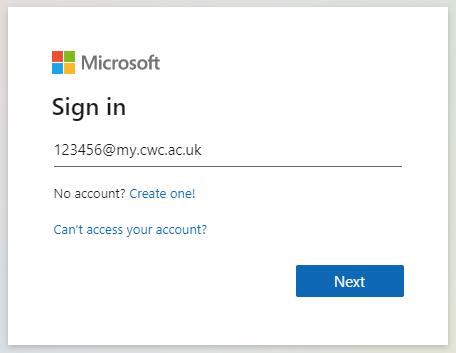
123456@student.cnwl.ac.uk

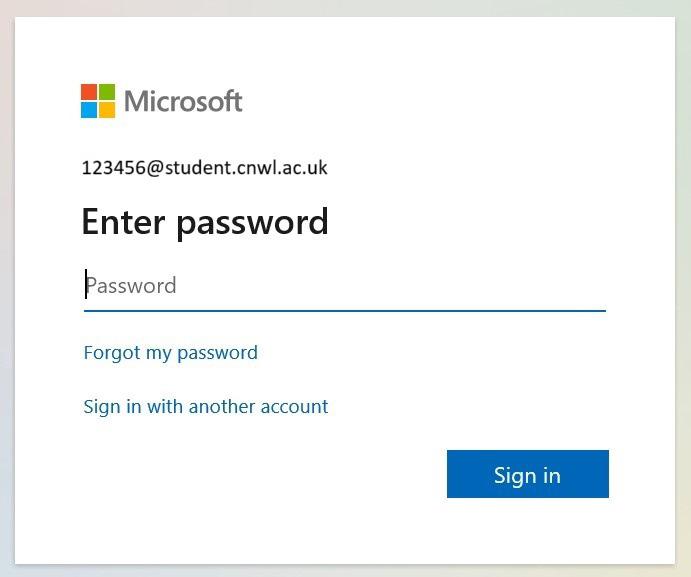
è Click next:
123456@student.cnwl.ac.uk
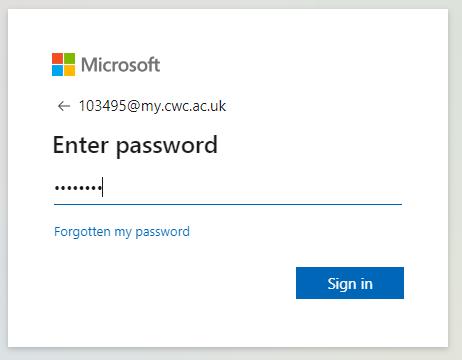
c. Enter your password. Your password will be your Date of Birth in the following format: DDMMYYYY
The first time you logon to the college system you will be asked to change your password,as shown below.
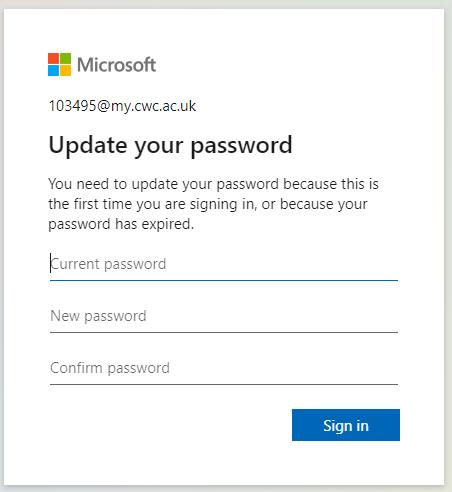
123456@student.cnwl.ac.uk
Your current password will be your Date of Birth in format: DDMMYYYY
Your new password must be at least 8 characters
2. Once logged on, you will be presented with the page below when you click on the Apps Menu:
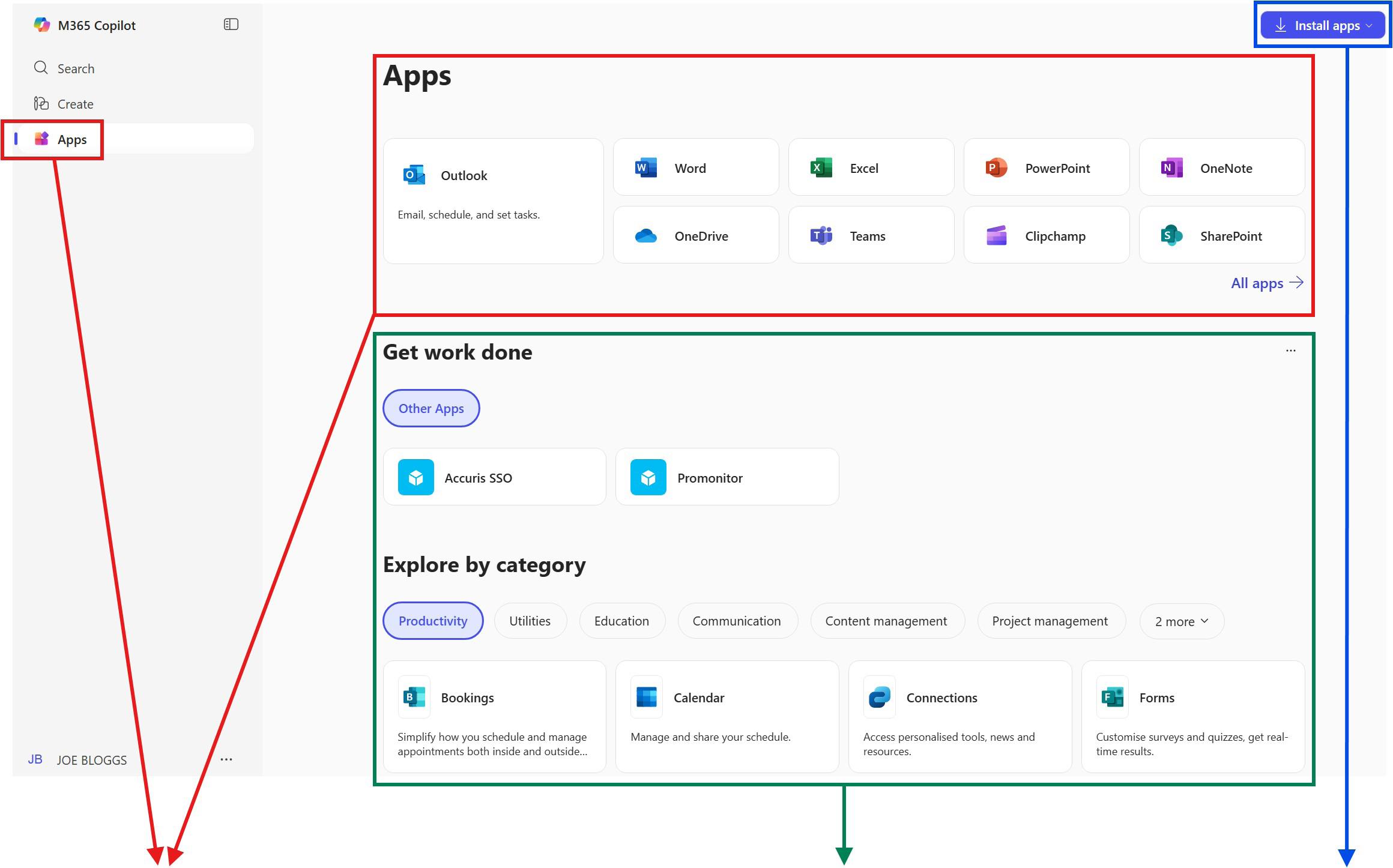
a. Office 365 Web Apps. These are referred to as Web apps’ and can be used in any modern web browser without the nd for any additional installation.
b. Get work done and Explore by category. These areas are designed to help users quickly access tools and resources to improve productivity and organisation within Microsoft 365.
c. Install Microsoft Office - If you wish to install on your device a full version of Microsoft Office 365 (referenced as ‘Desktop Apps’) you can on up to 5 different devices while studying at the college. Simply click on “Install Apps” and follow the instructions.
d. Installing Microsoft Teams only on your desktop: To download Microsoft Teams search for “Download Microsoft Teams” on the web.
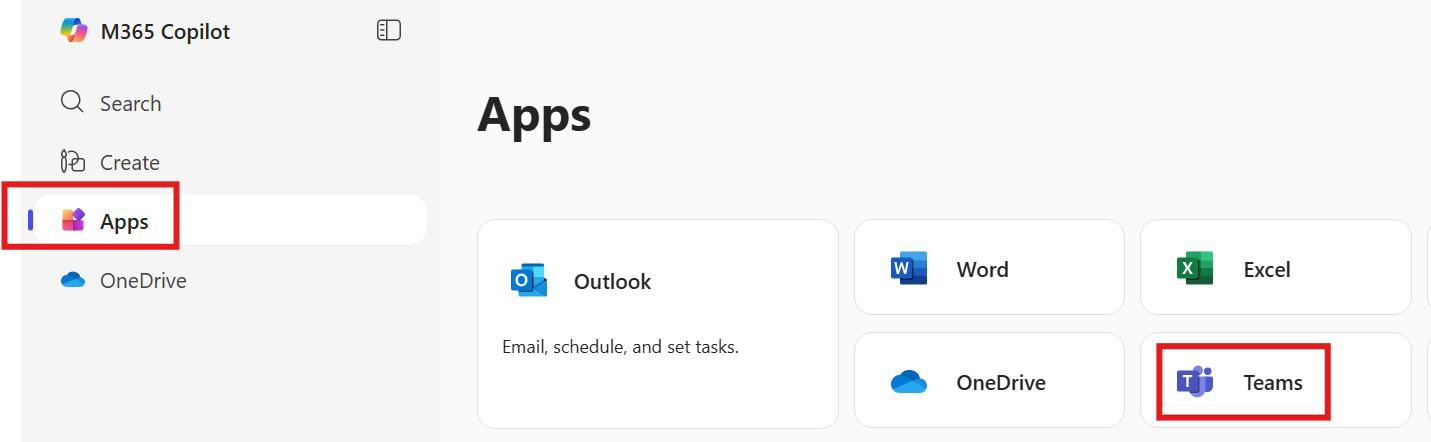
3. Login to Microsoft Teams (in a web browser):
a. Using a web browser, simply logon to Microsoft Office 365 (https://www.office.com) using the above login details and then click on the “Apps” menu and then click on the Teams app.
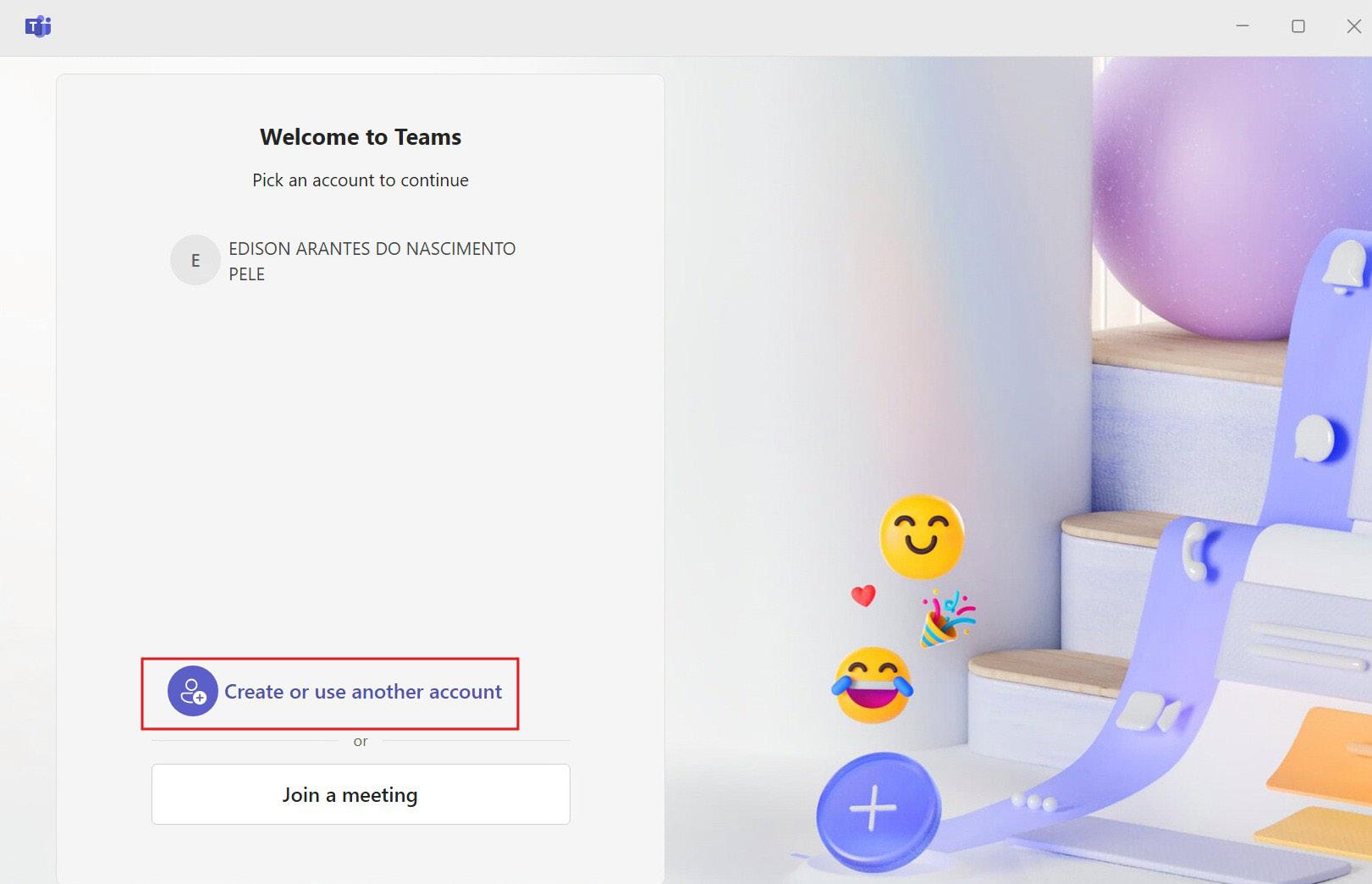
b. Using the desktop app on your own computer:
b. Using the desktop app on your own computer:
è Click on the icon on the Teams icon
Click on the icon on the Teams icon
è If your college email address does not appear in the ‘Continue as’ section, click on ‘Use another account to sign up’.


If your college account does not appear in the “Pick an account to continue” section, click on “Create or use another account”
è If your college email address does not appear in the ‘Continue as’ section, click on ‘Use another account to sign up’.
MyDay is the College’s dedicated student portal. Through this portal, you will be able to check your emails, attendance and view your timetable. You can access MyDay at: myday.ucg.ac.uk
Your login details for MyDay are your email address, and your password is your date of birth as eight digits, for example, 01011997, you will be asked to change your password on first logon.
Your email is your student reference plus the college details: StudentRef@my.cwc.ac.uk
Please wait 24 hours after you’ve finished enrolling to log in to your account.
To access Microsoft Office 365 follow the instructions below.
1. Logon on to Microsoft Office 365
a. Within the college, follow the instructions given by your teacher and simply go to: è https://www.office.com
è Enter your college email address:
b. From outside the college via the internet
è Enter your college email address:
If you have never logged on to the college systems, follow the steps below. Otherwise, use your existing credentials (username and password):
è Go to: https://www.office.com
Enter your college email address:
è Click on ‘Sign in’
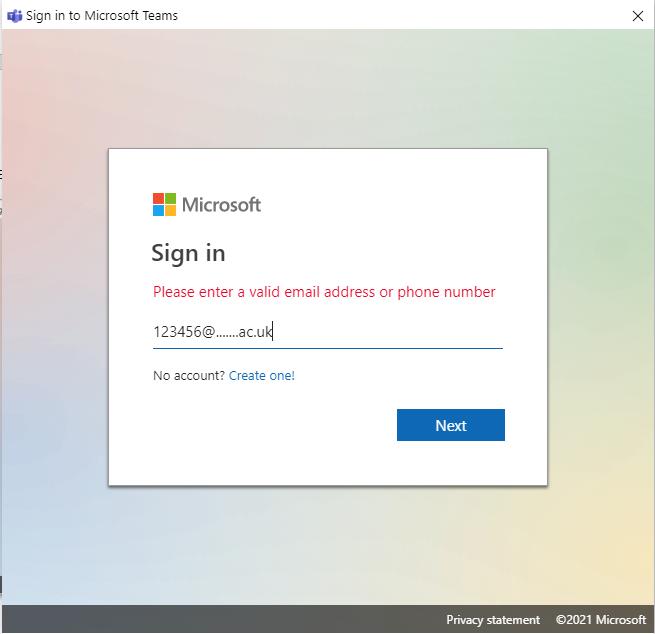

SRef@my.cwc.ac.uk e.g., 123456@my.cwc.ac.uk
You will find your Student Reference number on your ID Card.
103495@my.cwc.ac.uk
123456@student.cnwl.ac.uk
è Click next:
Enter your password:
è Click Next and select ‘Work or school account’
è Click Next and select ‘Work or school account’
è and select ‘Work or school account’
103495@my.cwc.ac.uk
è Click Next and select ‘Work or school account’
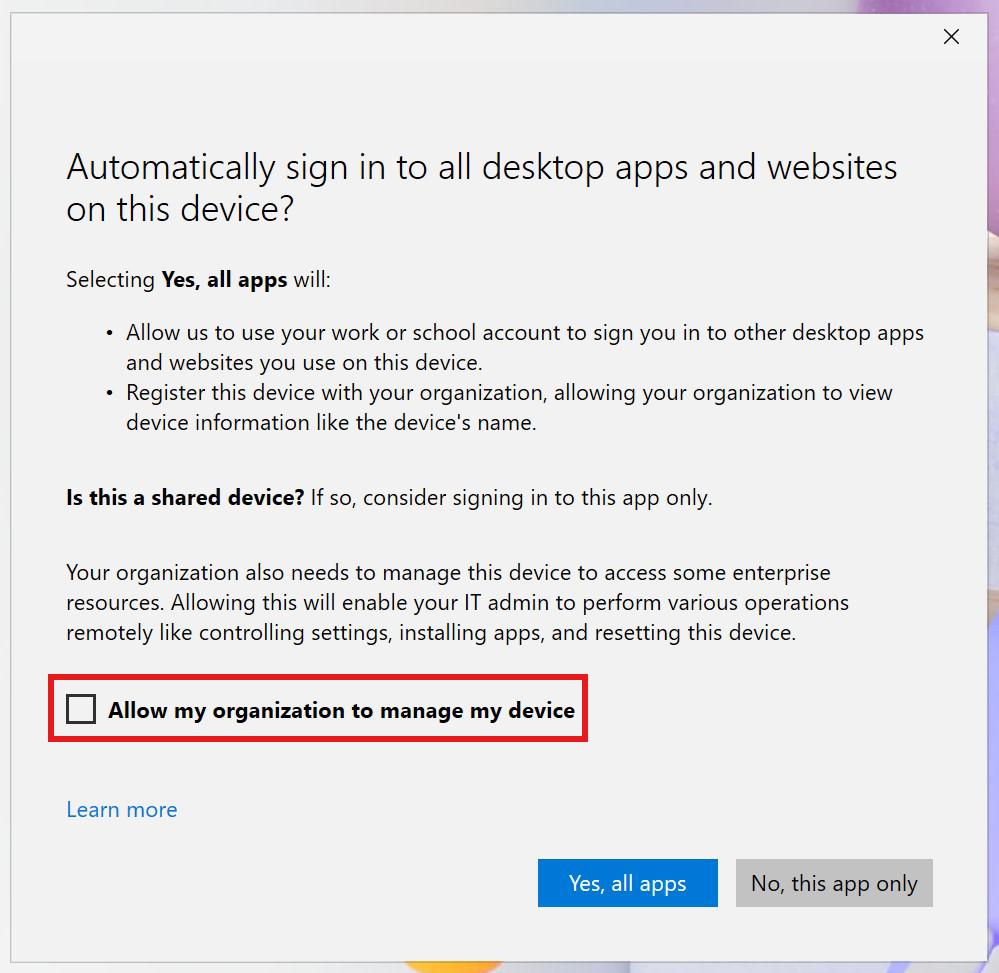
You will be directed to the following window if you have not logged into the Teams desktop app on this device before. Untick the Allow my organization to manage my device option and click on the “Yes, all apps” button.
103495@my.cwc.ac.uk
103495@my.cwc.ac.uk
è Click Next and select ‘Work or school account’
è Once logged in, please watch the short video below: https://www.youtube.com/watch?v=PasT3Q1ZR_I
Once logged in, please watch the short video below: https://www.youtube.com/watch?v=PasT3Q1ZR_I
4. Accessing MyDay
MyDay can be found at myday.ucg.ac.uk or you can download the app by searching for ‘CNWL MyDay’


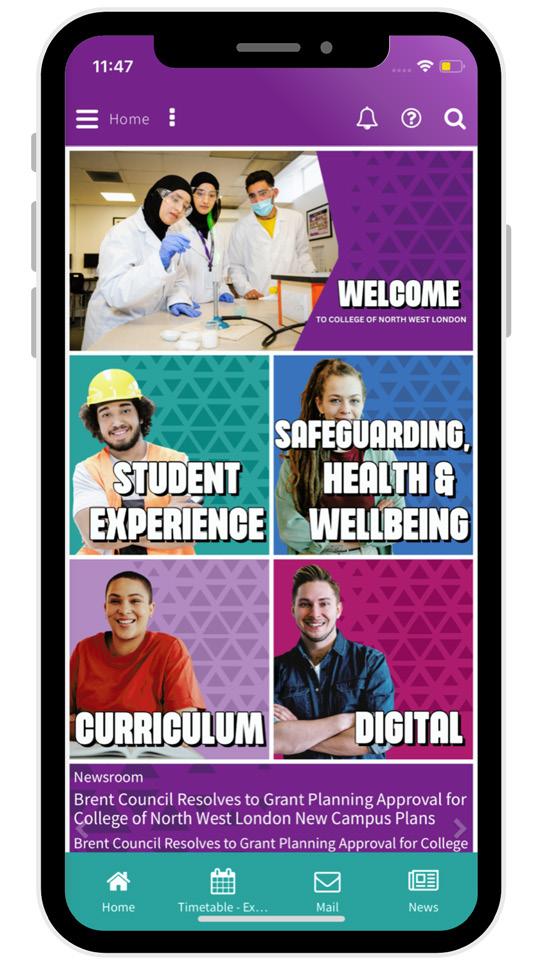
Once you’ve successfully logged in you should see a student dashboard as below.

USERNAME: IDnumber e.g 123456
DEFAULT PASSWORD: D.O.B ddmmyyyy e.g. 28092005
This is the default password. You will be asked to change your password to a memorable one. This must contain at least 8 characters.
LOGGING IN TO THE COLLEGE WIFI
NETWORK NAME: UCG-BYOD
USERNAME: IDnumber e.g. ad\123456
LOGGING IN TO OFFICE 365
Type office.com in to your address bar
EMAIL: IDnumber@student.cnwl.ac.uk e.g. 123456@student.cnwl.ac.uk
LOGGING IN TO MYDAY
Type myday.ucg.ac.uk in to your address bar
EMAIL: IDnumber@student.cnwl.ac.uk e.g. 123456@student.cnwl.ac.uk
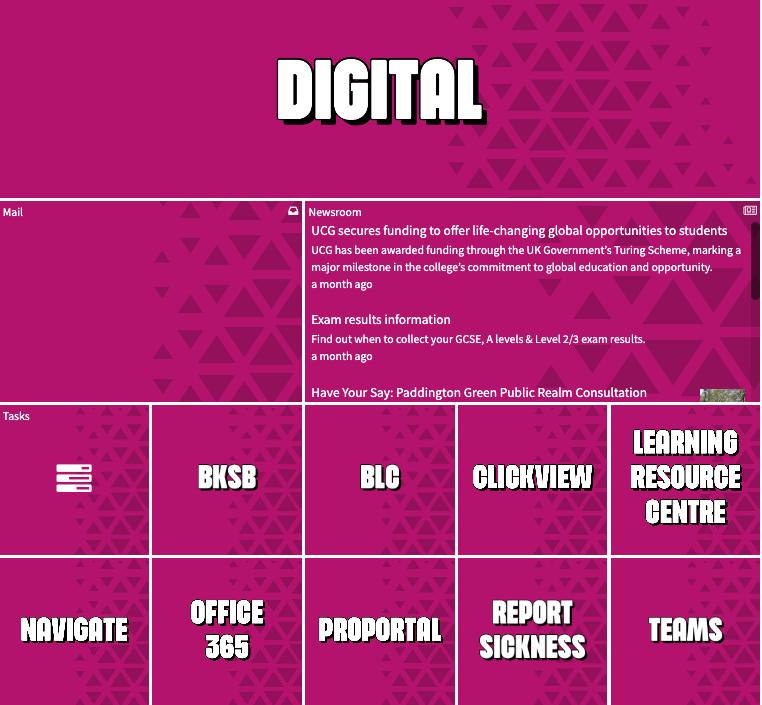
You can access Teams on MyDay via the ‘Digital’ tile.
LOGGING IN TO TEAMS

EMAIL: IDnumber@student.cnwl.ac.uk e.g.123456@student.cnwl.ac.uk
YOUR PASSWORD IS THE SAME FOR EACH APPLICATION
You’ll be able to speak to the following college teams to find out what they do and how they can support you during your time with us:
• Enrichment Team enrichment@ucg.ac.uk
• Student Services Team studentsupportservices@ucg.ac.uk
• Careers Team careers@ucg.ac.uk
• Learning Support ALS@ucg.ac.uk
• Learning Resource Centre LRC@cwc.ac.uk
• Bursary Team bursary@ucg.ac.uk
• Work Experience Team wex@ucg.ac.uk
To keep our environment safe and enjoyable, we expect all students to adhere to the following instructions:
• Wear ID cards in college. Make sure lanyards are visible and always worn around the neck. A £5 charge is made for replacement ID Cards
• No hoods, or balaclavas are to be worn in college
• Follow health and safety procedures
• Eat and drink in designated areas
• Put rubbish and recyclable materials in the designated bins
• We are a vape and smoke-free college, please use designated areas outside where required
• Attend all lessons on time, aim for 100%
• Actively engage in learning
• Hand in assignments on time
• Use computers, emails, internet, and mobile phones safely
• Loaned laptops must be returned at the end of your course
On the Myday home page, navigate to the digital dashboard.


Willesden Campus, Denzil Road, Dudden Hill Lane, London NW10 2XD Euston Campus, Euston Skills Centre, Starcross Street, NW1 2HR
cnwl.ac.uk 020 8208 5000

www.ucg.ac.uk • www.cwc.ac.uk • www.cnwl.ac.uk