

AUGIWORLD Tips & Tricks

AUGI Members Reach Higher with Expanded Benefits
AUGI is introducing three new Membership levels that will bring you more benefits than ever before. Each level will bring you more content and expertise to share with fellow members, plus provide an expanded, more interactive website, publication access, and much more!
Basic members have access to:
• Forums
• HotNews (last 12 months)
• AUGIWorld (last 12 months)
DUES: Free
Premier members have access to:
• Forums
• HotNews (last 24 months)
• AUGIWorld (last 24 months)
DUES: $25
Professional members have access to:
• Forums
• HotNews (full access)
• AUGIWorld (full access and in print)
• ADN 2013 Standard Membership Offer
DUES: $100



From the President
AUGI MEMBERS,

Welcome back to another edition of AUGIWORLD magazine! Real quick, I just wanted to share with you that we’ve been having some internal meetings within the AUGI to plan out the future, and when the time is right we can’t wait to share with you, so stay tuned for more in the coming weeks.
Now let’s get into this month’s President Letter…
In conversations with CAD/BIM professionals across the industry, a common theme keeps surfacing - delegation. The busiest person on the team, which is usually the CAD/BIM Manager, is often the most experienced one, and unintentionally becomes the project bottleneck. Not because they want control, but because they care about quality and know how to fix things quickly.
Over time the team learns to rely on that safety net, and growth stalls on both sides. This month’s President’s Letter isn’t about software tips & tricks. It’s about a practical way to use delegation to remove yourself as the bottleneck while giving others the chance to build confidence, ownership, and real career progression.
Over the past four years, I’ve had the privilege to coach several CAD/BIM Managers and this delegation framework is one of the exercises we go through to help them get clear on what they do and what they can delegate to minimize the bottleneck.
First, take a blank piece of paper and draw a line right down the middle. Then, on the left side write NON-NEGOTIABLES at the top, and on the right side write NEGOTIABLES.
Second, start writing down all the things that only you can do as the CAD/BIM Manager, leader, lead, coordinator, etc…on the NONNEGOTIABLES side. These are the things that allow you to stand up in your role as the leader, so do not give your “power” away unless you are doing so strategically in upskilling someone from your team to become a leader one day.
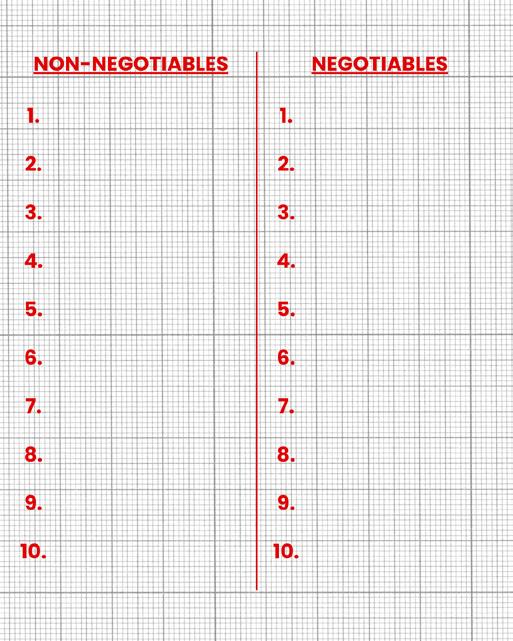
Third, go to the left side and start filling out the NEGOTIABLES list. These are the things that others can do that have no impact on you as the leader and that are not part of your main responsibilities.
By delegating more, you empower others to gain experiences that they wouldn’t otherwise have and it also frees you up to have more time on fulfilling your duties that only you can do as the leader.
Again, I am honored to serve you as we continue building a stronger, more innovative community together.
I hope you enjoy this month’s issue, and thank you to all the authors and advertisers who make AUGIWORLD possible.
Until next time…
Eric
AUGIWORLD
www.augi.com
Editors
Editor-in-Chief
Todd Rogers - todd.rogers@augi.com
Copy Editor
Miranda Anderson - miranda.anderson@augi.com
Layout Editor
Debby Gwaltney - debby.gwaltney@augi.com
Content Managers
3ds Max - Brian Chapman
AutoCAD - Tracy Chadwick
AutoCAD Architecture - Melinda Heavrin
BIM/CIM - Stephen Walz
BricsCAD - Craig Swearingen
Civil 3D - Shawn Herring
Electrical - Mark Behrens
Manufacturing - Kristina Youngblut
Revit Architecture - Jonathan Massaro
Revit MEP - Jason Peckovitch
Tech Manager - Mark Kiker
Inside Track - Rina Sahay
Advertising/Reprint Sales
Nancy Tanner - sales@augi.com
AUGI Executive Team
President
Eric DeLeon
Vice-President
Kristina Youngblut
Treasurer
Todd Rogers
Secretary
Shelby Smith
AUGI Board of Directors
Gil Cordle
Eric DeLeon
Chris Lindner
Todd Rogers
Shelby Smith
Scott Wilcox Kristina Youngblut
AUGI Advisory Board of Directors
Jason Peckovitch
Jeff Thomas III
Publication Information
AUGIWORLD magazine is a benefit of specific AUGI membership plans. Direct magazine subscriptions are not available. Please visit www.augi.com/account/register to join or upgrade your membership to receive AUGIWORLD magazine in print. To manage your AUGI membership and address, please visit www.augi. com/account. For all other magazine inquires please contact augiworld@augi.com
Published by:
AUGIWORLD is published by AUGI, Inc. AUGI makes no warranty for the use of its products and assumes no responsibility for any errors which may appear in this publication nor does it make a commitment to update the information contained herein.
AUGIWORLD is Copyright ©2026 AUGI. No information in this magazine may be reproduced without expressed written permission from AUGI.
All registered trademarks and trademarks included in this magazine are held by their respective companies. Every attempt was made to include all trademarks and registered trademarks where indicated by their companies.
AUGIWORLD (San Francisco, Calif.) ISSN 2163-7547
Bright Ideas for a Bright Future

AUGIWORLD brings you the latest tips & tricks, tutorials, and other technical information to keep you on the leading edge of a bright future.
Tips & Tricks
That Stick
Turning Weekly BIM Knowledge into Daily Practice

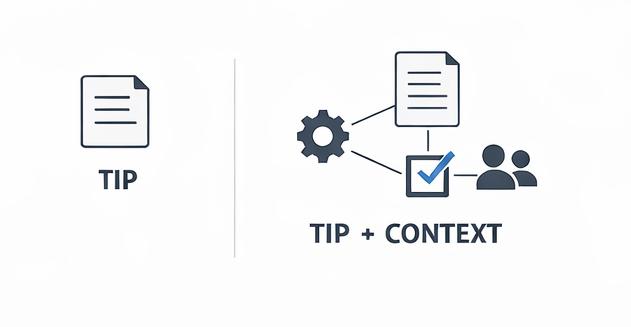
Tips and tricks are some of the most shared content in the BIM industry. They are quick to consume, easy to post, and often genuinely helpful. Yet despite their popularity, most tips are forgotten almost as quickly as they are discovered. The issue is not that the tips are bad. The issue is that they often exist without context, reinforcement, or ownership.
I started sharing tips at the previous company I worked for in January 2025 after noticing the same issues repeating themselves across projects, teams, and even different firms. After losing that position in September, a few weeks later, I started posting them publicly on LinkedIn. The problems were rarely complex. More often, there were small breakdowns in consistency, understanding, or
follow-through. I did not start Weekly BIM Mastery because the industry needed more tips. I started it because I kept seeing how effective small, repeated reminders could be when they were framed intentionally.
THE EVOLUTION OF TIPS AND TRICKS IN BIM
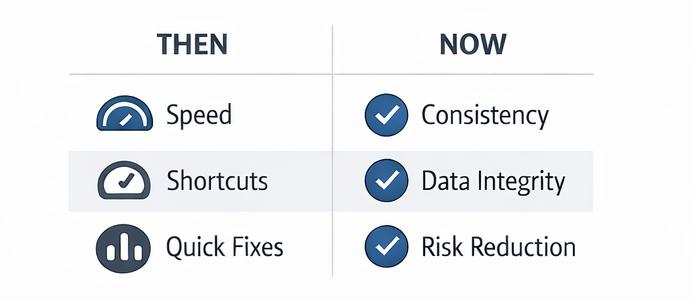
Early in my career, tips and tricks were almost entirely about speed. Learning the right shortcut or workaround felt like progress. At that stage, efficiency mattered because everything felt slow and unfamiliar. The goal was to move faster and keep up.
As my responsibilities grew, so did the consequences of inconsistency. Mistakes were no longer isolated to a single model or user. They impacted schedules, coordination, and downstream teams. That shift fundamentally changed how I evaluated the value of a tip. Speed became less important than predictability. Cleverness mattered less than clarity.
The BIM industry has followed a similar path. Today, the most valuable tips are not about shaving seconds off a task. They focus on data consistency, model health, coordination reliability, and risk reduction. These tips sit between formal standards and daily production, reinforcing expectations in a way that documentation alone often cannot.
“Modern BIM tips are no longer about speed. They are about consistency, data, and risk reduction.”
DISCIPLINE-AGNOSTIC AND DISCIPLINESPECIFIC TIPS
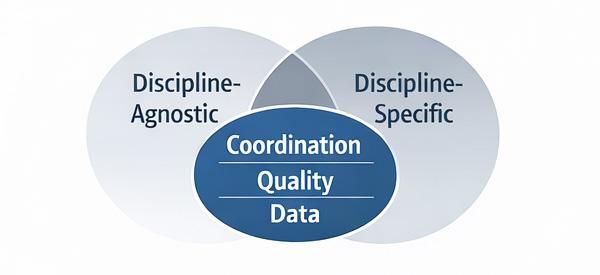
One lesson that took time to fully appreciate is that effective BIM guidance cannot be onesize-fits-all. I have seen teams struggle when discipline-specific realities are ignored in the name of consistency. I have also seen projects suffer when each discipline operates in isolation without shared foundations.
Discipline-agnostic tips establish a common baseline. View templates, naming conventions,
parameter usage, worksets, and model organization are areas where alignment benefits everyone. These tips create a shared language and reduce friction across teams.
At the same time, discipline-specific tips acknowledge that architecture, structure, and MEP face very different challenges. Pretending otherwise leads to frustration and unofficial workarounds. Mixing both types of guidance intentionally has been critical in my own work. It is one of the reasons Weekly BIM Mastery deliberately spans multiple disciplines rather than focusing narrowly on one.
“Effective BIM guidance requires both disciplineagnostic foundations and discipline-specific depth.”
REPETITION IS NOT BORING, IT IS TRAINING
There was a time when I avoided repeating topics publicly. I worried about sounding redundant or offering nothing new. That hesitation disappeared once I started paying attention to which behaviors actually changed over time.
The topics that resurfaced repeatedly were the ones that eventually stuck. Repetition signaled importance. Seeing the same guidance applied in different contexts helped teams internalize expectations rather than just recognize them.
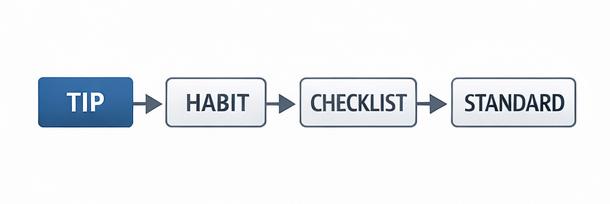
Some of the most effective standards I have helped implement began as recurring tips that refused to go away because the underlying issue kept reappearing. Over time, those tips evolved into checklists, template updates, and quality control measures. The repetition was not accidental. It was training.
“Repetition is not boring. It is training.”
TURNING TIPS INTO STANDARDS, NOT NOISE
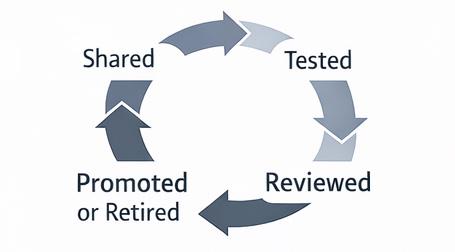
One of the hardest lessons to learn is that sharing a good tip is not enough. I have watched valuable guidance disappear simply because no one owned it. Without capture, review, and follow-through, tips fade into background noise.
What changed for me was shifting focus from delivery to outcomes. Tips started being tracked, discussed, and evaluated. Some remained informal reminders. Others proved their value and were promoted into standards. That transition required intention and ownership, not more content.
A simple rule emerged from that experience. If a tip continues to solve real problems over time, it deserves more than a passing mention. It deserves to be formalized and supported.
“If a tip survives three months, it probably deserves to be a standard.”
LOOKING AHEAD TO 2026 AND BEYOND
The pace of change in BIM is not slowing down. Cloud collaboration, automation, fabrication workflows, and artificial intelligence are reshaping how work gets done. As tools grow more powerful, the risk of inconsistency grows with them.
That reality is why Weekly BIM Mastery continues into 2026. Not because the industry needs more content, but because it needs steady, practical
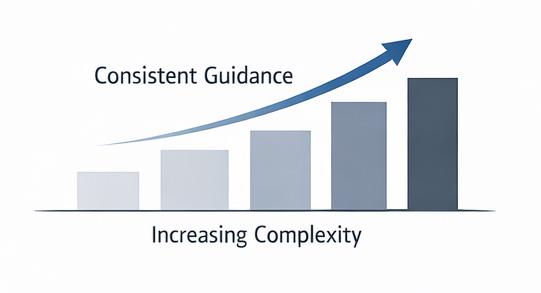
reinforcement. Large documents have their place, but small, consistent guidance is what shapes daily behavior.
Tips and tricks are no longer about being clever. They are about being intentional. When they are treated as part of a system rather than standalone content, they stop being forgotten and start becoming part of how teams work.

Jason Peckovitch, an AUGI Advisory Board Member, is an Autodesk Revit Certified Professional for Mechanical and Electrical Design located in SE Iowa. He is the new BIM/VDC Manager at ACI Mechanical Inc. His CAD/BIM career spans over 25 years, with over 18 years of experience in MEP coordination and Revit standards and content development. He writes regularly for AUGIWORLD and shares weekly BIM Mastery insights across the AEC community through LinkedIn. Jason is also the father of three children: Shelby (14), Blake (11) and Logan (8), a published photographer, gamer, and car/tech guy. He can be reached at thatbimguy@ gmail.com, found on X under the handle ThatBIMGuy, or connect with him on LinkedIn or several other user platforms like AUGI Community, CAD Manager’s School or BIM Heroes.




Tech Principles – Part One
In the last couple of articles, I wrote about Integrity and then Ethics. I mentioned that integrity and ethics are not the same. Ethics are built on the foundation of principles and Integrity is the actions you take based on those principles. Integrity is what we do. Ethics are why we do it. Now I turn to the foundational principles that drive the ethics and actions, that produce technology plans and positive results.
TECH PRINCIPLES
These are the tech principles that I have developed over the years. Written as if I were explaining my perspective to others or my team, using the term “we will” to focus on actions. They may not cover everything I do, but these are the ones I have written down in the past and referred to when framing my decisions. Some of these may sound familiar if you have read other articles I have written. They are woven into everything I do. They are the perspectives and stances I take related to tech development, delivery, management and support.
They are presented in no particular order even though I have numbered them. They cover many differing areas and topics, and I may have missed some that you would include. Read mine and then start writing your own. Use them “as is” if you want. Change the wording and add more if needed. I am putting these out there to help those who need a framework for decision making, planning and execution.
WHAT ARE TECH PRINCIPLES?
Principles are guiding statements that communicate our fundamental technology values. Concise and clearly articulated, they reflect preferences for delivering and managing information technology to achieve the firm’s goals.
They should be applicable to the entire organization and directly support the overall mission and values of the firm.
THE PURPOSE OF TECHNOLOGY PRINCIPLES
The purpose of formal principles related to technology is to establish a shared understanding of strategic direction and to guide tactical decisions. These technology principles are based on generally accepted and best practices that have been demonstrated to achieve positive, consistent results.
PRINCIPLE 1 - SUPPORT THE BUSINESS
We will align technology initiatives with design and business initiatives. Technology will be used to achieve business goals efficiently, respond to design trends and remain agile in the CAD/BIM marketplace.
PRINCIPLE 2 - CREATE A COMMON STAFF EXPERIENCE
We will strive to implement technology solutions that foster a unified experience for design development and project delivery. Tech platforms and design work will be unified and consistent for every person, project and office. Proven and stable tools offered to one team will be offered to all teams.
PRINCIPLE 3 – PROVIDE ROCK SOLID ARCHITECTURE
We will design and maintain the system architecture in a manner that will protect technology assets to enable maximum uptime, reduced project derailment and ensure reliable output.
PRINCIPLE 4 – EMPOWER THE STAFF AND THE ORGANIZATION
We will empower the organization to use technology to achieve organizational goals. We will work behind the scenes to protect, enable, empower, assist and promote the efforts of all staff with their use of technology. Not all good ideas come from us. We understand that we are not in charge and that others may influence tech direction and use. When appropriate, we will follow, when it does not present undo risk.
PRINCIPLE 5 – ENCOURAGE, EMBRACE AND MANAGE CHANGE
We will look for new tech trends and encourage others to bring us new ideas or input. When it looks like new tech will bring value, we will embrace it in a measured way. Prototyping, piloting, testing and rolling out new tools that might enhance the production and stability of our design teams.
PRINCIPLE 6 - PROMOTE STANDARDIZED AND CONSISTENT USE
Uniform methods and tools are key to design delivery. We will seek to standardize our software and hardware use. We will implement technology and develop standards that are supportive of the organizational goals, while allowing for responsible, exception-based variations.
PRINCIPLE 7 - UTILIZE INDUSTRY STANDARDS
We will make technology choices based on platform-neutral standards. Products will be chosen from established, stable vendors that provide the best available technology, service and price, based on open or industry standards.
PRINCIPLE 8 - USE IT - BUY IT - BUILD IT
We will reinforce the use of currently deployed technology. We will maximize our use of the existing tools. If what we already own does the job, we will use it. If it does not, we will buy an appropriately scaled tool that is commercially available, complies with industry standards and blends well into our existing infrastructure. When no software tool achieves our goals, we will consider developing our own.
PRINCIPLE 9 - MANAGE CAD/BIM/IT LIKE A PORTFOLIO
We will manage technology as if it were an investment portfolio, adopting new solutions when they are cost-effective or market driven. We will balance our investments in project tools. We will retire existing technology that is no longer embraced, becomes ineffective, cost too much to maintain or becomes an unacceptable risk. We will add tools that are proven advancements.
PRINCIPLE 10 – APPLY PROJECT MANAGEMENT METHODS TO TECH INITIATIVES
When appropriate, based on project scale, we will apply standard project management tools. These may include defining business need and project requirements, outlining success measures, developing project plans, use schedule tracking, staff planning and coordination efforts. Run it all like a project manager.
Next time we will unpack the second half of the Tech Principles. Until then, take the time to think about what you might include in your list and get started.

Mark Kiker has more than 30 years of hands-on experience with technology. He is fully versed in every area of management from deployment planning, installation, and configuration to training and strategic planning. As an internationally known speaker and writer, he was a returning speaker at Autodesk University for twenty years. Mark has served as Draftsman, Principal Designer, CAD/ BIM Manager, IT Director, CTO, CIO and AUGI Board President. He can be reached at mark.kiker@augi. com and would love to hear your questions, comments, perspectives and ideas for future topics.
AutoCAD Architecture 2026

ACA 2026 Annotations
AutoCAD Architecture contains great annotation abilities that can be standardized for your organization. Annotations are basically notes or other types of explanatory objects (or symbols) that are commonly used to add information to a drawing. Typically, annotation objects are scaled differently than the views of the drawing and depend on the scale of how they should appear when plotted. You can control the method that an annotation object is scaled by defining the object either as non-annotative or annotative. Non-annotative objects require a fixed size or scale that is calculated based on the scale used to plot the drawing. Annotative objects automatically adjust to display uniformly at the same size or scale regardless of the scale of the view. Some examples of annotative objects are keynotes, notes and labels, dimensions, hatches, tables, blocks and callouts. Let’s look at some of these.
KEYNOTES
Keynoting is a consistent way of annotating the different types of drawings in a set of construction documents to identify building materials or to provide special instructions. AutoCAD Architecture provides a flexible tool-based method of inserting keynotes that are linked to a keynote database and can be modified
globally as well as individually. This method supports both reference keynoting (where the keynote key corresponds to a section in an accompanying specification and may appear on different drawings) and sheet keynoting (where keynote keys are sequentially numbered for each drawing).
AutoCAD Architecture supplies pre-specified keynotes for its size-specific default detail components and for architectural objects that represent assemblies with multiple components. For variable-size objects and material definitions, a keynote classification group is pre-specified, and you specify a size when the keynote is inserted. For detail components, these keynotes and groups are based on the widely used MasterFormat 2004 standard maintained by the Construction Specifications Institute (CSI). For assemblies, the CSI Uniformat standard is used. However, because the software accommodates multiple keynote databases, it also supports other common or locally developed keynoting systems, so your localized version of AutoCAD Architecture may vary. Whatever the source of the keynote, you can also associate it with a particular object style or material definition. This lets you use the keynote insertion tools on individual components of an object or on linework in two-dimensional (2D) sections or elevations. In cases where no keynotes
are pre-specified, you select a keynote from the available database. You can also configure a keynote insertion tool to insert a particular keynote, regardless of the insertion point.
In addition to tools for inserting keynotes (derived from the basic annotation tool), the software includes tools for generating keynote legends that list selected keynotes from one or more drawing sheets and help you to quickly locate all instances of a particular keynote. You can also generate a keynote legend for a drawing prior to inserting keynotes; in this case the legend would include all keynotes that are likely to be used.
Keynotes used in AutoCAD Architecture are stored in Microsoft Access databases. There are two default keynote databases:
• AecKeynotes: This database is used for keynoting individual detail components and materials according to the Construction Specifications Institute (CSI) MasterFormat 2004 standard.
• AecKeynotes-Assemblies: This database is used for keynoting architectural objects that are assemblies of multiple components. These keynotes are based on the CSI Uniformat standard.
To accommodate proprietary office standards and other project-specific keynoting schemes, you can modify the default databases, or you can create your own databases using either Microsoft Access or the editing functionality provided with the
AutoCAD Architecture 2026
software. You can also configure keynote databases to control which ones are available for assigning to individual projects and to specify the order in which they are searched.
NOTES AND LABELS
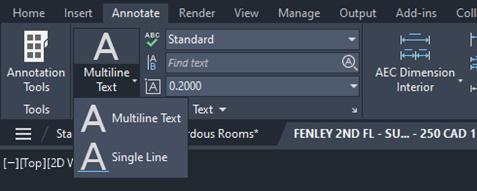
Text can be created in various ways. For short, simple entries, single-line text should be used. To create single-line text, begin by selecting the Text panel on the Annotation tab of the Ribbon. Next, select the Text drop-down and select Single Line (see Figure 1). Specify the insertion point for the first character. If you press Enter, the program locates the new text immediately below the last text object you created, if any. Now, specify the height of the text. Please note that this prompt is displayed only if text height is set to 0 in the current text style. A rubber-band line is attached from the text insertion point to the cursor. Click to set the height of the text to the length of the rubber-band line. Next, specify a text rotation angle. You can enter an angle value or use your pointing device and then enter the text. At the end of each line, press Enter and then you can enter more text as needed. It is important to note that text that would otherwise be difficult to read (if it is very small or very large) is displayed at a legible size and is oriented horizontally so that you can easily read and edit it. If you specify another point during this command, the cursor moves to that point, and you can continue typing. Every time you press Enter or specify a point, a new text object is created. When ready to end the command, press Enter on a blank line.
AutoCAD Architecture 2026
For longer entries with internal formatting, multi-line text (mtext) can be used. To create multi-line text, begin by selecting the Text panel on the Annotation tab of the Ribbon. Next, select the Text drop-down and select multi-line (see Figure 1). You can also simply use the command MTEXT. Specify opposite corners of a bounding box to define the width of the multi-line text object. The MText ribbon contextual tab will be displayed. If you wish to indent the first line of each paragraph, drag the first-line indent slider on the ruler. If you wish to indent the other lines of each paragraph, drag the paragraph slider. To set tabs, click the ruler specifically where you want a tab stop. Now you can enter text.
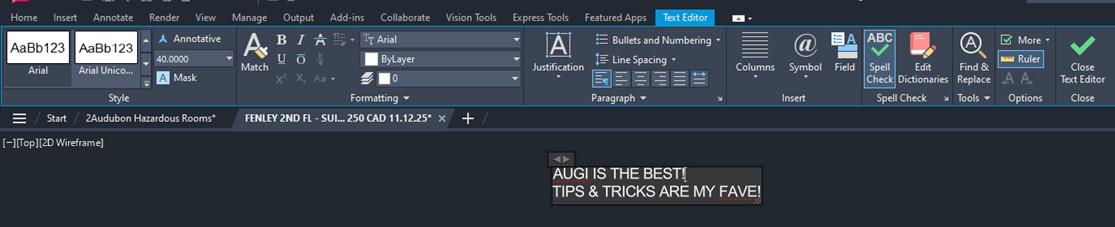
Although all entered text uses the current text style, which establishes the default font and format settings, you can use several methods to customize the text appearance. There are several tools that can change text scales and justification, find and replace text, and check for spelling errors. You can override the current text style by selecting either a few letters, a word or a paragraph. To select one or more letters, click and drag the pointing device over the characters. To select a word, you will need to double-click the word. To select a paragraph, you will need to triple-click the paragraph. Now, on the ribbon, you can format the changes (see Figure 2). If you wish to change the font of the selected text, select a font from the list. If you wish to change the height of the selected text, enter a new value in the Height box. It is important to note that the MText height value is reset to 0 if its default height is not modified during creation. If you wish to format text in a TrueType font with boldface or italics, or to create underlined or overlined text for any font, click the corresponding button on the ribbon. It is important to note that SHX fonts do not support boldface or italics. Now, to apply color to selected text, choose a color from the Color list. Click Other to display the Select Color dialog box. To save your changes and exit the editor, click in the drawing outside the editor.
CALLOUTS
Callout tools allow you to define portions of the building model as details, sections and elevations. These portions are placed in model space views created for the callout. A model space view is a portion of a view drawing that may be displayed in its own viewport on a layout tab of a drawing. A model space view has its own name, description, display configuration, layer snapshot, drawing scale, layer state and view direction. Model space views are an evolution of the Named Views concept of AutoCAD Architecture, but as opposed to Named Views, model spaces views have a defined boundary. You can place a model space view containing a detail, section or elevation in the current view drawing, an existing project view drawing or a new project view drawing.
You can use callouts to create specific, enlarged views of the building model. Typically, you detail components to a detail to call out items that are not included as part of the building model, like bolts and connectors, or detailed brick hatches. You can also use callouts to generate sections or elevations of an existing section or elevation. For example, you could create a section of the building model and then create an enlarged detail from part of the section. To that detail, you could then add detailed components for the construction document.
DIMENSIONS
Dimensions can be either associative, nonassociative or exploded. Each of these can be quickly defined as follows:
Associative dimensions – Automatically adjust their locations, orientations and measurement values when the geometric objects associated with them are modified. Dimensions in a layout may be associated to objects in model space. The DIMASSOC system variable is set to 2.
Non-associative dimensions – Selected and modified with the geometry they measure. Nonassociative dimensions do not change when the geometric objects they measure are modified. The dimension variable DIMASSOC is set to 1.
Exploded dimensions – Contain a collection of separate objects rather than a single dimension object. The DIMASSOC system variable is set to 0.
You can determine whether a dimension is associative or non-associative by selecting the dimension and then use the Properties Palette to display the properties of the dimension. A dimension is considered associative even if only one end of the dimension is associated with a geometric object. The DIMREASSOCIATE command displays the associative and non-associative elements of a dimension. The Quick Select dialog box can also be used to filter the selection of associative or nonassociative dimensions.
The DIMREGEN command may need to be used to update associative dimensions after panning or zooming, after opening a drawing that was modified with an earlier release or after opening a drawing with external references that have been modified. Although associative dimensions support most object types that you would expect to dimension, they do not support Hatches, Multi-line objects, 2D solids, Images, DWF, DGN, and PDF underlays.
When selecting objects to dimension, make sure that the objects that you select do not include a directly overlapping object that does not support associative dimensioning such as a 2D solid. It is important to note that associativity is not maintained between a dimension and a block reference if the block is redefined. Also, associativity is not maintained between a dimension and a 3D solid if the shape of the 3D solid is modified.
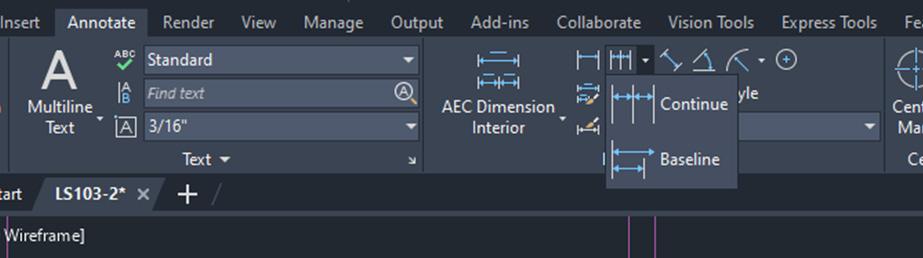
To create a dimension, begin by selecting the Dimension panel on the Annotation tab of the Ribbon. Next, select the Dimension drop-down and select the type of dimension you wish to create (see Figure 3). Now, in the drawing, select beginning and ending points for the dimension, select text placement and hit Enter.
HATCHES
A hatch object displays a standard pattern of lines and dots used to highlight an area or to identify a material, such as stone or concrete. It can also display a solid fill or a gradient fill. Hatches and fills can be created by using the HATCH command.
By default, bounded hatches are associative, which means that the hatch object is associated with the hatch boundary objects and changes to the boundary objects are automatically applied to the hatch. To maintain associativity, the boundary objects must continue to completely enclose the hatch.
The alignment and orientation of a hatch pattern is determined by the current location and orientation of the user coordinate system, in addition to controls in the user interface. Moving or rotating the UCS is an alternate method for controlling hatch patterns.
It is important to note that, by default, a preview of the hatch displays as you move the cursor over enclosed areas. If you need to improve the response time in large drawings, you can turn off the hatch preview feature with the HPQUICKPREVIEW system variable.
Hatch patterns can be dragged and dropped into your drawing from the Design Center. To do this, begin by selecting the Home tab, Draw panel of the Ribbon. On the Hatch drop-down, select Hatch. This will open the Design Center toolbar.
Figure 3 – Create Dimension
AutoCAD Architecture 2026

On the toolbar, click Search. In the Search dialog box, select Hatch Pattern Files from the Look For drop-down list. Now, from the In drop-down list, select the drive where the program is installed and confirm that Search Subfolders is selected. On the Hatch Pattern Files tab, in Search for the Name, enter * (asterisk) and then click Search Now. The default hatch pattern file is acad. pat or acadiso.pat. The search results may display the same file in different locations. It is important to note that you can add the PAT file to Favorites by selecting the file and clicking the Favorites button. A shortcut to the PAT file is displayed in the Favorites folder in the Design Center folders list. In the search results, double-click the filename to load the hatch patterns into the content area of Design Center. From the content area of Design Center, drag a hatch pattern into an enclosed area in your drawing or onto a tool palette. It is important to note that if the hatch pattern scale is too large or small, an error message is displayed. You can adjust the scale for any hatch pattern by selecting it to display the Hatch Editor tab.
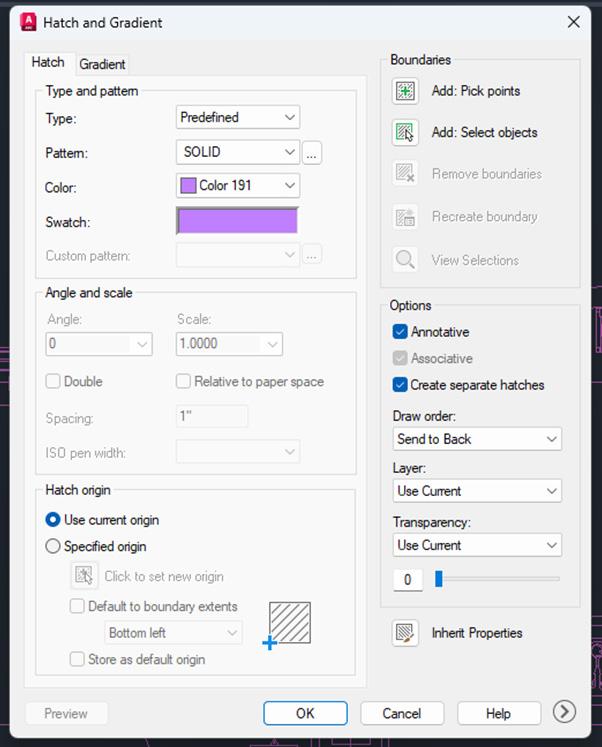
If you wish to hatch or fill areas, begin by clicking the Home tab, Draw panel of the Ribbon. On the Hatch drop-down, select Hatch. Now, on the Properties panel, select one of the options from the Hatch Type drop-down list. On the Pattern panel, click a hatch pattern or fill. Specify a point inside each area to be hatched. On the ribbon, make any adjustments as needed (see Figure 4). On the Properties panel, you can change the hatch type and colors or modify the transparency level, angle or scale for the hatch. This is optional, but if you like, you can expand the Options panel and select one of the draw order options from the bottom drop-down list (see Figure 5). You can change the draw order of the hatch so that the hatch is displayed either behind or in front of the hatch boundary, or behind or in front of all other objects. Now, press Enter to apply the hatch and exit the command.
If you wish to hatch selected objects, begin by clicking the Home tab, Draw panel of the Ribbon. On the Hatch drop-down, select Hatch. Now, on the Boundaries panel, click Select. Select the objects that you want to hatch. Press Enter to apply the hatch and exit the command.

Melinda Heavrin is a CAD Coordinator & Facility Planner in Louisville, Kentucky. She has been using AutoCAD Architecture since release 2000. Melinda can be reached for comments and questions at melindaheavrin@ windstream.net.
Figure 5 – Hatch Editor
Figure 4 – Hatch Creation






BricsCAD Tips and Tricks
Anyone can install a BricsCAD® trial, but getting real value out of the trial takes intention. The free 30-day trial gives you complete access through a single installer, whether you’re evaluating Lite for 2D drafting or Pro/Mechanical/BIM for 2D and 3D workflows. How you organize those days is what separates a quick look from a meaningful, confidence-building evaluation.
And while the BricsCAD trial is 30 days, typically the decision to move forward with BricsCAD happens quicker than that. These 5 steps will help you make the most of your BricsCAD trial, from customizing the interface to testing unique features to accelerate your workflows so you can measure time saved against what you do today and make a confident decision moving forward.
STEP 1: LAUNCH WITH INTENT AND LOCK IN YOUR EDITION (DAY 0)
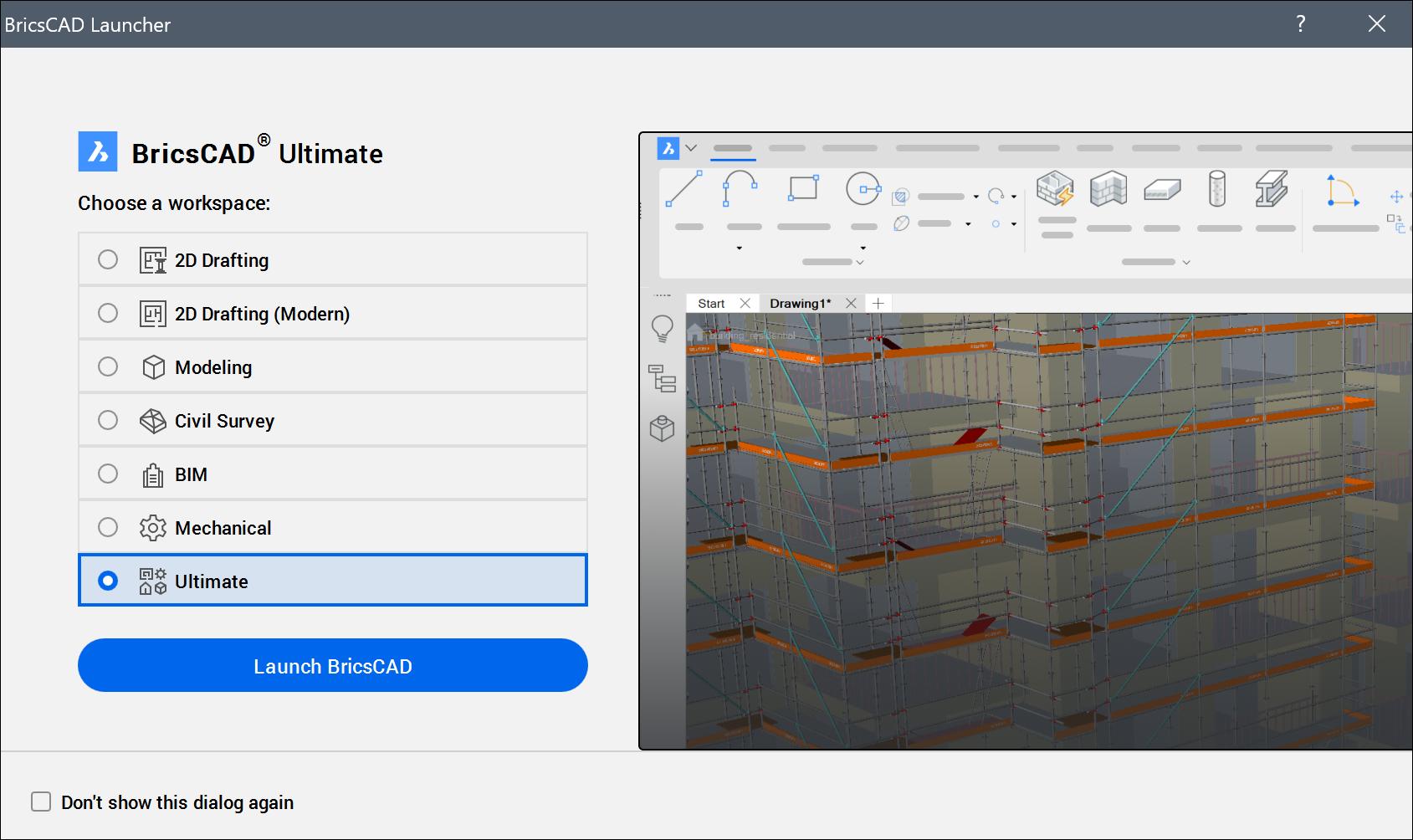
When BricsCAD opens in trial mode, the Launcher displays your days remaining and lets you choose
a workspace for the session. (See Fig. 1) Choose 2D Drafting to evaluate Lite or Modeling to evaluate Pro. By default, trials run with all features (Ultimate), so immediately set the license level from the command line: type SETLICENSELEVEL , select BricsCAD, pick from Lite, Pro, Mechanical, or BIM, then restart BricsCAD. This aligns the UI and command set to the edition you are testing, so that your evaluation mirrors the product you would actually buy.
Why this matters: When you test “everything,” you risk dabbling without measuring results. Locking to the Lite or Pro license focuses you on the tasks you perform every day, then lets you escalate to other modeling and constraints once you’ve proven the 2D fundamentals. In case you were wondering, see the full feature comparisons here.
Don’t forget, if your world includes STEP/IGES, SOLIDWORKS®, Inventor®, CATIA®, NX®, Creo®, JT, Parasolid, etc., install Communicator for BricsCAD, also a free 30-day trial. Import/export major native and neutral formats, bring in PMI, repair/stitch/simplify geometry, and preserve product structure as blocks or
mechanical components. Runs with Pro/Mechanical/ BIM/Ultimate. And lastly, the BricsCAD Application Catalog offers hundreds of partner applications, featuring specialized industry solutions across many disciplines, enabling you to get your work done easier, faster, and more accurately.
STEP 2: MAP THE INTERFACE, OPEN A DWG, AND TEST YOUR MUSCLE MEMORY (DAY 0–1)
Don’t just browse menus, get really familiar. Open a real DWG from your current projects and run the commands you use daily (LINE, CIRCLE, OFFSET, TRIM). Notice the names, flows, and shortcuts behave as you expect, and right-click reveals context menus that surface common actions without leaving the drawing. Now spend some time fine-tuning the UI:
• Properties panel: Dock it and use its Quick Select mode to filter entities by property values—an instant speed-up for targeted edits.
• Status Bar: Watch the quick toggles for Grid, Entity Snaps (F3), Snap Tracking, Ortho (F8), and
Dynamic UCS so you can switch modes without breaking flow.
• LookFrom tool: In the upper-right, jump among preset orthographic and isometric views while you test 3D.
For in-product guidance, turn on two assistants:
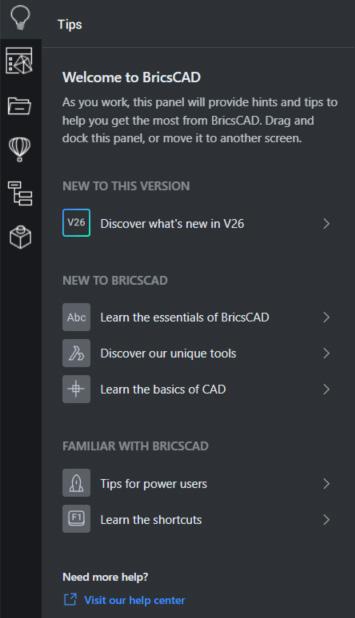
• Tips Panel: Right-click in a panel and enable Tips. (See Fig. 2) When you start a command, it shows a short animation plus links to deeper help. Use it to help you discover and master BricsCAD-unique tools like OPTIMIZE and CONNECT.
• Rollover Tips (RT): Toggle RT on the Status Bar. Hover any entity to get an editable property panel at the cursor; click the shared title to switch between Rollover Tips and the Quad. It’s especially handy in Lite. You can change layer, linetype, or color without opening dialogs. Remarkably similar to Quick Properties in AutoCAD®
These assistants reduce clicks and keep you in a productive flow; Bricsys quick tutorials also show how Quad + Rollover can replace toolbar hunts with context-aware actions right under your cursor.
Fig. 1
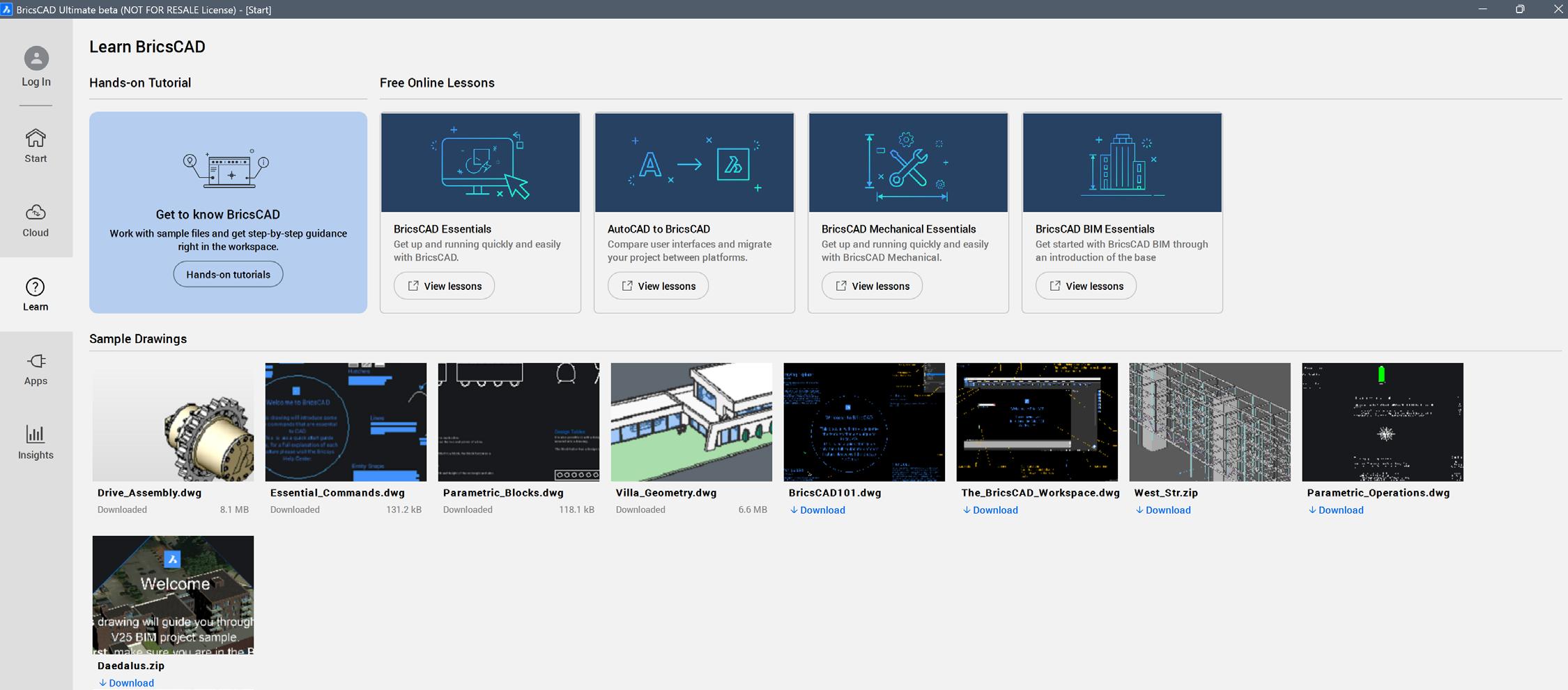
Speaking of tutorials, from the Learn tab on the Start Page, launch directly into the in-product tutorials that teach you the basics of BricsCAD or get to know some of BricsCAD’s unique features, with step-by-step instructions, animated images, and tailored sample drawings, designed to help you practice each new command. (See Fig. 3) You can also access free, online, at-your-pace lessons at Bricsys Learning
STEP 3: MIGRATE YOUR CAD RESOURCES BEFORE CUSTOMIZING (WEEK 1)
Before you start customizing BricsCAD too much, pause and take inventory of what you truly need. This trial period is the perfect time to analyze your
current setup and decide what to keep, what to change, and what to leave behind. If you’ve ever wished you could reorganize your custom files, now is the time to do it. Don’t just copy everything blindly; migrate only what adds value to your workflow. Download the BricsCAD Migration Guide
Think about your existing resources: LISP routines, template files (DWT), block libraries (DWG), menus (CUI), tool palettes (XTP), alias (PGP) files, and other components your team relies on. BricsCAD supports most industry-standard custom content, so chances are excellent that you can bring these tools over. While migrating, consider:
• Change structures if needed: If your old folder organization has always frustrated you, this is your chance to fix it.
• Watch your paths: Some menus or palettes expect files in specific locations. If you change paths, update references, or keep the original structure.
• Coordinate with IT: Decide whether UNC paths or mapped drives will be used for shared resources. Consistency now prevents headaches later.
• Set permissions early: Create folders with readonly access for users to prevent accidental edits or deletions. Testing permissions during the trial ensures smooth production later.
The BricsCAD settings are crucial to your success. Don’t expect them to be perfect the first time. You want to focus on evaluating, not rebuilding, so establish the new setup as soon as possible. When a settings standard is created, reduce the setup time by exporting it and sharing it with other users on the trial team.
STEP 4: TIPS & TRICKS THAT PAY OFF IMMEDIATELY (WEEKS 1–2)
Now is when the rubber meets the road. Open a variety of DWG’s, and let’s investigate. Our customers tell us BricsCAD performs and loads native DWG faster than any other CAD platform; their productivity has significantly increased, and “I would never go back after using BricsCAD!” (See Reference Article) With that in mind, here are some additional tips and tricks to try once you are set up.
Fig. 2
Clean linework and drawing health in one pass. Start every evaluation with DWGHEALTH. The DWGHEALTH command collects clean-up tasks PURGE, AUDIT, SIMPLIFY, OVERKILL, BLOCKIFY, OPTIMIZE, and more, into reusable routines you can run in Express, Interactive, or Simulation modes. It’s the fastest way to shrink files, remove duplicates and unused Xrefs, and fix geometry, especially helpful when you receive or before you ship DWG’s.
Undo surgically. Instead of rolling back your entire drawing with UNDO, use UNDOENT to undo changes to a single entity. A precision tool per entity that preserves everything else you just did.
Edit properties at the cursor. Keep Rollover Tips on and modify layer, linetype, and color inline, toggling to the Quad when you want predictive command access; eyes on the entity; no palette hunting needed.
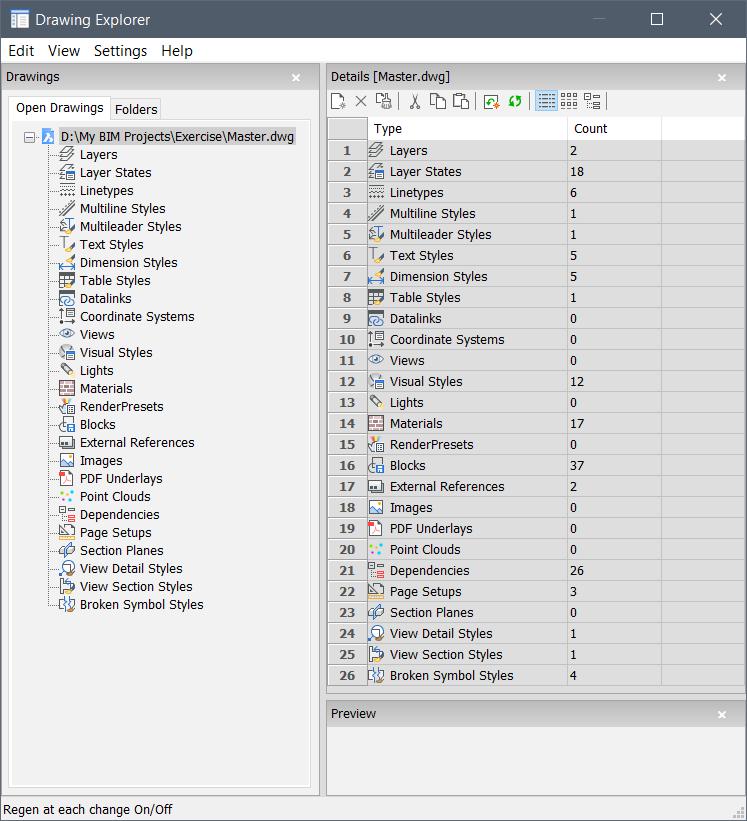
Manage standards from one hub. Get to know Drawing Explorer. It centralizes layers, linetypes, text/dim styles, plot styles, blocks, xrefs, images, views, and page setups; it’s a faster way to enforce
standards across a set; copy/paste directly into the DWG. (See Fig. 5)
Plot and publish confidently. Use Print and Page Setup with your migrated PC3/PMP files; the builtin PDF driver handles custom sizes, and page setups per layout keep outputs consistent.
STEP 5 — PRO TIPS & TRICKS FOR THE FAST, AND RELIABLE (WEEKS 3–4)
By now, the muscle memory has kicked in, and you are ready to dive into unique BricsCAD tools that will bring you additional productivity. Keep in mind the tips panel, as it provides excellent guidance for each command.
Keep actions under your cursor with the Quad. Turn on the Quad (F12). It predicts what you want to do next. Suggesting surface edits when hovering a face, block operations when hovering content, etc., so you stay focused and click less.
Manipulate without typing. Invoke the Manipulator with a slightly longer click; use its axes, planes, and arcs to move/copy, rotate, scale,

Fig. 3
or mirror interactively (hold Ctrl to copy while moving). You can customize its activation time and classic RGB layout in Settings → Program Options → Manipulator.
Generate documentation from the model. Insert section planes to quickly slice the model and create section blocks and use VIEWBASE to instantly generate and create layout views. Many Pro users build a “design-to-docs loop”: edit → re-generate
Fig. 5
→ publish—keeping drawings synchronized as geometry evolves.
Supercharge edits with CopyGuided & MoveGuided.
Two intelligent commands compress alignment, trimming, and cleanup into one action.
COPYGUIDED copies entities using detected guide curves (e.g., wall polylines), automatically aligns and flips orientation as needed, and will trim/ patch surrounding geometry at the destination; MOVEGUIDED does the same for repositioning, healing what’s left behind while maintaining alignment in the new location. Think “copy/move a door or window” where the wall cleans itself, or “repair a wall gap” by copying a region from an intact stretch. Options include pre-pick vs. postpick, rectangular or polygonal selection, flip entities, choose base point, and region replacement, plus dynamic input for distances and angle snaps.
CONCLUSION - DECIDE WITH CONFIDENCE (WEEK 4)
By the end of your evaluation, you shouldn’t just feel like you have “tested” BricsCAD, you should feel confident in your decision to move forward. You have benchmarked workflows against your old system, and it is noticeable where BricsCAD saves time, reduces friction, and lowers overall costs. (See Fig. 6)
Now is the moment to review your results:
• How much faster did you clean and prepare drawings compared to your previous process?
• Did your documentation workflows feel smoother?
• Did Pro’s modeling tools and intelligent editing commands unlock capabilities you’ve wanted for years?
If the answer is yes (and it will be if you follow this plan), you are not just evaluating software anymore. You have demonstrated that BricsCAD fits your needs, improves efficiency, and supports long-term growth. You have moved from first-time user to confident, capable BricsCAD operator in a short and focused window of time.
This is the point where momentum matters. You’ve proven productivity gains, validated the workflows, and built the muscle memory. Now is the right time to bring that progress into full-time production and move forward with the BricsCAD edition that delivers the most value for your team.
MORE ABOUT BRICSCAD
BricsCAD ® is the true CAD alternative. We are the 2D and 3D CAD alternative that helps you switch smoothly, excel in the detail, and realize better value from day one. Download the free , 30-day trial of BricsCAD. Would you like free lessons ? We have that available at BricsCAD Learning . Ready to migrate to BricsCAD? Download the free Migration Guide . Follow us today on LinkedIn and YouTube

Mr. Craig Swearingen is a Senior Implementation and Customer Success Specialist at BricsCAD. Currently, Craig provides migration and implementation guidance, management strategies, and pre/post-sales support & technical assistance to companies that need a true CAD alternative. Craig spent 19 years in the civil engineering world as a technician, Civil 3D & CAD power user, becoming a support-intensive CAD/IT manager in high-volume production environments. Craig is a longtime AUGI member (2009), a Certified Autodesk® AutoCAD® Professional, and he enjoys networking with other CAD users on social media.
Fig. 6
Understanding the Tools We Use Means Owning the Work Behind Them

Every conversation in AECO is dominated by innovation, digital transformation, and new tools. The real conversation, though, is behind the scenes. It is about what it takes to make those tools work. Not just drawing a wall or generating a report, but understanding how files are structured, how standards are set, how views, templates, parameters, data, and models connect to each other. It is about what actually supports the design, not just what visually represents it.
This is not about one software or one tool. It applies to everything: Revit, Word, Photoshop, CRMs, databases, and project management platforms. Every program has a foundational layer that determines whether your work is sustainable, repeatable, and usable by others. Most users barely scratch the surface. They focus on immediate work and defer standards. Templates, file structures, and data connections are treated as an afterthought. Shortcuts are taken because no one checks, and those shortcuts often become someone else’s problem later.
Demos and presentations make everything look easy. They show what a tool can do when everything is perfectly configured, the data is clean, and workflows are optimized. The reality is never
that tidy. Most organizations are left to figure it out themselves, learning the hard way. That is where limitations appear, not because people cannot use software, but because the systems themselves were never set up to support growth, collaboration, or repeatable work.
This is why the human layer is critical. Software adoption is not just about giving access or completing initial onboarding. Teams make tools functional. They troubleshoot issues, refine templates, adjust standards, and guide workflows to fit the real environment. This continuous effort turns software from a feature you have into a tool you actually use. Without it, even the most capable software falls short. Everyone downstream relies on it, and your work must respect that. Content should be plug-and-play, templates should just work, and you are responsible for your portion.
Most people only learn what they need for the immediate work. They take shortcuts, bypass systems, or defer learning foundational elements because it is inconvenient. Sometimes these shortcuts are not discovered until years later, and then someone else must deal with the consequences. This is true across every piece of software. If setting up printing conditions or
templates has to be repeated for every project or file, that is wasted effort. Most inefficiencies are small but repeated over time they create enormous waste. Continuous improvement is possible without perfection, but it requires ownership.
Technical skills alone are not enough. Some users are fast or skilled in certain tasks, but do not understand the backend systems that make software work. They may develop “cool tricks” or shortcuts that solve a visual problem but fail to consider the implications downstream. They rely on IT or support teams to fix problems, passing the work to others. That mindset may not be intentional, but it is widespread. The point is not that people are incapable. The point is that without understanding the full system, the work becomes fragile.
The cost of neglecting foundational work is real. Lost time, lost money, missed opportunities, and stunted growth. Deficiencies today are magnified tomorrow. Software is designed to support you, but it can only do so if the systems are complete, the fields are filled, and the people are responsible. You are responsible for your portion. If your work does not function as intended, you must be able to navigate, adjust, and maintain it. Software is there to enhance your work, not to replace your responsibility.
Adoption is not instantaneous. Even when a vendor presents a demo showing the full potential of a solution, that environment is perfect and does not reflect the reality of your organization. Implementing, learning, and maintaining these systems takes time and effort. You must be willing to understand how the tools work, how to find solutions, and how to adjust. Most of us rely on research, testing, and iteration to solve problems. Sometimes the solution is not a direct answer, but a small idea that leads you to the right panel, the right setting, and the right workflow. That is the kind of understanding that makes a tool functional.
Teams and individuals are essential. Adoption depends on the ongoing effort of people who maintain templates, adjust standards, troubleshoot, and ensure that work produced is usable by others. Your work should not create extra effort for the next person in the workflow. If the system needs information to function, it must be embedded in your work, not sent in an email or stored in someone’s head. Responsibility is not about knowing everything or doing everything alone. It is about supporting yourself, respecting downstream users, and
Owning Your Work
maintaining a functional system for the organization. The impact of ignoring this responsibility is larger than immediate frustration. Inefficient workflows, broken templates, and incomplete data result in lost time, lost money, and missed opportunities. They reduce future growth, limit adoption of new software, and turn what should be a tool into a source of friction. We are not building for today only. Every action we take affects future projects, future teams, future data, and future automation. The deficiencies of today are multiplied tomorrow.
Software is a tool to support you. You are responsible for your portion. The effort you put into learning, maintaining, and improving your systems determines whether the software works for you or against you. Owning your work, embedding the necessary information, and continuously improving processes transforms software from a feature you have into a reliable, functional part of your workflow. The tools themselves are not enough. You are the difference.
I know this article may sound logical. You read it and think, “Yes, I knew this already.” But pause and consider all the times a new tool or system was introduced and never fully adopted. All that potential was lost because something fundamental was missing, something necessary to make it actually work. You’ll get to it when you have time, but when is that time? Having the latest tools is one thing. Being ready to use them effectively is another.
Technology is advancing at a tremendous pace. What you push off today won’t disappear tomorrow; it will still be there, and there will be more. The question isn’t whether you can get the tools, it’s whether you’re prepared to make them work for you.

Kristina Youngblut is a BIM solutions and technologies expert with over 20 years of experience in the AECO community. Her main focus is on providing innovative solutions and technologies for professionals in the manufactured products sector. She is also an active industry author, sharing tips and solutions with various Autodesk software. She currently serves as Vice President on the AUGI Board of Directors since 2025.