Home Automation / Smart Lock System
ARADA / VIDA
Project Reference : N/A

“Global most innovative Architecture, Engineering, and Construction Brand”
Project Reference : N/A
“Global most innovative Architecture, Engineering, and Construction Brand”
Introduction
• The LWEB-802 is a compact home automation server used to monitor, control, and visualize all smart home systems from one central device. It acts as the main communication hub between different home automation devices and allows users to control their home through a web browser, tablet, or mobile phone devices.
• The LWEB-802 connects lighting, HVAC, shading, energy monitoring, and other home systems. It collects data from connected devices and displays it in a clear and user-friendly graphical interface.
• Using the L-WEB Configurator, customized control pages and navigation menus can be created to match the home layout. This allows homeowners to easily operate rooms, scenes, schedules, and system functions without technical knowledge.
• The LWEB-802 is designed for reliable and secure operation in residential environments. It runs continuously with low power consumption and supports secure access, ensuring that home automation functions are always available. Firmware updates ensure long-term functionality and compatibility with future devices.
• Central control unit for home automation systems
• Web-based visualization accessible from smartphones, tablets, and PCs
• Control of lighting, HVAC, scenes, and energy monitoring
• Custom room-based control pages
• Scheduling and automation logic
• User access management for secure operation
Features
• Built-in web server for home visualization and control
• Customizable graphics using L-WEB Configurator
• Secure user login and network communication
• Compact design suitable for residential control panels
• Centralized control for apartments and villas
1.Downloadtheapp(L-webapp2)
Download the L-WEB App 2 from the appropriate store:
• App Store for iOS devices
• Google Play Store for Android devices
2.Opentheapp
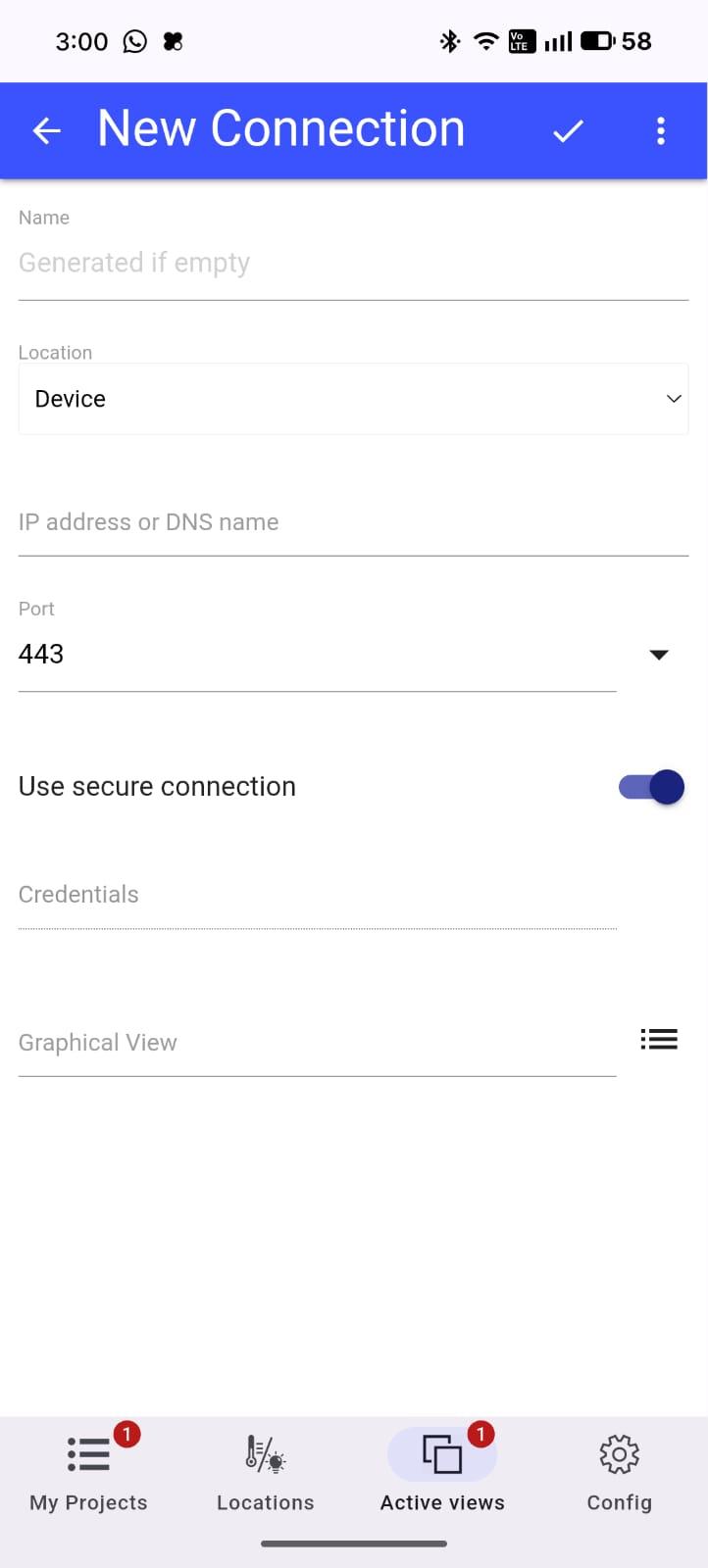
Launch the application, then navigate to My Projects and select Add New Project.
3 Fillthecredential
Fillintherequiredinformationasfollows:
• Name: Enteryourapartmentnumber
• Location: Select Device
• IP Address: EnterthecontrollerIPaddress
• Port: Enterthecontrollerportnumber
• Use Secure Connection: Keepthisoptionenabled
• Credentials: Enteryourassignedusernameandpassword
3.RuntheGraphics
After completing all the required fields, the graphical interface will be automatically detected by the mobile application.
Tap the tick mark in the top-right corner and wait for the application to load and run the graphics.
This guide explains the purpose of each button/icon on the smart home control panel and how to use them.
1.YaleDoorLock
Purpose:
Showsthemaininformationforthedoorlock.
HowtoUse:
• TaptheYaleDoorLockicontoopenthedoorlockscreen.
• Viewthecurrentlockstatus(Locked/Unlocked).
• ViewtheBatterystatus.
• Viewthecurrentdoorstatus(Open/Closed).
2.I’matHome
Purpose:
TurnsONalllightsintheapartmentatonce.
HowtoUse:
• TapI’matHomewhenyouarrivehome.
• Allconnectedlightsintheapartmentwillturnonautomatically.
• Usethisbuttontoquicklylightupyourhomewithout Controllingeachlightindividually.
3.I’mLeaving
Purpose:
TurnsOFFalllightsintheapartmentatonce. HowtoUse:
• TapI’mLeavingbeforeleavingtheapartment.
• Allconnectedlightswillturnoffautomatically.
• Thishelpssaveenergyandensuresnolightsarelefton.
4.TemperatureIcon
Purpose:
Displaysthecurrentroomtemperature. Viewthetemperatureicontoseethecurrentroomtemperature. Thetemperatureupdatesautomaticallybasedontheroomsensor.
5.NavigationButtons
Purpose:
Allownavigationbetweendifferentpagesorsectionsoftheapp. HowtoUse:
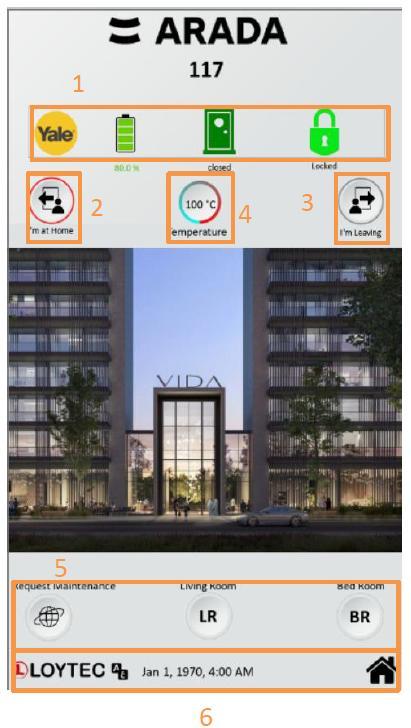
• Usethe navigation buttons tomovebetweenscreens(e.g.,Livingroom,Bedroom).
• Tapthedesiredbuttontoswitchtothatpage.
• Thesebuttonshelpyouquicklyaccessdifferentsmarthomecontrols.
6.Footer
Purpose:
DisplaystimeanddateandprovidesaccesstotheHomepage HowtoUse:
• Checkthefootertoseethecurrenttimeanddate.
• TaptheHome buttoninthefootertoreturntothemainscreenatanytime.
• Tapthelanguagebuttontoswitchbetween(Arabic/English)
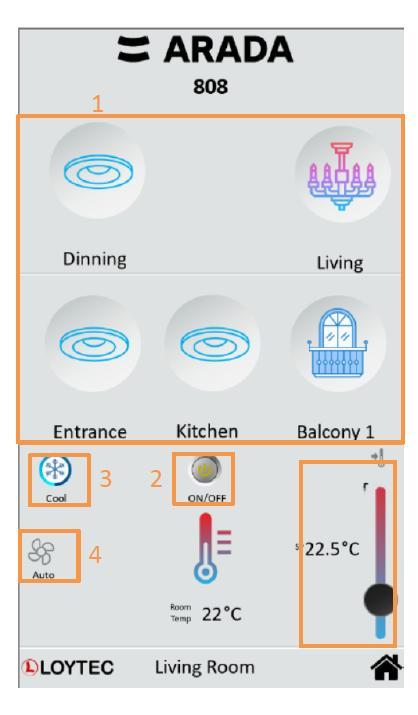
1.LightingControl
Purpose:
Controlsindividuallightsindifferentareas.
HowtoUse:
• Eachiconrepresentsaspecificlightarea(Dining,Living,Entrance,Kitchen,andBalcony).
• TapanicononcetoturntheselectedlightON.
• TapthesameiconagaintoturnthelightOFF.
• Onlytheselectedlightisaffected;otherlightsremainunchanged.
Purpose:
TurnstheairconditionerONorOFFforthelivingroom.
HowtoUse:
• TaptheOn/OffbuttontostarttheAC.
• TapagaintoturntheACoff.
• TheACmustbeONtoadjustmode,fanspeed,ortemperature.
3.ModeControl
Purpose:
Changestheoperatingmodeoftheairconditioner.
AvailableModes:
Cool–Coolstheroom
Heat–Heatstheroom
Fan–Circulatesairwithoutcoolingorheating
HowtoUse:
• TaptheModeicontoswitchbetweenavailablemodes.
• Theactivemodewillbehighlightedonthescreen.
Purpose:
AdjustshowfasttheACfanoperates.
AvailableSpeeds:
Low/Medium/High/Auto(systemadjustsautomatically)
HowtoUse:
• TaptheFanSpeedicontocyclethroughthespeedoptions.
• SelectAutoforautomaticfanadjustmentbasedonroomconditions.
Purpose:
Setsthedesiredroomtemperaturefortheairconditioner.
HowtoUse:
• Dragthetemperaturesliderupordown.
• Setthetemperaturebetween20°Cand30°C.
• TheACwilladjustautomaticallytoreachtheselectedtemperature.
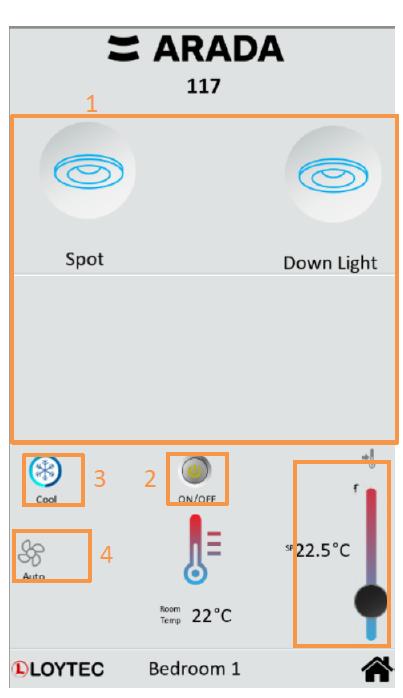
1.LightingControl
Purpose:
Controlsindividuallightsinthebedroom.
HowtoUse:
• Eachiconrepresentsalighttype(SpotandDownLight).
• TapanicontoturntheselectedlightON.
• TapthesameiconagaintoturnthelightOFF.
• Lightscanbecontrolledindependently.
2.ACOn/Off
Purpose:
TurnstheairconditionerONorOFFinBedroom.
HowtoUse:
• TaptheOn/OffbuttontostarttheAC.
• TapagaintostoptheAC.
• TheACmustbeONtousemode,fanspeed,ortemperaturecontrols.
3.ModeControl
Purpose:
Changestheoperatingmodeoftheairconditioner.
AvailableModes:
Cool–Coolstheroom
Heat–Heatstheroom
Fan–Aircirculationonly
HowtoUse:
• TaptheModeicontoswitchbetweenavailablemodes.
• Theactivemodewillbehighlightedonthescreen.
4.FanSpeed
Purpose:
AdjustshowfasttheACfanoperates.
AvailableSpeeds:
Low/Medium/High/Auto(systemadjustsautomatically)
HowtoUse:
• TaptheFanSpeedicontocyclethroughthespeedoptions.
• SelectAutoforautomaticfanadjustmentbasedonroomconditions.
5.SetPoint(TemperatureSetting)
Purpose:
Setsthedesiredroomtemperaturefortheairconditioner.
HowtoUse:
• Dragthetemperaturesliderupordown.
• Setthetemperaturebetween20°Cand30°C.
• TheACwilladjustautomaticallytoreachtheselectedtemperature
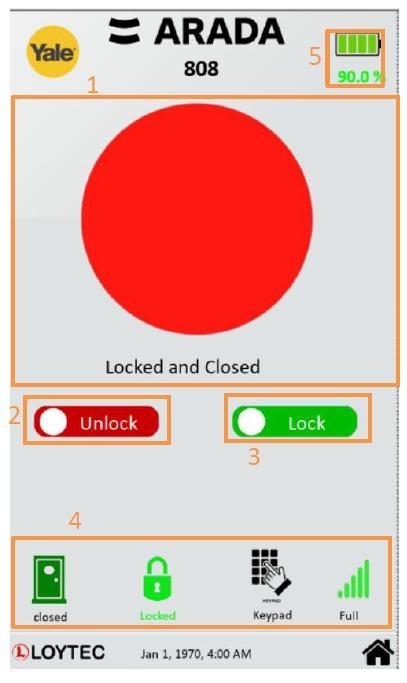
1.DoorLockAnimation(MainCircle)
Purpose:
Showsthecurrentlock&doorstatusvisually.
2.UnlockButton
Purpose:
Unlocks the door.
How to Use:
• Pressthered“Unlock”button.
• Thesystemsendsanunlockcommandtothedoorlock.
• TheanimationandstatustextwillupdatetoshowUnlocked.
3.LockButton
Purpose:
Locks the door.
How to Use:
• Pressthegreen“Lock”button.
• Thedoorlockwillengage.
• StatuswillchangetoLockedandClosed.
• Ensurethedoorisfullyclosedbeforelocking.
4.DoorLockStatusIcons
Purpose:
Provides detailed information about the door and lock.
Viewthecurrentlockstatus(Locked/Unlocked).
Viewlastunlockmethod.
Viewthecurrentdoorstatus(Open/Closed).
5.BatteryPercentage
Purpose:
Shows remaining battery power of the door lock.
Battery level is shown as a percentage and icon.
Above 50% → Normal operation
Below 20% → replace batteries soon
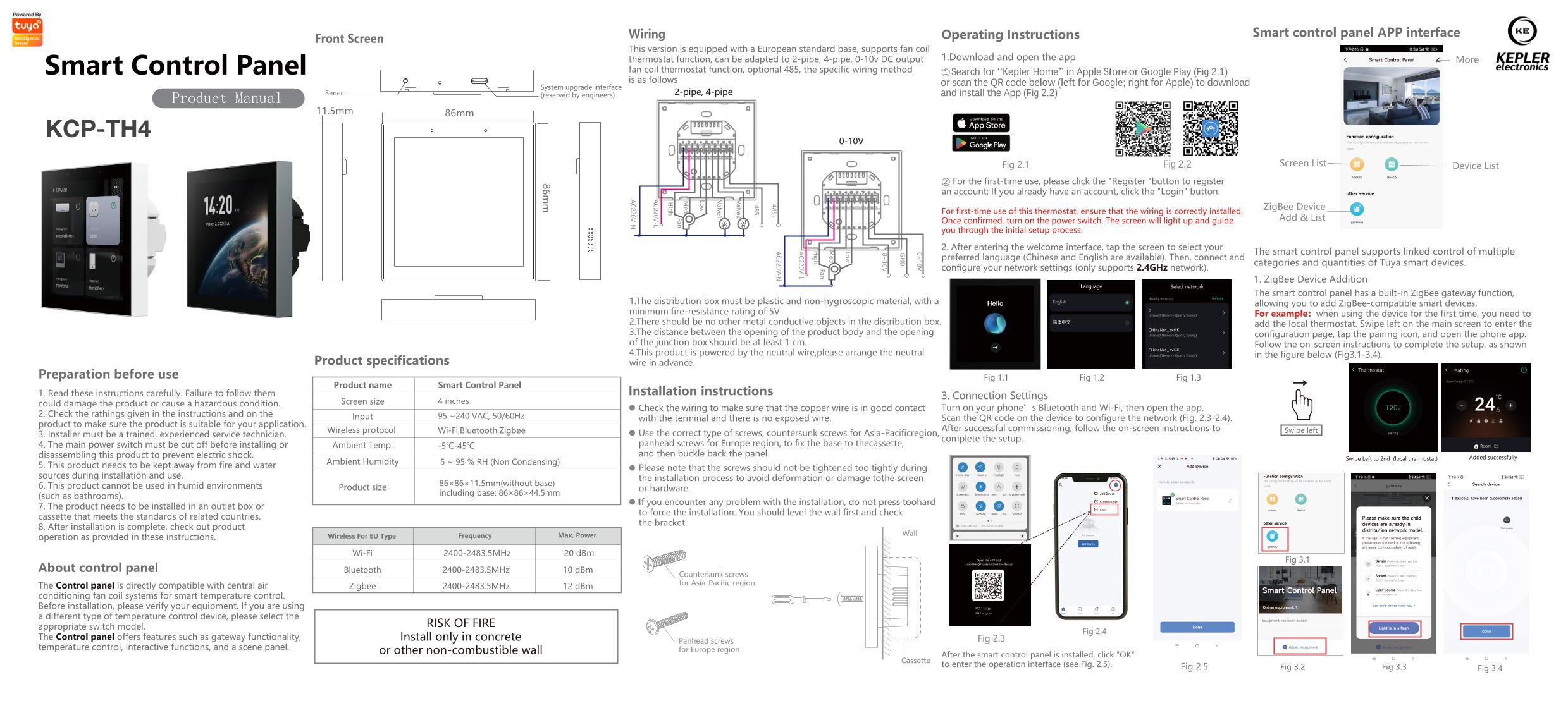
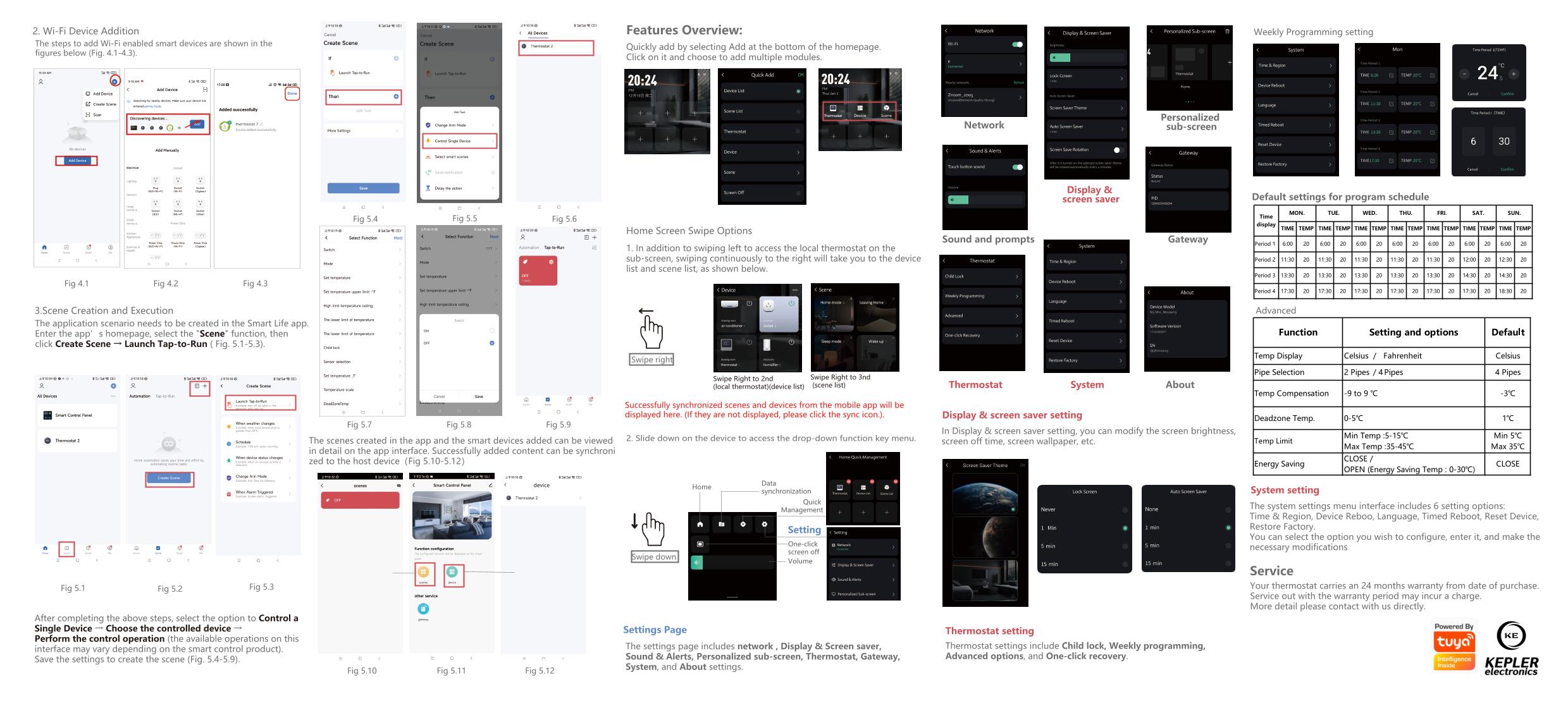
The KCP-TH4 Smart Thermostat is a wall-mounted intelligent thermostat designed to control and monitor HVAC systems in residential and commercial environments. It provides precise temperature regulation, user-friendly operation, and seamless integration with building management and smart home systems.
• The KCP-TH4 supports control of heating, cooling, and fan modes, allowing users to maintain comfortable indoor conditions while optimizing energy efficiency. Temperature values and system status are clearly displayed, enabling easy monitoring and adjustment.
• The thermostat communicates with automation and BMS systems using standard control signals, making it suitable for integration with centralized control platforms. It can be used as a standalone room controller or as part of a larger smart home or building automation solution.
• Designed for reliability and continuous operation, the KCP-TH4 features a modern, compact design suitable for installation in apartments, villas, hotels, and offices. Its durable construction and stable performance ensure long-term operation with minimal maintenance.
• Room temperature sensing and control
• Adjustable temperature set point
• Operating mode selection (Cooling / Heating / Fan / Auto)*
• Turn lights ON/OFF with a single tap
• Activate scenes like I’m Home, Leaving
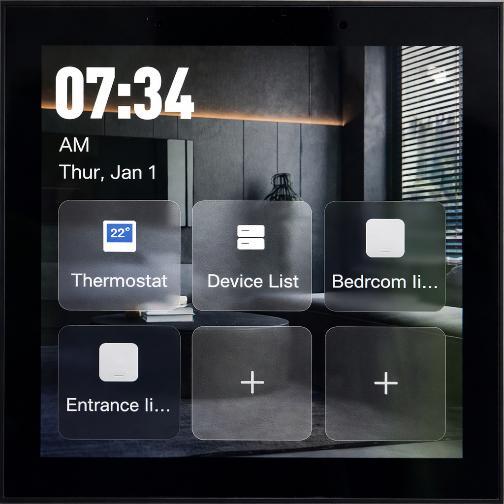
This guide explains the purpose of each button/icon on the smart home control panel and how to use them.
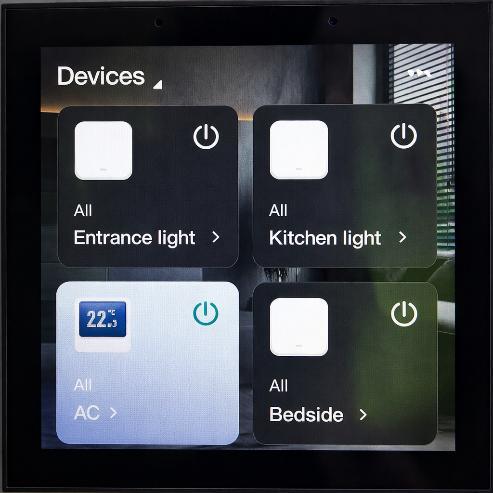
• Mainscreenshowingallconnectedsmartdevices.
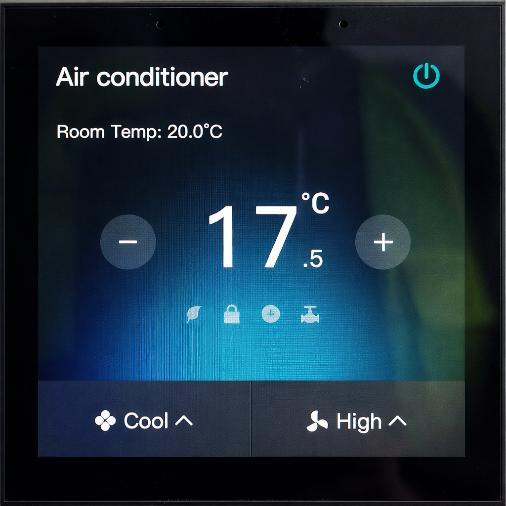
Purpose: Controlroomtemperature. HowtoUse:
• TapThermostatatmainscreen
• TaptheOn/OffbuttontostarttheAC.
• TapagaintoturntheACoff.
• Adjustmode,fanspeed,ortemperature
Purpose:
Viewandmanageallconnectedsmartdevices
HowtoUse:
• TapDeviceListonthemainscreen
• Scrollthroughalldevices
• Tapadevicetocontrolit
• TurndevicesON/OFForchangesettings
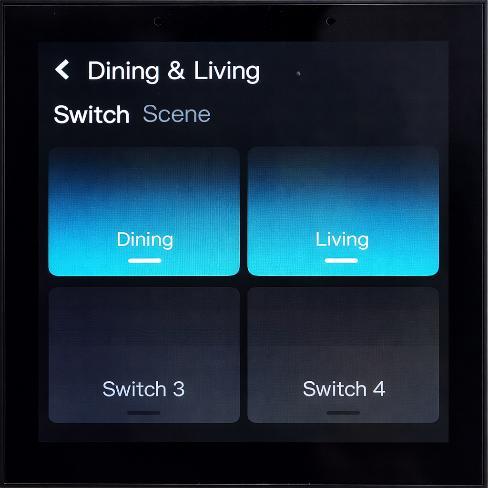
Purpose: Controlthelight
HowtoUse:
• Taponthedeviceatdevicelist
• Taponce→TurnON
• Tapagain→TurnOFF
• Blue →SwitchisON
• Dark →SwitchisOFF




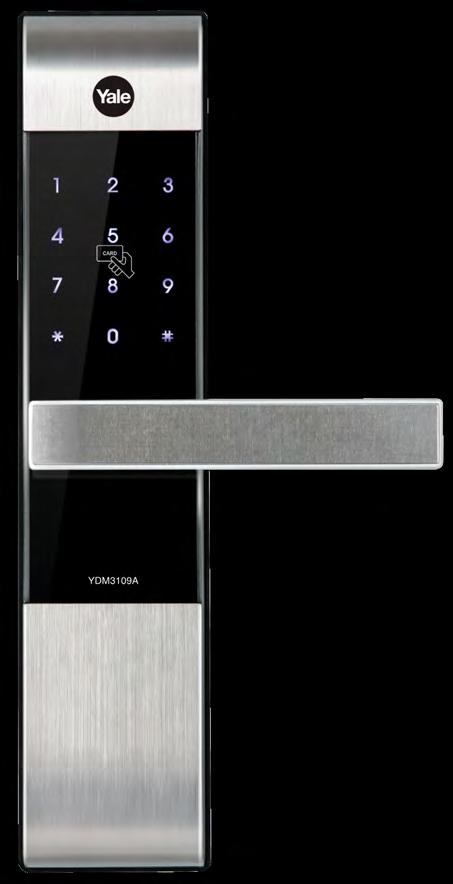
The Yale YDM3109A smart lock is a reliable choice for keyless home entry, making your busy modern life that bit easier.
The secure smart lock allows you to lock and unlock your door, send virtual keys to guests and receive notifications all via the Yale Home App*. You can gain access in a way that suits you, with the options to use a PIN code or RFID card/tag for simple and convenient access to your home.

Trusted every day

App control Access in a way that suits you
Lock and unlock your door, send virtual keys to guests and receive notifications*
Unlock your door with the Yale Home App, a PIN code, or RFID card/ tag
Auto locking
Automatically locks your door when you leave your home
*Requires Yale Access Module for App functionality & Yale Connect Wi-Fi Bridge for locking/unlocking remotely and voice assistants (sold separately)
• Remote functionalities (Yale
Connect Wi-Fi Bridge required)
• Guest management
• Activity monitoring & notifications
• DoorSense™ technology – know when your door is closed or left ajar
• Tamper alarm
• Low battery warning
• Use your Mechanical key override for emergency access
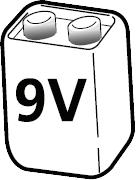
• Emergency power supply using standard 9V battery
Connect your YDM3109A Smart Lock with leading smart home systems, voice assistants and holiday rental platforms for effortless lock control and access management.
Connect with other accessories and other products from Yale Home Range to open even more possibilities. Check our website for more info.
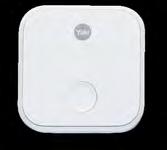
Yale Connect Wi-Fi Bridge
For functionalities such as locking/ unlocking your door remotely, instant alerts to your phone and for integrations like voice assistants.
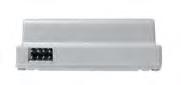
Yale Access Module
Our Smart Locks can benefit from increased app functionalities and form part of the Yale Home range.
Download our free Yale Home app on iOS and Android.