Japan New Hire Workday Instruction (2026)

Page 1


Japan – Instruction to update Japan IDs

Step 1: After log in to Workday, please check Tasks and Reports as below to find “Change My Government IDs”

Step 2: Fill-in the IDs in the required field under National Category. Please complete the Individual Number (My Number) : Mandatory requirement

Note: National Pension Number and Employment Insurance Number are optional. But in case you have completed questionnaire as “Yes”. You can provide IDs under National IDs Category.

Individual Number

My Number is the ID number issues for all citizens and residents of Japan (including foreign residents in Japan) used for social security and taxation purposes

Contains : 12-Digits

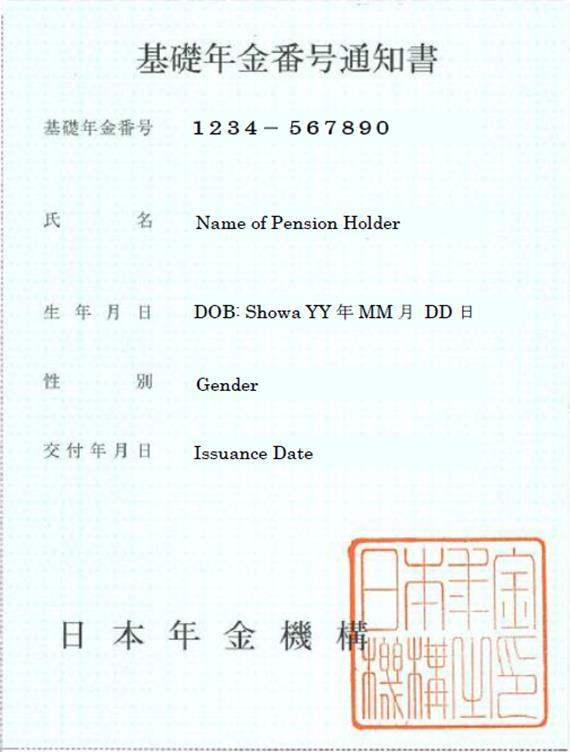
National Pension Number

The National pension aims to provide basic pension. All persons who have address in Japan including foreign residents are required to enroll in the national pension plan

Contains : 10-Digits

Employment Insurance Number

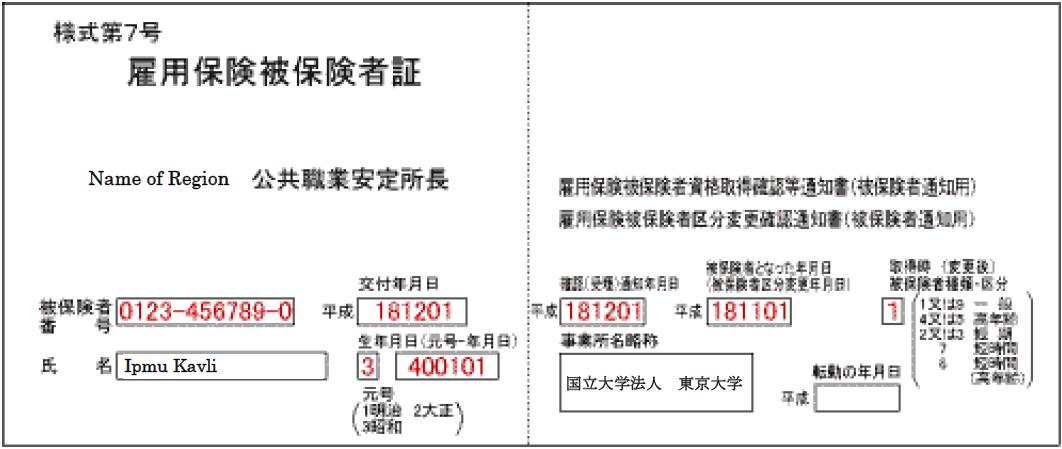
Employment insurance number is a number issued for the “User pays” system of unemployment benefits It can apply through the Employment Security Office (Hello Work) in Japan

Contains : 11-Digits

Step 3: Attach the supporting document i.e. My Number card, Pension book and Employment Insurance. that shows your IDs for data verification.

Step 4: Once you have completed the task, please click “Submit” to complete the task.

Note: Got any issue or questions about instructions, please reach out to our team : peoplehelpdesk@agoda.com

Japan – Payment Election (Bank Account Update)

Step 1: Please log in to your Workday profile and check your Workday Inbox. If you did not receive any task in your Workday Inbox, please search for “Add Payment Elections”.

• Check your default Country and Currency.

• Click Add to input your Bank Details

If you found that the information is incorrect please contact peoplehelpdesk@agoda.com

Step 2: Fill your bank account details into all the mandatory fields.

• Account type : Please select “Saving” or “Checking”

• Bank Name : Bank name only requires in English

• Bank Code : Required 4-Digits

• Account Number : Required 7-Digits

• Branch Code : Required 3-Digits

• Branch Name : Branch name only requires in English

• Name on Account : Please input name on account to be in Half-width Katakana and add single space between surname and given name

Add the Supporting Document i.e. Passbook Copy in Attachment box and click Submit to complete the task.

Remark:

• If this is your first bankaccount in Workday, the system will automatically register your account as paymentelection.

• If you have morethanonebankaccount, you have to select which one you would like to use as your paymentelectionby clicking Edit button on payment election section under your account.

Step 4: Attach the supporting document i.e. US Social Security Card or any document that

If approved in Workday after the 12th of the month

Note: Got any issue or questions about instructions, please reach out to our team : peoplehelpdesk@agoda.com

Japan – Personal Contact Information (for new hires)

Step 1: Please log in to your Workday profile and check your Workday Inbox. If you did not receive any task in your Workday Inbox, please search for “Change my home contact information” in the tab bar.

Step 2: Click “Address Add”. The task result will be shown as below.

Remark:

Ticktheboxtoenter thewesternscriptline

Pleaselookattheremark

• As workday limitation, only Furigana line is available for employees to fill out the Katakana Script for your payroll requirements.

• Please complete all your information details into all mandatory filed.

Step 3: Please always be aware that after you have finished the task, you must click “Submit” to complete the process

Important Note:

• The address details are required in Kanji, Katakana and Western (English) Script.

• Please ensure that your address details are accurate before you submit the task.

Note: Got any issue or questions about instructions, please reach out to our team : peoplehelpdesk@agoda.com

Japan – Instruction to update Legal Name

Step 1: Please log in to your Workday profile to start the process For new hire, you will be able to update the legal name from your Workday Inbox.

If you didn’t receive any task in your Workday Inbox, please search for “Change My Legal Name” at the tab bar.

Also, you can choose the Personal Information tab to start the process.

Step 2: The task will route you to the main page.

Change My Legal Name

Step 3: Please input your personal legal name in the required field

Legal Name Guidelines:

• The country field defaults to your country of work. Please select your Nationality to change it.

• The first and last name should be input as Western (English) script

• Kanji and Katakana (Furigana) are also required for Japan employees.

Step 4: Attach relevant supporting document

The supporting document could be ID Card or Passport in order to use for data verification.

IMPORTANT: Please ensure that your information are accurate before you submit the task.

Step 5: Once you have completed the task and after verification, please click “Submit” to complete the task.

Japan Relocation – Payroll Requirement

You will be able to add information during your first day with new entity onward. Please complete the following requirements below.

Personal Information

• As you have moved to a new location, please select details according to your new country of work (e g marital status, citizenship). You will receive the task which is required your personal information update.

Example → Marital Status : Single (Japan) Citizenship : Non-Citizen (Japan)

Please update into Workday by searching “Change my personal information” .

Japan Current Address

• Please update your current address in Japan into workday by selecting “Personal Information” icon.

Or you can search “Change my home contact information”

Japan MY Number IDs

• In order to be eligible for a Number card, applicants must be either Japanese citizen or foreign resident who stay in Japan longer than 3 months, has been issued a residence card or has registered with the local ward office The IDs is also used for social security and taxation purposes Once you receive IDs Number, please update into Workday by following steps below.

Or you can search “Change my government IDs”

Japan Bank Account

• Any Japan bank is acceptable for Japan Payroll To open a new bank account, the bank will request you to submit supporting document (i.e. the proof of address or work agreement etc.) Please provide information into Workday by selecting “Pay” icon.

Or you can search “Add payment election”

Remark : Please choose the bank account based on the country you work in order to use in payroll process by clicking “Edit” button on payment section under your account.

Note: Got any issue or questions about instructions, please reach out to our team : peoplehelpdesk@agoda.com

FAQs

Q: I cannot locate Sheet A1 and D1 in the "New Hire Document_Payroll Required Documents.xlsx."

A:

• Sheet A1 (Employee Information Sheet): Please disregard the "Employee Information Sheet A1" mentioned in the instructions. Our team will handle creating it once you’ve submitted all the required documents.

• Sheet D1 (Dependent Form): Kindly find the Dependent Form (Sheet D1) attached to this email.

Q: If I don't have any dependents, do I still need to submit the form?

A: Yes, please complete the form and leave the dependents section blank if you don't have any dependents.

Q: I don’t have a My Number card yet as I’m still in the process of obtaining it, and it will take a long time. What should I do?

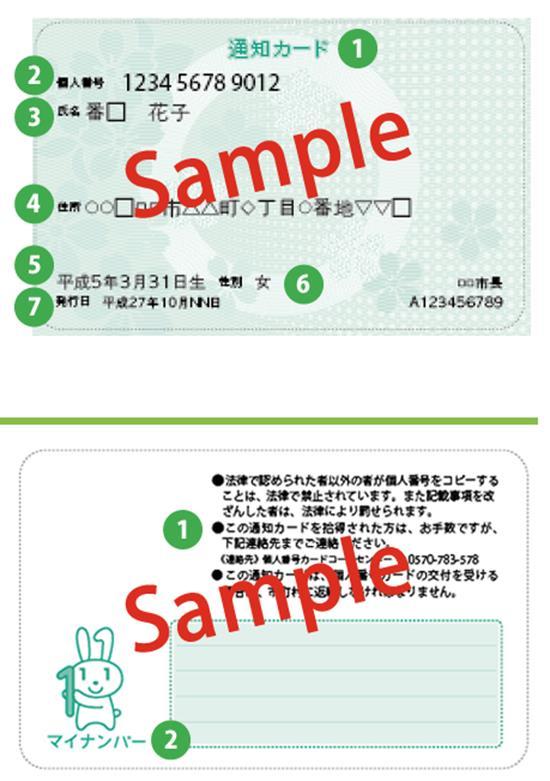
A: If you have received the "My Notification Number" document, you can use that instead. However, if you don’t have both the My Number card and the My Notification Number:

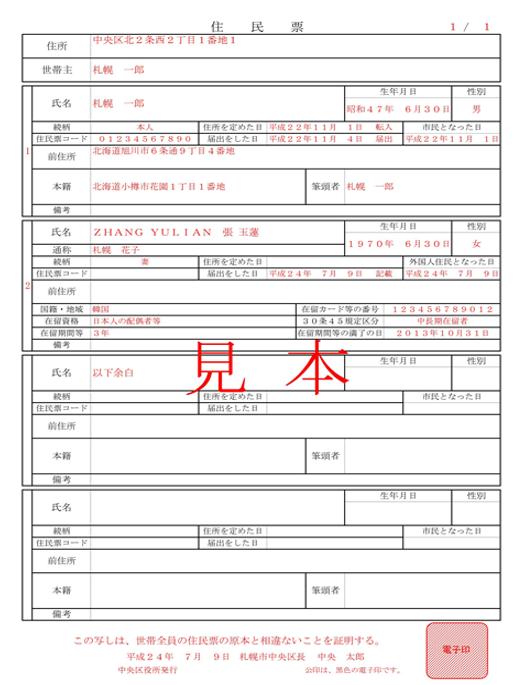
• For hard copies to be sent to Vistra: If your My Number information is reflected on your Residence Certificate, you can send the hard copy of the Residence Certificate to Vistra first. Once you receive your My Number card, you can send its hard copy later.

• For soft copies submitted in Workday: You can disregard submitting the My Number information.

Q: My Inhabitant Tax Transfer Notice is not ready and will take some time to issue.

A: You can submit the document once it becomes available. In the meantime, please provide your employer's name so we can notify our payroll partner. This information is essential for processing your health insurance card.

Q: If I want to continue paying tax onmy own, do I have to submit the Inhabitant Tax Transfer Notice?

A: If you prefer to continue paying the tax on your own, that’s fine no further action is needed. If you decide to change the payment method in the future, you can let us know and forward the new notification of Inhabitant Tax Payment to Vistra’s office.

Q: I don't have an Employment Insurance Slip/Number. What should I do?

A: Please provide your employer's name instead.

Q: What should I do if my Pension Book is lost?

A: If your Pension Book is lost, Vistra can proceed using yourMyNumber instead.

Thank you

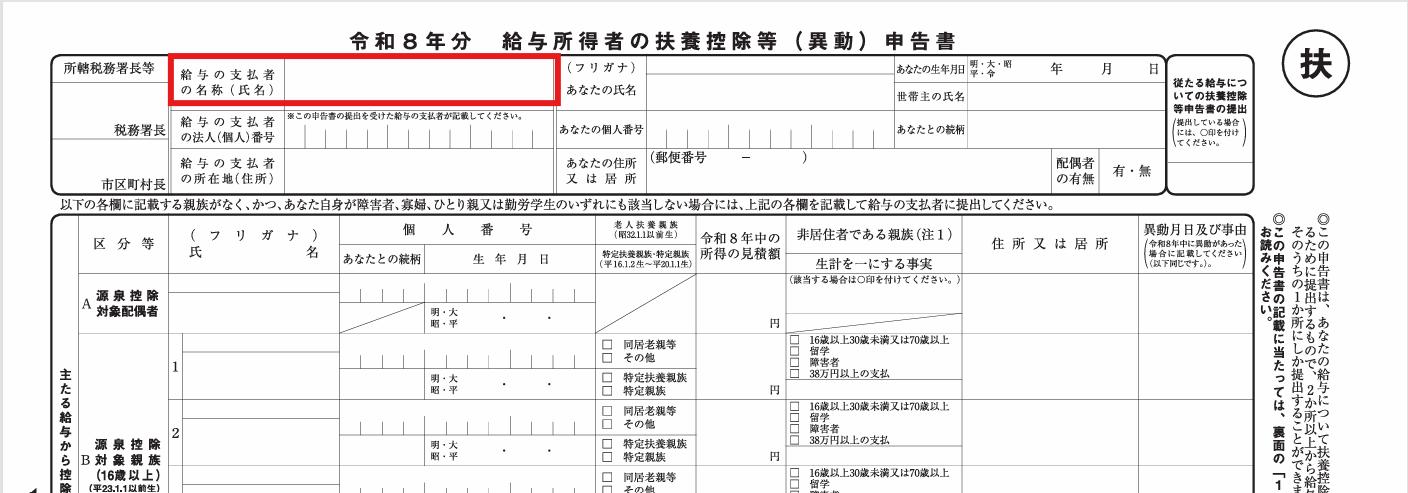
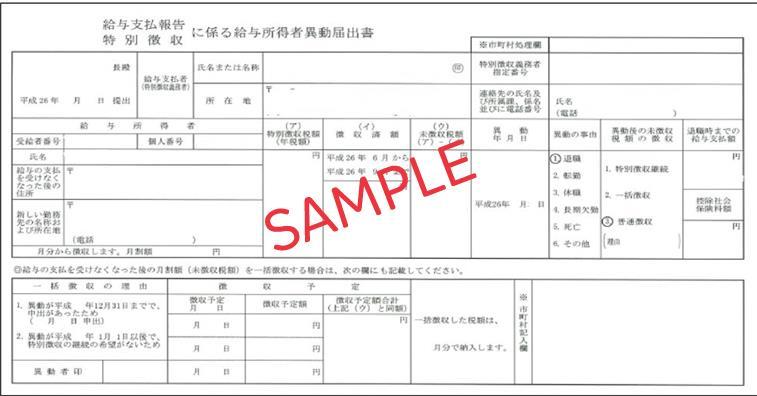
Please see the next pages for the document samples. If you have already completed the Workday onboarding tasks, we really appreciate your cooperation.

Examples

Residence Certificate

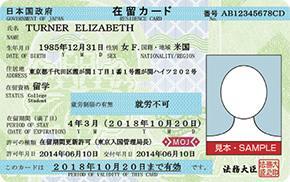
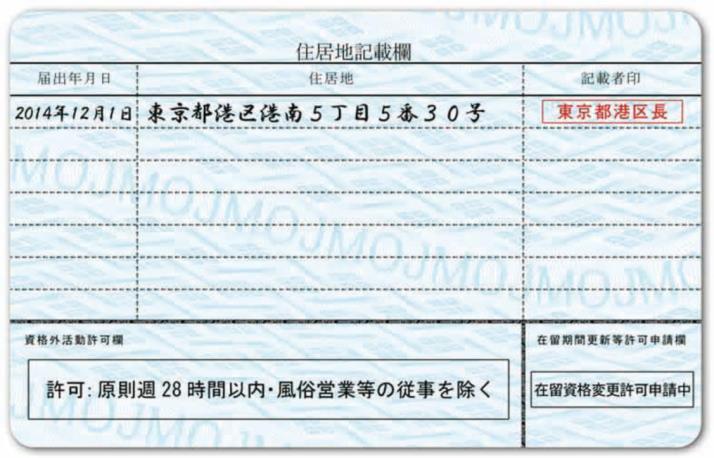
Rescidense Card (Expat Only) both front and back

Turn static files into dynamic content formats.

Create a flipbook
Japan New Hire Workday Instruction (2026) by Agoda Onboarding Team - Issuu