• Guide for Your First Payment: How to Get Paid on Time
India National IDs
Example of Supporting Documents
How to Add your IDs
Personal and Contact Information
Payment Election
Example of Supporting Documents
India Payroll Documents
How to answer Form 11 questionnaires?
Download India Payroll Documents
Upload India Payroll Documents
Understand Onboarding Tasks
Payroll Cut Off Date: on the 12th of every month, if 12th falls on weekend or public holiday it will move on day earlier
Note: If joined on 1st to 12th of the month, will receive the first salary in the same month, if joined from 13th onwards will receive the first salary in the following month
Why it is important?
What is Onboarding task?
Every new and relocated employee is required to complete all tasks on Workday. These tasks include:
• Agoda Payroll team needs the all information and documents to be on your Workday Profile to process salary payments.
• Personal Information
• Contact Information
• National IDs
• Payment Election
• India Payroll Documents (Form 11)
• If the all required information or documents are not in the system by the cut off date, salary payments will be delayed by one month.
India National IDs
• Go to your Workday inbox to add all 4 National IDs and attach Aadhaar, PAN, UAN and EPF Passbook for verification.
o If this is your first job in India, Expat or you never had EPF before, EPF is not required.
o If you don’t have UAN number, please register yourselves via UMANG app & Face RD app from Play Store (Android) or App Store (iPhone)
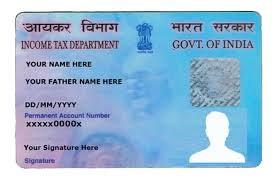
Permanent Account Number (PAN)
•A 10-digit alphanumeric identifier issued by the Indian Income Tax Department. Expats and Locals
•If you don’t have a PAN, register here
Employee Provident Fund (EPF)
•A 22-digit number (Member ID) used to check EPF status, balance, and withdrawals.
Universal Account Number (UAN)
Expats and Locals
•A 12-digit number provided by the Employees’ Provident Fund Organization to manage PF accounts. Locals only
•EPF Passbook can be downloaded from the UMANG app or here
•Activate via UMANG app & Face RD app: For Guidelines
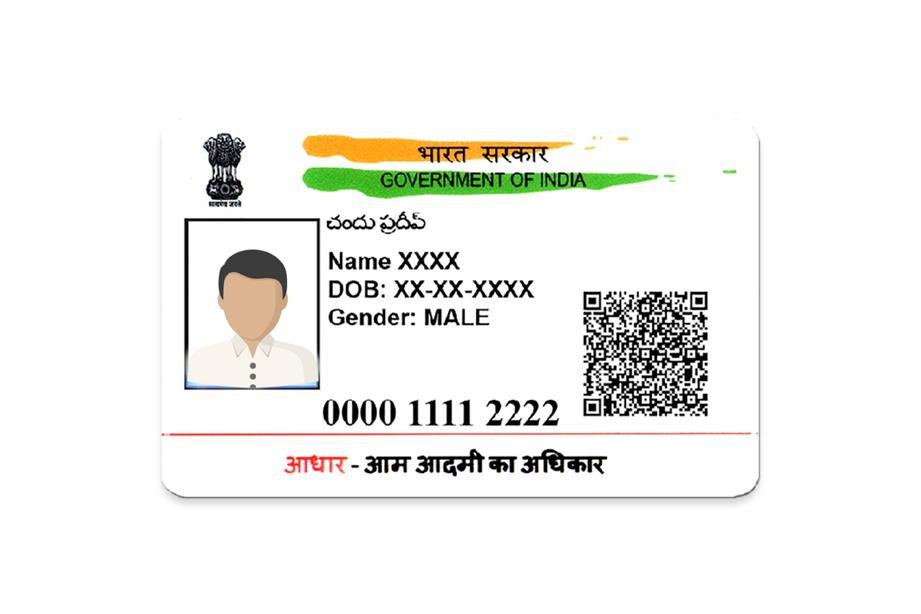
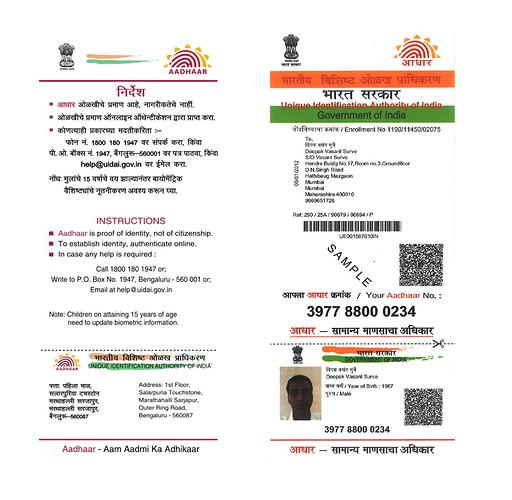
Aadhaar (National ID)
•A 12-digit number based on biometric and demographic data. Locals only
•Voluntary for residents or passport holders of India.
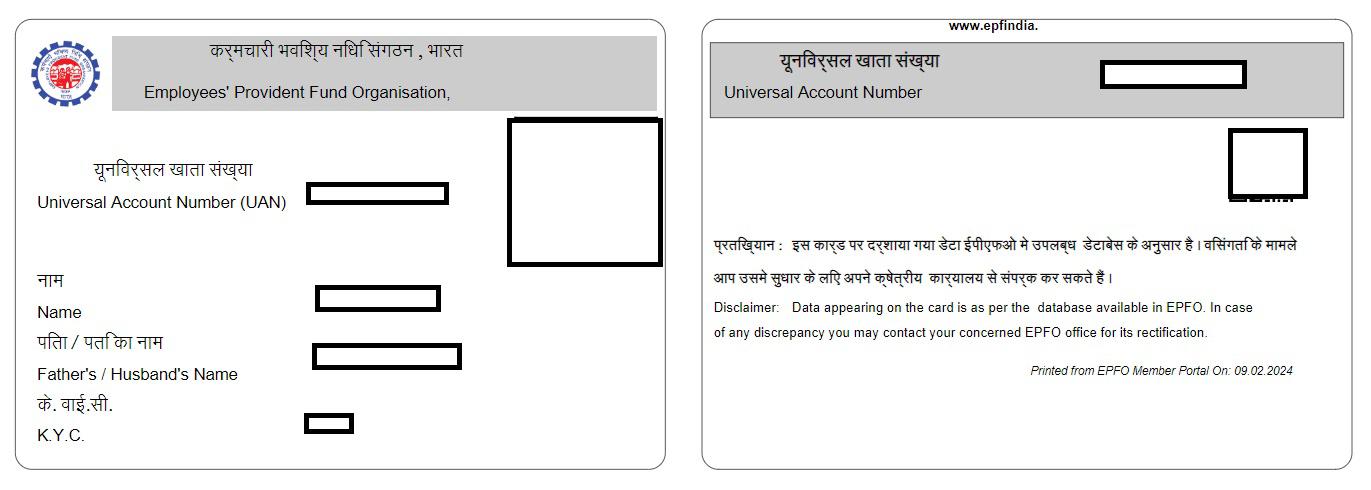
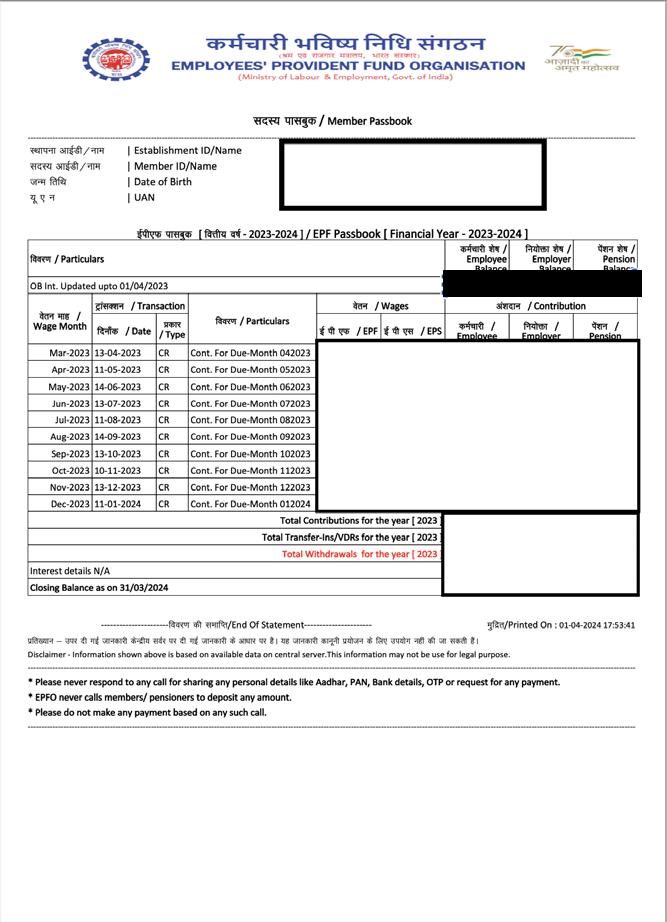
Example of Nationals IDs Support Documents
AadHaar UAN card
PAN card
EPF Passbook (Member ID)
Can be downloaded from UMANG App or EPFO Portal
How to Add your IDs
Step 1: Log in to your Workday profile and check Workday inbox for ‘ID Change’ task
If you don’t receive any tasks, type “Change My Government IDs” in the search box.
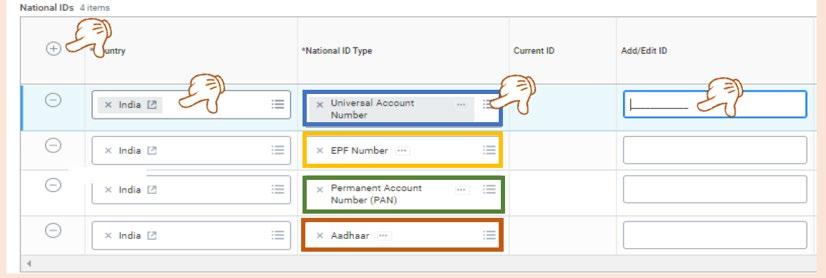
Step 2: Select “+” to add country of work (India). Select “National ID type”. Then, fill in the IDs in the fields.
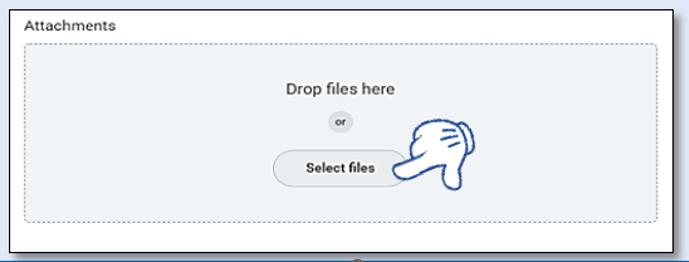
Step 3: Attach support document for Aadhaar, PAN, UAN Card and EPF Passbook that show your ID numbers for data verification.
Step 4: After completing Step 1-3, click “Submit” to complete the task.
Personal and Contact Information
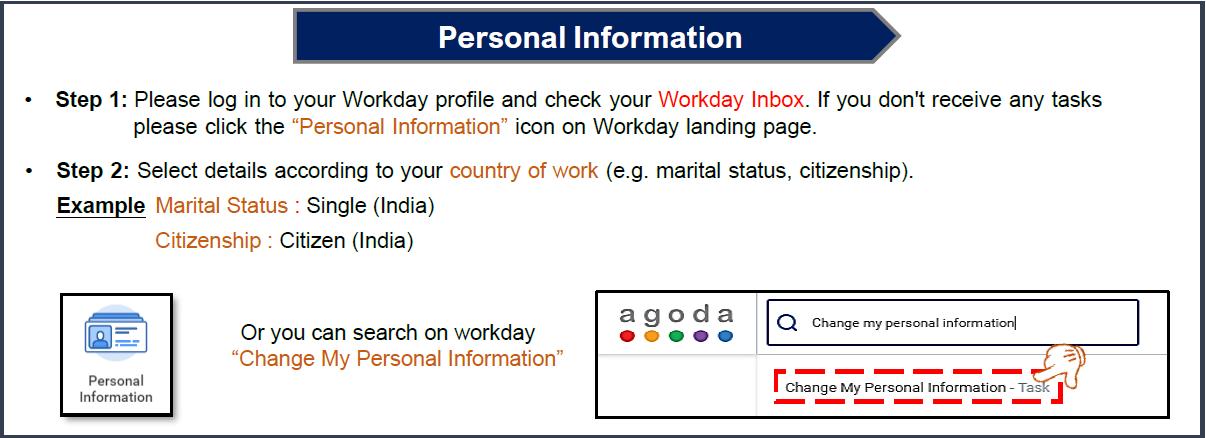
Personal Information: Log in to your Workday profile and check your Inbox to complete the task .
Remarks: Don’t forget to input Father's Name in the Relatives' Names section, as this information is required in the Payroll Forms.
If you would like the Form 11 to show father's middle name, please put the middle name into the 'First Name' box.
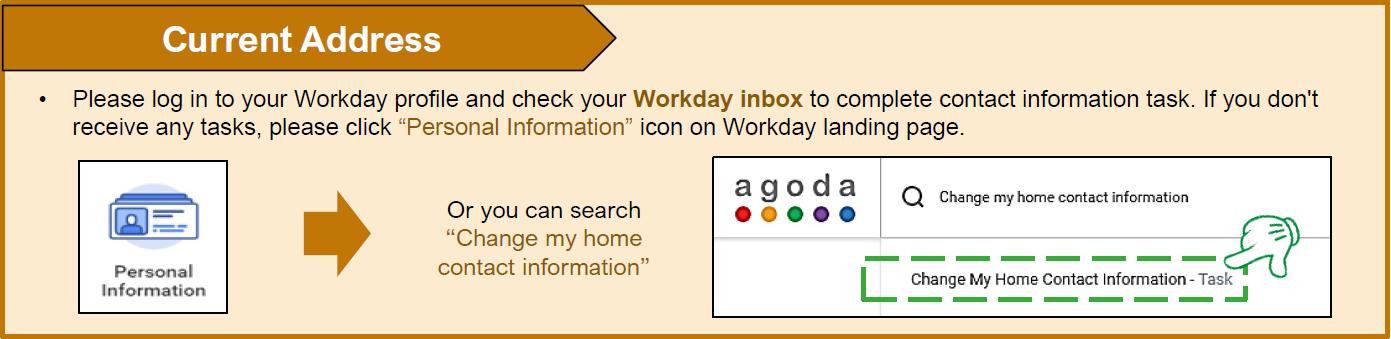
Contact Information: Go to your Workday inbox to add your India home address, Phone number and Emergency contact
• Please make sure to set effective date to be your Hire Date
• For those who have relocated to India, you may add a temporary address in India first.
Once you have permanent residence, please update it again in Workday.
Payment Election
How to add your bank account:
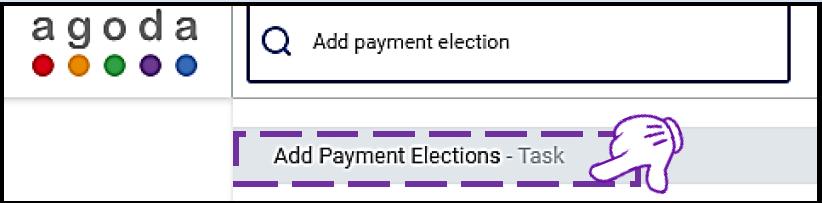
Step 1: Please log in to your Workday and check your Inbox for ‘Payment Election’ task. If you did not receive it, please go to Pay worklet from your landing page or search ‘Add Payment Elections’ in Workday search box
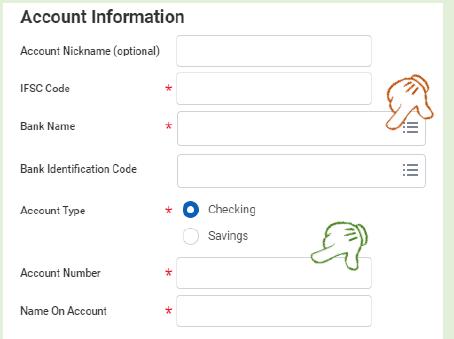
Step 2: Fill your bank account details into all mandatory fields
Fill in all the require fields with Red Star.
• Bank Name: Select your bank name in drop down
• Bank Identification Code: Select from the Auto Pop-up
• IFSC Code: Need to be in CAPITAL LETTERS. Please check with the bank or on your bank document.
• Account Number (10 Digits): Do NOT put space or dash (-) in all account numbers
• Name on Account: Please put account name in English only. No title (Mr./Ms./Mrs.), No dash (-)
• Once completed, please click 'OK'.
** If there is no bank name in drop down lists, please contact peoplehelpdesk@agoda.com
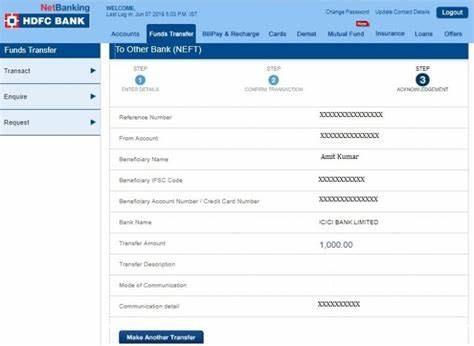
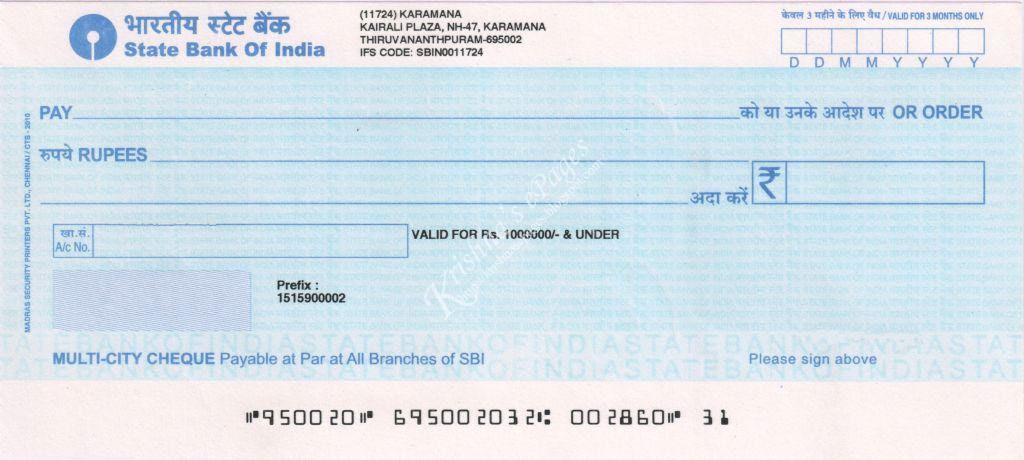
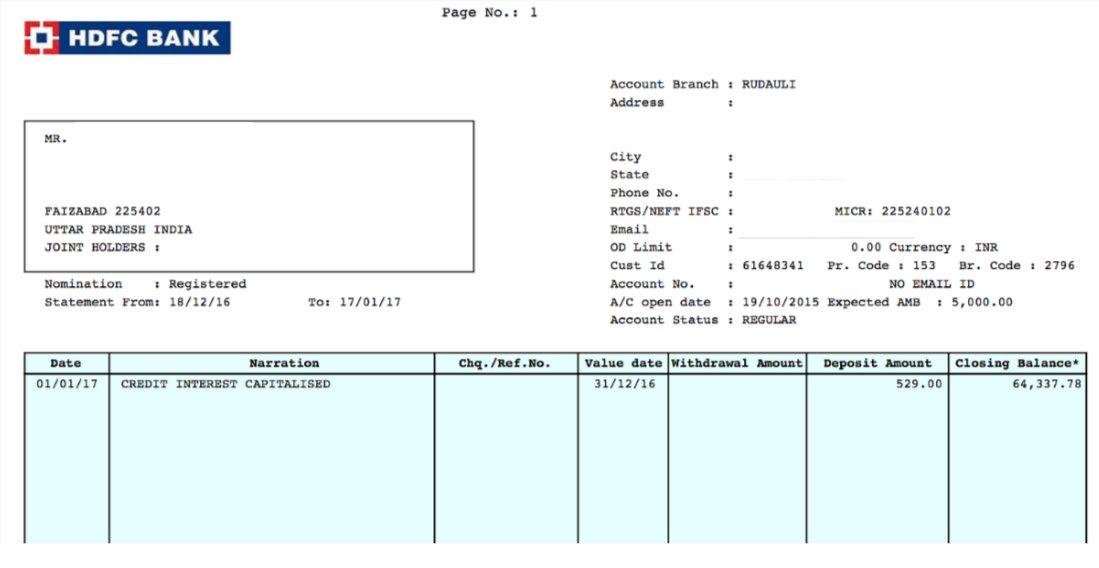
Step 3: Once complete filling in bank account details, check your Workday inbox, there will be a separate task to attach a supporting document for your bank account, please attach and click Submit Supporting document need to show ALL required details below:
You can complete this on your hire date. Before proceeding, please ensure that your Personal Information, Contact Information, National IDs and Payment Election have been successfully completed and approved.
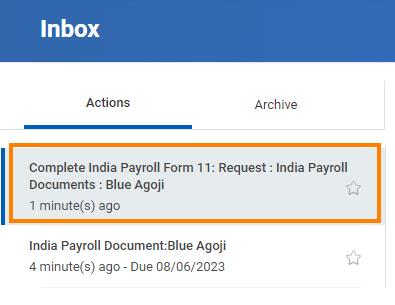
Step 1: Click on this task Start this task by clicking on this link.
Step 2: Answer the initial questionnaire. Based on your responses, form questionnaires will be triggered, up to a maximum of three. Ensure that you complete all questionnaires sent to your inbox.
• If question 1 or 2 is answered as "Yes", the Form 11 questionnaire will be triggered.
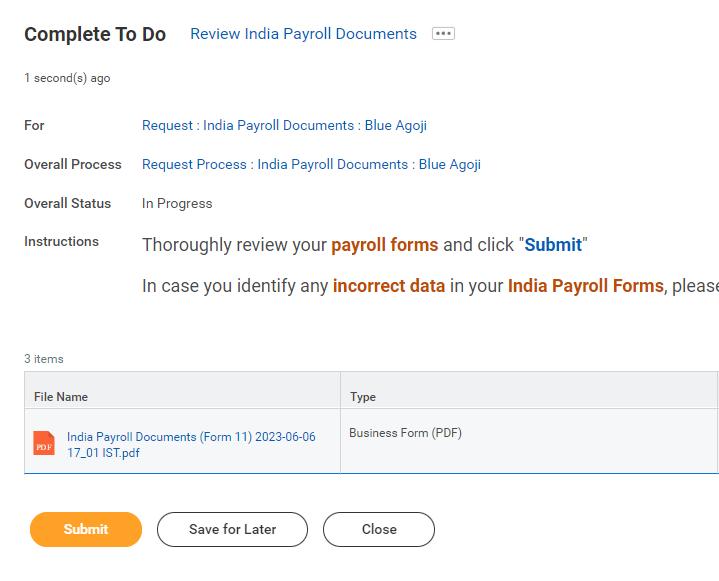
Step 3: After completing the form questionnaire(s), allow Workday up to 30 seconds to generate your payroll form(s). You should find task(s) in your Workday inbox containing the generated form(s). Please Review your payroll form(s) and click on the "Submit" button to proceed.
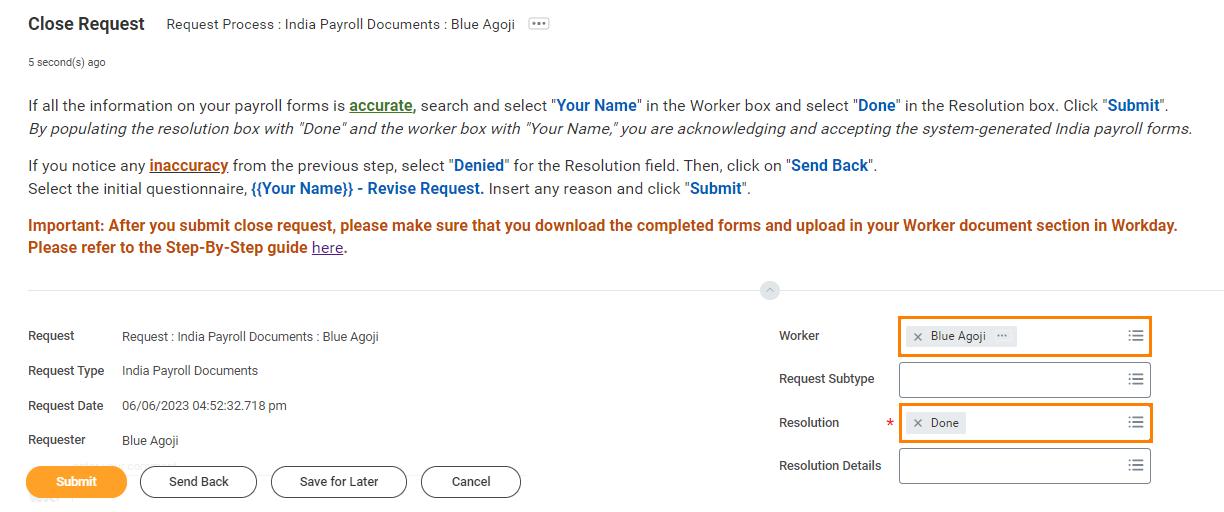
Step 5: If all the information on your payroll form(s) is accurate, search and select "Your Name" in the Worker box and select "Done" in the Resolution box. Then, click "Submit".
How to answer Form 11 Initial Questionnaire?
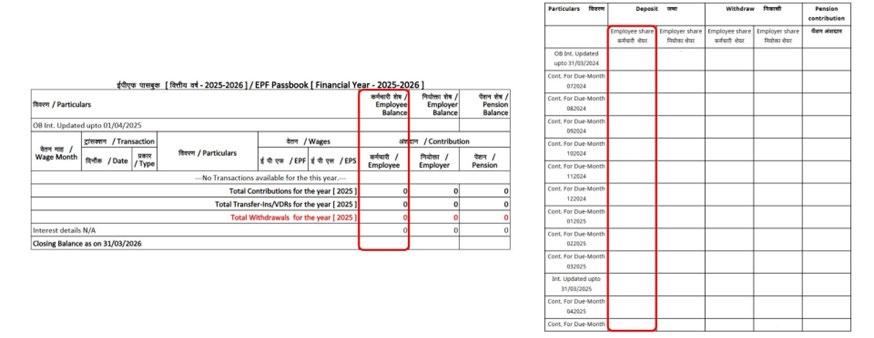
• Whether earlier a member of Employee's Provident Fund Scheme, 1995:
o Please refer to the column Employee (Contribution)/Employee Share (Deposit)" in your PF Passbook.
If there is a contribution shown, please answer YES
If there is no contribution, please answer NO
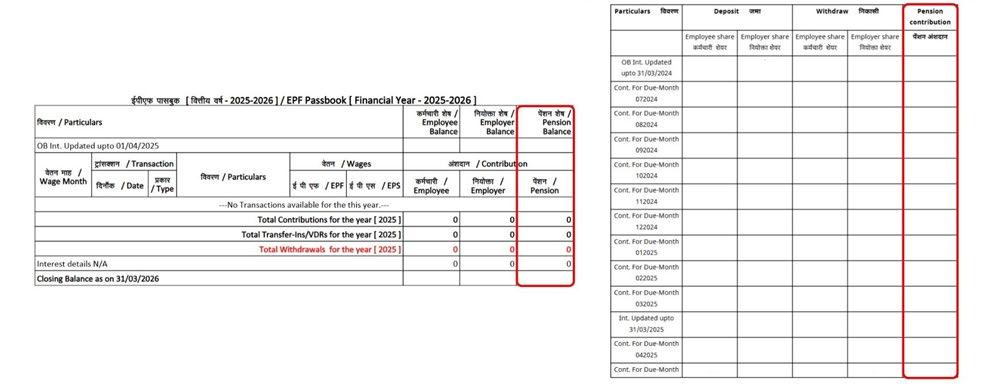
• Whether earlier a member of Employee's Pension Scheme, 1995:
o Please refer to the column "Pension Contribution" in your PF Passbook.
If there is a contribution shown, please answer YES
If there is no contribution, please answer NO
Download India Payroll Document
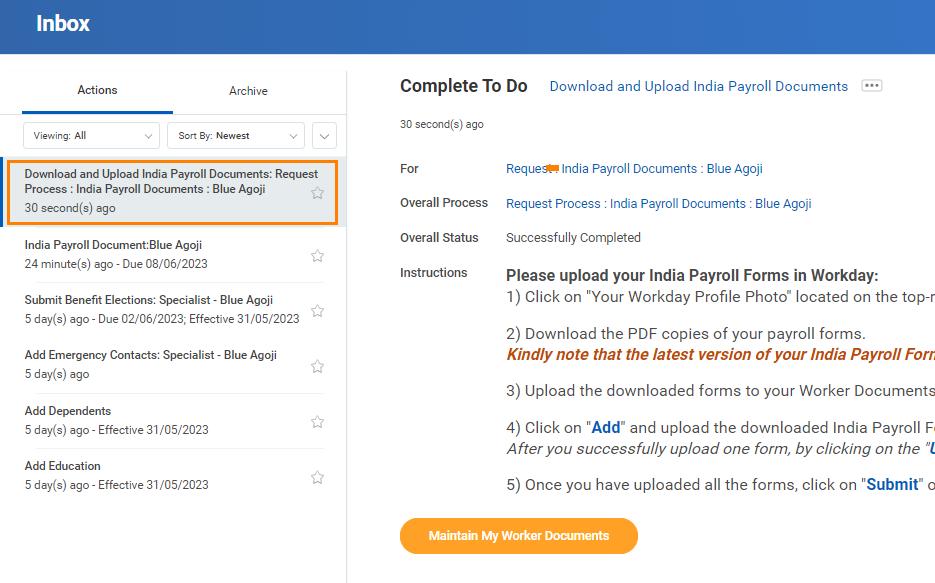
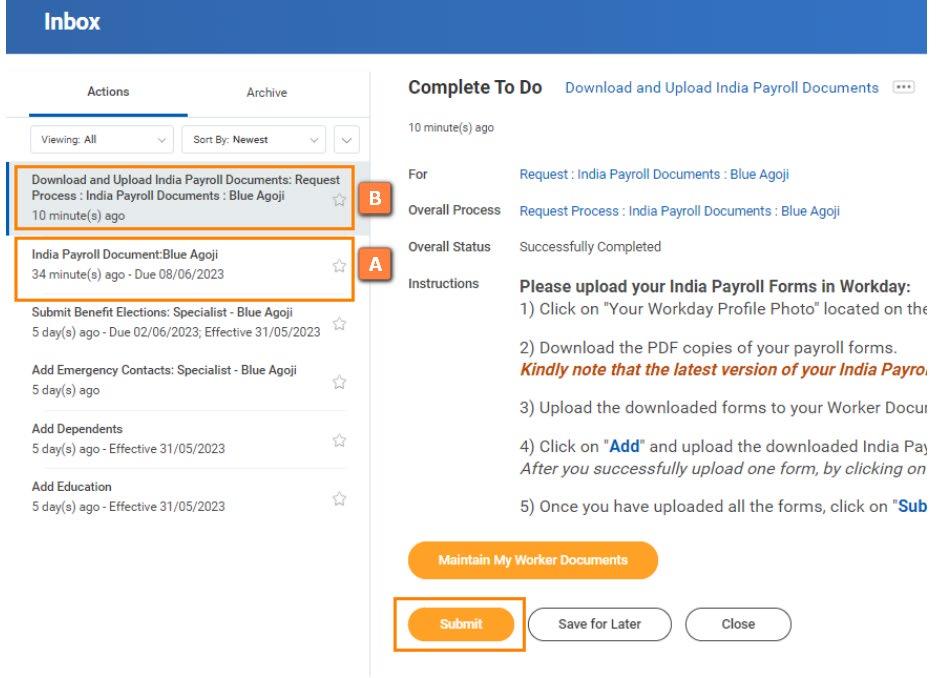
Step 1: You will find a separate task To Do: Download and Upload India Payroll Documents
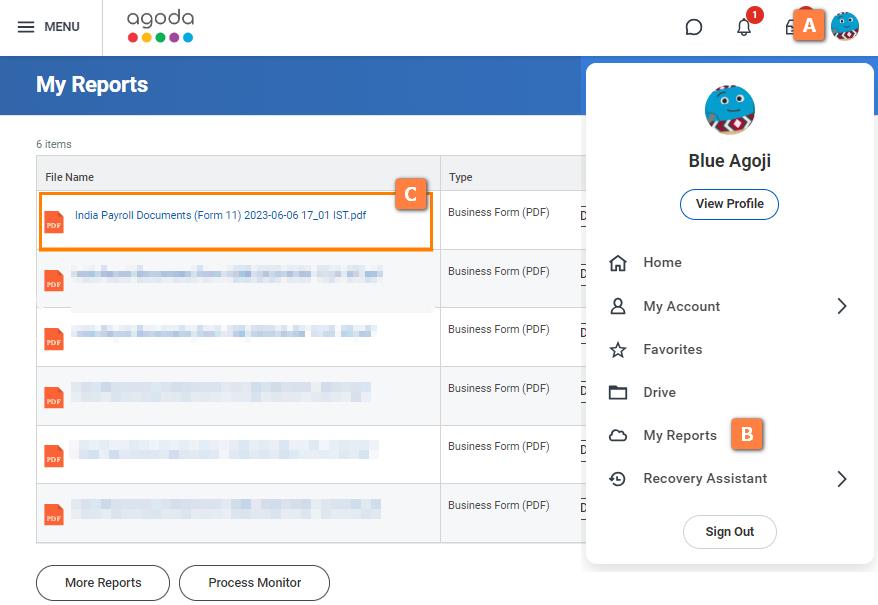
Step 2: Download the PDF copies of your payroll form(s) by following these steps:
1. Navigate to the top right-hand corner.
2. Click on "Your Workday Profile Photo."
3. From the dropdown menu, choose "My Reports". You can also click on this provided link.
4. Right-click on the payroll form(s).
5. Select "Download" from the context menu.
6. Locate the download icon, situated at the top left corner. Click on them to download.
**The latest version of forms are the first three lines.
Upload India Payroll Documents
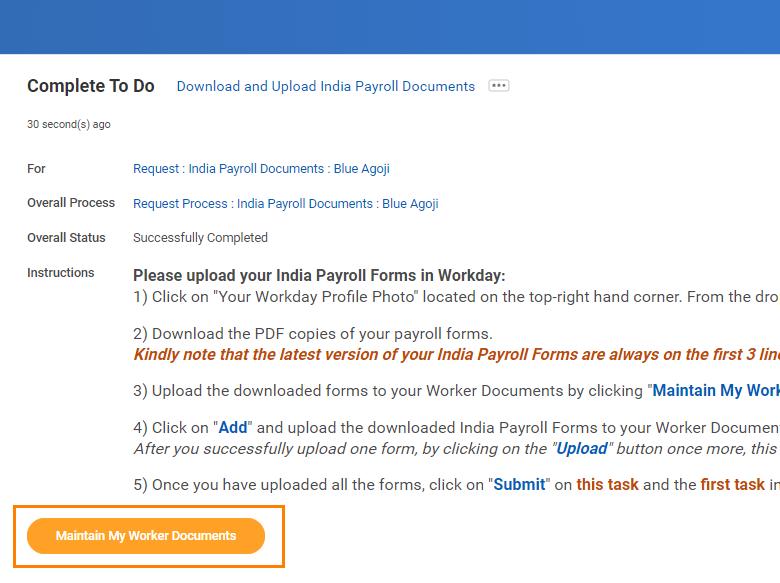
Step 1: Click on Maintain My Worker Documents button from the To Do: Download and Upload India Payroll Documents task.
Step 3: Once you have uploaded all the forms, click on "Submit" and return to the first task in your Workday inbox then click "Submit" to successfully complete this task.
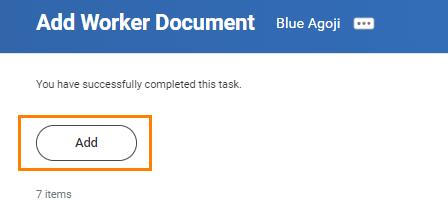
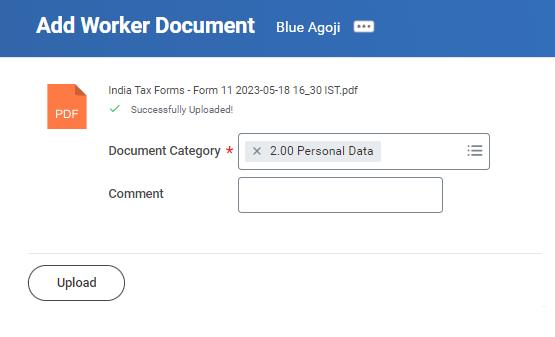
Step 2: Click on "Add" and upload the downloaded payroll form(s) to your Worker Documents. For the document category, select "2.00 Personal Data."
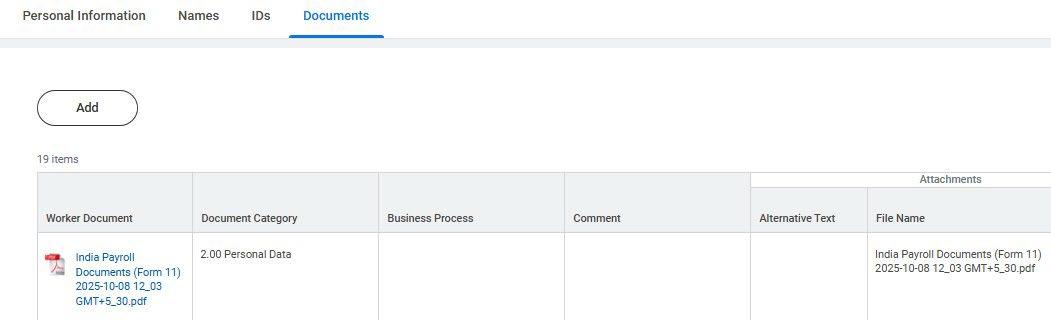
Step 4: Check that Form 11 is available in your Workday profile under “Documents”
• Q: I have a question and need help with the tasks.
A: Reach out to peoplehelpdesk@agoda.com
• Q: How do I know I’m done?
A: Your Workday Inbox will be empty when all tasks are finished.
• Q: I cannot access EPFO portal
A: You can use the UMANG app to access your EPF passbook or contact the EPFO helpdesk directly at 1800 118 005 or by email employeefeedback@epfindia.gov.in
• Q: I cannot attach supporting document for my bank account. Where can I upload them?
A: Once you submitted bank account information, there will be a separate task assigned to your Workday inbox to attach a supporting document for your bank account, please attach and click Submit
• Q: How to upload document in Workday?
A: Go to your profile > Click “Personal” > Click “Documents” tap > Click “Add”
• Q: Are UAN and EPF Number different?
A: Yes, UAN is your permanent, unique identifier for EPF. EPF number is your account number with specific employer that linked to your UAN.
• Q: What if I don’t have UAN and EPF number?
A: If this is your first job in India and you don’t have UAN and EPF numbers, please inform us. However, you will need to register a UAN yourself via the UMANG app by following this guideline and provide UAN to us. EPF numbers will be provided by Agoda in the second payroll pay slip.
Form 11 FAQs
• Q: I don’t have the task “India Payroll Documents” for the Form 11 in my inbox
A: Click on this link or contact peoplehelpdesk@agoda.com
• Q: How can I know if I successfully completed Form 11 task?
A: You can also check if Form 11 has been uploaded and available in your Workday profile under “Documents”.
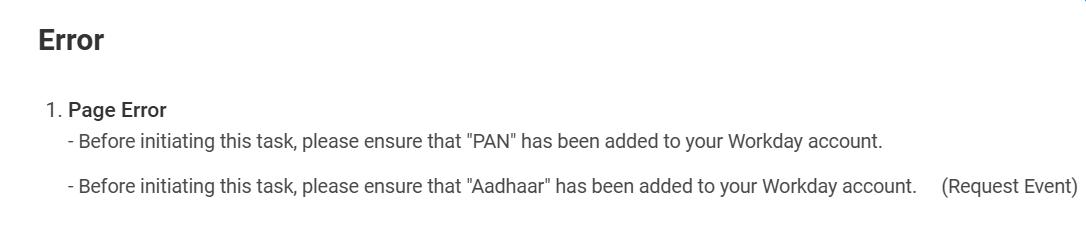
• Q: I already added my IDs why I am getting this error when submit the India Payroll Document (Form 11) task?
A: You are getting this error because your ID task has not been approved by People Help Desk team yet. People Help Desk is reviewing the ID task. Please wait for 1-2 business days. Make sure that there’s no other task pending.