Welcome to Agoda!

• Guide for Your First Payment: How to Get Paid on Time




• Guide for Your First Payment: How to Get Paid on Time
Payroll Cut Off Date: on the 12th of every month, if 12th falls on weekend or public holiday it will move on day earlier
Note: if joined on 1 st to 12th of the month, will receive the first salary in the same month, if joined from 13 th onwards will receive the first salary in the following month
Every new and relocated employee is required to complete all tasks on Workday. These tasks include:
• Agoda Payroll team needs the all information and documents to be on your Workday Profile to process salary payments.
• Personal Information
• Contact Information
• National IDs
• Payment Election
• India Payroll Documents (Form 11)
• If the all required information or documents are not in the system by the cut off date, salary payments will be delayed by one month.
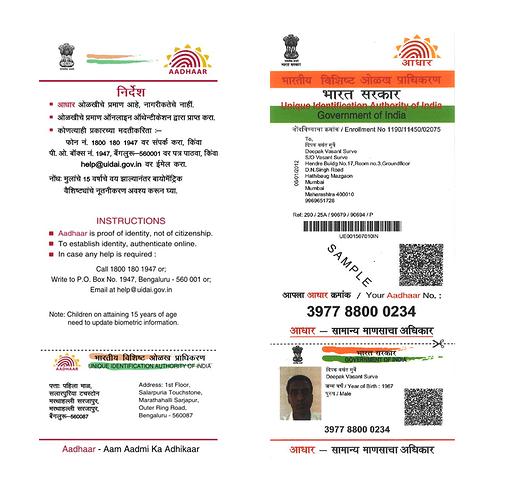
• Go to your Workday inbox to add all 4 National IDs and attach Aadhaar, PAN, UAN and EPF Passbook for verification.
o If this is your first job in India, Expat or you never had EPF before, EPF is not required.
o If you don’t have UAN number, please register yourselves via UMANG app & Face RD app from Play Store (Android) or App Store (iPhone)
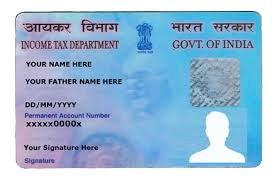
Permanent Account Number (PAN)
•A 10-digit alphanumeric identifier issued by the Indian Income Tax Department. Expats and Locals
•If you don’t have a PAN, register here
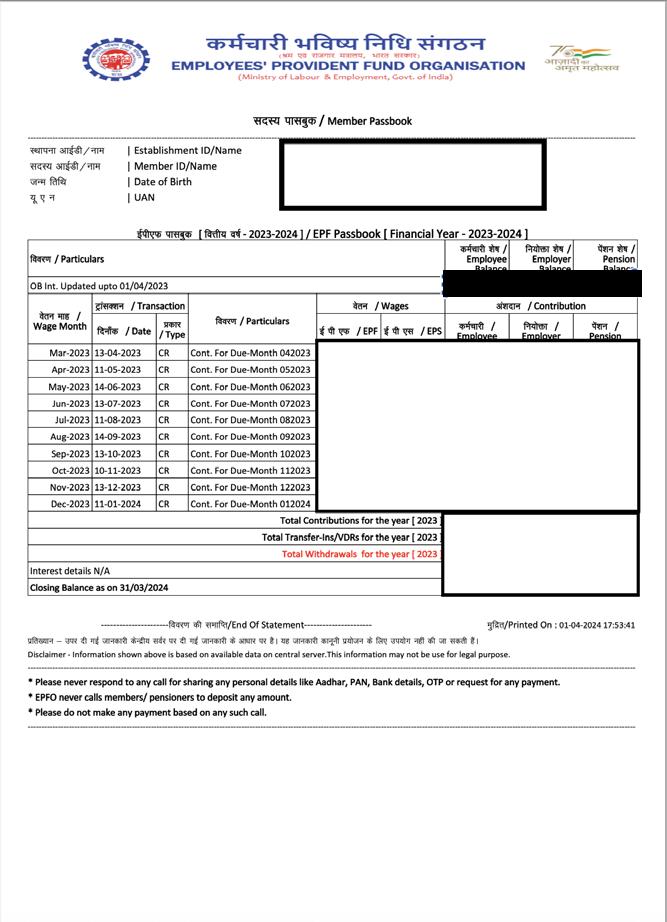
Employee Provident Fund (EPF)
•A 22-digit number (Member ID) used to check EPF status, balance, and withdrawals.
Universal Account Number (UAN)
Expats and Locals
•A 12-digit number provided by the Employees’ Provident Fund Organization to manage PF accounts. Locals only
•EPF Passbook can be downloaded from the UMANG app or here
•Activate via UMANG app & Face RD app: For Guidelines
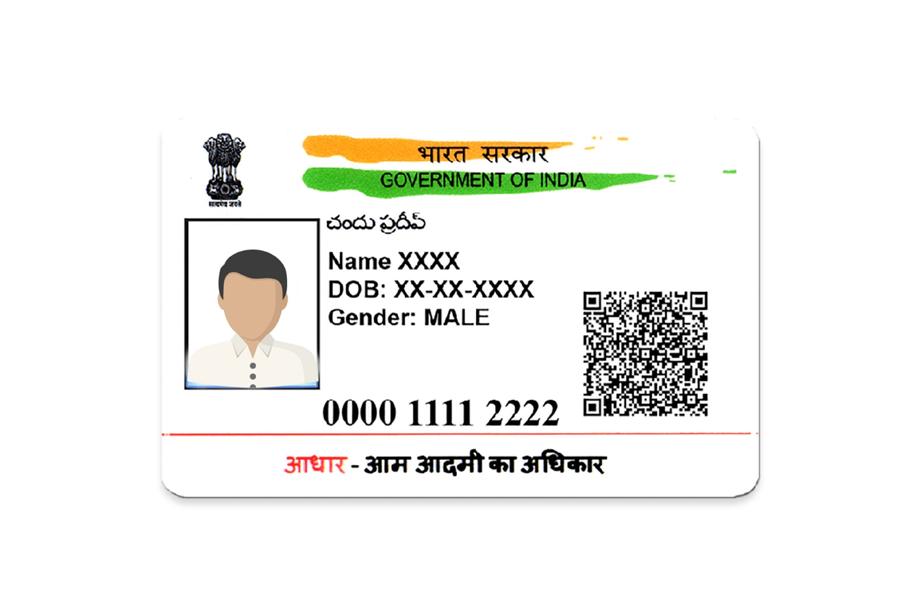
Aadhaar (National ID)
•A 12-digit number based on biometric and demographic data. Locals only
•Voluntary for residents or passport holders of India.
PAN card
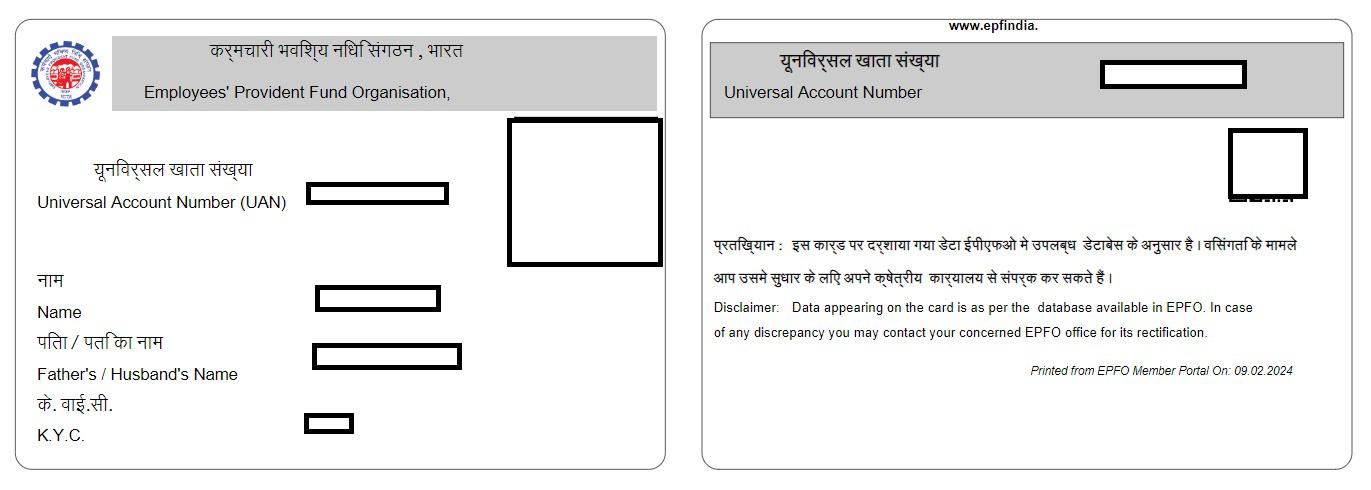
EPF Passbook (Member ID)
Can be downloaded from UMANG App or EPFO Portal
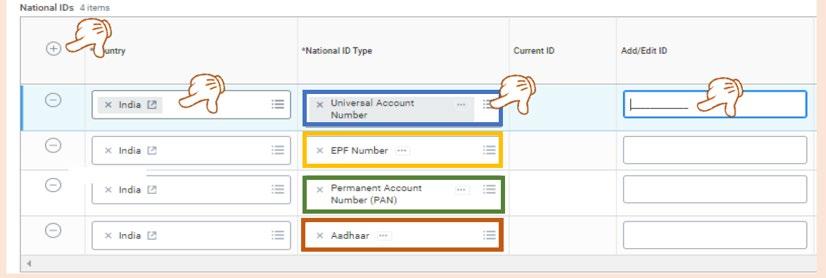
Step 1: Log in to your Workday profile and check Workday inbox for ‘ID Change’ task If you don’t receive any tasks, type “Change My Government IDs” in the search box.

Step 2: Select “+” to add country of work (India). Select “National ID type”. Then, fill in the IDs in the fields.
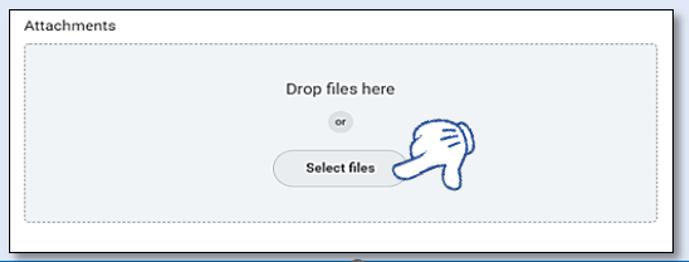
Step 3: Attach support document for Aadhaar, PAN, UAN Card and EPF Passbook that show your ID numbers for data verification.
Step 4: After completing Step 1-3, click “Submit” to complete the task.
Personal Information: Log in to your Workday profile and check your Inbox to complete the task .
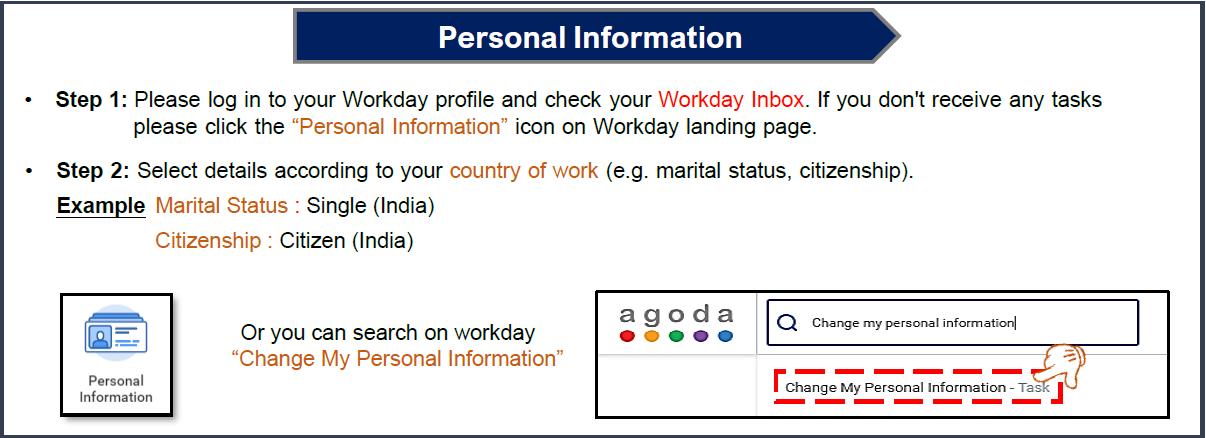
Remarks: Don’t forget to input father's name in the Relatives' Names section, as this information is required in the Payroll Forms.
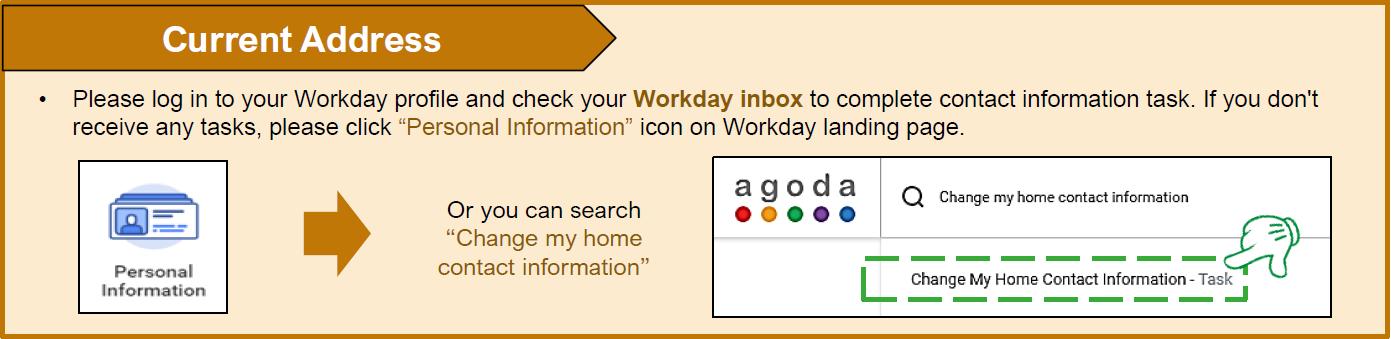
Contact Information: Go to your Workday inbox to add your India home address, Phone number and Emergency contact
• Please make sure to set effective date to be your Hire Date
• For those who have relocated to India, you may add a temporary address in India first.
Once you have permanent residence, please update it again in Workday.
How to add your bank account:
Step 1: Please log in to your Workday and check your Inbox for ‘Payment Election’ task. If you did not receive it, please go to Benefit and Pay worklet from your landing page or search ‘Add Payment Elections’ in Workday search box


Step 2: Fill your bank account details into all mandatory fields
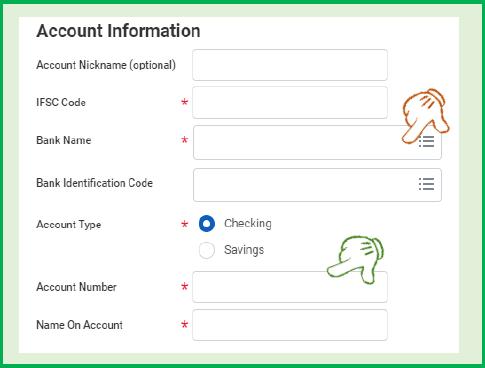
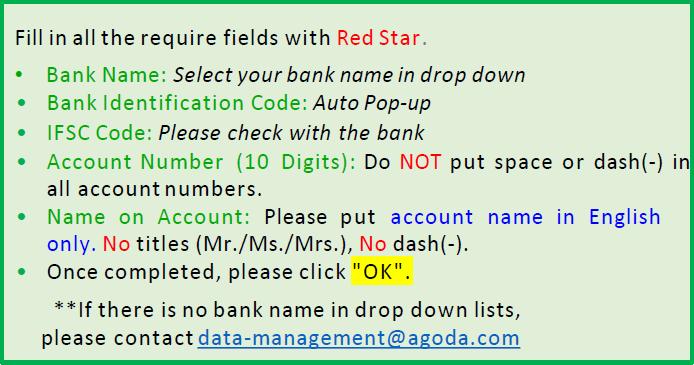
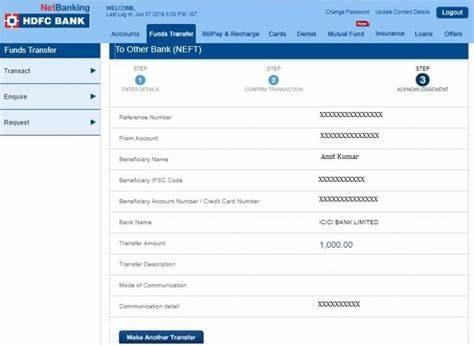
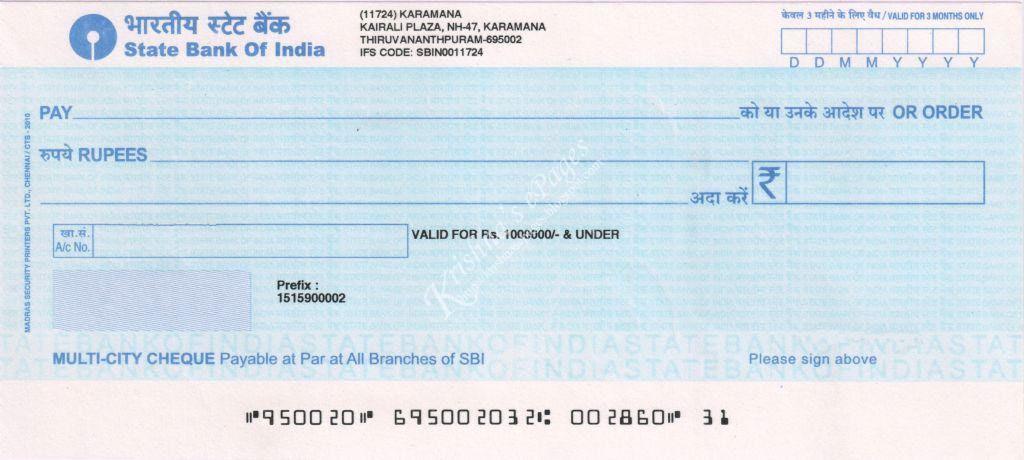
Step 3: Once it's completed, check your Workday inbox, there will be a task for you to attach a supporting document for your new bank account, please attach and click Submit Supporting document: any document issued by bank showing all required details:
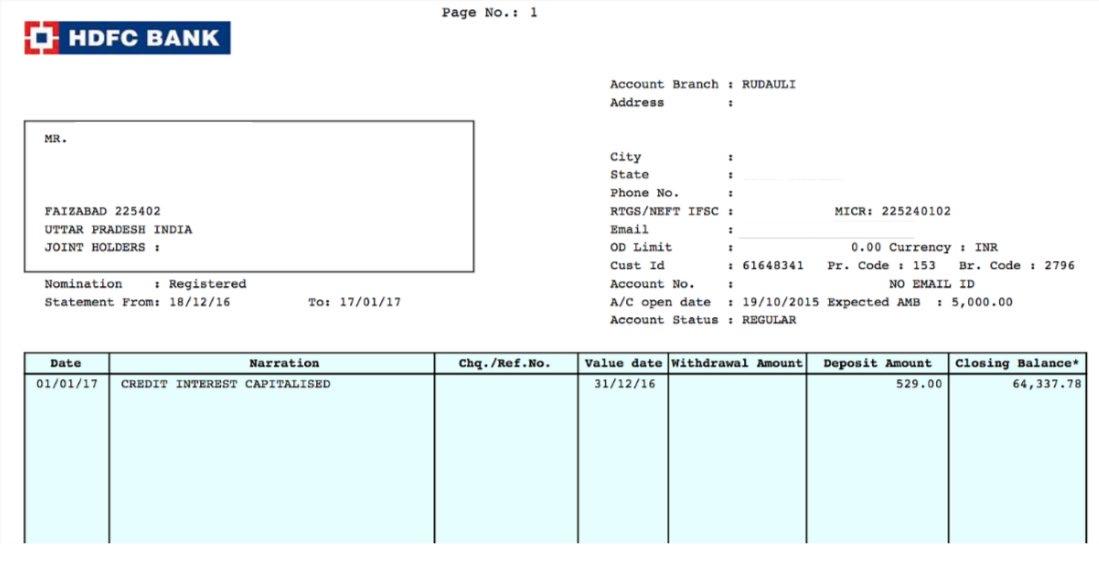
You can complete this on your hire date. Before proceeding, please ensure that your Personal Information, Contact Information, National IDs and Payment Election have been successfully completed and approved.
Step 1: ONLY FORM 11 is required, please click here to start the task: Start this task by clicking on this link.
Step 2: Answer the initial questionnaire. Based on your responses, form 11 will be triggered. Ensure that you complete the questionnaire sent to your inbox.
If question 1 or 2 is answered as "Yes", the Form 11 questionnaire will be triggered.
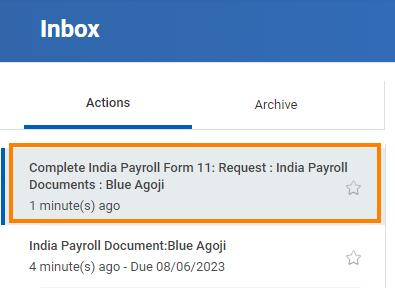
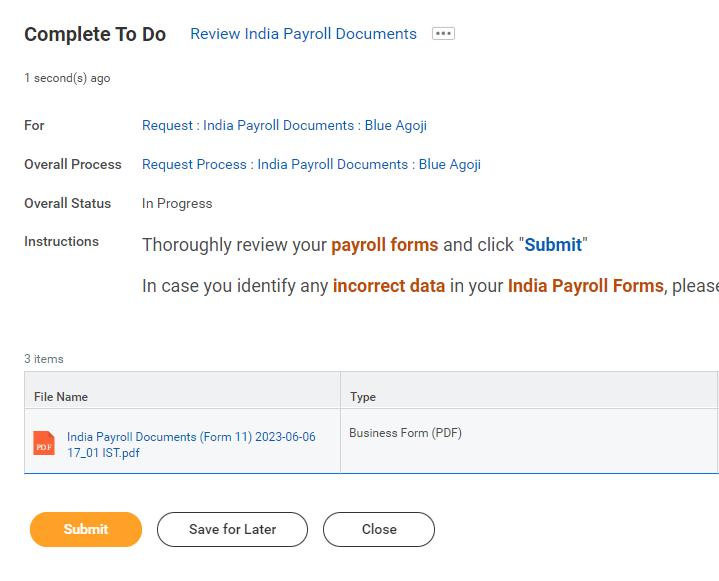
Step 3: After completing the form questionnaire(s), allow Workday up to 30 seconds to generate your payroll form(s). You should find task(s) in your Workday inbox containing the generated form(s). Please Review your payroll form(s) and click on the "Submit" button to proceed.
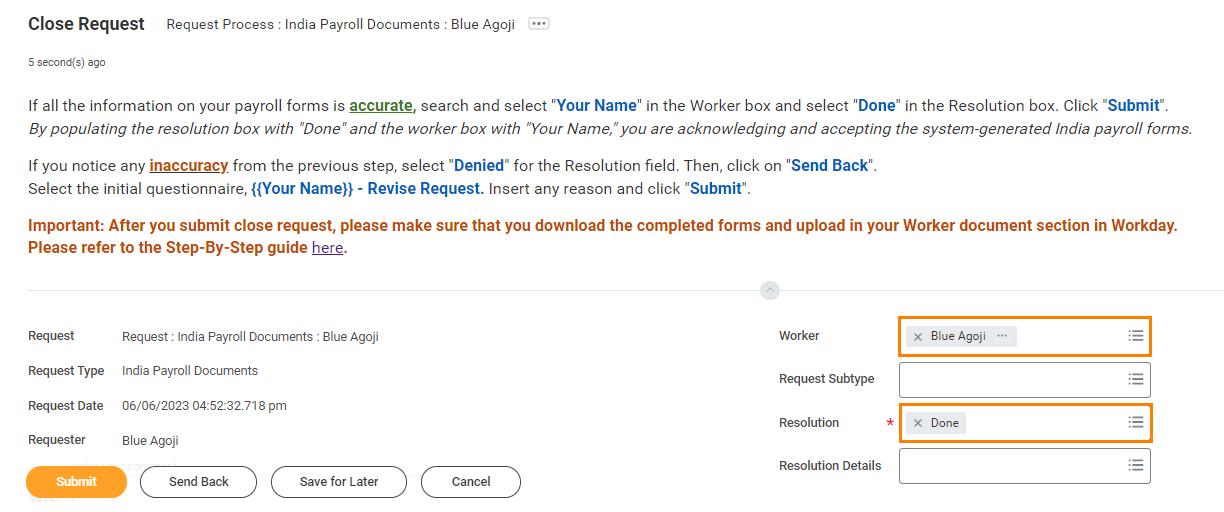
Step 5: If all the information on your payroll form(s) is accurate, search and select "Your Name" in the Worker box and select "Done" in the Resolution box. Then, click "Submit".
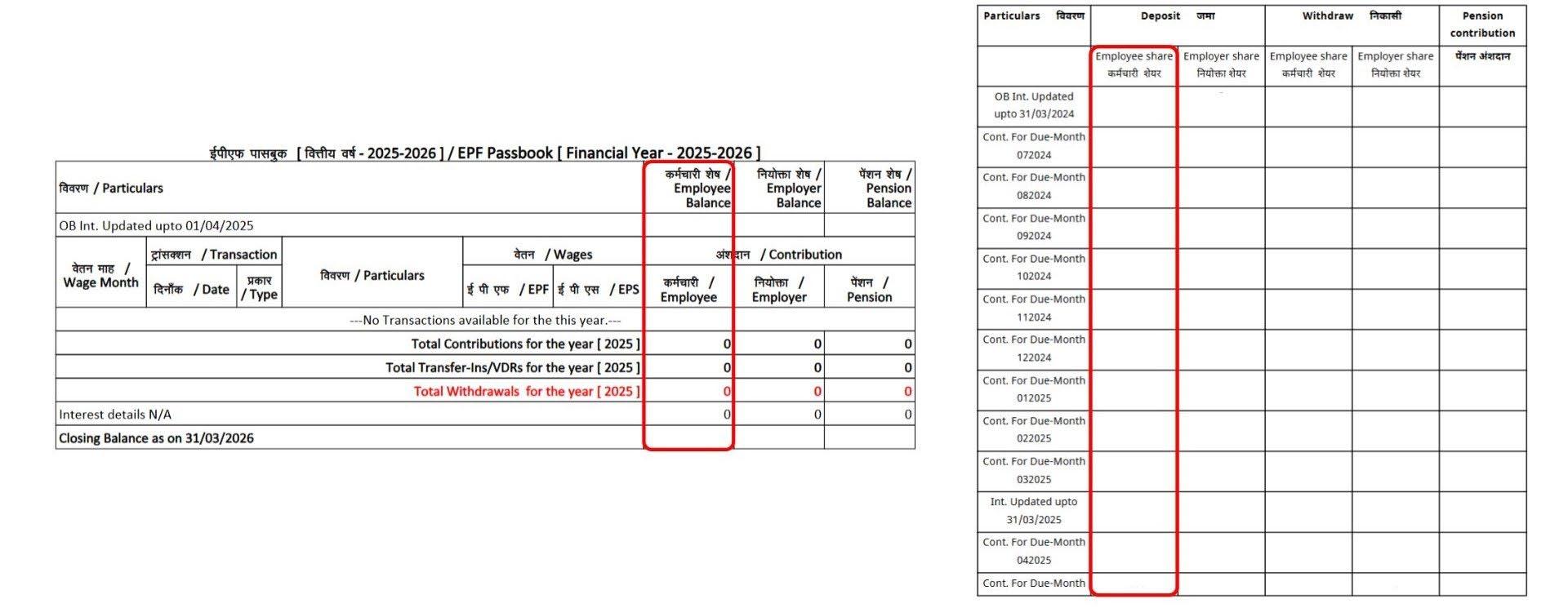
• Whether earlier a member of Employee's Provident Fund Scheme, 1952:
• Please refer to the column "Employee (Contribution)/Employee Share (Deposit)" in your PF Passbook.
• If there is a contribution shown, please answer YES
• If there is no contribution, please answer NO
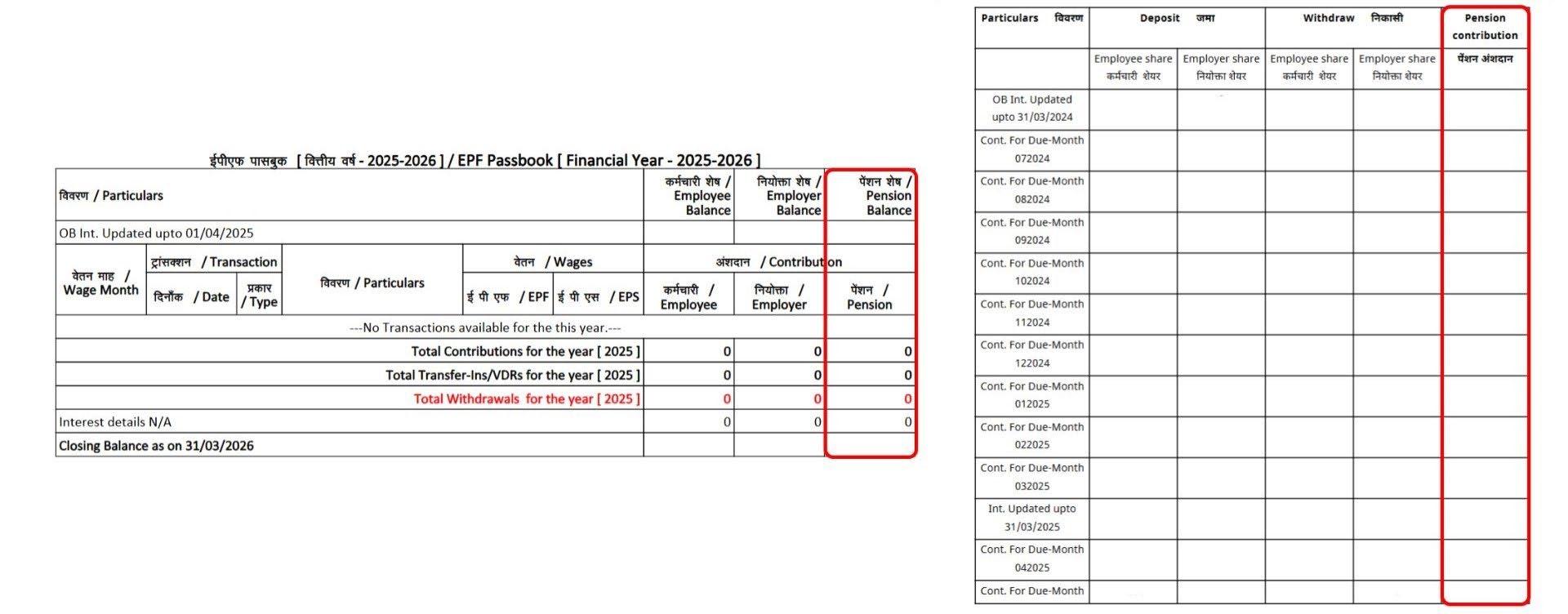
• Whether earlier a member of Employee's Pension Scheme, 1995:
• Please refer to the column "Pension Contribution" in your PF Passbook.
• If there is a contribution shown, please answer YES
• If there is no contribution, please answer NO
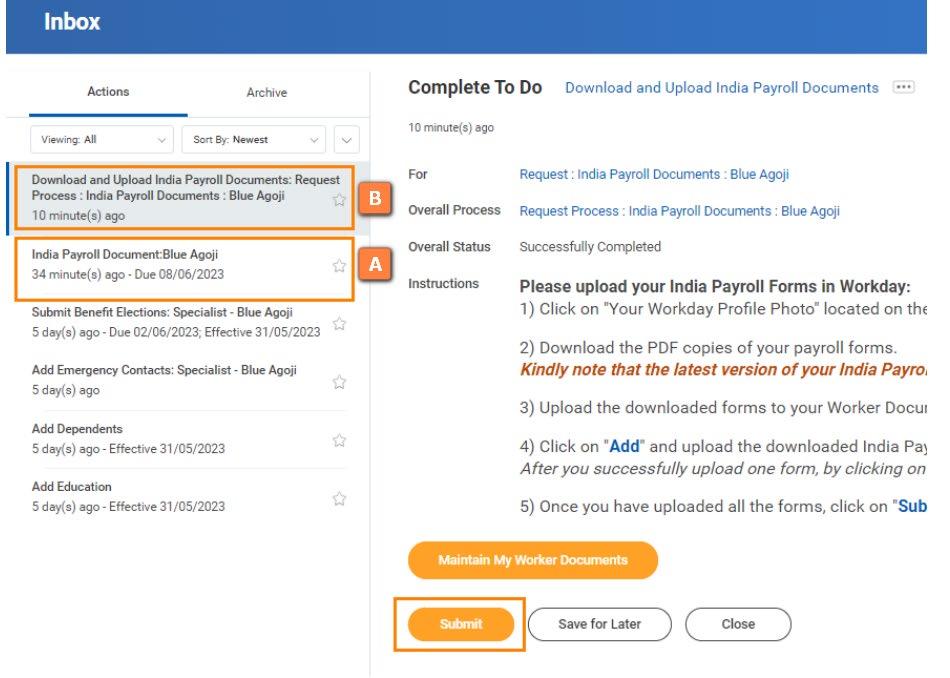
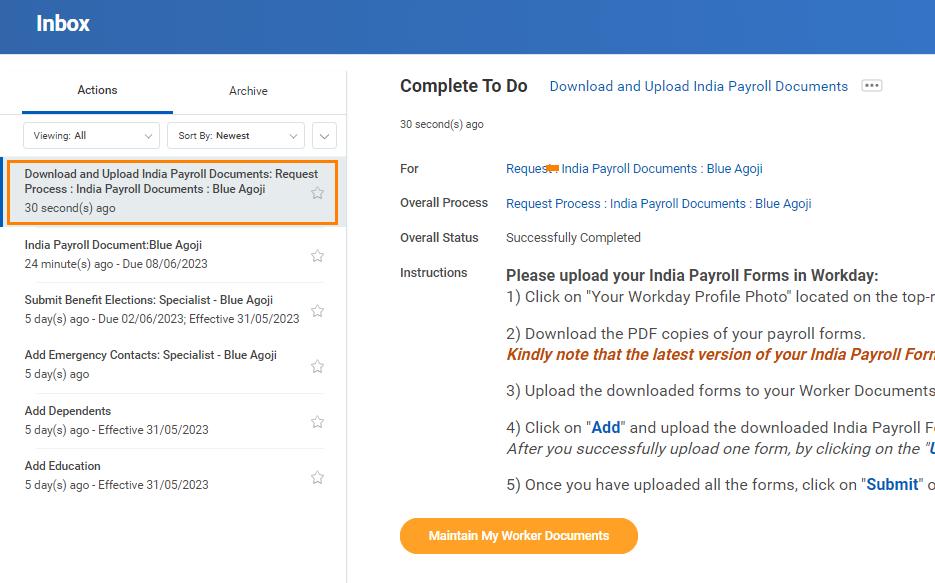
Step 1: You will find a separate task To Do: Download and Upload India Payroll Documents
Step 2: Download the PDF copies of your payroll form(s) by following these steps:
1. Navigate to the top right-hand corner.
2. Click on "Your Workday Profile Photo."
3. From the dropdown menu, choose "My Reports". You can also click on this provided link.
4. Right-click on the payroll Form 11.
5. Select "Download" from the context menu.
6. Locate the download icon, situated at the top left corner. Click on it to download.
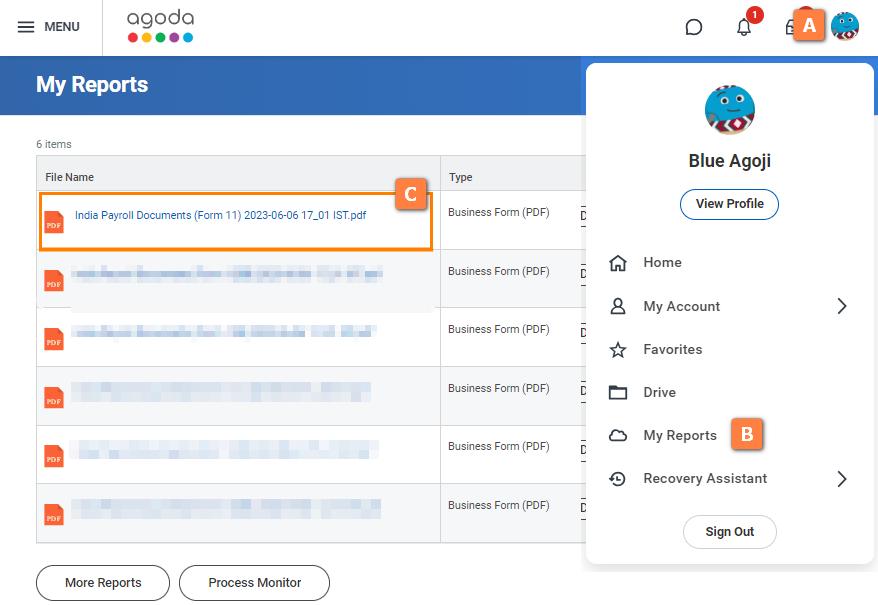
** The latest version of Form 11 is on the first line.
Step 1: Click on Maintain My Worker Documents button from the To Do: Download and Upload India Payroll Documents task.
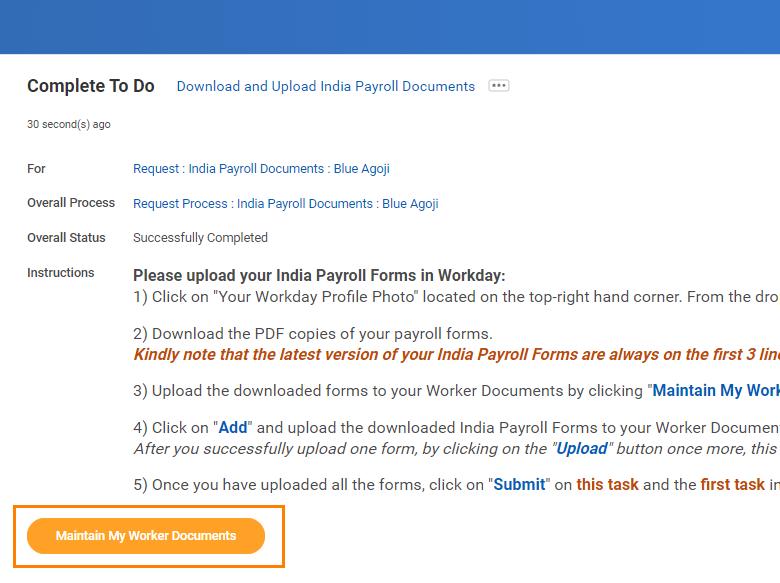
Step 3: Once you have uploaded the Form 11, click on "Submit" and return to the first task in your Workday inbox then click "Submit" to successfully complete this task.
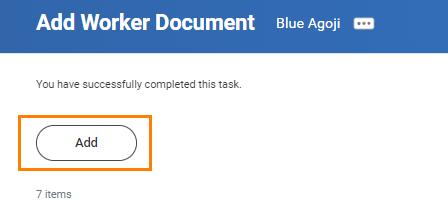
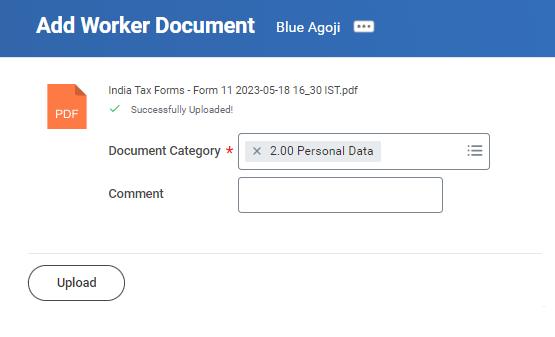
Step 2: Click on "Add" and upload the downloaded the payroll Form 11 to your Worker Documents. For the document category, select "2.00 Personal Data."