

Contents Table of
Page 8 Conversion Is In The Follow Up New Feature Alert!
Page 12
No-Fluff Guide To 17hats Workflows Automation, Explained Page 14 Preserving MemoriesBuilding A Profession Feature: The Photo Managers
Page 16 Automation In Action: Turning Small Orders Into Big Opportunity Page 18 Anatomy Of A Workflow Step Dive Into The Action Step
Page 22 Creating A Workflow
The Why, What, & How
Page 24 What To Do With Time Automation Gives You? Ambassador Feature Page 10 Personal Vs. Personalized Create Effective Email Templates
Page 26 9 Ways To Activate Workflows & Save Time Ready, Set, Workflow Page 28 Mastering Tokens In 17hats Less Typing. Fewer Mistakes.
Ways

From the CEO’s Desk Amanda Rae
Building a business is hard work. There is no quick fix and no “5 steps to success.”
We started The Journey and the 17hats Marketplace because the internet is full of people trying to be someone. Everywhere you turn, someone claims to have the formula for success, leaving you to wonder who is legitimate and who isn’t.
With The Journey and the 17hats Marketplace, our goal is simple: bring you proven, honest, and straightforward education from real business owners you can trust.
Last fall I had the opportunity to spend time with Alex Hormozi, and he shared a concept that stuck with me — the idea of 1,000 Golden BBs.
Success in business doesn’t come from one big breakthrough. It’s not one strategy, one hire, or one perfect decision. Instead, success comes from hundreds — even thousands — of small, intentional actions that create momentum over time. Each one is a “golden BB,” and when enough of them fire in the right direction, they create a powerful chain reaction toward growth.
When you’re building a business, there is always a lot to do. The challenge isn’t finding work — it’s identifying the actions that truly move the needle. Those are your Golden BBs.
This month in The Journey, we’re talking about Automation
Automation is something many business owners feel intimidated by or overwhelmed by. It can sound technical, complicated, or like a massive undertaking.
But let’s reframe it.
Automation isn’t one giant project — it’s a series of Golden BBs.
If you automate one small task today, another next week, and another the week after, you’re already creating momentum. Each step removes friction from your day, giving you more space to focus on the work that truly grows your business.
Over time, those small automations add up in a big way.
Time is the one resource we can never get back — and the one resource most business owners wish they had more of.
Automation is one of the most powerful ways to reclaim it.
My hope with this issue of The Journey is that you’ll begin to see automation not as something intimidating, but as a practical way to move your business forward — one small step at a time.
Because every Golden BB you fire today creates momentum for the business you’re building tomorrow.
Onwards and Upwards,
Amanda Rae CEO, 17hats
Sips & Snippets News from 17hats HQ
Feature Updates
Feature Update:
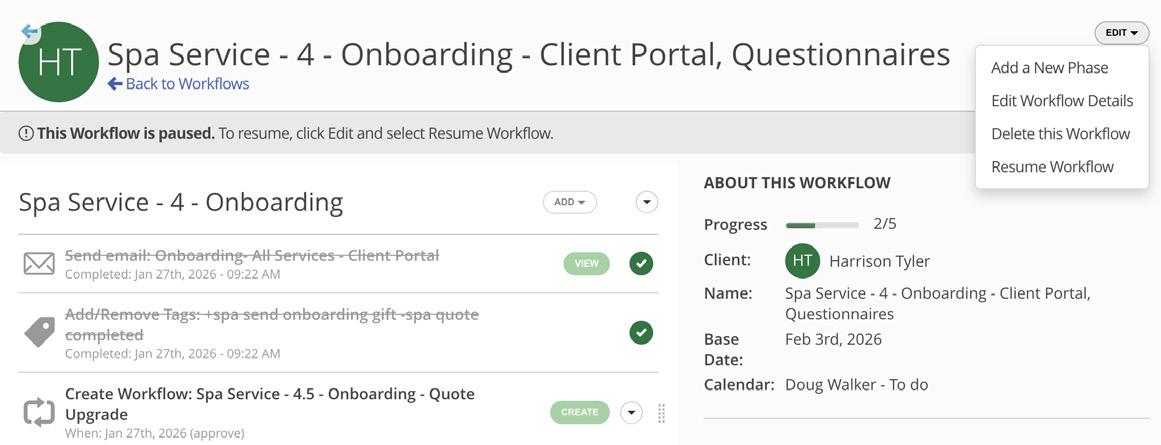
Pause and Resume Workflows
You can now pause and resume active Workflows with ease! This gives you more control over timing without deleting or rebuilding steps, and temporarily removes related notifications until you’re ready to pick things back up. For more details, check out the help article or connect with our Business Support Team.
New Feature:
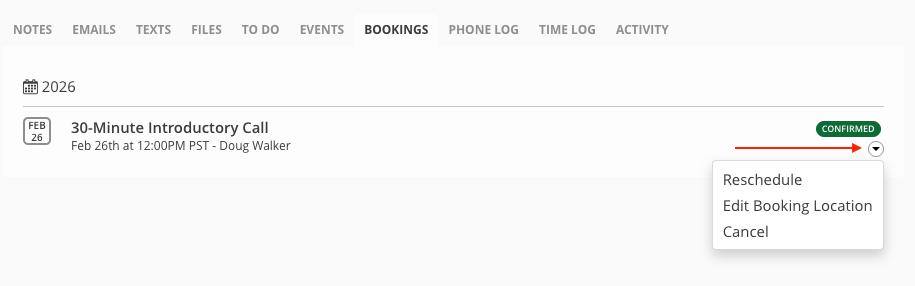
Edit Locations for Online Scheduling Bookings
Need to change a meeting spot? You can now edit the location of an Online Scheduling booking directly from the Project → Bookings tab. Any updates will update the calendar event, future Online Scheduling location tokens, and Project details. — keeping everything accurate and up to date.
New Feature:
Start/Stop Workflow Automation
This just-released feature allows you to start and stop Workflows by applying a Project Tag. This feature will redefine how you follow up with your leads and clients. Read more on page 8.
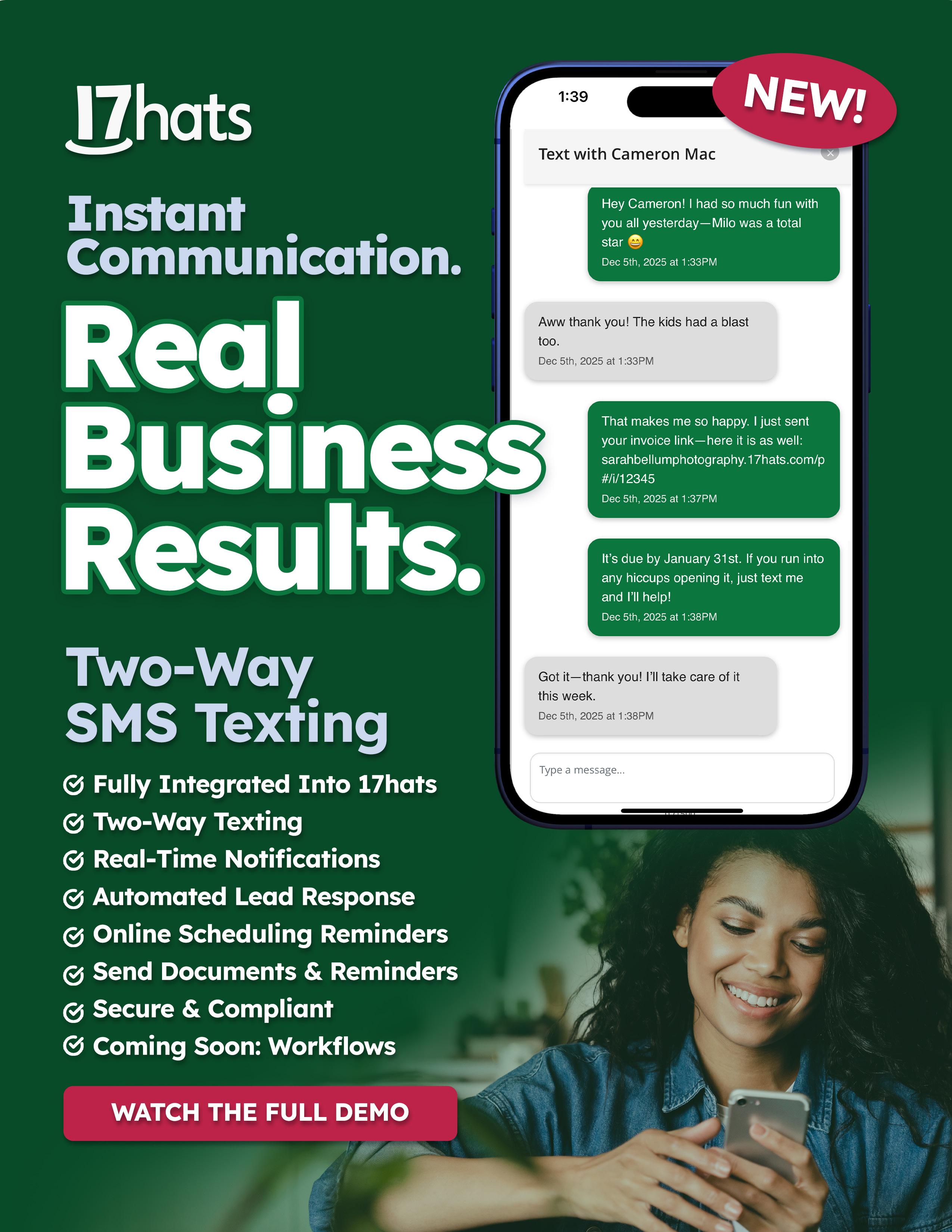
Feature Update: Send Documents via SMS Texting
You can now send documents by text message in 17hats! When SMS is enabled and clients have opted in, you can send Quotes, Contracts, Invoices, and Questionnaires via SMS — making it easier to share important documents in the way your clients prefer.
Feature Update:
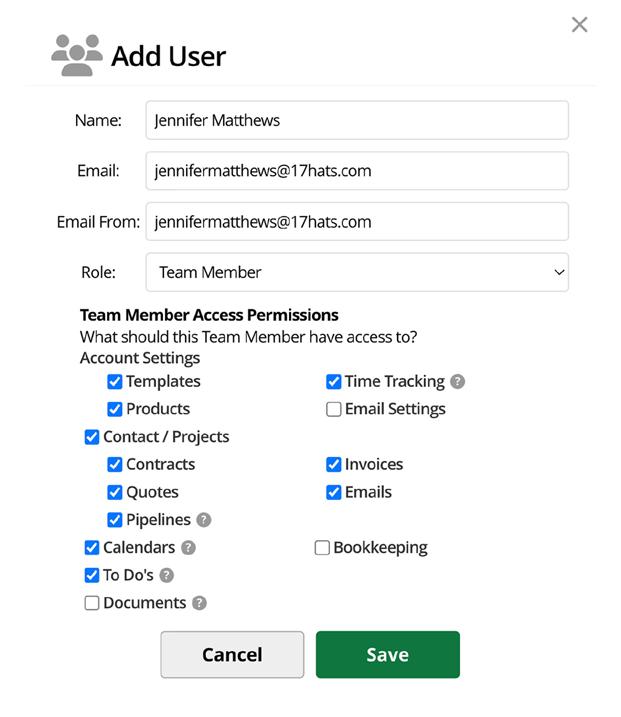
Team Member Access For Pipelines
You now have more control over who can manage Pipelines in your account. Account Owners can grant Team Members access to view, edit, duplicate, and delete Pipelines — giving your team more flexibility while Admin access remains unchanged.
Feature Update:
Team Member Access For Documents Page
You now have more control over what your team can see. Account Owners can turn off the Documents tab for Team Members, limiting access to the Documents overview while still allowing visibility to individual documents based on permissions — helping protect high-level financial insights without disrupting daily work.
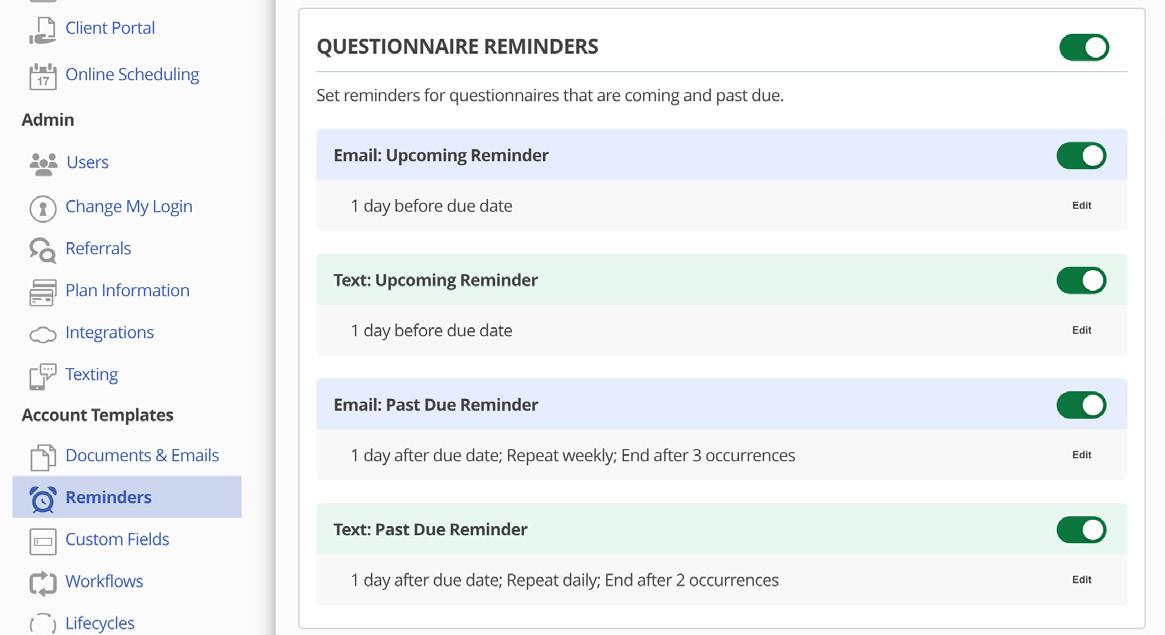
Reminder Settings Have Moved!
With the addition of SMS Texting, reminders now have their very own home! You’ll find all reminder communications in Account Templates > Reminders.
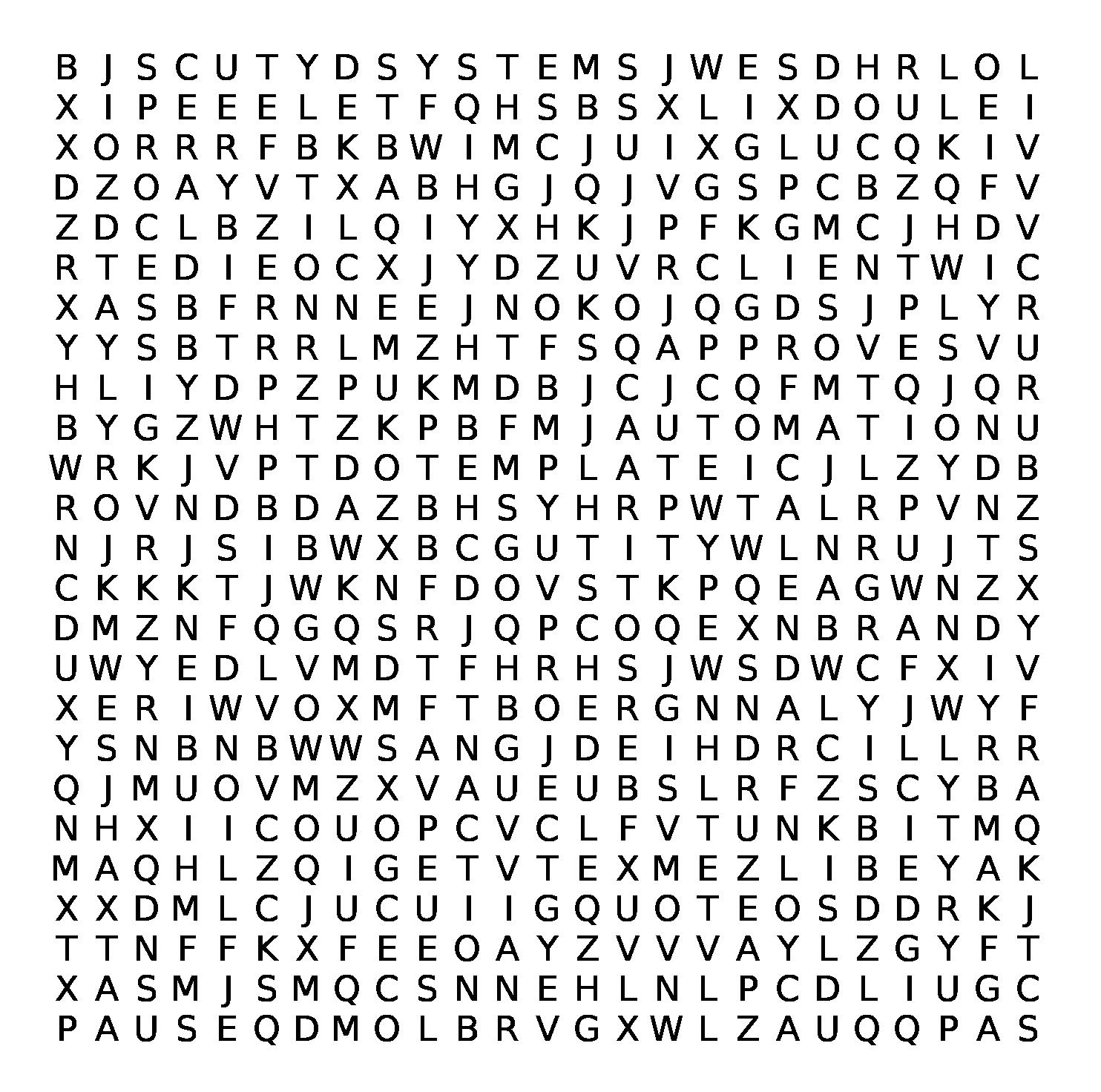
Word Search: Automation
Conversion is in the Follow Up
New Feature: Start/Stop Workflow Automation
WRITTEN BY AMANDA RAE
Life happens to your leads and clients. When a lead or client does not respond immediately, we tend to automatically think they don’t want to use our services, but many times it is because life happened, and they forget. With the fast pace of life and social media designed to steal our time, having a follow-up in place to ensure conversion is more important than ever.
Introducing New Functionality: Start/Stop Workflow Automation
Newly released: Start and Stop Workflow Automation. Now, by simply adding a Project Tag, you can automatically trigger and stop a Workflow.
What does this mean for you? Follow-up becomes a breeze, leading to higher followthrough and more conversions.
If you are a 17hats connoisseur, you are already imagining all the processes this functionality will be helpful for. Let’s dive into a few now.
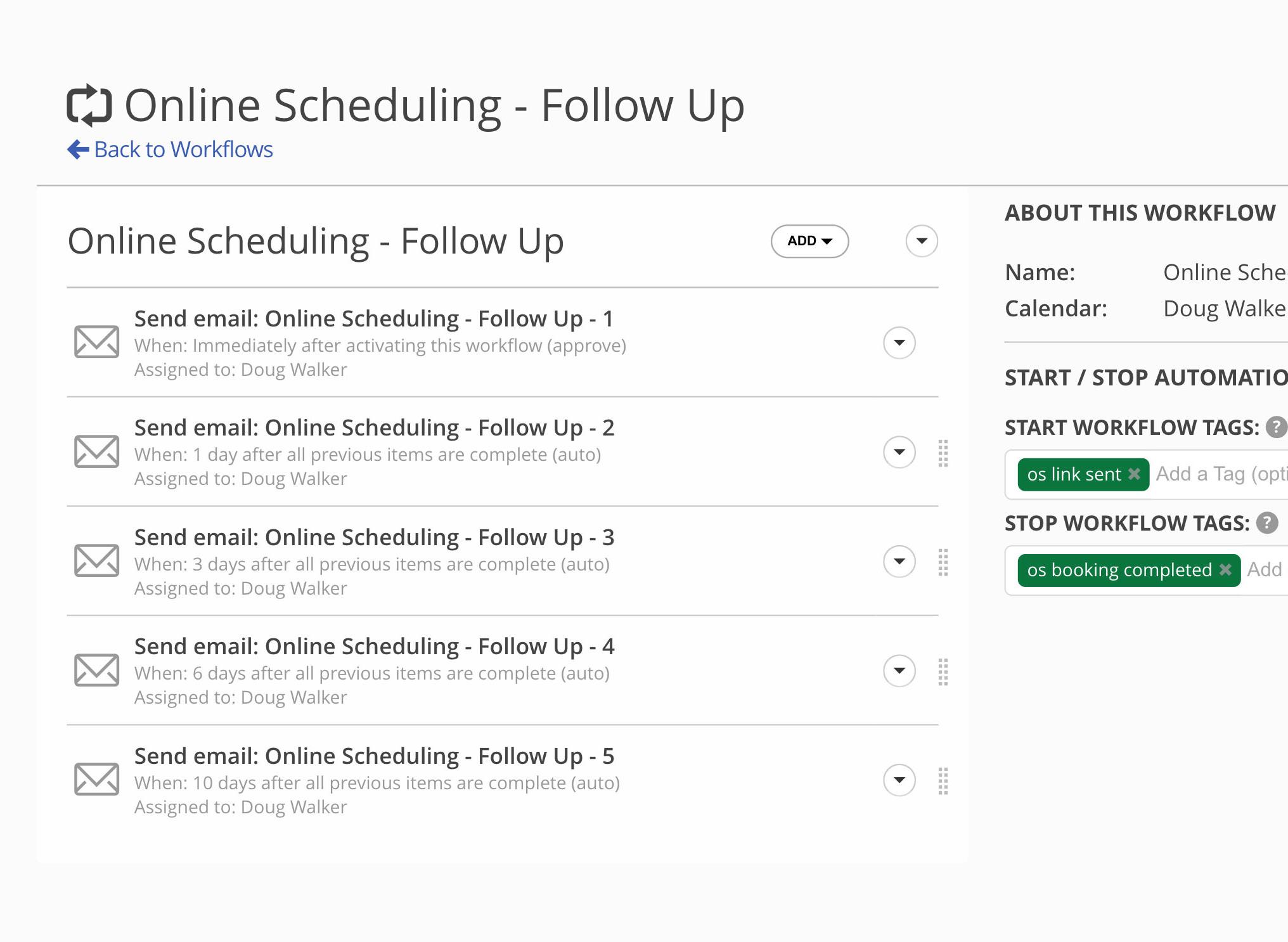
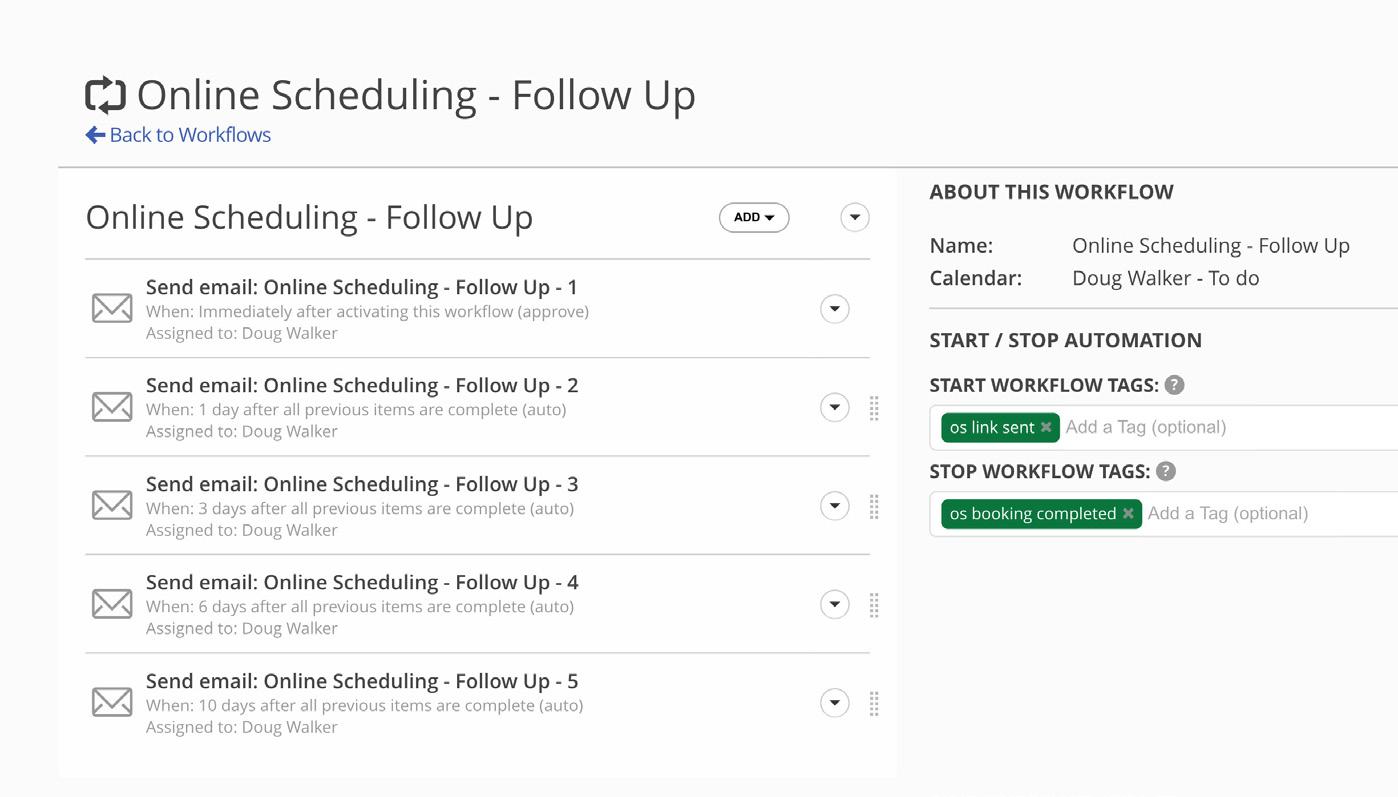
Online Scheduling Follow-up: In your Workflow you automate an email that sends your lead an Online Scheduling link. That email automatically adds the Project Tag “OS Link Sent”.
The Project Tag automatically triggers a Workflow that holds 5 emails to remind the
contact to schedule with you. When the Contact schedules, Online Scheduling will remove the Project Tag “OS Link Sent” and add “OS Booking Completed”. When the OS booking Completed Tag is added, then your follow-up Workflow stops.
Document Follow Up: While 17hats has Automatic Reminder Emails for Documents, if you wanted to do something more specific, you could lay out a custom follow-up sequence for your documents by using the Add and Remove Tag functionality in the Workflow Step to trigger your next Workflow.
This can be extremely beneficial after sending a Quote or an Invoice. Your follow-up flow can be value-added emails to remind them of why you are the best choice for their needs.
Process Branching
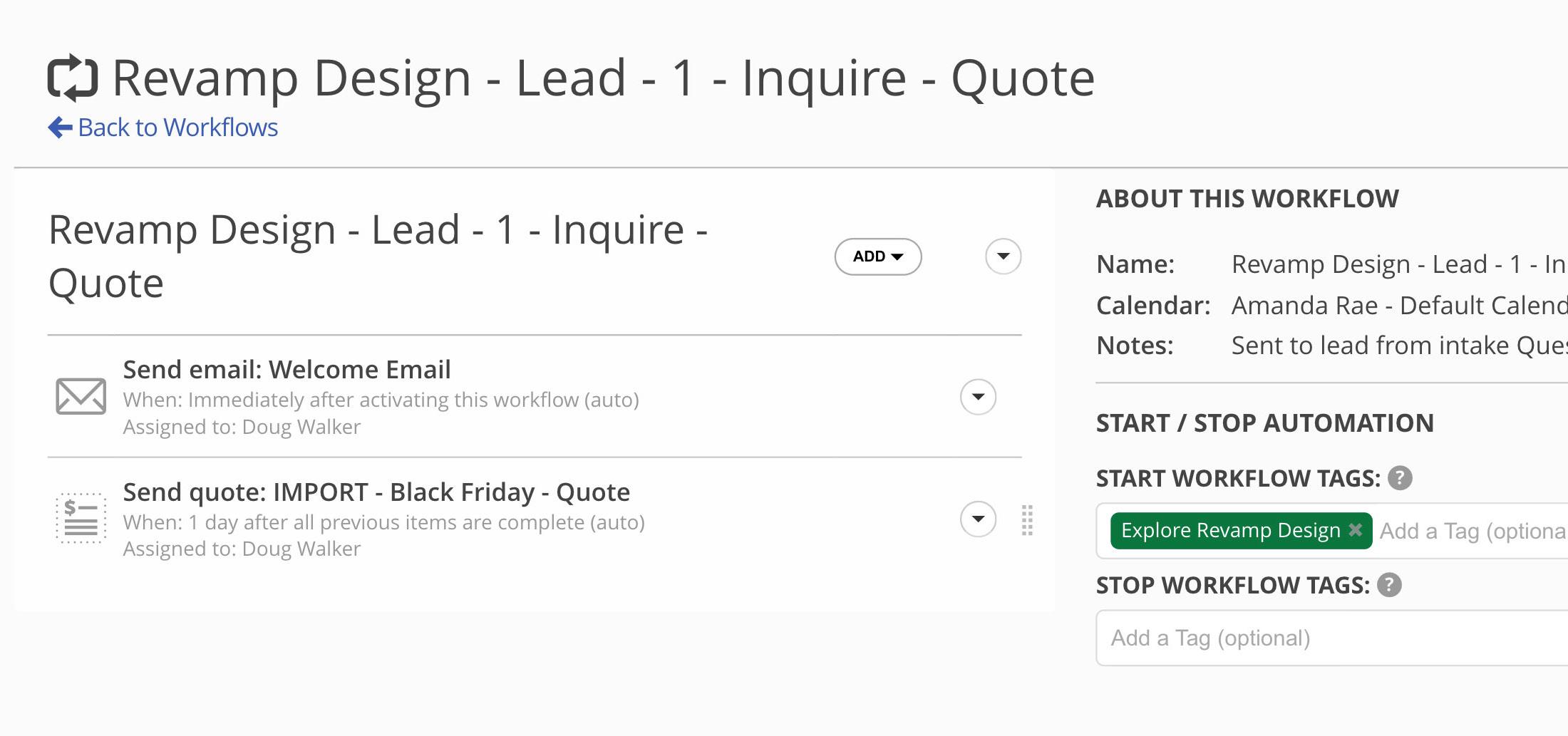
In some processes, you might need to send a different type of Workflow depending on the client’s needs. Start - Stop Workflow Automation will be extremely helpful in this case as well.
Let’s say you send a Questionnaire as part of your process, and in your Questionnaire you have a ‘Choose From A List’ Question type. Each answer selection can apply a Project Tag, which means each of those answers could now trigger a designated Workflow.
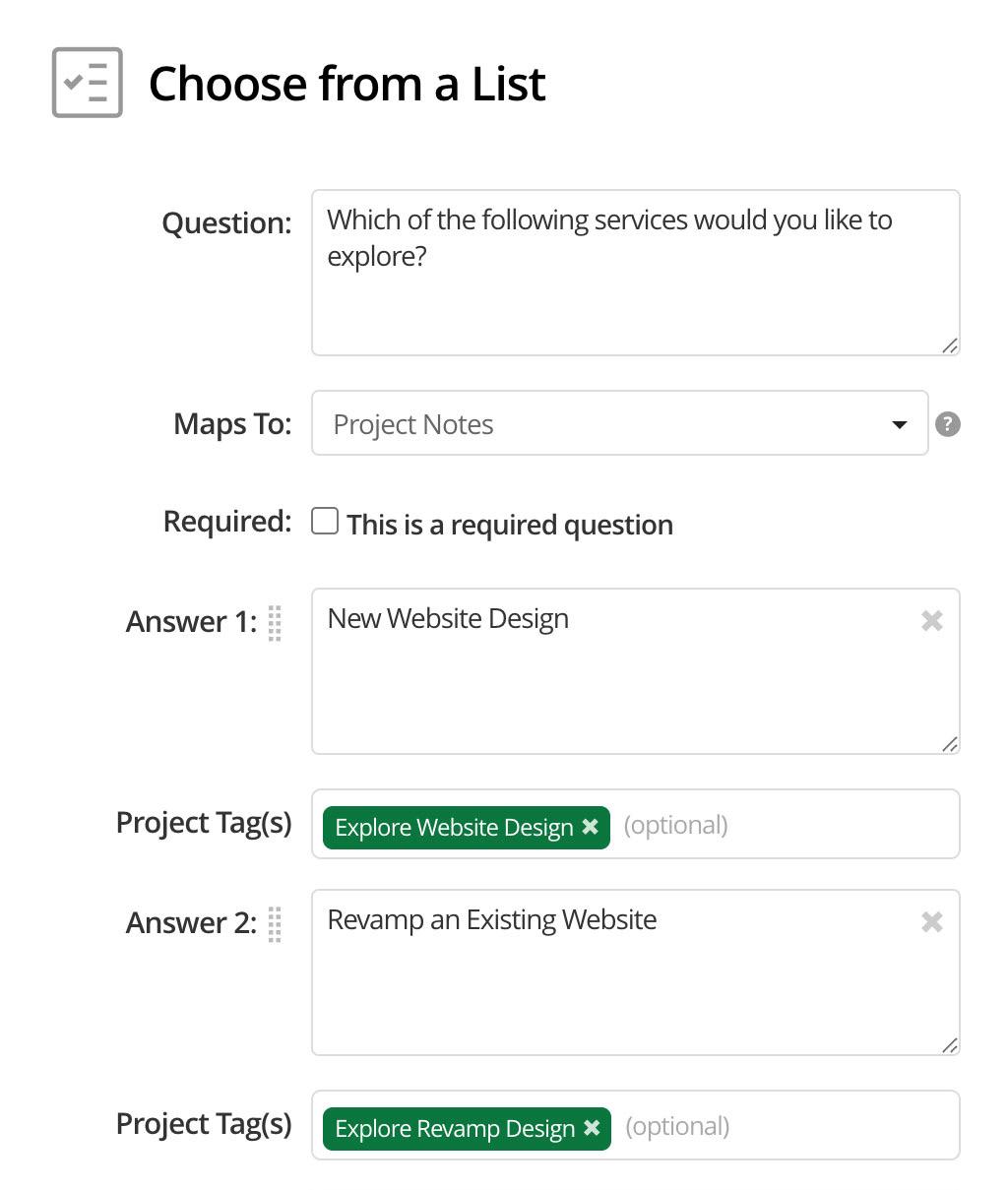
Get (So Much) More Done With Workflows << Left: Now use Project Tags to trigger Workflows any where you can add a Tag.
Powerful Feature = Attention to Detail
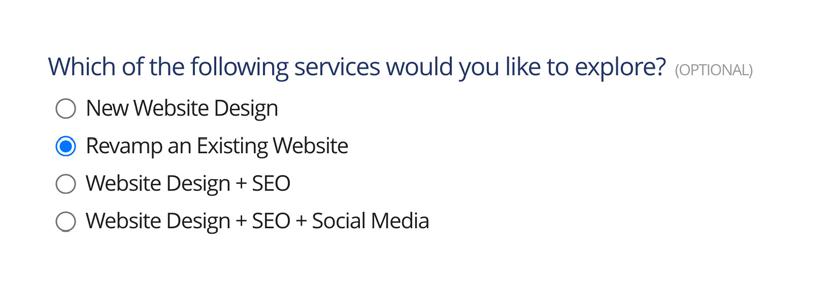
Example: A new lead completes a Lead Capture Form for a website designer. The vetting Questionnaire asks the following question: “Which of the following services would you like to explore?”
• New Website Design
• Revamp an Existing Website
• Website Design + SEO
• Website Design + SEO + Social Media
Each answer option can be connected to a Project Tag that then triggers a designated Workflow. The selected answer automatically applies the appropriate Project Tag, then triggers the appropriate Workflow.
The more powerful the feature is, the more attentive to detail you must be. Let’s go through a few helpful tips for setting up.
1. Start simple and add to one process. If you are using Online Scheduling, this will be the easiest.
2. Write out your steps and the Project Tags you want to use
3. Do you want to use the same follow-up Workflow for all documents or all Online Scheduling Services?
4. If yes to the above answer, you will want to make your Project Tag specific. Example: ‘OS Link Sent+Service Name’ & ‘OS Booked+Service Name’.
5. If you are using the same Workflow for the followup, you can keep your Project Tags simple.
This new feature can be extremely beneficial for your business growth. Make some time in your schedule to explore this new feature and implement it into your business. And, as well, make sure you give it a good test to see how it works for yourself.
WRITTEN BY AMANDA RAE
Personal Personalized Vs.
How To Create EffectiveTemplates
When talking about automation, the first objection I hear is, “I want to personalize my emails, and I don’t want them to sound robotic.”
I get it. Your clients are coming to you for a great experience, and you want them to feel valued, appreciated, and connected to you and your brand.

In the pursuit of growing your business, streamlining and automating are a must, but it doesn’t mean that you lose personal connection.
The difference lies between creating verbiage that is personal instead of personalized.
When you personalize every single email, you are creating a lot of extra work for yourself. With only so many hours in a day, you have to ask yourself, does the reward outweigh the time you are spending? And, if you are writing and creating personalized messages for each, I can guarantee it is not.
You might like to do it. It might make you feel good. But is your time better spent on tasks that have a greater impact on your business? Absolutely.
One 17hats member asks the question, “Select your favorite Ninja Turtle,” on his lead capture form. From their selection, a Workflow would trigger that was specific to the selected Ninja Turtle. Through this one question, he made his automation personal, kept true to his brand, and created connections.
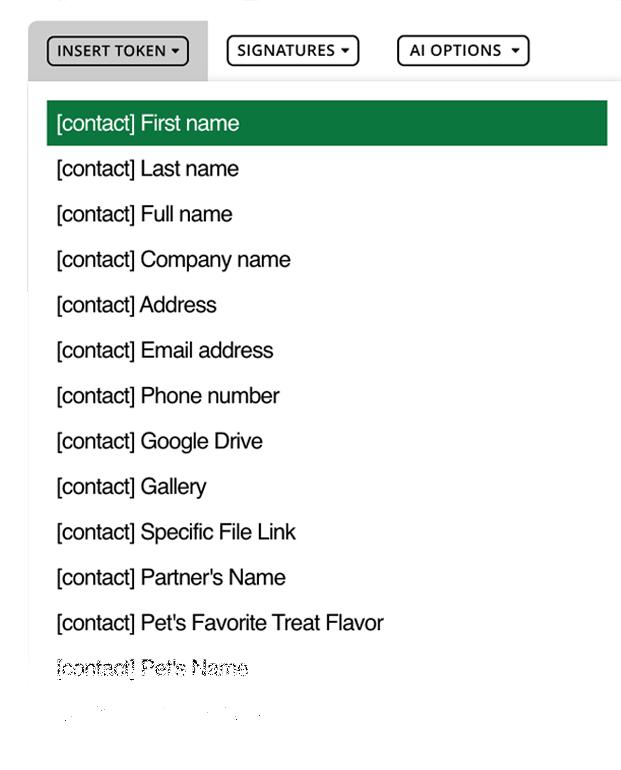
Simple tokens, such as First Name, adds a personal touch; but you can take it to the next level by creating Custom Fields. Reuse data such as pet’s name, spouse’s name, and kid’s names via Custom Field Tokens for an elevated sound.
Combining the automatic personalization with Tokens and your brand voice, you have a winning combination that your clients will appreciate.
Take it up a notch by adding a catchy sign-off on your email signature. For example, 17hats email sign-off is Onwards and Upwards, and

it has become part of our brand that people recognize.
Start emails with sentiments such as:
• I hope you are having a wonderful day so far.
• I’m excited to talk to you in a few days.
• I look forward to [add the service you are providing]. It’s going to be a blast.
Adding personality and emotion to the email will keep it real and upbeat, creating the connection and trust.
Personalizing one or two emails, especially when working with high-end clients, can be a good thing. But you want to do it in a way that saves you time, not wastes time.
If you are in the wedding industry, maybe set the first email after the wedding to a manual send in your workflow. You can keep 90% of the template and just switch out a sentence or two with a personalized message. Then you don’t have to write a whole new email from scratch, and you maintain that personalized feel.
Tips to make emails sound like they were not automated:
• Use ‘You’ more than ‘I’
• Use contractions
• Write like you speak
Simple Email Framework
1. Acknowledge the moment
2. Reinforce the decision
3. Explain what happens next
4. Give one clear action
5. Close warmly
• Avoid overly formal language, unless that is your brand
• Use proactive language - answer questions before clients ask
• Don’t over-automate; too many emails are a bad thing.
• Use bullet points and short paragraphs
Final thought
Do clients really care if they receive automated emails? Your leads and clients value speed over everything else. In the fastpaced world, we have to keep up; otherwise you get left behind.
Automation, Explained:
A No-Fluff Guide To 17hats Workflows
What you should know about Workflows in 17hats: Workflow Vernacular

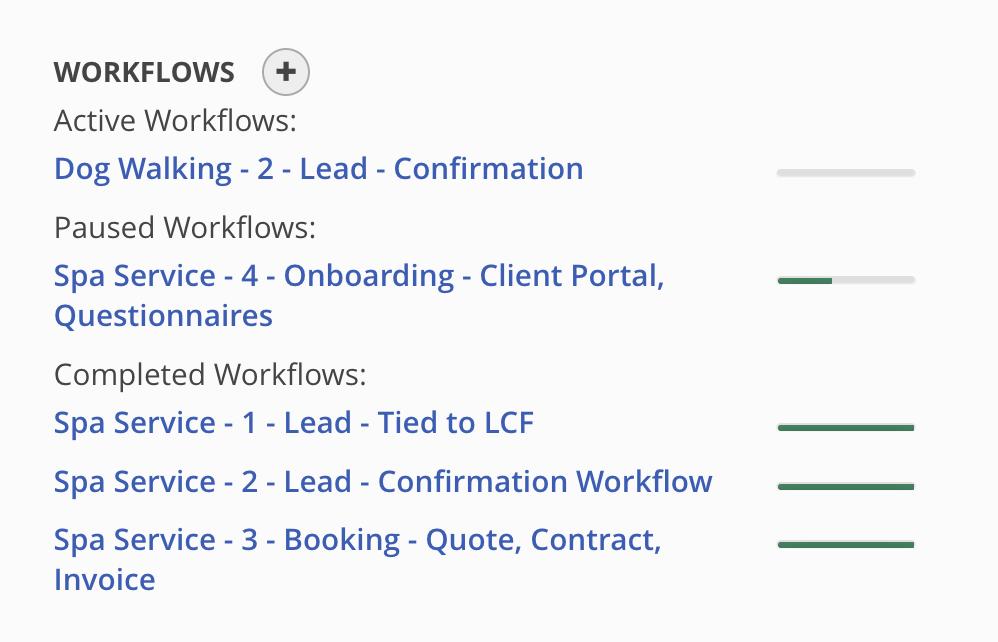
Workflow Action Items can occur automatically, or they can be set to have your approval first before sending. When a Workflow is added to a Project, a copy of the Workflow Template is added to the Project. The ‘copy’ does not have ties to the original Workflow; this means if you change the Workflow Template, it will NOT change any Active Workflows. And, if you customize the Active Workflow for the specific project, those changes do not affect the Workflow Template. When a Project is Archived, the Workflow will automatically be stopped and considered inactive, removing any Workflow Items from your Dashboard and cleaning up your Workflow Tabs. When you unarchive the Project, the Workflow will NOT automatically start. You will need to resume the Workflow yourself if you would like the Workflow to continue.
If a client pauses their project with you until a later date, you can Pause the Workflow and then resume the Workflow when they are ready. You can change email and document templates right up to the time they will send via a Workflow. Templates are not “pulled” until they are needed to be sent; that way, you can always make adjustments to your templates.
If you change the Project Date, 17hats will update the Base Date of any active Workflows that matched the original Project Date.
Create a To-Do calendar to add all your Workflows to. Now you can easily see all your Workflow items on one calendar.
Have team members? Assign workflow steps to specific team members.
Base Date: This is the date the Workflow steps revolve around. 90% of the time, the base date will be the same as the Project date.
Trigger: Workflows can be triggered (started) from different areas of 17hats. (See page 26 for more.)
Action Item: A step in a Workflow that 17hats does for you.
To-Do Item: A step in the Workflow that you must do yourself.
Pause Step: Create a pause while you wait for something to be completed, such as an order delivery or an email back from the client.
Completed State: This is when the Workflow Item is considered completed, allowing the workflow to move to the next step.
Active Workflow: A Workflow that is actively running in a Project.
Paused Workflow: A Workflow that is attached to a Project but not running.
Run/Running: The Workflow is active and moving through the Workflow Steps.
Duplicate Workflow: Duplicates only the Workflow, which includes the Workflow Steps. It does not duplicate the templates within the Workflow.
Duplicate All: Duplicates the Workflow and the templates within the Workflow.
How Does A Workflow Work?
Think of your Workflow as a little tech minion running around your 17hats account, assisting you with all your tasks.
When a Workflow is triggered, your minion, let’s call him Otto (Otto, Auto - get it??), says -
“OK, the first step is to send an email. Let me go get that email.”
Otto then runs to get the email template.
“Now, when does it need to be sent?” Otto reads the Workflow step.
“Immediately after activating this workflow.” “Ok, I’ll send it now.” He sends the email.
Otto: “Now what do I need to do?”
“Ok. You have a To-Do step to complete. I’ll wait for you.” Member (you) completes the To-Do step.
Otto says, “Ok, the To-Do is now completed.” (I feel that he throws confetti before running to view the Workflow, but in your imagination, he can do whatever celebratory act you want.)
Otto: “What do I need to do now?”
“I need to send an invoice, let me go get that invoice and email.”
He goes to get the templates.
Otto: “When do I send it?”
I’ll run the emails, invoices, and automations in the background while you focus on the real work.
“Immediately after the previous items are completed.”
“Ok. The previous items are completed, let me send them now.”
Sends the Invoice Template via email.
Otto: “Now they are sent, when can I move on to the next step?”
“Ok, it says when the invoice is paid in full.”
“I’ll have a treat and wait for the invoice to be paid.” “Once paid, I’ll get back to work.”
When setting up a Workflow, think about it as if you are telling Otto step-by-step exactly what to do. This will help you define your ‘when’ and ‘completed’ states.
Workflows work best when you build them like you’re giving clear instructions to a trusted assistant: what happens, when it happens, and what “done” truly means.
Start with one client process you repeat often, map it step-by-step, and let it run in the background while you focus on higher-value work.
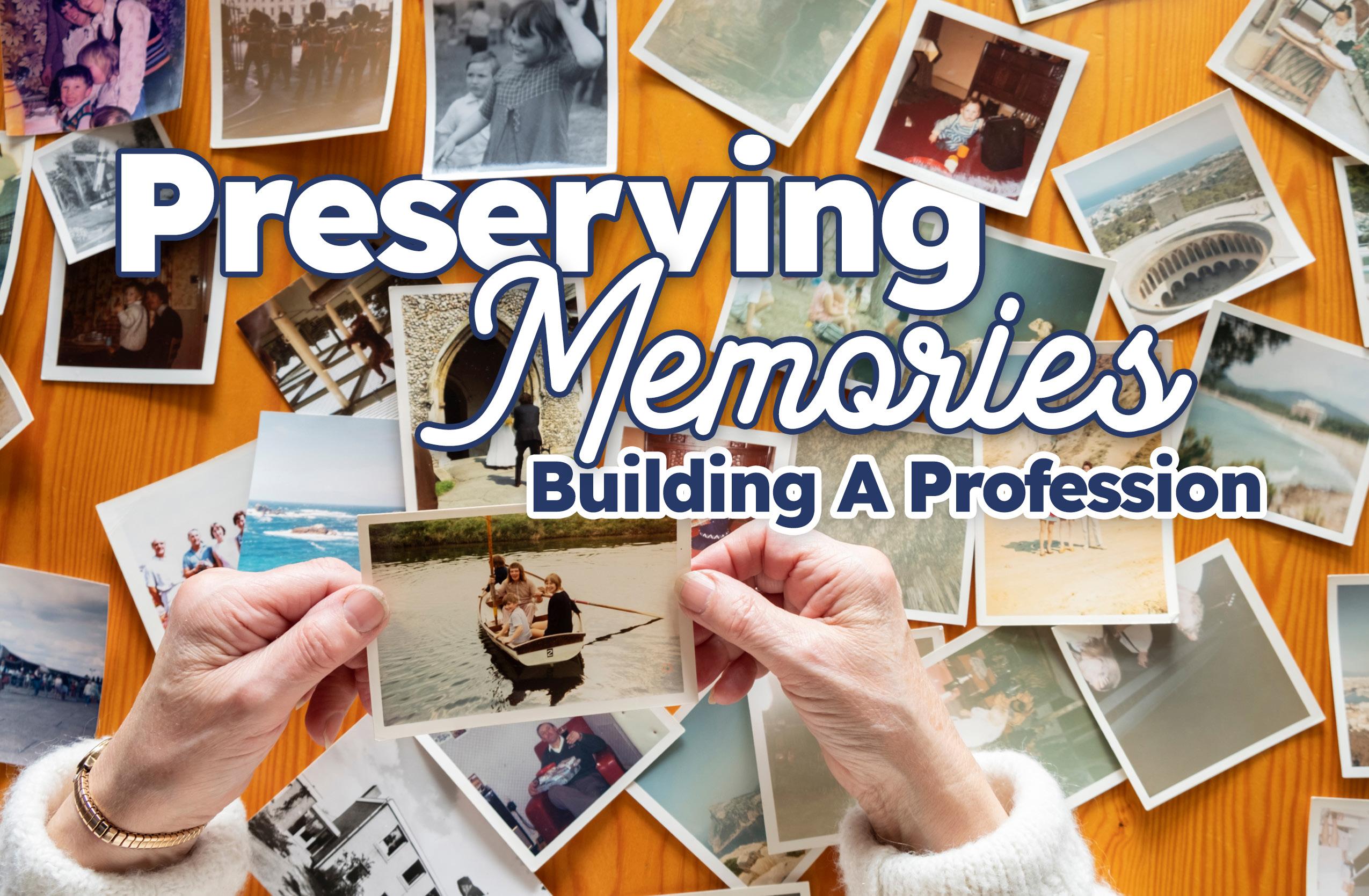
Featuring The Photo Managers CEO & Founder, Cathi Nelson
Most people don’t realize “photo manager” is a profession. Yet every day, across the country and around the world, trained professionals are stepping into closets, basements, and hard drives to help families make sense of decades of memories.
“Professional photo organizers help families gather, sort, digitize, back up, and safely store their printed and digital photos,” says Cathi Nelson, Founder and CEO of The Photo Managers and author of Photo Organizing Made Easy: Going from Overwhelmed to Overjoyed. “We bring order to boxes in closets, scattered hard drives, and overflowing phones, creating systems that make memories easy to find and share.”
But the work runs deeper than organization. Photos hold life stories: the people and pets we love, the places we’ve traveled, the voices we may never hear again. When someone passes away or begins to lose their memory, images often become a family’s most powerful

connection. “Organized photos reduce stress today and protect family legacies,” Nelson says. “Most people feel overwhelmed by their growing collections. That’s where a photo manager steps in.”
Nelson entered the field in 2009 as photography shifted rapidly from analog to digital. She saw confusion, anxiety, and a clear gap in support. What began as her own business soon revealed something larger. As others asked how to do similar work, she recognized the need for an association that could provide training, certification, and structure. The Photo Managers was born.
As client requests expanded beyond photo sorting into scanning World War II letters, converting VHS tapes, and creating legacy albums and slideshows, Nelson discovered that passion alone would not sustain the work. “Managing all of those projects with spreadsheets and scattered notes became inefficient
and unsustainable,” she says. At the same time, new professionals were asking for guidance not just on technical skills, but on contracts, invoicing, and workflows.
The solution was standardization.
One of Nelson’s first major steps was establishing a formal Code of Ethics. Handling a family’s photo collection requires deep trust. Clear standards around confidentiality, transparent pricing, scope of work, and data security became the foundation of the organization’s credibility. Certification followed, signaling that photo management was not a hobby, but a profession with defined expectations and competencies.
“Turning personal expertise into teachable frameworks created consistency, credibility, and a clear path forward,” Nelson explains. Rather than leaving success up to trial and error, The Photo Managers developed repeatable workflows and education pathways that members could implement immediately.
The impact has been tangible. Standardization helped shift photo management from a passion project into a viable career path. Members gained confidence, reduced costly mistakes, and began earning sustainable incomes. Some have grown to add team members. “Standardization didn’t just elevate individuals,” Nelson says. “It elevated the entire industry.”
Clear systems also protect the emotional core of the work. Without documented processes, misunderstandings arise and trust can erode. When intake procedures, written contracts, scope agreements, and backup protocols are firmly in place, the photo manager becomes a trusted advisor. Nelson calls two practices non-negotiable: always create backups of client materials and always use a written contract outlining how sensitive items will be handled.
Professionals who keep their processes only in their heads often pay a price. Forgotten steps, repeated mistakes, and constant reinvention lead to overwhelm.
“Emotionally, it leads to frustration,” Nelson says. “If it isn’t managed properly, people will quit.”
For those who fear systems will make their work feel cold, Nelson offers a different perspective. “Clear is kind; unclear is unkind,” she says, echoing Brené Brown. Thoughtful automation and structured workflows set expectations, protect trust, and free professionals to focus on meaningful moments, like surprising a client with a rediscovered photograph.
In a field centered on legacy, structure does not diminish heart. It protects it. And as the photo management profession demonstrates, systems are not the opposite of meaningful work. They are what allow it to endure.
A Profession Built on Preservation
What if your love of photos, storytelling, and organization could become a meaningful career?
The Photo Managers, founded by Cathi Nelson, has helped transform photo organizing from a personal passion into a recognized profession. Through certification, education, and a global community of support, members learn how to serve families with professionalism, care, and confidence.
Today, photo managers around the world are building sustainable businesses rooted in legacy preservation — helping clients protect what matters most while creating fulfilling, profitable careers of their own.
Automation In Action: How One Balloon Artist Turned Small Orders into Big Opportunity
When Sara Meyer started her business, Wisconsin Balloon Decor, she was doing what many creative entrepreneurs do: saying yes to everything.
For nearly a decade, Meyer built balloon displays for parties, weddings, and events across Wisconsin. What started as a summer side hustle while she worked as an art teacher slowly grew into a full-time business.
“Balloons was the one that stuck and grew into a real business,” Meyer says. “Now I’ve been four years fulltime.”
But as her business grew, a problem began to appear — the smallest orders were taking the most time.
At the time, every balloon order followed the same process. Whether a client wanted a full event installation or a single balloon garland, Meyer handled everything manually. Emails. Design conversations. Invoices. Scheduling. Delivery.
“All of it came through me,” she explains. The issue wasn’t the work. It was the time.
Small balloon garlands required the same email conversations and booking steps as large installations. Clients wanted to discuss colors, event details, and timelines, even for simple orders.
“It was always frustrating designing an event only to learn the budget was small,” Meyer says. “Small budgets


are fine, but they don’t warrant five emails about invitation colors and installation timelines.”
Eventually, Meyer started doing something many business owners reluctantly do.
She began turning those small orders away. “I was letting that money go,” she says. But she also knew the real problem wasn’t the customers.
“The customers were just following the steps I had laid out,” Meyer says. “One garland shouldn’t follow the same process as designing an entire event.”
That realization opened the door to a new idea: small orders needed their own system.
Around the same time, Meyer’s longtime friend Nicole Larson was helping her streamline her business using 17hats. Larson, a small business systems consultant and founder of Let Nicole Help, has always had a mind for organization.
“I’ve always been obsessed with systems and streamlining,” Larson says. “I just didn’t know it would become a business one day.”
The two originally met while working at the same university. When Larson saw Meyer’s growing balloon
business, she began helping her organize the workflows behind the scenes.
When 17hats released Online Scheduling, they saw an opportunity.
Instead of emails and back-and-forth conversations, Meyer could offer a simple online option for “Grab & Go” balloon garlands. Clients could choose their garland style, select a pickup date, and pick one of two pickup locations — all without needing a single email exchange.
For Meyer, simplicity was the goal.
“It had to be fully hands-off,” she says. “Limited options, a clear process, and automated confirmation emails. If I had to step in, it wasn’t simplifying anything.”
Larson helped design the automated setup, turning the idea into a smooth client experience that ran quietly in the background.
The results surprised Meyer. “It became a significant source of revenue,” she says. Instead of turning small jobs away, Meyer now simply directs clients to the selfbooking page. They can place their order in minutes.
Many customers return again and again.
“They don’t want to talk to anyone,” Meyer laughs. “They just want their order done.”
Even more important, the system removed pressure from Meyer’s day-to-day work. Automated orders come in during busy seasons, slower seasons, and even when she isn’t actively managing bookings.
“It’s pushed me to offload more manual steps too,” she says. “Knowing I can make a sale and not touch a balloon is awesome.”
For Larson, that’s exactly the point of automation. Many creative business owners worry that systems will limit flexibility. In reality, she says, the opposite is true.
“Automation gives you more flexibility because it handles the tedious things that drain your energy,” Larson explains.
What started as a simple scheduling solution has now become something bigger. Larson has even turned the system into a Marketplace template so other balloon artists can use it too.
Because the problem Meyer faced isn’t unique. Small orders may look simple on the surface, Larson says — but without a system, they can quietly consume hours of time.
“They’re simple,” she says. “Until they’re not.”
For Meyer, the change has been both practical and personal.
Automation didn’t just add a new revenue stream. It gave her room to breathe.
Get Nicole’s Proven Process
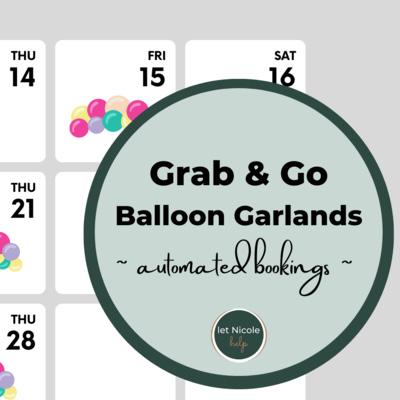
It’s your lucky day! Nicole Larson’s 17hats marketplace item, Grab & Go Balloon Garlands Automated Bookings is ready for you to use. Head to the 17hats Marketplace to see this item and all our trusted Partners 17hats processes.
ANATOMY OF A Workflow Step
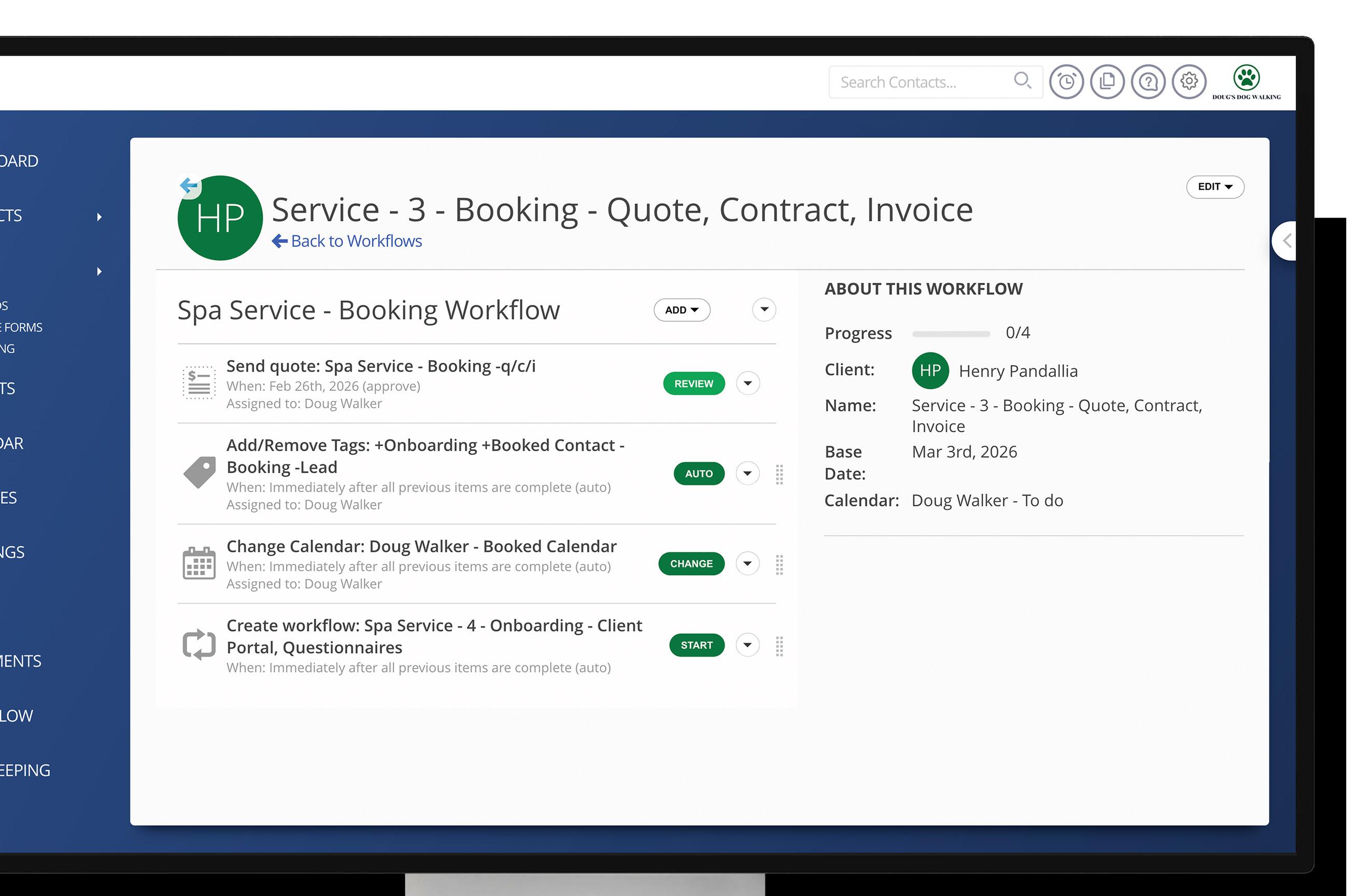
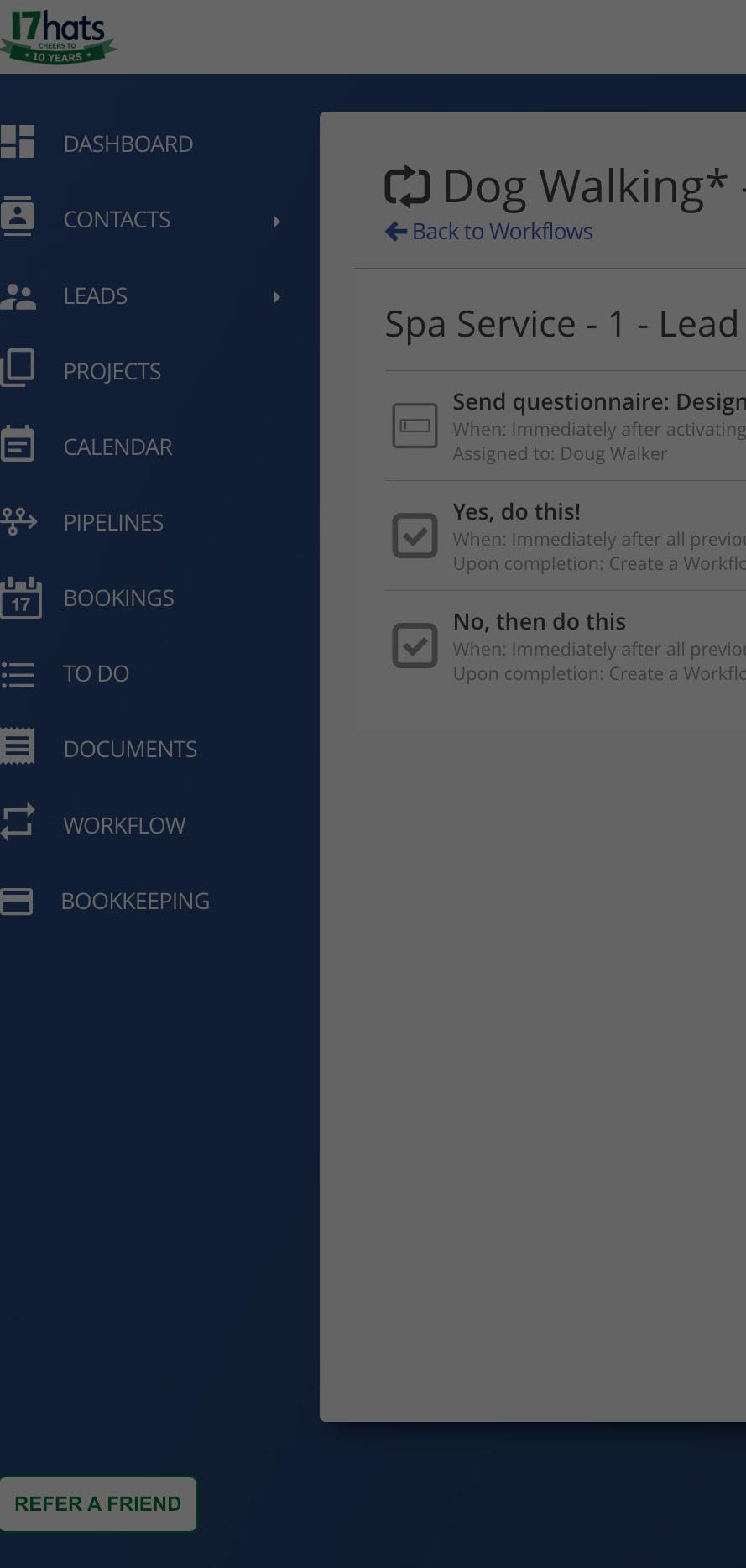
When people think of 17hats, they think of Workflows. However, many are intimidated by creating a Workflow. Let’s break down a Workflow Step so you are a more confident workflow builder.
If automation is the destination, Workflows are the roadmap that gets you there. They transform scattered tasks into seamless client experiences, turning manual busywork into streamlined, repeatable systems that run behind the scenes.
Simply put, a Workflow is a list of steps (Items) that represent your process and client experience. Workflows are the muscle that sends emails and documents, makes internal project changes such as adding tags, and prompts you to do important tasks. They are designed to help you stay on task and keep your process moving, ensuring you worry less and do more.
Let’s dive into the settings on a Workflow Item, so you can build workflows that keeps your business moving.
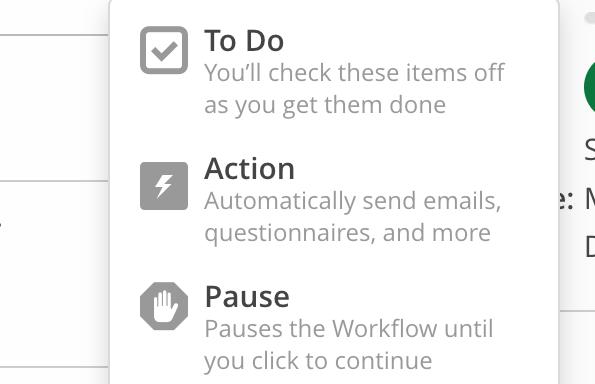

1. Three Types Of Workflow Items:
1. To-Do Item - Task only you can complete, such as calling a lead or mailing a thank you note.
2. Action Item - Task that 17hats completes for you, such as sending an email or adding tags.
3. Pause Items - A delay between steps in your Workflow, such as waiting on a delivery.
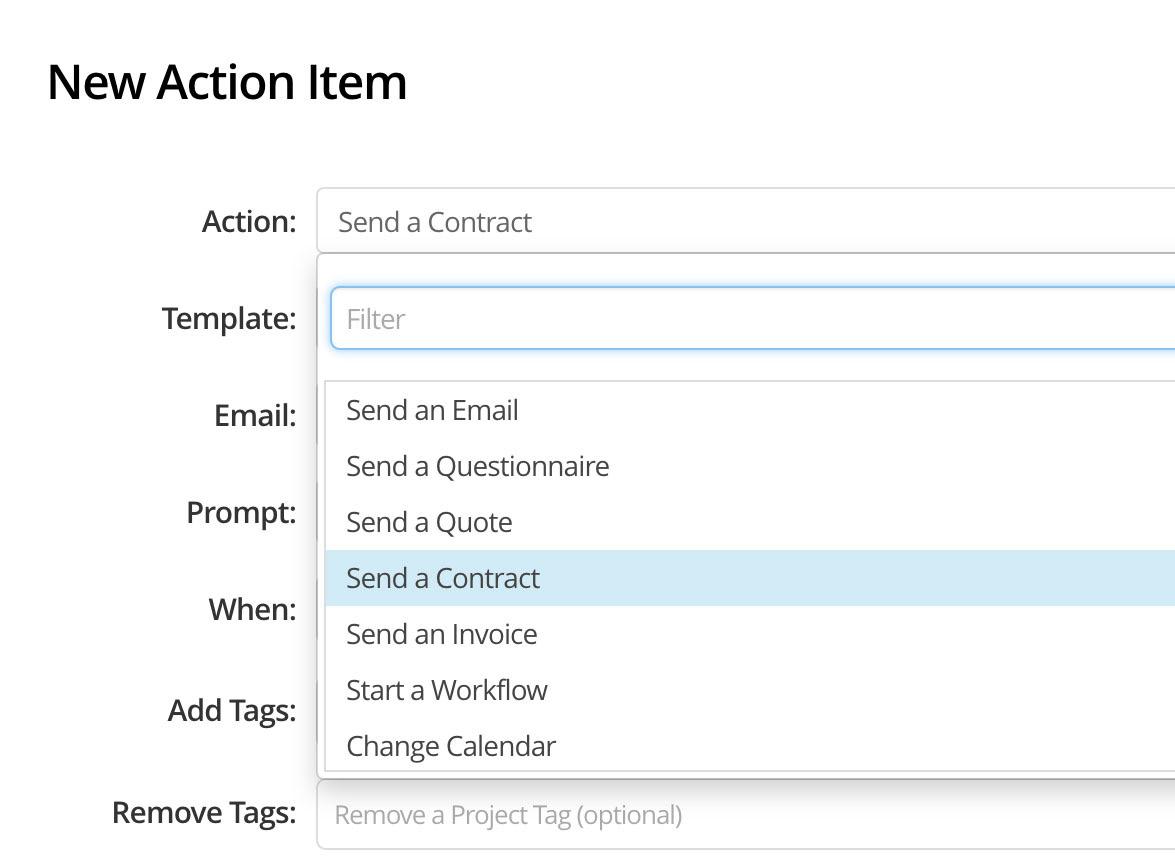
2. Select Your Action:
From an Action Item, select the Action type for the step.
• Send an Email
• Send a Questionnaire
• Send a Quote
• Send a Contract
• Send an Invoice
• Start a Workflow
• Change Calendar
• Confirm the Booking
• Archive the Project
• Add/Remove Tags
Note: If you select a Document Action step, make sure the email type is set to the corresponding document type.
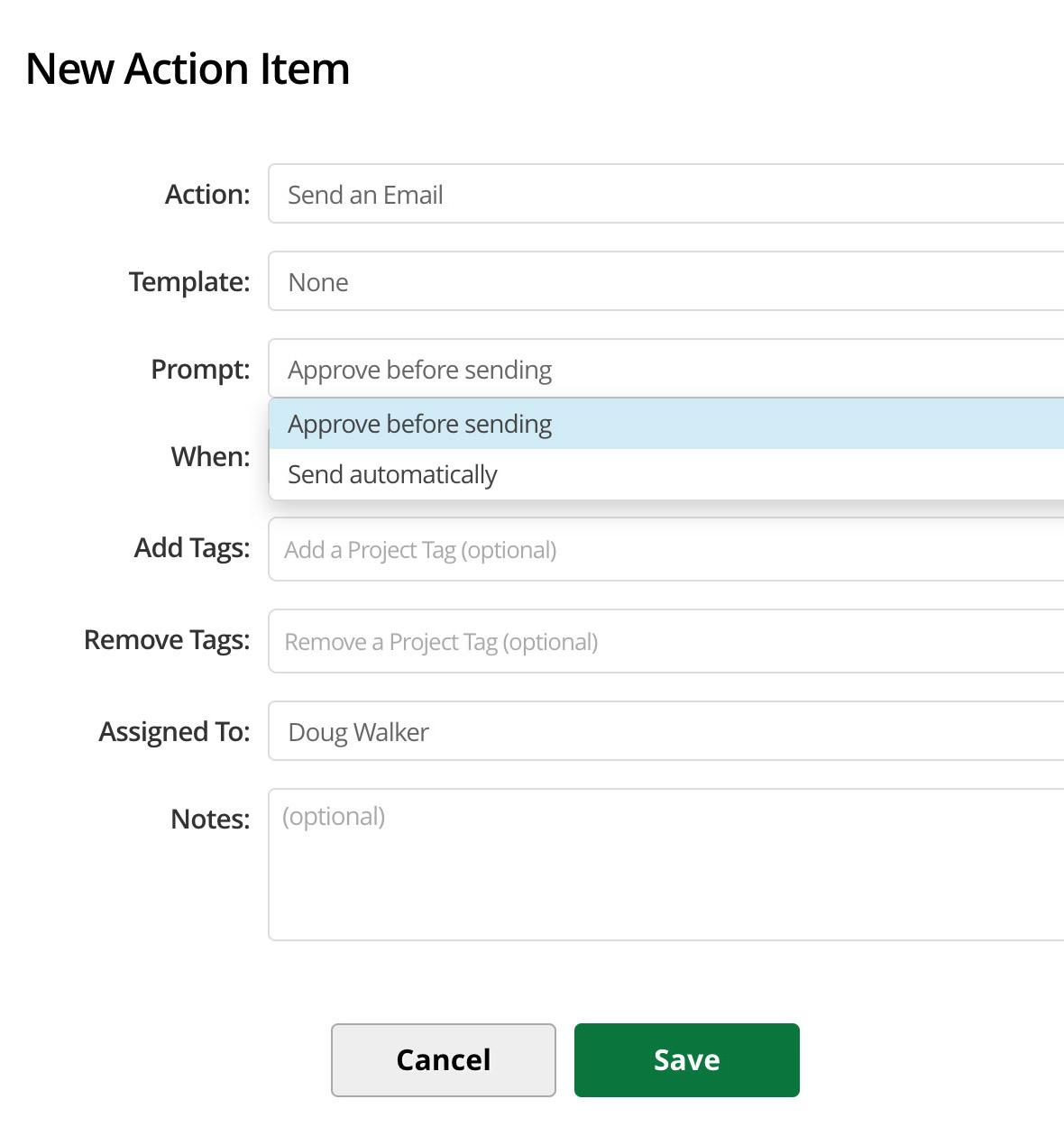
3. Prompting Workflow Items:
Prompting is asking you ‘how’. How do you want to complete this item?
Action Items in a Workflow will run in one of two ways: Automatically or Approve Before Sending.
If an Action Item is set to automatically, the action is completed for you, requiring no extra steps from you.
If the step is set to Approve Before Sending, you’ll receive a prompt to review and approve. This gives you the opportunity to make edits, personalization, or just ease your mind right before the step runs.
The Approve Before setting is especially helpful for items that may need customization or personalization.
4. When:
Now that we have the "what” set, let’s set the when. When should this step run? You have four options to select from.
After Activating This Workflow
The item will run immediately or after a set number of days, the Workflow is triggered. This is great for immediate follow-ups, welcome emails, or next-step instructions that should happen right away.
Before the Base Date
The item will run a certain number of days before the defined base date, which is usually your project date. Perfect for reminders, prep emails, or questionnaires that need to be completed prior to your project date.
On
the Base Date
The item will trigger on the exact base date. This works well for event-day reminders and to-dos, or scheduled check-ins.
Let’s Talk Base Date:
Your Workflow’s timing starts here. Just as planets rotate around the sun, your Workflow Steps rotate around the Base Date. They can happen before, on, or after.
Here’s how a Base Date is set:
✨ Workflow triggered from Online Scheduling? The Base Date automatically becomes the booking date your contact selected.
✨ Workflow triggered from a Lead Capture Form? If a Project Date is set via the Lead Capture Form, that date becomes the Base Date.
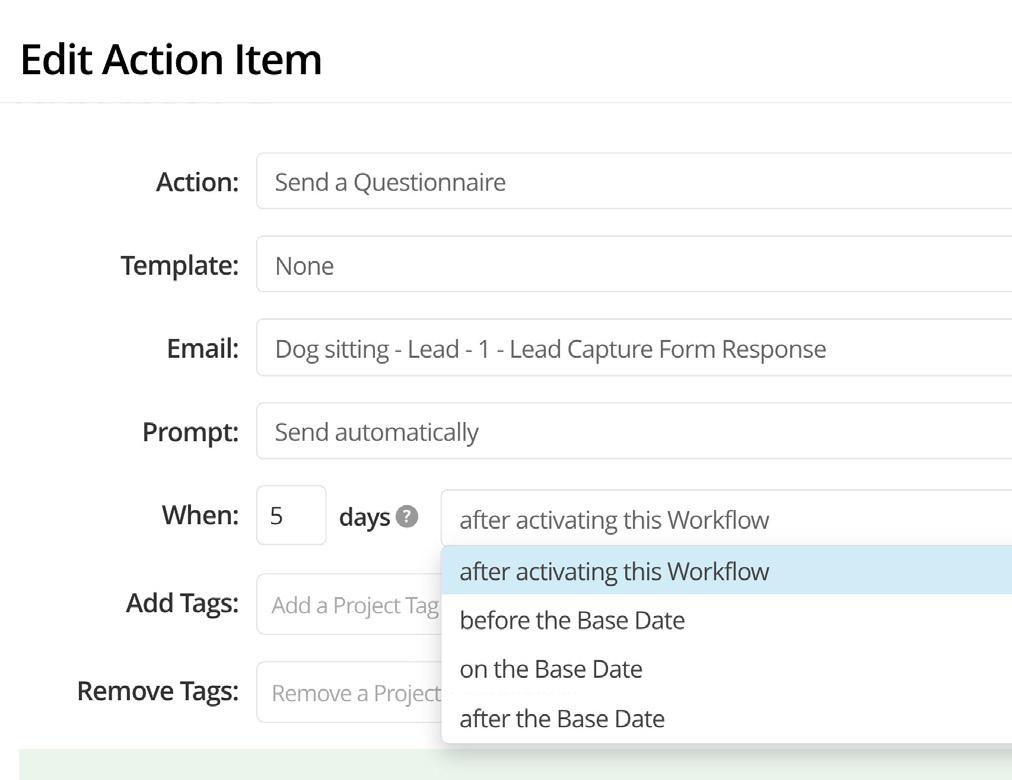
After the Base Date
The item will run a set number of days after the base date. This is ideal for thank-you emails, review requests, or post-event follow-ups.
After Previous Item is Complete
This option creates a chain reaction. This item won’t activate until all previous ones in the Workflow are completed. It’s especially helpful when steps must happen in order, like completing a to-do prior to sending an email.
If no Project Date exists, the Base Date defaults to the date the Workflow was activated.
✨ Workflow triggered directly from within the Project page? When a Workflow is triggered from the Project, a suggested base date is given, which you can adjust before triggering the Workflow.
If a Project Date is set in the Project page, that suggested base date is the project date. If no Project Date exists, the suggested Base Date is the current date.
✨ Workflow triggered from another Workflow? If a Project Date is set, the Base Date will be the project date. If a Project Date is not set, the base date will be the date the workflow is triggered.
✨ Workflow triggered from an Event added in the Project or Calendar? The base date of the Workflow will be the event date.
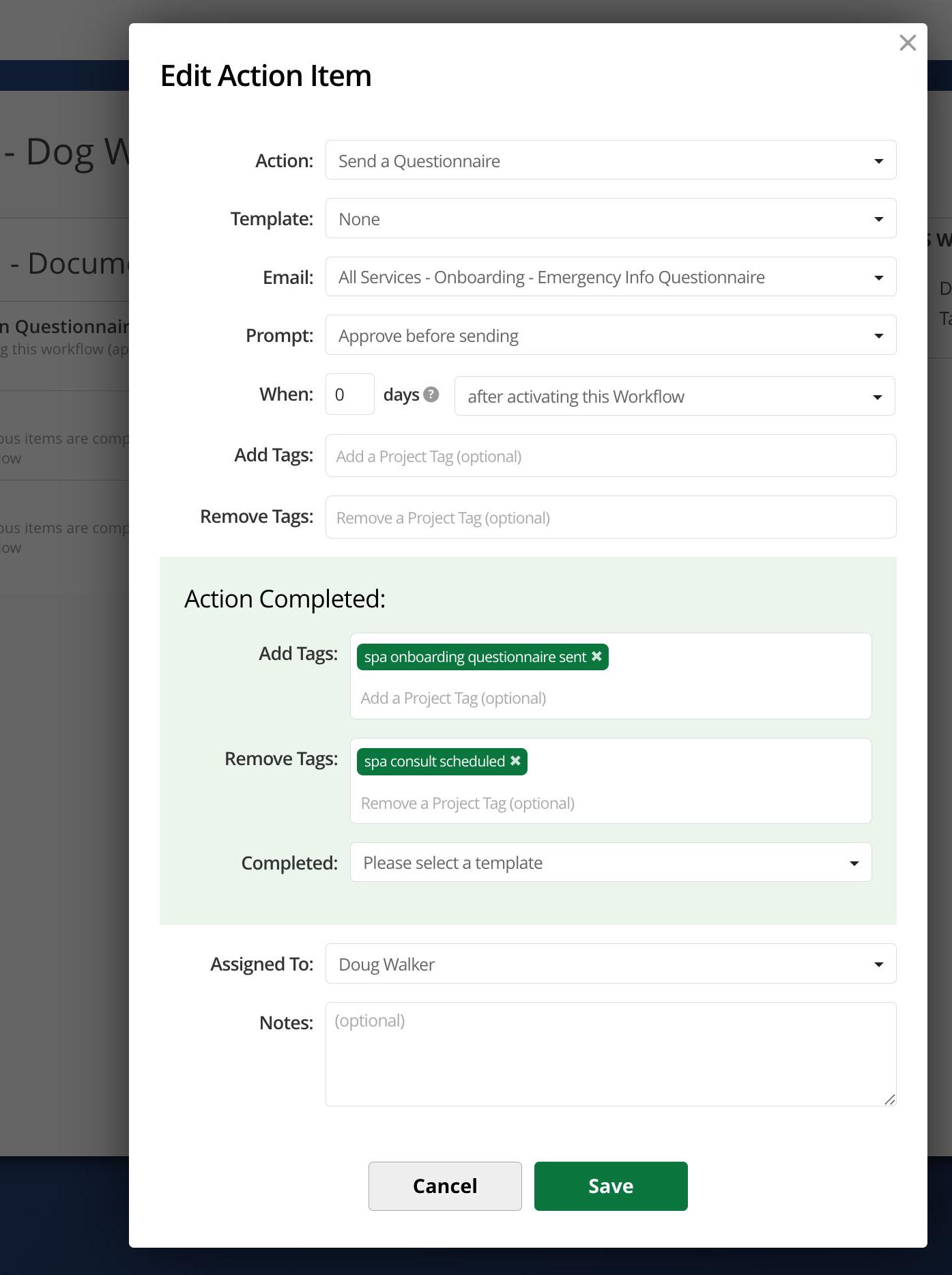
7. Completed Add/Remove Tags:
Now that your item is completed, you can remove the tag added when sent, and add a new Project Tag so you know the document was completed. Again, these tags are used to help move your project through your Pipelines.
Completed tags can be found on most workflow items, with the exception of Start a Workflow, and Change Calendar.
5. Add & Remove Tags
Project Tags can be added within the Workflow step. In Document Action Items, Project Tags can be added and removed when the document is sent. By adding and removing tags, you can associate the step with a phase in a Pipeline.
6. Action Completed:
Document Action Items also have a complete setting which determines when the Action Item is complete and in many instances, can move to the next item.
Each document type has a variety of completed states for you to select from. Quote which includes a Contract and Invoice, have the following completed states:
• When sent
• When Quote is Accepted
• Contract signed
• First invoice payment is made
• Invoice is fully paid
• All items (Quote, Contract, and Invoice are completed.)
Once the completion event occurs, your completed tags will automatically be added or removed, and the workflow will move to its next step.
Workflow and Pipelines, What’s the Difference?
A Pipeline can be a visual representation of your Workflow. By allowing workflow steps to add and remove project tags, you can create Pipeline phases that represent the major steps in your Workflow. This allows you to see in a quick glance where projects are in your process.
Creating AWorkflow: The Why, What, & How
So many people we speak to are intimidated by Workflows, so if you are one, let go of the fear and let’s dive in.
Why are Workflows Important?
Your Workflow ensures you have a repeatable process (which is extremely important for business growth). Unless you are an extremely high-priced boutique taking one client a month, you should have a consistent process for each revenue stream you offer.
This provides brand clarity and consistency, allowing for excellent marketing and referral growth. Once your process is established, you can start to automate the steps, relieving you of to-dos, freeing up time, and ensuring clients receive a professional experience.
Side note: If you want to charge professional prices, clients need a professional experience.
What is a Workflow?
Your Workflow is a list of steps you complete to get a desired outcome. This is your process that makes your client experience come to life and keeps you accountable.
Outcome: Book a consultation
Steps to outcome:
1. Phone Call
2. Send Scheduling Link
Outcome: Book a service
Steps to outcome:
1. They select a date via an inperson consult
2. I give them an invoice
you have limited experience setting up automations, it’s important to keep it simple. As your knowledge grows, so will your Workflows.
3. The first payment of 20% of the total is paid
Outcome: I want the client to show up on time and prepared for the service
Steps to outcome:
1. Email confirmation with date and time
2. Questionnaire to gather information
3. Check-in email a week before
4. Reminder Email a day before
5. Reminder text the day of
The steps to the outcome become your Workflow steps. We recommend a Workflow for each outcome. This allows your Workflows to easily change and grow over time. You can do this by adding an action step at the end of the workflow to trigger the next workflow.
Workflows can be as complex or simple as you want them to be. If
How to Create A Workflow: Don’t try to create your whole process at once.
Your client experience can be broken down into 4 phases:
Lead Experience: From the time a lead contacts you to the time they are ready to book.
Booking Experience: From the time they are ready to book until they book.
Onboarding Experience: From the time they complete booking until the service date.
Fulfillment Experience: Everything needed to fulfill the contracted service on time.
Create a Workflow for each Phase of the client experience and each outcome within it. This will keep your workflows clean and easy to manage.
Client Experience In Four Workflows:
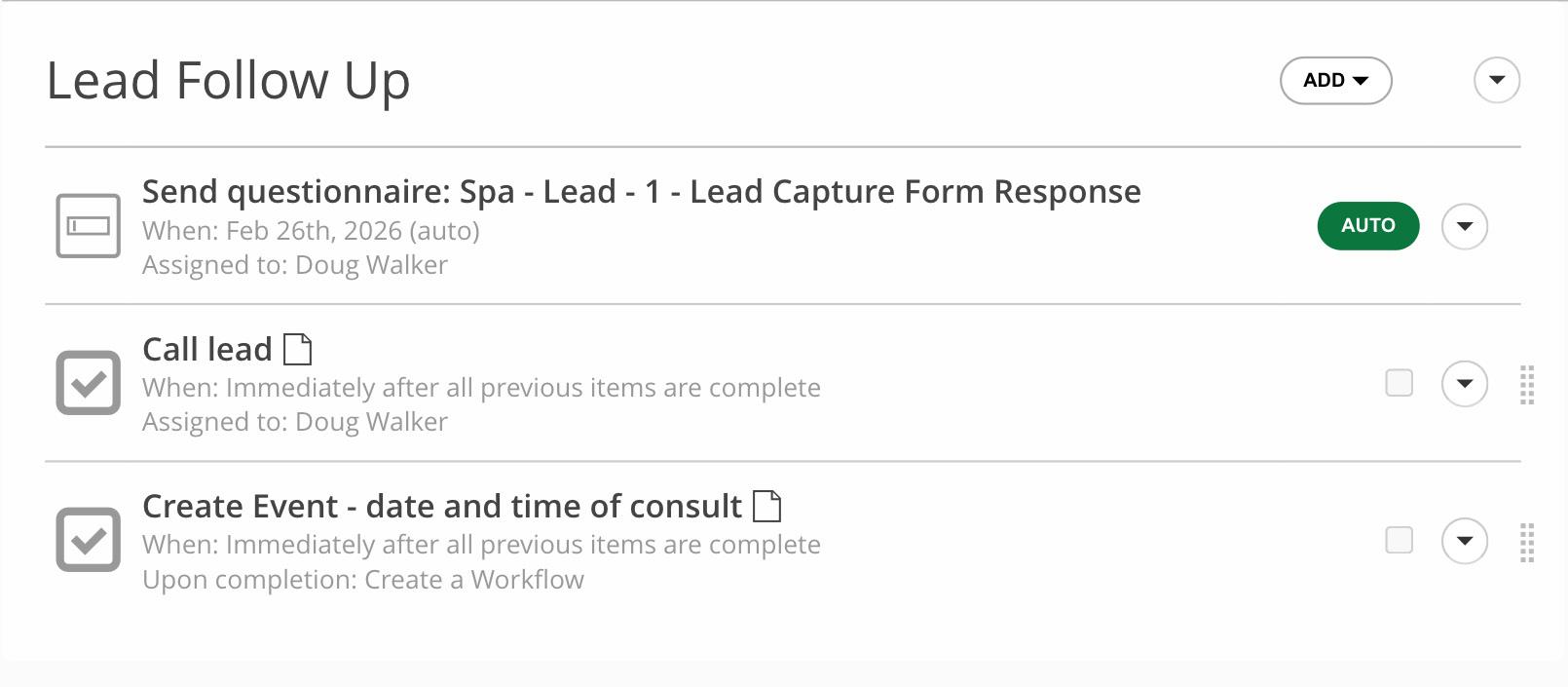
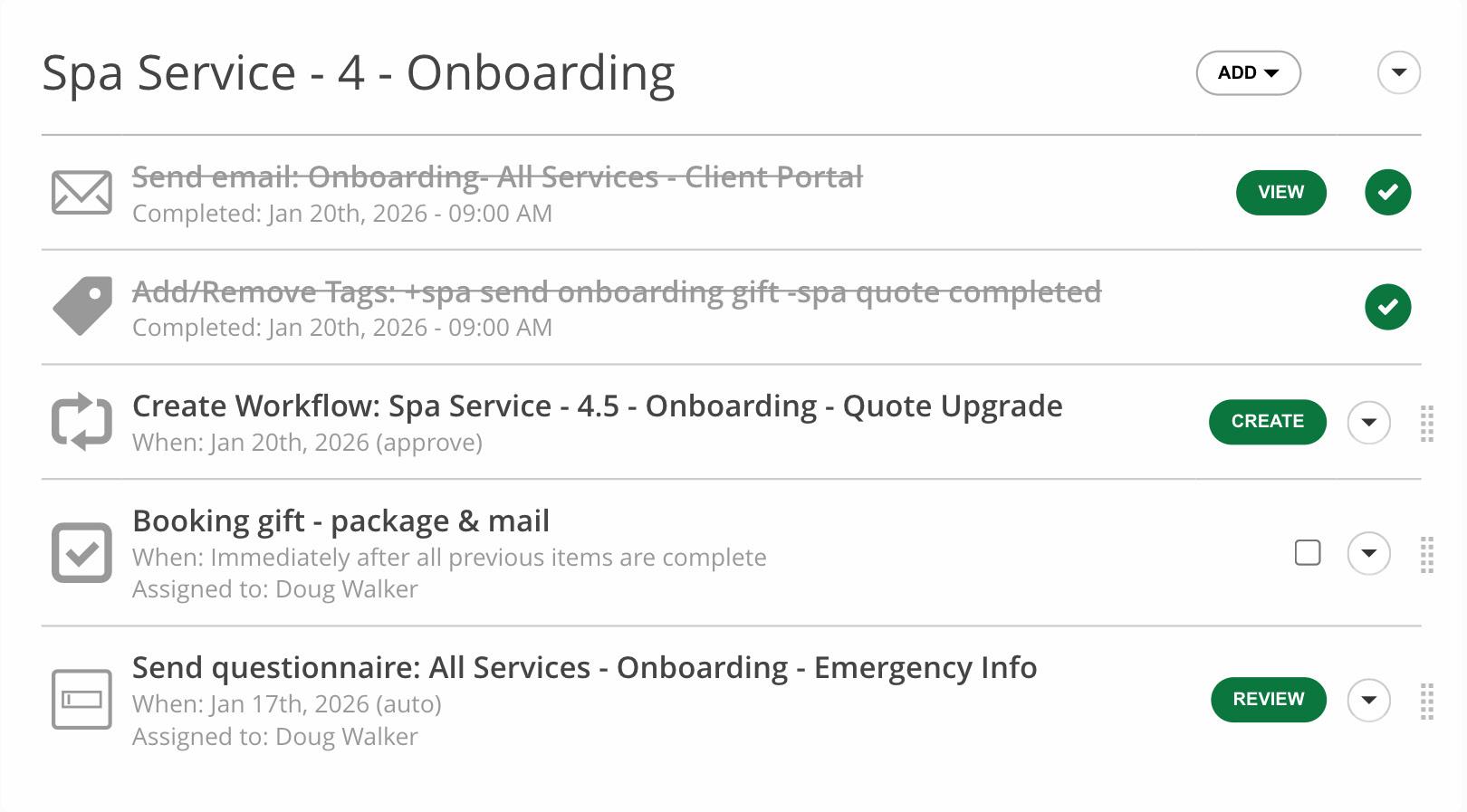
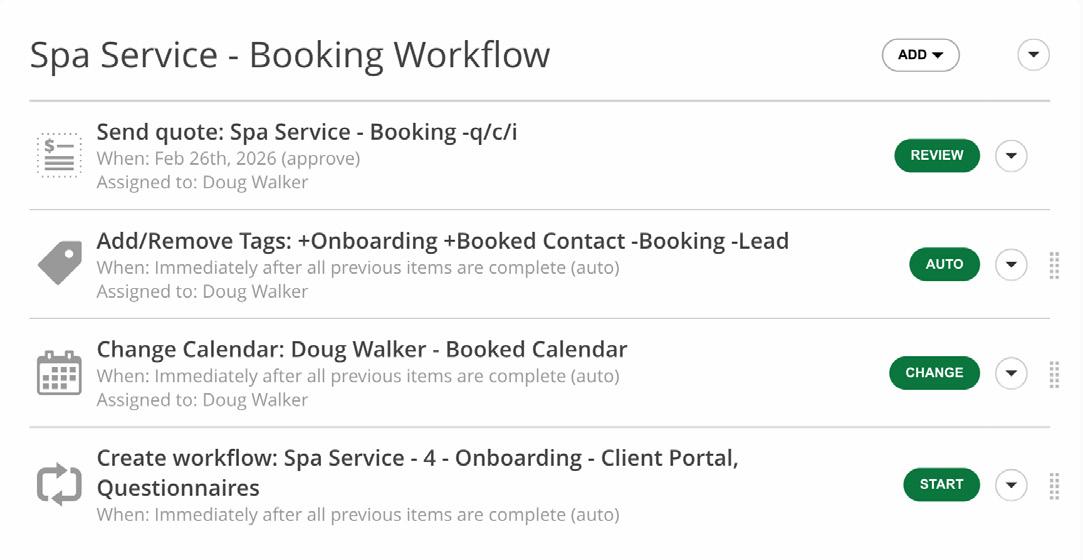
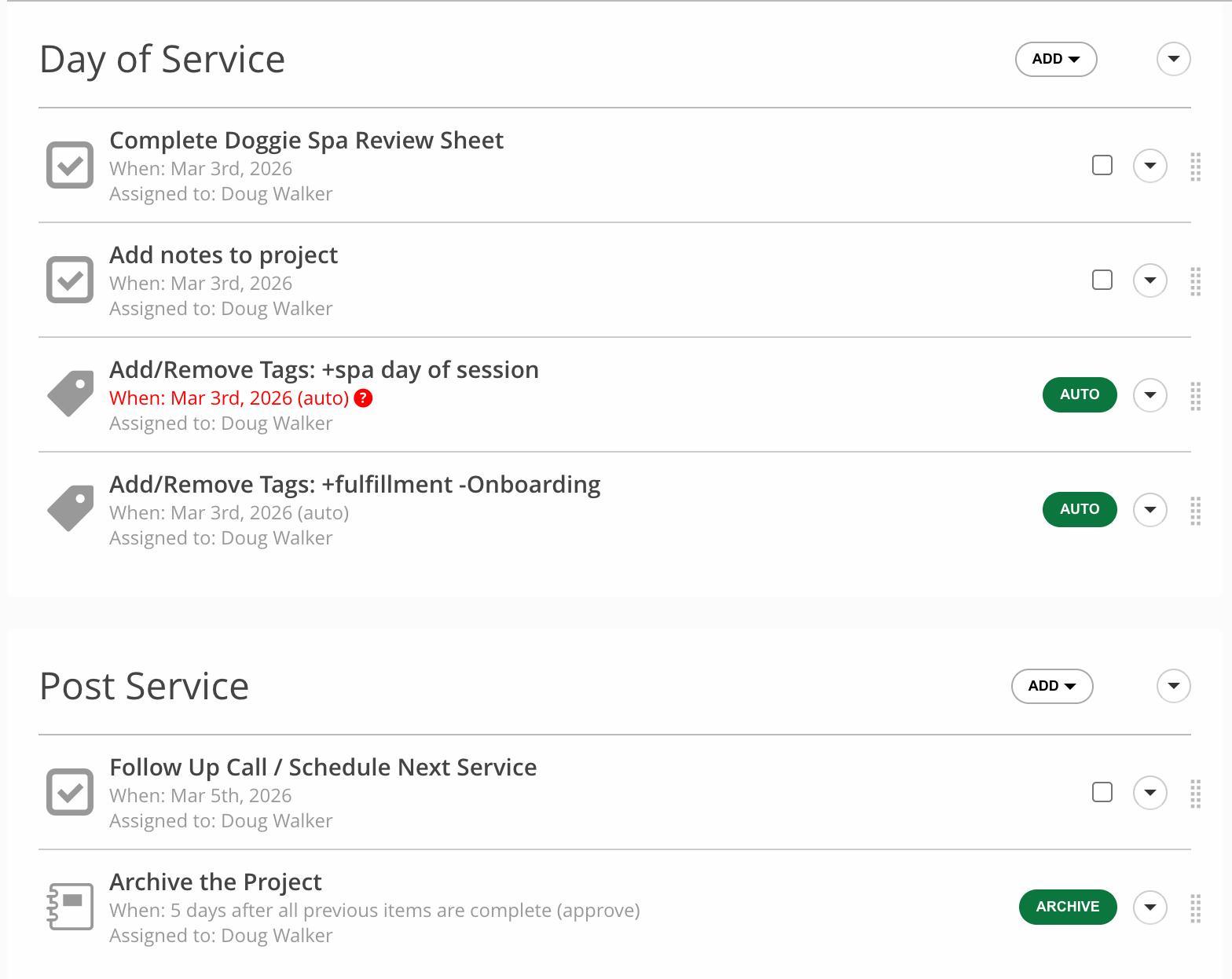
Step 1: Outline a Workflow for each phase and outcome of your client experience.
I suggest working on your Lead and Booking Workflows first.
Step 2: Create the Templates you need for your Workflow. If you are sending a document, you will need to create an email to deliver that document. Make sure the email type is set for the desired action.
Example: If you are sending an Invoice, the email template that will deliver the Invoice is set to Invoice Type.
Step 3: Create your Workflow inside 17hats. Add To-Do Steps and Action Steps in order from the start to finish of your process. Refer to page 18 for the anatomy of a Workflow Step.
Step 4: Connect to other 17hats Functionalities. How will your Workflow be triggered? There are 9 ways to trigger a Workflow (see page 26) within Lead Capture Forms, Online Scheduling, Workflows, and Projects. Read more about our new Start/Stop Workflow Automation on page 8.
Once you have decided how the Workflow will be triggered, set that up.
Step 5: Test your Workflow. Testing is a very important step that is highly recommended. Test using a personal email address or one not associated with your 17hats account. Then you can see your new process unfold from the contacts’ POV as well as yours.
Creating a Workflow doesn’t have to be intimidating. You can start slow with a one-step Workflow. Test it, live it, and then when you are comfortable, add more steps. And of course, if you need any help, write to our support team or check out 17hats University.



What Do You Do With the Time Automation Gives You?
Have you ever said out loud, “Gosh, I wish there were more hours in the day.”?
Or, “This week went by way too fast — I still have so much to do.”
Of course you have. You’re running a small business.
The days fill up quickly. Emails. Quotes. Follow-ups. Scheduling. Reminders. Invoices. Answering the same questions again and again. None of it is dramatic. None of it feels optional. But all of it adds up.
That’s where automation comes in.


Automation isn’t about doing more with your time. It’s about creating enough space to do better with it.
Right now, many business owners are stuck in the weeds — manually responding to every inquiry, building every quote from scratch, juggling scheduling through email threads. It works… but it’s reactive. And reactive work keeps you busy without necessarily moving you forward.
When we asked 17hats Ambassadors what area benefited most from automation, nearly 76% said their client experience improved first.
That’s not accidental.
When workflows handle consistent communication, when online scheduling eliminates back-and-forth emails, and when lead capture forms collect the right details from the start, clients feel taken care of. They’re not waiting. They’re not confused. They know what happens next.
And you’re not carrying all of it in your head.
More than half of the ambassadors we polled estimate automation saves them 2–6 hours per week. Some save even more.
Two to six hours!
That’s not just extra time. That’s the difference between constantly catching up and finally planning ahead. That’s quite literally adding an extra workday to your week (or rest for the weekend).
So what are business owners doing with that reclaimed time? According to our survey:
• 75.8% reinvest time saved into business planning and strategy
• 72.7% use it for marketing and visibility
• 66.7% protect personal rest or time off
• 57.6% improve their craft or services
In other words, they’re not filling the space with more busywork. They’re using it to level up.
“Automation gave me back my peace of mind,” shared Elle Sanders. “With automations, I can close those tabs in my head and let 17hats do the tasks for me.”
Stephanie Lee said it gave her “the ability to create more.”
Magdalene Mahairas shared that it gave her “the ability to be a human and have my business still run when life is hard.”
And when systems are running without constant oversight?
“I feel like a total boss… and a huge sense of relief,” said Jaimie Dee.
Here’s the practical part.
If you’re not automating yet, start small:
• Create one workflow for your most common client experience.
• Turn on online scheduling for consultations.
• Add a choose from a list question to your lead capture form and let it trigger a workflow.
• Automate invoice reminders so you’re not chasing payments manually.
Your automation doesn't need to be complicated, but you do need repeatable systems for repeatable tasks. Then YOU get to decide what that time is for.
Better client relationships. Stronger marketing. Sharpening your craft. Planning your next move.
Or simply stepping away without everything falling apart.
Automation isn’t about replacing you. It’s about removing friction so you can focus on what actually grows your business.
If you’ve ever wished for more hours in the day, this is your answer. Not more time. Just better use of the time you already have.
Workflows have to start somewhere. The good news? You have more trigger options than you might think. From Lead Capture Forms to Online Scheduling to Project Tags, here are nine smart ways to activate your Workflows and keep your projects moving automatically.
#1
#2
Start A Workflow Manually
From the Project page, add a Workflow and select the base date the Workflow will revolve around.
From A Lead Capture Form
When triggering a Workflow from a Lead Capture Form, each lead that submits the form will receive the same Workflow.
#4
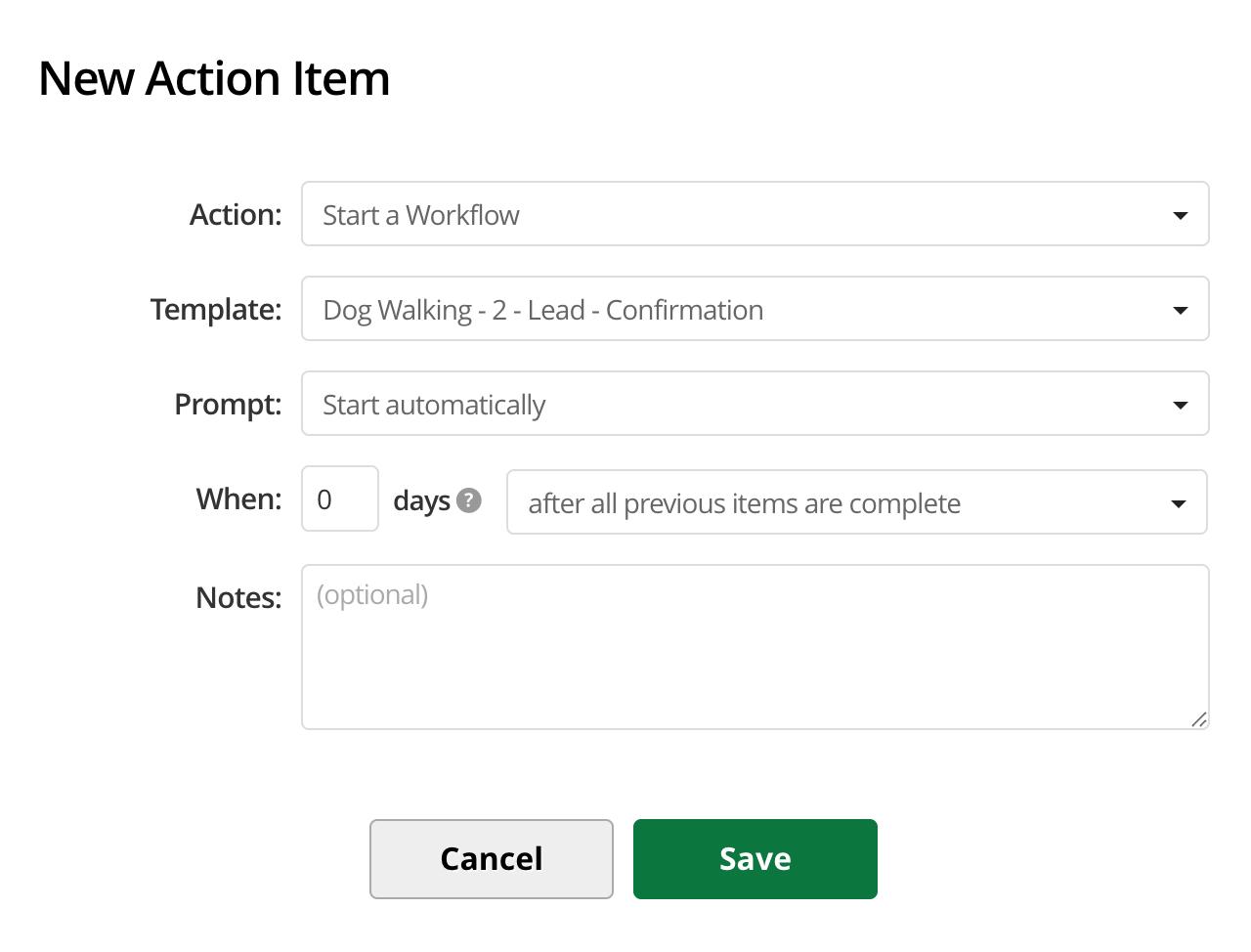
Workflow Action Step
#3
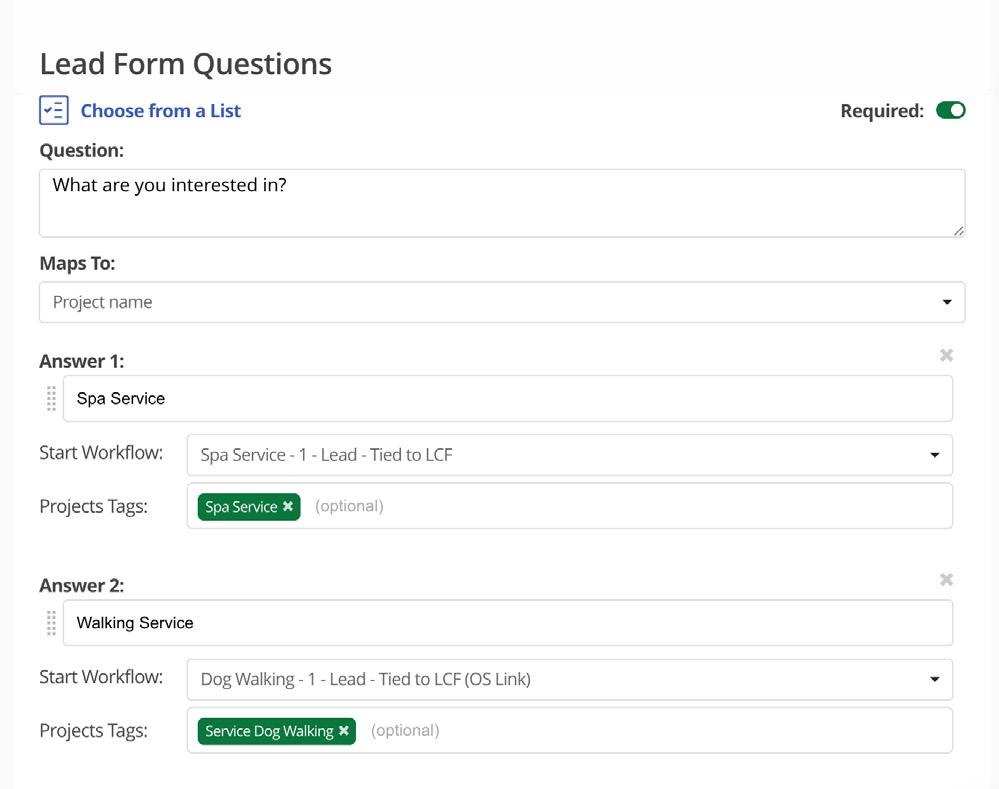
Lead Capture Form > Choose from a List Question
Add a Choose From a List Question and ask “What are you interested in?” Then list all of your revenue streams. Trigger a Workflow from the revenue stream creating a personalized experience for that specific revenue stream.
Add an action step in one Workflow to trigger another Workflow. This is a great way to daisy-chain Workflows together.
#5
Online Scheduling > To Be Confirmed
Need a contact to do a few extra steps before confirming their booking? Trigger your Workflow from this section and add a Confirmation Action Step so the booking is automatically confirmed. This is a great option if you need the contact to complete a full Quote, Contract, and Invoice, before confirming their booking.
#7 Projects Page > Bulk Actions
Online Scheduling > Confirmation
When a booking is confirmed, automatically trigger a Workflow. This Workflow will trigger upon confirmation, which means it will start upon booking if To Be Confirmed is turned off or upon approval if To Be Confirmed is turned on. #6
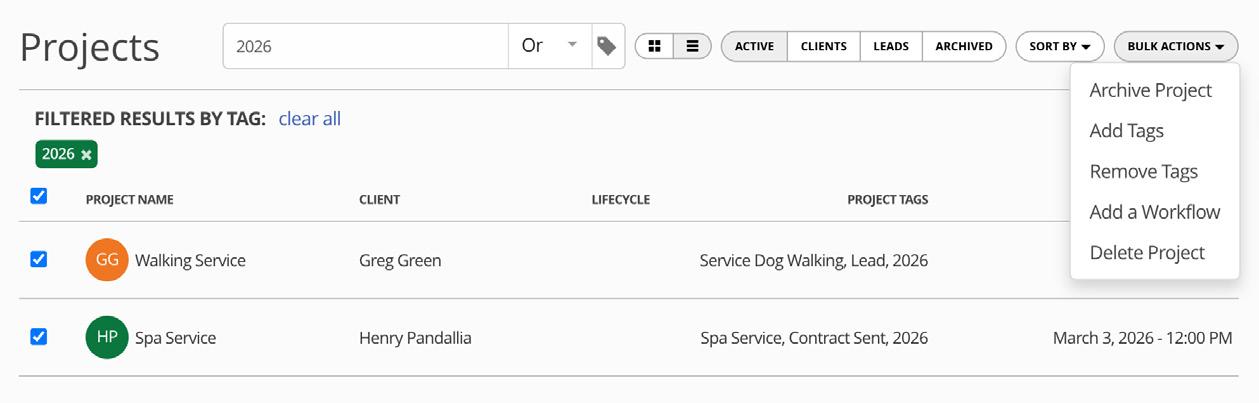
From the Project Page List view, select one or more projects and apply the Workflow bulk action. This is a great way to stay top of mind with past clients. By tagging your clients with the year tag “2026,” you can reengage next year easily.
#8
Adding an Event Inside a Project or Calendar
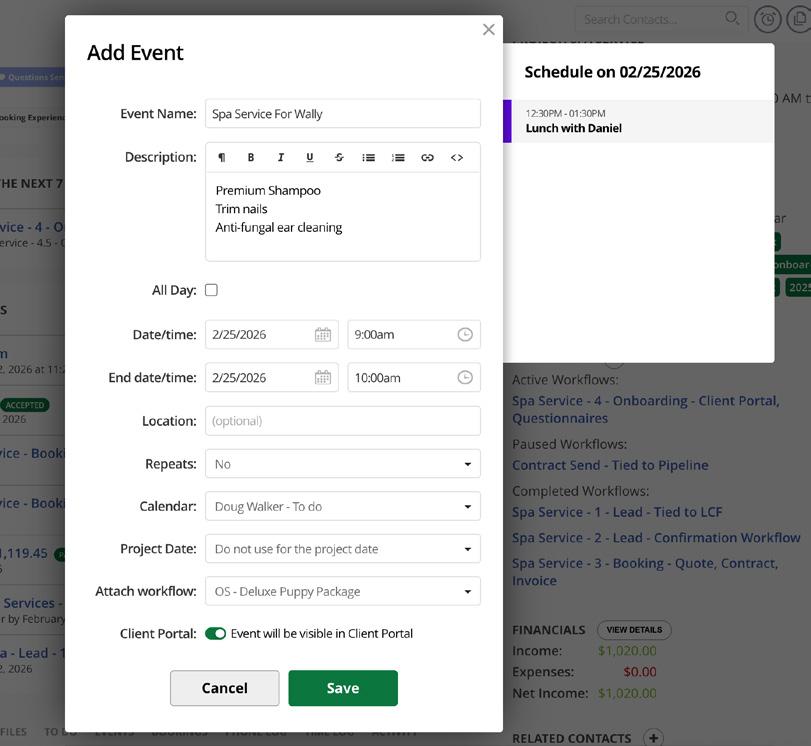
When adding an Event (Such as a phone call or a meeting), you can add a Workflow that will automatically trigger when the event is saved. The Workflow will use the event as the base date for the Workflow.
New Feature! Start/Stop Workflow Automation
Trigger a Workflow (and even pause a Workflow) by applying a project tag either manually or automatically. Read more on the page 8.
Mastering Tokens in 17hats
WRITTEN BY JEBB GRAFF
Writing an email isn’t the issue; it’s writing the same email over and over again that's the issue. It’s tedious, which creates mistakes. Communication starts to drift from one client to the next. Which weakens brand consistency and the client experience.
That’s where Tokens in 17hats templates earn their keep.
What Tokens Do
A Token is a placeholder connected to a specific data field in 17hats. When a Token is used in one of your templates or a Client Portal we replace that placeholder with real data from your account information, Contacts and Projects, Documents, and Online Scheduling Services depending on the Token you use.
The message becomes personalized automatically for every project that uses that template. These aren’t the only Tokens available, of course, you can see a complete list of Tokens in our help article here.
Same structure. Different data. Zero manual edits required.
Less typing. Fewer mistakes. More consistency.
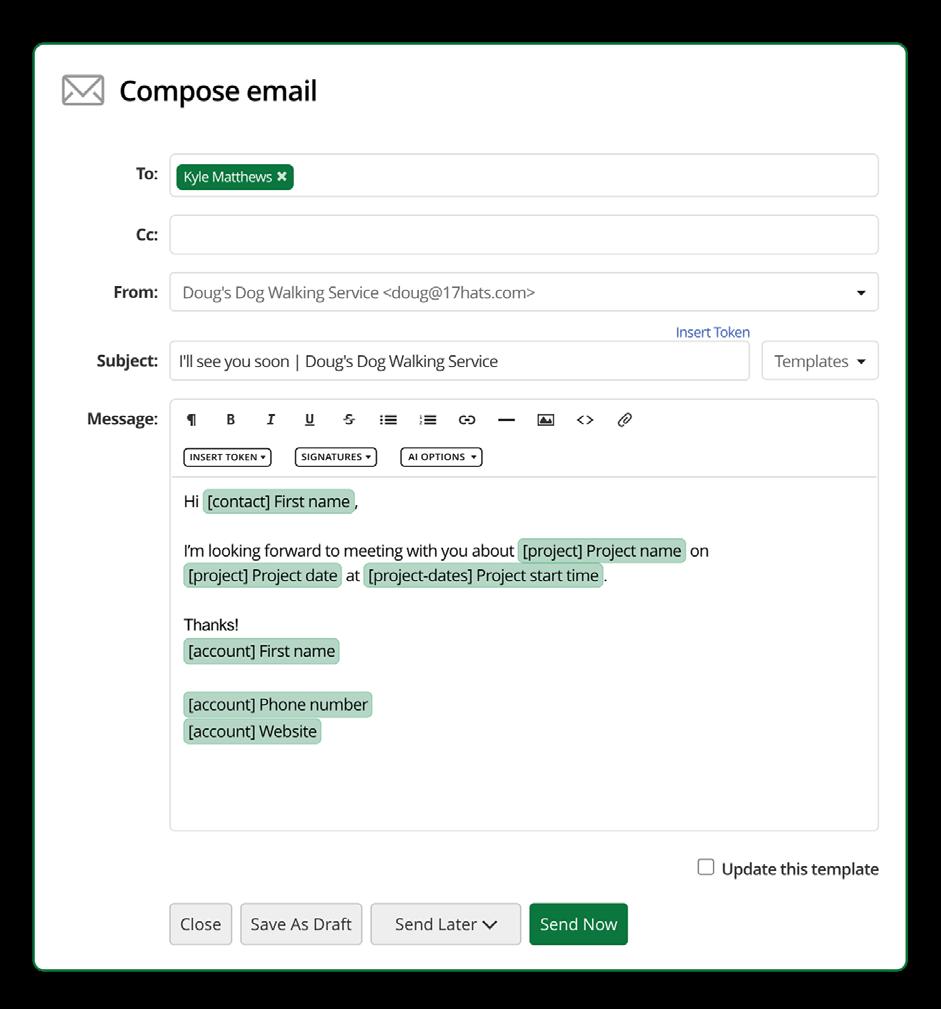
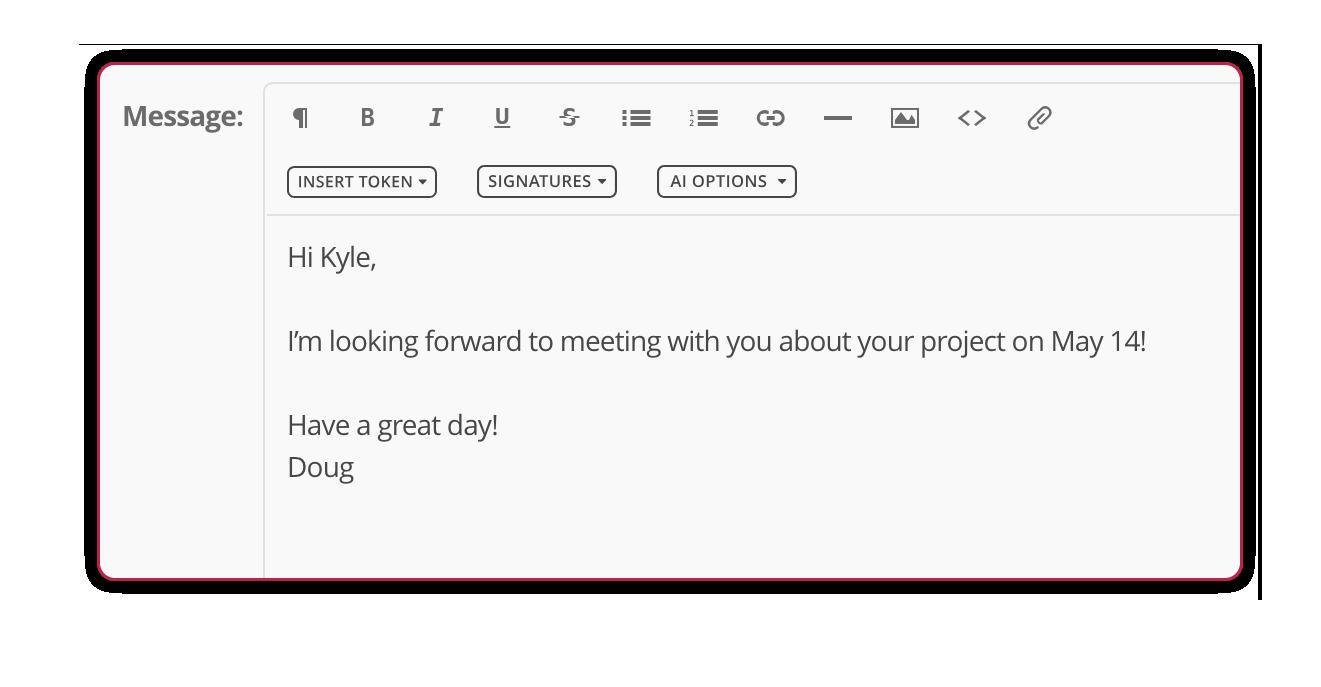
Tokens turn your email templates from impersonal text into personalized communication. Instead of manually typing common things like name, project date, invoice total, or location, you insert a Token once inside your templates. 17hats replaces the Token with the correct information from your Contact’s data or their Project's data when the email is sent.
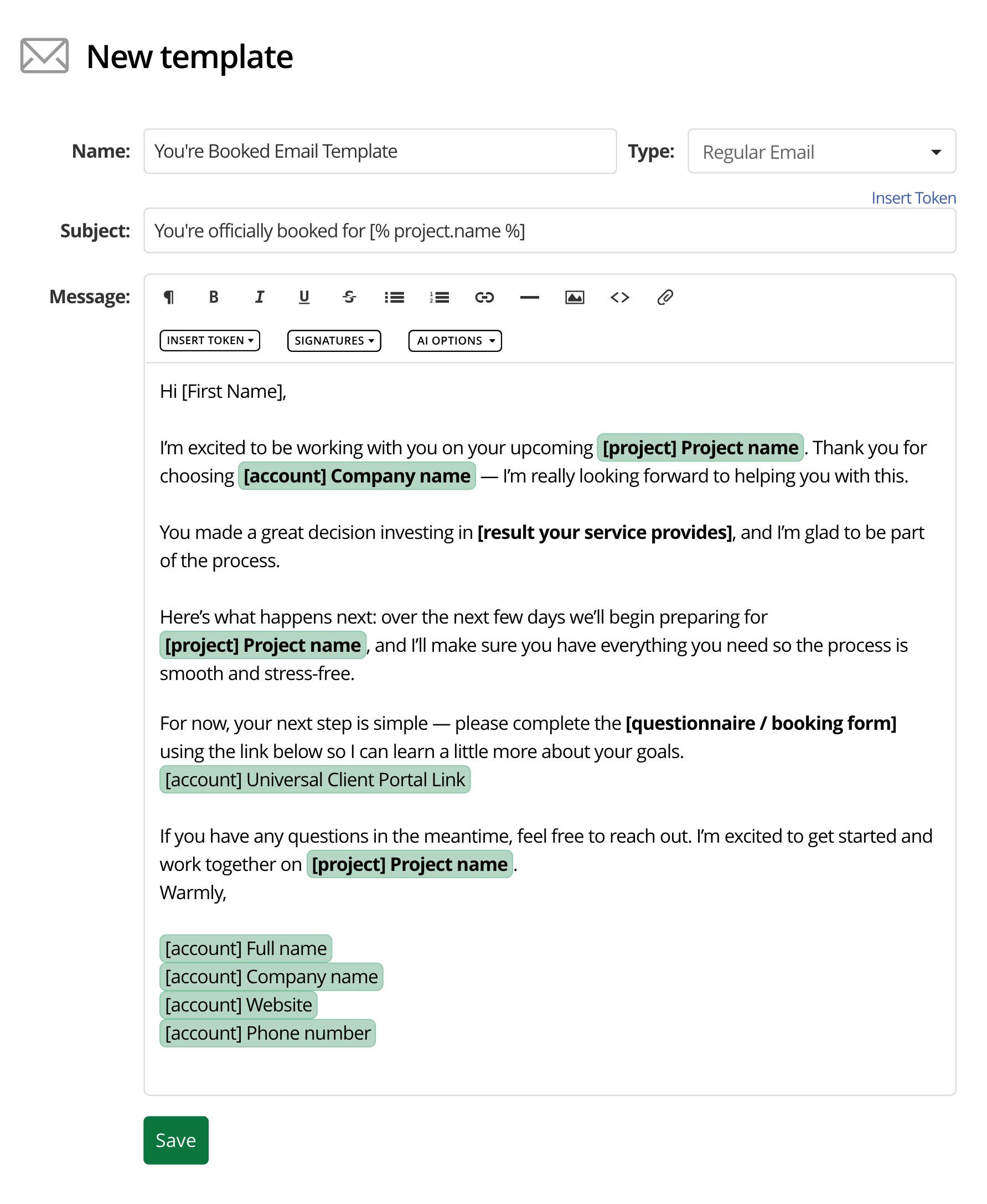
Take A Look: Before & After Tokens
17hats Vocabulary
The green highlighted words in an email are Tokens. Instead of writing out each email, save time by inserting the appropriate Tokens in a template.
DOCUMENTS in 17hats refers to Quotes, Contracts, Invoices, and Questionnaires.
Where Does 17hats Get The Information?
There are different types of Tokens in 17hats. Account, Contact, Project, Scheduling, and even Tokens for different types of documents.
Account Tokens use information from your Account Settings. Examples include your name, company name, company location, etc.
Contact Tokens use information from the Contact Details section of your individual contacts. Examples include your Contact’s name, email, phone, address, etc. Project Tokens use information from your Contact’s Project. Examples include Project name, Project date, Project start and end times, etc.
Scheduling Tokens use information from an online scheduling appointment/booking. Examples include online scheduling service names, locations, and location notes, etc.
Document Tokens: When sending documents, you can select from a variety of Tokens that relate to that specific document. Examples include invoice total and invoice due date.
Where & How To Use Tokens
If it can be templated, it should be tokenized. Easily open your template, and add your tokens within your text.
• Quotes
• Contracts
• Invoices
• Questionnaires
• Emails
• Client Portal Welcome Message
• Email Signatures
• SMS Text Messages
• Products and Services
Cool Trick, But Why Does It Matter?
Without Tokens, you copy and paste. You edit. You double-check. You occasionally miss something. That costs time and introduces risk. Have you ever accidentally sent an email you copied from some other email and forgot to change the name or other details? It’s not only embarrassing, but it could potentially cause your contacts to lose trust or feel like they are unimportant to you.
With Tokens, your system handles personalization. Every client receives consistent language, correct data, and a polished experience. That consistency strengthens your brand because your communication feels intentional,
not improvised, rushed, or in the case of forgetting to edit a copy/paste job – clumsy and careless.
Client experience is shaped in every interaction. Consistency matters, especially when referrals expect the same experience they were promised.
Start Small
If you like what you’ve read but you’re feeling overwhelmed because you have lots of templates, don’t sweat it. Start with one email template. Replace anything you can with Tokens. Test it. Then move to your next template.
You don’t need to overhaul everything in one day, and once you see how well they can work for you in a single email, you’ll likely start to see lots of opportunities to personalize your client experience using Tokens.
Every minute you spend manually drafting or editing templates is a minute you’re not serving clients or building your business. Let 17hats handle the repetition so you can focus on the work that actually requires you. Your clients may never know what a Token is, but they will notice when your communication feels polished, personal, and intentional.
Pro Tips
When creating Lead Capture Forms, Questionnaires, and Online Scheduling Services questions, look for the “Maps To” field to match entries from those forms to fields that have available Tokens for further customization of your templates.
Create your own Custom Fields for Contacts and Projects for commonly used information. Data can include: Video Links, Names of Pets, Deliverable URLs, etc. Custom fields automatically create a Token so the data can be reused. This is great for further customizing your templates!
Use Tokens in the subject lines of your email templates for personalization and searchability.

100 Ways
Money
1. Turn on Online Payments for clients to pay you online.
2. Add Sales Tax on Products and Services to autogenerate your sales tax report.
3. Connect your Expense Account to 17hats Bookkeeping.
4. Add Transaction Categories to Products and Services for better reporting.
5. Add Payment Schedules to Invoices for easier payments.
6. Require partial or full payment via Online Scheduling for fewer no-shows.
7. Add the Lead Source Question to Online Scheduling and Lead Capture Forms to track income per lead source.
8. Use a Quote, Contract, and Invoice as one document for faster booking.
9. Don’t have a Contract? Use a Quote and Invoice as one document.
10. Trigger a Workflow from a specific Product or Service on an Invoice to help you fulfill orders faster.
11. Turn on Past Due Invoice email reminders for all Invoice payments past their due date.
12. Add add-ons and upsells to the ‘Select Any’ portion of the Quote to automatically sell more.
13. Integrate with QuickBooks to send payment details over.
14. Use Meta Pixel Tracking for Online Scheduling and Lead Capture Forms.
15. Use a Recurring Invoice for the services you charge monthly for.
16. Turn on Tipping to suggest adding a tip on Invoices and Online Scheduling.
17. Turn on Google Pay and Apple Pay to get paid faster.
18. Turn on SMS Texting for past due Invoices and Payments. Coupled with Apple Pay, this creates a seamless payment experience.
19. View your Documents Page for a financial overview of your year.
20. Use the Product Bookkeeping Report to see what your most popular products are.
21. Use the Client Sales Bookkeeping Report to see who your best clients were for the year.
22. Complete full and partial refunds directly from the Invoice and send documentation easily.
23. Turn on upcoming payment reminder emails and texts to inform your contacts of a payment coming due.
24. Automate a second Quote and Invoice before the service to see if the client would like additional services.
25. Automate a third Quote and Invoice post service to see if they would like to purchase more.
17hats Helps Automate and Streamline Your Business Time
1. Create an Online Scheduling Service and Availability Calendar for order pick-ups.
2. Create an Online Scheduling Service and Availability Calendar for client phone calls.
3. Add the Zoom integration for Online Scheduling to automatically create Zoom URLS.
4. Create a business To-Do List for recurring tasks such as blogging or bookkeeping.
5. Create a Workflow to send out emails and documents.
6. Create a Workflow to add to-dos to your list.
7. Apply a bulk action via the Project Page to trigger a Workflow for multiple clients with the same Tag.
8. Create a networking project to add networking events to; now they are populated on your calendar.
9. Create a Project for people you meet at a networking event, and automate with a follow-up Workflow.
10. Create a 1:1 Availability Calendar in Online Scheduling where clients or leads can easily book a time with you.
11. Create email Templates with Tokens for repetitive emails.
12. Use Hattie when creating Email Templates for quick verbiage creation.
13. When creating an Email or Document within a Project, use the “Save as a Template” option to easily save for later use.

14. When updating Templates before sending, use the “Save Update” option to update the Template.
15. In a Contract, turn on ‘Sign after Clients’, to counter-sign the Contract via the 17hats Dashboard.
16. Review the 17hats Dashboard reminders to take action quickly.
17. Check out the Active Workflow Page to see all active Workflows and review them quickly.
18. View your To-Do page to see your priority and pastdue to-dos.
19. Add due dates to Documents, for past-due emails to be automatically sent if not completed on time.
20. Turn on Read Receipts to see if your Contact has read the emails you sent.
21. Use Recent Client Activity to see all clients who did a specific activity.
22. Check out Pipelines to see how quickly clients are entering and exiting your Pipeline.
23. View the Leads Page and organize Active Leads by Lead Capture Form Submission date.
24. Add all events associated with the project to the Project Page. Turn the project ‘off’ in the client portal if it’s an event you do not want the client to see.
25. Create a cold lead flow that automatically archives the Project at the end. Use our new Start/Stop Workflow Automation to stop the Workflow if they complete your CTA. (Read more on page 8)
100 Ways
Communication
1. Schedule Send Emails for late-night working.
2. Map Long Questions in Questionnaires to Project Notes to refer to later easily.
3. Auto Response for leads that submit a Lead Capture Form.
4. Change Calendar Workflow Action after a lead books to move the lead to your booked calendar.
5. Ask which revenue stream leads are most interested in with a ‘Choose From List’ Question on a Lead Capture Form, and trigger a Workflow.
6. In the same question, map the answer to the Project Name.
7. In Questionnaires, if a multiple-choice question includes “Other,” add a branch question for expansion.
8. Use Tokens in emails for personalized information.
9. Add Project Custom Fields to capture recurring Project information.
10. Add Contact Custom Fields to capture recurring Contact information.
11. Use the Text Opt-In Question for Lead Capture Forms and Online Scheduling.
12. Create a Follow-up Project by setting a Workflow for the date (base date) you want to follow up with the contact.
13. Add the Client Portal Link to your confirmation email so clients always have access to Project and Document data.
14. Trigger a Workflow from a Workflow.
15. Use a Questionnaire to gather information from your lead or client.
16. SMS Texting Auto Response in your Lead Capture Form for a quick hello.
17. Send past due emails for Questionnaires past their due date.
18. Turn on confirmation emails in Online Scheduling bookings.
19. Set two reminder emails for Online Scheduling bookings.
20. Use Custom Fields for tokens in emails for personalization.
21. Add a Related Contact to a Contact for multiple signatures.
22. Add a Related Contact to a Project to easily add them to emails.
23. Create a Cancellation Workflow when someone cancels via Online Scheduling.
24. Enable Completed Document emails so leads and clients automatically get a copy upon completion.
25. Create a Feedback Workflow with a Questionnaire and review after the service is completed.
17hats Helps Automate and Streamline Your Business
Organization
1. Add Related Contact question(s) to the Questionnaire to gather information about other important people in the Project.
2. Add the year Contact and Project Tag ‘2026’ to all Lead Capture Forms.
3. Use the Workflow Step, ‘Archive Project’, to archive Projects once completed.
4. Use Project Tags when you send documents and emails via a Workflow to populate your Pipelines.
5. Bulk Import Contact and Project data.
6. Bulk Import Products and Services data.
7. Use Group Online Scheduling when offering small group events, conferences, coaching calls, and/or retreats.
8. Automatically apply Tags with Online Scheduling and Lead Capture Form.
9. Use ‘Map To’ on Lead Capture Form, Questionnaire, and Online Scheduling questions to populate Contact and Project details.
10. Add location details in Online Scheduling and use Location Notes (and its Token) to give specific parking and arrival instructions.
11. Use the Company Tokens in signatures and templates; then, if something changes, you only need to change it in one place.
12. Embed unique Lead Capture Forms wherever you link to or embed them. Add the form’s location (e.g., Homepage) as a Contact Tag to track lead sources.
13. Turn on ‘allow client edits’ in Client Portal, and allow the client to edit their contact information.
14. Called a client and left a voicemail? Within the project, make a note in the phone log, then add a to-do inside their project to call them back.
15. Use Bulk Actions on the Projects Page to Archive multiple Projects at once.
16. Manually use a Lead Capture Form from the Leads section for when a lead inquires through phone call or email.
17. Use the Pipeline ‘day’ option after a lead inquires to see how stale they become.
18. Use Contact notes to add important details you need to remember for when they are a return client.
19. Turn off Projects you do not want your clients to see in Client Portal.
20. Add a Google Drive or Dropbox Link to Custom Project Fields. Then create a custom Client Portal message and add links via Tokens.
21. Archive Contacts you no longer work with. This will automatically archive all Projects associated with the Contact.
22. Create a leads calendar to which all new inquiries coming in via the Lead Capture Form are added to.
23. Add your bookkeeper as a User on your 17hats account and restrict access to bookkeeping.
24. Automatically apply Contact and Project tags via the Tagging Action Step.
25. Pause Active Workflows that you no longer need.
How to Stop Chasing Leads Across 10+ Platforms (10-Minute Fix)
WRITTEN BY DANIELLE UHL
As solo-business owners, we’re busy. But if you feel like you’re constantly checking DMs and notifications across platforms, refreshing your inbox, and waking up in the middle of the night wondering, “Did I ever respond to that person from Instagram?”, you’re not alone. Many of us are bleeding time and letting leads slip through the cracks because there’s no single, consistent way new inquiries enter your business.
Here, I’ll give you one clear, 10-minute fix to go from chasing scattered leads to a single, streamlined process.
Problem: Leads Across Platforms
Think about where leads come from: Your website
• Social channels
• Email you directly
• Directories and lead sites (The Knot, WeddingWire, Thumbtack, etc.)
• An occasional text from someone you met at a networking event
• Or even from an old free resource shared on a podcast interview years ago
As messages come in, you’re likely responding to them one-by-one, trying to keep up with inconsistent replies, remembering who you responded to, who’s warming up to hire you, and who’s near ghosting you.
Whether you’re keeping it in your head or you have a spreadsheet tracker, it still quietly costs you money as people slip through the cracks or wait too long for a response and hire someone else instead.
Fix: One Simple, Repeatable Process for Every Lead
This isn’t about trying to fit everyone into a box or crafting an AI auto-generated response that sounds nothing like you. Instead, you design a simple, repeatable first step for interested people to reach out that makes it easy for you to manage.
The 10-Minute Fix
Step 1: Outline Your Simple Inquiry Process
When a potential client is interested in working with you, what should that first step look like?
Right now, you might say they just “reach out.” But what can a real process look like to quickly, professionally, and seamlessly get them from thinking about working with you to hiring you.
Here’s what I recommend: Simple Lead Capture Form with key questions > Discovery Call/Consultation > Quote.
Step 2: Design Your First Step
Based on this first step, decide which 17hats feature makes the most sense for your business or specific offer:
Option 1: Lead Capture Form – This is ideal if your service is more straight-forward and doesn’t need a call to move forward, or you find that people have hesitations booking a call and might want to get more information first. (Can be typical for Photographers, Website Designers, Event Planners, Entertainment, Travel Planners, etc.)
Option 2: Online Scheduling Service – This is ideal if you offer more of a custom service or need a discovery
call to pre-qualify and better understand what your leads are looking for to move forward. (Can be typical for Coaches, Consultants, Virtual Assistants, etc.)
Don’t get caught up in this – choose the option that fits your business best (you can always try the other option later to test which converts higher).
Step 3: Build Your Form with 4 Key Questions
As you build your lead capture form or online scheduling service, make sure to add a few key questions to help you understand the information you need to help leads move forward.
4 Key Questions to Consider:
1. Type of service they’re interested in
2. Any specific date, timeline, or deadlines
3. Any offer-specific questions or must-have information
4. Ask them to share specific details about what they’re looking for
Stick to five questions or fewer – remember you can always ask more questions on a call.
Step 4: Create Your Personalized Template Reply
Here’s where you actually create your simple, repeatable process! New leads can continue to reach out to you across various platforms. But instead of wasting hours with back-and-forth conversations or letting leads slip through the cracks, you design a consistent template reply that you can personalize per lead that seamlessly leads them to the next step, without losing your personal touch.
What
to Include:
• Hey [name], thank you for reaching out about [what they’re interested in]
• Respond to their specific message, questions, etc.
• CTA: “To help me better understand what you’re looking for, here’s a quick form or book your call here” [and include your Online Scheduling link].
• Wrap up by helping them feel excited about taking that next step
Save this template reply where you can easily copy/paste it whenever a new inquiry comes in.
Step 5: Update Your Platforms with “Start Here” CTA
Now time to update all platforms with your new form link as the ONE, crystal clear action you want people to take – i.e., “Start Here.”
• Update your website CTA buttons and/or embed on your Contact page
• Update your CTA link on each social media channel
• For all other emails, inquiries, or messages, use your new template reply
As a result, all new leads will feed directly into 17hats, where you can manage them all in one place –giving you back hours, quality sleep, and not to mention your sanity.
Your 10-Minute Action Plan
Here’s a quick checklist for your next steps:
• Outline your simple inquiry process
• Decide if you’ll use a Lead Capture Form or Online Scheduling Service
• Build your chosen form with 4 key questions
• Write your personalized template reply with the link to your form (save it somewhere it’s easy for you to copy/ paste when you need it)
• Add your form link to your website, social channels, email signature, etc.
4 Ways

Can Help You Right Now
AI in your business isn’t just a buzzword — when it’s built into your daily tools, it can save you real time and reduce friction. That’s exactly what Hattie AI, 17hats’ OpenAI-powered assistant, is designed to do. Instead of staring at a blank email or overthinking your wording, Hattie helps you get words on the page — quickly and professionally.
Here are four ways you can use Hattie AI to take work off your plate and give yourself a little breathing room in your day:
1. Draft Emails in Seconds
Whether you’re responding to a new inquiry or following up with a client, writing emails can take time. With Hattie, you can simply describe what you want to say — like “Write a friendly follow-up after a consultation” — and Hattie generates a full draft you can tweak and personalize.
This is especially helpful when you’re staring at a blank screen or struggling to find the right tone. Instead of spending 10–20 minutes composing a message, you get a solid first draft instantly.
2. Improve Existing Messages
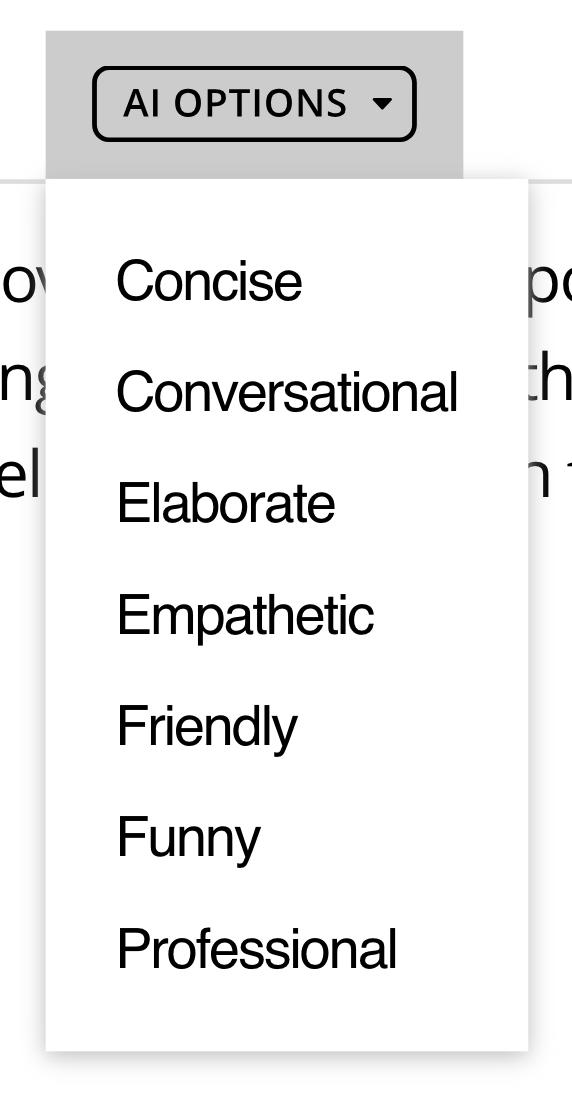
Already have an email drafted but it sounds flat or too formal? Hattie can revise what you’ve written to make it more clear, friendly, professional — whatever voice you choose. Just paste your text into the editor, hit AI Options, and select a tone.
This makes your client communication feel more polished, consistent, and personalized without rewriting everything yourself.
3. Reply to Client Emails Right in 17hats
If you connect your email server to 17hats, Hattie can help you reply to actual client emails straight from your inbox inside the platform. She’ll look at the most recent message and draft a thoughtful response you can review and send.
That saves time, keeps all your communication in one place, and helps you stay on top of replies even when your inbox is full.
4. Write Better Service Descriptions for Online Scheduling
Hattie isn’t limited to emails, she can also help you write clear, engaging service descriptions. When you’re
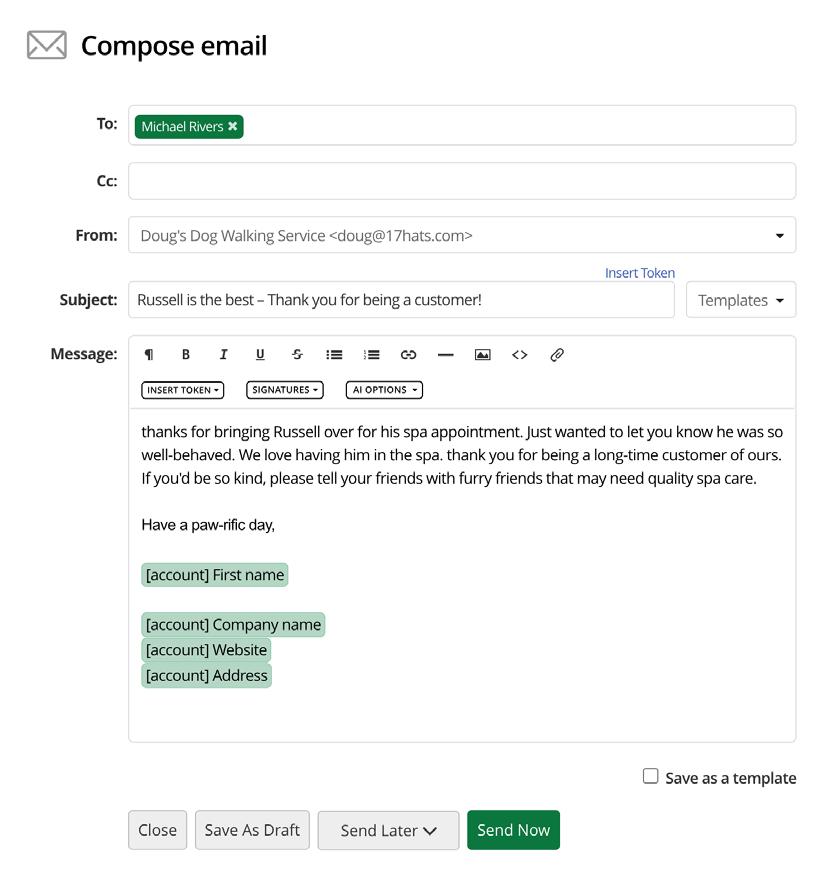
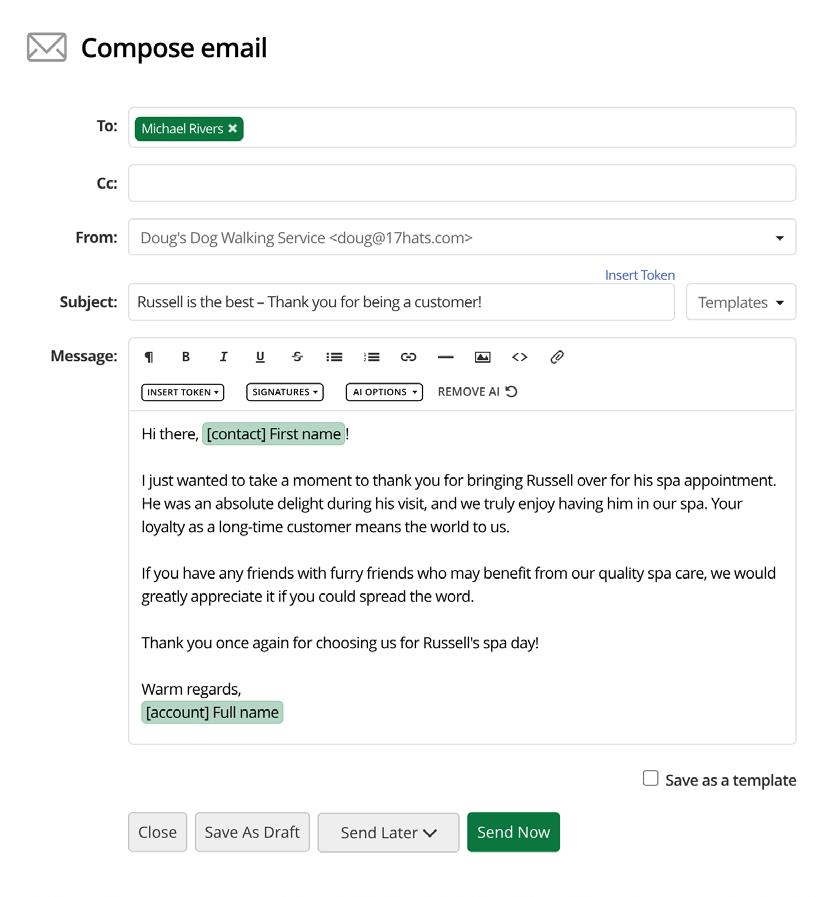
setting up your Online Scheduling Services, Hattie can take a brief prompt and turn it into polished language that helps clients understand exactly what they’re booking.
This means fewer questions later, fewer edits, and a smoother booking experience for everyone.
Final Thought
Hattie doesn’t replace your voice, she enhances it. You still proofread and personalize every message, but you don’t start from scratch. Whether you’re drafting a message, revising your tone, responding to clients, or writing service copy, Hattie helps you do it faster and with less stress.
Because in a small business, every minute counts — especially when it’s time you can spend on clients, creativity, or simply taking a breather.

Hattie Prompts You Can Use Today.
Not sure what to type into Hattie? Be specific about the situation and the tone you want. The clearer your request, the better the result.
Here are some realistic prompts you can try:
When You Don’t Know How to Start
• “Write a friendly but confident response to a client asking for a discount.”
• “Help me respond to a client who wants to add additional services to their package.”
When You Need to Communicate Clearly
• “Write an email explaining my turnaround time for [insert service here].”
• “Explain what’s included in my full-service package in a clear and simple way.”
• “Draft a message outlining what clients should prepare before our consultation call.”
When You Need the Right Tone
• “Rewrite this email so it sounds warm but still professional.”
• “Make this message more direct without sounding harsh.”
For Online Scheduling Descriptions
• “Write a compelling description for a 45-minute [insert service here] session that explains who it’s for.”
• “Describe my consultation call in a way that makes it feel approachable and valuable.”
Marketplace
Services Support When You Need It Most
Vetted service providers ready to help you refine and streamline your systems
The 17hats Marketplace is home to trusted service providers who help turn good intentions into fully working systems. Marketplace Services are designed for business owners who know what they want to improve, but would benefit from experts on how to do it well.
Whether you need help setting up workflows, auditing your account, refining your client experience, or offloading operational tasks entirely, these providers meet you exactly where you are.
Each Marketplace Service Provider is carefully vetted and approved by the 17hats team. Each of them have proven experience and a deep understanding of how to build effective systems inside the platform.
Instead of figuring everything out alone, Marketplace Services allow you to collaborate with professionals who’ve already built, tested, and refined the systems. Think of it as targeted support, personalized, and designed to help your business move forward.
Meet Your Marketplace Service Partners


Donna Lee Lyttle Speaker Concierge
Donna Lyttle supports speakers behind the scenes so they can stay focused on the stage. With expertise in engagement research, pitch development, follow-ups, and financial organization, she brings structure and polish to speaker businesses. Donna is the operational partner speakers trust to stay organized, professional, and consistently booked.
Deb Mitzel Small Business Systems Strategist
Deb Mitzel brings nearly 30 years of business experience to helping small business owners strengthen the systems behind their success. A longtime 17hats user, Deb specializes in CRM setup, consulting, and practical business strategy that helps owners confidently run the “business side” of their work.
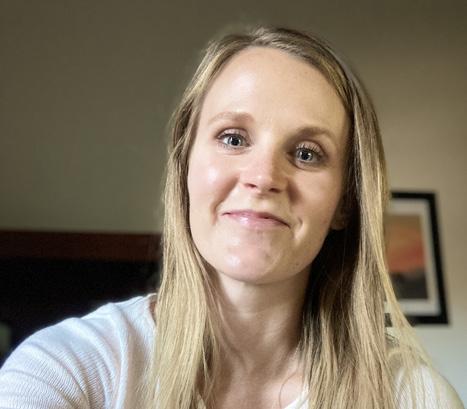





Nicole Larson
Small Business Systems Consultant
Nicole Larson helps creative businesses go from scattered to scalable through smart systems and workflows. With a love for details, spreadsheets, and streamlined processes, she’s especially known for supporting balloon business owners using 17hats. Nicole believes sustainable growth starts with systems you can actually maintain.
Kristen Lettini Systems Strategist & Workflow Expert
Kristen helps service-based business owners build 17hats systems that truly stick. With a background in marketing, operations, and communications, she focuses on workflows that reduce mental load and improve client experience. Her audits, VIP builds, and templates are designed to make your CRM feel clear, usable, and supportive.
Danielle Uhl Certified Coach & Business Consultant
Danielle Uhl blends strategy, systems, and coaching to help small businesses grow without overwhelm. With experience scaling multiple businesses and a deep knowledge of 17hats, she offers templates, custom builds, and operations consulting designed to support long-term, personalized success.
Will Wohler Headshot & Portrait Photographer
Will Wohler specializes in helping people see themselves with confidence. Through a thoughtful, guided portrait process, he helps clients break through insecurities and reconnect with the work and purpose that matters most to them. His approach blends artistry, authenticity, and deep care for the client experience.
Kira Derryberry Photographer & AI Educator
Kira Derryberry is a photographer, educator, and AI consultant who helps small business owners work smarter with technology. Through Boss Level AI, she teaches practical AI strategies that save time and support growth. Kira relies on 17hats to keep her business organized so she can focus on education and impact.
Danielle Hardesty
Photographer & Virtual Assistant
Danielle Hardesty combines photography, virtual assistance, and systems expertise to help businesses show up authentically and run smoothly. A former educator turned entrepreneur, she’s helped dozens of businesses set up 17hats accounts with clarity and care, all while balancing creativity, organization, and connection.
Share Your Secret to Business Success
Turn your business savvy into cash rewards by simply sharing 17hats.
Referring 17hats is a win-win. You’ll earn $50 for every new member who joins using your link — and there’s no limit to how many rewards you can collect.
Even better? Your friends get a huge head start with 50% off their first year or first two years of 17hats. That’s up to $400 in savings for them, just for being connected to you. It’s an easy way to support fellow business owners while putting extra cash in your pocket.

3 Easy Ways To Refer 17hats:
1. Invite a business friend to book a live 1:1 17hats Walkthrough
Share your referral code and send them to meet with a 17hats expert to see if 17hats is a good fit for their business. Your referrals can book a 1:1 directly from the 17hats.com
2. Share on Social Media
Post about how 17hats helps you — and include your link. Include before/after stories or screenshots! Business owners love seeing behind-the-scenes.
3. Send a Personal Message
Reach out to a business friend with a quick text or DM: “Hey! If you’re still juggling client stuff manually, you should check out 17hats. Here’s my referral link for 50% savings — it’s a no brainer!”
Find Your Referral Code & Link!
Head to your 17hats account settings and click the “Referrals” tab to copy your unique referral link. Your referred friend can use your code when signing up for a trial or upon checkout. You can also send them your link that allows your referral to directly buy now.
Want to get more out of 17hats without the guesswork? Our top tutorials are the fastest way to learn, implement, and level up your business systems — no tech degree required. Each video walks you through key tools and features step-by-step, so you can spend less time figuring things out and more time doing what you love.

Learn how to create and use Custom Fields in 17hats to track important details.

Learn how to use Hattie in 17hats to draft emails, improve tone, and reply to clients faster.
Craving MoreEducation?

Learn how to use Tokens in 17hats to auto-personalize emails and templates.

Learn how to bulk change Project calendars in 17hats using a one-step Workflow and Bulk Actions.

Head over to 17hatsUniversity.com and blog.17hats.com to dive deeper into both business and 17hats education. Bookmark both sites and check back weekly for fresh insights and tutorials.

Upcoming Conferences
Collaborations that Monetize Summit: March 16-18, 2026
Break free from the solopreneur grind and partner your way to $100k
A FREE 3-day virtual summit designed to help you: Discover proven collaboration strategies that will skyrocket your revenue and visibility. Find and attract your ideal partners who will elevate your business. Monetize your collaborations and convert clients!
Attend this free virtual event!
ShutterFest in St. Louis, MO: April 7-9, 2026
ShutterFest is an annual photography event that brings together thousands of professional photographers, photo enthusiasts, and industry experts from around the world. ShutterFest offers hands-on classes, interactive experiences, and networking opportunities that help attendees develop their skills, build relationships, and grow their businesses.
Visit 17hats at the trade show – Booth #39!
SF+ Featuring Amanda Rae on Friday, April 10 at 1:30 PM

17hats Resources

Deep dive into our blog and learn how 17hats can help you manage your business better.

Listen to our HatsOff Podcast for business tips and tricks with our CEO, Amanda Rae.

Check out our University for 17hats tutorials, workshop replays, live events, and more.
Ambassador Events



Small Business Automations: How to Automate When Every Client Situation Feels Different
Thursday, March 12, 2026
1:00 PM PT / 4:00 PM ET
Location: Virtual
Learn how to build smart, flexible automations—without losing your personal touch—so you can stop reinventing the wheel with every “unique” client and finally let your systems do some of the heavy lifting.
onlinebusinessmanagementstrategies.com
17hats Power Hour: Custom Fields
Tuesday, March 17, 2026
11:00 AM PT / 2:00 PM ET
Location: Virtual
Join 17hats Ambassador Deb Mitzel, for her 17hats Small Business Success Series: Power Hour. This series is dedicated to learning more about a 17hats feature, including use and set it up and Q & A after the feature presentation.
debmitzelcreative.com/workshops
Build a Smarter Document Reminder Strategy in 17hats
Wednesday, May 6, 2026
10:00 AM PT / 1:00 PM ET
Location: Virtual
Join 17hats Ambassador Kristen Lettini for a live working session on refining your document reminder emails and texts. We’ll map out when to send reminders and upgrade the language so it feels human — not generic. Replay included.
Click here to register
You Bring The Talent We Bring The Tools
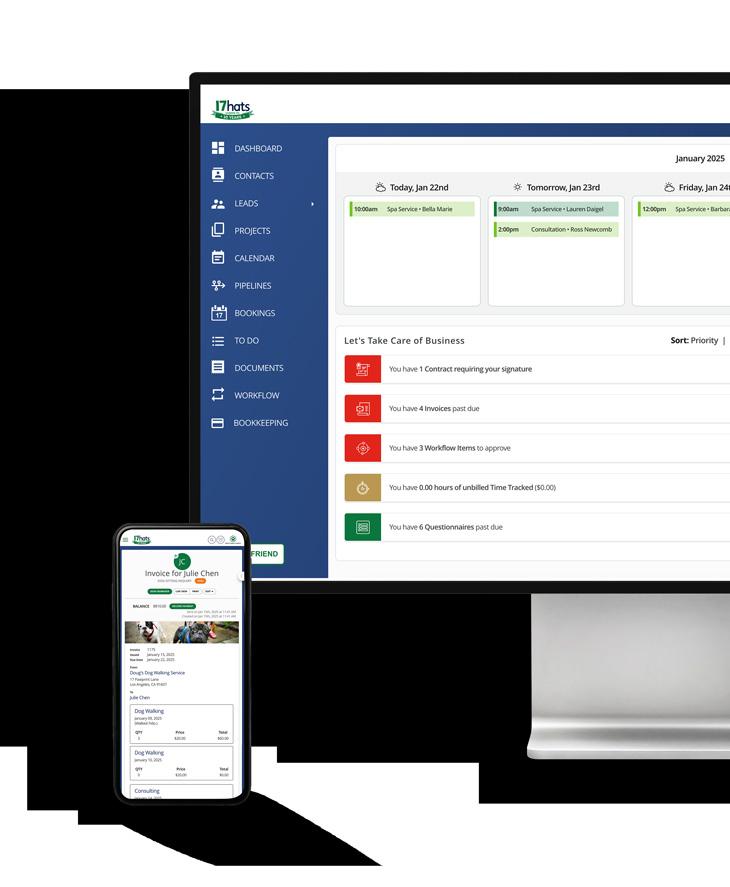
17hats is the all-in-one business management platform you didn’t realize you need — but soon can't imagine yourself living without. Together, we'll take your business to the next level. START A 7-DAY TRIAL

Words From A Pro
“17hats online booking lets clients schedule themselves, saves me hours, and keeps my photography business running smoothly.”
– Vail Fucci, Vail Fucci Photography


Process Creates Freedom.