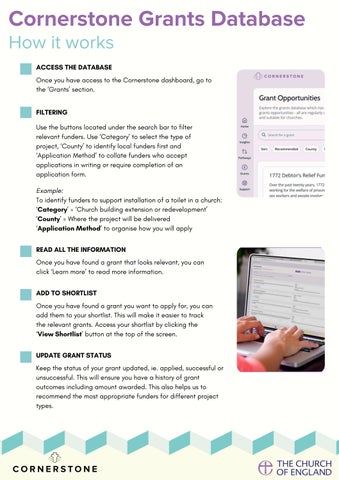
Cornerstone Grants Database How it works ACCESS THE DATABASE Once you have access to the Cornerstone dashboard, go to the ‘Grants’ section. FILTERING Use the buttons located under the search bar to filter relevant funders. Use ‘Category’ to select the type of project, ‘County’ to identify local funders first and ‘Application Method’ to collate funders who accept applications in writing or require completion of an application form. Example: To identify funders to support installation of a toilet in a church: ‘Category’ = ‘Church building extension or redevelopment’ ‘County’ = Where the project will be delivered ‘Application Method’ to organise how you will apply READ ALL THE INFORMATION Once you have found a grant that looks relevant, you can click ‘Learn more’ to read more information. ADD TO SHORTLIST Once you have found a grant you want to apply for, you can add them to your shortlist. This will make it easier to track the relevant grants. Access your shortlist by clicking the ‘View Shortlist’ button at the top of the screen. UPDATE GRANT STATUS Keep the status of your grant updated, ie. applied, successful or unsuccessful. This will ensure you have a history of grant outcomes including amount awarded. This also helps us to recommend the most appropriate funders for different project types.
Issuu converts static files into: and more. Sign up and create your flipbook.